

A sluggish Windows 11 PC rarely needs a scorched-earth reinstall. More often, the machine is being held back by an accumulation of startup utilities, background services, low storage, heat, outdated drivers, aggressive notifications, or hardware that has simply fallen behind modern workloads. A disciplined cleanup can recover much of that lost responsiveness, but the best results come from diagnosing the bottleneck first rather than applying every optimization indiscriminately.
Windows performance degrades gradually, which makes the problem difficult to notice until opening an application, switching browser tabs, or restarting the computer suddenly feels unreasonably slow. The operating system itself may not be the primary culprit. Applications add startup entries, cloud clients synchronize data, browser extensions consume memory, update agents run scheduled checks, and temporary files reduce the free space available to the storage subsystem.
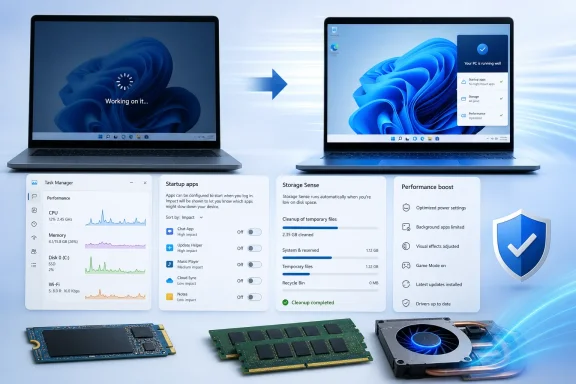
PCMag’s latest collection is billed as 14 easy fixes, although the published guide ultimately presents 16 recommendations when the gaming bonus and notification changes are counted separately. The discrepancy is less important than the underlying message: Windows 11 contains many built-in controls that can improve performance without paid optimization software or a complete reinstallation.
A Windows 10 PC will not suddenly stop booting, but unsupported software becomes increasingly difficult to defend and maintain. If the hardware officially supports Windows 11, upgrading is preferable to spending significant effort optimizing an operating system that has already passed its general support deadline.
A process near the top of the list is not automatically misbehaving. Video encoding, game installation, antivirus scanning, Windows Update, and cloud synchronization can legitimately use substantial resources, so the important questions are whether the activity is expected and whether it continues after the related task has finished.
A sensible diagnostic sequence is:
Storage-related symptoms can include long application launch times, delayed thumbnails, stuttering while copying files, and sustained 100% disk activity. Intermittent pauses during gaming or video calls may instead indicate driver problems, overheating, security scans, or background synchronization.
Do not assume every vendor-branded application is disposable. Some utilities control firmware updates, battery charging limits, keyboard lighting, audio enhancements, touchpad gestures, or function keys. Search the application’s purpose before removing anything that appears related to hardware management.
Good candidates for removal include:
The safest optimization is selective and reversible. Remove recognizable applications through supported uninstallers, create a restore point before major changes, and avoid scripts that promise to eliminate hundreds of Windows components with one command.
Messaging clients, cloud synchronization tools, password managers, and security software may need to start automatically. Music players, game launchers, meeting utilities, phone-linking tools, and application update agents often do not.
Disabling a startup entry does not uninstall the application. It simply prevents automatic launch, making this one of the lowest-risk Windows performance changes. The program can still be opened manually whenever it is needed.
The old advice to disable a long list of Windows services is largely outdated. Modern Windows activates many components only when needed, and indiscriminate service changes frequently produce instability for negligible speed gains.
Review the settings before allowing automatic cleanup of Downloads or cloud-backed content. A Downloads folder often contains installers and documents that users intend to keep, while cloud placeholders may behave differently depending on the synchronization provider.
Storage Sense primarily manages the system drive. Additional drives may require manual review through the storage settings or File Explorer.
Prioritize changes by impact:
Optional driver updates deserve more scrutiny. Windows Update is generally a safe source for common hardware drivers, but graphics-intensive users may need current packages from Intel, AMD, or Nvidia. Laptop owners should prefer the manufacturer’s validated firmware and platform drivers when power management or thermal behavior is involved.
Enterprise administrators should test updates against representative hardware before broad deployment. Consumers can reduce risk by installing normal stable releases rather than preview builds and by avoiding unofficial driver-download websites.
The built-in protection is sufficient for many users when Windows remains updated and sensible browsing habits are followed. A reputable second-opinion scanner can help investigate persistent symptoms, but multiple real-time antivirus products should not run simultaneously.
Warning signs include aggressive pop-ups, alarming scan counts, demands for immediate payment, and promises to update every driver automatically. Use established security products and obtain them from trusted stores or publishers.
The trade-off is straightforward: higher performance generally means greater power consumption, more fan noise, and shorter battery life. A plugged-in workstation or gaming laptop can tolerate that compromise more easily than an ultraportable operating away from an outlet.
Laptop firmware may impose additional limits even when Windows is configured for performance. Manufacturer utilities often provide quiet, balanced, and turbo modes that influence processor power, fan curves, and graphics behavior.
Selecting Adjust for best performance disables nearly every effect and makes Windows look noticeably harsher. A better compromise is to turn off animations and fading while retaining font smoothing, thumbnails, and other features that improve usability.
Visual adjustments are most useful on older integrated graphics, low-power processors, remote sessions, and systems already under memory pressure. They will not transform an underpowered computer into a modern workstation.
On a low-powered PC, reducing the indexed locations may help. Excluding large archives, source-code repositories, virtual-machine folders, or seldom-searched media collections is generally wiser than disabling indexing entirely.
Turning indexing off can make searches dramatically slower and may affect applications that depend on the index. Users who routinely search email or documents should preserve the feature and troubleshoot why it is repeatedly rebuilding instead.
Notifications usually have a small performance cost, but poorly behaved applications can generate frequent background activity. During games, presentations, recording sessions, or video calls, Do Not Disturb can reduce interruptions and improve perceived smoothness.
The psychological benefit matters. A computer that stops flashing promotional suggestions, chat messages, launcher updates, and app reminders feels more focused even if benchmark scores remain unchanged.
Troubleshooters are not universal performance boosters. Run the tool associated with the actual symptom rather than repeatedly applying every available repair.
Its one-click cleanup can release memory and delete temporary data, but dramatic claims should be treated cautiously. Windows normally reclaims cached memory when applications require it, so a lower RAM-use figure immediately after cleanup does not necessarily indicate a lasting speed improvement.
PC Manager is most valuable for less technical users who want a Microsoft-supported interface for basic maintenance. Experienced users will gain more diagnostic detail from Task Manager, Resource Monitor, Reliability Monitor, Windows Security, and the storage settings.
Before purchasing memory, verify:
An internal SSD is preferable for the operating system. External USB or Thunderbolt SSDs are useful for applications, project data, games, and media, but they do not remove the limitations of an internal mechanical boot drive unless Windows itself is migrated.
Cloning can preserve the existing installation, while a clean installation avoids carrying old software and configuration problems to the new drive. Whichever route is chosen, back up important data before altering storage hardware.
A replacement PC also brings current security capabilities, better efficiency, newer wireless standards, and longer software support. Optimization should extend the useful life of viable hardware, not trap users in an endless cycle of repairs.
Dust accumulation can obstruct heatsinks and fans. With the computer shut down and disconnected from power, carefully cleaning vents can improve airflow, but compressed air should not be used recklessly. Spinning a fan at extreme speed or forcing debris deeper into a laptop can cause damage.
Cooling pads can help some laptops, but they cannot repair a defective internal cooling system. Likewise, choosing Best performance mode may make throttling worse if the hardware cannot dissipate the additional heat.
Results vary by game and hardware configuration. Most users should leave it enabled, but a title with unexplained stutter should be benchmarked with Game Mode both on and off before drawing conclusions.
Per-application graphics settings also allow users to choose between power-saving and high-performance GPUs on systems with hybrid graphics. Confirm that demanding games use the discrete GPU, particularly after driver updates or application reinstalls.
Gaming optimization should also include closing unnecessary overlays, monitoring utilities, launchers, browser video, and recording tools. Each overlay may appear lightweight, but several simultaneous hooks can produce stutter or compatibility problems.
Performance telemetry should distinguish isolated hardware problems from fleet-wide regressions. A new security policy, driver package, collaboration client, or Windows update can create a pattern that individual troubleshooting may miss.
Organizations should establish replacement standards based on workload rather than age alone. A five-year-old desktop with upgradeable memory and an SSD may remain adequate, while a newer thin client with soldered low-capacity RAM may struggle under modern collaboration and security workloads.
For a general-purpose computer expected to remain useful for several years, 16GB is the practical baseline, while demanding multitaskers, developers, creators, and gamers may benefit from 32GB. Capacity should still be matched to actual workloads rather than treated as a universal benchmark.
SSDs also vary widely in sustained performance, endurance, cache behavior, and thermal characteristics. A low-cost drive may feel fast during light use but slow sharply during large transfers or when nearly full.
Consumers should install normal Windows and manufacturer firmware updates, while enterprises need inventory, testing, and deployment plans. Performance maintenance and security maintenance are increasingly inseparable because outdated platform software can undermine both reliability and trust.
Windows 11 can often feel faster without dramatic intervention, but the winning strategy is not a mysterious boost button or an indiscriminate debloat script. Remove software you recognize and no longer need, reduce startup congestion, preserve free storage, install stable updates, investigate abnormal processes, and keep the hardware cool. If Task Manager still shows persistent memory or storage pressure after those steps, an SSD, additional RAM, or a properly chosen replacement PC will achieve more than endless software tinkering—and will do so without sacrificing the security and reliability that a modern Windows system is supposed to provide.
The guide further clarifies that Windows 10 consumer Extended Security Updates run through October 13, 2026, providing a temporary migration bridge rather than full product support. For laptops, Best Performance mode may require an adequately rated charger; a low-wattage USB-C adapter can prevent the CPU or GPU from reaching maximum power. PCMag UK also advises allowing post-update indexing, application updates, component optimization, and security scans to finish before judging performance after a major Windows update.

 Overview
Windows performance degrades gradually, which makes the problem difficult to notice until opening an application, switching browser tabs, or restarting the computer suddenly feels unreasonably slow. The operating system itself may not be the primary culprit. Applications add startup entries, cloud clients synchronize data, browser extensions consume memory, update agents run scheduled checks, and temporary files reduce the free space available to the storage subsystem.PCMag’s latest collection is billed as 14 easy fixes, although the published guide ultimately presents 16 recommendations when the gaming bonus and notification changes are counted separately. The discrepancy is less important than the underlying message: Windows 11 contains many built-in controls that can improve performance without paid optimization software or a complete reinstallation.
Why Windows PCs slow down
Performance problems generally fall into four categories:- Software congestion occurs when unnecessary applications, services, browser processes, or startup utilities compete for processor time and memory.
- Storage pressure develops when the system drive becomes too full, temporary data accumulates, or an older mechanical hard drive cannot keep pace with modern applications.
- Hardware limitations emerge when memory capacity, processor performance, cooling, or storage speed no longer matches the user’s workload.
- Configuration problems arise when power management, indexing, visual effects, updates, drivers, or security software behave inefficiently.
Windows 10 is no longer the safer fallback
Remaining on Windows 10 is not a meaningful performance strategy in 2026. Mainstream Windows 10 support ended on October 14, 2025, leaving most systems without normal free security fixes unless they qualify for an Extended Security Updates arrangement.A Windows 10 PC will not suddenly stop booting, but unsupported software becomes increasingly difficult to defend and maintain. If the hardware officially supports Windows 11, upgrading is preferable to spending significant effort optimizing an operating system that has already passed its general support deadline.
Diagnose Before You Optimize
Randomly disabling Windows components can create new problems while doing little to improve performance. The first step should be identifying whether the delay comes from CPU usage, memory pressure, storage activity, networking, heat, or a specific application.Use Task Manager as the first diagnostic tool
Pressing Ctrl+Shift+Esc opens Task Manager directly. On the Processes page, click the CPU, Memory, Disk, or Network column heading to rank applications by their current resource consumption.A process near the top of the list is not automatically misbehaving. Video encoding, game installation, antivirus scanning, Windows Update, and cloud synchronization can legitimately use substantial resources, so the important questions are whether the activity is expected and whether it continues after the related task has finished.
A sensible diagnostic sequence is:
- Restart the PC to eliminate a temporary process or memory leak.
- Wait several minutes after signing in so updates, synchronization, and startup tasks can settle.
- Reproduce the slowdown by opening the affected application or repeating the problematic action.
- Sort Task Manager by CPU, memory, and disk activity to identify the busiest process.
- Close or update the suspected application before making system-wide changes.
- Check temperatures and storage health if no software process clearly explains the slowdown.
Distinguish slow startup from slow operation
A PC that takes too long to reach the desktop may have a startup-app problem. A computer that boots quickly but struggles after several applications are open is more likely facing memory pressure, thermal throttling, or an overloaded processor.Storage-related symptoms can include long application launch times, delayed thumbnails, stuttering while copying files, and sustained 100% disk activity. Intermittent pauses during gaming or video calls may instead indicate driver problems, overheating, security scans, or background synchronization.
Remove Software You Do Not Need
Unnecessary software is one of the easiest problems to correct. Preinstalled promotional tools, obsolete vendor utilities, forgotten game launchers, trial security suites, and applications bundled with other programs can all add services, scheduled tasks, update agents, and notification handlers.Uninstall bloatware carefully
Open Settings > Apps > Installed apps and sort the list by size, installation date, or name. Sorting by the computer manufacturer can expose preinstalled utilities, while sorting by date helps locate software that arrived shortly before a performance problem began.Do not assume every vendor-branded application is disposable. Some utilities control firmware updates, battery charging limits, keyboard lighting, audio enhancements, touchpad gestures, or function keys. Search the application’s purpose before removing anything that appears related to hardware management.
Good candidates for removal include:
- Trial applications that have expired or are never used.
- Duplicate media players, cloud clients, or security products.
- Manufacturer promotions and shopping utilities.
- Old printer software for devices no longer owned.
- Game launchers and creative suites that are no longer required.
- Browser toolbars, download assistants, and other potentially unwanted programs.
Avoid registry cleaners and “debloat” scripts
Registry cleaning delivers little meaningful performance improvement on modern Windows systems. More aggressive debloat scripts can remove provisioned applications, scheduled components, security features, or servicing dependencies that later updates expect to find.The safest optimization is selective and reversible. Remove recognizable applications through supported uninstallers, create a restore point before major changes, and avoid scripts that promise to eliminate hundreds of Windows components with one command.
Control Startup and Background Activity
Many applications register themselves to run whenever the user signs in. Each entry may add only a small delay, but ten or twenty utilities can collectively extend startup time and keep the system busy long after the desktop appears.Disable nonessential startup applications
Startup applications can be managed through Settings > Apps > Startup or Task Manager’s Startup apps page. Windows estimates the startup impact of many entries, making high-impact applications a logical place to begin.Messaging clients, cloud synchronization tools, password managers, and security software may need to start automatically. Music players, game launchers, meeting utilities, phone-linking tools, and application update agents often do not.
Disabling a startup entry does not uninstall the application. It simply prevents automatic launch, making this one of the lowest-risk Windows performance changes. The program can still be opened manually whenever it is needed.
Treat background services with caution
Startup applications are not the same as Windows services. The Services console and System Configuration utility expose deeper operating-system components, but disabling services without understanding their dependencies can interfere with networking, audio, updates, sign-in, Bluetooth, printing, encryption, and security.The old advice to disable a long list of Windows services is largely outdated. Modern Windows activates many components only when needed, and indiscriminate service changes frequently produce instability for negligible speed gains.
Reclaim Storage Space
SSDs are dramatically faster than mechanical hard drives, but they still need free capacity for temporary files, application updates, page-file activity, caching, and internal flash management. A nearly full system drive can therefore make an otherwise capable PC feel erratic.Configure Storage Sense
Go to Settings > System > Storage and enable Storage Sense. The feature can remove temporary files and old Recycle Bin contents automatically, with options controlling how often it runs and how long files are retained.Review the settings before allowing automatic cleanup of Downloads or cloud-backed content. A Downloads folder often contains installers and documents that users intend to keep, while cloud placeholders may behave differently depending on the synchronization provider.
Storage Sense primarily manages the system drive. Additional drives may require manual review through the storage settings or File Explorer.
Find the files that matter
A few large games, virtual machines, video projects, or phone backups usually consume more space than thousands of tiny temporary files. Windows’ storage categories can reveal whether applications, documents, media, temporary data, or system files dominate usage.Prioritize changes by impact:
- Uninstall large games and applications that are no longer used.
- Move video archives, disk images, and project files to another drive.
- Empty temporary files after reviewing the selected categories.
- Clear obsolete installers and duplicate downloads.
- Move supported Microsoft Store applications to a secondary drive.
- Consider adding storage if routine work repeatedly fills the system disk.
Update Windows, Drivers, and Applications
Updates sometimes receive blame for performance problems, but remaining indefinitely on old system components can be worse. Windows servicing releases, driver updates, firmware revisions, browser updates, and application patches frequently address resource leaks, crashes, compatibility defects, and security vulnerabilities.Keep Windows Update current
Open Settings > Windows Update and check for updates. Restart the PC after installation, because pending servicing operations can leave the system in a partially updated state and may repeatedly consume resources in the background.Optional driver updates deserve more scrutiny. Windows Update is generally a safe source for common hardware drivers, but graphics-intensive users may need current packages from Intel, AMD, or Nvidia. Laptop owners should prefer the manufacturer’s validated firmware and platform drivers when power management or thermal behavior is involved.
Do not confuse “newer” with “better”
A driver update can introduce regressions. If performance deteriorates immediately after installing a graphics, storage, audio, or network driver, rolling back to the previous version may be appropriate.Enterprise administrators should test updates against representative hardware before broad deployment. Consumers can reduce risk by installing normal stable releases rather than preview builds and by avoiding unofficial driver-download websites.
Check Security Without Overloading the PC
Malware can consume CPU time, memory, storage bandwidth, and network capacity. Cryptominers, unwanted browser extensions, adware, and credential-stealing software may also run quietly enough to resemble ordinary system sluggishness.Start with Microsoft Defender
Windows Security provides built-in real-time protection and manual scanning. A Quick scan is useful for routine checks, while a Full scan or Microsoft Defender Offline scan is more appropriate when compromise is strongly suspected.The built-in protection is sufficient for many users when Windows remains updated and sensible browsing habits are followed. A reputable second-opinion scanner can help investigate persistent symptoms, but multiple real-time antivirus products should not run simultaneously.
Avoid “optimizer” software disguised as security
Some utilities exaggerate harmless registry entries, cookies, or temporary files to create the impression of a critically damaged PC. Others install persistent background processes that worsen the very performance problem they claim to solve.Warning signs include aggressive pop-ups, alarming scan counts, demands for immediate payment, and promises to update every driver automatically. Use established security products and obtain them from trusted stores or publishers.
Tune Power and Visual Effects
Windows balances speed, heat, acoustic output, and battery life. The default power mode is usually appropriate, but users running demanding applications may benefit from a more performance-oriented setting.Select the right power mode
Under Settings > System > Power & battery, choose Best performance when maximum responsiveness matters. The setting can allow the processor to remain at higher frequencies and reduce the emphasis on energy savings.The trade-off is straightforward: higher performance generally means greater power consumption, more fan noise, and shorter battery life. A plugged-in workstation or gaming laptop can tolerate that compromise more easily than an ultraportable operating away from an outlet.
Laptop firmware may impose additional limits even when Windows is configured for performance. Manufacturer utilities often provide quiet, balanced, and turbo modes that influence processor power, fan curves, and graphics behavior.
Reduce visual effects selectively
Search for “Adjust the appearance and performance of Windows” to open the legacy Performance Options dialog. Animations, shadows, fading effects, transparency, and live window contents consume some resources, although the difference is modest on modern hardware.Selecting Adjust for best performance disables nearly every effect and makes Windows look noticeably harsher. A better compromise is to turn off animations and fading while retaining font smoothing, thumbnails, and other features that improve usability.
Visual adjustments are most useful on older integrated graphics, low-power processors, remote sessions, and systems already under memory pressure. They will not transform an underpowered computer into a modern workstation.
Manage Search, Notifications, and Maintenance
Some background activity exists to make Windows more convenient. Search indexing enables fast queries, notifications keep applications connected, and maintenance tasks improve reliability, but each feature has a resource cost.Limit indexing rather than eliminating it
Windows Search monitors selected locations and builds an index used by File Explorer, Outlook, Start, and other applications. Initial indexing or a large wave of file changes can temporarily produce significant disk and CPU activity.On a low-powered PC, reducing the indexed locations may help. Excluding large archives, source-code repositories, virtual-machine folders, or seldom-searched media collections is generally wiser than disabling indexing entirely.
Turning indexing off can make searches dramatically slower and may affect applications that depend on the index. Users who routinely search email or documents should preserve the feature and troubleshoot why it is repeatedly rebuilding instead.
Reduce notifications and suggestions
Open Settings > System > Notifications to disable unwanted application alerts. Windows also exposes additional settings for tips, suggestions, setup reminders, and recommendations.Notifications usually have a small performance cost, but poorly behaved applications can generate frequent background activity. During games, presentations, recording sessions, or video calls, Do Not Disturb can reduce interruptions and improve perceived smoothness.
The psychological benefit matters. A computer that stops flashing promotional suggestions, chat messages, launcher updates, and app reminders feels more focused even if benchmark scores remain unchanged.
Run built-in troubleshooters where appropriate
Windows troubleshooters can reset components, identify common configuration errors, and recommend repairs. They are most useful for targeted issues involving networking, audio, Windows Update, Microsoft Store applications, search, printers, or power.Troubleshooters are not universal performance boosters. Run the tool associated with the actual symptom rather than repeatedly applying every available repair.
Consider Microsoft PC Manager
Microsoft PC Manager consolidates storage cleanup, startup management, health checks, and selected security controls into a simpler interface. It is aimed primarily at users who find Windows Settings, Task Manager, and Windows Security too fragmented.Convenience is the primary benefit
PC Manager does not unlock a secret performance layer unavailable elsewhere in Windows. Most of its capabilities expose existing maintenance functions through a centralized dashboard.Its one-click cleanup can release memory and delete temporary data, but dramatic claims should be treated cautiously. Windows normally reclaims cached memory when applications require it, so a lower RAM-use figure immediately after cleanup does not necessarily indicate a lasting speed improvement.
Use it as a dashboard, not a ritual
Repeatedly pressing a boost button can become the modern equivalent of compulsively running registry cleaners. The useful approach is to identify recurring causes, such as an unwanted startup application or accumulating temporary data, and fix the underlying behavior.PC Manager is most valuable for less technical users who want a Microsoft-supported interface for basic maintenance. Experienced users will gain more diagnostic detail from Task Manager, Resource Monitor, Reliability Monitor, Windows Security, and the storage settings.
Upgrade the Hardware That Creates the Bottleneck
Software cleanup has limits. If the system consistently runs out of memory, boots from a mechanical hard drive, or uses a processor that cannot meet the workload, hardware investment may deliver a much larger improvement.Add RAM when memory pressure is real
More memory helps when Task Manager shows consistently high RAM utilization, applications reload when switching between them, or disk activity surges because Windows is paging data to storage. Browsers with many tabs, creative applications, virtual machines, development tools, and modern games can quickly exceed 8GB.Before purchasing memory, verify:
- The laptop or desktop has accessible memory slots.
- The motherboard supports the desired capacity and memory generation.
- Existing modules are replaceable rather than soldered.
- The selected speed and form factor match the system.
- Firmware limitations do not impose a lower maximum capacity.
Replace a hard drive with an SSD
For a PC still using a mechanical drive as its Windows boot device, an SSD is usually the most transformative upgrade available. Booting, launching applications, installing updates, indexing files, and paging memory all become substantially faster.An internal SSD is preferable for the operating system. External USB or Thunderbolt SSDs are useful for applications, project data, games, and media, but they do not remove the limitations of an internal mechanical boot drive unless Windows itself is migrated.
Cloning can preserve the existing installation, while a clean installation avoids carrying old software and configuration problems to the new drive. Whichever route is chosen, back up important data before altering storage hardware.
Know when replacement makes more sense
Memory and storage cannot compensate for every limitation. An unsupported processor, weak integrated graphics, deteriorating battery, damaged cooling system, low-resolution display, and soldered 4GB or 8GB memory may make an old laptop economically impractical to upgrade.A replacement PC also brings current security capabilities, better efficiency, newer wireless standards, and longer software support. Optimization should extend the useful life of viable hardware, not trap users in an endless cycle of repairs.
Keep the System Cool
Modern processors dynamically adjust their operating frequency according to workload, power limits, and temperature. When cooling becomes inadequate, the system reduces performance to protect itself, a behavior known as thermal throttling.Restore proper airflow
Place laptops on a firm surface rather than a blanket, sofa, or bed that blocks intake vents. Desktop towers need space around intake and exhaust areas, particularly if installed inside a cabinet.Dust accumulation can obstruct heatsinks and fans. With the computer shut down and disconnected from power, carefully cleaning vents can improve airflow, but compressed air should not be used recklessly. Spinning a fan at extreme speed or forcing debris deeper into a laptop can cause damage.
Watch for cooling-system failure
Persistent high temperatures, loud fans, sudden clock-speed drops, random shutdowns, and severe performance loss under sustained load may indicate more than ordinary dust. A failing fan, dried thermal compound, bent heatsink, or obstructed internal exhaust path may require professional service.Cooling pads can help some laptops, but they cannot repair a defective internal cooling system. Likewise, choosing Best performance mode may make throttling worse if the hardware cannot dissipate the additional heat.
Optimize Gaming Separately
Gaming performance depends on frame-time consistency, graphics drivers, shader compilation, storage, thermals, and background activity. General Windows cleanup helps, but gaming-specific settings deserve individual testing.Test Game Mode both ways
Windows 11 Game Mode prioritizes the gaming experience by limiting some background activity and reducing update-related interruptions. It is enabled by default for recognized games and can improve consistency when other applications compete for resources.Results vary by game and hardware configuration. Most users should leave it enabled, but a title with unexplained stutter should be benchmarked with Game Mode both on and off before drawing conclusions.
Enable windowed-game optimizations when compatible
Under Settings > System > Display > Graphics, Windows offers optimizations for compatible windowed and borderless-windowed games. The feature can reduce presentation latency and enable technologies such as variable refresh rate and Auto HDR on supported hardware.Per-application graphics settings also allow users to choose between power-saving and high-performance GPUs on systems with hybrid graphics. Confirm that demanding games use the discrete GPU, particularly after driver updates or application reinstalls.
Gaming optimization should also include closing unnecessary overlays, monitoring utilities, launchers, browser video, and recording tools. Each overlay may appear lightweight, but several simultaneous hooks can produce stutter or compatibility problems.
Enterprise and Managed-PC Implications
Business PCs require a different optimization philosophy from personally owned devices. An employee may view an endpoint security agent, backup tool, compliance scanner, VPN client, or management service as unnecessary background software, but disabling it can expose company data and violate policy.Centralize rather than improvise
IT teams should control startup policies, update rings, security exclusions, storage cleanup, and application inventories through supported management platforms. Removing unauthorized software at scale usually produces more reliable gains than asking users to perform manual cleanup.Performance telemetry should distinguish isolated hardware problems from fleet-wide regressions. A new security policy, driver package, collaboration client, or Windows update can create a pattern that individual troubleshooting may miss.
Measure the employee experience
Boot duration alone does not capture productivity. Sign-in time, application launch delay, video-call stability, browser responsiveness, battery life, and recovery from sleep all contribute to the perceived quality of a managed PC.Organizations should establish replacement standards based on workload rather than age alone. A five-year-old desktop with upgradeable memory and an SSD may remain adequate, while a newer thin client with soldered low-capacity RAM may struggle under modern collaboration and security workloads.
Strengths and Opportunities
The most useful aspect of this optimization approach is that most changes are free, reversible, and available through supported Windows interfaces. Users can start with low-risk software changes before spending money on upgrades.- Startup management can improve both boot time and everyday responsiveness without uninstalling applications.
- Storage Sense provides sustainable cleanup instead of relying on occasional emergency deletion.
- Task Manager encourages evidence-based troubleshooting by showing which process is consuming each resource.
- Selective notification and visual-effect changes reduce distraction as well as background activity.
- An SSD or RAM upgrade can extend the life of serviceable hardware and reduce electronic waste.
- Game Mode and per-application graphics controls provide workload-specific tuning without globally compromising battery life.
- PC Manager can make established maintenance features more accessible to users who are uncomfortable with advanced administrative tools.
- Windows 11 remains configurable despite its increasingly automated design, giving enthusiasts meaningful control without unsupported modifications.
Risks and Concerns
Performance optimization becomes dangerous when users treat every running process as waste. Windows relies on interconnected services, security controls, indexing databases, scheduled tasks, and hardware utilities that may not reveal their importance through a simple process name.- Disabling security software can create far greater harm than the recovered performance justifies.
- Removing manufacturer utilities may break firmware updates, battery controls, hotkeys, audio, or thermal modes.
- Turning off indexing can impair File Explorer, Outlook, and Start searches.
- Best performance mode can shorten battery life and increase heat, noise, and throttling.
- Automated cleanup can delete files from Downloads or cloud-managed locations if configured carelessly.
- Ending unfamiliar tasks can interrupt updates, synchronization, encryption, or unsaved work.
- Unverified debloat scripts can damage Windows servicing and make future upgrades unreliable.
- Hardware installation can cause data loss or physical damage when performed without preparation.
- A reinstall can consume hours while failing to address defective storage, insufficient memory, or overheating.
What to Watch Next
Windows performance management is becoming more automated, but automation also makes background behavior less transparent. Search features, cloud synchronization, AI-assisted applications, security scanning, widgets, communication clients, and cross-device services all add convenience while competing for local resources.Expect memory requirements to keep rising
Eight gigabytes remains usable for basic Windows 11 tasks, but it increasingly leaves little margin for browsers, collaboration software, security tools, creative applications, and integrated graphics that reserve system memory. New PCs with soldered RAM make the original purchasing decision especially important because capacity cannot be expanded later.For a general-purpose computer expected to remain useful for several years, 16GB is the practical baseline, while demanding multitaskers, developers, creators, and gamers may benefit from 32GB. Capacity should still be matched to actual workloads rather than treated as a universal benchmark.
Storage health will matter as much as free space
Cleanup cannot repair a failing drive. Users experiencing file corruption, unexplained freezes, disappearing storage, or repeated disk errors should back up immediately and investigate drive health rather than repeatedly deleting temporary files.SSDs also vary widely in sustained performance, endurance, cache behavior, and thermal characteristics. A low-cost drive may feel fast during light use but slow sharply during large transfers or when nearly full.
Secure Boot maintenance deserves attention
The industry’s Secure Boot certificate transition adds another reason to keep firmware and Windows servicing current. Devices that remain disconnected from update channels or rely on neglected firmware may face avoidable boot-security complications as older certificates expire and new trust chains take effect.Consumers should install normal Windows and manufacturer firmware updates, while enterprises need inventory, testing, and deployment plans. Performance maintenance and security maintenance are increasingly inseparable because outdated platform software can undermine both reliability and trust.
Windows 11 can often feel faster without dramatic intervention, but the winning strategy is not a mysterious boost button or an indiscriminate debloat script. Remove software you recognize and no longer need, reduce startup congestion, preserve free storage, install stable updates, investigate abnormal processes, and keep the hardware cool. If Task Manager still shows persistent memory or storage pressure after those steps, an SSD, additional RAM, or a properly chosen replacement PC will achieve more than endless software tinkering—and will do so without sacrificing the security and reliability that a modern Windows system is supposed to provide.
Update: Additional details (July 22, 2026)
PCMag UK adds several practical diagnostic thresholds: sustained memory use above roughly 80% to 90%, disk activity pinned at 100%, or unexpectedly high GPU utilization can help identify the limiting resource. It also recommends clean-boot troubleshooting when ordinary startup cleanup fails, gradually re-enabling third-party services and applications until the slowdown returns. Task Manager’s Efficiency mode may curb selected background processes, but applying it to time-sensitive software can reduce performance rather than resolve the underlying problem.The guide further clarifies that Windows 10 consumer Extended Security Updates run through October 13, 2026, providing a temporary migration bridge rather than full product support. For laptops, Best Performance mode may require an adequately rated charger; a low-wattage USB-C adapter can prevent the CPU or GPU from reaching maximum power. PCMag UK also advises allowing post-update indexing, application updates, component optimization, and security scans to finish before judging performance after a major Windows update.
14 Easy Fixes to Make Windows 11 Feel Faster
Don't reinstall Windows if you PC is slow. Try these simple tricks, and you should see a noticeable speed boost.
uk.pcmag.com
References
- Primary source: PCMag
Published: 2026-07-22T11:45:14+00:00
14 Easy Fixes to Make Windows 11 Feel Faster | PCMag
Don't reinstall Windows if you PC is slow. Try these simple tricks, and you should see a noticeable speed boost.www.pcmag.com
Last edited:
