

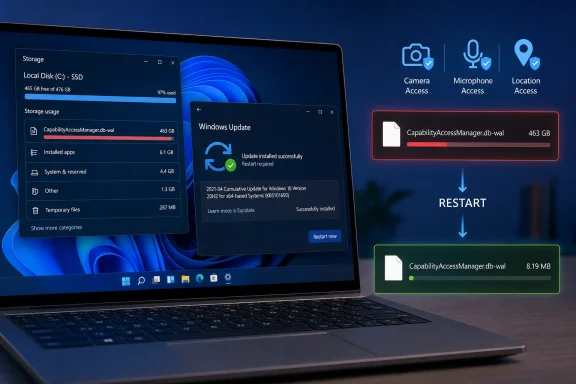
Windows 11 users who have watched their free SSD space mysteriously disappear may finally have an explanation—and, more importantly, a fix. Microsoft’s July 2026 cumulative update addresses a defect that allowed
The affected file belongs to Windows’ Capability Access Manager, a privacy-related component responsible for mediating applications’ access to sensitive device capabilities. Those capabilities include the camera, microphone, location, account information, contacts, and other resources that Windows exposes through its privacy permission framework.
The file is normally stored in the following protected system location:
Under ordinary conditions, users should have no reason to know that this file exists. Windows creates and maintains it in the background, and its size should remain modest because the operating system periodically incorporates pending database changes and cleans up the associated log.
This design is not inherently problematic. Write-ahead logging can improve reliability and concurrency because readers can continue accessing the main database while another process records new changes in the WAL file.
A healthy cycle generally looks like this:
One Microsoft support discussion from 2024 described a file exceeding 120 GB. More recent reports during 2026 documented rapid daily growth, suggesting that the underlying failure could be intensified by particular applications, services, or usage patterns rather than affecting every Windows installation equally.
Microsoft reportedly tracked the current wave of the problem internally by May 2026. The repair first reached users through the optional June 23 preview update, KB5095093, before being incorporated into the mandatory July security update.
Because Windows cumulative updates include earlier fixes, KB5101650 also carries forward the non-security improvements introduced in the June preview release. Users who skipped that optional preview therefore receive the Capability Access Manager correction through the normal security servicing channel.
They can also open Settings > Windows Update > Update history and look for KB5101650 or a newer cumulative update. A later update is sufficient because Windows servicing is cumulative; there is no need to uninstall a newer package merely to install this particular KB.
A properly updated system should resume normal database maintenance. Reports from patched users indicate that extremely large WAL files can fall from dozens or hundreds of gigabytes to only a few megabytes after Windows completes its cleanup.
That reduction may not happen at the exact moment Windows Update reports a successful installation. A restart, service initialization, and subsequent database checkpoint can be necessary before the physical file shrinks.
A computer with a 1 TB SSD might therefore appear to lose hundreds of gigabytes even when Task Manager shows normal memory consumption. The missing capacity remains unavailable across restarts because it belongs to a real file on the system volume.
A storage leak can instead cause:
Common cleanup tools may also miss the file. Disk Cleanup and Storage Sense are designed to remove known disposable content such as temporary installation files, thumbnails, delivery optimization data, and the Recycle Bin—not arbitrary database logs belonging to active Windows services.
This explains why affected users could delete downloads, uninstall applications, and empty temporary folders without solving the underlying problem. They were making room around a file that continued to grow.
The operating system stores permission state, evaluates application identity, and brokers access according to system policy. That work helps prevent one application from silently using hardware or personal data simply because another application has permission.
Most PCs can process these requests without excessive disk use. The problem emerges when frequent transactions combine with a failure to checkpoint or truncate the WAL.
Location-aware software appears to have been a significant trigger in reported cases. Examples have included utilities that optimize networking according to the user’s environment, desktop customization components, weather tools, presence detection, and applications that repeatedly inspect location-related state.
This distinction is crucial when assigning responsibility. A utility may expose the bug by making thousands of legitimate API calls, while the Windows database layer fails to control the resulting WAL growth.
The practical failure therefore has two parts:
A lightly used PC might accumulate only a few gigabytes. A managed laptop running location-aware background software throughout the workday could produce far more transactions and continue growing for months.
Those numbers should not be interpreted as a universal outcome. Most Windows 11 systems will not contain a 500 GB file, and some may never have experienced abnormal growth at all.
Nevertheless, the upper range demonstrates why this was more serious than an untidy log. A 500 GB WAL can consume almost the entire usable capacity of a nominal 512 GB SSD once Windows, applications, recovery partitions, and formatting overhead are taken into account.
Small system drives are also common in virtual desktops, cloud PCs, thin-client deployments, and test virtual machines. Administrators often provision those systems with limited headroom because user documents reside elsewhere.
A database log that grows by hundreds of megabytes or several gigabytes per day can defeat that capacity planning. The incident is therefore relevant not only to individual PC owners but also to enterprise teams responsible for storage alerts and endpoint stability.
The goal is to determine whether the file is abnormally large, not to remove a normal Windows component.
The output should list files in the directory and display their sizes in bytes. Look specifically for:
PowerShell can present the result more clearly in gigabytes or megabytes:
If the file does not exist at that moment, PowerShell may return a “path not found” message. That result is not inherently a problem because SQLite can create, remove, or recreate WAL files as database activity changes.
A file consuming multiple gigabytes deserves attention, particularly if its size continues increasing over hours or days. A log measuring tens or hundreds of gigabytes is clearly outside the expected range and can explain a substantial storage discrepancy.
Users can repeat the PowerShell command after an interval to see whether the file is stable. Continuous growth after installing the July update may indicate that the update is missing, the reboot has not completed, another servicing issue is present, or the database has not yet recovered cleanly.
Storage Sense can also clear supported temporary categories. However, users should not assume that it will remove the Capability Access Manager log itself.
The immediate objective is to free enough room for Windows servicing to work. Several gigabytes may be required because cumulative updates need temporary staging space beyond the final installed footprint.
Windows may recreate the file, but recreation is not the same as guaranteeing that every interrupted transaction was harmless.
Capability Access Manager sits close to parts of Windows that applications rely on for hardware and privacy access. An aggressive cleanup script that deletes databases, journals, and supporting files indiscriminately could cause more damage than removing only the oversized WAL under controlled conditions.
Users should avoid:
It does not turn every command into a risk-free operation. Users must still confirm the path and delete only the intended WAL file.
A mistyped wildcard or command executed from the wrong directory can remove unrelated data. Administrators should prefer explicit paths and should not expand the cleanup into broader folder deletion.
BitLocker users should also make sure they can access their recovery key before changing boot settings. Safe Mode itself should not normally demand the key, but firmware, recovery, or boot-related complications can expose an existing recovery requirement.
If the path and size are correct, remove only the WAL:
Restart Windows normally when finished. The operating system may recreate a fresh WAL, which is expected; the important point is that the replacement should remain small after the patched database resumes normal operation.
Advanced Startup is generally easier because it applies the mode to the next boot rather than changing an ongoing configuration. If
After normal startup, check the folder again and test the features most closely associated with capability permissions. Open a browser or meeting application, verify microphone and camera permissions, check location-dependent features if used, and confirm that Wi-Fi behaves normally.
The issue becomes especially disruptive when profile containers, endpoint security agents, update caches, and business applications already compete for limited free space.
This is a detection example, not a recommendation to mass-delete the file. A fleet remediation should first validate the installed cumulative update, schedule a restart, and determine whether Windows reduces the file itself.
A cautious enterprise workflow could classify endpoints by severity:
That does not prove that every installation of those products will trigger the defect. It does suggest that endpoint telemetry should compare WAL growth with installed software, service activity, and location access patterns.
The resulting data can reveal whether one application is producing an excessive number of capability queries even after Windows controls the WAL correctly. The patch protects storage, but an unnecessarily chatty application may still impose avoidable CPU, disk, privacy, or battery costs.
The compatibility issue also affected the June preview update that introduced the storage correction. Microsoft subsequently issued out-of-band update KB5121767 for relevant Windows 11 24H2 and 25H2 devices, incorporating the cumulative fixes while addressing the Dell-specific problem.
The correct response is to check for the latest update now offered to that machine. KB5121767 or a newer superseding package may be the appropriate route, depending on the device’s hardware and servicing state.
Manually downloading and forcing a blocked cumulative update can bypass protections designed to prevent a known failure. Enterprises should review their update rings, OEM advisories, and installed build numbers before broad deployment.
Administrators should avoid treating manual WAL deletion as a permanent substitute. It may provide emergency breathing room, but the file can return if the underlying Windows bug remains unpatched.
This episode also illustrates why cumulative update deployment requires staged validation. Even a package containing an important storage fix can introduce or expose a separate compatibility problem on a particular hardware family.
The experience is especially confusing because the user has done nothing obviously wrong. The storage loss can continue while the PC sits idle, driven by background services and applications rather than deliberate downloads.
The known file path makes this problem relatively easy to confirm once users know where to look. Diagnosis should therefore precede deletion.
Persistent growth would justify deeper investigation into servicing failures, database corruption, application behavior, or a related bug not covered by the initial correction.
Future improvements could include:
Consumers should allow Windows Update to select the appropriate package rather than hunting for a specific KB solely because it appears in a troubleshooting guide. By late July 2026, the key requirement is to install the newest update approved for the particular device, not necessarily to force the original July package.
Microsoft and application developers should examine whether those requests are necessary, appropriately throttled, and visible to users. Efficient privacy enforcement should not require constant writes from applications that have no immediate need for the protected capability.
The
CapabilityAccessManager.db-wal, an ordinarily small system database log, to swell into the hundreds of gigabytes, with reported cases approaching 500 GB. Installing KB5101650 should stop the uncontrolled growth on Windows 11 versions 24H2 and 25H2, but affected PCs may still require a reboot, verification, or carefully performed cleanup before all occupied space returns.
 Background
The affected file belongs to Windows’ Capability Access Manager, a privacy-related component responsible for mediating applications’ access to sensitive device capabilities. Those capabilities include the camera, microphone, location, account information, contacts, and other resources that Windows exposes through its privacy permission framework.The file is normally stored in the following protected system location:
C:\ProgramData\Microsoft\Windows\CapabilityAccessManager\CapabilityAccessManager.db-walUnder ordinary conditions, users should have no reason to know that this file exists. Windows creates and maintains it in the background, and its size should remain modest because the operating system periodically incorporates pending database changes and cleans up the associated log.
Why this file exists
The.db-wal suffix indicates that the file is a write-ahead log, commonly abbreviated to WAL. Windows uses an SQLite database in this part of the operating system, and SQLite can temporarily place new transactions in a separate log before committing them to the main database.This design is not inherently problematic. Write-ahead logging can improve reliability and concurrency because readers can continue accessing the main database while another process records new changes in the WAL file.
A healthy cycle generally looks like this:
- An application requests access to a protected capability, such as location.
- Windows checks the application’s permission and records relevant state.
- SQLite writes pending database changes into the WAL file.
- A checkpoint operation transfers those changes into the main database.
- SQLite truncates, resets, or reuses the WAL so that it does not grow indefinitely.
The problem predates the July patch
Public reports of abnormally largeCapabilityAccessManager.db-wal files existed well before Microsoft distributed the final fix. Users described files consuming tens or hundreds of gigabytes, sometimes after repeatedly deleting the log only to see it grow again.One Microsoft support discussion from 2024 described a file exceeding 120 GB. More recent reports during 2026 documented rapid daily growth, suggesting that the underlying failure could be intensified by particular applications, services, or usage patterns rather than affecting every Windows installation equally.
Microsoft reportedly tracked the current wave of the problem internally by May 2026. The repair first reached users through the optional June 23 preview update, KB5095093, before being incorporated into the mandatory July security update.
The July 2026 Windows 11 Fix
Microsoft delivered the broadly available correction on July 14, 2026, as part of KB5101650. The cumulative update advances Windows 11 version 24H2 to build 26100.8875 and version 25H2 to build 26200.8875.Because Windows cumulative updates include earlier fixes, KB5101650 also carries forward the non-security improvements introduced in the June preview release. Users who skipped that optional preview therefore receive the Capability Access Manager correction through the normal security servicing channel.
Which Windows versions receive the repair
The relevant July update applies to the two current Windows 11 servicing branches sharing Microsoft’s modern platform code:- Windows 11 version 24H2 receives OS build 26100.8875.
- Windows 11 version 25H2 receives OS build 26200.8875.
- Systems already running the June preview build should also contain the underlying correction.
- Later cumulative updates will supersede KB5101650 while retaining the fix.
Windows + R, entering winver, and reviewing the version and build displayed in the dialog.They can also open Settings > Windows Update > Update history and look for KB5101650 or a newer cumulative update. A later update is sufficient because Windows servicing is cumulative; there is no need to uninstall a newer package merely to install this particular KB.
The patch addresses growth, not just symptoms
The important distinction is that the update repairs the behavior responsible for the runaway file. Simply deleting the WAL without installing the corrected Windows code may recover space temporarily, but it does not prevent another application from triggering the same write pattern.A properly updated system should resume normal database maintenance. Reports from patched users indicate that extremely large WAL files can fall from dozens or hundreds of gigabytes to only a few megabytes after Windows completes its cleanup.
That reduction may not happen at the exact moment Windows Update reports a successful installation. A restart, service initialization, and subsequent database checkpoint can be necessary before the physical file shrinks.
A Storage Leak, Not a Memory Leak
Some descriptions have called the defect a “memory problem,” but that terminology can mislead users. The bug consumes persistent disk storage, not necessarily system RAM.A computer with a 1 TB SSD might therefore appear to lose hundreds of gigabytes even when Task Manager shows normal memory consumption. The missing capacity remains unavailable across restarts because it belongs to a real file on the system volume.
Why the distinction matters
RAM pressure and storage exhaustion produce different symptoms and require different troubleshooting methods. A memory leak typically causes increasing RAM use, paging, application slowdowns, or crashes until the leaking process closes or the PC restarts.A storage leak can instead cause:
- Windows Update failures because the operating system cannot stage new packages.
- Application crashes when programs cannot create temporary files.
- Slow logons and poor performance when the SSD has almost no free working space.
- Hibernation, paging, and restore-point failures.
- OneDrive or other synchronization errors.
- Inability to install games, applications, drivers, or feature updates.
- Misleading Storage settings that show a large amount of space under broad system categories.
Why Storage settings may not identify it
Windows’ Storage page groups protected files into categories rather than exposing every internal filename. A user might see “System & reserved,” “Other,” or an unexplained discrepancy between visible personal files and total used capacity.Common cleanup tools may also miss the file. Disk Cleanup and Storage Sense are designed to remove known disposable content such as temporary installation files, thumbnails, delivery optimization data, and the Recycle Bin—not arbitrary database logs belonging to active Windows services.
This explains why affected users could delete downloads, uninstall applications, and empty temporary folders without solving the underlying problem. They were making room around a file that continued to grow.
What Capability Access Manager Does
Capability Access Manager is part of the enforcement layer behind the privacy controls visible in Windows Settings. When Windows asks whether an application may access the microphone, camera, location, or another protected resource, the decision is not handled only by the application itself.The operating system stores permission state, evaluates application identity, and brokers access according to system policy. That work helps prevent one application from silently using hardware or personal data simply because another application has permission.
Permissions create frequent database activity
A capability request can generate database reads and writes even when the user does not see a new consent prompt. Applications and background services may repeatedly check whether they can use location, query the camera state, access presence information, or interact with another protected resource.Most PCs can process these requests without excessive disk use. The problem emerges when frequent transactions combine with a failure to checkpoint or truncate the WAL.
Location-aware software appears to have been a significant trigger in reported cases. Examples have included utilities that optimize networking according to the user’s environment, desktop customization components, weather tools, presence detection, and applications that repeatedly inspect location-related state.
A broker can amplify a chatty application
The third-party program does not need to write directly toCapabilityAccessManager.db-wal. Instead, it can generate a high volume of capability requests that Windows records through its own service.This distinction is crucial when assigning responsibility. A utility may expose the bug by making thousands of legitimate API calls, while the Windows database layer fails to control the resulting WAL growth.
The practical failure therefore has two parts:
- An application or service generates unusually frequent capability transactions.
- Windows does not complete the database maintenance needed to keep the log bounded.
Why Some PCs Lost Hundreds of Gigabytes
The defect did not produce a fixed file size. The total depended on how often the system wrote to the database, how long checkpointing remained ineffective, and how much space was available before the C: drive reached a critical threshold.A lightly used PC might accumulate only a few gigabytes. A managed laptop running location-aware background software throughout the workday could produce far more transactions and continue growing for months.
Reports from managed environments
One administrator reportedly found oversized logs on more than half of approximately 10,000 monitored endpoints. In that environment, an extreme example reached roughly 332 GB, while other user reports described files approaching 500 GB.Those numbers should not be interpreted as a universal outcome. Most Windows 11 systems will not contain a 500 GB file, and some may never have experienced abnormal growth at all.
Nevertheless, the upper range demonstrates why this was more serious than an untidy log. A 500 GB WAL can consume almost the entire usable capacity of a nominal 512 GB SSD once Windows, applications, recovery partitions, and formatting overhead are taken into account.
SSD capacity makes the impact worse
Many mainstream laptops still ship with 256 GB or 512 GB system drives. On those devices, even a 50 GB log represents a major loss, while a file exceeding 100 GB can bring Windows close to operational failure.Small system drives are also common in virtual desktops, cloud PCs, thin-client deployments, and test virtual machines. Administrators often provision those systems with limited headroom because user documents reside elsewhere.
A database log that grows by hundreds of megabytes or several gigabytes per day can defeat that capacity planning. The incident is therefore relevant not only to individual PC owners but also to enterprise teams responsible for storage alerts and endpoint stability.
How to Check Whether a PC Is Affected
Users should install the latest applicable Windows update before investigating or changing protected system files. If the PC is already patched and has comfortable free space, there is no reason to delete anything merely because the WAL exists.The goal is to determine whether the file is abnormally large, not to remove a normal Windows component.
Checking the folder from an elevated terminal
Windows protects the Capability Access Manager directory, so an ordinary File Explorer window may not provide a complete or convenient view. One non-destructive approach is to open Terminal as administrator and run:dir "C:\ProgramData\Microsoft\Windows\CapabilityAccessManager" /aThe output should list files in the directory and display their sizes in bytes. Look specifically for:
CapabilityAccessManager.db-walPowerShell can present the result more clearly in gigabytes or megabytes:
Code:
Get-Item "C:\ProgramData\Microsoft\Windows\CapabilityAccessManager\CapabilityAccessManager.db-wal" -Force |
Select-Object FullName, Length, @{Name="SizeGB";Expression={[math]::Round($_.Length / 1GB, 2)}}Interpreting the size
There is no reason to panic over a small WAL measured in kilobytes or a few megabytes. Temporary growth can be normal while transactions are pending.A file consuming multiple gigabytes deserves attention, particularly if its size continues increasing over hours or days. A log measuring tens or hundreds of gigabytes is clearly outside the expected range and can explain a substantial storage discrepancy.
Users can repeat the PowerShell command after an interval to see whether the file is stable. Continuous growth after installing the July update may indicate that the update is missing, the reboot has not completed, another servicing issue is present, or the database has not yet recovered cleanly.
What to Do Before Manual Cleanup
Manual deletion should be the fallback, not the first action. The safest sequence gives Windows an opportunity to repair and checkpoint its own database before the user touches a protected file.Recommended recovery sequence
- Back up important data. A storage-starved system is more vulnerable to application errors and interrupted updates, so preserve irreplaceable files first.
- Install the latest cumulative Windows update. KB5101650 contains the July correction, while any properly installed successor should include it.
- Restart the PC. A full restart allows updated services and system components to load.
- Wait for Windows to settle. Leave the PC running for several minutes after sign-in so background maintenance can complete.
- Check free space and inspect the WAL again. Confirm whether Windows has reduced the file automatically.
- Use manual cleanup only if the file remains abnormally large. Do not delete the full Capability Access Manager directory.
- Verify the result after returning to normal Windows. Confirm that connectivity, privacy permissions, and capability-dependent applications operate correctly.
Create breathing room if the drive is completely full
A PC with only a few megabytes remaining may struggle to download or install the update that fixes the problem. In that situation, first remove safe, ordinary content such as temporary downloads, an unused game, an old installer, or files that can be moved to external storage.Storage Sense can also clear supported temporary categories. However, users should not assume that it will remove the Capability Access Manager log itself.
The immediate objective is to free enough room for Windows servicing to work. Several gigabytes may be required because cumulative updates need temporary staging space beyond the final installed footprint.
Why Deleting the File While Windows Is Running Is Risky
A WAL is part of an active database transaction system. Removing it while Capability Access Manager or another process is using the database can discard pending information, create inconsistencies, or leave the service with file handles pointing at an object that no longer exists as expected.Windows may recreate the file, but recreation is not the same as guaranteeing that every interrupted transaction was harmless.
Reported side effects
Some users who experimented with direct deletion, service changes, or removal of the entire folder reported Wi-Fi problems, missing permissions, or applications behaving as if privacy authorization had changed. Not every report can be traced conclusively to WAL deletion, but the risk is sufficient to justify a conservative approach.Capability Access Manager sits close to parts of Windows that applications rely on for hardware and privacy access. An aggressive cleanup script that deletes databases, journals, and supporting files indiscriminately could cause more damage than removing only the oversized WAL under controlled conditions.
Users should avoid:
- Deleting the entire
CapabilityAccessManagerfolder. - Removing the main
.dbdatabase without a specific recovery reason. - Taking ownership of broad Windows directories unnecessarily.
- Disabling Capability Access Manager permanently.
- Running an unverified “debloat” script that erases privacy databases.
- Repeatedly deleting the WAL without first installing the Windows fix.
Safe Mode reduces activity
Safe Mode starts Windows with a limited set of drivers and services. That environment lowers the probability that Capability Access Manager is actively modifying the SQLite database when the log is removed.It does not turn every command into a risk-free operation. Users must still confirm the path and delete only the intended WAL file.
A mistyped wildcard or command executed from the wrong directory can remove unrelated data. Administrators should prefer explicit paths and should not expand the cleanup into broader folder deletion.
Manual Recovery in Safe Mode
Manual recovery is appropriate when the update is installed, the PC has been restarted, and the WAL still occupies an unreasonable amount of storage. Users who are not comfortable working with protected files should use professional support rather than improvising.BitLocker users should also make sure they can access their recovery key before changing boot settings. Safe Mode itself should not normally demand the key, but firmware, recovery, or boot-related complications can expose an existing recovery requirement.
Entering Safe Mode through Settings
The preferred route avoids making a persistent Safe Boot configuration:- Open Settings > System > Recovery.
- Under Advanced startup, select Restart now.
- Choose Troubleshoot > Advanced options > Startup Settings.
- Select Restart.
- Press the key for Enable Safe Mode, usually
4orF4. - Sign in with an administrator account.
dir "C:\ProgramData\Microsoft\Windows\CapabilityAccessManager\CapabilityAccessManager.db-wal" /aIf the path and size are correct, remove only the WAL:
del "C:\ProgramData\Microsoft\Windows\CapabilityAccessManager\CapabilityAccessManager.db-wal"Restart Windows normally when finished. The operating system may recreate a fresh WAL, which is expected; the important point is that the replacement should remain small after the patched database resumes normal operation.
Avoid forcing Safe Mode indefinitely
Some online instructions usemsconfig and select Safe boot. That method works, but the setting persists until it is cleared and can leave an inexperienced user repeatedly booting into Safe Mode.Advanced Startup is generally easier because it applies the mode to the next boot rather than changing an ongoing configuration. If
msconfig is used, the user must later clear the Safe boot checkbox and restart.After normal startup, check the folder again and test the features most closely associated with capability permissions. Open a browser or meeting application, verify microphone and camera permissions, check location-dependent features if used, and confirm that Wi-Fi behaves normally.
Enterprise and Fleet Management Impact
For IT departments, the most important lesson is that a system drive can lose capacity without corresponding growth in user profiles, application installations, or conventional Windows temporary files. Standard storage dashboards may raise an alert without identifying the responsible object.The issue becomes especially disruptive when profile containers, endpoint security agents, update caches, and business applications already compete for limited free space.
Finding oversized files at scale
Administrators can query the known path with PowerShell and return the file size for inventory or remediation platforms:
Code:
$Path = "C:\ProgramData\Microsoft\Windows\CapabilityAccessManager\CapabilityAccessManager.db-wal"

if (Test-Path $Path) {
    $File = Get-Item $Path -Force
    [pscustomobject]@{
        ComputerName = $env:COMPUTERNAME
        Path         = $File.FullName
        SizeGB       = [math]::Round($File.Length / 1GB, 2)
        LastWrite    = $File.LastWriteTime
    }
}A cautious enterprise workflow could classify endpoints by severity:
- Normal: The file is absent or remains below a small organizational threshold.
- Monitor: The file is larger than expected but the device has ample free capacity.
- Remediate: The file consumes several gigabytes and continues to grow.
- Critical: The system volume is approaching exhaustion or the file occupies tens of gigabytes.
- Investigate: Growth continues after the corrected cumulative update and reboot.
Application correlation matters
Organizations should examine which software is common across affected devices. Dell SmartByte has appeared in user investigations, while location polling and some desktop customization components have also been associated with high transaction rates.That does not prove that every installation of those products will trigger the defect. It does suggest that endpoint telemetry should compare WAL growth with installed software, service activity, and location access patterns.
The resulting data can reveal whether one application is producing an excessive number of capability queries even after Windows controls the WAL correctly. The patch protects storage, but an unnecessarily chatty application may still impose avoidable CPU, disk, privacy, or battery costs.
The Complication for Some Dell PCs
The July update’s importance does not eliminate the need for normal deployment caution. Microsoft temporarily restricted KB5101650 on a limited set of Dell systems after reports of unexpected shutdowns, elevated heat, reduced performance, and increased battery consumption.The compatibility issue also affected the June preview update that introduced the storage correction. Microsoft subsequently issued out-of-band update KB5121767 for relevant Windows 11 24H2 and 25H2 devices, incorporating the cumulative fixes while addressing the Dell-specific problem.
Check Windows Update rather than forcing a blocked package
If Windows Update does not offer KB5101650 on a managed or consumer Dell PC, users should not assume that the device is simply behind. A safeguard hold may have prevented installation while Microsoft and Dell addressed compatibility concerns.The correct response is to check for the latest update now offered to that machine. KB5121767 or a newer superseding package may be the appropriate route, depending on the device’s hardware and servicing state.
Manually downloading and forcing a blocked cumulative update can bypass protections designed to prevent a known failure. Enterprises should review their update rings, OEM advisories, and installed build numbers before broad deployment.
Storage urgency can conflict with update caution
An affected Dell PC may face two competing risks: allowing the WAL to continue consuming the SSD or installing an update associated with hardware-specific instability. The out-of-band correction is intended to resolve that conflict.Administrators should avoid treating manual WAL deletion as a permanent substitute. It may provide emergency breathing room, but the file can return if the underlying Windows bug remains unpatched.
This episode also illustrates why cumulative update deployment requires staged validation. Even a package containing an important storage fix can introduce or expose a separate compatibility problem on a particular hardware family.
Consumer Impact
For consumers, the fix can recover more usable capacity than many conventional cleanup operations combined. Someone with a 512 GB laptop might believe that large games, photo libraries, Windows update remnants, or OneDrive duplication are responsible, when the real culprit is a single hidden system log.The experience is especially confusing because the user has done nothing obviously wrong. The storage loss can continue while the PC sits idle, driven by background services and applications rather than deliberate downloads.
Signs that justify checking
Users should investigate the WAL if they encounter several of the following conditions:- Free space declines repeatedly without large downloads or installations.
- Storage Sense provides little improvement.
- Installed applications and personal folders do not account for used capacity.
- The C: drive loses hundreds of megabytes or gigabytes over short intervals.
- Windows Update begins failing for lack of space.
- The PC runs software that frequently requests location or other protected capabilities.
- A disk analysis tool points to the Capability Access Manager directory.
The known file path makes this problem relatively easy to confirm once users know where to look. Diagnosis should therefore precede deletion.
Strengths and Opportunities
The July correction provides more than an emergency workaround. It restores the intended lifecycle of a privacy database component and gives administrators a clear indicator they can monitor across Windows fleets.- The fix is cumulative. Users do not need to install the June preview separately if they have KB5101650 or a newer superseding update.
- Automatic recovery is possible. Patched systems may checkpoint the database and shrink the WAL without manual deletion.
- The affected file is identifiable. Unlike vague storage categories, the known path allows precise verification.
- Fleet detection is straightforward. Administrators can query file size and modification time using PowerShell or endpoint management tools.
- The incident exposes noisy applications. Correlating database growth with capability requests can identify software that polls privacy-sensitive resources too frequently.
- Users can reclaim substantial capacity. In extreme cases, the recovered space may equal most of a 512 GB SSD.
- The repair improves reliability. Preventing system-drive exhaustion reduces the chance of failed updates, damaged application state, and unusable PCs.
Risks and Concerns
The fix resolves the central growth defect, but the surrounding response still carries technical and operational risks.- Already consumed space may not return immediately. The update can stop future growth before Windows successfully truncates an existing WAL.
- Manual deletion can disrupt active database work. Removing the log during normal operation may interfere with pending capability transactions.
- Deleting the whole folder is dangerous. The main database and supporting files should not be treated as disposable cache content.
- Unpatched systems can relapse. Deleting the WAL without repairing Windows may provide only temporary relief.
- A nearly full drive can block the fix. Users may need to free ordinary storage before the cumulative update can install.
- Third-party software may remain excessively chatty. Windows can limit log growth without eliminating inefficient capability polling.
- Dell compatibility safeguards complicate deployment. Some devices require the later out-of-band package rather than a forced KB5101650 installation.
- Permission changes create secondary hazards. Taking ownership of protected directories can weaken normal Windows access controls.
- Enterprise scripts can magnify mistakes. An unsafe command deployed across thousands of endpoints could damage databases at scale.
- The issue was difficult to discover. Storage Settings did not clearly name the file, delaying diagnosis for users and support teams.
What to Watch Next
Microsoft will carry the correction into future cumulative updates, so the immediate focus should shift from obtaining one KB number to confirming that devices are on a supported, fully serviced build. Organizations should also monitor whether any endpoints continue generating unusually large WAL files after the patch.Persistent growth would justify deeper investigation into servicing failures, database corruption, application behavior, or a related bug not covered by the initial correction.
Better storage diagnostics
Windows needs more transparent reporting for protected files. Users should not have to discover a 300 GB operating-system log through third-party disk scanners, obscure support discussions, or administrator-only commands.Future improvements could include:
- Naming oversized system databases in Storage recommendations.
- Warning when a single protected log exceeds a reasonable threshold.
- Providing a supported repair operation through Settings.
- Automatically collecting diagnostic information before a system drive becomes full.
- Showing which application or service is generating excessive capability requests.
- Exposing database checkpoint health to enterprise monitoring platforms.
Continued attention to OEM interactions
The Dell compatibility issue surrounding the July update demonstrates that Windows servicing cannot be evaluated independently of firmware, drivers, thermal management, and OEM utilities. Administrators should watch for revised OEM packages and ensure that out-of-band updates reach devices previously covered by safeguard holds.Consumers should allow Windows Update to select the appropriate package rather than hunting for a specific KB solely because it appears in a troubleshooting guide. By late July 2026, the key requirement is to install the newest update approved for the particular device, not necessarily to force the original July package.
Privacy activity deserves scrutiny
The incident also raises questions about the amount of background capability activity occurring on modern PCs. A database maintenance bug caused the visible damage, but frequent location or permission queries supplied the transactions that made some systems fail much faster than others.Microsoft and application developers should examine whether those requests are necessary, appropriately throttled, and visible to users. Efficient privacy enforcement should not require constant writes from applications that have no immediate need for the protected capability.
The
CapabilityAccessManager.db-wal failure is a striking example of how a tiny internal mechanism can become a system-wide problem when cleanup stops working. With the July 2026 fix and subsequent servicing updates installed, Windows 11 should once again keep the log to a reasonable size, potentially returning hundreds of gigabytes to badly affected PCs. Users should resist the urge to erase protected folders indiscriminately, while Microsoft should treat this episode as a prompt to make abnormal system storage consumption far easier to detect, explain, and repair.References
- Primary source: Research Snipers
Published: 2026-07-22T11:44:41+00:00
Windows 11: Bug fix shrinks some 500 GB system files to just a few MB – Research Snipers
A bug in Windows 11 caused the size of a certain system file to increase...researchsnipers.com - Related coverage: windowslatest.com
Microsoft just fixed a bug using massive Windows 11 storage, verify if it's applied to your PC
Microsoft knew about the Windows 11 storage bug in May. The July 2026 security update finally fixes it but check your drive space first. www.windowslatest.com