

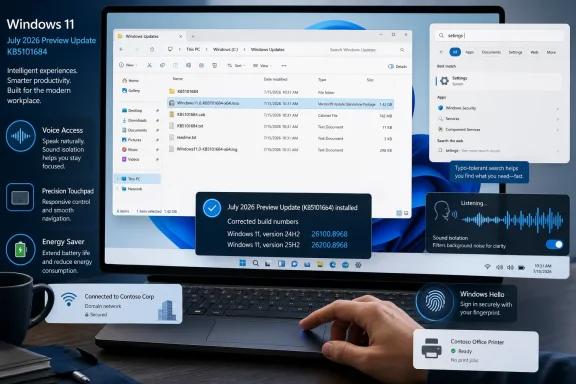
Microsoft’s July 2026 Windows 11 preview update is a broad quality-of-life release that improves File Explorer, Windows Search, Voice Access, precision touchpads, Windows Hello, power management, Widgets, networking, printing, and core shell reliability. There is also an important correction to the early reporting: Microsoft initially identified the Release Preview builds as 26100.8942 for Windows 11 24H2 and 26200.8942 for Windows 11 25H2, but subsequently corrected the delivered builds to 26100.8968 and 26200.8968 under KB5101684. The update is available to Windows Insiders in the Release Preview Channel and previews changes expected to reach production PCs through a future optional non-security update.
Windows 11 no longer depends exclusively on annual feature updates to introduce visible changes. Microsoft increasingly delivers new capabilities through monthly cumulative updates, app updates, servicing technology, and controlled feature rollouts, allowing the operating system to evolve throughout the year.
That “continuous innovation” model has advantages, but it can also make Windows releases difficult to follow. Two computers may report the same Windows version and cumulative build while presenting different features because Microsoft can activate parts of the update gradually, by market, hardware category, account type, or server-side configuration.
Microsoft distributed Windows 11 25H2 as an enablement-style release built on a shared servicing branch with 24H2. That arrangement reduces the engineering distance between the two versions and allows Microsoft to ship many improvements to both populations at roughly the same time.
For users, this means the version label is not always a reliable indication of which interface features are installed. Feature activation, hardware eligibility, rollout stage, and Microsoft account configuration can matter as much as the version number itself.
The distinction is not cosmetic. Build numbers are essential when troubleshooting update failures, comparing system behavior, filing Feedback Hub reports, or determining whether a computer received a follow-up servicing revision.
Users testing the update should therefore verify the installed build rather than relying on an early article or cached release note:
That old behavior was technically valid but needlessly awkward. A multi-gigabyte disk image, virtual machine, game archive, or video project is easier to evaluate when Windows labels it in gigabytes rather than displaying a seven- or eight-digit kilobyte figure.
The improvement should be especially useful when:
The feature can accelerate navigation when working across several related directories. Instead of opening a folder, creating a tab, and navigating back to the original location, users can branch into a second tab with one mouse action.
Microsoft added tabs to File Explorer years after browsers had made them a normal part of desktop computing. Since then, the company has gradually improved their consistency, and middle-click support closes another gap between Explorer’s tabs and the interaction model users expect.
File thumbnails in the Recommended section should also look sharper and easier to identify. These visual changes will not transform Explorer, but they contribute to the perception of polish that Windows 11 has sometimes lacked in heavily updated shell surfaces.
This matters because Start search frequently acts as Windows 11’s application launcher. Many experienced users rarely browse the full Start menu; they press the Windows key, type several characters, and expect the correct program to appear immediately.
A tolerant matching system is therefore not merely a search enhancement. It affects the responsiveness of the entire desktop workflow.
Better ranking could reduce the number of steps needed to reach common controls. However, its success will depend on whether Microsoft can maintain predictable results across languages, regional terminology, changing Settings labels, and queries that could reasonably refer to multiple features.
This revision illustrates why preview-update reporting requires caution. Microsoft may adjust documentation when a feature is delayed, described too broadly, or found not to be active in the published build.
The confirmed Search improvements concern typo-tolerant application matching and better Settings relevance, not guaranteed support for every two-character file query.
Voice Isolation therefore has the potential to improve independence and reduce fatigue. A system that understands the primary speaker more consistently requires fewer repeated commands and fewer corrections through alternative input devices.
Microsoft is also adding Korean language support to Voice Access. Language expansion remains crucial because an accessibility feature is only broadly useful if users can operate it naturally in their preferred language.
Users should also remember that Voice Isolation is not a substitute for a suitable microphone. Poor placement, clipping, unusually low input levels, or defective drivers can still impair recognition even when software filtering is enabled.
The July preview adds more control for precision touchpads through Settings > Bluetooth & devices > Touchpad.
The effect could be particularly noticeable on high-resolution displays and in applications with long documents, complex timelines, large canvases, or zoomable diagrams. Small differences in gesture response can determine whether a touchpad feels direct and predictable or disconnected from the user’s movement.
This can reduce effort when navigating long web pages, spreadsheets, code files, PDFs, or document collections. At the same time, acceleration is highly subjective, so making it configurable is preferable to enforcing a single behavior across all devices.
Precision touchpads already provide Microsoft with a standardized input framework that is less dependent on proprietary drivers than older Windows laptop designs. These controls make better use of that framework and give Windows a stronger answer to competitors known for consistent trackpad behavior.
Keyboard behavior is an accessibility requirement, but it also matters to administrators, developers, writers, and power users who prefer not to interrupt typing to reach for a mouse. Focus order, selection state, and retained preferences must remain predictable for the interface to feel dependable.
The update does not radically redesign Start. Instead, it attempts to make the existing experience behave more consistently—a less marketable but arguably more valuable objective.
This may help users understand whether services such as Microsoft 365 are active, but it also risks making Start feel more commercial. Microsoft has repeatedly used account controls, Settings pages, and system notifications to encourage account sign-in, cloud backup, or subscription adoption.
The distinction between useful account status and promotional pressure will depend on presentation. A concise status indicator can be informative; repeated calls to purchase or renew services would be far less welcome.
For new users, Weather becomes the only lock-screen widget shown by default. This simplifies the initial lock screen and reduces the amount of unsolicited information displayed before the user has chosen what belongs there.
Existing users can still customize widgets. The change is primarily about establishing a quieter default rather than removing functionality.
Users with a supported reader can connect the device, open Settings > Accounts > Sign-in options, and follow the enrollment prompts. Microsoft first disclosed the broader peripheral support earlier in 2026, and the July update begins the rollout.
The change has several practical implications:
Buyers should avoid assuming that any reader advertised as “Windows Hello compatible” automatically supports the enhanced security mode. Manufacturers will need to state ESS support explicitly and maintain reliable drivers through Windows Update.
For organizations, the change may justify a new evaluation process. Security teams should confirm reader provenance, driver servicing, firmware-update mechanisms, biometric policy compatibility, and behavior with credential providers before approving large deployments.
A customizable threshold is valuable because battery priorities differ. A commuter may want Energy Saver to engage early, while a user who needs maximum performance during a short unplugged session may prefer a lower threshold.
Energy Saver can reduce consumption by moderating background activity, visual effects, performance behavior, and other power-intensive operations. The exact impact varies by hardware and workload, but user control over activation is preferable to a rigid default.
The wording is important. Microsoft is describing a reliability improvement, not necessarily abolishing the underlying power-plan architecture.
Administrators should continue validating policy-controlled power behavior after deployment. Group Policy, mobile-device management profiles, OEM software, provisioning packages, and legacy command-line configuration can all influence the final result.
Problems in this sequence can produce intermittent connectivity, invalid addressing, or delayed recovery when a laptop moves between networks. Modern Standby complicates the situation because network state may change while a device enters or leaves a low-power condition.
For enterprises with dense wireless deployments, segmented networks, hot-desking, or frequent docking transitions, even a narrow DHCP reliability fix can prevent a disproportionate number of help-desk incidents.
When it fails, employees resort to awkward workarounds such as retyping data, sending messages to themselves, or transferring files through channels that may violate policy. A more dependable clipboard therefore contributes to both productivity and security.
Organizations should still enforce appropriate redirection policies. Reliability does not change the fact that clipboard sharing can create a path for sensitive information to move between trust zones.
Printing remains an unexpectedly complex Windows workload because it spans applications, drivers, spoolers, network discovery, authentication, firmware, and device-specific capabilities. Any performance improvement must be tested across representative hardware, but faster IPPS output could strengthen the case for standards-based secure printing.
The sign-in and lock screens receive stability work for systems under low-memory conditions. This is particularly relevant to entry-level PCs, heavily loaded virtual machines, kiosk devices, and systems resuming with numerous applications still resident in memory.
Windows shell failures are unusually disruptive because Explorer controls the desktop, taskbar, Start, and much of the file-management experience. Even when applications continue running, a shell crash creates the impression that the entire operating system is unstable.
People who rely on touch panning can re-enable the bars through Magnifier settings. This is a sensible default adjustment: accessibility controls should facilitate interaction without unnecessarily obscuring the enlarged interface.
Windows should also preserve custom mouse-pointer size more reliably. That seemingly small setting can be essential for users with low vision, and losing it after an update or session change undermines trust in accessibility personalization.
Microsoft is also updating daylight-saving and time-zone accuracy for Beirut, Casablanca, Jerusalem, and Nuuk, while improving detection that triggers time-zone change notifications. Time-zone data changes regularly as governments revise local rules, making operating-system updates essential for calendars, authentication, logs, travel, and distributed work.
Allowing removal establishes a better precedent than treating all AI components as inseparable parts of Windows. Modular installation can give consumers more control while helping enterprises create narrower, more predictable system images.
It may also reduce objections from users who prefer traditional workflows. The ability to uninstall a component does not end Microsoft’s AI strategy, but it recognizes that feature availability should not always mean mandatory local installation.
Microsoft’s long-term credibility will depend on making user choices persistent. An uninstall option loses much of its value if Windows repeatedly reinstalls the component without clear consent.
Most users should wait for the production optional update or the subsequent security update that incorporates the tested fixes. There is little reason to enroll a primary work computer solely to obtain middle-click tabs or touchpad tuning a few weeks early.
A sensible test process is:
This is a critical distinction when troubleshooting. A missing touchpad control or File Explorer behavior may indicate that the feature has not been activated for that device, rather than that the update failed.
Release Preview continues to use controlled rollout even after Microsoft reworked other parts of the Insider Program in 2026. Organizations should therefore separate build compliance from feature availability in validation reports.
It will also be important to see whether the company clearly identifies which changes are immediate and which remain subject to controlled activation. Release notes are most useful when they tell administrators not merely what is included in code, but what users can expect to see after installation.
Accessibility users should also evaluate whether the one-time voice setup works consistently and whether the profile survives upgrades, repairs, account changes, and language switching.
Enterprise adoption will depend on management documentation, credential-policy integration, firmware servicing, and whether readers remain reliable through sleep, docking, fast startup, and cumulative updates.
The real test will be continuity. One well-rounded preview update cannot erase years of complaints about inconsistent interfaces, update regressions, intrusive account prompts, or features that arrive before they feel complete.
Microsoft’s corrected July Windows 11 preview is ultimately more consequential than its modest headline features suggest. Readable file sizes, better app search, cleaner Voice Access input, adjustable touchpad behavior, external ESS fingerprint support, configurable Energy Saver activation, and improved enterprise reliability all target real user frustrations. If Microsoft can preserve these gains through production deployment—and pair them with clearer documentation and less unpredictable activation—Windows 11 will become not dramatically different, but meaningfully easier to trust and use.
 Background
Windows 11 no longer depends exclusively on annual feature updates to introduce visible changes. Microsoft increasingly delivers new capabilities through monthly cumulative updates, app updates, servicing technology, and controlled feature rollouts, allowing the operating system to evolve throughout the year.That “continuous innovation” model has advantages, but it can also make Windows releases difficult to follow. Two computers may report the same Windows version and cumulative build while presenting different features because Microsoft can activate parts of the update gradually, by market, hardware category, account type, or server-side configuration.
Windows 11 24H2 and 25H2 share a servicing foundation
The July Release Preview package targets both Windows 11 version 24H2 and Windows 11 version 25H2. The corresponding build families remain 26100 for 24H2 and 26200 for 25H2, even though the feature set delivered through monthly servicing can be substantially aligned.Microsoft distributed Windows 11 25H2 as an enablement-style release built on a shared servicing branch with 24H2. That arrangement reduces the engineering distance between the two versions and allows Microsoft to ship many improvements to both populations at roughly the same time.
For users, this means the version label is not always a reliable indication of which interface features are installed. Feature activation, hardware eligibility, rollout stage, and Microsoft account configuration can matter as much as the version number itself.
The corrected build numbers matter
Initial release notes and subsequent media coverage referred to builds 26100.8942 and 26200.8942. Microsoft later corrected the documentation to builds 26100.8968 and 26200.8968, while also revising descriptions related to Windows Search and power settings.The distinction is not cosmetic. Build numbers are essential when troubleshooting update failures, comparing system behavior, filing Feedback Hub reports, or determining whether a computer received a follow-up servicing revision.
Users testing the update should therefore verify the installed build rather than relying on an early article or cached release note:
- Press Windows key + R.
- Enter
winver. - Select OK.
- Confirm whether Windows reports build 26100.8968 or 26200.8968.
- Check Windows Update history for KB5101684 if further confirmation is required.
File Explorer Gets Practical Improvements
File Explorer receives some of the most immediately useful changes in the July preview. Microsoft is not attempting another wholesale redesign; instead, it is addressing small inconsistencies that affect file management every day.File sizes finally use readable units
The Details view can now display sizes using the most appropriate unit, including KB, MB, and GB. Previously, File Explorer could present large files as enormous kilobyte values, forcing users to perform a rough mental conversion before understanding how much space a file consumed.That old behavior was technically valid but needlessly awkward. A multi-gigabyte disk image, virtual machine, game archive, or video project is easier to evaluate when Windows labels it in gigabytes rather than displaying a seven- or eight-digit kilobyte figure.
The improvement should be especially useful when:
- Users compare large installation packages or ISO images.
- Administrators inspect log, dump, backup, and deployment files.
- Creators sort video, audio, and graphics assets by size.
- Laptop owners determine which files to remove from limited storage.
- Support technicians ask users to identify unusually large files.
Middle-click opens folders in new tabs
File Explorer now supports middle-clicking folders in the address bar and on the Home page to open them in a new tab. This aligns Explorer more closely with the tab behavior users already understand from modern web browsers.The feature can accelerate navigation when working across several related directories. Instead of opening a folder, creating a tab, and navigating back to the original location, users can branch into a second tab with one mouse action.
Microsoft added tabs to File Explorer years after browsers had made them a normal part of desktop computing. Since then, the company has gradually improved their consistency, and middle-click support closes another gap between Explorer’s tabs and the interaction model users expect.
Home page presentation and stability improve
The update removes a gray flash that could appear while File Explorer Home loaded. It also addresses cases where the Home page unexpectedly scrolled back to the top, an irritating behavior when users were working farther down a list of recent or recommended content.File thumbnails in the Recommended section should also look sharper and easier to identify. These visual changes will not transform Explorer, but they contribute to the perception of polish that Windows 11 has sometimes lacked in heavily updated shell surfaces.
Windows Search Becomes More Forgiving
Windows Search has long struggled with inconsistent ranking, indexing delays, and queries that fail unless the user enters an application’s name in the expected form. The July preview attempts to reduce that brittleness, particularly when launching installed applications or locating Settings pages.Typographical errors and partial app names
Application search should now handle misspellings, missing letters, extra letters, and incomplete names more effectively. A user who remembers most—but not all—of an application name has a better chance of receiving the intended result.This matters because Start search frequently acts as Windows 11’s application launcher. Many experienced users rarely browse the full Start menu; they press the Windows key, type several characters, and expect the correct program to appear immediately.
A tolerant matching system is therefore not merely a search enhancement. It affects the responsiveness of the entire desktop workflow.
Settings ranking receives attention
Microsoft is also adjusting search relevance so that useful Settings results appear higher in the list. Windows 11’s Settings app has grown significantly as Microsoft continues moving options away from Control Panel, and finding the correct page can be difficult when terminology differs between the interface and the user’s query.Better ranking could reduce the number of steps needed to reach common controls. However, its success will depend on whether Microsoft can maintain predictable results across languages, regional terminology, changing Settings labels, and queries that could reasonably refer to multiple features.
Two-character file search claim was removed
Early reports said the update improved searching for filenames containing only two characters across local, cloud, and connected content. Microsoft’s corrected release notes removed that entry, so users should not assume that particular enhancement is part of KB5101684.This revision illustrates why preview-update reporting requires caution. Microsoft may adjust documentation when a feature is delayed, described too broadly, or found not to be active in the published build.
The confirmed Search improvements concern typo-tolerant application matching and better Settings relevance, not guaranteed support for every two-character file query.
Voice Access Gains Voice Isolation
Voice Access is one of Windows 11’s most important accessibility technologies because it allows users to navigate the interface, interact with applications, and enter text through speech. The July preview adds Voice Isolation, designed to improve recognition when the microphone captures environmental noise or other speakers.Three speech-recognition modes
Voice Access now exposes three filtering choices under its speech-recognition settings:- Voice Isolation attempts to separate the enrolled user’s voice from both background noise and other people speaking nearby. It requires a one-time voice setup.
- Remove background noise only filters non-speech sounds such as typing, doors closing, fans, or other environmental noise without requiring the additional voice-enrollment process.
- No filtering uses the microphone input without the new processing layer.
Accessibility benefits extend beyond convenience
Background voices can cause more than a minor transcription error. For users who depend on speech to control a computer, incorrect recognition can open the wrong item, insert unwanted text, interrupt a workflow, or make an essential accessibility feature unreliable.Voice Isolation therefore has the potential to improve independence and reduce fatigue. A system that understands the primary speaker more consistently requires fewer repeated commands and fewer corrections through alternative input devices.
Microsoft is also adding Korean language support to Voice Access. Language expansion remains crucial because an accessibility feature is only broadly useful if users can operate it naturally in their preferred language.
Privacy and processing questions remain
Voice enrollment may prompt understandable questions about where the voice model is stored, how long it persists, and whether processing occurs locally. Microsoft will need to communicate these details clearly, especially for managed computers in education, healthcare, government, and other regulated environments.Users should also remember that Voice Isolation is not a substitute for a suitable microphone. Poor placement, clipping, unusually low input levels, or defective drivers can still impair recognition even when software filtering is enabled.
Touchpad Controls Become More Personal
Windows laptops vary widely in size, touchpad surface, firmware tuning, display scaling, and user preference. A gesture speed that feels natural on a compact notebook can feel sluggish or excessively sensitive on a larger premium laptop.The July preview adds more control for precision touchpads through Settings > Bluetooth & devices > Touchpad.
Separate scroll and zoom tuning
Users can adjust the baseline speed of scrolling and zoom gestures. This should help people who previously had to accept an OEM’s default tuning or rely on limited driver-specific utilities.The effect could be particularly noticeable on high-resolution displays and in applications with long documents, complex timelines, large canvases, or zoomable diagrams. Small differences in gesture response can determine whether a touchpad feels direct and predictable or disconnected from the user’s movement.
Accelerated scrolling
An accelerated scrolling option allows repeated gestures to move through content more quickly. The concept resembles mouse acceleration in that Windows varies movement according to the user’s ongoing input rather than applying a fixed rate at all times.This can reduce effort when navigating long web pages, spreadsheets, code files, PDFs, or document collections. At the same time, acceleration is highly subjective, so making it configurable is preferable to enforcing a single behavior across all devices.
Precision touchpads already provide Microsoft with a standardized input framework that is less dependent on proprietary drivers than older Windows laptop designs. These controls make better use of that framework and give Windows a stronger answer to competitors known for consistent trackpad behavior.
Start, Widgets, and Everyday Interface Details
Several changes target areas that users see frequently but may not consciously analyze: Start, taskbar badges, lock-screen widgets, system sounds, and account controls. Collectively, these adjustments indicate a renewed focus on reducing friction rather than simply adding new promotional surfaces.Better Start menu keyboard navigation
Microsoft is improving keyboard navigation when focus is placed on the Start menu’s application list. The update also makes selected Start views more likely to persist instead of reverting unexpectedly.Keyboard behavior is an accessibility requirement, but it also matters to administrators, developers, writers, and power users who prefer not to interrupt typing to reach for a mouse. Focus order, selection state, and retained preferences must remain predictable for the interface to feel dependable.
The update does not radically redesign Start. Instead, it attempts to make the existing experience behave more consistently—a less marketable but arguably more valuable objective.
Subscription information in the account control
The Start menu’s account control receives a refreshed design and can display a badge indicating the status of Microsoft subscriptions. The experience applies to users signed in with a Microsoft account.This may help users understand whether services such as Microsoft 365 are active, but it also risks making Start feel more commercial. Microsoft has repeatedly used account controls, Settings pages, and system notifications to encourage account sign-in, cloud backup, or subscription adoption.
The distinction between useful account status and promotional pressure will depend on presentation. A concise status indicator can be informative; repeated calls to purchase or renew services would be far less welcome.
Widgets become less visually aggressive
Widget notification badges on the taskbar now use the Windows accent color instead of always appearing red. Red normally communicates urgency, error, or immediate attention, so using it for routine widget updates can make low-priority content appear more important than it is.For new users, Weather becomes the only lock-screen widget shown by default. This simplifies the initial lock screen and reduces the amount of unsolicited information displayed before the user has chosen what belongs there.
Existing users can still customize widgets. The change is primarily about establishing a quieter default rather than removing functionality.
Windows Hello Expands to External Fingerprint Readers
Windows Hello Enhanced Sign-in Security is expanding beyond integrated biometric hardware to support compatible peripheral fingerprint readers. This is particularly significant for desktop PCs, docking-station setups, and laptops whose built-in readers are absent, inconveniently positioned, or no longer functional.What Enhanced Sign-in Security changes
Enhanced Sign-in Security is designed to protect biometric credentials by using supported hardware and security boundaries rather than treating a fingerprint sensor as a simple input device. Compatibility therefore depends on the fingerprint reader and its drivers, not merely on whether Windows can detect it.Users with a supported reader can connect the device, open Settings > Accounts > Sign-in options, and follow the enrollment prompts. Microsoft first disclosed the broader peripheral support earlier in 2026, and the July update begins the rollout.
The change has several practical implications:
- Desktop users gain access to stronger fingerprint sign-in options.
- Enterprises can standardize biometric accessories across shared hardware models.
- Docked laptop users can authenticate without reaching for a closed or elevated notebook.
- Existing PCs may gain secure biometric sign-in without requiring replacement.
- Accessibility setups can position the sensor wherever it is easiest to reach.
Hardware support will be the limiting factor
Not every USB fingerprint reader will qualify for Enhanced Sign-in Security. Older accessories may continue to work with conventional Windows Hello behavior, while others may require updated firmware or drivers.Buyers should avoid assuming that any reader advertised as “Windows Hello compatible” automatically supports the enhanced security mode. Manufacturers will need to state ESS support explicitly and maintain reliable drivers through Windows Update.
For organizations, the change may justify a new evaluation process. Security teams should confirm reader provenance, driver servicing, firmware-update mechanisms, biometric policy compatibility, and behavior with credential providers before approving large deployments.
Power Management Returns Useful Control
Power settings have moved between Control Panel, legacy power-plan interfaces, and the modern Settings app throughout Windows 11’s lifespan. That transition has sometimes produced inconsistent behavior, especially when a visible setting does not apply uniformly across available power plans.Energy Saver threshold returns
The update restores the ability to choose the battery percentage at which Energy Saver activates. Users can find the control under Settings > System > Power & battery on supported portable devices.A customizable threshold is valuable because battery priorities differ. A commuter may want Energy Saver to engage early, while a user who needs maximum performance during a short unplugged session may prefer a lower threshold.
Energy Saver can reduce consumption by moderating background activity, visual effects, performance behavior, and other power-intensive operations. The exact impact varies by hardware and workload, but user control over activation is preferable to a rigid default.
Settings should apply more consistently
Microsoft has also revised the power-related release note to say that changes made in Settings should be applied more reliably across power plans. This covers preferences such as sleep and display behavior, where conflicting plan-specific values can otherwise cause Windows to ignore what the user believes was configured.The wording is important. Microsoft is describing a reliability improvement, not necessarily abolishing the underlying power-plan architecture.
Administrators should continue validating policy-controlled power behavior after deployment. Group Policy, mobile-device management profiles, OEM software, provisioning packages, and legacy command-line configuration can all influence the final result.
Enterprise Reliability Improvements
Although the visible features attract more attention, several fixes could have greater operational value in managed environments. Networking, Remote Desktop clipboard behavior, secure printing, update cleanup, and shell stability directly affect support volume and employee productivity.DHCP renewals and Modern Standby
Microsoft is improving DHCP renewal reliability, particularly when a client receives a negative acknowledgment from the DHCP server and on devices using Modern Standby. A DHCP NACK tells the client that its requested address is invalid or unavailable, requiring the device to abandon that configuration and obtain a new lease.Problems in this sequence can produce intermittent connectivity, invalid addressing, or delayed recovery when a laptop moves between networks. Modern Standby complicates the situation because network state may change while a device enters or leaves a low-power condition.
For enterprises with dense wireless deployments, segmented networks, hot-desking, or frequent docking transitions, even a narrow DHCP reliability fix can prevent a disproportionate number of help-desk incidents.
Remote Desktop and Azure Virtual Desktop clipboard stability
The update improves clipboard reliability in some Remote Desktop and Azure Virtual Desktop scenarios. Clipboard redirection is a basic but critical productivity function, allowing users to move text and approved content between local and remote environments.When it fails, employees resort to awkward workarounds such as retyping data, sending messages to themselves, or transferring files through channels that may violate policy. A more dependable clipboard therefore contributes to both productivity and security.
Organizations should still enforce appropriate redirection policies. Reliability does not change the fact that clipboard sharing can create a path for sensitive information to move between trust zones.
Faster IPPS printing
Microsoft says the update improves pages-per-minute performance for printers using Internet Printing Protocol Secure. IPPS combines modern network printing with encrypted transport, making it relevant to organizations moving away from older printing protocols and legacy driver models.Printing remains an unexpectedly complex Windows workload because it spans applications, drivers, spoolers, network discovery, authentication, firmware, and device-specific capabilities. Any performance improvement must be tested across representative hardware, but faster IPPS output could strengthen the case for standards-based secure printing.
Shell, Accessibility, and System Polish
A collection of smaller fixes addresses Explorer reliability, sign-in behavior under memory pressure, taskbar startup, Magnifier controls, cursor settings, fonts, date and time handling, and post-update performance. None alone defines the release, but together they target recurring rough edges.Explorer, taskbar, and sign-in reliability
Microsoft is improvingexplorer.exe reliability while users open jump lists and recent files, share folders, use Task View, or work across multiple virtual desktops. Start and the taskbar should also initialize more reliably during system startup.The sign-in and lock screens receive stability work for systems under low-memory conditions. This is particularly relevant to entry-level PCs, heavily loaded virtual machines, kiosk devices, and systems resuming with numerous applications still resident in memory.
Windows shell failures are unusually disruptive because Explorer controls the desktop, taskbar, Start, and much of the file-management experience. Even when applications continue running, a shell crash creates the impression that the entire operating system is unstable.
Magnifier becomes less obstructive on touchscreens
The horizontal and vertical touch bars used to pan a magnified view are now disabled by default. Microsoft found that the controls could cover the content users were attempting to examine.People who rely on touch panning can re-enable the bars through Magnifier settings. This is a sensible default adjustment: accessibility controls should facilitate interaction without unnecessarily obscuring the enlarged interface.
Windows should also preserve custom mouse-pointer size more reliably. That seemingly small setting can be essential for users with low vision, and losing it after an update or session change undermines trust in accessibility personalization.
Font and time-zone corrections
Support for Unicode variation sequences returns to the Myanmar Text font, while Mongolian Baiti receives improved shaping and rendering. Font corrections are easy to overlook in English-language coverage, but inaccurate shaping can make text difficult to read or linguistically incorrect.Microsoft is also updating daylight-saving and time-zone accuracy for Beirut, Casablanca, Jerusalem, and Nuuk, while improving detection that triggers time-zone change notifications. Time-zone data changes regularly as governments revise local rules, making operating-system updates essential for calendars, authentication, logs, travel, and distributed work.
AI Components and User Choice
The update permits users to remove the Image Generation AI component from supported Copilot+ PCs where that component is installed. This is a notable step because Windows’ growing collection of local AI models creates questions about disk usage, manageability, privacy, and whether every device needs every capability.Modular AI is preferable to permanent AI
Copilot+ PCs use neural processing units and local models to support various AI-assisted experiences. These packages can consume storage and may receive their own updates, even if the owner never uses the associated feature.Allowing removal establishes a better precedent than treating all AI components as inseparable parts of Windows. Modular installation can give consumers more control while helping enterprises create narrower, more predictable system images.
It may also reduce objections from users who prefer traditional workflows. The ability to uninstall a component does not end Microsoft’s AI strategy, but it recognizes that feature availability should not always mean mandatory local installation.
Management questions remain
Enterprises will want to know whether AI-component removal can be automated through PowerShell, provisioning, policy, or mobile-device management. They will also need clarity about whether a removed package can return during a cumulative update, feature enablement, account sign-in, or Microsoft Store servicing event.Microsoft’s long-term credibility will depend on making user choices persistent. An uninstall option loses much of its value if Windows repeatedly reinstalls the component without clear consent.
Installing and Testing the Preview Safely
Release Preview is closer to production than Microsoft’s Experimental or Beta paths, but it remains a pre-release environment. The July package is not yet a general mandatory update for ordinary Windows 11 installations.Who should install it
The strongest candidates are enthusiasts with backup systems, IT administrators validating an upcoming cumulative update, accessibility users who specifically need one of the new features, and developers checking compatibility before general deployment.Most users should wait for the production optional update or the subsequent security update that incorporates the tested fixes. There is little reason to enroll a primary work computer solely to obtain middle-click tabs or touchpad tuning a few weeks early.
A sensible test process is:
- Use a secondary computer or a representative virtualized test environment where possible.
- Create a current backup and verify recovery options.
- Record the existing Windows version, build, drivers, and update history.
- Install KB5101684 through the appropriate Insider configuration.
- Confirm the final build with
winver. - Test networking, sleep and resume, printing, biometric sign-in, Explorer, and business applications.
- Report reproducible failures through Feedback Hub with logs and hardware details.
- Avoid broad deployment until Microsoft promotes the package to the production channel.
Gradual rollout complicates verification
Many visible features are delivered gradually. Installing the cumulative update does not guarantee that every listed capability will appear immediately.This is a critical distinction when troubleshooting. A missing touchpad control or File Explorer behavior may indicate that the feature has not been activated for that device, rather than that the update failed.
Release Preview continues to use controlled rollout even after Microsoft reworked other parts of the Insider Program in 2026. Organizations should therefore separate build compliance from feature availability in validation reports.
Strengths and Opportunities
The July preview is strongest when judged as a collection of targeted improvements rather than a traditional feature release. It addresses established workflows and gives users more control without requiring them to learn an entirely new interface.- File Explorer becomes faster to interpret. Human-readable file sizes and middle-click tab creation remove unnecessary steps from routine file management.
- Voice Access becomes more practical in real environments. Voice Isolation could improve accessibility in offices, classrooms, shared homes, and other noisy spaces.
- Touchpad behavior becomes less dependent on OEM defaults. Scroll, zoom, and acceleration controls can make laptop input feel more consistent.
- External biometric hardware gains a stronger security path. Enhanced Sign-in Security support creates new options for desktops and docked workstations.
- Power controls better reflect individual priorities. Restored Energy Saver thresholds help users balance runtime and performance.
- Enterprise fixes target genuine operational pain. DHCP, Remote Desktop clipboard, IPPS printing, and shell reliability can reduce support incidents.
- AI packaging becomes more modular. The ability to remove an image-generation component is a constructive step toward user-controlled Windows AI.
- Microsoft is correcting documentation more openly. Updating the build number and revising inaccurate feature descriptions helps prevent lasting confusion.
Risks and Concerns
The update also demonstrates persistent weaknesses in Microsoft’s servicing and communication model. The features may be useful, but users should not ignore the uncertainty surrounding their delivery.- The initial build-number error created avoidable confusion. Early reports cited 26100.8942 and 26200.8942 before Microsoft corrected the builds to 26100.8968 and 26200.8968.
- A Search claim was withdrawn. Two-character file-search support appeared in early notes but was later removed, illustrating the danger of treating preliminary documentation as final.
- Controlled rollouts make identical builds behave differently. This complicates support, testing, documentation, and conversations between users.
- Preview updates can introduce regressions. Shell, driver, sleep, networking, and application problems may emerge only on specific hardware combinations.
- Subscription badges can become promotional clutter. Account status is useful only if Microsoft avoids turning Start into an advertising surface.
- External fingerprint security depends on hardware quality. Compatibility claims, firmware servicing, and driver support will determine whether ESS peripherals are trustworthy.
- Voice filtering introduces privacy questions. Microsoft must explain voice enrollment, model storage, processing location, and enterprise controls.
- AI-component removal must persist. Users will lose confidence if Windows silently restores software they deliberately uninstalled.
What to Watch Next
The most likely destination for these changes is a future optional non-security preview update for production Windows 11 devices, followed by incorporation into a later cumulative security update. Microsoft can still modify, pause, or remove individual features before broad deployment.Production build and rollout timing
Users should watch for the eventual consumer KB number, production build revision, and whether Microsoft retains all of the current Release Preview features. The cumulative package may receive additional fixes before it reaches ordinary 24H2 and 25H2 systems.It will also be important to see whether the company clearly identifies which changes are immediate and which remain subject to controlled activation. Release notes are most useful when they tell administrators not merely what is included in code, but what users can expect to see after installation.
Real-world Voice Isolation performance
Voice Isolation needs testing across laptop microphones, USB headsets, conference devices, Bluetooth audio, docking stations, and rooms with competing speech. Its value will depend on recognition accuracy, processing latency, battery impact, and behavior when the intended speaker changes position.Accessibility users should also evaluate whether the one-time voice setup works consistently and whether the profile survives upgrades, repairs, account changes, and language switching.
ESS fingerprint-reader availability
Peripheral manufacturers now have an incentive to release ESS-compatible fingerprint sensors. The market will need clear labeling so buyers can distinguish enhanced-security devices from older Windows Hello readers.Enterprise adoption will depend on management documentation, credential-policy integration, firmware servicing, and whether readers remain reliable through sleep, docking, fast startup, and cumulative updates.
Whether quality remains the priority
Microsoft has publicly emphasized Windows performance, reliability, and craft during 2026. KB5101684 provides evidence of that direction through Explorer fixes, shell improvements, networking reliability, more consistent power settings, and better accessibility defaults.The real test will be continuity. One well-rounded preview update cannot erase years of complaints about inconsistent interfaces, update regressions, intrusive account prompts, or features that arrive before they feel complete.
Microsoft’s corrected July Windows 11 preview is ultimately more consequential than its modest headline features suggest. Readable file sizes, better app search, cleaner Voice Access input, adjustable touchpad behavior, external ESS fingerprint support, configurable Energy Saver activation, and improved enterprise reliability all target real user frustrations. If Microsoft can preserve these gains through production deployment—and pair them with clearer documentation and less unpredictable activation—Windows 11 will become not dramatically different, but meaningfully easier to trust and use.
References
- Primary source: PCWorld
Published: 2026-07-22T13:59:55+00:00
Loading…
www.pcworld.com - Official source: blogs.windows.com
Announcing Windows 11 Insider Preview Build 26200 (Canary Channel)
Hello Windows Insiders, today we are releasing Windows 11 Insider Preview Build 26200 to the Canary Channel. (Note the .5001 after the build number does not mean anything relevant to Windows Insiders and we will continue to useblogs.windows.com - Related coverage: elevenforum.com
Loading…
www.elevenforum.com - Related coverage: allthings.how
Loading…
allthings.how - Related coverage: computerbase.de
Loading…
www.computerbase.de - Related coverage: askwoody.com
Loading…
www.askwoody.com