

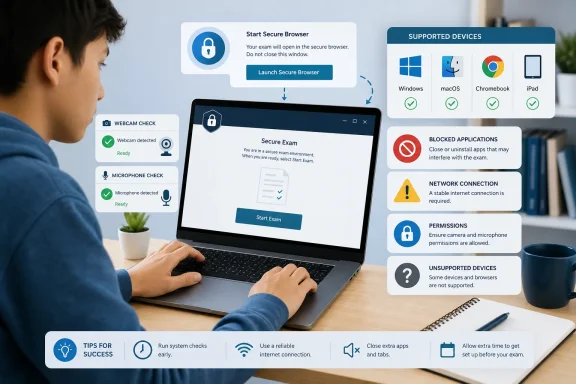
LockDown Browser usually fails for one of four reasons: the device or operating system is unsupported, the wrong institution-specific copy is installed, another app is blocking its secure mode, or the webcam/network check cannot complete. Start with the device and installation checks before uninstalling anything.
As of July 2026, Respondus supports:
If your operating system or device is outside those limits, troubleshooting the app will not make it compatible. Use a supported computer supplied by your school, a campus lab, or another approved device.
On Windows, a damaged or renamed installer may not run correctly. Confirm that the downloaded file still ends in
Canvas Classic Quizzes and Blackboard Learn Original exams use a different path on Windows and Mac: open the LockDown Browser desktop app first, sign in to the LMS inside it, and then navigate to the exam.
In Firefox:
A blocked-app warning does not necessarily mean that you did anything wrong. It means the software detected a process that conflicts with the locked exam environment. If the warning returns after you close the visible app, check Task Manager on Windows or Activity Monitor on macOS for its background process.
Use this order:
If your recording has no sound, make sure the computer is not muted, the input device is selected, and LockDown Browser has not been blocked by privacy or security software. In the Webcam Check screen, select It’s not working for the built-in troubleshooter.
Apple menu > System Settings > Privacy & Security > Camera
Enable LockDown Browser, then repeat the process under Microphone.
On macOS versions that use the older layout, open:
Apple menu > System Preferences > Security & Privacy > Privacy
Select Camera and Microphone in turn, unlock the panel if required, and allow LockDown Browser.
If the failure began immediately after a camera driver update on Windows, try rolling back the driver through Device Manager or updating it from the computer manufacturer’s support site. A USB webcam, USB headset, or external microphone can also isolate whether the built-in hardware is the problem.
Before reopening the exam:
On managed campus or corporate networks, the network administrator may need to allow the Respondus services used by the exam over HTTPS/TLS. This is an IT-side fix, not something a student can safely bypass.
For exams using LockDown Browser only, iPad access is generally enabled automatically where the LMS supports it. For an exam that also uses Respondus Monitor, the instructor must explicitly allow iPad use.
If neither option is available and the computer is frozen, hold the physical power button until it fully shuts down. On a Mac without a physical power button, hold Touch ID for about six seconds.
After a forced shutdown on Windows, restore normal settings before attempting an exam again:
 Confirm that your device can run LockDown Browser
As of July 2026, Respondus supports:- Windows 11 and Windows 10 version 10.0.19045 (build 19045) or later
- macOS 12 or later
- ChromeOS at least on Google’s Long Term Support channel; the Stable channel is recommended
- iPadOS 15 or later on an iPad, where the school’s LMS integration and exam settings permit iPad use
If your operating system or device is outside those limits, troubleshooting the app will not make it compatible. Use a supported computer supplied by your school, a campus lab, or another approved device.
Reinstall the copy assigned to your school
LockDown Browser installations are tied to an institution. If the program opens the wrong school’s login page, or an exam says the browser is not correctly configured, remove the existing copy and download the installer from your school—not from a generic software-download site.- Get the LockDown Browser download link from your instructor, campus IT desk, LMS course page, or exam instructions.
- On Windows or Mac, sign in with a local administrator account before installing.
- Download and run the installer from the institution-specific Respondus page.
- Accept the default installation prompts.
- Open LockDown Browser and use its toolbar information (
i) button to select Check for Update. On Mac, use the Globe icon and select Check for Update.
On Windows, a damaged or renamed installer may not run correctly. Confirm that the downloaded file still ends in
.exe, sign in as a local administrator, then run it from the Downloads folder. If endpoint security software blocks installation, contact school IT or the security administrator rather than leaving protection disabled.Start the exam from the correct place
For most learning systems, do not open LockDown Browser first. Instead:- Open Chrome, Edge, Firefox, Safari, or another normal browser.
- Sign in to the school’s learning system.
- Open the course and exam page.
- Select the button labeled Launch LockDown Browser, Launch Quiz, View Assessment, or similar.
- Approve the browser prompt to open LockDown Browser.
Canvas Classic Quizzes and Blackboard Learn Original exams use a different path on Windows and Mac: open the LockDown Browser desktop app first, sign in to the LMS inside it, and then navigate to the exam.
If the Launch LockDown Browser button does nothing
In Chrome:- Open Chrome’s three-dot menu.
- Select Settings.
- Search for
reset. - Open Restore settings to their original defaults.
- Select Reset settings.
In Firefox:
- Open the Firefox menu and select Settings.
- Open Applications.
- Find the RLDB content type.
- Set it to open with LockDown Browser.
Close apps that LockDown Browser blocks
LockDown Browser deliberately prevents many apps and utilities from running during an exam. Common conflicts include:- Screen recording, screenshot, and screen-capture tools
- Screen sharing and remote-desktop software
- Messaging and meeting apps
- Virtual machines
- Network-monitoring or packet-capture software
- Webcam filters, virtual cameras, and splitters
- Background recording utilities supplied with conferencing or lecture-capture software
A blocked-app warning does not necessarily mean that you did anything wrong. It means the software detected a process that conflicts with the locked exam environment. If the warning returns after you close the visible app, check Task Manager on Windows or Activity Monitor on macOS for its background process.
Fix webcam, camera, and microphone failures
A webcam check that spins indefinitely, shows no picture, or cannot detect audio is commonly caused by another app holding the camera, missing operating-system permissions, or a bad camera driver.Use this order:
- Exit the webcam check and update LockDown Browser using Check for Update.
- Restart the computer.
- Close Zoom, Teams, Discord, OBS, camera utilities, browser tabs using camera permissions, and any virtual-camera or filter software.
- Open LockDown Browser, sign in to the LMS, and open the course.
- Select Help Center, then run System Check or System & Network Check.
- Run Webcam Check.
- If necessary, select Change my webcam and choose the actual built-in or USB camera—not an entry labeled “virtual,” “filter,” or “splitter.”
Check Windows camera and microphone permissions
In Windows 11, open:- Settings > Privacy & security > Camera
- Settings > Privacy & security > Microphone
- Camera access or Microphone access
- Let apps access your camera or Let apps access your microphone
- Let desktop apps access your camera or Let desktop apps access your microphone
If your recording has no sound, make sure the computer is not muted, the input device is selected, and LockDown Browser has not been blocked by privacy or security software. In the Webcam Check screen, select It’s not working for the built-in troubleshooter.
Check macOS permissions
On newer macOS versions, open:Apple menu > System Settings > Privacy & Security > Camera
Enable LockDown Browser, then repeat the process under Microphone.
On macOS versions that use the older layout, open:
Apple menu > System Preferences > Security & Privacy > Privacy
Select Camera and Microphone in turn, unlock the panel if required, and allow LockDown Browser.
If the failure began immediately after a camera driver update on Windows, try rolling back the driver through Device Manager or updating it from the computer manufacturer’s support site. A USB webcam, USB headset, or external microphone can also isolate whether the built-in hardware is the problem.
Resolve a blank screen, lost connection, or network error
A blank exam page commonly means LockDown Browser cannot maintain a connection to the school’s LMS. First verify that the normal internet connection is working, then restart the computer and move closer to the router or use a stable wired connection where possible.Before reopening the exam:
- Disconnect additional monitors.
- Turn off VPN, proxy, and Tor connections unless your institution specifically requires them.
- Check that the computer’s date, time, and time zone match your physical location.
- Restart the router if other devices are also having connection problems.
- Ensure local firewall or security software is not blocking LockDown Browser.
On managed campus or corporate networks, the network administrator may need to allow the Respondus services used by the exam over HTTPS/TLS. This is an IT-side fix, not something a student can safely bypass.
Chromebook fixes
On a Chromebook, first confirm the LockDown Browser Chrome Extension is installed and enabled.- Enter
chrome://extensions/in Chrome’s address bar. - Find LockDown Browser Chrome Extension.
- Turn its slider on.
- If it is missing, install it using your institution’s LockDown Browser download page.
- Open
chrome://settings/clearBrowserData. - Set Time range to All time.
- Select Cookies and other site data.
- Select Clear data.
- Open
chrome://settings/siteData. - Select Remove All, then confirm the removal.
- Restart the Chromebook, sign in to the LMS again, and reopen the exam.
iPad limitations and launch steps
Install the LockDown Browser app from the Apple App Store. Whether you can use it depends on the LMS and the instructor’s exam settings.For exams using LockDown Browser only, iPad access is generally enabled automatically where the LMS supports it. For an exam that also uses Respondus Monitor, the instructor must explicitly allow iPad use.
- For Blackboard Original Course View and Canvas Classic Quizzes, open the LockDown Browser app first. On first launch, choose the institution and server, sign in, and navigate to the quiz.
- For Brightspace, Moodle, Blackboard Ultra, Canvas New Quizzes, Schoology, and ALEKS, open Safari or Chrome, sign in, navigate to the quiz, and start it. Approve the prompt to open LockDown Browser and confirm app self-lock.
If LockDown Browser freezes and will not close
If your instructor enabled Student Early Exit, use it and provide the requested reason. In a managed testing lab, a proctor may be able to enter a Proctor Exit Password.If neither option is available and the computer is frozen, hold the physical power button until it fully shuts down. On a Mac without a physical power button, hold Touch ID for about six seconds.
After a forced shutdown on Windows, restore normal settings before attempting an exam again:
- Install the latest LockDown Browser version from your institution’s download page.
- Right-click the LockDown Browser desktop shortcut and choose Properties.
- Open the Shortcut tab.
- In Target, add a space followed by
/restoreat the end of the existing path. - Start LockDown Browser using that shortcut and wait for the restoration confirmation.
- Return to the shortcut properties and remove
/restore.
When the fix belongs to your instructor or school
Contact the instructor or campus help desk—preferably before the exam window closes—if you see:- Invalid Profile
- There is a problem with the URL for this exam
- There is a problem with the LockDown Browser settings for this exam
- A message that an otherwise supported Chromebook or iPad is not allowed
- A webcam-required message when the Respondus Monitor requirement or exam title appears inconsistent
- An external course resource that is supposed to open during the exam but is blocked