

A keyboard failure can make a healthy Windows PC or Mac feel unusable, but the cause is often narrower than it first appears. A key may be physically defective, the active keyboard layout may be wrong, accessibility features may be filtering input, or a USB, wireless, or Bluetooth connection may be unstable. The fastest way to fix the problem is to test methodically, beginning with visible key output and moving toward connection, software, and hardware diagnostics only when the simple checks fail.
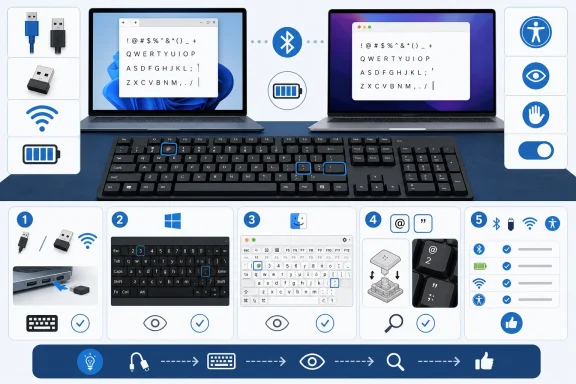
Before reinstalling a driver, resetting Bluetooth, or shopping for a replacement, determine whether the keyboard is actually producing input. A blank text document is the best first test because it removes browser extensions, game overlays, app-specific shortcuts, and formatting behavior from the equation.
On Windows, open Notepad from the Start menu. On a Mac, open TextEdit and create a new document. If TextEdit is inserting rich formatting that makes the results harder to inspect, switch it to plain text from the Format menu.
Then test the entire keyboard deliberately rather than randomly.
A completely dead key may point to debris, liquid damage, a worn switch, a damaged cable, or a failing keyboard controller. A key that produces an unexpected character is more likely to indicate a layout mismatch or input-source issue. A shortcut that fails while ordinary typing works can point to remapping software, an accessibility setting, or a modifier key problem.
Start > Settings > Accessibility > Keyboard
Turn on On-Screen Keyboard, or use the shortcut:
With the on-screen keyboard visible, press keys on the physical keyboard and compare the typed output with the layout displayed on screen. If pressing the key labeled
The Windows on-screen keyboard is especially useful when:
To show Keyboard Viewer, use the Input menu in the menu bar and choose Show Keyboard Viewer. If the Input menu is not visible, open:
Apple menu > System Settings > Keyboard > Text Input > Edit
Then enable Show Input menu in menu bar.
Keyboard Viewer is valuable because it reflects the selected input source. Press Shift, Option, or both to see the symbols and accented characters assigned to those modifier combinations. This is particularly useful for diagnosing layout confusion between U.S., British, French, German, international, and multilingual layouts.
For a more complete virtual typing interface, open:
Apple menu > System Settings > Accessibility > Keyboard
Then enable Accessibility Keyboard.
The Accessibility Keyboard can serve as a practical backup input method, not merely a diagnostic display. If it types normally while the physical keyboard does not, macOS is still functioning and the investigation should move toward the keyboard hardware or its connection.
This is not a broken keyboard. It is a keyboard layout mismatch.
Start > Settings > Time & language > Language & region
Under the installed language, open the More options menu and select Language options. Review the keyboard layouts listed under Keyboards.
From there, you can:
A Windows display language and a keyboard layout are related but not identical. Changing the display language can affect which layouts are available, yet it is possible to use an English Windows interface with a French, German, Japanese, U.S.-International, or other keyboard layout.
Apple menu > System Settings > Keyboard > Text Input > Edit
Review the input sources that are installed. Add the one that matches the physical keyboard, then use the Input menu in the menu bar to select it.
A Mac keyboard issue can look more confusing than a Windows layout mismatch because macOS users frequently switch between input sources for multiple languages, emoji entry, international characters, or coding symbols. Keyboard Viewer can clarify exactly what macOS expects each key to produce under the active source.
That behavior is useful when writing in multiple languages, but it can be frustrating if enabled accidentally. If apostrophes or quotation marks seem to “disappear” until another key is pressed, check the active layout before assuming the keyboard is broken.
Start > Settings > Accessibility > Keyboard
Review these options carefully.
Apple menu > System Settings > Accessibility > Keyboard
Make sure Slow Keys is disabled unless it is intentionally required. Slow Keys adds a delay before macOS accepts a keystroke, which can make typing feel unresponsive or cause normal taps to be ignored.
Also check:
Apple menu > System Settings > Accessibility > Pointer Control
Confirm that Mouse Keys is off unless you intentionally use the keyboard to control the pointer. When Mouse Keys is active, keys from the numeric keypad can move the pointer rather than enter numbers.
The Accessibility Shortcuts panel can also expose accidental settings changes. Press:
Then review whether Mouse Keys, Sticky Keys, or other keyboard-related accessibility functions are active.
On desktop PCs, test rear motherboard ports as well as front-panel ports. Front ports can be affected by internal cable issues, loose connectors, or inadequate power.
If multiple keys in a row stop working, the pattern may indicate a damaged keyboard matrix, internal cable issue, or liquid exposure. If the keyboard fails only after the operating system loads but works in firmware menus or the sign-in screen, software becomes more likely. If it fails everywhere, hardware is more suspect.
Start > Settings > Bluetooth & devices > Add device > Bluetooth
Select the keyboard when it appears and complete any pairing code prompt. If Windows shows the keyboard but pairing repeatedly fails, remove the stale entry first:
Settings > Bluetooth & devices > More options > Remove device
Then add it again.
If the keyboard has a dedicated pairing button, hold it until its indicator begins flashing. Some keyboards use a channel-selection key instead, while others require holding a function key combination.
Apple menu > System Settings > Bluetooth
When the keyboard appears, select Connect. If macOS displays a numeric passcode, type that passcode on the keyboard being paired and press Return.
If the keyboard was previously paired with another Mac, iPad, or PC, it may reconnect to that device instead. Forgetting the device on the old host can prevent it from claiming the keyboard automatically.
Bluetooth troubleshooting should remain practical. Do not reset an entire computer simply because one keyboard will not pair. First determine whether another Bluetooth device connects normally and whether the keyboard can pair with another system. Those two results quickly identify whether the likely fault lies in the keyboard or the computer.
Start > Settings > Windows Update > Check for updates
Install available updates, then restart when prompted. This can deliver hardware compatibility improvements, Bluetooth updates, optional driver packages, and firmware support supplied through Windows Update.
For manufacturer-specific gaming keyboards, productivity keyboards, or laptops, vendor software may also provide firmware updates and remapping controls. Use software from the hardware maker rather than unknown driver-download sites.
You can try:
Use caution with highly customized keyboards. Companion software may handle macros, lighting, remapping, firmware, and special function layers. Reinstalling a generic Windows driver may restore basic typing without restoring every vendor-specific feature until the companion application is reinstalled or updated.
Before starting, disconnect external devices except those needed for testing, such as power, a display where applicable, and a wired input device if required. Then start diagnostics based on the Mac’s processor family.
For Apple silicon Macs, shut down the computer, press and hold the power button until startup options appear, then hold
For Intel-based Macs, turn on the Mac and immediately hold
Newer macOS versions can present targeted diagnostic choices, including keyboard-related testing on supported Macs. Older versions may run an automated diagnostic routine instead.
Apple Diagnostics is not a guarantee that every intermittent key switch or contamination issue will be detected. However, an error code or a repeatable failure during diagnostics is strong evidence that the issue has moved beyond ordinary settings troubleshooting.
They are most useful for testing:
An online keyboard checker may not accurately test:
A replacement or professional repair becomes the sensible path when:
On a managed Windows PC, a policy may prevent new hardware from installing or may restrict drivers for USB and Bluetooth devices. On a managed Mac, configuration profiles can affect Bluetooth settings, input sources, and system permissions.
Do not remove management profiles, bypass security controls, or install unapproved drivers on organization-owned hardware. Document the results of the basic tests instead:
Begin in a plain text document. Compare the physical keyboard against Windows On-Screen Keyboard or macOS Keyboard Viewer. Correct the active layout if symbols are wrong, disable input-filtering accessibility settings if typing is delayed or inconsistent, and test the keyboard through a direct connection before touching drivers. Re-pair Bluetooth devices when necessary, use platform diagnostics when hardware becomes the likely cause, and treat browser-based keyboard testers as a supplementary tool rather than final proof.
This approach turns a frustrating “keyboard not working” complaint into a clear diagnosis. In many cases, the solution is as simple as selecting the correct layout, turning off Filter Keys or Slow Keys, replacing batteries, or moving a receiver to a better USB port. When the fault truly is physical, the same process provides the evidence needed to repair or replace the keyboard with confidence.
 Start With the Most Basic Keyboard Test
Before reinstalling a driver, resetting Bluetooth, or shopping for a replacement, determine whether the keyboard is actually producing input. A blank text document is the best first test because it removes browser extensions, game overlays, app-specific shortcuts, and formatting behavior from the equation.On Windows, open Notepad from the Start menu. On a Mac, open TextEdit and create a new document. If TextEdit is inserting rich formatting that makes the results harder to inspect, switch it to plain text from the Format menu.
Then test the entire keyboard deliberately rather than randomly.
- Type every letter from A through Z.
- Test the number row and the numeric keypad, if one is present.
- Test punctuation and shifted symbols.
- Press Space, Backspace or Delete, Enter or Return, and Tab.
- Test modifier keys: Shift, Ctrl, Alt, Windows, Command, Option, and Fn where applicable.
- Verify shortcuts that matter for daily work, such as copy, paste, save, screenshot, and app switching.
- Press Caps Lock, Num Lock, and Scroll Lock if the keyboard includes them.
A completely dead key may point to debris, liquid damage, a worn switch, a damaged cable, or a failing keyboard controller. A key that produces an unexpected character is more likely to indicate a layout mismatch or input-source issue. A shortcut that fails while ordinary typing works can point to remapping software, an accessibility setting, or a modifier key problem.
Use an On-Screen Keyboard as a Comparison Tool
An on-screen keyboard does not directly measure every electrical signal from a physical keyboard, but it gives Windows and macOS users a useful visual reference. It can reveal whether the keyboard layout shown by the operating system matches the hardware in front of you.On-Screen Keyboard in Windows
Windows includes an On-Screen Keyboard in Accessibility settings. Open:Start > Settings > Accessibility > Keyboard
Turn on On-Screen Keyboard, or use the shortcut:
Windows key + Ctrl + OWith the on-screen keyboard visible, press keys on the physical keyboard and compare the typed output with the layout displayed on screen. If pressing the key labeled
@ produces quotation marks, for example, the issue may be an incorrect regional layout rather than failed hardware.The Windows on-screen keyboard is especially useful when:
- A laptop’s built-in keyboard is behaving unpredictably.
- A USB keyboard produces inconsistent symbols.
- A key appears physically intact but does not type.
- You need to continue working while troubleshooting an external keyboard.
- A touchscreen Windows device needs a fallback typing method.
Keyboard Viewer and Accessibility Keyboard on Mac
macOS provides two related tools: Keyboard Viewer and Accessibility Keyboard.To show Keyboard Viewer, use the Input menu in the menu bar and choose Show Keyboard Viewer. If the Input menu is not visible, open:
Apple menu > System Settings > Keyboard > Text Input > Edit
Then enable Show Input menu in menu bar.
Keyboard Viewer is valuable because it reflects the selected input source. Press Shift, Option, or both to see the symbols and accented characters assigned to those modifier combinations. This is particularly useful for diagnosing layout confusion between U.S., British, French, German, international, and multilingual layouts.
For a more complete virtual typing interface, open:
Apple menu > System Settings > Accessibility > Keyboard
Then enable Accessibility Keyboard.
The Accessibility Keyboard can serve as a practical backup input method, not merely a diagnostic display. If it types normally while the physical keyboard does not, macOS is still functioning and the investigation should move toward the keyboard hardware or its connection.
Wrong Symbols Usually Mean the Layout Is Wrong
One of the most common keyboard complaints is deceptively simple: the keys work, but the characters are wrong. The classic example is pressingShift + 2 and getting quotation marks instead of @, which commonly happens when a computer is using a UK-style layout instead of a U.S.-style layout.This is not a broken keyboard. It is a keyboard layout mismatch.
Fixing Keyboard Layout Problems in Windows 11
In Windows 11, open:Start > Settings > Time & language > Language & region
Under the installed language, open the More options menu and select Language options. Review the keyboard layouts listed under Keyboards.
From there, you can:
- Confirm that the intended layout is installed.
- Select Add a keyboard if the correct layout is missing.
- Remove layouts that are not needed and are being selected accidentally.
- Use the language/input indicator in the taskbar to switch layouts.
- Press
Windows key + Spacebarto cycle through installed layouts.
Windows key + Spacebar shortcut is convenient, but it can also be the reason a layout changes unexpectedly. Users may hit it accidentally while using other shortcuts, especially on compact laptop keyboards.A Windows display language and a keyboard layout are related but not identical. Changing the display language can affect which layouts are available, yet it is possible to use an English Windows interface with a French, German, Japanese, U.S.-International, or other keyboard layout.
Fixing Input Sources on Mac
On Mac, open:Apple menu > System Settings > Keyboard > Text Input > Edit
Review the input sources that are installed. Add the one that matches the physical keyboard, then use the Input menu in the menu bar to select it.
A Mac keyboard issue can look more confusing than a Windows layout mismatch because macOS users frequently switch between input sources for multiple languages, emoji entry, international characters, or coding symbols. Keyboard Viewer can clarify exactly what macOS expects each key to produce under the active source.
Watch for Dead Keys and International Layouts
Some layouts intentionally change punctuation behavior. For example, an international layout may treat apostrophes, quotation marks, grave accents, or tildes as dead keys. Instead of immediately producing a character, the key waits for the next letter to create an accented character.That behavior is useful when writing in multiple languages, but it can be frustrating if enabled accidentally. If apostrophes or quotation marks seem to “disappear” until another key is pressed, check the active layout before assuming the keyboard is broken.
Accessibility Settings Can Make a Good Keyboard Seem Faulty
Accessibility options exist for important reasons, but a setting enabled unintentionally can resemble a keyboard hardware fault. This is especially true when keys seem delayed, repeated presses are ignored, shortcuts behave oddly, or modifier keys appear to remain active.Windows: Filter Keys, Sticky Keys, and Toggle Keys
Open:Start > Settings > Accessibility > Keyboard
Review these options carefully.
- Filter Keys can ignore brief or repeated keystrokes. If rapid key presses do not register, or typing feels inconsistent, turn it off and retest.
- Sticky Keys allows modifier keys such as Shift, Ctrl, Alt, or the Windows key to stay active without being held down. This can make normal shortcuts act strangely if it was enabled accidentally.
- Toggle Keys provides sound feedback for Caps Lock, Num Lock, and Scroll Lock. It is not a fix for a failing key, but it can help verify whether lock-key presses are being detected.
- On-Screen Keyboard provides an alternate method to enter text while diagnosis continues.
Mac: Slow Keys and Mouse Keys
On macOS, open:Apple menu > System Settings > Accessibility > Keyboard
Make sure Slow Keys is disabled unless it is intentionally required. Slow Keys adds a delay before macOS accepts a keystroke, which can make typing feel unresponsive or cause normal taps to be ignored.
Also check:
Apple menu > System Settings > Accessibility > Pointer Control
Confirm that Mouse Keys is off unless you intentionally use the keyboard to control the pointer. When Mouse Keys is active, keys from the numeric keypad can move the pointer rather than enter numbers.
The Accessibility Shortcuts panel can also expose accidental settings changes. Press:
Option + Command + F5Then review whether Mouse Keys, Sticky Keys, or other keyboard-related accessibility functions are active.
Test the Connection Before Blaming Software
External keyboards create an additional failure point: the connection. A keyboard that works intermittently, drops letters, disconnects after sleep, or fails completely may have no internal key-switch fault at all.USB Keyboard Troubleshooting
For a wired USB keyboard or a keyboard using a 2.4 GHz wireless receiver, follow this sequence:- Disconnect the keyboard or receiver.
- Wait a few seconds.
- Plug it directly into another USB port.
- Avoid USB hubs, docking stations, monitor USB ports, and extension cables during testing.
- Restart the computer if the keyboard is not detected.
- Test the keyboard on another computer.
On desktop PCs, test rear motherboard ports as well as front-panel ports. Front ports can be affected by internal cable issues, loose connectors, or inadequate power.
Wireless Keyboard Basics
For wireless keyboards, confirm the basics before changing system settings:- The keyboard is powered on.
- Batteries are charged or replaced.
- The battery contacts are clean and seated correctly.
- The USB receiver is connected securely.
- The receiver is not blocked by a metal desk, PC case, or crowded USB arrangement.
- The keyboard is within a reasonable range.
- The device has not switched to another paired computer or Bluetooth channel.
Built-In Laptop Keyboards
Laptop keyboards require a different approach because the connection is internal. If one or two keys fail, inspect the keycaps for dirt, crumbs, or residue. Do not force a keycap off unless the manufacturer’s service instructions specifically support removal; many thin laptop keyboards can be damaged by improper prying.If multiple keys in a row stop working, the pattern may indicate a damaged keyboard matrix, internal cable issue, or liquid exposure. If the keyboard fails only after the operating system loads but works in firmware menus or the sign-in screen, software becomes more likely. If it fails everywhere, hardware is more suspect.
Re-Pair Bluetooth Keyboards Carefully
Bluetooth keyboard problems often appear as total non-response, long delays, intermittent disconnects, or a device that is visible but will not connect. Re-pairing is often effective, but only after battery level and device selection have been checked.Pair a Bluetooth Keyboard in Windows 11
Put the keyboard into pairing mode according to its instructions. Then open:Start > Settings > Bluetooth & devices > Add device > Bluetooth
Select the keyboard when it appears and complete any pairing code prompt. If Windows shows the keyboard but pairing repeatedly fails, remove the stale entry first:
Settings > Bluetooth & devices > More options > Remove device
Then add it again.
If the keyboard has a dedicated pairing button, hold it until its indicator begins flashing. Some keyboards use a channel-selection key instead, while others require holding a function key combination.
Pair a Bluetooth Keyboard on Mac
On a Mac, turn on the keyboard and open:Apple menu > System Settings > Bluetooth
When the keyboard appears, select Connect. If macOS displays a numeric passcode, type that passcode on the keyboard being paired and press Return.
If the keyboard was previously paired with another Mac, iPad, or PC, it may reconnect to that device instead. Forgetting the device on the old host can prevent it from claiming the keyboard automatically.
Bluetooth troubleshooting should remain practical. Do not reset an entire computer simply because one keyboard will not pair. First determine whether another Bluetooth device connects normally and whether the keyboard can pair with another system. Those two results quickly identify whether the likely fault lies in the keyboard or the computer.
Update Software and Reinstall Drivers Only When Needed
Driver work is useful, but it should not be the first response to a single dead key or an incorrect@ symbol. Layout, accessibility, battery, and connection checks are quicker, lower-risk, and more likely to solve common issues.Windows Update First
On Windows, begin with the standard update path:Start > Settings > Windows Update > Check for updates
Install available updates, then restart when prompted. This can deliver hardware compatibility improvements, Bluetooth updates, optional driver packages, and firmware support supplied through Windows Update.
For manufacturer-specific gaming keyboards, productivity keyboards, or laptops, vendor software may also provide firmware updates and remapping controls. Use software from the hardware maker rather than unknown driver-download sites.
Device Manager for Windows Keyboard Issues
If a keyboard still fails after basic testing, open Device Manager from the Start search. Expand Keyboards, locate the relevant device, and inspect its status.You can try:
- Update driver
- Uninstall device, followed by a restart
- Checking for warning icons or error messages
- Reviewing Bluetooth devices separately for wireless keyboard issues
Use caution with highly customized keyboards. Companion software may handle macros, lighting, remapping, firmware, and special function layers. Reinstalling a generic Windows driver may restore basic typing without restoring every vendor-specific feature until the companion application is reinstalled or updated.
Use Apple Diagnostics for Mac Hardware Testing
Mac users have a valuable built-in option when a keyboard problem appears to be hardware-related: Apple Diagnostics.Before starting, disconnect external devices except those needed for testing, such as power, a display where applicable, and a wired input device if required. Then start diagnostics based on the Mac’s processor family.
For Apple silicon Macs, shut down the computer, press and hold the power button until startup options appear, then hold
Command + D.For Intel-based Macs, turn on the Mac and immediately hold
D. If the standard process does not start diagnostics, Option + D may be needed.Newer macOS versions can present targeted diagnostic choices, including keyboard-related testing on supported Macs. Older versions may run an automated diagnostic routine instead.
Apple Diagnostics is not a guarantee that every intermittent key switch or contamination issue will be detected. However, an error code or a repeatable failure during diagnostics is strong evidence that the issue has moved beyond ordinary settings troubleshooting.
Online Keyboard Testers Have Useful but Strict Limits
An online keyboard tester can be a useful final confirmation tool. These sites generally use browser keyboard events to display which keys a webpage receives. Pressed keys are highlighted, named, or logged, making it easier to spot an unregistered letter, modifier, or arrow key.They are most useful for testing:
- Standard letters and numbers
- Common punctuation
- Arrow keys
- Function keys, where the browser receives them
- Modifier keys
- Basic combinations such as Shift plus a letter
An online keyboard checker may not accurately test:
Fnkeys and firmware-only layers- Power buttons
- Touch ID
- Some media controls
- Operating-system reserved shortcuts
- Browser-reserved shortcuts
- Manufacturer macro keys
- Multi-device switching buttons
- Custom rotary controls, dials, and programmable layers
When a Keyboard Problem Is Hardware, Not Configuration
Troubleshooting should end when the evidence clearly points to hardware. Continuing to reinstall drivers or reset settings after that point wastes time and can create new problems.A replacement or professional repair becomes the sensible path when:
- The same physical key fails on multiple computers.
- A wired keyboard fails across multiple USB ports and systems.
- A wireless keyboard fails after fresh batteries, direct receiver testing, and re-pairing.
- The keyboard has visible liquid damage, corrosion, cracks, or a damaged cable.
- Several keys in one row or cluster stop working.
- Keys register repeatedly without being pressed.
- The keyboard disconnects when its cable is moved.
- Apple Diagnostics identifies a hardware fault.
- An external keyboard works normally while the laptop’s built-in keyboard remains unreliable.
Managed PCs and Macs Need a Different Escalation Path
Work and school devices may be governed by security policies that restrict device installation, control Bluetooth behavior, enforce keyboard layouts, or prevent driver changes. In those environments, an otherwise ordinary keyboard issue can become an administrative one.On a managed Windows PC, a policy may prevent new hardware from installing or may restrict drivers for USB and Bluetooth devices. On a managed Mac, configuration profiles can affect Bluetooth settings, input sources, and system permissions.
Do not remove management profiles, bypass security controls, or install unapproved drivers on organization-owned hardware. Document the results of the basic tests instead:
- Which keys fail or misbehave.
- Whether the issue appears in Notepad or TextEdit.
- Whether a different USB port or direct connection changes the result.
- Whether another keyboard works.
- Whether the keyboard fails on another computer.
- Whether the wrong layout or an accessibility setting was ruled out.
The Best Keyboard Testing Strategy Is Elimination
The most effective way to test a keyboard on Windows or Mac is not a single utility, website, or driver reinstall. It is a short sequence of controlled checks that separates typing output, layout selection, accessibility behavior, physical connectivity, wireless pairing, and genuine hardware failure.Begin in a plain text document. Compare the physical keyboard against Windows On-Screen Keyboard or macOS Keyboard Viewer. Correct the active layout if symbols are wrong, disable input-filtering accessibility settings if typing is delayed or inconsistent, and test the keyboard through a direct connection before touching drivers. Re-pair Bluetooth devices when necessary, use platform diagnostics when hardware becomes the likely cause, and treat browser-based keyboard testers as a supplementary tool rather than final proof.
This approach turns a frustrating “keyboard not working” complaint into a clear diagnosis. In many cases, the solution is as simple as selecting the correct layout, turning off Filter Keys or Slow Keys, replacing batteries, or moving a receiver to a better USB port. When the fault truly is physical, the same process provides the evidence needed to repair or replace the keyboard with confidence.
References
- Primary source: Technobezz
Published: 2026-07-22T19:43:27.677000+00:00
Loading…
www.technobezz.com - Official source: support.microsoft.com
Manage the language and keyboard/input layout settings in Windows | Microsoft Support
Learn how to change Windows display language and keyboard/input layout settings. These settings affect the language displayed in Windows, in apps, and at websites.support.microsoft.com