

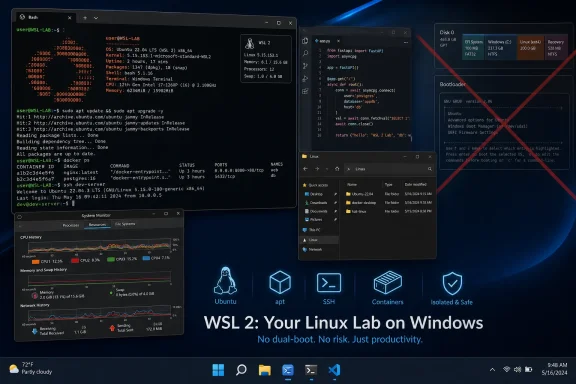
Dual-booting Linux no longer deserves to be the default recommendation for Windows users who simply want to learn Linux, use its command-line tools, or test a different development workflow. The traditional approach still has legitimate uses, but it asks newcomers to perform some of the most disruptive and error-prone PC maintenance tasks before they have discovered whether Linux is actually useful to them. Windows Subsystem for Linux 2 (WSL 2) offers a far more practical starting point: a real Linux kernel, mainstream distributions, terminal tools, services, and integrated graphical applications, all without repartitioning a drive or turning every reboot into an operating-system decision.
For many Windows enthusiasts, developers, IT learners, and power users, the better path is no longer “install Linux beside Windows and hope everything goes smoothly.” It is to treat WSL 2 as a low-risk Linux lab that lives alongside the Windows environment already required for work, gaming, creative applications, or device-specific software.
That does not mean dual booting is obsolete. It means it has become a specialist choice rather than the sensible first step for every curious beginner.
For years, prospective Linux users were commonly offered three choices:
Dual booting was the performance-first answer. Linux could run directly on the hardware, use the full CPU and GPU, access internal storage natively, and provide the complete desktop experience. For somebody ready to replace Windows or dedicate a system to Linux development, that remains valuable.
The problem is that dual booting puts the most intimidating technical work at the beginning of the journey.
Before a newcomer can install a single package, open a terminal, or learn how
That is an unreasonable barrier for someone who only wants to know whether Linux can improve their workflow.
That workflow makes Linux feel remote. It is not available when a Windows user suddenly needs
For a true Linux convert, that interruption is acceptable. For a learner or occasional command-line user, it is often enough to ensure Linux remains untouched.
Windows updates do not normally “break Linux” as a routine outcome, but dual-boot systems have repeatedly shown why boot-chain changes deserve caution. In August 2024, a Secure Boot revocation effort intended to address vulnerable boot components caused some Linux dual-boot users to encounter “Security Policy Violation” or related SBAT validation failures. Ubuntu documented that systems with older shim components could be affected after a Windows-delivered policy update, requiring recovery steps or updated boot components.
The episode matters not because every dual-boot system is fragile, but because it demonstrates the practical reality: a Windows update, Linux bootloader revision, firmware setting, or security policy can transform a previously working PC into a troubleshooting project.
Users who understand EFI boot entries, Secure Boot keys, GRUB recovery, and distribution-specific repair tools can work through such incidents. New Linux users generally cannot—and should not have to—before they decide whether Linux is right for them.
Modern Windows installations typically contain more than a single visible
Shrinking a partition is usually manageable with preparation and a backup, but “usually” is not a satisfactory standard when personal files, game libraries, work projects, family photos, or recovery options are at stake.
The promise of WSL 2 is not that it eliminates every Linux-related risk. It is that it removes the highest-consequence risks from the basic learning process.
WSL 2 uses a real Linux kernel in a lightweight, managed virtual machine. That delivers much broader system call compatibility and enables workloads that were impractical or impossible under the original subsystem design. Microsoft positions WSL 2 as the default architecture for modern installations, with fast startup, a comparatively small footprint, and direct integration with Windows workflows.
This distinction has real-world consequences.
Inside a WSL 2 distribution, users can work with familiar Linux fundamentals:
WSL 2 is therefore not merely a terminal emulator with a few Unix commands attached. It is a capable Linux environment integrated into a Windows PC.
This capability is especially useful for testing Linux-specific tools without committing to a separate desktop environment.
A Windows user can, for example:
That means WSL is excellent for using Linux tools within Windows. It is less suitable for evaluating every aspect of KDE Plasma, GNOME, Cinnamon, XFCE, or another full desktop environment as it would behave on a native Linux installation.
This distinction matters. A user deciding whether they prefer Linux Mint’s Cinnamon desktop over Windows 11 will learn more from a live USB, a conventional virtual machine, or a spare PC than from WSL alone. A user deciding whether Linux command-line development, scripting, Docker workflows, package management, or open-source tooling will help them is likely to learn more quickly in WSL.
With WSL 2, a Linux distribution can be launched from Windows Terminal, PowerShell, Command Prompt, the Start menu, or a configured terminal profile. The user does not need to restart the PC, change a boot option, or mentally switch from a Windows task to a separate Linux session.
A standard installation can begin with:
That command enables the required Windows features and installs a default Linux distribution, typically Ubuntu. Users can view available online distributions with:
They can then choose a specific supported distribution using the distribution option during installation.
For most modern Windows 10 and Windows 11 systems, the process is radically simpler than repartitioning a disk. Some devices may require virtualization to be enabled in UEFI firmware, and older Windows installations may require a manual setup path, but the overall procedure is far less invasive than a dual-boot install.
A practical progression looks like this:
A native Linux install can be repaired after many mistakes, but repairing it requires time, knowledge, and often another bootable environment. That is not ideal when the Linux installation shares a machine with a user’s primary gaming, work, or family PC.
WSL changes the cost of failure.
A broken package configuration, malformed shell startup file, failed service experiment, or unusable test distribution is no longer a reason to reach for a recovery USB drive. In many cases, users can simply remove the distribution and create a new one. The lesson remains; the damaged environment does not.
That makes WSL particularly strong for learning:
The most important performance rule is straightforward: keep Linux projects in the Linux filesystem when Linux tools will work on them frequently.
For example, a code repository used with Linux versions of Git, Node.js, Python, or compilers will generally perform better when it resides under the Linux home directory, such as:
rather than under a mounted Windows path such as:
Microsoft specifically notes that cross-filesystem performance is a relative weakness of WSL 2 compared with WSL 1, while recommending that project files be stored on the same operating system as the tools accessing them.
This does not mean Windows files are inaccessible. WSL is deliberately designed to interoperate with Windows storage. Linux can access Windows drives, and Windows can access WSL files through supported integration points. That flexibility is one of the platform’s strengths.
But it also creates a responsibility: commands run in Linux can affect accessible Windows files.
The rule is simple:
WSL can demonstrate Linux applications and command-line behavior. It cannot fully show what it feels like to live in GNOME, KDE Plasma, Cinnamon, or another Linux desktop from morning to night.
The same applies to demanding GPU compute workflows that need direct hardware control, specialized drivers, unusual kernel support, or predictable low-level performance.
WSL has grown far beyond its early limitations, and it supports many modern development workloads. But it remains a Windows-hosted Linux environment, not bare-metal Linux with unconstrained hardware access.
For these users, WSL should be treated as preparation rather than the final destination.
Instead of making users commit storage space, boot configuration, recovery planning, and system-level changes before they have Linux experience, WSL allows them to build familiarity first. They can find out whether they enjoy the terminal, whether their tools work, whether Linux-only utilities solve real problems, and whether the ecosystem suits their habits.
That knowledge makes any later dual-boot decision smarter.
A user who spends several weeks using WSL will understand the basic Linux directory hierarchy, package installation, command-line conventions, shell behavior, permissions, software repositories, and the tools that matter to their workflow. If they later install Linux natively, they will do so with a purpose rather than vague curiosity.
They will also be better equipped to troubleshoot the installation when something goes wrong.
But it is no longer the sensible default for the average Windows user who wants to explore Linux.
WSL 2 provides a real Linux kernel, mainstream distributions, command-line tooling, service support, filesystem integration, and GUI application support without modifying disk partitions or relying on a shared boot process. It makes Linux available when it is useful instead of hiding it behind a restart screen.
That is a meaningful shift. Linux learning no longer has to begin with risk, inconvenience, and a potentially fragile dual-boot arrangement. It can begin with a terminal window, a disposable distribution, and a practical task worth solving.
For many Windows enthusiasts, developers, IT learners, and power users, the better path is no longer “install Linux beside Windows and hope everything goes smoothly.” It is to treat WSL 2 as a low-risk Linux lab that lives alongside the Windows environment already required for work, gaming, creative applications, or device-specific software.
That does not mean dual booting is obsolete. It means it has become a specialist choice rather than the sensible first step for every curious beginner.
 The Old Dual-Boot Advice Made Sense—Until It Didn’t
For years, prospective Linux users were commonly offered three choices:- Run a Linux live environment from a USB drive
- Install Linux in a conventional virtual machine
- Shrink the Windows partition and configure a dual-boot system
Dual booting was the performance-first answer. Linux could run directly on the hardware, use the full CPU and GPU, access internal storage natively, and provide the complete desktop experience. For somebody ready to replace Windows or dedicate a system to Linux development, that remains valuable.
The problem is that dual booting puts the most intimidating technical work at the beginning of the journey.
Before a newcomer can install a single package, open a terminal, or learn how
apt, dnf, pacman, systemctl, or SSH works, they may need to:- Back up personal data.
- Shrink an NTFS partition safely.
- Make room for one or more Linux partitions.
- Create bootable installation media.
- Understand UEFI firmware settings.
- Deal with Secure Boot behavior.
- Install and configure a bootloader.
- Hope that Windows, Linux, the firmware, and the chosen distribution continue to coexist peacefully.
That is an unreasonable barrier for someone who only wants to know whether Linux can improve their workflow.
Dual Booting Creates Friction Long After Installation
The initial installation is only the first hurdle. A dual-boot PC turns operating system access into a deliberate interruption. To use Linux, users must save their work, close Windows applications, restart, select the appropriate boot entry, and wait for a second operating system to load.That workflow makes Linux feel remote. It is not available when a Windows user suddenly needs
grep, rsync, ssh, curl, Python tooling, a Linux package manager, or a shell script. The operating system may be installed perfectly, yet it becomes something used once a month because rebooting feels disproportionate to the task.For a true Linux convert, that interruption is acceptable. For a learner or occasional command-line user, it is often enough to ensure Linux remains untouched.
Bootloaders Are an Ongoing Point of Failure
The boot process also creates a shared dependency that neither operating system completely controls. Modern PCs rely on UEFI firmware, EFI system partitions, Secure Boot databases, bootloaders, signed boot components, recovery tools, and firmware settings that can all interact in surprising ways.Windows updates do not normally “break Linux” as a routine outcome, but dual-boot systems have repeatedly shown why boot-chain changes deserve caution. In August 2024, a Secure Boot revocation effort intended to address vulnerable boot components caused some Linux dual-boot users to encounter “Security Policy Violation” or related SBAT validation failures. Ubuntu documented that systems with older shim components could be affected after a Windows-delivered policy update, requiring recovery steps or updated boot components.
The episode matters not because every dual-boot system is fragile, but because it demonstrates the practical reality: a Windows update, Linux bootloader revision, firmware setting, or security policy can transform a previously working PC into a troubleshooting project.
Users who understand EFI boot entries, Secure Boot keys, GRUB recovery, and distribution-specific repair tools can work through such incidents. New Linux users generally cannot—and should not have to—before they decide whether Linux is right for them.
Partitioning Is Not a Learning Exercise
Disk partitioning is often presented as a rite of passage. It should not be.Modern Windows installations typically contain more than a single visible
C: drive. There may be EFI, Microsoft Reserved, recovery, BitLocker-related, OEM, and vendor utility partitions. Storage layouts can become even more complicated when devices use multiple SSDs, RAID configurations, encryption, or factory recovery mechanisms.Shrinking a partition is usually manageable with preparation and a backup, but “usually” is not a satisfactory standard when personal files, game libraries, work projects, family photos, or recovery options are at stake.
The promise of WSL 2 is not that it eliminates every Linux-related risk. It is that it removes the highest-consequence risks from the basic learning process.
WSL 2 Is Not a Simulation of Linux
The most important reason WSL 2 changes the equation is architectural. WSL 1 was a compatibility layer that translated Linux system calls into Windows behavior. It was useful, but it had limitations because it was not actually running a Linux kernel.WSL 2 uses a real Linux kernel in a lightweight, managed virtual machine. That delivers much broader system call compatibility and enables workloads that were impractical or impossible under the original subsystem design. Microsoft positions WSL 2 as the default architecture for modern installations, with fast startup, a comparatively small footprint, and direct integration with Windows workflows.
This distinction has real-world consequences.
Inside a WSL 2 distribution, users can work with familiar Linux fundamentals:
- Bash and other Linux shells
- Native Linux package managers
- Compilers and build tools
- Python, Node.js, Ruby, Go, Rust, Java, and C/C++ toolchains
- Git, SSH,
rsync,sed,awk,grep, andfind - Containers and development services
- Linux permissions and directory structures
systemd-managed services in supported configurations- Database servers and web-development stacks
- Command-line administration practices used in cloud and server environments
systemd in WSL 2, bringing service management closer to the behavior users expect on current Linux distributions. That is important for tools and workflows that rely on background services, timers, daemons, and conventional Linux service control.WSL 2 is therefore not merely a terminal emulator with a few Unix commands attached. It is a capable Linux environment integrated into a Windows PC.
Linux Applications Can Now Live Beside Windows Applications
The arrival of Linux GUI application support made WSL dramatically more useful for users who do not want to live entirely in a terminal. WSL can run supported Linux graphical applications using integrated Windows desktop behavior, allowing applications to appear in the Start menu and operate in their own windows alongside native Windows software.This capability is especially useful for testing Linux-specific tools without committing to a separate desktop environment.
A Windows user can, for example:
- Run a Linux code editor, IDE component, or development utility
- Use graphical Git clients and file comparison tools built for Linux
- Test Python or scientific software with Linux dependencies
- Work with Linux graphical utilities that have no ideal Windows equivalent
- Launch a Linux browser for compatibility testing
- Use GUI-based database or container tools
- Evaluate whether a Linux application fits into an existing Windows workflow
The Crucial Limitation: WSL Is Not a Full Linux Desktop
This is where expectations must remain realistic. WSL graphical support is designed for individual Linux GUI applications, not for replacing the Windows shell with a complete Linux desktop session. Microsoft explicitly notes that WSL GUI support is not intended to provide a full desktop experience, and desktop-focused environments or applications may not be fully supported.That means WSL is excellent for using Linux tools within Windows. It is less suitable for evaluating every aspect of KDE Plasma, GNOME, Cinnamon, XFCE, or another full desktop environment as it would behave on a native Linux installation.
This distinction matters. A user deciding whether they prefer Linux Mint’s Cinnamon desktop over Windows 11 will learn more from a live USB, a conventional virtual machine, or a spare PC than from WSL alone. A user deciding whether Linux command-line development, scripting, Docker workflows, package management, or open-source tooling will help them is likely to learn more quickly in WSL.
The Best Linux Test Drive Is the One You Will Actually Use
Convenience is not a minor detail. It determines whether experimentation becomes a habit.With WSL 2, a Linux distribution can be launched from Windows Terminal, PowerShell, Command Prompt, the Start menu, or a configured terminal profile. The user does not need to restart the PC, change a boot option, or mentally switch from a Windows task to a separate Linux session.
A standard installation can begin with:
wsl --installThat command enables the required Windows features and installs a default Linux distribution, typically Ubuntu. Users can view available online distributions with:
wsl --list --onlineThey can then choose a specific supported distribution using the distribution option during installation.
For most modern Windows 10 and Windows 11 systems, the process is radically simpler than repartitioning a disk. Some devices may require virtualization to be enabled in UEFI firmware, and older Windows installations may require a manual setup path, but the overall procedure is far less invasive than a dual-boot install.
A Safe First Week With Linux
The ideal first WSL experience is not trying to recreate an entire Linux desktop overnight. It is learning the parts of Linux that transfer directly to development, administration, automation, and server work.A practical progression looks like this:
- Install WSL 2 and one distribution.
Ubuntu is a sensible default because of its extensive documentation and broad software availability, but other distributions may suit specific needs. - Learn basic navigation.
Practicepwd,ls,cd,mkdir,cp,mv,rm, andcatin the Linux home directory. - Use a package manager.
Install a few harmless tools and learn the difference between updating package lists, upgrading installed packages, and removing software. - Build or run something useful.
Clone a small Git repository, run a Python script, compile a basic C program, or host a lightweight local development server. - Explore services carefully.
Learn howsystemctlworks, inspect logs, and run a local database or web stack if the workflow requires it. - Try graphical Linux applications.
Install a supported GUI utility and see how it behaves next to Windows programs. - Delete and recreate without fear.
If the experiment becomes messy, a WSL distribution can be stopped, exported, unregistered, or replaced without repartitioning the PC.
WSL Encourages Experimentation Because Failure Is Recoverable
Linux is powerful partly because it gives users direct access to system components. That freedom can be educational, but it can also lead to accidental damage when someone follows outdated instructions, copies commands without understanding them, or experiments as the root user.A native Linux install can be repaired after many mistakes, but repairing it requires time, knowledge, and often another bootable environment. That is not ideal when the Linux installation shares a machine with a user’s primary gaming, work, or family PC.
WSL changes the cost of failure.
A broken package configuration, malformed shell startup file, failed service experiment, or unusable test distribution is no longer a reason to reach for a recovery USB drive. In many cases, users can simply remove the distribution and create a new one. The lesson remains; the damaged environment does not.
That makes WSL particularly strong for learning:
- Shell scripting
- Package management
- Linux filesystem conventions
- File permissions
- SSH key usage
- Git workflows
- Web servers and reverse proxies
- Docker and container concepts
- Build systems
- Development dependencies
- Service management
- Basic command-line troubleshooting
Performance Is Good, but Storage Location Still Matters
WSL 2 avoids much of the sluggishness associated with old-fashioned desktop virtual machines, but it is not magic. It runs Linux in a managed VM, and performance depends on the workload, memory availability, storage configuration, Windows power settings, security software, and where files are stored.The most important performance rule is straightforward: keep Linux projects in the Linux filesystem when Linux tools will work on them frequently.
For example, a code repository used with Linux versions of Git, Node.js, Python, or compilers will generally perform better when it resides under the Linux home directory, such as:
~/projects/my-apprather than under a mounted Windows path such as:
/mnt/c/Users/Name/Documents/my-appMicrosoft specifically notes that cross-filesystem performance is a relative weakness of WSL 2 compared with WSL 1, while recommending that project files be stored on the same operating system as the tools accessing them.
This does not mean Windows files are inaccessible. WSL is deliberately designed to interoperate with Windows storage. Linux can access Windows drives, and Windows can access WSL files through supported integration points. That flexibility is one of the platform’s strengths.
But it also creates a responsibility: commands run in Linux can affect accessible Windows files.
Linux Commands Can Still Delete Windows Data
WSL removes the danger of repartitioning, but it does not make users immune to destructive commands. If a user navigates into/mnt/c and runs an overly broad rm -rf, they can damage files stored on the Windows drive.The rule is simple:
- Treat
/mnt/c,/mnt/d, and other mounted Windows paths as real Windows storage. - Keep experiments in the Linux home directory where possible.
- Never use destructive commands copied from the internet without understanding the target path.
- Maintain ordinary Windows backups regardless of whether Linux is installed natively, in WSL, or not at all.
Where Dual Booting Still Wins
Calling WSL 2 the better default does not mean pretending it can replace a native Linux installation in every scenario. There are several situations where dual booting, a dedicated Linux PC, or a full virtual machine remains the better choice.Full Desktop Evaluation
Anyone comparing Linux desktop environments, accessibility behavior, display management, power settings, touchpad gestures, fractional scaling, or full-session customization needs native Linux or at least a complete VM desktop.WSL can demonstrate Linux applications and command-line behavior. It cannot fully show what it feels like to live in GNOME, KDE Plasma, Cinnamon, or another Linux desktop from morning to night.
Gaming and Advanced GPU Workloads
Linux gaming has improved significantly, but it depends on native graphics drivers, game compatibility layers, anti-cheat support, controller behavior, display features, audio stacks, and hardware-specific tuning. WSL GPU acceleration can support useful compute and GUI scenarios, but it is not a substitute for a native Linux gaming environment.The same applies to demanding GPU compute workflows that need direct hardware control, specialized drivers, unusual kernel support, or predictable low-level performance.
Hardware, Kernel Modules, and Embedded Development
If a workflow requires custom kernel modules, unusual USB devices, serial hardware, low-level networking, kernel development, packet capture, wireless auditing, or direct control of specialized peripherals, WSL may introduce limitations or extra configuration.WSL has grown far beyond its early limitations, and it supports many modern development workloads. But it remains a Windows-hosted Linux environment, not bare-metal Linux with unconstrained hardware access.
Building a Windows-Free Workflow
Users who want to stop relying on Windows entirely should eventually test a native Linux installation. WSL is an excellent bridge, but it still depends on Windows for the host operating system, desktop shell, updates, storage management, and much of the hardware stack.For these users, WSL should be treated as preparation rather than the final destination.
A Better Decision Tree for Windows Users
The old advice was simple: install Linux beside Windows and see what happens. The modern advice should be more targeted.Use WSL 2 First When You Want To:
- Learn Linux commands and administration basics
- Develop websites, scripts, applications, or containers
- Use Linux package managers and toolchains
- Run Bash scripts from a Windows workstation
- Work with Git, SSH, Python, Node.js, C/C++, Go, Rust, or similar tools
- Experiment with services and local development environments
- Run Linux GUI applications without leaving Windows
- Test distributions with minimal disruption
- Avoid repartitioning a primary PC
Consider Dual Booting or Native Linux When You Need To:
- Evaluate a full Linux desktop as a daily driver
- Play Linux games with native performance and hardware access
- Use specialized peripherals or kernel modules
- Work with advanced networking, wireless, or device-driver tasks
- Benchmark hardware outside a virtualization layer
- Replace Windows rather than supplement it
- Learn Linux system administration in a fully native desktop environment
Consider a Conventional Virtual Machine When You Need To:
- Run a full Linux desktop safely inside a window
- Test graphical distribution installers
- Take snapshots before risky changes
- Experiment with multiple desktop environments
- Isolate test systems from Windows files and network resources
- Train for certification labs or multi-machine server scenarios
The Real Value of WSL Is Reducing Commitment
The strongest argument for WSL 2 is not merely that it is technically capable. It is that it changes the order of operations.Instead of making users commit storage space, boot configuration, recovery planning, and system-level changes before they have Linux experience, WSL allows them to build familiarity first. They can find out whether they enjoy the terminal, whether their tools work, whether Linux-only utilities solve real problems, and whether the ecosystem suits their habits.
That knowledge makes any later dual-boot decision smarter.
A user who spends several weeks using WSL will understand the basic Linux directory hierarchy, package installation, command-line conventions, shell behavior, permissions, software repositories, and the tools that matter to their workflow. If they later install Linux natively, they will do so with a purpose rather than vague curiosity.
They will also be better equipped to troubleshoot the installation when something goes wrong.
The Better Way to Try Linux
Dual booting remains a valid technique for enthusiasts who need native Linux access. It can be the right answer for gaming, complete desktop evaluation, hardware development, specialized workloads, or a deliberate migration away from Windows.But it is no longer the sensible default for the average Windows user who wants to explore Linux.
WSL 2 provides a real Linux kernel, mainstream distributions, command-line tooling, service support, filesystem integration, and GUI application support without modifying disk partitions or relying on a shared boot process. It makes Linux available when it is useful instead of hiding it behind a restart screen.
That is a meaningful shift. Linux learning no longer has to begin with risk, inconvenience, and a potentially fragile dual-boot arrangement. It can begin with a terminal window, a disposable distribution, and a practical task worth solving.
References
- Primary source: How-To Geek
Published: 2026-07-23T16:00:13+00:00
Loading…
www.howtogeek.com - Official source: learn.microsoft.com
Install WSL | Microsoft Learn
Install Windows Subsystem for Linux with the command, wsl --install. Use a Bash terminal on your Windows machine run by your preferred Linux distribution - Ubuntu, Debian, SUSE, Kali, Fedora, Pengwin, Alpine, and more are available.learn.microsoft.com - Referenced source: discourse.ubuntu.com
Loading…
discourse.ubuntu.com