

Outlook links that refuse to open, launch in the wrong browser, or display a warning page are rarely caused by a single broken setting. The problem usually sits at one of several layers: Outlook’s own link preference, Windows default-app associations, a message-level security control, a OneDrive or SharePoint handoff setting, or a damaged Microsoft 365 installation. Working through those layers in the right order is faster—and substantially safer—than relying on legacy registry edits or old Internet Explorer reset advice.
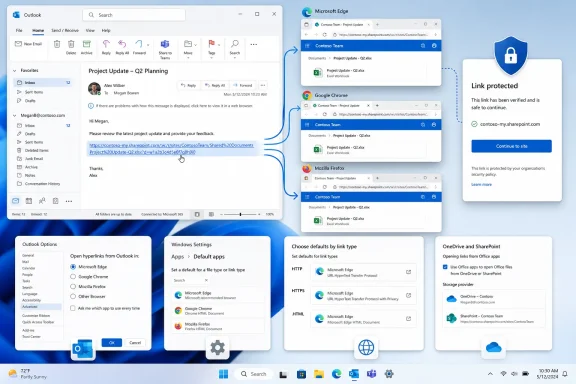
For Windows users, the most common complaint is deceptively simple: a hyperlink clicked in Outlook opens in Microsoft Edge even though Chrome, Firefox, Brave, or another browser is already configured as the Windows default. That behavior is intentional in modern Outlook builds. Outlook can make its own browser decision for links opened from email, separately from Windows’ broader default-browser choice.
Other symptoms point elsewhere. A link that works in Outlook on the web but not in classic Outlook may be affected by Office settings or an add-in. A link disabled in only one suspicious-looking email is more likely a security safeguard than a browser fault. And a SharePoint document link that opens blank, sends users to an unexpected web app, or refuses to open in its desktop application belongs in a different troubleshooting path entirely.
The eight fixes below cover the current Outlook link-opening experience across new Outlook for Windows, classic Outlook, Outlook on the web, mobile devices, and managed Microsoft 365 environments.
A conventional Windows hyperlink normally relies on the operating system’s protocol associations. When an application hands Windows an
Outlook can add another decision before that handoff occurs. Microsoft introduced an Outlook and Teams experience that can open email and web content side by side in Edge, with the originating Outlook message available in the Edge sidebar. The feature is designed to reduce context switching, but it also means Outlook links may not always follow the browser preference expected by the user.
That distinction matters because changing Chrome or Firefox to the Windows default browser may not be enough. If Outlook is explicitly configured to use Edge, Outlook can still send its links there.
There are also important differences between the two main Windows Outlook applications:
Close Settings and test with a normal HTTPS link in a known-safe email. It is best to use a standard website rather than a SharePoint, OneDrive, or file-share link for this initial test, because document links can be affected by separate Office settings.
That separation is a strength for users who prefer Edge’s Outlook sidebar integration but use a different browser for routine browsing. It is also a source of confusion. A user can correctly set Chrome as Windows’ default browser and still see Outlook launch Edge because Outlook has an independent preference.
Do not dismiss this screen automatically. It can be the quickest way to change Outlook’s behavior without manually navigating through Outlook Settings.
On Windows 11, verify the default browser configuration:
Once Windows defaults are corrected, return to Outlook’s Files and links or File and browser preferences setting. Set Outlook to use the system default browser so the two layers agree.
That is not a damaged Outlook configuration. It is an operating-system limitation. Changing Outlook’s setting alone cannot override the underlying browser restrictions.
On a current Windows 10 or Windows 11 system, start with:
The distinction is crucial: forcing every blocked message to show active links defeats a security control intended to reduce phishing and malware exposure.
A display name is not proof of authenticity. Attackers routinely imitate company names, invoice notices, password-reset messages, and shipping alerts. Before allowlisting a sender, verify the sender address, domain spelling, expected context, and the destination URL.
This can look like Outlook “blocking links,” but it is often an active security evaluation. On an organization-managed device, users should not attempt to bypass a Safe Links warning simply because an email looks familiar. The correct route is to verify the sender and, if necessary, report a false positive through the organization’s security process.
That is expected when classic Outlook’s editing safeguard is enabled. It prevents accidental navigation while composing messages.
To follow a link while editing:
Disabling it is reasonable for users who frequently need to test links while drafting communications. It is less ideal for users who often edit HTML-rich messages and may accidentally leave Outlook in the middle of composing.
The key point is that this behavior applies to links in a message being edited. It does not mean received-message links are broken.
If the URL is long, inspect it before opening. A plain-text address can still lead to a malicious or mistyped destination.
That means a user might find that ordinary web links open correctly while a SharePoint document opens in the wrong place, opens blank, or triggers an error.
For a one-time override, right-click a supported OneDrive or SharePoint document link and use Open With. Select the preferred browser or desktop application for that specific document instead of changing the global behavior.
Updating matters particularly for users who encounter blank windows or errors when opening OneDrive and SharePoint document links from classic Outlook. A current build can resolve defects without requiring more invasive troubleshooting.
On Windows 11:
For an MSI-based volume-license installation, choose Repair and then Continue.
On Windows 10, open Apps and Features, select Microsoft 365 or Office, choose Modify, and then use the applicable repair option.
It will not fix:
On macOS Ventura 13 and later:
If Outlook for Mac opens links in an unexpected browser, correct the macOS default first. Unlike the Windows Outlook and Edge integration, the Mac experience does not use the same Edge sidebar mechanism.
Outlook Mobile may also ask which app should open a link. Where available:
This preference is not available for every account type. In particular, Office 365 or Exchange accounts may not display the same toggle, reflecting policy and account-level differences.
Other enterprise controls can also affect links:
For most Windows users, the decisive fix is simple: set Open hyperlinks from Outlook in to System default browser, then verify the preferred browser in Windows Default apps. When that does not solve the issue, the next step depends on the symptom—not on generic legacy advice.
A disciplined approach protects both productivity and security. Fix the browser path for ordinary links, preserve Outlook’s warnings for suspicious messages, handle SharePoint and OneDrive documents through Microsoft 365’s file-opening settings, and use Office repair only when the configuration itself is no longer the likely cause.
For Windows users, the most common complaint is deceptively simple: a hyperlink clicked in Outlook opens in Microsoft Edge even though Chrome, Firefox, Brave, or another browser is already configured as the Windows default. That behavior is intentional in modern Outlook builds. Outlook can make its own browser decision for links opened from email, separately from Windows’ broader default-browser choice.
Other symptoms point elsewhere. A link that works in Outlook on the web but not in classic Outlook may be affected by Office settings or an add-in. A link disabled in only one suspicious-looking email is more likely a security safeguard than a browser fault. And a SharePoint document link that opens blank, sends users to an unexpected web app, or refuses to open in its desktop application belongs in a different troubleshooting path entirely.
The eight fixes below cover the current Outlook link-opening experience across new Outlook for Windows, classic Outlook, Outlook on the web, mobile devices, and managed Microsoft 365 environments.
 Background: Why Outlook Link Problems Are More Complicated Than They Look
A conventional Windows hyperlink normally relies on the operating system’s protocol associations. When an application hands Windows an https:// address, Windows checks the assigned handler for HTTP or HTTPS and opens the designated browser.Outlook can add another decision before that handoff occurs. Microsoft introduced an Outlook and Teams experience that can open email and web content side by side in Edge, with the originating Outlook message available in the Edge sidebar. The feature is designed to reduce context switching, but it also means Outlook links may not always follow the browser preference expected by the user.
That distinction matters because changing Chrome or Firefox to the Windows default browser may not be enough. If Outlook is explicitly configured to use Edge, Outlook can still send its links there.
There are also important differences between the two main Windows Outlook applications:
- New Outlook for Windows is Microsoft’s newer, web-based Outlook client.
- Classic Outlook for Windows is the traditional desktop application included with many Microsoft 365 and Office installations.
- Outlook on the web runs in the browser and therefore behaves according to the browser session already in use.
- Outlook mobile can follow a device-level browser default, but may also present its own link-opening preference in supported account configurations.
1. Set the Browser Outlook Uses for Email Links
The fastest fix applies when Outlook links consistently open in Edge rather than in the browser configured as the Windows default.New Outlook for Windows
In new Outlook for Windows, open the Settings panel and follow this path:- Select Settings.
- Open General.
- Select Files and links.
- Find Open hyperlinks from Outlook in.
- Choose System default browser.
Close Settings and test with a normal HTTPS link in a known-safe email. It is best to use a standard website rather than a SharePoint, OneDrive, or file-share link for this initial test, because document links can be affected by separate Office settings.
Classic Outlook for Windows
In classic Outlook, the equivalent control is located in the traditional Options dialog:- Select File.
- Select Options.
- Open Advanced.
- Find the File and browser preferences section.
- Set Open hyperlinks from Outlook in to Default browser or System default browser, depending on the wording shown in the installed build.
- Select OK.
Why This Fix Works
This setting controls only links opened from supported Microsoft 365 applications such as Outlook and, in related scenarios, Teams. It does not replace the Windows default browser setting for other programs.That separation is a strength for users who prefer Edge’s Outlook sidebar integration but use a different browser for routine browsing. It is also a source of confusion. A user can correctly set Chrome as Windows’ default browser and still see Outlook launch Edge because Outlook has an independent preference.
2. Use the Edge First-Run Prompt Carefully
Some Outlook and Teams users encounter a Microsoft Edge banner or prompt after selecting a link. The prompt may offer an option such as Manage my settings, an Edge-only experience, or the system-default browser experience.Do not dismiss this screen automatically. It can be the quickest way to change Outlook’s behavior without manually navigating through Outlook Settings.
Choose the Correct Experience
When the Edge prompt appears:- Open a web link from Outlook.
- Select Manage my settings if the banner provides that option.
- Choose the system default browser experience if Outlook should follow Windows’ browser choice.
- Choose the Edge-focused option only if the side-by-side Outlook and web page workflow is genuinely preferred.
The Productivity Trade-Off
The Edge experience has legitimate benefits:- The original email can remain visible next to the linked website.
- Signed-in Microsoft 365 accounts can remain in the same Microsoft ecosystem.
- Users researching information from an email may avoid switching between separate application windows.
- Users may be sent to a browser they do not use for bookmarks, extensions, password management, or profile separation.
- The sidebar can consume screen space on smaller displays.
- Shared PCs may show email context beside a link when that context is unnecessary.
3. Repair Windows Default Browser and Web-Link Associations
If links from multiple applications open in the wrong browser—or do nothing at all—the issue is likely broader than Outlook. Windows handles web addresses through protocol associations, especially HTTP and HTTPS.On Windows 11, verify the default browser configuration:
- Open Start > Settings.
- Select Apps > Default apps.
- Search for and select the preferred browser.
- Select Set default.
Why Both HTTP and HTTPS Matter
Most modern links use HTTPS, but older internal sites, test environments, appliance dashboards, and legacy business systems may still use HTTP. If one protocol is associated differently from the other, Outlook may appear inconsistent: one link opens normally while another routes to an unexpected application.Once Windows defaults are corrected, return to Outlook’s Files and links or File and browser preferences setting. Set Outlook to use the system default browser so the two layers agree.
Watch for Windows in S Mode
Windows devices operating in S mode have platform restrictions that can prevent another browser from becoming the default in the expected way. Microsoft Edge remains the default browser in S mode, even though certain other browsers may be available through Microsoft Store.That is not a damaged Outlook configuration. It is an operating-system limitation. Changing Outlook’s setting alone cannot override the underlying browser restrictions.
Avoid Legacy Internet Explorer Fixes
Older troubleshooting articles often recommend resetting Internet Explorer or changing Internet Options. That advice reflects an earlier generation of Windows and Office link handling.On a current Windows 10 or Windows 11 system, start with:
- Outlook’s own link-opening preference.
- Windows Default apps settings.
- Microsoft 365 updates.
- Office repair if the problem persists.
4. Separate a Browser Problem From a Message Security Block
When Outlook links are disabled only in certain messages, the browser may be working perfectly. Outlook’s security features are designed to make potentially dangerous messages less interactive, especially messages treated as junk or suspected phishing attempts.The distinction is crucial: forcing every blocked message to show active links defeats a security control intended to reduce phishing and malware exposure.
Check Junk Email Settings in New Outlook and Outlook on the Web
For new Outlook, Outlook.com, or Outlook on the web:- Open Settings.
- Select Mail.
- Open Junk email.
- Review Security options.
- Check whether a setting that blocks attachments, pictures, and links from senders outside the Safe senders and domains list is active.
- Go to Settings > Mail > Junk email.
- Find Safe senders and domains.
- Select Add safe sender.
- Enter the full email address or the trusted domain.
- Save the change.
Do Not Whitelist Broadly
Adding a company domain to Safe Senders can be appropriate for a known vendor, school, employer, bank, or service provider. It can be risky when the sender’s identity has not been independently verified.A display name is not proof of authenticity. Attackers routinely imitate company names, invoice notices, password-reset messages, and shipping alerts. Before allowlisting a sender, verify the sender address, domain spelling, expected context, and the destination URL.
Safe Links Is Not a Browser Failure
Work and school Microsoft 365 accounts may be protected by Microsoft Defender for Office 365 Safe Links. Safe Links can evaluate URLs when a user clicks them and may show a warning page if the destination appears malicious or suspicious.This can look like Outlook “blocking links,” but it is often an active security evaluation. On an organization-managed device, users should not attempt to bypass a Safe Links warning simply because an email looks familiar. The correct route is to verify the sender and, if necessary, report a false positive through the organization’s security process.
5. Remember the Ctrl+Click Rule When Editing a Message
A common false alarm occurs in classic Outlook while writing or editing an email. A user clicks a hyperlink in the message body, but the link does not open. Instead, Outlook positions the cursor or selects part of the link.That is expected when classic Outlook’s editing safeguard is enabled. It prevents accidental navigation while composing messages.
To follow a link while editing:
- Hold Ctrl and click the hyperlink.
- In classic Outlook, select File > Options.
- Select Mail.
- Choose Editor Options.
- Open Advanced.
- Clear Use CTRL + Click to follow hyperlink.
- Confirm the change.
Why the Default Exists
Keeping Ctrl+Click enabled is useful when editing long URLs, changing display text, correcting a hyperlink, or moving content around an email draft. A normal click then edits the message rather than abruptly launching a browser.Disabling it is reasonable for users who frequently need to test links while drafting communications. It is less ideal for users who often edit HTML-rich messages and may accidentally leave Outlook in the middle of composing.
The key point is that this behavior applies to links in a message being edited. It does not mean received-message links are broken.
Plain-Text Messages Behave Differently
Not every email contains active HTML hyperlinks. In a plain-text message, a URL may appear as ordinary text rather than a clickable object. Copying the address and pasting it into a browser is normal in that situation.If the URL is long, inspect it before opening. A plain-text address can still lead to a malicious or mistyped destination.
6. Fix OneDrive and SharePoint Document-Link Behavior Separately
A link to a website and a link to a Word document stored in OneDrive or SharePoint are not always handled the same way. Microsoft 365 document links can be directed to either the browser-based Office experience or the installed desktop application.That means a user might find that ordinary web links open correctly while a SharePoint document opens in the wrong place, opens blank, or triggers an error.
Choose Browser or Desktop App
In Word, Excel, PowerPoint, or classic Outlook, locate the Microsoft 365 file-opening preference:- Open File > Options.
- Select Advanced.
- Find File open preference or File and browser preferences.
- Choose whether Word, Excel, and PowerPoint links should open in Browser or Desktop.
For a one-time override, right-click a supported OneDrive or SharePoint document link and use Open With. Select the preferred browser or desktop application for that specific document instead of changing the global behavior.
Limits of the Feature
This preference does not apply to every document link in every situation. The result can vary based on:- Whether the user is signed into Microsoft 365.
- Whether the file resides in OneDrive or SharePoint.
- The type of Microsoft 365 subscription and installed Office build.
- The origin of the link.
- Organization-specific authentication and access policies.
- Whether the document is in a sovereign cloud or uses a custom SharePoint domain.
Test Access Before Repairing Office
If a document link fails in Outlook, copy the address and open it in a browser. Then test the same mailbox in Outlook on the web. These checks help separate three very different problems:- The link itself is invalid or permission-restricted.
- The browser or account cannot authenticate to the Microsoft 365 service.
- Classic Outlook or the desktop Office integration is malfunctioning.
7. Update Microsoft 365, Then Repair Office if Needed
If Outlook settings and Windows browser defaults are correct but links still fail, update Microsoft 365 or Office before changing advanced settings. Microsoft regularly corrects issues involving Outlook, browser integration, document handoffs, and authentication components.Update Office Manually
In Word or classic Outlook:- Select File.
- Select Account or Office Account.
- Under Product Information, select Update Options.
- Choose Update Now.
Updating matters particularly for users who encounter blank windows or errors when opening OneDrive and SharePoint document links from classic Outlook. A current build can resolve defects without requiring more invasive troubleshooting.
Run an Online Repair
If updates do not solve the issue, repair the Office installation.On Windows 11:
- Right-click Start.
- Open Installed apps.
- Find Microsoft 365 or Microsoft Office.
- Select the three-dot menu.
- Choose Modify.
For an MSI-based volume-license installation, choose Repair and then Continue.
On Windows 10, open Apps and Features, select Microsoft 365 or Office, choose Modify, and then use the applicable repair option.
What Repair Can and Cannot Fix
Office repair can replace damaged program files and restore components that Outlook relies on. It can resolve failures caused by incomplete updates, corrupted application files, or damaged integration components.It will not fix:
- A wrong browser choice deliberately set in Outlook.
- A Windows default-app mapping that still points to another browser.
- A link blocked by phishing protection.
- A SharePoint document the user lacks permission to open.
- An organization policy that forces a browser behavior.
8. Check Device-Specific Settings and Organization Policies
Outlook is not used only on Windows desktops. The same mailbox may be accessed on macOS, iPhone, iPad, Android, and managed corporate devices, each with its own browser behavior.macOS Browser Selection
Outlook for Mac normally follows the macOS default web browser for standard links.On macOS Ventura 13 and later:
- Open the Apple menu.
- Select System Settings.
- Choose Desktop & Dock.
- Set Default web browser.
If Outlook for Mac opens links in an unexpected browser, correct the macOS default first. Unlike the Windows Outlook and Edge integration, the Mac experience does not use the same Edge sidebar mechanism.
Outlook Mobile on iPhone, iPad, and Android
On iPhone and iPad, update iOS or iPadOS and the preferred browser app, then set the browser in the device’s default-app settings. On Android, open the device Settings app, go to Apps > Default apps > Browser app, and choose the desired browser. Some Android manufacturers label the page Choose default apps instead.Outlook Mobile may also ask which app should open a link. Where available:
- Tap a link in an Outlook email.
- Select Microsoft Edge or the system default browser.
- Enable Remember my choice.
This preference is not available for every account type. In particular, Office 365 or Exchange accounts may not display the same toggle, reflecting policy and account-level differences.
Managed Work and School PCs
On an organization-managed device, Outlook behavior may be controlled by an administrator. Microsoft 365 administrators can configure a policy commonly described as Choose which browser opens web links. The policy can force Edge, use the Windows system default, or leave users to choose within Outlook and Teams.Other enterprise controls can also affect links:
- Safe Links and phishing protection policies.
- Web filtering and endpoint security tools.
- Conditional Access and sign-in requirements.
- Trusted Sites rules for older intranet applications.
- Restrictions on local file, UNC, IP-address, or internal FQDN links.
- Group Policy or cloud policy settings that override local preferences.
A Practical Troubleshooting Order That Avoids Unnecessary Changes
The most efficient way to fix Outlook hyperlinks is to match the repair to the symptom.- Links open in Edge instead of Chrome or Firefox: Set Outlook to use the system default browser, then confirm the Windows default browser.
- Links from every app open in the wrong place: Repair Windows default-app and HTTP/HTTPS associations.
- Only one suspicious email has disabled links: Treat it as a message security issue; verify the sender before allowing content.
- A link will not open while writing an email: Use Ctrl+Click in classic Outlook or adjust the editor option.
- OneDrive or SharePoint files open in the browser instead of the desktop app: Change the Microsoft 365 file-open preference.
- Document links fail only in classic Outlook: Update Office, then consider Online Repair.
- Mobile links use the wrong app: Check both the device browser default and Outlook Mobile’s link preference.
- Settings are unavailable or reset themselves: Assume the device may be managed and confirm policy with IT.
The Bottom Line
The modern Outlook link-opening experience is more flexible than it first appears, but that flexibility comes with several overlapping controls. Outlook can choose between Edge and the system default browser. Windows controls the browser assigned to HTTP and HTTPS. Microsoft 365 controls how supported cloud-document links open. And email security features may intentionally disable or warn about links that seem unsafe.For most Windows users, the decisive fix is simple: set Open hyperlinks from Outlook in to System default browser, then verify the preferred browser in Windows Default apps. When that does not solve the issue, the next step depends on the symptom—not on generic legacy advice.
A disciplined approach protects both productivity and security. Fix the browser path for ordinary links, preserve Outlook’s warnings for suspicious messages, handle SharePoint and OneDrive documents through Microsoft 365’s file-opening settings, and use Office repair only when the configuration itself is no longer the likely cause.
References
- Primary source: Technobezz
Published: 2026-07-23T16:45:56.403000+00:00
Outlook Links Not Opening? 8 Fixes That Work | Technobezz
Fix Outlook links not opening by changing Outlook browser settings, default apps, junk filters, and Office repair options.www.technobezz.com - Official source: support.microsoft.com
Web links from Outlook emails and Teams chats open in Microsoft Edge | Microsoft Support
Discover how Microsoft Edge helps you stay more focused and organized online with Microsoft 365 features built-in.support.microsoft.com - Official source: learn.microsoft.com
Web links from Outlook and Teams open in Microsoft Edge in side-by-side view | Microsoft Learn
Describes how to manage web links from Outlook and Teams opening in Microsoft Edge.learn.microsoft.com