

Changing a password in Windows 11 or Windows 10 is straightforward—until the sign-in method on the PC is mistaken for the account type behind it. The right procedure depends on whether the device uses a local account, a personal Microsoft account, or a work or school account managed by an organization. Knowing that distinction prevents the most common failure: resetting a password successfully in one place, only to find that Windows is still asking for a different credential.
A Windows password is also not the same thing as a Windows Hello PIN, fingerprint, facial-recognition profile, browser-saved password, or Credential Manager entry. Each has a different purpose and reset path. This guide explains how to change or reset a Windows password safely, recover access when the password has been forgotten, and avoid security shortcuts that can create bigger problems than the original lockout.
Before changing anything, identify how the account is connected to the computer. The account type determines where the password lives and where it must be changed.
Changing a local-account password affects only that Windows installation. It does not change passwords for Outlook, OneDrive, Xbox, Microsoft 365, or any other online service.
If Windows is signed in with this type of account, changing the Microsoft account password changes the password used across Microsoft’s connected consumer services. The PC may continue to accept a Windows Hello PIN after the password is updated, but the underlying account password has still changed.
The organization may impose password length, history, complexity, expiration, multifactor authentication, and self-service reset requirements. In some environments, users can change passwords themselves; in others, only IT staff can do it.
If the Windows sign-in screen accepts a PIN, changing the account password is still important when there is a reason to suspect the password has been exposed. If the PIN itself has been forgotten, use the I forgot my PIN option at the sign-in screen or in Settings > Accounts > Sign-in options rather than resetting the account password unnecessarily.
The interface also groups related options together, including:
However, the option may not appear in every situation. Device policies, sign-in configuration, remote-session behavior, and account type can affect what is available. If Change a password is missing, use Settings for a personal or local account, or the organization’s designated account portal for a managed work or school account.
This is the correct route when the Windows sign-in uses an email-based Microsoft account and the existing password is still known.
The new password is still required when:
Instead, use Microsoft’s password reset process from a browser or from the Windows sign-in screen.
Some Windows configurations also expose a Web sign-in method under Sign-in options. This can be useful when standard authentication is not proceeding normally, although it is typically available only on appropriately configured devices.
Security tools, registry edits, bootable utilities, and social-media “recovery” claims should be treated with extreme skepticism. A password reset mechanism that appears to bypass identity verification may compromise the account, the device, or both.
To create one:
The obvious risk is physical access. Anyone who obtains both the reset disk and access to the PC may be able to use it to reset that local account’s password. Store it separately from the computer and avoid labeling it in a way that identifies the account or device.
That outcome can affect installed programs, settings, and local data. Before resetting a device, verify whether important files are already backed up to external storage, OneDrive, another user profile, or a managed corporate backup system.
For that reason, do not use this approach casually. It is best suited to situations where the administrator is authorized to manage the account and understands the possibility of losing access to encrypted files, stored credentials, or other protected items.
Windows Home users may need to use Settings, the local-account recovery screen, another supported administrator-management route, or a device reset depending on the scenario. Avoid downloading unofficial “enablers” or modified system components simply to expose a management console. Such tools can create servicing, security, and support problems.
For a password that is still known, a common route is the organization’s My Account portal.
Self-service password reset works only when the organization has enabled it and the user previously registered valid recovery methods. Depending on policy, verification may require one or more of the following:
After a corporate password change, update saved credentials carefully in applications that continue to prompt for the old password. Common examples include Outlook, Teams, mapped network drives, VPN clients, remote desktop connections, and Wi-Fi profiles using enterprise authentication.
For personal Microsoft accounts, Windows includes an option under Settings > Accounts > Sign-in options to allow only Windows Hello sign-in on that device. In Windows 11, the option is labeled For improved security, only allow Windows Hello sign-in for Microsoft accounts on this device. Windows 10 uses similar wording beginning with Require Windows Hello sign-in.
Turning on this setting removes password sign-in on that device for the Microsoft account. It does not change the Microsoft account password, and it does not mean the password can be forgotten permanently.
Good practices include:
For work accounts, follow organizational requirements even when they mandate periodic changes. Those policies may be linked to specific risk, compliance, or technical controls.
For a personal Microsoft account, keep recovery contact methods current and protect them with multifactor authentication. For a local account, configure security questions carefully and consider creating a password reset disk. For a work or school account, register approved security methods and know the organization’s support process before an urgent lockout happens.
The central rule remains simple: change the credential that matches the account type actually used by Windows. Use Settings for a known Windows password, Microsoft’s account recovery for personal online accounts, the sign-in screen for eligible local-account recovery, and the organization’s portal or IT team for business-managed identities. That approach protects access without relying on risky shortcuts, unsupported workarounds, or changes that solve the wrong problem.
A Windows password is also not the same thing as a Windows Hello PIN, fingerprint, facial-recognition profile, browser-saved password, or Credential Manager entry. Each has a different purpose and reset path. This guide explains how to change or reset a Windows password safely, recover access when the password has been forgotten, and avoid security shortcuts that can create bigger problems than the original lockout.
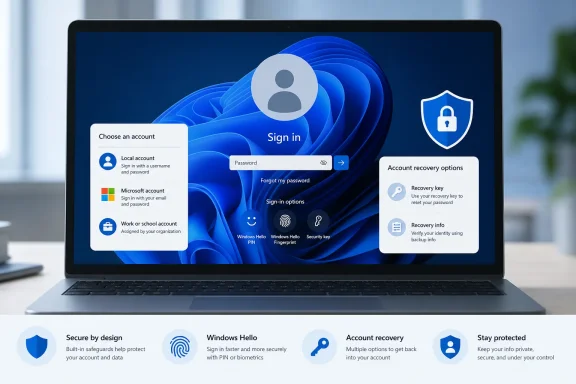 Understand Which Password Windows Is Asking For
Before changing anything, identify how the account is connected to the computer. The account type determines where the password lives and where it must be changed.Local account
A local account exists only on one PC. Its username may be a simple name rather than an email address, and its password is stored on that individual device.Changing a local-account password affects only that Windows installation. It does not change passwords for Outlook, OneDrive, Xbox, Microsoft 365, or any other online service.
Personal Microsoft account
A personal Microsoft account usually uses an email address associated with services such as Outlook.com, Hotmail, Xbox, OneDrive, Skype, or the broader Microsoft account dashboard.If Windows is signed in with this type of account, changing the Microsoft account password changes the password used across Microsoft’s connected consumer services. The PC may continue to accept a Windows Hello PIN after the password is updated, but the underlying account password has still changed.
Work or school account
A work or school account is issued by an employer, university, or other organization. These accounts are typically managed through Microsoft Entra ID, Active Directory, Microsoft 365, or a hybrid identity system.The organization may impose password length, history, complexity, expiration, multifactor authentication, and self-service reset requirements. In some environments, users can change passwords themselves; in others, only IT staff can do it.
PIN versus password
A Windows Hello PIN is separate from the password. It is generally tied to a specific device and backed by the device’s security hardware when supported. It is not a replacement password that can be reused to sign into an online Microsoft account from another computer.If the Windows sign-in screen accepts a PIN, changing the account password is still important when there is a reason to suspect the password has been exposed. If the PIN itself has been forgotten, use the I forgot my PIN option at the sign-in screen or in Settings > Accounts > Sign-in options rather than resetting the account password unnecessarily.
Change a Windows Password When You Know the Current One
For most signed-in users, the easiest path begins in the Settings app. This works in both Windows 11 and Windows 10, although small visual differences may exist between versions and updates.- Open Start.
- Select Settings.
- Open Accounts.
- Select Sign-in options.
- Expand Password.
- Select Change.
- Enter the current password.
- Create and confirm the new password.
- Finish the prompts.
Why Settings is the preferred route
Settings provides the clearest account-aware experience. It keeps the change process within Windows and helps prevent a user from accidentally editing unrelated credentials, such as a browser password or a saved network sign-in.The interface also groups related options together, including:
- Windows Hello PIN
- Fingerprint recognition
- Facial recognition
- Security keys
- Dynamic Lock
- Additional sign-in settings
Use Ctrl + Alt + Del for a Traditional Password Change
The familiar Windows security screen remains a practical alternative for changing a password while signed in.- Press Ctrl + Alt + Del.
- Select Change a password.
- Enter the existing password.
- Enter and confirm the new password.
- Complete the change.
However, the option may not appear in every situation. Device policies, sign-in configuration, remote-session behavior, and account type can affect what is available. If Change a password is missing, use Settings for a personal or local account, or the organization’s designated account portal for a managed work or school account.
Change a Personal Microsoft Account Password Online
A personal Microsoft account can be updated from any web browser, including a phone, tablet, another computer, or the affected Windows PC.This is the correct route when the Windows sign-in uses an email-based Microsoft account and the existing password is still known.
- Sign in to the Microsoft account dashboard.
- Open the Security section.
- Choose Change password.
- Verify the account if prompted.
- Enter the existing password.
- Create and save the new password.
What happens on the Windows PC afterward
Windows may not immediately demand the new password if the user normally signs in with a PIN, fingerprint, or face recognition. That does not mean the password change failed.The new password is still required when:
- Windows needs the account password for verification.
- The user chooses the password sign-in method.
- A new PC is set up with the same Microsoft account.
- Microsoft services request fresh authentication.
- A security-sensitive account change requires confirmation.
Reset a Forgotten Microsoft Account Password
When the password is unknown, do not repeatedly guess. Multiple failed attempts can trigger security checks, temporary lockouts, or additional verification requirements.Instead, use Microsoft’s password reset process from a browser or from the Windows sign-in screen.
Reset from a browser
- Open the Microsoft account sign-in or password reset page.
- Select Forgot password or Forgotten your password?
- Enter the email address, phone number, or username associated with the account.
- Choose an available verification method.
- Request a verification code.
- Enter the code.
- Create a new password.
- Complete the reset process.
Reset from the Windows sign-in screen
At the Windows login screen, choose I forgot my password when it appears under a Microsoft account sign-in. Follow the identity-verification prompts and set a new password.Some Windows configurations also expose a Web sign-in method under Sign-in options. This can be useful when standard authentication is not proceeding normally, although it is typically available only on appropriately configured devices.
Recovery limitations matter
Microsoft account recovery is deliberately strict. If account ownership cannot be verified, there is no legitimate shortcut that bypasses the process.Security tools, registry edits, bootable utilities, and social-media “recovery” claims should be treated with extreme skepticism. A password reset mechanism that appears to bypass identity verification may compromise the account, the device, or both.
Reset a Forgotten Local Account Password
A local account cannot be reset through the Microsoft account website because it is not connected to Microsoft’s online identity service. Recovery depends on which protections were prepared in advance and whether another administrator account exists on the PC.Use security questions from the sign-in screen
If security questions were set up when the local account was created, Windows can offer a built-in recovery route.- At the Windows sign-in screen, select the local account.
- Enter an incorrect password if necessary to reveal recovery options.
- Select OK.
- Choose Reset password.
- Answer the configured security questions.
- Create and confirm a new password.
- Sign in with the new password.
Use a password reset disk
A password reset disk is a USB-based recovery method for a local Windows account. It must be created before the password is forgotten.To create one:
- Sign in to the local account.
- Insert a USB flash drive.
- Search Windows for Control Panel and open it.
- Search within Control Panel for create password reset.
- Select Create a password reset disk.
- Follow the Forgotten Password Wizard.
- Store the USB drive securely.
The obvious risk is physical access. Anyone who obtains both the reset disk and access to the PC may be able to use it to reset that local account’s password. Store it separately from the computer and avoid labeling it in a way that identifies the account or device.
When no recovery option exists
If a local password has been forgotten and there are no security questions, no password reset disk, and no separate administrator account, the supported recovery options are limited. Resetting or reinstalling Windows may be necessary.That outcome can affect installed programs, settings, and local data. Before resetting a device, verify whether important files are already backed up to external storage, OneDrive, another user profile, or a managed corporate backup system.
Reset Another Local User’s Password with an Administrator Account
On a shared family PC or small office workstation, an existing administrator account can reset another local account’s password.- Sign in with an administrator account.
- Search for and open Computer Management.
- Expand Local Users and Groups.
- Select Users.
- Right-click the local user account.
- Select Set Password.
- Confirm the warning.
- Enter and confirm the new password.
Important consequences of an administrator reset
An administrator can set a new password, but this is not identical to a user changing their own password while knowing the old one. Resetting a password can make certain protected data inaccessible, particularly data encrypted with user-specific credentials.For that reason, do not use this approach casually. It is best suited to situations where the administrator is authorized to manage the account and understands the possibility of losing access to encrypted files, stored credentials, or other protected items.
Windows Home limitations
The Local Users and Groups console is generally unavailable in Windows Home editions. That is a product limitation, not a sign that the account cannot be managed at all.Windows Home users may need to use Settings, the local-account recovery screen, another supported administrator-management route, or a device reset depending on the scenario. Avoid downloading unofficial “enablers” or modified system components simply to expose a management console. Such tools can create servicing, security, and support problems.
Change a Work or School Password
Work and school accounts should be managed through the organization’s approved process. A password might be associated with Microsoft 365, Microsoft Entra ID, an on-premises Active Directory domain, a virtual desktop environment, a VPN, or a combination of systems.For a password that is still known, a common route is the organization’s My Account portal.
- Sign in to the work or school account portal.
- Open the password-management area.
- Select Change password.
- Enter the old password.
- Enter and confirm the new password.
- Submit the change.
- Sign in again where prompted.
Reset a forgotten work or school password
If the password is forgotten, begin at the organization’s sign-in or security-information portal and choose Can’t access your account? or the equivalent recovery option.Self-service password reset works only when the organization has enabled it and the user previously registered valid recovery methods. Depending on policy, verification may require one or more of the following:
- Microsoft Authenticator approval or code
- A registered phone number
- SMS verification
- A backup email address
- Security questions, where permitted
- A hardware security key
- Another managed verification method
Domain and hybrid identity complications
Some business PCs use passwords synchronized between cloud and on-premises systems. In those environments, password changes may take time to propagate, or the user may need to connect to the company network or VPN before all resources recognize the new credential.After a corporate password change, update saved credentials carefully in applications that continue to prompt for the old password. Common examples include Outlook, Teams, mapped network drives, VPN clients, remote desktop connections, and Wi-Fi profiles using enterprise authentication.
Do Not Confuse Password Management with Saved Credentials
Several Windows features store credentials, but they do not change the Windows account password.Credential Manager
Credential Manager stores saved usernames and passwords for websites, networks, remote computers, and applications. Removing an entry can resolve repeated sign-in prompts or outdated saved credentials, but it does not reset the Windows login password.Browser password managers
Chrome, Edge, Firefox, and third-party password managers save website passwords. Updating a password inside a browser does not update the password for the Windows account unless the same account is being changed through the proper Microsoft or organizational website.Windows Hello
Windows Hello lets users sign in with a PIN, face, fingerprint, or security key. It can make day-to-day Windows access faster and more resistant to some password-theft scenarios, but it does not eliminate the need to protect and recover the underlying account properly.For personal Microsoft accounts, Windows includes an option under Settings > Accounts > Sign-in options to allow only Windows Hello sign-in on that device. In Windows 11, the option is labeled For improved security, only allow Windows Hello sign-in for Microsoft accounts on this device. Windows 10 uses similar wording beginning with Require Windows Hello sign-in.
Turning on this setting removes password sign-in on that device for the Microsoft account. It does not change the Microsoft account password, and it does not mean the password can be forgotten permanently.
Build a Better Password Strategy
Changing a password only improves security if the replacement is stronger and is not being reused elsewhere.Use a long, unique passphrase
A strong password does not need to be a random-looking string that is impossible to type. A long, unique passphrase can be easier to remember and harder to crack than a short password with predictable symbol substitutions.Good practices include:
- Use a password that is unique to the account.
- Prefer length over superficial complexity.
- Avoid names, birthdays, addresses, sports teams, and public biographical details.
- Do not reuse an old password with a small variation.
- Do not store passwords in unprotected text files or sticky notes.
- Use a reputable password manager for unique credentials where appropriate.
- Enable multifactor authentication on personal Microsoft and work accounts.
Change passwords for the right reasons
Routine password changes are not always the strongest security practice if they encourage minor variations such asSummer2026! becoming Summer2027!. A password should be changed promptly when there is a suspected compromise, phishing incident, shared-device concern, unexpected sign-in alert, malware exposure, or data breach affecting a reused password.For work accounts, follow organizational requirements even when they mandate periodic changes. Those policies may be linked to specific risk, compliance, or technical controls.
A Safer Way to Regain and Keep Access
The most reliable approach is to prepare before a lockout occurs. A Windows device should have more than one legitimate recovery path.For a personal Microsoft account, keep recovery contact methods current and protect them with multifactor authentication. For a local account, configure security questions carefully and consider creating a password reset disk. For a work or school account, register approved security methods and know the organization’s support process before an urgent lockout happens.
The central rule remains simple: change the credential that matches the account type actually used by Windows. Use Settings for a known Windows password, Microsoft’s account recovery for personal online accounts, the sign-in screen for eligible local-account recovery, and the organization’s portal or IT team for business-managed identities. That approach protects access without relying on risky shortcuts, unsupported workarounds, or changes that solve the wrong problem.
References
- Primary source: Technobezz
Published: 2026-07-23T19:24:22.590000+00:00
How to Change Password on Computer in Windows 11 and 10 | Technobezz
How to change password on computer in Windows 11 or 10 using Settings, account recovery, local reset, or admin tools.www.technobezz.com - Official source: support.microsoft.com
Change your work or school account password using security info | Microsoft Support
Change your work or school account password using security infosupport.microsoft.com