

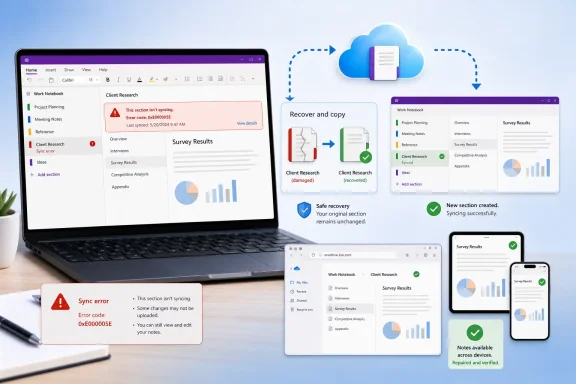
OneNote error 0xE000005E, also identified as ReferencedRevisionNotFound, is a synchronization failure that prevents a specific notebook section from reconciling with its cloud-based version. Although the error is often temporary, repeated failures demand a careful response: force a safe resync first, identify the affected section, preserve its contents, and rebuild only the damaged sync relationship rather than taking destructive shortcuts.
For Windows users who depend on OneNote for work notes, study material, project documentation, or shared household planning, the warning can be unnerving. A notebook may appear perfectly normal on one PC while recent changes are missing on another device or in OneNote for the web. The critical point is that a sync error is not automatically data loss, but continuing to edit the problem section without a recovery plan can increase the chance of conflicting or stranded changes.
This guide explains how to troubleshoot OneNote error 0xE000005E safely, why it happens, when the browser version matters, and which popular “fixes” should be approached with caution.
The full name, ReferencedRevisionNotFound, provides an important clue. OneNote tracks revisions as it synchronizes a section between the local app cache and the storage location, typically OneDrive or SharePoint. Error 0xE000005E means OneNote is trying to work with a revision reference that it can no longer locate.
In practical terms, the desktop app and the online copy of a notebook section have lost agreement about part of that section’s change history. The issue is generally limited to one section, not necessarily the entire notebook or every notebook in the account.
That distinction matters. A broad reset, reinstall, or wholesale notebook move can be excessive when the fault lies in one sync object. The most reliable fix is usually to isolate the affected section, create a clean replacement inside the same notebook, copy the content across, verify the new section syncs, and only then retire the old one.
A healthy OneNote sync cycle must coordinate:
Before rebuilding a section, take a few minutes to assess the situation.
Compare the web version with the desktop version:
In the classic Windows desktop OneNote interface, press:
This requests a manual sync for the current notebook. Allow the process time to complete, especially if the notebook contains many pages, printouts, images, or shared edits.
If the error disappears and the notebook updates across another device or the browser, no further repair may be necessary. Still, check the sync status once more before assuming everything is healthy.
A manual sync may be repeated after a few minutes if a service or connectivity interruption is suspected. Repeatedly hammering the sync command for a long period is unlikely to repair a broken section revision, however. If the same code persists, move to the section-rebuild method.
The section error itself is not simply an “incorrect profile” message, but confirming account identity is still a sensible diagnostic step. It prevents users from copying information into the wrong notebook or misreading an older cloud copy as the current one.
That does not automatically prove every note is synchronized. A browser view can show the current cloud state while the desktop app still holds unsynced local changes. Use it to compare versions, validate notebook ownership, and confirm that the repaired section appears correctly after the fix.
This approach works because the new section receives its own clean synchronization state. Instead of forcing OneNote to recover a missing revision reference in the old section, it allows the app to upload the material as normal content in a new section.
Moving pages is faster and may reduce duplication, but it introduces more risk if a page transfer fails, a connection drops, or the old section contains the only accessible version of a recent change. For business records, class notes, or project documentation, copying first is the better default.
For shared notebooks, the impact can be more noticeable. Every collaborator and device may need to download or upload substantial content, and the chance of overlapping edits rises when numerous people are working in the same section.
That approach has practical benefits:
For Microsoft 365 or retail Office installations, updates are typically managed from an Office app:
Windows updates also matter, particularly for sign-in components, networking, security certificates, and underlying app dependencies. Install pending updates, restart the PC, and then test OneNote synchronization again.
In Windows 11, the general route is:
Likewise, do not use the OneDrive desktop sync client as a substitute for OneNote’s own synchronization engine. OneNote notebooks stored in the cloud should be opened through OneNote from their proper OneDrive or SharePoint location, not manipulated casually as ordinary folders of notebook files.
If the affected notebook is stored in SharePoint, verify that it opens in the browser and that other team members can access the same section. If only one person encounters the error, the issue may be specific to that PC’s app state or account session. If several people experience it, the site owner or Microsoft 365 administrator should investigate.
Provide administrators with useful details:
The most effective persistent fix is not a dramatic reinstall or blind cache reset. It is a controlled section rebuild: create a new section, transfer the content, confirm it synchronizes, and retire the old broken section only after the new copy is safely visible across devices.
Keeping OneNote and Microsoft 365 updated, reducing reliance on massive embedded printouts, and verifying account and notebook locations will further reduce the likelihood of repeat sync failures. With a cautious recovery process, error 0xE000005E can become a contained maintenance task rather than a threat to an entire notebook.
For Windows users who depend on OneNote for work notes, study material, project documentation, or shared household planning, the warning can be unnerving. A notebook may appear perfectly normal on one PC while recent changes are missing on another device or in OneNote for the web. The critical point is that a sync error is not automatically data loss, but continuing to edit the problem section without a recovery plan can increase the chance of conflicting or stranded changes.
This guide explains how to troubleshoot OneNote error 0xE000005E safely, why it happens, when the browser version matters, and which popular “fixes” should be approached with caution.
 What OneNote Error 0xE000005E Means
The full name, ReferencedRevisionNotFound, provides an important clue. OneNote tracks revisions as it synchronizes a section between the local app cache and the storage location, typically OneDrive or SharePoint. Error 0xE000005E means OneNote is trying to work with a revision reference that it can no longer locate.In practical terms, the desktop app and the online copy of a notebook section have lost agreement about part of that section’s change history. The issue is generally limited to one section, not necessarily the entire notebook or every notebook in the account.
That distinction matters. A broad reset, reinstall, or wholesale notebook move can be excessive when the fault lies in one sync object. The most reliable fix is usually to isolate the affected section, create a clean replacement inside the same notebook, copy the content across, verify the new section syncs, and only then retire the old one.
Common symptoms
The error can surface in several ways:- A red sync symbol or warning icon appears beside a notebook.
- OneNote reports 0xE000005E in the notebook synchronization status window.
- Pages added or edited on one device do not show up elsewhere.
- A shared notebook displays stale content for one or more collaborators.
- OneNote for the web shows a different version of a section than the desktop app.
- Sync attempts complete for other notebooks but repeatedly fail for one particular section.
Background: Why OneNote Sync Can Fail
Modern OneNote is designed around cloud synchronization. Instead of treating a notebook like a single conventional document, it manages notebooks as a collection of sections, pages, content blocks, attachments, revisions, and metadata. This architecture supports simultaneous editing across PCs, phones, tablets, browsers, and shared workspaces, but it also creates more moving parts than a local.docx file.A healthy OneNote sync cycle must coordinate:
- The local OneNote cache on the Windows device.
- The signed-in Microsoft, work, or school account.
- The target location in OneDrive or SharePoint.
- The notebook and its individual sections.
- The current versions of notes created or edited on other devices.
Why this particular error may occur
There is not always a single, user-visible cause for error 0xE000005E. It may follow conditions such as:- Editing the same section from multiple devices while one device was offline.
- A network interruption while OneNote was uploading or downloading changes.
- A temporary OneDrive or SharePoint availability issue.
- An outdated Office or OneNote build with a resolved synchronization defect.
- A section that was moved, deleted, restored, or altered by another collaborator.
- A notebook associated with a different Microsoft account than the one currently active in OneNote.
- A problematic section containing extensive embedded content, printouts, or unusually complex page history.
Before Making Changes: Protect Unsynced Notes
The biggest troubleshooting mistake is deleting, resetting, or closing a section before confirming that every important page is safely represented elsewhere. If the desktop app contains recent local edits that have not reached the cloud, those edits may exist only in OneNote’s local cache.Before rebuilding a section, take a few minutes to assess the situation.
Check whether the notes exist online
Open the affected notebook in OneNote for the web through the appropriate OneDrive or SharePoint location. This is not a magical repair tool, but it is an excellent diagnostic checkpoint.Compare the web version with the desktop version:
- If the browser contains all current notes, the desktop app may be holding a stale or broken local sync state.
- If the desktop app contains newer notes, treat those notes as potentially unsynced and preserve them before making changes.
- If both versions have different additions, capture the unique content from each before consolidating it into a clean section.
Make a practical content backup
For a section that refuses to sync, the safest lightweight backup is usually a manual one:- Copy important pages into a temporary section in another healthy notebook.
- Copy critical text into a local document if the content is especially sensitive.
- Save key attachments separately when they cannot be easily recreated.
- Take note of page names, section names, and the notebook location before moving material.
Step 1: Try a Manual Sync First
Because 0xE000005E is frequently temporary, the least invasive step is to manually trigger synchronization. Do this before rebuilding sections, signing out, repairing Office, or clearing any app data.In the classic Windows desktop OneNote interface, press:
Shift + F9This requests a manual sync for the current notebook. Allow the process time to complete, especially if the notebook contains many pages, printouts, images, or shared edits.
If the error disappears and the notebook updates across another device or the browser, no further repair may be necessary. Still, check the sync status once more before assuming everything is healthy.
Use Notebook Sync Status to identify the failing section
For a more precise view, open the sync-status window:- In OneNote, right-click the notebook name.
- Select Notebook Sync Status.
- Find the notebook showing the error.
- Expand its details by selecting the small arrow beside the notebook entry.
- Identify the section listed directly above the 0xE000005E message.
- Record the exact section name before closing the window.
A manual sync may be repeated after a few minutes if a service or connectivity interruption is suspected. Repeatedly hammering the sync command for a long period is unlikely to repair a broken section revision, however. If the same code persists, move to the section-rebuild method.
Step 2: Verify the Correct Account and Notebook Location
A surprisingly common source of OneNote sync confusion is account mismatch. Users may have a personal Microsoft account, a school account, and one or more work accounts, each with notebooks in different OneDrive or SharePoint locations.The section error itself is not simply an “incorrect profile” message, but confirming account identity is still a sensible diagnostic step. It prevents users from copying information into the wrong notebook or misreading an older cloud copy as the current one.
Review the account in OneNote
Select the profile or account control in OneNote and verify:- The signed-in email address is the intended one.
- The account has permission to access the notebook.
- A work or school notebook is not being opened through a personal account.
- The notebook location is the expected OneDrive or SharePoint site.
Why OneNote for the web is useful
The browser edition is particularly valuable because it bypasses the Windows desktop app’s local cache. If a notebook opens and displays correctly online, the storage service and account access are probably functioning.That does not automatically prove every note is synchronized. A browser view can show the current cloud state while the desktop app still holds unsynced local changes. Use it to compare versions, validate notebook ownership, and confirm that the repaired section appears correctly after the fix.
Step 3: Create a New Section and Move the Content
When manual sync does not resolve 0xE000005E, the most targeted recovery strategy is to create a clean section in the same notebook and transfer the content from the failing section.This approach works because the new section receives its own clean synchronization state. Instead of forcing OneNote to recover a missing revision reference in the old section, it allows the app to upload the material as normal content in a new section.
The safe recovery workflow
Follow these steps carefully:- Create a new section in the same notebook as the broken section.
- Give it a temporary, unmistakable name, such as
Project Notes - Recovered. - Open the old section and review every page for current information.
- Copy or move pages from the old section into the new section.
- Preserve any pages that exist only in the desktop app.
- Wait for the new section to synchronize.
- Check the new section in OneNote for the web or on another device.
- Only after verification, delete the old failing section.
- Press
Shift + F9to sync the notebook again. - Rename the new section to the original name if appropriate.
Copy versus move
Copying is usually the more conservative choice. It leaves the original content intact while the new section is tested. Once synchronization is verified, the old section can be removed.Moving pages is faster and may reduce duplication, but it introduces more risk if a page transfer fails, a connection drops, or the old section contains the only accessible version of a recent change. For business records, class notes, or project documentation, copying first is the better default.
What to check after transfer
A new section can appear to sync successfully while still missing specific page elements. Review more than page titles:- Typed notes and formatting
- Handwritten ink and drawings
- Tables and task tags
- Attached files
- File printouts
- Audio recordings
- Images
- Links
- Password-protected content
- Recently edited pages
- Notes created while the device was offline
Large Sections, PDF Printouts, and Embedded Files
Large OneNote sections are not automatically defective, but they can make synchronization slower and troubleshooting more challenging. A section packed with hundreds of pages, high-resolution images, scanned documents, or large PDF printouts creates more data for OneNote to process and reconcile.For shared notebooks, the impact can be more noticeable. Every collaborator and device may need to download or upload substantial content, and the chance of overlapping edits rises when numerous people are working in the same section.
When splitting a section makes sense
Splitting a large section is worthwhile when it is difficult to navigate, persistently slow, or full of unrelated material. Examples include:- A multi-year “Meeting Notes” section.
- A catch-all archive with thousands of pages.
- A section containing many extensive PDF printouts.
- A shared project section with distinct workstreams.
- A classroom notebook section that distributes large documents to many users.
Better handling for very large files
Rather than repeatedly embedding oversized documents as printouts, consider storing large source files in OneDrive or SharePoint and adding a link from OneNote. This keeps the notebook focused on annotations, decisions, context, and summaries while the original file remains easier to manage and update.That approach has practical benefits:
- Smaller sections can sync more efficiently.
- Collaborators access the latest document rather than duplicate copies.
- Storage consumption is easier to monitor.
- Large file revisions do not need to be replicated as page content.
- Notebook navigation remains faster and cleaner.
Step 4: Update OneNote, Office, and Windows
Microsoft has indicated that this error has been addressed through product updates, so installing current updates is an important part of a permanent resolution. An update will not restore content that has already become stranded in an unsynced section, but it may prevent the same condition from recurring.For Microsoft 365 or retail Office installations, updates are typically managed from an Office app:
- Open OneNote, Word, Excel, or another Microsoft 365 application.
- Select File.
- Open Account.
- Choose Update Options.
- Select Update Now.
Windows updates also matter, particularly for sign-in components, networking, security certificates, and underlying app dependencies. Install pending updates, restart the PC, and then test OneNote synchronization again.
Step 5: Repair Office Only After Section Recovery
If the error survives the section-rebuild process, affects multiple notebooks, or OneNote is also crashing, failing to sign in, or behaving inconsistently, repair the Microsoft 365 or Office installation.In Windows 11, the general route is:
- Open Settings.
- Select Apps and then Installed apps.
- Locate Microsoft 365, Office, or the standalone OneNote entry.
- Select the menu beside the app and choose Modify where available.
- Start with Quick Repair if offered.
- Use Online Repair if Quick Repair does not resolve the problem.
What not to do first
Avoid clearing the OneNote cache, resetting the app, uninstalling Office, or deleting notebook files as the initial response to 0xE000005E. These actions can be appropriate in limited scenarios, but they may remove locally cached information that has not synchronized.Likewise, do not use the OneDrive desktop sync client as a substitute for OneNote’s own synchronization engine. OneNote notebooks stored in the cloud should be opened through OneNote from their proper OneDrive or SharePoint location, not manipulated casually as ordinary folders of notebook files.
Troubleshooting Shared Work and School Notebooks
Work and school notebooks introduce additional variables. A user may have the correct OneNote application but lack access to the SharePoint library, be affected by a retention policy, encounter an organizational service issue, or face changes made by another notebook owner.If the affected notebook is stored in SharePoint, verify that it opens in the browser and that other team members can access the same section. If only one person encounters the error, the issue may be specific to that PC’s app state or account session. If several people experience it, the site owner or Microsoft 365 administrator should investigate.
Provide administrators with useful details:
- The full error code: 0xE000005E
- The notebook name
- The exact section name
- Whether OneNote for the web works
- Whether the problem occurs on multiple devices
- Whether the issue began after moving, restoring, or renaming a section
- Whether the notebook is stored in OneDrive or SharePoint
A Practical Recovery Checklist
For most users, the best troubleshooting order is straightforward:- Confirm that the internet connection is stable.
- Restart OneNote and, if needed, restart Windows.
- Manually sync the notebook with
Shift + F9. - Open Notebook Sync Status and identify the failing section.
- Check the notebook in OneNote for the web.
- Confirm the correct Microsoft, work, or school account.
- Preserve any desktop-only notes by copying them to a safe location.
- Create a new section in the same notebook.
- Copy the pages from the failing section into the new section.
- Verify that the new section syncs on the web or another device.
- Delete the old section only after verification.
- Install Office and Windows updates.
- Repair Office if problems continue beyond the affected section.
The Bottom Line
OneNote error 0xE000005E is frustrating because it sits at the intersection of local notes, cloud revisions, and synchronization history. Yet it is usually manageable when approached methodically. Start with a manual sync, identify the specific section involved, and preserve any unsynced material before attempting repairs.The most effective persistent fix is not a dramatic reinstall or blind cache reset. It is a controlled section rebuild: create a new section, transfer the content, confirm it synchronizes, and retire the old broken section only after the new copy is safely visible across devices.
Keeping OneNote and Microsoft 365 updated, reducing reliance on massive embedded printouts, and verifying account and notebook locations will further reduce the likelihood of repeat sync failures. With a cautious recovery process, error 0xE000005E can become a contained maintenance task rather than a threat to an entire notebook.