

Windows Clipboard history is one of the most useful productivity features built into Windows 10 and Windows 11, yet it is still commonly overlooked because basic copy and paste works without any extra setup. Pressing Ctrl + C copies, Ctrl + X cuts, and Ctrl + V pastes the most recent item—but enabling Clipboard history turns that single-item buffer into a practical, searchable-looking list of recent snippets, screenshots, and formatted content.
For Windows 11 users, Clipboard history is a small but meaningful quality-of-life upgrade. For the many PCs that remain on Windows 10, it is also available and works in much the same way. However, Windows 10 reached end of support on October 14, 2025 for its mainstream Home, Pro, Enterprise, and Education releases, so Clipboard history should be viewed as a useful feature on an aging operating system rather than a reason to defer an upgrade.
The key shortcut is simple: press Windows key + V. That opens the Clipboard history panel, where recently copied items can be selected and pasted into the active app.
The standard Windows clipboard holds the most recently copied or cut item. Copy a paragraph, then copy a URL, and the paragraph is replaced. This has been the familiar behavior of Windows copy-and-paste functions for decades.
Clipboard history changes that limitation. Once enabled, Windows retains a rolling list of up to 25 copied entries, allowing users to return to a previous item instead of copying it again.
The history supports common content types, including:
A copied Word document, PDF, folder, or large image may still paste into some applications through the normal clipboard process, but it will not necessarily become a reusable entry in Windows Clipboard history. The feature is designed for lightweight, temporary content rather than complete files.
Cloud functionality becomes relevant only when the optional synchronization feature is enabled. With syncing turned on, text copied on one signed-in Windows device can become available on another compatible device using the same Microsoft or work account.
That distinction matters for privacy. Clipboard history itself is a local convenience tool. Cross-device synchronization adds convenience, but it also changes the security implications of what is copied.
Once the toggle is enabled, compatible copied content is added to the history automatically. There is no separate save button, no account requirement for local storage, and no need to manually open the Clipboard panel after every copy operation.
Press Windows key + V at any time while a text field, document, chat window, browser form, or supported app is active. The Clipboard panel appears near the cursor or taskbar area, displaying copied entries.
Selecting an item from the panel pastes it into the current location.
This is particularly useful for:
The practical rule is simple: use Ctrl + V when the last copied item is the correct one. Use Windows key + V when you need something copied earlier.
That makes the Pin feature essential for content used regularly.
Pinned clipboard entries remain available even when:
Pinning is especially useful for content that would be inconvenient to recreate but does not belong in a public-facing template library. Still, users should avoid pinning passwords, recovery keys, banking details, or other sensitive information.
Windows 11 improves this workflow with a Paste as Text option in the Clipboard history interface. When available for the copied entry, this option strips rich formatting and inserts the content as plain text.
That makes it useful for:
Windows 10 users may need to rely more heavily on application-specific shortcuts, such as Ctrl + Shift + V where supported, or paste-special commands in Office applications. Clipboard history remains useful on Windows 10, but Windows 11 provides the more polished experience.
With synchronization enabled, copied text can be shared across compatible Windows devices signed in with the same Microsoft account or supported work account. Copy a URL on a desktop PC, switch to a laptop, open Clipboard history, and paste it there.
The manual option provides better control. It requires the user to open the Clipboard history panel and explicitly choose which item should be synchronized.
For shared household systems, business computers, or privacy-sensitive environments, manual sync is the safer setting. It reduces the chance that copied content will automatically travel to another device where it is visible to someone else.
The Windows Clipboard sync feature should not be treated as a secure enterprise document-transfer system. It is convenient for small snippets, but it is not designed to replace encrypted file sharing, managed collaboration platforms, or approved corporate data workflows.
Microsoft SwiftKey on Android supports cloud clipboard functionality when the phone and Windows PC use the same Microsoft account. This is most useful for copying text such as addresses, links, verification-free reference numbers, and short notes between an Android phone and a PC.
Phone Link can also provide cross-device copy-and-paste capabilities on supported Android hardware, particularly certain Samsung, OPPO, and related device configurations. Availability varies by phone model, installed software version, regional configuration, and Link to Windows support.
The critical limitation is that mobile clipboard integration is not universal. It should be considered an optional convenience rather than a guaranteed feature across every Android manufacturer or phone model.
iPhone users should not expect the same native Windows Clipboard history synchronization experience. Apple’s clipboard continuity tools are primarily built around Apple devices and Apple account integration.
This is especially important after copying:
Alternatively, open Clipboard history with Windows key + V and use the Clear all option. Again, pinned items remain unless they are manually deleted or unpinned.
An unlocked computer can expose the Clipboard history panel to anyone sitting at the keyboard. A colleague, family member, visitor, or unauthorized person could press Windows key + V and view recent unpinned entries.
There is also a workplace consideration. Some managed Windows devices may have clipboard features restricted by organizational policy. Remote desktop sessions, virtual desktop environments, endpoint security tools, and data-loss-prevention controls can all affect how copy-and-paste behaves.
If the Clipboard settings are missing, greyed out, or continually reset, the limitation may be intentional rather than a Windows malfunction.
If the panel still does not display expected content, verify the setting manually:
Check for these limitations:
Pin important content before it falls off the list. Once an unpinned entry has been removed or history has been cleared, Windows does not offer a reliable built-in recovery mechanism.
For everyday users, it removes repetitive copying. For writers and researchers, it reduces the friction of gathering snippets. For support staff, developers, administrators, and office workers, it can save time throughout the day by keeping recent values, error messages, commands, links, and screenshots within reach.
The strongest approach is to use Clipboard history deliberately:
For Windows 11 users, Clipboard history is a small but meaningful quality-of-life upgrade. For the many PCs that remain on Windows 10, it is also available and works in much the same way. However, Windows 10 reached end of support on October 14, 2025 for its mainstream Home, Pro, Enterprise, and Education releases, so Clipboard history should be viewed as a useful feature on an aging operating system rather than a reason to defer an upgrade.
The key shortcut is simple: press Windows key + V. That opens the Clipboard history panel, where recently copied items can be selected and pasted into the active app.
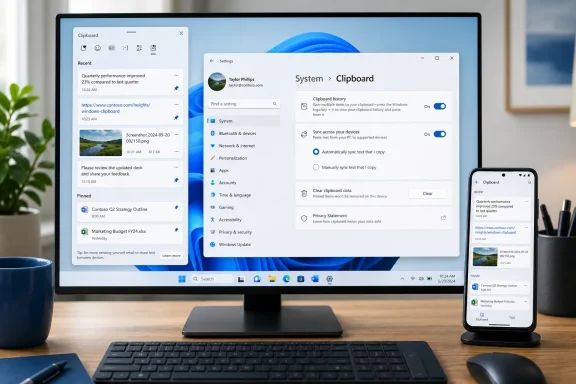 What Windows Clipboard History Actually Does
The standard Windows clipboard holds the most recently copied or cut item. Copy a paragraph, then copy a URL, and the paragraph is replaced. This has been the familiar behavior of Windows copy-and-paste functions for decades.Clipboard history changes that limitation. Once enabled, Windows retains a rolling list of up to 25 copied entries, allowing users to return to a previous item instead of copying it again.
The history supports common content types, including:
- Plain text
- Formatted HTML text
- Bitmap images, such as screenshots
- Small copied visual snippets from supported applications
A copied Word document, PDF, folder, or large image may still paste into some applications through the normal clipboard process, but it will not necessarily become a reusable entry in Windows Clipboard history. The feature is designed for lightweight, temporary content rather than complete files.
Clipboard history is local by default
It is important to distinguish Clipboard history from cloud clipboard syncing. The basic history feature works locally on the PC. It does not need an internet connection, a Microsoft account, or another device.Cloud functionality becomes relevant only when the optional synchronization feature is enabled. With syncing turned on, text copied on one signed-in Windows device can become available on another compatible device using the same Microsoft or work account.
That distinction matters for privacy. Clipboard history itself is a local convenience tool. Cross-device synchronization adds convenience, but it also changes the security implications of what is copied.
Enabling Clipboard History in Windows 11 and Windows 10
Clipboard history is usually disabled until the user explicitly turns it on. Windows provides two straightforward ways to activate it.Enable it with the keyboard shortcut
The fastest method is:- Press Windows key + V.
- If Clipboard history is not active, select Turn on.
- Copy text, a link, or a small screenshot.
- Press Windows key + V again to view the saved entry.
Enable it through Settings
Clipboard history can also be enabled from the Windows Settings app:- Open Settings.
- Select System.
- Choose Clipboard.
- Turn Clipboard history to On.
Once the toggle is enabled, compatible copied content is added to the history automatically. There is no separate save button, no account requirement for local storage, and no need to manually open the Clipboard panel after every copy operation.
Using the Clipboard Panel Efficiently
Clipboard history becomes valuable when users stop treating copy-and-paste as a single action and start using it as a temporary workspace.Press Windows key + V at any time while a text field, document, chat window, browser form, or supported app is active. The Clipboard panel appears near the cursor or taskbar area, displaying copied entries.
Selecting an item from the panel pastes it into the current location.
Everyday clipboard workflow
A typical workflow might look like this:- Copy a customer number from a website.
- Copy an address from an email.
- Copy a shipping reference from a document.
- Open a spreadsheet, CRM system, or support ticket.
- Press Windows key + V.
- Paste each earlier item in the correct field.
This is particularly useful for:
- Data entry work
- Research and note-taking
- Customer support tasks
- Writing and editing
- Moving content between documents
- Building emails from several sources
- Copying command-line output
- Reusing URLs, serial numbers, and reference IDs
The difference between Ctrl + V and Windows key + V
The traditional shortcuts continue to work exactly as expected:- Ctrl + C: Copy
- Ctrl + X: Cut
- Ctrl + V: Paste the newest clipboard item
- Windows key + V: Open Clipboard history and choose an item
The practical rule is simple: use Ctrl + V when the last copied item is the correct one. Use Windows key + V when you need something copied earlier.
Pinning Important Clipboard Items
Clipboard history is limited to 25 entries. When a 26th compatible item is copied, Windows removes the oldest unpinned item to make room.That makes the Pin feature essential for content used regularly.
Pinned clipboard entries remain available even when:
- New copied items push the regular history past 25 entries
- The computer is restarted
- The normal unpinned clipboard list is cleared
What should be pinned?
Good candidates include:- A work email signature
- A frequently used mailing address
- A standard support response
- A calendar booking link
- A product SKU or reference number
- A company name or legal entity name
- A commonly used code fragment
- A short disclaimer
- A template greeting or closing
How to pin an item
To pin an existing entry:- Press Windows key + V.
- Locate the item in the panel.
- Select the three-dot menu beside the entry.
- Choose Pin.
Pinning is especially useful for content that would be inconvenient to recreate but does not belong in a public-facing template library. Still, users should avoid pinning passwords, recovery keys, banking details, or other sensitive information.
Paste as Plain Text in Windows 11
Copying content from a website, email, chat app, or rich document often brings along unwanted formatting. Fonts, colors, hyperlinks, line spacing, tables, and embedded styling can make pasted content look inconsistent or break the layout of a document.Windows 11 improves this workflow with a Paste as Text option in the Clipboard history interface. When available for the copied entry, this option strips rich formatting and inserts the content as plain text.
That makes it useful for:
- Pasting web research into Word or Notepad
- Moving text into a CMS editor
- Cleaning copied email content
- Removing unwanted hyperlink formatting
- Avoiding mismatched fonts in PowerPoint
- Inserting text into code editors or terminals
- Preparing plain-text support responses
Windows 10 users may need to rely more heavily on application-specific shortcuts, such as Ctrl + Shift + V where supported, or paste-special commands in Office applications. Clipboard history remains useful on Windows 10, but Windows 11 provides the more polished experience.
Syncing Clipboard Content Across Windows Devices
Clipboard sync is one of the feature’s biggest advantages for users who move between a desktop, laptop, tablet, or multiple workstations.With synchronization enabled, copied text can be shared across compatible Windows devices signed in with the same Microsoft account or supported work account. Copy a URL on a desktop PC, switch to a laptop, open Clipboard history, and paste it there.
How to enable cross-device clipboard sync
On each Windows PC:- Open Settings.
- Go to System > Clipboard.
- Turn on Clipboard history if it is not already enabled.
- Turn on Clipboard history across your devices or Sync across your devices.
- Choose a synchronization preference.
- Automatically sync text that I copy
- Manually sync text that I copy
The manual option provides better control. It requires the user to open the Clipboard history panel and explicitly choose which item should be synchronized.
Automatic versus manual sync
For personal devices with a single trusted owner, automatic syncing can reduce friction dramatically. It is excellent for moving links, notes, addresses, and short pieces of text between a main desktop and a travel laptop.For shared household systems, business computers, or privacy-sensitive environments, manual sync is the safer setting. It reduces the chance that copied content will automatically travel to another device where it is visible to someone else.
The Windows Clipboard sync feature should not be treated as a secure enterprise document-transfer system. It is convenient for small snippets, but it is not designed to replace encrypted file sharing, managed collaboration platforms, or approved corporate data workflows.
Android clipboard integration
Windows users can also extend copy-and-paste workflows to some Android setups.Microsoft SwiftKey on Android supports cloud clipboard functionality when the phone and Windows PC use the same Microsoft account. This is most useful for copying text such as addresses, links, verification-free reference numbers, and short notes between an Android phone and a PC.
Phone Link can also provide cross-device copy-and-paste capabilities on supported Android hardware, particularly certain Samsung, OPPO, and related device configurations. Availability varies by phone model, installed software version, regional configuration, and Link to Windows support.
The critical limitation is that mobile clipboard integration is not universal. It should be considered an optional convenience rather than a guaranteed feature across every Android manufacturer or phone model.
iPhone users should not expect the same native Windows Clipboard history synchronization experience. Apple’s clipboard continuity tools are primarily built around Apple devices and Apple account integration.
Clearing Clipboard History Safely
Clipboard history is designed to be temporary. Windows clears unpinned history when the PC restarts, but there are times when users should clear it manually.This is especially important after copying:
- Passwords
- One-time codes
- Account numbers
- Sensitive customer data
- Private health information
- Recovery keys
- Financial details
- Confidential work content
Clear all unpinned clipboard entries
To clear the local history:- Open Settings.
- Select System > Clipboard.
- Find Clear clipboard data.
- Select Clear.
Alternatively, open Clipboard history with Windows key + V and use the Clear all option. Again, pinned items remain unless they are manually deleted or unpinned.
Delete a single clipboard item
To remove one item without wiping the rest of the list:- Press Windows key + V.
- Find the entry.
- Select the three-dot menu.
- Choose Delete.
Security and Privacy Risks to Understand
Clipboard history is convenient precisely because it preserves copied data. That same behavior creates risks when users forget what they have copied.An unlocked computer can expose the Clipboard history panel to anyone sitting at the keyboard. A colleague, family member, visitor, or unauthorized person could press Windows key + V and view recent unpinned entries.
Sensible clipboard security practices
The following habits minimize risk:- Do not copy passwords unless absolutely necessary.
- Avoid copying recovery codes, private keys, or authentication secrets.
- Clear sensitive copied text immediately after use.
- Review pinned items occasionally.
- Use manual syncing when multiple devices are shared.
- Lock the PC whenever stepping away.
- Disable Clipboard history entirely on systems where the risk outweighs the productivity benefit.
There is also a workplace consideration. Some managed Windows devices may have clipboard features restricted by organizational policy. Remote desktop sessions, virtual desktop environments, endpoint security tools, and data-loss-prevention controls can all affect how copy-and-paste behaves.
If the Clipboard settings are missing, greyed out, or continually reset, the limitation may be intentional rather than a Windows malfunction.
Troubleshooting Windows Clipboard History
Most Clipboard history problems come down to one of a few predictable causes: the feature is disabled, the copied item is unsupported, a restart cleared unpinned content, or synchronization is not configured consistently.Clipboard history does not appear
First, press Windows key + V. If Windows offers a Turn on button, history was simply disabled.If the panel still does not display expected content, verify the setting manually:
- Open Settings.
- Select System > Clipboard.
- Confirm Clipboard history is switched on.
- Copy a short line of ordinary text.
- Press Windows key + V again.
An item copied successfully but is missing from history
A normal Ctrl + V paste can work even if the item does not appear in Clipboard history. This usually means the content does not meet Clipboard history requirements.Check for these limitations:
- The item exceeds 4 MB
- The copied content is a file rather than text, HTML, or a bitmap image
- The application uses an unusual or protected clipboard format
- The copy action occurred in a restricted remote or managed environment
- The system restarted before the item was pinned
Older entries disappeared
This behavior is expected after the history reaches 25 items. Windows removes older unpinned entries first.Pin important content before it falls off the list. Once an unpinned entry has been removed or history has been cleared, Windows does not offer a reliable built-in recovery mechanism.
Sync is not working
For cross-device syncing, check the basics:- Confirm that both PCs use the same Microsoft account or appropriate work account.
- Enable Clipboard history on each device.
- Enable Sync across your devices on each device.
- Confirm that both systems have an active internet connection.
- Check for pending Windows updates.
- Verify whether the selected sync mode is automatic or manual.
Why Clipboard History Is Worth Using
Windows Clipboard history is not a replacement for a knowledge base, password manager, note-taking system, file storage platform, or document collaboration tool. Its value lies in being fast, built in, and available almost everywhere on the Windows desktop.For everyday users, it removes repetitive copying. For writers and researchers, it reduces the friction of gathering snippets. For support staff, developers, administrators, and office workers, it can save time throughout the day by keeping recent values, error messages, commands, links, and screenshots within reach.
The strongest approach is to use Clipboard history deliberately:
- Enable it for routine productivity.
- Pin only durable, low-risk snippets.
- Keep synchronization off unless cross-device copying is genuinely useful.
- Prefer manual sync when privacy matters.
- Clear sensitive content promptly.
- Upgrade from unsupported Windows 10 systems where possible, since Windows 11 provides the more current and better-supported Clipboard experience.
References
- Primary source: HP
Published: 2026-07-23T03:18:28.530000+00:00
How to Use the Clipboard on Windows 10 (Now 11) | HP® United Kingdom
How to enable, use, and sync clipboard history on Windows 11 and Windows 10. Pin items, paste as text, sync across devices, and troubleshoot issues.www.hp.com
- Official source: support.microsoft.com
Using the clipboard | Microsoft Support
Learn how to use and troubleshoot the clipboard in Windows to paste multiple items, pin items, and sync your clipboard to the cloud.support.microsoft.com - Official source: learn.microsoft.com
Can I Recover Windows 10 Clipboard History? - Microsoft Q&A
I know Windows Key+V shows you your clipboard history but I forgot to PIN some text so now I'm trying to recover the text that was overwritten by new text. I think Windows 10 history keeps the most recent 25 entries before it starts overwriting it with…learn.microsoft.com