• Thread Author
Windows 11 quietly packs a surprising number of productivity tricks beneath its glossy UI — and many of them are already baked into the OS if you know where to look. A recent roundup of five “secret” Windows 11 features highlighted a set of under‑used tools that deliver real wins: image erasing in Photos, advanced Calculator modes (including an always‑on‑top mini mode), OCR in the Snipping Tool, added time‑zone clocks in the Notification Center, and lightweight formatting/Markdown support in Notepad. These are not gimmicks — they solve everyday friction points and, in several cases, replace third‑party tools. The features and workflows described below are verified against Microsoft’s own documentation and multiple independent outlets, and each section includes practical steps, real‑world use cases, and a balanced look at strengths and tradeoffs.

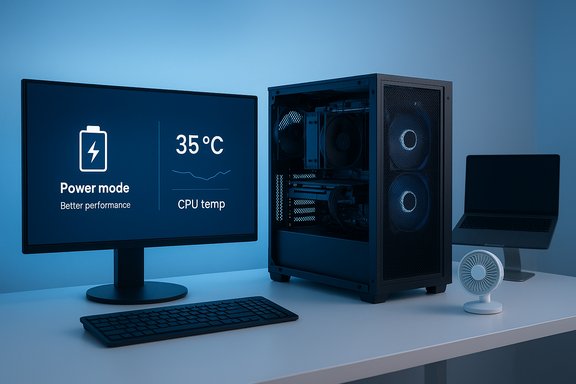
Blue-tinted desktop with multiple floating Windows 11 widgets and apps.Background / Overview​

Windows 11’s headline changes (centered Start, Snap layouts, modernized File Explorer) get the press, but Microsoft has been incrementally adding usable features into inbox apps and system settings. Many of those additions — AI‑powered edits in Photos, better clipboard and text tools, and richer core apps — arrived across 2023–2025 updates and Insider builds, then rolled out to mainstream channels. What looks like small polish often yields tangible time savings for frequent users. The five features below were pulled from a recent consumer roundup and then cross‑checked against Microsoft’s release notes, Windows Insider posts, and multiple independent guides to confirm availability, behavior, and limitations.

1) Photos app: Generative Erase and Background Removal — quick editing without Photoshop​

What it does​

Windows 11’s built‑in Photos app now offers Generative Erase (AI‑powered object removal) and improved background removal tools. These features let you quickly remove distracting elements, replace or erase backgrounds, and retouch photos without opening third‑party editors. Microsoft documents the feature as an evolution of the old “Spot fix” tool, now leveraging on‑device intelligence to infill erased areas.

How to use it (quick steps)​

  • Open the photo in the Photos app.
  • Click Edit Image (or Edit) and choose Erase (Generative Erase).
  • Adjust brush size and paint over the unwanted object(s).
  • Let the tool process the selection. Toggle Auto‑apply off if you want to refine masks first.
  • Use Background → Remove to isolate the subject or replace the background.

Why this matters​

  • Saves time for quick edits (social posts, screenshots, slide art).
  • On‑device processing reduces upload time and can protect sensitive images.
  • Good enough for most casual and many professional tasks where pixel‑perfect edits aren’t required.

Strengths​

  • Low friction: No need for Photoshop or subscription services.
  • Local processing: Microsoft states the operation is performed on the device, minimizing cloud transfer for this feature when supported. That’s a meaningful privacy and latency advantage.
  • Rapid iteration: Brush size and masking controls let you refine results without complex workflows.

Risks and limitations​

  • Not perfect: Generative inpaint works well in many cases but can fail on complex textures, reflections, or tight edges — expect to do manual touchups in some images. Microsoft explicitly warns results may not always match expectations.
  • Hardware variability: Performance is best on modern CPUs/NPUs; very large images or older machines will be slower.
  • Policy and moderation: Generative edits must be used responsibly; Microsoft applies moderation rules to some AI features and the behavior/availability can vary by region and Windows build.

2) Calculator: hidden modes (Graphing, Programmer, Date) + Always‑On‑Top mini mode​

What it does​

The modern Windows Calculator is far more than a basic four‑function tool. It includes Scientific, Programmer, Graphing, Date calculation, and extensive Conversion modes (currency, pressure, area, temperature, etc.. It also offers an Always on Top mini/compact mode that stays visible while you work, which is perfect for reference while shopping, cooking, or comparing figures. Microsoft and multiple outlets document these modes and the lightweight “pin to top” behavior.

How to use it (quick steps)​

  • Open Calculator (Start → Calculator).
  • Click the hamburger menu (top left) and choose the mode: Standard, Scientific, Graphing, Programmer, Date Calculation, or Converters.
  • To enable the compact always‑on‑top mode, switch to Standard and click the Always on Top (pin) icon; drag it anywhere on the screen.
  • For graphing, select Graphing mode and enter an equation (e.g., y = x^2); the app will plot it inline.

Why this matters​

  • Replaces the need for lightweight third‑party calculators for most everyday and developer tasks.
  • Graphing and date calculations are handy for students, analysts, and anyone dealing with timelines or math.
  • Always‑on‑top mode keeps a calculator accessible while you work in other windows.

Strengths​

  • Versatility: From currency conversions to hexadecimal arithmetic, the Calculator is surprisingly capable.
  • Accessibility: Built into Windows and updated via Microsoft Store, so improvements arrive without OS reinstalls.
  • Convenience: Mini mode is simple to enable and ideal for reference without window juggling.

Risks and limitations​

  • Position memory: The compact mode may revert to a corner on activation and doesn’t always remember custom positions; manual repositioning is required each session on some builds. That’s an annoyance, not a security issue.
  • Feature parity: Power users who need advanced finance calculators or programmable macros will still prefer specialized applications.

3) Snipping Tool: copy text from screenshots (Text Extractor / OCR)​

What it does​

The Snipping Tool now integrates Text Actions / Text Extractor, a built‑in OCR that recognizes text inside screenshots and lets you copy selections or “Copy all text.” This extends the classic snip workflow into a true text‑capture utility, removing the need for external OCR services for many tasks. The feature was rolled out initially to Windows Insiders and documented by Microsoft and third‑party outlets.

How to use it (quick steps)​

  • Press Win + Shift + S (or open Snipping Tool) and select the capture region.
  • Click the Snipping Tool notification to open the editor if it doesn’t open automatically.
  • Click the Text Actions (Text Extractor) button in the toolbar.
  • Select text directly to copy single passages, or click Copy all text to grab everything recognized.

Why this matters​

  • Great for copying text from images, PDFs, videos, or dialog boxes that won’t let you select text.
  • Useful in research, legal review, data entry, logging error messages, and capturing hard‑to‑select content.

Strengths​

  • Integrated: Built into Windows, no need for third‑party utilities.
  • Convenience: Options include quick redaction (hide emails/phone numbers), removal of line breaks, and automatic copy.

Risks and limitations​

  • Rollout stage: Initially launched through Insider channels; availability varies by build. If you don’t see it, update the Snipping Tool via Microsoft Store or join the Insider channels to test it earlier.
  • Accuracy & language packs: OCR accuracy depends on image quality and language support; some languages require additional OCR packs.
  • Privacy: Microsoft’s announcements do not suggest automatic cloud upload for Text Extractor, but when features depend on cloud models the privacy posture can change — check the specific Snipping Tool update notes for your build if you must guarantee offline processing. Treat sensitive material cautiously until you verify the behavior on your device.

4) Notepad: lightweight formatting, Markdown support, and AI writing helpers​

What it does​

Notepad has shed its “plain text only” label. Recent updates add lightweight formatting, a Markdown view, basic toolbar controls (bold, italic, headings, lists, links), and AI writing helpers in some Insider builds. The change turns Notepad into a quick, low‑friction editor for notes, READMEs, and short drafts without giving up plaintext portability: the underlying files remain standard .txt or .md content. Microsoft announced the rollout and multiple outlets documented the feature.

How to use it (quick steps)​

  • Update Notepad via Microsoft Store to the version that includes formatting (Insider or public rollouts as noted).
  • Open Notepad and enable Formatting in Settings (gear icon) if the toolbar does not appear automatically.
  • Use the toolbar to apply H1/H2, bold, italic, bulleted/numbered lists, and links, or toggle the Markdown source vs formatted view.

Why this matters​

  • Developers and writers get a built‑in Markdown preview without adding editors.
  • The formatted view is visual only — the underlying file stays standard Markdown for portability.
  • Small teams can use Notepad for light documentation or draft emails without cloud services.

Strengths​

  • No extra installs: Built into the OS/app updates, removing the need to install separate Markdown editors for basic use.
  • Switchable: You can always revert to pure plain text mode if you prefer the classic Notepad experience.

Risks and limitations​

  • Not a full Markdown IDE: Don’t expect advanced features like multi‑file project trees, extensions, or build integrations — Notepad is for lightweight tasks.
  • Insider first: Newer features often appear first in Insider channels; general availability may lag.
  • AI features: Where Notepad ties into Copilot or other cloud AI, that functionality may require a Microsoft account and vary by hardware; treat cloud‑assisted features differently from offline formatting.

5) Notification Center: add additional time zones and a larger clock​

What it does​

Windows 11 has moved more time and language controls into Settings and added the ability to show a larger clock (with seconds) and additional clocks for other time zones directly in the Notification Center and the taskbar tooltip. This makes it far faster to check multiple time zones (handy for global teams) without a web lookup. Microsoft documented the change in Insider release notes and subsequent public updates.

How to use it (quick steps)​

  • Open Settings → Time & language → Date & time.
  • Expand Show time and date in the system tray (or related collapsed section).
  • Use the Additional clocks options to add up to two extra clocks, choose time zones, and provide display names.
  • Open the Notification Center or hover the clock in the taskbar to see all configured clocks.

Why this matters​

  • Saves repeated web lookups for current time in other cities.
  • Useful for scheduling calls, timestamping notes, and coordinating across remote teams.

Strengths​

  • Integrated: Centralized Settings experience and consistent behavior in the tray and Notification Center.
  • Usability: The larger clock with seconds and the ability to surface the Notification Center on secondary monitors are practical, quality‑of‑life improvements.

Risks and limitations​

  • Feature gated by build: Some of these UI refinements first appeared in Insider builds and may be toggled on/off during staged rollouts.
  • Limited clocks: The built‑in UI is intentionally conservative (typically two extra clocks); heavy travelers may still prefer third‑party world‑clock apps.

Practical workflows: combine features for maximum productivity​

  • Research + draft workflow:
  • Use Snipping Tool Text Extractor to capture quotes and screenshots.
  • Paste into Notepad with Formatting/Markdown enabled to assemble an outline.
  • Use Calculator mini mode for quick numeric checks while keeping browser tabs and draft visible in Snap layouts.
  • Use Photos Generative Erase if you need to clean an image before embedding in the final document.
  • Meeting note toolkit:
  • Use Snipping Tool to capture slides with text, copy via OCR, and paste into a Notepad Markdown note organized by headers. If you need to timestamp or check a colleague’s local time, add their city to the Notification Center clocks.

Security, privacy, and performance — what to watch for​

  • Privacy with AI features: Microsoft has emphasized on‑device processing for some editing features, but behavior can vary by app version, hardware (Copilot+ PCs often enable additional on‑device AI), and regional policy. Treat any automatic cloud features (e.g., Copilot integrations) with caution when working on sensitive content — check the app release notes and the Settings toggles for data collection.
  • Initial indexing or large background work: Features that index content (search enhancements) or perform heavy local AI transforms can spike CPU, disk, and battery during the initial run. For laptops, plug in for big index jobs or tune indexing scope in Settings.
  • Rollout differences: Microsoft stages features; not seeing a function doesn’t mean it’s missing forever. It may be tucked behind an Insider build, a Microsoft Store update, or OEM‑specific customization. If a feature is absent, check for app updates or Insider channel notes before assuming it’s gone.

Quick reference: enable/where to find each feature​

  • Photos Generative Erase
  • Photos app → Edit Image → Erase → brush and Auto‑apply options. Check Photos app version and Windows updates for availability.
  • Calculator advanced modes / Always on Top
  • Calculator → hamburger menu → select Scientific/Graphing/Programmer/Date/Converters.
  • Standard mode → click Always on Top pin icon (or Alt + Up Arrow).
  • Snipping Tool Text Extractor (OCR)
  • Win + Shift + S to capture → open snip → Text Actions/Text Extractor → select or Copy all text. Update Snipping Tool / join Insider channels if you don’t yet have it.
  • Notepad formatting and Markdown
  • Notepad (updated via Microsoft Store) → Settings → enable Formatting → use toolbar to apply Markdown/formatting; toggle raw/preview view in View menu.
  • Additional clocks in Notification Center
  • Settings → Time & language → Date & time → Show time and date in system tray → Additional clocks / Change; hover taskbar or open Notification Center.

Final analysis and recommendation​

These five “secret” Windows 11 features are emblematic of Microsoft’s recent approach: incremental, practical improvements that prioritize workflow efficiency over flashy headlines. Each feature addresses a rooted pain point:
  • Photos Generative Erase reduces routine editing friction and replaces lightweight Photoshop workflows.
  • Calculator’s advanced modes and mini‑mode consolidate numeric tasks into the OS without adding bloat.
  • Snipping Tool OCR turns screenshots into actionable text and saves hours of manual transcription.
  • Notepad’s Markdown and formatting gives writers and developers a fast, integrated editor.
  • Notification Center clocks eliminate repetitive web lookups for cross‑time‑zone coordination.
Adopting these features is low cost and high reward: toggles and app updates are typically all that’s required. That said, cautious users should validate whether AI functions run locally on their device or use cloud services, and whether any feature is gated behind Insider or hardware requirements. Where privacy or deterministic output matters (legal documents, sensitive screenshots), verify processing scope on your build before relying on automatic cloud or AI features. If you want immediate wins, flip on the Snipping Tool Text Extractor and Notepad Markdown (update the apps via Microsoft Store), enable Calculator’s Always‑on‑Top mini mode, and give the Photos app a try the next time a background object ruins a shot. These are small toggles with outsized returns — exactly the kind of Windows 11 hidden features that turn everyday computing from friction into momentum.
(Short checklist)
  • Update Photos, Notepad, Snipping Tool, and Calculator via Microsoft Store.
  • If a feature is missing, check Windows Update and the Windows Insider blog for staged rollouts.
  • Test AI edits on non‑sensitive images first and confirm whether processing is local on your hardware.
  • Combine Snipping Tool OCR + Notepad Markdown to turn captured text into structured notes fast.
These five hidden features are ready to use now for most Windows 11 users — give them a try and reclaim time from the small, repetitive tasks that used to eat your day.
Source: bgr.com 5 Secret Windows 11 Features Everyone Should Be Using By Now - BGR
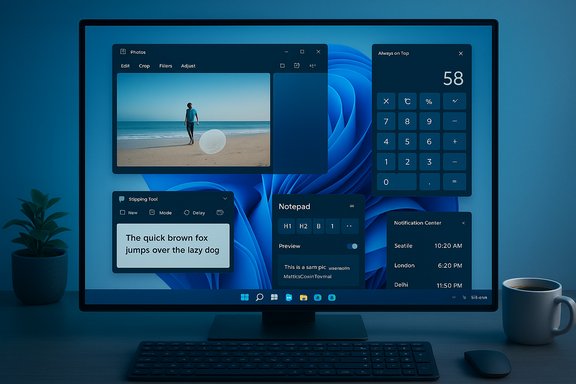
 

Blue-tinted desk setup with a PC tower, monitor showing power mode and CPU temp, keyboard, and laptop.
First, a confession: I tolerate a lot of ambient noise, but the steady whir and spool of PC fans at full tilt is a distraction I don’t accept—so over the years I’ve refined five reliable ways to keep a Windows PC quiet for both focused work and loud gaming sessions. These are practical, progressive steps starting with simple settings and room tweaks, moving through software controls and tuning, and ending with hardware and maintenance fixes that deliver the biggest long‑term payoff. Each approach is grounded in how fans react to heat: reduce what creates heat, move the heat away more efficiently, or stop dust and friction from forcing fans to spin faster. The guidance below summarizes the best short‑term fixes and the deeper upgrades I use, including the tradeoffs and the small risks you should watch for.

Background / Overview​

A PC’s fans exist for one purpose: to move heat away from hot components like the CPU and GPU. When temperatures climb, fan curves and power systems ramp the fans up to maintain safe operating conditions. That link between heat, power, and noise is central to every technique covered here—change the workload or the way the system handles heat and you change the noise profile.
Windows 11 exposes a simple “Power Mode” control designed to balance battery, heat, and performance. Adjusting that setting is often the quickest way to reduce fan activity on laptops and desktops without touching hardware. Microsoft documents the location of these controls at Settings → System → Power & battery and notes options such as Best Power Efficiency, Balanced, and Best Performance. Community guides and power‑tuning threads reinforce that this is the first, no‑risk lever most users should try.
That said, software tweaks alone aren’t always sufficient. Room temperature, case placement, clogged vents, aggressive overclocks, and the type of cooling you use (air cooler vs AIO) all matter. Below are five approaches—each with clear steps, expected gains, and known caveats.

1) Change Power Modes in Windows Settings — the first, free step​

What it does and why it works​

Windows’ Power Mode controls how aggressively the OS and hardware pursue performance. Choosing a more energy‑efficient mode reduces background CPU/GPU activity and lowers power limits that cause heat and, therefore, fan noise.
  • Where to find it: Settings → System → Power & battery → Power Mode. Microsoft’s documentation walks through the options and explains the energy‑saving behaviors.
  • Typical choices: Best Power Efficiency, Balanced, Best Performance.

Practical recipes​

  1. When you need total silence while writing, choose Best Power Efficiency or Balanced.
  2. When you’re gaming or editing video, switch back to Best Performance.
  3. On laptops there are two selectors—Plugged in and On battery—so pick a quieter profile for battery use if silence matters. Community advice suggests Balanced for battery and Best Performance when plugged in, but this is a personal tradeoff.

Pros and limits​

  • Pros: Immediate, no cost, reversible, safe for most users. Microsoft actively encourages these adjustments to save power and limit heat.
  • Limits: Gains are modest for high‑end desktops where the GPU and CPU still need power for gaming. If a background process is pegging the CPU, the power mode change helps only if it reduces CPU duty; otherwise you’ll need to identify and stop the offending process.

2) Improve surrounding airflow and room temperature — cheap & effective​

Why ambient conditions matter​

A PC can only dump heat into its surroundings. If the room is hot, closed blinds are trapping sunlight on your desk, or the tower lives in a tight cabinet, fans must work harder to move the same amount of heat. Lowering ambient temperature and improving intake/exhaust paths reduces fan RPM and noise.

Practical steps that pay off​

  • Move a tower out of a closed cabinet or give it 5–10 inches (12–25 cm) of clearance on intake/exhaust sides; cramped enclosures force higher fan speeds. Community experience repeatedly calls out cabinets as a common cause of loud fans.
  • Use a desk fan or air conditioning to drop the room temperature a few degrees; each degree matters for sustained heavy workloads.
  • For laptops, raise the chassis with a stand so vents aren’t blocked—this simple change often reduces both temps and fan noise.
  • Avoid direct sunlight on your machine; closing blinds or moving the setup prevents warming by solar heating.

Expected payoff​

Small room and placement changes can reduce fan spin during everyday workloads and make a real difference under sustained load. This is the lowest‑risk, highest‑return physical tweak before doing anything inside the PC.

3) Rethink overclocking and power tuning — performance vs silence tradeoffs​

The tradeoff​

Overclocking and aggressive power profiles increase performance by forcing higher voltages and/or frequencies. That extra power becomes heat, and heat causes fans to scream. If silence matters more than the last few frames per second, rolling back overclocks or reducing sustained power limits is one of the most effective moves.

Safe thresholds and manufacturer limits​

Every CPU and GPU has a manufacturer‑specified maximum (often called TjMax or Tjunction). Modern Intel processors typically have TjMax values around 100°C, and AMD’s Ryzen families often list TjMax values in the mid‑90s°C range. These thresholds are safety cutoffs—not an optimal target. Intel explicitly recommends designing systems to avoid hitting TjMax and notes processors employ throttling and shutdown behavior to prevent damage. A practical rule many builders use is to avoid letting sustained temperatures cross about 80–85°C under continuous load; brief spikes are normal, but sustained operation in the high‑80s or low‑90s invites thermal throttling and accelerated wear. Multiple hardware guides and monitoring resources adopt this guideline.

How to scale performance down safely​

  • Disable any active overclocking profiles in the BIOS/UEFI or vendor software and test whether the fan noise drops.
  • Use Windows power plans and EPP (Energy Performance Preference) to favour energy efficiency.
  • Undervolt instead of underclocking where possible: undervolting keeps frequency but reduces voltage to lower heat with little or no performance loss. Tools such as ThrottleStop (Intel) and Ryzen Master (AMD) are commonly used to find a stable undervolt; these utilities are powerful but should be used conservatively and tested for stability.

Risks and warnings​

  • Excessive overclocking with insufficient cooling can cause instability and component stress. If you turn off overclocks and the system immediately falls silent, leave them off until you can improve cooling.
  • Undervolting requires iterative testing; an overly aggressive undervolt can crash the system. Use the vendor utility documentation and start with small negative offsets.

4) Install aftermarket cooling: choosing between air coolers and AIOs​

The core decision​

When stock coolers or case fans can’t keep noise down, two mainstream upgrade paths exist: a beefy air cooler (tower heatsink + fans) or an All‑In‑One (AIO) liquid cooler (pump + radiator + fans). Both can reduce peak fan noise if chosen and tuned correctly, but there are tradeoffs.

What the reviews say​

  • AIOs can offer lower fan RPMs and therefore lower fan noise under load because radiators spread heat over a larger surface area, letting fans spin more slowly for the same thermal dissipation. However, AIOs add a pump that produces a nearly constant low‑level hum; in quiet rooms this pump noise can be noticeable. Leading hardware reviewers note that a well‑sized AIO (e.g., 360mm) often runs quieter under load than smaller AIOs or mediocre air coolers, while premium tower air coolers like the Noctua NH‑D15 can match or beat many AIOs in quiet operation.
  • Oversizing the AIO (larger radiator) lets the fans run slower for the same cooling and therefore often reduces audible fan noise—this is why some builders intentionally choose 360mm or larger radiators to minimize acoustic impact. Tom’s Hardware and PC Gamer testing both stress the importance of matching cooler size to the CPU and use case.

Practical purchase & tuning advice​

  • If you want the absolute quietest system and have the clearance, buy a proven high‑end air cooler or a large radiator AIO and fit quiet, low‑RPM fans.
  • If your case is small or you need low height over RAM slots, AIOs free up vertical space and can be easier to fit; choose a quality pump and tune fan curves to keep pump/fan RPMs low.
  • Avoid cheap AIOs with noisy stock fans or pumps—quality of the fan and pump matters more than brand name alone.
  • For small budgets, a large, high‑quality air cooler plus a tuned fan curve is usually the most reliable quiet solution.

Laptop cooling pads​

  • You can’t install internal cooling on most laptops, but a cooling pad can help by creating additional airflow to bottom vents or lifting the laptop to help convection. Reviews show effectiveness varies widely: good pads reduce surface and internal temperatures substantially for many laptops, while cheap models may offer little benefit and add audible fan noise. Tech reviewers have documented inconsistent results across models—so choose a well‑tested unit and match the pad’s fan placement with your laptop’s intake vents.

5) Clean dust and maintain components — the biggest “why didn’t I do that sooner?” win​

Why cleaning reduces noise​

Dust builds up on vents, filters, heatsinks, and fan blades; that insulation raises temperatures and forces fans to spin harder. In many real‑world cases, a thorough dust cleaning reduces idle and load fan noise more than any software tweak.

What to clean and how often​

  • Wipe or vacuum dust filters monthly if your case has them; deep internal cleaning every 3–12 months depending on pets, carpets, and environment is a sensible schedule. How‑To‑Geek and community guides commonly recommend cleaning intervals from every three months to once a year depending on conditions.
  • For full cleaning: power off, unplug, remove the case panel, and use short bursts of compressed air on fans, heatsinks, and intake/exhaust vents. Periodic reapplication of fresh thermal paste (every 2–3 years) can also help temperatures. Community maintenance guides and forum veterans emphasize the dramatic before/after benefits of even a simple compressed‑air cleaning.

Safety tips for compressed air​

  • Always hold the can upright and use short bursts; tilting or inverting the can can release propellant liquid that will chill and may damage components. Product instructions and vendor guidance explicitly warn to hold the can upright and not to spray for prolonged durations.
  • Let any condensation evaporate before powering the system back on, and avoid vacuuming internal components (risk of static). If you’re unsure, take the PC to a technician.

Common bad ideas to avoid​

  • Don’t use household vacuums on internal electronics (static).
  • Don’t oil fans with improvised lubricants unless you know what you’re doing—there are safe fan bearing lubricants but puncturing seals or removing warranty stickers can void warranties. A lot of forum posts propose creative fixes, but these carry risk and should be treated cautiously.

Extra quieting refinements (software and hardware)​

Fan curves and motherboard utilities​

  • Use your motherboard’s fan‑control software or BIOS to set custom fan curves—aim for a gentle ramp so fans run slowly until a conservative temperature threshold, then step up smoothly. Many motherboards offer presets for “Quiet” and “Silent” modes you can fine‑tune. OEM support pages document these controls and how to change them.

Sound dampening​

  • Add rubber fan mounts, anti‑vibration pads, and internal acoustic foam to smooth out tonal resonances. These won’t lower high‑SPL noise when fans are at 2000–3000 RPM, but they can reduce rattles and high‑pitched harmonics that make a system sound harsher than it needs to. Expect incremental gains; acoustic foam is most helpful in small apartments or studio environments where low background noise makes tonal character noticeable.

Monitor temps correctly​

  • Windows doesn’t reliably provide live CPU temperature in Task Manager—use trusted utilities such as HWiNFO, HWMonitor, Core Temp, or vendor tools (Intel XTU or Ryzen Master) to watch package and core temps. These tools are essential when tuning fan curves, undervolting, or verifying that a cooling upgrade actually reduced temperatures.

Critical analysis: strengths, risks, and what actually works​

What works best (ranked)​

  1. Cleaning dust + fixing placement/airflow — lowest cost, often highest impact. A clogged filter or a tower stuffed into a cabinet is a common, fixable cause of noisy fans.
  2. Power mode + software fan curves — immediate, reversible, and safe for most users. Microsoft’s built‑in controls make this simple and vendor utilities allow precise tuning.
  3. Undervolting / power limits — excellent tradeoff: lower heat at near‑identical performance if done carefully; requires testing. Use ThrottleStop, XTU, or Ryzen Master and validate with stress testing.
  4. Aftermarket cooling — best for heavy load silence, but more expensive and requires choosing the right product. Oversized radiators or premium air coolers yield lower noise if fitted correctly.
  5. Laptop cooling pads — mixed results; choose a model that aligns with your laptop’s vent placement and read independent reviews before buying.

Risks you must manage​

  • Overly aggressive undervolting can destabilize systems—test incrementally and have a recovery plan.
  • AIO pump failure or poor quality AIOs introduces new audible noise (pump hum) and a non‑zero risk of leaks—buy quality units from reputable vendors and consider warranty/reseller reputation before installation. Tom’s Hardware and PC Gamer reviews highlight that AIOs can be quiet when quality components are used but vary widely by model.
  • Compressed air misuse (tilting or prolonged blasts) can spray propellant liquid and chill/condense components—hold the can upright and use short bursts.

What to be skeptical about​

  • Claims that a single click will make a high‑end gaming rig silently run triple‑A titles at 4K are unrealistic. Noise reductions are real, but they’re a sequence of tweaks and often involve tradeoffs between raw, peak performance and acoustics. Community guides and labs both emphasize measuring before and after: the most persuasive setups are the ones that quantify temperature and noise changes.

Quick checklist: immediate actions you can take today (ordered by effort)​

  1. Open Settings → System → Power & battery and set Power Mode to Balanced or Best Power Efficiency while you work.
  2. Inspect the case and filters—clean any visible dust with short bursts of compressed air (can upright!. If you have a laptop, lift it off the desk with a stand.
  3. Monitor temps with HWiNFO or HWMonitor while performing a workload; note temperatures and fan RPM before and after changes.
  4. If you overclock, switch back to stock temporarily and compare temperature/noise. If you undervolt, proceed slowly and test stability.
  5. If you plan a cooling upgrade, choose the right form factor: large air cooler for desktops with space, large AIO for cramped cases or if you prefer radiator placement. Read independent reviews for the specific model.

Conclusion​

Quieting a PC is seldom about a single magic fix. The most dependable path is a layered approach: start with software (Power Mode and fan curves), optimize placement and ambient conditions, maintain a clean internals baseline, and then consider careful power tuning or targeted hardware upgrades (air cooler, AIO, or cooling pad) if noise persists. These five approaches—power tuning, airflow, de‑boosting overclocks, targeted cooling upgrades, and regular cleaning—cover nearly every scenario from ultra‑quiet home office to high‑performance gaming rigs.
If silence is mission‑critical, treat these steps as a project: document baseline temperatures and sound levels, apply one change at a time, and measure the results. The combination of reduced heat generation (undervolting/power modes), improved heat removal (airflow, radiators, quality fans), and reduced friction and dust (cleaning) is what transforms a noisy PC into a quiet companion for long writing sessions, immersive games, or focused music mixing.

Source: Pocket-lint 5 ways I keep my PC quiet for work and play
 

The short list of five online AI courses circulating as a 2026 “must‑take” roundup captures the right idea—there are high‑value, short free primers and deeper paid bootcamps available right now—but the details matter: course lengths, pricing models, and hands‑on requirements vary by provider and region, so treat headline claims as a starting point, not an enrollment contract.

Blue-tinted desk scene with a laptop and floating AI course icons.Background​

2025 and early 2026 created a new baseline for practical AI literacy: micro‑courses that explain generative models, vendor learning paths that teach Copilot/Foundry workflows, and intensive bootcamps that aim to produce portfolio work in weeks. These options let learners pick between quick productivity wins and multi‑week technical depth, but the practical differences—lab credits, certificate fees, vendor lock‑in, and privacy implications for sample data—are critical when choosing where to spend time and money. Recent platform pages and course listings confirm this mosaic of offerings and the typical MOOC tradeoffs (free audit vs. paid certificate). This article validates the five headline picks in the BizzBuzz roundup, verifies each claim using platform pages and third‑party course aggregators, and adds practical guidance: who benefits most from each course, what to expect in hands‑on work, hidden costs to watch for, and a recommended pathway to turn short courses into demonstrable portfolio projects.

Overview of the five courses named in the roundup​

The BizzBuzz list recommends:
  • Udemy — a selection of AI courses (ranging from short primers to long bootcamps).
  • Coursera — a short “Introduction to Generative AI” course.
  • upGrad — a 2‑hour introductory generative AI session.
  • Unacademy — an AI course marketed for exam prep (GATE / DA) with subscription pricing.
  • Microsoft — a hands‑on Microsoft Learn path titled “Introduction to AI in Azure.”
Each provider represents a different model: marketplace (Udemy), university/skills platform (Coursera), education startup (upGrad), regional subscription platform (Unacademy), and vendor‑native training (Microsoft Learn). That mix is sensible because learners trade off time to value, vendor relevance, and portfolio outcomes when deciding what to take next.

Udemy — breadth, low cost in practice, variable depth​

What Udemy actually offers right now​

Udemy is a marketplace with thousands of AI‑related courses—titles focused on AI agents, prompt engineering, and multi‑project bootcamps appear frequently, and new agent‑centric courses have proliferated in 2024–2025. Popular listings include short “Intro to AI Agents” classes and multi‑project bootcamps that promise dozens of hands‑on labs. Class‑aggregator pages list several current, well‑rated agent courses and bootcamps.

Verified points and what to treat cautiously​

  • Verified: Udemy hosts both short primers and long bootcamps on AI agents and generative AI. Enrollment pages and aggregator listings show many options for beginners and developers.
  • Variable: Specific runtime claims (e.g., “2 hours 10 minutes” for a particular course) and exact resource counts (downloadables, coding examples) are course‑specific and change as instructors update content. The marketplace nature means metadata differs by course; always open the course page before enrolling to confirm lecture counts and duration.
  • Pricing: Udemy’s sticker price is not a reliable indicator—regional pricing and constant sale cycles mean you’ll often pay far less than a “list price” or a quoted INR amount. Treat any precise rupee figure as transient unless tied to a time‑bound promotion.

Strengths and who should enroll​

  • Strengths: Massive choice; many practical walkthroughs and vendor/tool‑specific workshops; frequent discounts make even deep bootcamps inexpensive.
  • Best for: Learners who want task‑oriented, tool‑focused instruction (e.g., building a Custom GPT, automating with agents) without committing to multi‑month programs.

Risks and caveats​

  • Quality variance: Instructor quality and update cadence vary widely. Check reviews and recent update dates.
  • No standard credentialing: Udemy certificates are platform completion badges, not verified university credentials.

Coursera — short generative AI primers and university‑level tracks​

What Coursera lists as “Introduction to Generative AI”​

Coursera hosts several courses titled Introduction to Generative AI or closely related variants. Some are micro‑paths intended for a quick conceptual run‑through; others are part of multi‑course specializations that expect more time. One official Coursera listing appears as a short introduction used either standalone or as part of an LLM‑ops specialization; another Coursera course with a similar title offers deeper technical content and multiple modules. Both options are available to audit for free, with paid verified certificates and graded assignments behind a paywall.

Verified points and what to treat cautiously​

  • Verified: Coursera’s course pages explicitly show learner counts, module structure, and “audit vs certificate” options. Many of these intro courses are labeled beginner‑level and suitable for those with no background, but the more technical variants list weeks of learning and multiple assignments.
  • Variable: Duration labels vary—some listings show “1–2 hours” for an ultra‑short intro, while other similarly named offerings are multi‑week. Confirm the specific Coursera page and whether it’s part of a specialization.

Strengths and who should enroll​

  • Strengths: Clear syllabus pages, university and industry partner backing, and structured progression into more advanced specializations if desired.
  • Best for: Beginners who want a guided, academically framed introduction or those who plan to expand into a specialization with peer‑graded work.

Risks and caveats​

  • Certificate cost: The free audit mode typically excludes graded assignments and the shareable certificate. Expect fees for the verified track.
  • Homonyms: Multiple Coursera courses share similar titles—read the course summary and module list carefully to confirm expectations.

upGrad — focused short masterclasses, free entry points​

What upGrad publishes today​

upGrad offers a mix of paid programs and short free masterclasses; a number of “Introduction to Generative AI” or “ChatGPT for Developers” micro‑courses exist as free, short sessions (often ~2 hours) intended as promotional or foundation content that funnels learners to larger paid programs. upGrad’s program catalog lists free 1–2 hour introductions alongside longer paid certificates and project tracks.

Verified points and what to treat cautiously​

  • Verified: upGrad advertises short, free masterclasses on generative AI and prompt engineering; these are commonly used as onboarding to larger paid programs.
  • Variable: The pedagogical depth of the free masterclass is intentionally limited; expect conceptual overviews and high‑level demos rather than deep hands‑on engineering.

Strengths and who should enroll​

  • Strengths: Fast, curated intros; useful for short orientation or company learning days.
  • Best for: Learners who want a quick conceptual baseline before committing to a multi‑week, paid certification.

Risks and caveats​

  • Funnel effect: Free masterclasses are marketing‑grade introductions; if your goal is portfolio work or in‑depth engineering, budget for the paid course or a different platform that emphasizes hands‑on projects.

Unacademy — exam‑focused AI prep with subscription models (India‑centric)​

What Unacademy offers now​

Unacademy’s platform hosts multiple AI courses aimed at Indian exam tracks (for example, GATE DA and related GATE CS/IT preparation). These courses are typically packaged under subscription plans (Plus, Iconic) that grant access to live classes and practice material. Unacademy subscription pages show plan starting prices and the platform sells monthly/annual plans that include access to live and recorded AI‑themed batches.

Verified points and what to treat cautiously​

  • Verified: Unacademy runs instructor‑led batches focused on GATE AI topics and lists course lesson counts, live schedules, and language options (Hindi / Hinglish). The subscription model is real and front‑facing on their site.
  • Variable: Published rupee prices and the duration of “36‑month” plans vary by promotion; Unacademy frequently updates plan offers and local pricing. Treat any single price quoted outside Unacademy’s live subscription page as approximate.

Strengths and who should enroll​

  • Strengths: Structured, exam‑oriented curriculum with bilingual instruction and practice question focus.
  • Best for: Students preparing for Indian competitive exams (GATE DA, GATE CS) who need syllabus‑aligned lectures and timed practice.

Risks and caveats​

  • Localization: High value for exam prep in India, but limited direct transferability for Western CVs or employers seeking portfolio projects.
  • Subscription lock: Long subscription horizons may be costly if you don’t need long‑term access.

Microsoft — vendor‑native, hands‑on Azure AI learning paths​

What Microsoft Learn publishes​

Microsoft Learn maintains a free, modular “Introduction to AI in Azure” learning path covering AI fundamentals, machine learning basics, generative AI and agent concepts, computer vision, speech, and other Azure AI services. The path is beginner‑focused and organized as a set of modules or short units; it is designed to be hands‑on and integrates with Microsoft’s sandbox experiences for practical learning. Microsoft’s Learn pages make all modules available free, though role‑based certification exams remain paid.

Verified points and what to treat cautiously​

  • Verified: Microsoft Learn explicitly lists modules like “Introduction to generative AI and agents” and positions the content for beginners and technical audiences who want Azure AI skills. The modules are free and vendor‑specific.
  • Variable: While “short” videos and sub‑5‑minute modules are common on Learn, hands‑on labs may require an Azure subscription or sandbox with limited credits; expect to check module prerequisites before assuming zero cost.

Strengths and who should enroll​

  • Strengths: Vendor‑aligned training for those working in Azure ecosystems—excellent for engineers who will deploy AI on Azure services.
  • Best for: IT pros and developers who need to understand Azure Cognitive Services, Azure AI Foundry, and Copilot integrations.

Risks and caveats​

  • Vendor lock and flipping cost: Training on Microsoft tooling gives immediate operational value in Azure shops but can create vendor‑specific habits that don’t translate to other clouds without re‑training. Also, production services and exam vouchers are not free.

Practical analysis: How to pick the right course (and avoid common traps)​

Key selection criteria​

  • Goal clarity: Performance boost (productivity), deployable apps, model training, or exam preparation will dictate platform choice.
  • Hands‑on requirement: Prefer courses with downloadable projects, GitHub examples, or sandbox labs if you need portfolio material.
  • Credential vs. competence: Verified certificates help signal commitment, but a short public project beats a short certificate for hiring managers.
  • Data privacy & lab credits: If a course uses vendor sandboxes, confirm whether you must supply cloud credits or risk sending proprietary text into public LLMs.

Short recommended pathways (practical and actionable)​

  • Weekend primer (1–4 hours): Take a free vendor micro‑course (Google or Microsoft short intro) or a 2‑hour upGrad masterclass to get conceptual fluency.
  • Two‑week developer primer: Complete a Coursera introductory generative AI course and a short Udemy project course to build one small tool (e.g., a summarizer or prompt‑engineered assistant).
  • Portfolio track (4–8 weeks): Choose a project‑based course (HarvardX/CS50 AI or a multi‑project Udemy bootcamp), complete one demonstrable project with a public GitHub repo and a 3‑minute screencast. Employers prefer this.

Technical verification and cross‑checks​

For readers who demand precise verification:
  • Microsoft’s official learning path “Introduction to AI in Azure” lists module titles and role guidance on Microsoft Learn.
  • Coursera’s “Introduction to Generative AI” variants show module structures and audit/verified options on Coursera course pages; specific durations differ by course and specialization.
  • upGrad lists free short masterclasses and paid advanced programs; current catalog pages show an “Introduction to Generative AI” short offering among free masterclasses.
  • Unacademy’s course pages show live GATE‑focused AI batches with lesson counts and language options; subscription pages reveal current pricing tiers (Plus / Iconic) though the exact rupee figures can change with promotions.
  • Udemy hosts many agent‑ and prompt‑engineering courses; aggregator listings and Udemy course pages confirm the breadth and hands‑on claims, but individual course metadata should be checked on the instructor’s page before relying on any one numeric claim.
If a headline includes an exact price, lecture count, or minute‑by‑minute runtime, verify it on the provider page immediately before enrolling—these details are the most likely to be out of date.

Strengths and potential risks across the five picks​

Strengths​

  • Breadth of choice: Combined, the five providers cover the full spectrum from one‑hour primers to deep, project‑based programs.
  • Free access model: Major vendors and MOOC platforms let you audit content for free, lowering the barrier to entry. Coursera, Microsoft Learn and many upGrad masterclasses expose learners to material without immediate payment.
  • Vendor relevancy: Microsoft and upGrad content is tuned to real vendor stacks (Azure, Copilot), which is helpful for enterprise adoption and immediate workplace productivity.

Risks​

  • Promotional language and price drift: Articles and roundups often quote rupee prices or “starting at” figures that reflect promotions or regional sales; these rarely remain accurate long. Always confirm on the vendor page.
  • Vendor lock and ephemeral examples: Vendor tutorials are practical today but may require re‑learning if the platform UI or APIs change. Prefer courses that teach principles (RAG design, evaluation metrics, prompt engineering patterns) rather than UI‑only walkthroughs.
  • Data privacy in labs: Using your company’s data in vendor sandboxes can create IP or compliance issues—use synthetic or scrubbed data in exercises.

Actionable checklist before you enroll (quick reference)​

  • Confirm the course page: exact hours, module list, and last updated date.
  • Check whether hands‑on labs require paid cloud credits or a subscription.
  • Decide if you need a certificate or a project for your CV; if the latter, prioritize courses with downloadable assignments and GitHub projects.
  • Use dummy data in public sandboxes; read the provider’s data‑use policy.
  • Compare two providers for the same syllabus area (e.g., a Coursera primer vs. Microsoft Learn module) to pick the one with the better hands‑on or assessment format.

Conclusion​

The BizzBuzz roundup deserves credit for highlighting a practical set of entry points into AI learning—marketplace breadth (Udemy), structured academic introduction (Coursera), short masterclasses (upGrad), exam‑focused instruction (Unacademy), and vendor‑centric hands‑on learning (Microsoft Learn) together cover most learner needs. However, the devil is in the details: exact runtimes, resource counts, and rupee prices change too frequently to trust without immediate verification on the course page. Treat the list as a smart menu of choices, then use the practical checklist above to pick the meal that builds demonstrable skills and portfolio work rather than just a completion badge.
If your objective is a weekend productivity boost, start with a free Microsoft Learn or upGrad primer; if you want employer‑relevant portfolio work, prioritize a multi‑project Udemy bootcamp or a Coursera specialization and convert one graded assignment into a public GitHub project. The most future‑proof investment is not the certificate—it’s a small, public project that demonstrates judgment, evaluation, and reproducibility.

Source: BizzBuzz Upgrade Your AI Skills in 2026 with These 5 Online Courses
 

Back
Top