

Europa Universalis 5 players encountering a blank launcher, a silent crash, or a Play button that flips to Stop with no game start are facing a surprisingly common set of Windows-side compatibility problems — and most of them can be fixed without reinstalling the OS or buying new hardware. This guide reviews the seven practical fixes circulating in the community, explains why each works, and gives safe, step‑by‑step instructions you can follow now to get EU5 running on a Windows PC. The recommendations are drawn from the recent KeenGamer troubleshooting roundup and independent troubleshooting coverage and forum reports; where a fix depends on platform behavior or vendor tooling I cross‑check it with official or community documentation and flag any actions that carry risk.
Europa Universalis 5 (EU5) is a major Paradox release built on an evolved Clausewitz‑style engine and, like many modern PC releases, negotiates with multiple graphics APIs (Vulkan and DirectX 12) and relies on system features that vary widely across user machines. At launch and during early patches some players report the game refusing to start — either the Steam (or other) launcher spins and returns to the Play button, the process exits immediately, or the game produces a black screen or crash during renderer initialization. Community troubleshooting has converged on a short checklist of high‑value diagnostics: force a different renderer, update GPU drivers, verify the install, run the EXE with elevated rights, and try a low graphics preset. Those first responses appear to resolve a large share of cases. Why these fixes work (short): at startup the game must (1) negotiate a renderer/API with your GPU drivers, (2) load a heap of assets and configuration, and (3) start any required support services or anti‑cheat/launcher helpers. Problems at any of those points — a driver that mishandles Vulkan handshakes, a permission error blocking file access, corrupted game files, or interfering overlays and utilities — can cause a silent failure. The fixes below address each of those failure modes in order from least to most invasive.
Safe troubleshooting checklist (summary):
Source: KeenGamer 7 Ways to Fix Europa Universalis 5 Not Launching on a Windows PC
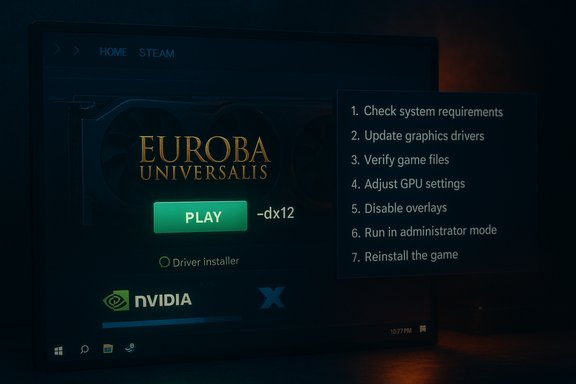 Background / Overview
Europa Universalis 5 (EU5) is a major Paradox release built on an evolved Clausewitz‑style engine and, like many modern PC releases, negotiates with multiple graphics APIs (Vulkan and DirectX 12) and relies on system features that vary widely across user machines. At launch and during early patches some players report the game refusing to start — either the Steam (or other) launcher spins and returns to the Play button, the process exits immediately, or the game produces a black screen or crash during renderer initialization. Community troubleshooting has converged on a short checklist of high‑value diagnostics: force a different renderer, update GPU drivers, verify the install, run the EXE with elevated rights, and try a low graphics preset. Those first responses appear to resolve a large share of cases. Why these fixes work (short): at startup the game must (1) negotiate a renderer/API with your GPU drivers, (2) load a heap of assets and configuration, and (3) start any required support services or anti‑cheat/launcher helpers. Problems at any of those points — a driver that mishandles Vulkan handshakes, a permission error blocking file access, corrupted game files, or interfering overlays and utilities — can cause a silent failure. The fixes below address each of those failure modes in order from least to most invasive.1. Force DirectX 12 in the Steam launch options (the fastest test)
Why try this first
Several community threads and troubleshooting guides report that forcing DX12 avoids launcher failures linked to the game’s default Vulkan pipeline on some systems. Switches that force a stable renderer let you quickly tell whether the root cause is a renderer / API negotiation issue or something else. EU5 users and guides recommend -dx12 as a first diagnostic; if DX12 fixes the launch you’ve narrowed the problem to a Vulkan/driver interaction.How to set the DX12 launch option (Steam)
- Open Steam and go to your Library.
- Right‑click Europa Universalis V → Properties.
- Under the General tab, find the Launch Options box and enter:
-dx12 - Close the properties panel and start the game.
Notes & caveats
- If forcing DX12 helps, you can keep it as a practical long‑term workaround, but also report the findings in the EU5 tech forum so developers can replicate the problem. Some sites recommend trying DX11 as well when available; the principle is the same.
2. Update (or clean‑install) your GPU drivers
Why it helps
Renderer negotiation and GPU initialization depend on the driver. Outdated or mismatched drivers are a top cause of silent exits at startup. Many launch failures across titles trace to driver bugs or leftover driver artifacts from a previous GPU vendor or version. A clean driver install (or using a tool like DDU to remove older stacks) often fixes these cases.How to update
- NVIDIA: use the NVIDIA Drivers page or NVIDIA App / GeForce Experience to download the latest Game Ready driver; choose Express or Clean Install as appropriate. Tom’s Hardware and vendor guidance walk through the manual and automated routes.
- AMD: download Radeon Software from AMD’s site and install the latest driver package.
- Intel integrated GPUs: use Intel’s driver support pages and Windows Update for the latest certified releases.
Quick checklist
- Update to the latest vendor driver for your GPU.
- If problems persist, uninstall the current driver, reboot to Safe Mode, run DDU, then reinstall the correct driver.
- Restart and test EU5.
3. Run the game executable as Administrator (temporary diagnostic)
Why this works
A small number of launch failures are caused by permission errors: the game cannot write to a config folder, cannot load a helper DLL, or is blocked by UAC. Running the EU5 exe elevated once will show whether permissions are the issue. Intel and platform troubleshooting guidance recommend this as a low‑risk diagnostic.Steps (Windows)
- Browse to your Steam installation folder → steamapps → common → Europa Universalis V → binaries.
- Right‑click eu5.exe → Properties → Compatibility.
- Check “Run this program as an administrator.”
- Click Apply → OK and test the game.
4. Try Compatibility Mode (Windows 8/Windows 10/Windows 11 settings)
What compatibility mode does
Compatibility mode tells Windows to present the application with behavior similar to older Windows releases (changed DPI handling, different file access semantics, etc.. This can fix programs that expect older OS behaviors or that trip on modern security checks. Intel’s support notes and Windows how‑to resources document this as a practical diagnostic step.How to enable
- Right‑click eu5.exe → Properties → Compatibility tab.
- Check “Run this program in compatibility mode for:” and select Windows 8 (or Windows 7 if 8 doesn’t help).
- Optionally check “Run this program as an administrator”.
- Apply and test the game.
Caveats
Compatibility mode is a test — it can change how the program interacts with display scaling and input. If it solves the launch problem, note the setting and report it to devs so they can address the root cause in a future patch.5. Update Windows (and be aware of Windows 10 end‑of‑support)
Why update matters
Game runtimes, graphics stacks, and anti‑cheat installers sometimes rely on OS patches or newer system components. Players have reported that installing pending Windows updates or upgrading to Windows 11 resolved some EU5 launch failures. Microsoft’s official lifecycle notice is important here: Windows 10 reached end of support on October 14, 2025, and running unsupported OS builds increases the chance of encountering compatibility problems with new games and drivers. If you’re on Windows 10 and can upgrade to Windows 11, that is a supported mitigation for OS‑level incompatibility.Steps
- Open Settings → Windows Update → Check for updates. Install any available patches and reboot.
- If you’re eligible to upgrade to Windows 11 and prefer to stay on a supported OS, check compatibility and upgrade via Windows Update or the PC Health Check workflow. Microsoft documents upgrade and ESU pathways.
Warning
Upgrading the OS is heavier than other steps. Back up your data before a major upgrade and ensure your hardware meets Windows 11 requirements. If the game requires a runtime that’s only present in a newer OS build, updating can be the difference between launch and failure.6. Verify the game files (Steam’s “Verify integrity of game files…”)
Why do this
Corrupted or missing files are a common and easily fixed cause of launch problems. Steam’s built‑in verify tool compares local files to the store build and reacquires missing or damaged files. Multiple publisher and Steam support pages recommend this as an early, low‑risk step.How to verify (Steam)
- In Steam: right‑click Europa Universalis V → Properties.
- Select Installed Files / Local Files.
- Click “Verify integrity of game files…” and wait for the scan to complete.
- Restart Steam and try launching the game.
7. Start with a low graphics preset (-graphic_preset=very_low), combined options
Why this helps
A developer‑recommended low settings preset forces conservative renderer initialization and may bypass GPU memory allocation or shader‑compilation code paths that trigger startup failures on some hardware. Paradox developers and community moderators have recommended using a low graphics preset as a diagnostic. KeenGamer and forum reports show success with the combined launch parameters: -dx12 -graphic_preset=very_low.How to set the low preset
- Steam → Library → right‑click EU5 → Properties → General → Launch Options.
- Enter:
-dx12 -graphic_preset=very_low - Launch the game.
Additional community‑proven checks and escalation steps
The seven steps above resolve the majority of launch failures. If the game still doesn’t start, work through the following diagnostics in order of increasing risk:- Disable overlays and monitoring tools (Discord overlay, NVIDIA/GeForce overlay, MSI Afterburner / RTSS). Overlays inject code into the rendering pipeline and are a frequent proximate cause of startup crashes. Community threads repeatedly confirm disabling RTSS/Afterburner resolves many silent exits.
- Clean boot: use msconfig → Hide all Microsoft services → disable third‑party services, then disable non‑essential startup apps in Task Manager and reboot. If the game launches, re‑enable services in groups to find the conflict. Microsoft documents this diagnostic flow and it’s commonly recommended by support teams.
- Check for anti‑cheat or kernel‑level driver installation failures. If EU5 uses or bundles a kernel driver (anti‑cheat or launcher helper), Windows Memory Integrity (Core Isolation) can block unsigned drivers. Repair anti‑cheat components from the game folder or follow vendor repair guidance, and only temporarily disable Memory Integrity for driver installs while understanding the security tradeoff. If you must disable Memory Integrity, re‑enable it once the driver installs and is confirmed compatible. Community support threads and publisher help pages document this tradeoff.
- Collect logs: Windows Event Viewer Application logs, the EU5 local log files, and a short screen capture of the failure are the essential diagnostic artifacts to include when you open a ticket. Vendors will ask for OS build, GPU and driver version, steps you tried, and any crash IDs. The community checklist recommends collecting these before contacting support.
- AVX2 / CPU limitations (advanced): some reverse‑engineered reports and troubleshooting guides for EU5 variants indicate crashes early in the “Loading Game Resources” phase on older CPUs that lack AVX2 instructions. The workaround described by other community guides is to run the game through Intel’s Software Development Emulator (SDE) to emulate missing instruction sets — but this has a severe performance penalty and is only a temporary mitigation while you plan a CPU upgrade. Treat this as an advanced, last‑resort diagnostic and expect very low performance if it works.
Quick checklist (copyable, ordered)
- Force DX12: Steam → Properties → Launch Options → -dx12.
- Update GPU drivers (NVIDIA/AMD/Intel). Consider DDU clean reinstall only if normal update fails.
- Run eu5.exe as Administrator (Properties → Compatibility → Run this program as an administrator).
- Try Compatibility Mode (Windows 8 or Windows 7).
- Verify files: Steam → Properties → Local Files → Verify integrity of game files.
- Set low graphic preset: Launch Options → -graphic_preset=very_low (combine with -dx12 if needed).
- Clean boot and disable overlays (Discord, RTSS, Afterburner) and test.
Risks, trade‑offs and when to escalate
- Don’t keep Memory Integrity (Core Isolation) disabled permanently; it protects the kernel. Only toggle it for driver/anti‑cheat installs and document the change so you can re‑enable it.
- Using DDU and clean‑installing GPU drivers is effective but can produce a black screen if you disable the only active GPU; ensure you have a discrete GPU or know how to revert via BIOS/Device Manager. Back up settings and create a restore point first.
- Running a game permanently as Administrator masks permission problems and raises security exposure. Use it only as a diagnostic and then fix the permission at the filesystem or registry level.
Conclusion — practical ordering and final advice
Treat troubleshooting as an ordered experiment: start with the minimal, reversible actions (set -dx12, verify files, update drivers) and only escalate to more invasive steps (DDU, Memory Integrity toggles, OS upgrade) if the simpler remedies fail. In my experience and according to community aggregation, forcing DX12 and verifying files resolve a significant portion of EU5 launch issues quickly; overlays and driver mismatches are the most common secondary causes. If a developer‑recommended low preset lets you get in, use that as an interim solution while giving tech support your logs so they can push targeted fixes in a hotfix patch. If the seven primary fixes above do not restore launchability, escalate with logs and be prepared for a full reinstall as a last step. Reinstall only after you’ve tried non‑destructive checks and collected diagnostics — it’s effective but time‑consuming.Safe troubleshooting checklist (summary):
- Force DX12 and/or low preset.
- Update GPU drivers (or clean install).
- Run as admin and test compatibility mode.
- Verify files with Steam.
- Disable overlays / clean boot and test.
- Collect logs and open a ticket with Paradox if nothing else works.
Source: KeenGamer 7 Ways to Fix Europa Universalis 5 Not Launching on a Windows PC
