

Microsoft’s PowerToys gives you a built‑in, officially supported way to add an onscreen crosshair to your Windows desktop — no shady downloads required — and it’s already the simplest and safest option for multi‑monitor setups, accessibility needs, or games that don’t let you customize the reticle.
Microsoft PowerToys is an official, open‑source collection of utilities maintained by Microsoft that acts as a “power‑user” toolbox for Windows. It’s distributed via the Microsoft Store, GitHub releases, and the Windows Package Manager (winget), and includes modules such as FancyZones, PowerRename, Find My Mouse and the Mouse Pointer Crosshairs utility that this guide uses. The project’s GitHub repository and release notes are the authoritative sources for installation options and feature details. The Mouse Pointer Crosshairs feature places a persistent set of intersecting lines or a dot on the screen to help you locate or aim precisely at the pointer position. PowerToys also exposes an accessibility‑oriented gliding cursor mode that helps users lock and nudge the cursor along horizontal or vertical axes — a helpful addition for people with limited dexterity or for precision tasks. These mouse utilities are deliberately lightweight and configurable so they work across varied desktop setups.
Why this matters: a mismatch in reported shortcuts can frustrate readers and encourages unnecessary searches for a non‑existent hotkey. The correct approach is to install or update PowerToys, open Settings → Mouse Utilities (or Input/Output → Mouse Pointer Crosshairs), and check the configured shortcut there.
Source: livemint.com How to add a crosshair on your Windows PC without using a third-party software | Mint
 Background
Microsoft PowerToys is an official, open‑source collection of utilities maintained by Microsoft that acts as a “power‑user” toolbox for Windows. It’s distributed via the Microsoft Store, GitHub releases, and the Windows Package Manager (winget), and includes modules such as FancyZones, PowerRename, Find My Mouse and the Mouse Pointer Crosshairs utility that this guide uses. The project’s GitHub repository and release notes are the authoritative sources for installation options and feature details. The Mouse Pointer Crosshairs feature places a persistent set of intersecting lines or a dot on the screen to help you locate or aim precisely at the pointer position. PowerToys also exposes an accessibility‑oriented gliding cursor mode that helps users lock and nudge the cursor along horizontal or vertical axes — a helpful addition for people with limited dexterity or for precision tasks. These mouse utilities are deliberately lightweight and configurable so they work across varied desktop setups.Quick summary of the Livemint claim — and what to verify
The Livemint item explains the convenience of a crosshair overlay and recommends using Microsoft PowerToys to add one without installing “third‑party” software. It correctly notes PowerToys is a Microsoft‑distributed toolkit and that the Mouse Pointer Crosshairs utility lets you customise color, thickness and border. However, the Livemint piece states the activation shortcut is Ctrl+Alt+P — that specific key combo is not the documented global default; PowerToys commonly uses Windows + Alt + P for the Mouse Pointer Crosshairs toggle and lets you rebind the shortcut inside Settings. Always confirm the local binding in PowerToys Settings after installation.Why this matters: a mismatch in reported shortcuts can frustrate readers and encourages unnecessary searches for a non‑existent hotkey. The correct approach is to install or update PowerToys, open Settings → Mouse Utilities (or Input/Output → Mouse Pointer Crosshairs), and check the configured shortcut there.
Why choose PowerToys (official, low overhead)
- PowerToys is first‑party‑maintained and hosted by Microsoft on GitHub, so it receives regular updates and security fixes.
- The Mouse Pointer Crosshairs overlay is intentionally lightweight and runs only when the mouse utilities module is enabled; community audits and the PowerToys team report negligible CPU and memory impact. Still, users running exclusive, GPU‑accelerated games should test behavior before relying on it in a competitive match.
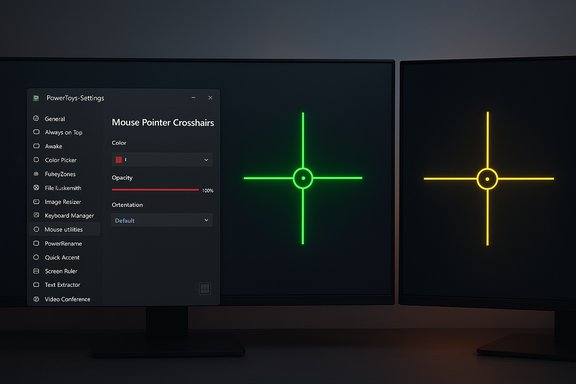
- Settings are configurable: color, thickness, opacity, orientation (horizontal/vertical/both), border, and the activation key are all exposed so you can adapt the overlay to your displays and vision.
How to add an on‑screen crosshair using Microsoft PowerToys — step‑by‑step
- Install PowerToys:
- Easiest: open the Microsoft Store and install PowerToys.
- Or download the latest installer from the official PowerToys GitHub releases page.
- Or install via winget: winget install Microsoft.PowerToys -s winget.
These options let you pick per‑user or machine‑wide installation and keep updates convenient. - Launch PowerToys (start menu → PowerToys).
- If this is your first run, the settings UI will ask which modules to enable. You can toggle modules individually later.
- Navigate to the Mouse Utilities / Mouse Pointer Crosshairs section in PowerToys Settings.
- If you don’t see “Mouse Utilities,” update PowerToys to the latest release — the app adds and refines utilities across versions.
- Toggle the Mouse Pointer Crosshairs feature on.
- Use the activation hotkey to show/hide the crosshair:
- Default toggle is Windows key + Alt + P in common PowerToys distributions, but check your local setting because the shortcut is configurable and can vary by version or personalization. If you prefer Ctrl+Alt+P you can rebind the shortcut inside Settings. Do not rely on a published shortcut without confirming it locally.
- Customize appearance:
- Change color, thickness, border width, opacity and orientation until the crosshair is visible across each monitor in your setup. For multi‑monitor or high‑DPI setups, pick a highly contrasting color and a thicker line to avoid blending into complex backgrounds.
- (Optional) Use the Gliding Cursor mode if you need staged movement or axis locking:
- Enable it from the same Mouse utilities pane and configure the activation keys and movement parameters. This is particularly useful for accessibility scenarios or precision snapping.
Screens, games and anti‑cheat: what to expect
- Overlays can behave differently in full‑screen exclusive applications (many games) because some games use exclusive GPU swap chains or block external overlays for performance or anti‑cheat reasons. Test the crosshair in windowed / borderless windowed mode before relying on it during a game. PowerToys aims to avoid interfering with exclusive modes but there will always be corner cases.
- Third‑party crosshair overlays (see below) may be flagged by some anti‑cheat systems or tournament rules. Even if an overlay author claims “not bannable,” that’s not a guarantee — anti‑cheat policies and detection rules change. Treat any overlay used in competitive environments with caution. Always check the game’s rules and — when in doubt — remove overlays for official matches.
Alternative: third‑party open‑source overlays (what Livemint meant by “CrossOver”)
If you prefer a dedicated overlay or need features PowerToys doesn’t provide, there are trustworthy open‑source options. A popular example is CrossOver (an unrelated name to CodeWeavers’ commercial product), a small crosshair overlay project on GitHub that supports multiple platforms, custom images, per‑monitor placement, and keybinds for locking/hiding the overlay. It’s lightweight and actively maintained by the open‑source community. However:- It is third‑party software, not maintained by Microsoft. Use the releases page and community feedback to assess safety.
- Even open‑source apps may be blocked by anti‑cheat or be unsuitable for full‑screen exclusive games.
- The project README includes a “not bannable” claim for some games, but that cannot be universally guaranteed and should be considered advisory rather than definitive.
- Prefer signed releases or downloads from the project’s official GitHub releases page.
- Run a hash check or scan with your AV product if you’re cautious.
- Test in non‑competitive settings first.
Accessibility benefits — and practical use cases
- People with low vision, contrast sensitivity, or large multi‑monitor setups frequently report improved cursor tracking when a crosshair overlay is visible on every display. The lines provide a persistent reference point that’s easier to spot than a small pointer.
- For users with tremor or limited fine motor control, the Gliding Cursor mode and axis‑locking features let you move and commit clicks with discrete, repeatable steps — similar to scanning input techniques used in assistive technology. This reduces the need for precise continuous motion and offers a usable compromise between control and ease.
- For content creators or trainers, a crosshair can help viewers follow pointer actions during screen recordings and tutorials.
Risks, limits and technical caveats
- Overlay compatibility: Some applications use exclusive rendering or non‑standard input handling. In such cases the PowerToys overlay may be hidden, clipped, or not drawn on top. Always test overlays in the apps and games you use most.
- Anti‑cheat and competitive policy: Many competitive game ecosystems explicitly disallow overlays that grant any visual advantage or modify the rendering pipeline. Even if an overlay doesn’t change game memory or send inputs, tournament rules or anti‑cheat heuristics can still block or penalize it. Do not assume an overlay is allowed — check the game’s policy.
- Shortcut conflicts: PowerToys exposes many global shortcuts; the app has added conflict detection to help avoid accidental overlaps, but you should scan Settings → Keyboard/Shortcuts after install to avoid collisions with other apps. If a shortcut doesn’t appear to work, confirm PowerToys is running and check the “Ignore shortcuts in fullscreen” option if you want toggles to work while an app is fullscreen.
- Administrative environments: Enterprises should prefer winget or Microsoft Store deployment and manage PowerToys via Intune/ADMX if deploying broadly; avoid ad‑hoc GitHub installs where update management and policy control are required.
Troubleshooting checklist
- Crosshair doesn’t appear:
- Confirm PowerToys is running in the background (check the system tray).
- Open PowerToys Settings → Mouse Pointer Crosshairs and confirm the toggle is on and the hotkey is bound.
- If a full‑screen game hides the overlay, test in borderless windowed mode or disable “Ignore shortcuts in fullscreen” temporarily to see behavior changes.
- Hotkey not responding:
- Verify there is no conflict with another app’s global hotkey; use PowerToys’ conflict detector to identify overlaps and rebind as needed.
- Crosshairs invisible on one monitor:
- Adjust color/opacity and thickness; high‑contrast colors work best against busy backdrops. Consider different settings per monitor if you have markedly different content on each screen.
- Concerns about performance or telemetry:
- PowerToys is actively developed and open source; check the GitHub repo for release notes and the changelog before installing. If you need strict controls, deploy via enterprise tooling and audit telemetry settings.
Deployment and policy notes for IT administrators
- For controlled rollouts use winget or the Microsoft Store package to ensure consistent update behavior. The GitHub installer remains an acceptable option for tech users but is harder to manage at scale.
- Document the crosshair hotkey and any customized bindings in your IT knowledge base so users can find or change them quickly. PowerToys’ conflict detection feature reduces surprises, but policies and preconfigured keysets make life easier in managed environments.
- If your organization prohibits Store apps, consider packaging a carefully approved machine‑wide installer and vetting the PowerToys binary via standard enterprise security scans.
What PowerToys can’t (yet) fix — and where to be cautious
- PowerToys is not an OS‑level replacement for full accessibility suites. The gliding cursor and crosshair can help locate and lock the pointer, but they don’t replace screen readers, on‑screen keyboards, or full switch‑access systems when those are required. Treat crosshairs as a complementary tool.
- Not every game, video playback app or protected content environment will display a third‑party overlay reliably. If you rely on overlays for critical tasks, maintain fallbacks or disable overlays in those specific apps.
Practical recommendations (summary)
- Start with PowerToys: it’s the official, low‑risk option for a crosshair overlay and accessibility utilities. Install from the Microsoft Store or the PowerToys GitHub releases page and confirm the Mouse Pointer Crosshairs binding in Settings.
- Rebind the hotkey to something that won’t conflict with your workflow and document the binding. PowerToys includes a conflict detector — use it.
- If you need specialized crosshair imagery or features not in PowerToys, evaluate open‑source overlays like CrossOver on GitHub — but do so with caution in competitive games and enterprise environments. Verify releases, scan downloads, and test for anti‑cheat compatibility first.
- For accessibility use cases, pair the crosshair with other assistive settings (pointer size, high contrast, Magnifier) for a fuller solution rather than relying on crosshairs alone.
Conclusion
Adding a crosshair on Windows no longer requires obscure utilities or risky downloads. Microsoft PowerToys offers a supported, configurable Mouse Pointer Crosshairs tool that’s lightweight, easy to install, and suitable for multi‑monitor setups, accessibility improvements, and everyday precision tasks. Confirm the actual shortcut in PowerToys Settings (the article you read suggested Ctrl+Alt+P, but the common default is Windows + Alt + P and the binding is configurable), and always test overlays in any apps or games where exclusive rendering or anti‑cheat mechanisms may interfere. For power users who need extra features, vetted open‑source projects like CrossOver exist — but treat third‑party overlays with the same caution applied to any non‑Microsoft software.Source: livemint.com How to add a crosshair on your Windows PC without using a third-party software | Mint
