

PCWorld’s Chris Hoffman reported on May 6, 2026, that he used AI chatbots to generate AutoHotkey v2 scripts for Windows 11, turning small interface annoyances into custom automations without needing to write the code himself. The useful part is not that AI suddenly makes Windows “fixed.” It is that Windows’ old escape hatches are becoming accessible to people who never learned the syntax. That is a bigger shift than one clever macro.
AutoHotkey has always occupied a peculiar place in the Windows ecosystem. It is not a polished Microsoft feature, not a mainstream productivity app, and not something most users encounter during setup. Yet for a certain class of Windows user, it has long been the difference between tolerating the operating system and bending it into shape.
The PCWorld piece captures that transition neatly: the hard part is no longer necessarily writing the script. The hard part is knowing what you want changed, describing it clearly, and testing the result like a mildly skeptical human being. That sounds less like traditional programming and more like directing a fussy but tireless intern.
This is where the phrase vibe coding is both annoying and accurate. Nobody is handcrafting a software product here. The user is sketching a desired behavior — make Caps Lock mute audio, create a tiny launcher, pop up a timer — and the model translates the request into AutoHotkey v2 code.
That matters because Windows customization has been moving in two opposite directions for years. Microsoft keeps adding layers of cloud services, recommendations, AI surfaces, and opinionated defaults. Meanwhile, the tools that let users assert local control still exist, but they often require just enough technical literacy to scare off the people who would benefit most.
One user wants the Copilot key to do something else. Another wants middle-click scrolling to work differently. Another wants a quick timer. Another wants to launch five frequently used apps from a single hotkey. These are not universal problems, so they do not become universal settings.
That is the core tension of modern Windows. The operating system must serve gamers, accountants, students, enterprise fleets, accessibility users, kiosk deployments, developers, and people who only open Edge to download Chrome. A settings toggle for every niche preference would turn Windows Settings into a junk drawer with search.
But the absence of a toggle does not make the annoyance imaginary. It just pushes users toward third-party tools, registry edits, PowerToys modules, scripts, and forum advice. AutoHotkey has historically been one of the most powerful of those routes, but it came with a tax: you had to learn enough scripting syntax to be dangerous.
AI reduces that tax. It does not eliminate risk, and it certainly does not guarantee elegance. But it changes the first step from “learn AutoHotkey” to “ask whether AutoHotkey can do this.”
A good assistant in this context is not just a code vending machine. It is a translator between human irritation and a specific automation model. The user says, “I hate how this key behaves,” and the model turns that into hotkeys, modifiers, window states, timers, file paths, and event handlers.
That translation layer is especially valuable with tools like AutoHotkey, where capability is broad but not infinite. AutoHotkey can remap keys, create simple interfaces, launch applications, manipulate windows, send keystrokes, and watch for conditions. It is not a magic Windows kernel extension, and it should not be treated as one.
This is why the prompt discipline matters. “Fix my computer” is useless. “Write an AutoHotkey v2 script that makes Caps Lock mute audio unless Ctrl is held down” is actionable. The specificity constrains the model, and constraints are where AI code generation tends to be most useful.
In practice, this turns Windows tinkering into a conversation. The first answer may work. The second answer may fix a syntax error. The third may add a condition so the hotkey only applies in one app. The user still has to test, judge, and reject bad output, but the distance from idea to experiment collapses.
This is exactly the kind of versioning trap that AI makes both easier and worse. Easier, because a model can often translate examples and explain errors. Worse, because the web is full of older AutoHotkey v1 snippets, and language models may blend eras unless the user pins the target clearly.
For a beginner, “AutoHotkey” is one thing. For a script interpreter, it is not. Function calls, object behavior, command syntax, and error handling changed meaningfully between the generations. A chatbot that produces v1-style code for a v2 install can turn a five-minute fix into a confusing error message.
That is why the best prompt is not merely descriptive; it is environmental. It should say AutoHotkey v2. It should say Windows 11. It should mention the key combination, the target apps, the desired fallback behavior, and any constraints about startup or tray behavior.
The lesson generalizes beyond AutoHotkey. AI is strongest when the user names the platform, version, assumptions, and failure mode. It is weakest when forced to guess which decade of documentation applies.
The AutoHotkey workflow is almost the inverse. The AI does not become the product. It helps the user produce a small local artifact that runs independently after the conversation ends. The result is not a cloud assistant watching the desktop; it is a script.
That distinction is easy to miss, but it is politically important in the small world of PC control. Many Windows enthusiasts resent AI when it arrives as another button, another background service, or another Microsoft account-adjacent prompt. They may feel differently when the same class of technology helps them remove friction from their own machine.
This is AI as a means rather than an environment. It is not asking users to live inside a chatbot. It is helping them make a tool that disappears into the tray.
For power users, that is the acceptable face of AI on the PC. It does not demand loyalty. It does not replace the desktop metaphor. It does not insist that every workflow become conversational. It simply lowers the barrier to an old Windows superpower: automation.
That is not a reason to avoid AutoHotkey. It is a reason to treat generated scripts as untrusted code until proven otherwise. If a user would not run a random
The good news is that many AutoHotkey scripts are short enough to inspect. A simple hotkey remap, app launcher, or timer can often be read line by line with help from the same model that generated it. “Explain what every line does” should become part of the ritual.
The worse news is that convenience erodes caution. Once the first script works, users will ask for more. Startup scripts accumulate. Little automations become part of muscle memory. At that point, a broken script is not just a toy failing; it is a custom layer of the user’s operating environment misbehaving.
Enterprises will be even more cautious. AutoHotkey is powerful precisely because it can simulate user input and alter workflows outside formal application boundaries. That makes it useful for local productivity and suspicious in managed environments. IT departments will not be thrilled by employees vibe-coding scripts that manipulate business apps, paste canned text, or automate repetitive internal processes without review.
That means the user’s most valuable skill is no longer memorizing syntax. It is describing failures accurately. If there is an error message, paste it. If the hotkey works in Notepad but not in a game, say that. If the script launches the wrong folder, provide the real path. If the behavior changes when running as administrator, mention it.
This is where AI-assisted scripting becomes surprisingly educational. A user who begins with “make this key do that” may gradually learn what a hotkey declaration looks like, how variables work, how GUI elements are created, how timers are scheduled, and why permissions matter. The model is not just producing code; it is narrating the system.
There is a limit, of course. A confident chatbot can still hallucinate APIs, produce brittle logic, or paper over security concerns. But compared with copying a five-year-old forum snippet and hoping it still applies, a conversational loop can be a better learning environment.
The difference is agency. The user is not merely downloading someone else’s fix. The user is shaping the fix, testing it, and refining it. Even when the code is AI-written, the judgment remains human.
AutoHotkey sits squarely in that tradition. It does not wait for Microsoft to bless a feature. It does not require a formal extension point. It says: if the keyboard, mouse, window, and process model expose enough surface area, the user can improvise.
AI gives that improvisation a new audience. The person who would never read AutoHotkey documentation may still have a strong opinion about how their computer should behave. The chatbot becomes a ramp from preference to implementation.
That is why the examples matter. A Caps Lock mute key is trivial in one sense, but profound in another. It says the keyboard is not fixed. A custom launcher says the Start menu is not the only gateway. A timer popup says a user does not need to shop for a utility when ten lines of script will do.
This is not the grand revolution promised by AI marketing. It is smaller and more durable: personal software for personal irritations.
The best AutoHotkey scripts tend to be modest. They do one thing. They are easy to disable. They use hotkeys the user can remember. They avoid surprising behavior in sensitive contexts like password fields, remote desktops, games, and administrative prompts.
AI can help here, but only if the user asks for restraint. A good prompt might request comments, simple structure, and a safety toggle. It might ask the model to avoid permanent system changes. It might ask whether there is a built-in Windows setting or PowerToys feature that would be safer before resorting to a script.
That last point is important. Not every irritation deserves AutoHotkey. Some are better solved with Windows Settings, PowerToys, accessibility options, app-specific preferences, or simply a different utility. A script is most valuable when the desired behavior falls between official features.
This is where AI can act as triage. The first question should not be “write the script.” It should be “what is the cleanest way to achieve this on Windows 11, and is AutoHotkey appropriate?” That small pause can prevent a lot of messy automation.
That is the layer AutoHotkey touches. It lets users personalize not just appearance, but conduct. In a world where operating systems increasingly look like service delivery platforms, that kind of local behavioral control feels almost old-fashioned.
AI-assisted scripting makes it newly practical. The barrier is no longer “can you code?” but “can you specify?” That is still a barrier, but it is a much lower one. Most people can describe a nuisance. Fewer can translate it into working syntax.
The result is a subtle redistribution of power. Microsoft still controls the platform. Developers still control their apps. But users gain a faster way to build small bridges over the gaps those institutions leave behind.
For Windows enthusiasts, that is the real headline. AI did not make Windows 11 less opinionated. It made the user a little more capable of answering back.
The next phase of Windows customization will not be defined only by what Microsoft adds to Settings or what Copilot can do from the taskbar. It will also be shaped by ordinary users describing tiny frustrations to AI models and turning the answers into local, disposable tools. That is messy, imperfect, and occasionally risky, but it is also deeply in the spirit of the PC: a machine that becomes more useful when its owner can still change the rules.
Source: PCWorld I used AI to fix my biggest Windows 11 annoyances in minutes
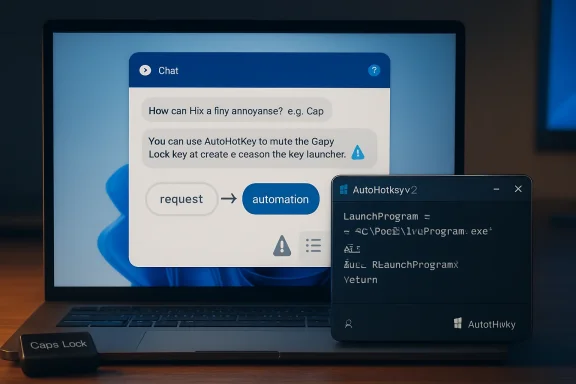 The Windows Power User’s Old Secret Just Got a Chat Interface
AutoHotkey has always occupied a peculiar place in the Windows ecosystem. It is not a polished Microsoft feature, not a mainstream productivity app, and not something most users encounter during setup. Yet for a certain class of Windows user, it has long been the difference between tolerating the operating system and bending it into shape.The PCWorld piece captures that transition neatly: the hard part is no longer necessarily writing the script. The hard part is knowing what you want changed, describing it clearly, and testing the result like a mildly skeptical human being. That sounds less like traditional programming and more like directing a fussy but tireless intern.
This is where the phrase vibe coding is both annoying and accurate. Nobody is handcrafting a software product here. The user is sketching a desired behavior — make Caps Lock mute audio, create a tiny launcher, pop up a timer — and the model translates the request into AutoHotkey v2 code.
That matters because Windows customization has been moving in two opposite directions for years. Microsoft keeps adding layers of cloud services, recommendations, AI surfaces, and opinionated defaults. Meanwhile, the tools that let users assert local control still exist, but they often require just enough technical literacy to scare off the people who would benefit most.
Microsoft Designs for the Median User, but Annoyance Lives at the Edges
Windows 11 is not broken because one person dislikes the Caps Lock key. It is frustrating because millions of people have tiny, specific objections to how their PCs behave, and those objections rarely rise to the level of a product planning meeting in Redmond.One user wants the Copilot key to do something else. Another wants middle-click scrolling to work differently. Another wants a quick timer. Another wants to launch five frequently used apps from a single hotkey. These are not universal problems, so they do not become universal settings.
That is the core tension of modern Windows. The operating system must serve gamers, accountants, students, enterprise fleets, accessibility users, kiosk deployments, developers, and people who only open Edge to download Chrome. A settings toggle for every niche preference would turn Windows Settings into a junk drawer with search.
But the absence of a toggle does not make the annoyance imaginary. It just pushes users toward third-party tools, registry edits, PowerToys modules, scripts, and forum advice. AutoHotkey has historically been one of the most powerful of those routes, but it came with a tax: you had to learn enough scripting syntax to be dangerous.
AI reduces that tax. It does not eliminate risk, and it certainly does not guarantee elegance. But it changes the first step from “learn AutoHotkey” to “ask whether AutoHotkey can do this.”
The Real Breakthrough Is Not Code Generation, but Translation
The most important move in Hoffman’s workflow is not asking the chatbot to write a script. It is asking whether AutoHotkey can reasonably perform the task in the first place. That is a subtle but important distinction.A good assistant in this context is not just a code vending machine. It is a translator between human irritation and a specific automation model. The user says, “I hate how this key behaves,” and the model turns that into hotkeys, modifiers, window states, timers, file paths, and event handlers.
That translation layer is especially valuable with tools like AutoHotkey, where capability is broad but not infinite. AutoHotkey can remap keys, create simple interfaces, launch applications, manipulate windows, send keystrokes, and watch for conditions. It is not a magic Windows kernel extension, and it should not be treated as one.
This is why the prompt discipline matters. “Fix my computer” is useless. “Write an AutoHotkey v2 script that makes Caps Lock mute audio unless Ctrl is held down” is actionable. The specificity constrains the model, and constraints are where AI code generation tends to be most useful.
In practice, this turns Windows tinkering into a conversation. The first answer may work. The second answer may fix a syntax error. The third may add a condition so the hotkey only applies in one app. The user still has to test, judge, and reject bad output, but the distance from idea to experiment collapses.
AutoHotkey v2 Is the Right Target, and That Detail Matters
One of the most practical points in the PCWorld walkthrough is the instruction to ask specifically for AutoHotkey v2. That is not pedantry. AutoHotkey v1 and v2 differ enough that code written for one may not run cleanly under the other, and v1 is the legacy branch.This is exactly the kind of versioning trap that AI makes both easier and worse. Easier, because a model can often translate examples and explain errors. Worse, because the web is full of older AutoHotkey v1 snippets, and language models may blend eras unless the user pins the target clearly.
For a beginner, “AutoHotkey” is one thing. For a script interpreter, it is not. Function calls, object behavior, command syntax, and error handling changed meaningfully between the generations. A chatbot that produces v1-style code for a v2 install can turn a five-minute fix into a confusing error message.
That is why the best prompt is not merely descriptive; it is environmental. It should say AutoHotkey v2. It should say Windows 11. It should mention the key combination, the target apps, the desired fallback behavior, and any constraints about startup or tray behavior.
The lesson generalizes beyond AutoHotkey. AI is strongest when the user names the platform, version, assumptions, and failure mode. It is weakest when forced to guess which decade of documentation applies.
The Desktop Is Becoming Programmable Again, but Not in Microsoft’s Way
Microsoft’s recent AI story has largely been top-down. Copilot appears in Windows, Office, Edge, and developer tools as a branded assistant with its own interface and corporate logic. The user is invited to ask questions, summarize content, generate images, write emails, and increasingly interact with the system through Microsoft-managed surfaces.The AutoHotkey workflow is almost the inverse. The AI does not become the product. It helps the user produce a small local artifact that runs independently after the conversation ends. The result is not a cloud assistant watching the desktop; it is a script.
That distinction is easy to miss, but it is politically important in the small world of PC control. Many Windows enthusiasts resent AI when it arrives as another button, another background service, or another Microsoft account-adjacent prompt. They may feel differently when the same class of technology helps them remove friction from their own machine.
This is AI as a means rather than an environment. It is not asking users to live inside a chatbot. It is helping them make a tool that disappears into the tray.
For power users, that is the acceptable face of AI on the PC. It does not demand loyalty. It does not replace the desktop metaphor. It does not insist that every workflow become conversational. It simply lowers the barrier to an old Windows superpower: automation.
The Risks Are Boring, Which Is Why People Will Ignore Them
The danger in this workflow is not usually dramatic malware generated by a rogue model. The more common danger is ordinary sloppiness. A script may capture a hotkey too broadly, send keystrokes into the wrong window, loop unexpectedly, conflict with accessibility tools, or run at startup long after the user forgot what it does.That is not a reason to avoid AutoHotkey. It is a reason to treat generated scripts as untrusted code until proven otherwise. If a user would not run a random
.exe from a forum post, they should not blindly run a script they do not understand just because a chatbot produced it in a friendly tone.The good news is that many AutoHotkey scripts are short enough to inspect. A simple hotkey remap, app launcher, or timer can often be read line by line with help from the same model that generated it. “Explain what every line does” should become part of the ritual.
The worse news is that convenience erodes caution. Once the first script works, users will ask for more. Startup scripts accumulate. Little automations become part of muscle memory. At that point, a broken script is not just a toy failing; it is a custom layer of the user’s operating environment misbehaving.
Enterprises will be even more cautious. AutoHotkey is powerful precisely because it can simulate user input and alter workflows outside formal application boundaries. That makes it useful for local productivity and suspicious in managed environments. IT departments will not be thrilled by employees vibe-coding scripts that manipulate business apps, paste canned text, or automate repetitive internal processes without review.
The New Skill Is Debugging the Conversation
The PCWorld excerpt gets one thing exactly right: this is a back-and-forth process. That may sound like a caveat, but it is actually the method. The user is not replacing programming with a single perfect sentence. The user is replacing documentation trawling with iterative debugging.That means the user’s most valuable skill is no longer memorizing syntax. It is describing failures accurately. If there is an error message, paste it. If the hotkey works in Notepad but not in a game, say that. If the script launches the wrong folder, provide the real path. If the behavior changes when running as administrator, mention it.
This is where AI-assisted scripting becomes surprisingly educational. A user who begins with “make this key do that” may gradually learn what a hotkey declaration looks like, how variables work, how GUI elements are created, how timers are scheduled, and why permissions matter. The model is not just producing code; it is narrating the system.
There is a limit, of course. A confident chatbot can still hallucinate APIs, produce brittle logic, or paper over security concerns. But compared with copying a five-year-old forum snippet and hoping it still applies, a conversational loop can be a better learning environment.
The difference is agency. The user is not merely downloading someone else’s fix. The user is shaping the fix, testing it, and refining it. Even when the code is AI-written, the judgment remains human.
Windows Customization Has Always Been a Form of Dissent
There is a cultural reason this story resonates beyond the handful of examples in the PCWorld article. Windows users have always lived in a negotiated relationship with Microsoft’s defaults. Every Start menu replacement, registry tweak, debloater, shell extension, and PowerToys module is a tiny vote against the idea that the operating system should be taken as delivered.AutoHotkey sits squarely in that tradition. It does not wait for Microsoft to bless a feature. It does not require a formal extension point. It says: if the keyboard, mouse, window, and process model expose enough surface area, the user can improvise.
AI gives that improvisation a new audience. The person who would never read AutoHotkey documentation may still have a strong opinion about how their computer should behave. The chatbot becomes a ramp from preference to implementation.
That is why the examples matter. A Caps Lock mute key is trivial in one sense, but profound in another. It says the keyboard is not fixed. A custom launcher says the Start menu is not the only gateway. A timer popup says a user does not need to shop for a utility when ten lines of script will do.
This is not the grand revolution promised by AI marketing. It is smaller and more durable: personal software for personal irritations.
The Best Scripts Will Be the Ones Users Barely Notice
The temptation with any automation tool is to overbuild. Once users realize they can create pop-up windows and chained actions, they start imagining dashboards, mini-apps, elaborate menus, and workflows that quietly become harder to maintain than the annoyance they replaced.The best AutoHotkey scripts tend to be modest. They do one thing. They are easy to disable. They use hotkeys the user can remember. They avoid surprising behavior in sensitive contexts like password fields, remote desktops, games, and administrative prompts.
AI can help here, but only if the user asks for restraint. A good prompt might request comments, simple structure, and a safety toggle. It might ask the model to avoid permanent system changes. It might ask whether there is a built-in Windows setting or PowerToys feature that would be safer before resorting to a script.
That last point is important. Not every irritation deserves AutoHotkey. Some are better solved with Windows Settings, PowerToys, accessibility options, app-specific preferences, or simply a different utility. A script is most valuable when the desired behavior falls between official features.
This is where AI can act as triage. The first question should not be “write the script.” It should be “what is the cleanest way to achieve this on Windows 11, and is AutoHotkey appropriate?” That small pause can prevent a lot of messy automation.
The PC Is Still Personal If Users Can Change the Rules
Microsoft likes to call Windows personal, but personalization often means wallpapers, themes, widgets, account sync, and recommended content. The deeper form of personalization is behavioral. What does this key do? What happens when I press this shortcut? Which app opens first? How many steps does a repetitive task require?That is the layer AutoHotkey touches. It lets users personalize not just appearance, but conduct. In a world where operating systems increasingly look like service delivery platforms, that kind of local behavioral control feels almost old-fashioned.
AI-assisted scripting makes it newly practical. The barrier is no longer “can you code?” but “can you specify?” That is still a barrier, but it is a much lower one. Most people can describe a nuisance. Fewer can translate it into working syntax.
The result is a subtle redistribution of power. Microsoft still controls the platform. Developers still control their apps. But users gain a faster way to build small bridges over the gaps those institutions leave behind.
For Windows enthusiasts, that is the real headline. AI did not make Windows 11 less opinionated. It made the user a little more capable of answering back.
The Few Rules That Keep a Five-Minute Fix From Becoming Tomorrow’s Problem
The practical lesson from Hoffman’s experiment is not “let AI write anything and run it.” It is that small, inspectable automations can be safe and useful when users keep the scope narrow. The difference between empowerment and chaos is process.- Ask for AutoHotkey v2 explicitly, because older examples and model output may otherwise target the deprecated v1 syntax.
- Start with one narrow annoyance, then test the script before adding more behaviors.
- Paste exact error messages back into the chatbot instead of paraphrasing what went wrong.
- Ask the model to explain the script line by line before running anything that touches files, credentials, browsers, or business apps.
- Keep startup scripts few, named clearly, and easy to disable from the system tray or Startup folder.
- Prefer built-in Windows settings or PowerToys when they solve the problem cleanly, and use AutoHotkey for the gaps they leave.
The next phase of Windows customization will not be defined only by what Microsoft adds to Settings or what Copilot can do from the taskbar. It will also be shaped by ordinary users describing tiny frustrations to AI models and turning the answers into local, disposable tools. That is messy, imperfect, and occasionally risky, but it is also deeply in the spirit of the PC: a machine that becomes more useful when its owner can still change the rules.
Source: PCWorld I used AI to fix my biggest Windows 11 annoyances in minutes
