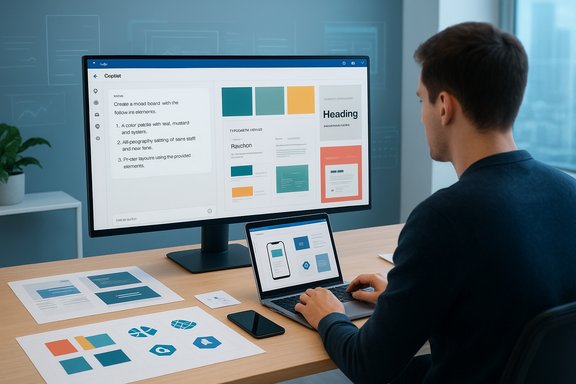
AI mood boards are already changing how creative teams kick off projects: by letting designers ask a conversational assistant for curated visual directions, then drop the results straight into PowerPoint, Word, or Microsoft Designer to shape presentations and creative briefs in minutes.
Mood boards have long been the scaffolding of the creative process—an efficient visual shorthand that aligns stakeholders on tone, color, and composition before full design work begins. The introduction of AI-assisted mood boards via Microsoft Copilot moves that scaffolding upstream: instead of spending hours gathering references, designers can now generate concept sets from natural-language prompts, iterate rapidly, and export ideas into familiar authoring apps. This is not a replacement for human craft, but a front-loaded ideation boost that speeds exploration and reduces the friction of starting from a blank canvas. Copilot’s mood-board capabilities are part of a broader set of creative features Microsoft has folded into Microsoft 365 and Designer—image creation, generative fill/erase, and design suggestions—some of which are powered by advanced image models. These integrations are positioned to keep visual ideation inside the apps creatives already use, rather than forcing an export-import loop across multiple services.
Create a mood board for a mid-century modern living room with a family-friendly layout. Use warm neutrals with teal and mustard accents; include wood textures, velvet upholstery, and soft ambient lighting. Provide three layout thumbnail options and suggested typefaces for headings and body text.
AI mood boards offer a powerful shortcut to visual exploration—one that, when combined with disciplined prompt engineering, human review, and legal prudence, can dramatically reduce the time between an idea and a presentable creative direction. Designers who adopt clear processes, keep control of brand assets, and document provenance will benefit the most from Copilot’s ability to kickstart creativity without surrendering authorship.
Source: Microsoft AI Mood Boards: Designers Using Copilot | Microsoft Copilot
 Background
Mood boards have long been the scaffolding of the creative process—an efficient visual shorthand that aligns stakeholders on tone, color, and composition before full design work begins. The introduction of AI-assisted mood boards via Microsoft Copilot moves that scaffolding upstream: instead of spending hours gathering references, designers can now generate concept sets from natural-language prompts, iterate rapidly, and export ideas into familiar authoring apps. This is not a replacement for human craft, but a front-loaded ideation boost that speeds exploration and reduces the friction of starting from a blank canvas. Copilot’s mood-board capabilities are part of a broader set of creative features Microsoft has folded into Microsoft 365 and Designer—image creation, generative fill/erase, and design suggestions—some of which are powered by advanced image models. These integrations are positioned to keep visual ideation inside the apps creatives already use, rather than forcing an export-import loop across multiple services. What an AI mood board actually does
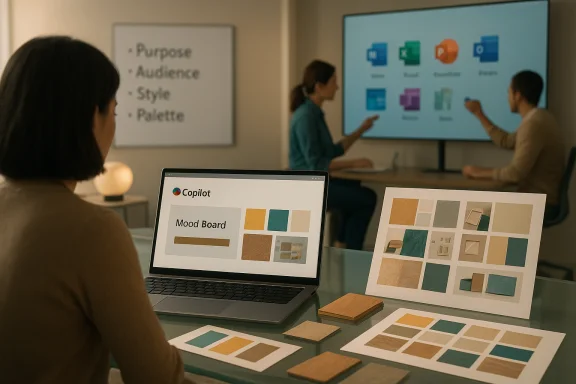
An AI mood board is a generated, curated collection of images, textures, color swatches, and layout suggestions assembled from a prompt and contextual signals. Unlike a static Pinterest board, an AI mood board can be:- Generated to match precise stylistic keywords (e.g., “mid-century modern with warm accent colors”).
- Tuned for format (social post, poster, packaging, or presentation slide).
- Exported or embedded directly in PowerPoint, Word, or Microsoft Designer for immediate use and feedback.
How Copilot generates mood boards in practice
The prompt-driven workflow
The core interaction model is conversational prompting. Designers tell Copilot what they want—purpose, audience, style, colors, materials—and the assistant returns a composed visual direction. A robust prompt might include:- Purpose (e.g., living room redesign, brand identity refresh).
- Target audience (e.g., families, Gen Z, eco-conscious buyers).
- Visual cues (e.g., materials, textures, era influences).
- Deliverable format (e.g., presentation slide, poster, mood board).
Create a mood board for a mid-century modern living room with a family-friendly layout. Use warm neutrals with teal and mustard accents; include wood textures, velvet upholstery, and soft ambient lighting. Provide three layout thumbnail options and suggested typefaces for headings and body text.
Where mood boards land
Copilot’s mood boards aren’t isolated files: they’re designed to be used in-context. You can:- Insert generated images and swatches directly into a PowerPoint slide.
- Add visuals to a Word creative brief.
- Open or refine the output inside Microsoft Designer for further compositing or export. These workflows are supported by Microsoft’s product docs and in-app guidance.
Iteration loop
A practical Copilot workflow looks like this:- Draft a detailed prompt in Copilot (or use a starter prompt).
- Review the generated board and flag elements to keep, reject, or refine.
- Request refinements (e.g., “Make the palette darker and remove floral textures”).
- Export selected elements into the working slide or document, then perform manual layout and copy edits.
Verified technical claims and feature checks
To evaluate the platform’s capabilities and limits, several product and independent reporting items were cross-referenced:- Integration: Microsoft’s Copilot documentation explicitly describes embedding Copilot-generated visuals into PowerPoint, Word, and Designer; user instructions and step-by-step support articles confirm image creation and insertion workflows. These are the official pathways designers will use to get mood boards into deliverables.
- Image generation engine: Designer’s image features and some Copilot image-generation flows have been announced to use high-quality image models (Microsoft has publicly noted DALL·E 3 powering Designer’s Image Creator in earlier releases and included generative expand/fill tools into the Designer/Photoset of features). That enables functions like generative fill, object erase, and image expansion—useful when you want to adapt an asset rather than start anew.
- Bundling and policy: Microsoft confirmed it has rolled Copilot into consumer Microsoft 365 plans with a modest subscription adjustment and usage limits (monthly credits) designed to manage resource consumption. The company has also stated controls that limit Copilot in certain contexts and clarified that user prompts would not be used for model training in specified conditions. These commercial and privacy stances have been reported by independent outlets and are reflected in Microsoft’s rollout notes. Designers should check their subscription terms and admin settings for exact limits and availability.
- In-app design suggestions: PowerPoint’s Design Suggestions shows Copilot-based recommendations in addition to the classic Designer suggestions for eligible Copilot subscribers; Microsoft’s technical blog and support notes list build and platform prerequisites for preview channels. This means Copilot’s mood-board and layout suggestions are being layered into the product UI rather than being a separate silo.
Practical workflows designers are adopting
Designers are already experimenting with Copilot in three consistent patterns:- Rapid exploration: Generate three to five mood-board variants to present to clients during an early-stage meeting. This enables quick A/B comparisons of vibe, color, and materials.
- Template-driven production: Use Copilot to auto-populate branded templates (presentations, social posts) with suggested imagery and copy, then polish manually for brand consistency.
- Mixed human-AI composition: Use Copilot to create base assets or color themes, then move into Designer or Photoshop for meticulous pixel work, type pairing, and layout refinement.
Tips for getting the most from AI mood boards
- Use detailed prompts. Specificity produces stronger, more relevant outputs than abstract commands. For a kitchen brief, “Scandinavian kitchen with natural wood, matte black fixtures, and terrazzo counters” is measurably better than “kitchen design.”
- Combine AI with manual edits. Treat Copilot output as a foundation: replace or overlay client-owned imagery, adjust compositions, and correct color balance for production prints.
- Collaborate through shared boards. Mood boards placed into Microsoft 365 documents or shared Designer files can be co-edited and commented on, preserving decisions and feedback cycles.
- Maintain version control. Save named iterations (Direction A, Direction B) so client approvals can map to a specific asset set.
- Document provenance. Keep a short audit trail of prompts and edits, so rights and decisions are traceable during client handoffs or licensing reviews.
- Project: [deliverable / audience / timeline]
- Style: [primary, secondary—e.g., "Scandi minimal + tactile accents"]
- Palette: [colors or color temperatures]
- Key elements: [materials, textures, imagery examples]
- Constraints: [brand fonts, logos, legal requirements]
- Ask: [specific outputs e.g., "3 layout thumbnails + 6 image assets + 1 color theme"]
Limitations and reliability — the important caveats
AI mood boards accelerate ideation, but they are not flawless. Three practical risks demand attention:- Hallucination and context errors: Copilot can produce plausible-looking images and suggestions that are inaccurate, irrelevant, or inconsistent with a client’s brand. Independent tests by journalists and user reports have highlighted cases where Copilot and related vision features failed in real-world tasks, underlining that outputs need rigorous review before client presentation.
- Copyright and originality: Generative models can reproduce or closely mimic training-set content, posing legal and ethical risk. Designers must vet outputs for unintended similarity to existing copyrighted designs or trademarks and consider whether generated images meet a client’s legal and brand standards. Industry analyses have documented inadvertent plagiarism risks and recommend careful post-generation scrutiny.
- Platform constraints and subscription policy: Copilot features are gated by subscription tier, region, and administrative controls. Usage caps, feature availability, and prompt privacy settings vary by account type—so what’s available on one team may be different for another. Verify the exact entitlements before committing Copilot to mission-critical workflows.
Ethical ownership, client expectations, and legal checks
AI-generated assets complicate authorship. For most client engagements, the following best practices reduce downstream friction:- Clarify ownership before work begins. State in contracts how AI-generated elements will be licensed, who is responsible for clearance, and whether a human-crafted derivative will be delivered for final use.
- Vet for trademark risk. Logos or distinctive marks that look like established brands require legal clearance; a generated emblem that visually resembles a trademark could trigger an infringement dispute.
- Keep prompt and source records. A short audit trail that includes the original prompts, any reference images, and manual edits will speed dispute resolution and demonstrate due diligence.
- Use human-in-the-loop review. Assign a final review step (legal or senior creative) to sign off on any AI-generated imagery before client delivery.
Comparing Copilot mood boards with other tools
Copilot is not the only player enabling AI-assisted visuals. Designers should consider how it stacks up against other options:- Dedicated design-first platforms (e.g., stand-alone image generators or platform-native AI in Adobe and Canva) can offer deeper image-editing controls or brand-kit integration in some cases. Recent integrations show Copilot extending into third-party design platforms, streamlining cross-app workflows.
- Figma and plugin ecosystems provide tight UI and prototyping workflows, while Copilot’s strength is its in-app generative suggestions across Microsoft 365 applications. Teams that already live inside Microsoft 365 will see the most frictionless experience.
- For heavy-image production or final artwork destined for print, designers will typically export Copilot-created assets into professional tools (e.g., Photoshop, Illustrator) for precise color and vector control.
Workflow blueprint: from prompt to approved mood board (step-by-step)
- Define scope and constraints: deliverable type, brand rules, deadlines.
- Write a high-fidelity prompt using the template above.
- Generate three mood-board directions in Copilot.
- Triages outputs: remove artifacts, mark keep/change/reject.
- Refine chosen direction; ask for more granular variations (lighting, texture).
- Export assets into PowerPoint/Designer and apply brand templates.
- Human polish: typography, spacing, and imagery retouching.
- Legal review and client sign-off.
- Archive prompt history and final versions.
Accessibility, inclusivity, and design fairness
AI systems reflect their training data; designers must actively check generated content for representational balance and accessibility. Ensure generated palettes meet contrast standards for readability, and verify that imagery reflects inclusive casting and appropriate cultural context. These are human responsibilities that remain central to professional design practice.Future directions and what to watch
Microsoft is iterating quickly on Copilot’s creative features: expect deeper personalization, richer multimodal inputs (text plus image uploads), and finer-grain generative editing inside apps. Generative fill and erase tools are already deployed in consumer-facing Designer workflows, and product updates are rolling into PowerPoint and Windows experiences for Copilot-enabled users. Designers should track feature-release notes and admin controls, because availability and behavior evolve with each software update and subscription policy change. At the same time, independent reporting has shown that the marketing gloss can outpace real-world reliability in certain complex tasks—reinforcing the need for staged adoption and rigorous QA.Risk mitigation checklist for teams using Copilot mood boards
- Always retain manual checkpoints for legal and brand review.
- Lock down corporate brand tokens (fonts, logos, color specs) in shared templates so Copilot outputs are grounded.
- Capture and save prompts and session histories for provenance.
- Train teams on prompt engineering: small prompt changes lead to large visual shifts.
- Prefer human-curated images for final assets used in commerce or trademarked contexts.
Final analysis: strength, opportunity, and the real work ahead
AI mood boards in Copilot deliver a clear productivity win: faster ideation, fewer dead-ends, and a smoother handoff into Microsoft 365 deliverables. For teams that live inside the Microsoft ecosystem, this reduces context-switching and accelerates early-stage creative discussion. The technology’s strengths are speed, integration, and the ability to produce multiple directions with minimal manual sourcing. However, the risks are concrete. Legal exposure from near-derivative imagery, inconsistent output quality, subscription and entitlement constraints, and the occasional overpromise in marketing versus delivered behavior mean Copilot must be used with guardrails. Designers and creative leads must treat Copilot as a collaborator that extends capability—not a turnkey source of production-ready work. Used thoughtfully, Copilot’s mood boards will likely become a standard tool in the same way quick mockups and mood boards have always been: a starting point that requires a human eye, legal safeguards, and craft to convert into finished work.AI mood boards offer a powerful shortcut to visual exploration—one that, when combined with disciplined prompt engineering, human review, and legal prudence, can dramatically reduce the time between an idea and a presentable creative direction. Designers who adopt clear processes, keep control of brand assets, and document provenance will benefit the most from Copilot’s ability to kickstart creativity without surrendering authorship.
Source: Microsoft AI Mood Boards: Designers Using Copilot | Microsoft Copilot