

Microsoft’s AI Shell drops an unmistakable hint about the company’s next move: take the AI copilot right where admins do their work and make the command line smart, conversational, and — crucially — able to act on what it creates.
AI Shell is Microsoft’s new AI‑assisted command‑line environment that pairs a conversational assistant with your PowerShell or terminal session. Built as both a standalone executable (aish) and a PowerShell module that launches a sidecar pane inside Windows Terminal (and iTerm2 on macOS), AI Shell brings model‑driven command generation, error remediation, and even limited command execution into the CLI workflow. The project is distributed as an open‑source preview with fast iteration and frequent preview releases; Microsoft ships built‑in agents for Azure OpenAI and Copilot in Azure and exposes hooks for Model Context Protocol (MCP) servers and other agent integrations.
This article breaks down what AI Shell is, how it works for IT pros, and — critically — what administrators and security teams should think about before adopting it in production. It also offers practical guidance for installing, configuring, and governing AI Shell in managed environments.
Recommended mitigations:
Recommended mitigations:
Recommended mitigations:
Recommended mitigations:
That said, the product’s strengths are balanced by substantive operational and security considerations. Agentic command execution, external model endpoints, and third‑party MCP servers increase the attack surface and demand disciplined governance. For many organizations the prudent path is to adopt AI Shell in staged pilots: use it to accelerate scripting, diagnostics, and learning while building the security policies, egress controls, and audit trails that make full production use safe.
AI Shell points to a near future where terminals are not merely interactive text boxes but collaborative, AI‑aware workspaces. If you manage Windows or Azure environments, it’s worth experimenting with AI Shell now — but treat every suggestion it makes as a draft that requires human review, and build governance before you let it act at scale.
AI Shell has the potential to reshape daily admin workflows; the question now is how organizations balance the clear productivity gains with the new responsibility of governing a system that can suggest and execute at the point where mistakes can matter most.
Source: Petri IT Knowledgebase Microsoft AI Shell: The Next Evolution of the Command Line
 Background
AI Shell is Microsoft’s new AI‑assisted command‑line environment that pairs a conversational assistant with your PowerShell or terminal session. Built as both a standalone executable (aish) and a PowerShell module that launches a sidecar pane inside Windows Terminal (and iTerm2 on macOS), AI Shell brings model‑driven command generation, error remediation, and even limited command execution into the CLI workflow. The project is distributed as an open‑source preview with fast iteration and frequent preview releases; Microsoft ships built‑in agents for Azure OpenAI and Copilot in Azure and exposes hooks for Model Context Protocol (MCP) servers and other agent integrations.This article breaks down what AI Shell is, how it works for IT pros, and — critically — what administrators and security teams should think about before adopting it in production. It also offers practical guidance for installing, configuring, and governing AI Shell in managed environments.
Overview: what AI Shell brings to the terminal
AI Shell reframes the terminal as a dialog — not just an input/output box — giving administrators a persistent, contextual assistant beside their prompt. The feature set centers on three complementary capabilities:- Conversational command generation: Describe the task in natural language and get back ready‑to‑run PowerShell or Azure CLI commands. The assistant will format code, explain its choices, and (in sidecar mode) insert the generated snippet directly into your shell for review and execution.
- Context‑aware troubleshooting: Paste or surface an error into the sidecar and ask for remediation. AI Shell can parse terminal output, suggest fixes, and in recent previews iterate by running corrected commands (see “run_command_in_terminal” below).
- Agent and tool integrations: Out of the box, AI Shell includes agents for Azure OpenAI (configurable with your Azure OpenAI deployments) and Copilot in Azure. Newer previews add MCP client support and a set of built‑in tools that give agents controlled access to session context (history, environment variables, terminal content) and the ability to post code into the prompt or run commands in a persistent session.
Platform and prerequisites — the verified checklist
AI Shell is currently distributed as a preview and Microsoft documents the following requirements and recommendations for the best experience:- Windows: Windows 10 or Windows 11 (recommended), with PowerShell 7.4.6 or higher and Windows Terminal for the sidecar experience. PSReadLine must be updated to a compatible pre‑release (for example, PSReadLine v2.4.2‑beta2 or later) to enable the predictive input and sidecar orchestration.
- macOS: macOS v13 (Ventura) or higher for sidecar support via iTerm2. PowerShell 7.4.6+ is required for the PowerShell module; some iTerm2 integrations require a modern Python 3.11 runtime and enabling the iTerm2 Python API in its preferences.
- Linux: A standalone aish binary works on Linux, but the split sidecar experience is not as feature‑rich as the Windows Terminal/iTerm2 integration.
- Agent configuration: To use Azure OpenAI you must provision an Azure OpenAI (or Azure AI Foundry) resource and provide endpoint and keys in AI Shell’s agent configuration JSON. OpenAI public endpoints are also supported through the agent config.
- Installation shortcuts: Microsoft supplies an install script that automates the aish binary and PowerShell module install; running the installer and invoking Start‑AIShell boots the sidecar in Windows Terminal.
Key features IT pros will use daily
Conversational command generation and code insertion
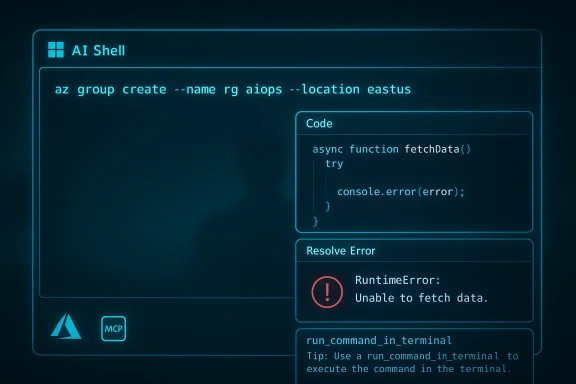
- Ask for a command in plain English, for example: “Create an Azure CLI command to deploy a resource group named rg‑aiops in eastus.” AI Shell will return a ready command such as:
- az group create --name rg‑aiops --location eastus
- In sidecar mode you can review the generated code and use
/code postor a keyboard shortcut to insert the snippet into the active PowerShell session. This reduces copy/paste errors and speeds iteration.
Predictive IntelliSense and multi‑step suggestions
- When the AIShell PowerShell module is active in Windows Terminal, the system leverages PSReadLine predictive suggestions to accept multi‑step completions or quickly accept parts of longer command strings. This works hand‑in‑hand with the AI sidecar to speed routine tasks.
Error remediation and Resolve‑Error flows
- Paste failing output into the sidecar or run the built‑in
Resolve‑Errorflow. The assistant will analyze the stack or error message, recommend the fix and — on supported platforms — re‑run corrected commands to validate the remediation.
Running commands in the terminal (agentic steps)
- Newer preview releases introduced a built‑in tool called run_command_in_terminal, which allows the AI to execute commands inside a persistent PowerShell session while preserving context (current working directory, environment variables, open session state). This is a significant capability: it enables the assistant to act on results, iterate on outcomes, and provide live diagnostics based on real command output.
MCP (Model Context Protocol) client support
- AI Shell can register MCP servers (local or remote) so agents can access additional, structured tools — everything from file system search to custom domain‑specific helpers. MCP expands capabilities but also broadens the attack surface, which we’ll discuss below.
Real‑world admin workflows: practical examples
1) Quick Azure resource orchestration
- Start AI Shell in a Windows Terminal pane.
- Ask the Azure‑aware agent: “Create an Azure CLI command to deploy an App Service plan and a web app in westus2.”
- Review generated az commands and
/code postinto your shell, then run and validate.
2) Rapid troubleshooting
- Run a complex script that produces an unfamiliar error.
- Paste the error into the sidecar and run
Resolve‑Error. The assistant suggests edits and, if appropriate, usesrun_command_in_terminalto re‑run the corrected command and capture output for a follow‑up suggestion.
3) Onboarding and upskilling
- Junior admins can describe a goal in plain English and receive annotated PowerShell snippets that act as both executable commands and documentation, helping them learn idiomatic usage.
Strengths: where AI Shell shines
- Workflow continuity: AI Shell reduces context switching by keeping help within the terminal where the admin already works, which is a proven productivity multiplier.
- Azure and PowerShell integration: native agents and Azure awareness make it effective for cloud administration, particularly Azure CLI and Azure PowerShell tasks.
- Iterative diagnostics: tools like
run_command_in_terminalandget_terminal_contentlet agents reason about actual session state rather than making blind recommendations. - Extensible architecture: MCP client support and agent pluggability mean organizations can adapt AI Shell to internal tools and private models.
- Open development model: being open source and actively iterated on GitHub gives sysadmins visibility into updates and a path to contribute or audit code.
Risks and caveats: security, governance, and reliability
AI Shell’s capabilities are powerful — but they come with meaningful risks. Any organization planning to adopt AI Shell should consider these concerns.Command execution and agentic risk
Allowing an AI to execute commands in a live shell introduces operational risk. Even well‑intentioned generated commands can be malformed, overly permissive, or operate on the wrong target (e.g., prod vs test). Therun_command_in_terminal tool preserves session context and can run commands; administrators must assume the AI can act — and therefore must apply guardrails.Recommended mitigations:
- Require human approval before any destructive command.
- Deploy AI Shell in staged rings with limited privileges for testing.
- Use per‑agent policies restricting which commands or commands patterns may be executed.
Data exfiltration and telemetry
Agents that connect to external endpoints (Azure OpenAI, OpenAI public endpoints, third‑party MCP servers) may send parts of terminal content, environment variables, or sensitive keys to cloud model endpoints. Even if Microsoft or an agent claims to redact secrets, assume that prompts including sensitive data could leak.Recommended mitigations:
- Avoid pasting or exposing secrets in sidecar prompts.
- Use managed identities (where supported) and Entra authentication flows to avoid embedding keys in agent config files.
- Apply network egress controls (proxy, firewall rules) and audit what is sent to external endpoints.
MCP and third‑party servers — expanded attack surface
MCP integration is powerful but can expose sensitive local resources to an agent or an MCP server process. Community MCP servers vary widely in security posture.Recommended mitigations:
- Only register MCP servers you control or have vetted.
- Run MCP servers under restricted accounts or containers.
- Review MCP server code and restrict server capabilities via configuration.
Preview stability and versioning
AI Shell is preview software; features and behaviors change across releases. PSReadLine pre‑release versions are required for advanced sidecar interactions, which adds another variable to manage.Recommended mitigations:
- Use labeled pilot rings and automated compatibility tests for any Windows Terminal and PSReadLine combinations in your fleet.
- Track the AI Shell GitHub release notes and test each preview before wider adoption.
Installation and initial configuration (admin checklist)
This section walks through a practical, safe path to getting started in a lab environment.- Prepare a test machine (Windows 10/11 or macOS Ventura).
- Update PowerShell to 7.4.6 or later.
- Update PSReadLine to a compatible prerelease: install the pre‑release version (for example, v2.4.2‑beta2 or later).
- Ensure Windows Terminal (or iTerm2 on macOS) is installed and updated.
- Download and run the Microsoft installer script (the recommended shortcut installs the aish executable and AIShell module).
- Start with a nonprivileged user account. Do not configure admin credentials in an agent until you have tested behavior.
- Run Start‑AIShell to launch the sidecar experience. Verify basic operations: agent listing,
/code post, and/help. - Configure agents with test Azure OpenAI or minimal Copilot configurations; use least privilege and ephemeral keys for evaluation.
- If testing MCP, deploy a vetted MCP server in a sandbox and connect it via
mcp.jsonin the AI Shell configuration directory.
- Single‑user lab test with sample Azure resources.
- Small pilot (3–5 admins) with attested policies and logging.
- Broader staged deployment with monitoring and rollback plans.
Governance and operational controls
Successful, safe adoption requires explicit policies:- Change control: treat AI‑generated automation as code — review, test, and version it before production runs.
- Execution policy: explicitly require human confirmation for any command that would modify production resources, change configuration, or delete data.
- Secrets handling: never store secrets in plain JSON agent configs or paste them into prompts. Prefer managed identity and Entra flows.
- Logging and audit: ensure terminal sessions and AI sidecar interactions are logged to internal SIEMs where possible. Track which agents are used and when
run_command_in_terminalexecutes. - Network controls: restrict which model endpoints can be called from managed machines and monitor egress for unusual activity.
Performance, cost, and model considerations
- Model choice matters: using GPT‑class models through Azure OpenAI can incur nontrivial cost for frequent or verbose prompts. Choose compact models for routine tasks; reserve larger, costlier models for complex synthesis.
- Latency tradeoffs: cloud model latency affects the assistant’s responsiveness. Local models (or on‑device models like experimental Phi Silica) can be faster but may not match cloud model capabilities.
- Offline and local options: certain preview builds demonstrate experimental offline or local model integrations for Copilot+ PCs and other scenarios. These can reduce data exposure but require careful configuration and capacity planning.
What to watch next: roadmap signals and wider implications
AI Shell’s rapid preview cadence shows Microsoft’s intent to make the terminal a first‑class AI surface, not a secondary experience. Two strategic signals to track:- Agentic automation: features that let AI act in the session (run commands, inspect output) are stepping stones toward more autonomous agent workflows. That capability could one day support safe, policy‑driven runbooks that the AI executes with explicit approvals.
- Ecosystem integration via MCP: Model Context Protocol support opens the door for standardized, tool‑centric integrations across vendors. MCP’s adoption will shape how safely and widely AI tools access local resources.
Practical tips and best practices for admins
- Start small and audit everything. Use a lab or disposable tenant before production.
- Harden agent configs: never embed production keys in a static JSON file. Use vaults, Entra, or ephemeral tokens.
- Train your team: AI‑generated commands are helpful but always review code before executing — treat the assistant as a productivity aid, not an autopilot.
- Use explicit prompts to constrain outputs. Ask the assistant to “explain what this command will do in one line” before running it.
- Maintain human‑in‑the‑loop for destructive operations. Require two‑person approvals or scripted gates for changes to production.
Final analysis: is AI Shell ready for production?
AI Shell is an impressive and practical move: it brings AI to the place where administrators spend their days — the command line — and does so with thoughtful features that respect the rhythm of shell work: generate, inspect, insert, and iterate. Preview releases have added meaningful capabilities such as macOS parity, built‑in tools (likerun_command_in_terminal), and MCP client support — all of which expand real‑world utility.That said, the product’s strengths are balanced by substantive operational and security considerations. Agentic command execution, external model endpoints, and third‑party MCP servers increase the attack surface and demand disciplined governance. For many organizations the prudent path is to adopt AI Shell in staged pilots: use it to accelerate scripting, diagnostics, and learning while building the security policies, egress controls, and audit trails that make full production use safe.
AI Shell points to a near future where terminals are not merely interactive text boxes but collaborative, AI‑aware workspaces. If you manage Windows or Azure environments, it’s worth experimenting with AI Shell now — but treat every suggestion it makes as a draft that requires human review, and build governance before you let it act at scale.
AI Shell has the potential to reshape daily admin workflows; the question now is how organizations balance the clear productivity gains with the new responsibility of governing a system that can suggest and execute at the point where mistakes can matter most.
Source: Petri IT Knowledgebase Microsoft AI Shell: The Next Evolution of the Command Line
