

Windows Terminal ships as a modern, highly configurable host for PowerShell, Command Prompt, WSL and other shells, but the out‑of‑the‑box layout and defaults seldom match what experienced users want — the Windows Central how‑to lists nine practical tweaks that I apply on every Windows 11 machine to make Terminal faster to use, visually consistent, and safer to manage. ws Terminal is now the standard front end for Windows command‑line workflows. It exposes a GUI settings editor while keeping a canonical JSON settings file for reproducible configuration. Key platform facts worth knowing up front: the Terminal’s default font is Cascadia Mono, the default launch size is 120 columns × 30 rows, and the app supports JSON fragment “extensions” as a secure mechanism for other apps to add profiles or color schemes. These defaults and features are documented in Microsoft’s official Terminal docs and historical dev posts and are the foundation for safe, repeatable tweaks. This feature unpacks each of the nine tweaks from the Windows Central piece, verifies the important technical claims, explains why the change is useful, and highlights trade‑offs and automation options so you can safely adopt the changes at scale.
Potential pitfalls can be mitigated by simple policies:
Windows Terminal is flexible by design: use the GUI for quick tweaks, the JSON for repeatable and version‑controlled changes, and Microsoft’s official docs when you need to verify defaults or to adopt new features like Terminal Chat or fragment extensions. The tweaks above represent a balanced approach — fast wins for readability and productivity, plus clear guardrails for security and reproducibility.
Source: Windows Central 9 tweaks I always make to Windows Terminal on Windows 11 (and why)
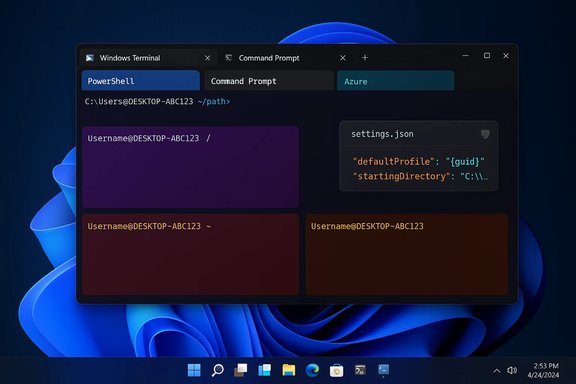 Quick summary of the nine Prompt as the default profile at startup.
- Choose a ory for all shells.
- Remove unused/duplicate profiles to
- Configure Terminal to always launch elevated (administrator) when appropriate. SON fragment extensions / shell plugins.
- Set a custom defaul × rows) rather than the default 120×30.
- Restore the classor scheme (Campbell PowerShell).
- Change the font family to Consolas (or another preferred font) for clarity.
- Backup and restore your settings.json for portability and repeatability.
1. Default profile: why choose Command Prompt (or another shell) at startup
What the tweak does
Setting the default profile changes which profile opens when you launch Windows Terminal. The GUI exposes a “Default profile” control; the underlying setting is the JSON propertydefaultProfile in settings.json.Why it matters
- It eliminates the friction of clicking or switching tabs after launch.
- If your day consists of scripts or workflows that expect a particular shell (for example legacy scripts that rely on cmd.exe), making Command Prompt the default avoids accidental use of a different shell.
- Conversely, setting PowerShell, WSL, or a custom shell is equally valid — pick the profile that best matches your daily tasks.
How to automate / JSON note
- In settings.json, set
"defaultProfile": "<GUID-of-profile>". The GUI writes this for you; copying the value into your curated JSON is how teams reproduce the behavior.
Risks & caveats
- If you distribute a configuration to others, don’t assume everybody will want the same default shell. Make it a policy or per‑user preference in provisioning scripts.
2. Global starting directory: reduce repeated cd work
What the tweak does
The Terminal allows a global starting directory so every new tab opens at the path you prefer (instead of the parent process directory). The GUI exposes this under Defaults → Starting directory, and the JSON equivalent isstartingDirectory in the defaults or per‑profile object.Why it matters
- Saves keystrokes when you always start work in a common location such as your projects folder (for example
C:\projects) or a corporate home directory. - Makes multi‑machine behavior consistent.
Implementation tip
- In settings.json you can set
"startingDirectory": "C:\Users\you\projects"or per profile with the same key. If you prefer the parent process directory, leave the toggle enabled.
Trade‑offs
- Hardcoding a path on a machine that doesn’t have it will result in unexpected starting places; prefer environment‑variable aware values (for example
%USERPROFILE%) when possible.
3. Remove unused and duplicate profiles: a cleaner, safer palette
What the tweak does
Delete profiles you never use (e.g., Azure Cloud Shell, duplicate PowerShell entries) from the Profiles list to minimize noise.Why it matters
- Reduces confusion and accidental launches.
- Speeds profile switching when you have fewer visible options.
Guidance and caution
- Don’t delete legacy profiles you still use (Windows PowerShell vs the newer PowerShell core — verify the name before removing).
- Use the GUI (select profile → Delete profile) or remove entries from the
profiles.listarray in settings.json. - If you have profiles added by fragment extensions (see below), removing them permanently may require removing the fragment provider or its JSON file.
Risk
- Deleting dynamic or provider‑created profiles could remove convenient integrations; verify what the profile links to before removing.
4. Always launch Terminal with administrator privileges: convenience vs risk
How it’s done
Windows Terminal provides a per‑profile “Run this profile as Administrator” toggle in Defaults or individual profile settings. Under the hood this maps to theelevate/elevation behavior in the JSON and will cause UAC elevation prompts when the Terminal starts. Benefits
- Eliminates repeated manual elevation if you constantly run admin‑level tools.
- Saves time during development, package installs, or admin tasks.
Security trade‑offs (important)
- Principle of Least Privilege: running commands with administrative rights increases risk of accidental destructive commands or malware acting with elevated privileges.
- Elevated Terminal sessions bypass many mitigations intended for standard users. Toggling this on globally is convenient but should be used only on trusted, personal machines or where strict operational needs justify it.
Practical recommendations
- Prefer per‑task elevation (right‑click → Run as Administrator or using
sudoequivalents in WSL) unless you truly need a permanently elevated session. - If you enable the toggle for a given profile, document the choice and restrict distribution of that configuration to known, secure machines.
5. Turn off unnecessary Terminal extensions (JSON fragment extensions & shell plugins)
What these extensions are
Terminal supports JSON fragment extensions and shell plugins that can add profiles, color schemes, icons, or even media resources. They’re deployed by other applications to provide out‑of‑the‑box Terminal integration. The feature is documented as an explicit extension mechanism and usesFragments directories or app extension manifests. Why you might disable them
- Some extensions add duplicate or unwanted profiles.
- In enterprise environments, fragment providers may add profiles that expose environment‑specific commands you don’t want on personal devices.
- Fragments can include media resources and experimental shaders — if you prefer a minimal Terminal, disabling them declutters settings.
How to manage
- Use the Extensions page in Settings to toggle off fragments/installed extensions.
- If you want to remove them fully, remove the fragment files from
%ProgramData%\Microsoft\Windows Terminal\Fragmentsor per‑user fragments folder.
Security and governance notes
- Fragment extensions are a controlled mechanism — they must follow a schema and are documented — but admins should audit fragments deployed by third‑party apps, especially if the fragment ships additional resources or references external URLs.
6. Set a custom default window size (columns × rows) — default is 120×30
What the article recommends
Windows Terminal’s default launch size is 120 columns by 30 rows; you can change that globally in Settings → Startup → Launch size, or via the JSON keysinitialCols and initialRows. Microsoft documents these properties and their defaults. Why change it
- The default 120×30 is intentionally rectangular and conservative; many power users prefer a squarer window for multi‑pane layouts or to reduce line wrapping in wide output.
- Setting a larger default avoids repeated manual resizing and gives a consistent buffer for commands that assume a minimum width.
JSON snippet (explanation)
initialCols: 120andinitialRows: 30are the defaults. Adjust these values to your preference in the global settings block or per‑profile if you want different sizes.
Caveats
- These settings are ignored if
launchModeis"maximized"or"maximizedFocus". - On multi‑display setups,
initialPositionandlaunchModeinterplay withinitialColsandinitialRows— test changes across monitors.
7. Restore the classic PowerShell blue color scheme (Campbell PowerShell)
What it does
The classic dark‑blue PowerShell look (the Campbell PowerShell color scheme) is still available in Terminal’s Appearance → Color scheme; switching back restores a familiar contrast if you find the new default theme jarring.Why some users prefer it
- Muscle memory — the classic color coding helps some admins parse output quickly.
- Accessibility — perceived contrast in some displays can make the Campbell scheme easier to read.
Implementation
- Set the profile’s Color scheme to Campbell PowerShell or define your own scheme in
schemesin settings.json.
Trade‑offs
- Personal preference matters; many users prefer modern, darker palettes for long sessions.
8. Change the font family for readability — Consolas vs Cascadia Mono
Defaults and verification
Windows Terminal uses Cascadia Mono by default, falling back to Consolas if Cascadia is unavailable. The font settings (face, size, weight) are configurable per profile; Microsoft documents these defaults and explains Cascadia variants.Why Consolas?
- Consolas is a time‑tested Windows monospaced font that many people find highly legible at smaller sizes.
- Some fonts include ligatures or Powerline glyphs (Cascadia Code PL) required by fancy prompts; pick the specific variant that matches your prompt glyphs.
How to change it
- Use the GUI (Defaults → Appearance → Font face) or set
"font": { "face": "Consolas", "size": 12 }in the profile JSON.
Accessibility tip
- Increase font weight or size for high‑DPI displays; test glyphs (box drawing, powerline symbols) to confirm complete coverage.
9. Back up and restore your Windows Terminal settings (settings.json)
Why backup
- The entire Terminal configuration is stored in
settings.json. Backing it up makes it trivial to replicate the same environment across machines or recover after an OS refresh. The GUI exposes an “Open JSON file” action and you can Save As to export a copy.
Where the file lives
- The JSON file is user‑specific in the LocalState folder under the Terminal package — copy it, commit it to a private configuration repo, or store it in encrypted cloud storage for multi‑machine provisioning.
Restore process
- Open Settings → Open JSON file.
- Replace the contents with your saved backup.
- Save and restart Terminal. Changes apply immediately.
Automation and provisioning
- Keep a canonical
settings.jsonin your provisioning scripts and copy it to%LocalAppData%\Packages\Microsoft.WindowsTerminal_8wekyb3d8bbwe\LocalState(or the Preview/Canary package name as appropriate) during setup. - Use lightweight tools (PowerShell, winget) to install Terminal and then deploy your JSON for reproducible setups.
Security caveat
- Don’t store secrets in settings.json. Some advanced features (like Terminal Chat provider configuration) may require API keys or tokens; treat those as sensitive and prefer per‑machine secret stores or environment variables rather than storing them in a shared JSON file. The Terminal Chat feature is experimental and requires you to configure provider credentials; be mindful of where those credentials live.
Cross‑verification of load‑bearing claims
Several of the article’s technical claims are important to verify before recommending wide adoption:- Default font and font fallback: Microsoft docs confirm Cascadia Mono is the Terminal default, with fallback behavior documented.
- Default launch size: Microsoft documents
initialColsdefault120andinitialRowsdefault30. Changing those values is the supported way to alter launch size. - Terminal Chat and its experimental status: Terminal Chat is an experimental Canary‑channel feature that relies on external AI providers; it’s documented on Microsoft Learn and on the Windows Command Line dev blog. Use it only if you understand provider access and privacy implications.
- JSON fragment extensions: official docs show how fragments can be used to add or modify profiles and where fragments are located; administrators should audit fragments installed by third‑party apps.
Risks, trade‑offs, and enterprise considerations
- Always‑elevated Terminal: the single biggest operational risk. Use only where necessary and prefer per‑task elevation otherwise. Document elevated profile usage in operational runbooks.
- Removing profiles: safe in most cases but verify you’re not removing a profile required by other tools (for example, dynamic WSL or Azure Cloud Shell entries added by installed software). Reversible via the JSON backup.
- JSON fragments and third‑party fragments: fragments can add resources to
Fragments{AppName}locations; audit and control fragment installation in managed environments. - Storing API keys or credentials: some Terminal features require provider credentials; do not store long‑lived secrets in shared settings.json files. Prefer OS‑level secret stores or per‑user configuration that’s not checked into source control.
Practical rollout plan for power users and admins
- Start with a single machine and apply the tweaks you want (default profile, starting directory, font, color scheme). Test for a week.
- Back up settings.json and keep it in a private repo or secure cloud location.
- If deploying across multiple workstations, include a post‑install step in your provisioning script that installs Windows Terminal (Store or winget) and copies settings.json into the Terminal LocalState folder; validate package names for stable vs preview vs canary channels.
- For enterprises: codify which profiles may be elevated and consider Group Policy or endpoint management to prevent accidental always‑elevated deployments (some group policies can hide or remove the "Run this profile as Administrator" toggle). If a toggle disappears in tightly locked images, that’s often due to policy.
Final analysis — strengths and potential improvements
The nine tweaks are pragmatic, low‑risk changes with real productivity payoff. They reduce context switching (default profile, starting directory), remove UI friction (delete unused profiles, set window size), and protect continuity (backup settings.json). The strongest single recommendation is to treat the settings.json as part of your workstation configuration: version it privately, test changes, and deploy via automation.Potential pitfalls can be mitigated by simple policies:
- Avoid global elevation unless strictly necessary.
- Audit fragment extensions and only accept fragments from trusted installers.
- Keep secrets out of shared settings files, and treat provider credentials used by Terminal Chat or other plugins as sensitive.
Windows Terminal is flexible by design: use the GUI for quick tweaks, the JSON for repeatable and version‑controlled changes, and Microsoft’s official docs when you need to verify defaults or to adopt new features like Terminal Chat or fragment extensions. The tweaks above represent a balanced approach — fast wins for readability and productivity, plus clear guardrails for security and reproducibility.
Source: Windows Central 9 tweaks I always make to Windows Terminal on Windows 11 (and why)
