

Windows Terminal’s right‑click behavior is one of those small UX switches that can either speed you through repetitive command‑line work or trip you into accidental pastes and misfired commands — and it’s now configurable both from the Terminal UI and from low‑level settings for power users who want Explorer to hand them elevated terminals or a profile chooser directly from the right‑click menu.
Windows Terminal combines Command Prompt, PowerShell, WSL and other shells into a single, extensible host. Out of the box a right‑click inside the Terminal may either paste or do nothing depending on your install and build; recent Terminal releases and previews added a proper context menu option so right‑click can open a menu of copy/paste/search/duplicate‑tab actions instead of immediately pasting text. The official Terminal interaction documentation shows the underlying setting as an experimental JSON property named experimental.rightClickContextMenu, and also documents a UI toggle and command action to open the menu if present. At the same time, File Explorer keeps gaining tighter integration with Terminal: “Open in Terminal” on folders, address‑bar wt aliases, and community registry tweaks that add profile selection or an “Open as administrator” option. Those Explorer→Terminal touchpoints let you bridge GUI file browsing and command‑line workflows quickly, but they also involve registry edits or downloaded .REG packs in many community how‑tos — so they carry security, maintenance, and support tradeoffs.
This feature article explains exactly how to enable the Terminal right‑click context menu via the UI and via settings.json, shows the common registry approaches to add Terminal options into the Explorer context menu (including admin/profile choices), and evaluates the risks and best practices for safe deployment.
Example single‑line commands used by many guides (run from an elevated prompt or PowerShell as needed, but the per‑user change can be done without elevation in many cases):
Source: Guiding Tech Enabling the Right-Click Context Menu in Windows 11 Terminal
 Background / Overview
Windows Terminal combines Command Prompt, PowerShell, WSL and other shells into a single, extensible host. Out of the box a right‑click inside the Terminal may either paste or do nothing depending on your install and build; recent Terminal releases and previews added a proper context menu option so right‑click can open a menu of copy/paste/search/duplicate‑tab actions instead of immediately pasting text. The official Terminal interaction documentation shows the underlying setting as an experimental JSON property named experimental.rightClickContextMenu, and also documents a UI toggle and command action to open the menu if present. At the same time, File Explorer keeps gaining tighter integration with Terminal: “Open in Terminal” on folders, address‑bar wt aliases, and community registry tweaks that add profile selection or an “Open as administrator” option. Those Explorer→Terminal touchpoints let you bridge GUI file browsing and command‑line workflows quickly, but they also involve registry edits or downloaded .REG packs in many community how‑tos — so they carry security, maintenance, and support tradeoffs.This feature article explains exactly how to enable the Terminal right‑click context menu via the UI and via settings.json, shows the common registry approaches to add Terminal options into the Explorer context menu (including admin/profile choices), and evaluates the risks and best practices for safe deployment.
What the change does — a short technical summary
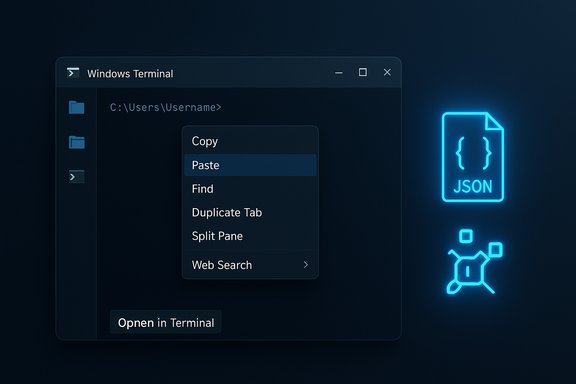
- In‑Terminal right‑click context menu: instead of pasting when you right‑click, Terminal can display a context menu with actions like Copy, Paste, Find, Duplicate tab, Split pane, Web search, and other Terminal actions. This makes mouse workflows more predictable and reduces accidental paste errors.
- Settings surface and JSON control: the menu is controlled by a user/profile setting in Terminal’s settings UI (and the equivalent JSON key is experimental.rightClickContextMenu). The setting can be applied globally via "defaults" or per profile.
- Explorer integration and admin/profile variants: File Explorer can open folders in Terminal using the wt alias (for example wt -d "%V" to start in a folder). Community registry edits and downloadable .REG files can add a profile chooser or an elevated “Terminal (Admin)” entry to the right‑click menu, but they require administrator privileges to install and will trigger UAC when used.
Step‑by‑step: Enable the Windows Terminal right‑click menu (UI)
The fastest, safest path for most users is to use the Terminal’s Settings UI.- Open Windows Terminal (type wt in Run or pick Windows Terminal from the Start menu).
- Click the downward chevron next to the plus (+) tab button and choose Settings.
- In Settings, open the Defaults entry under Profiles (this applies the change to all existing and new profiles).
- Scroll to Advanced and find Display a menu on right‑click (or the equivalent toggle).
- Toggle it On, then click Save.
If you prefer the JSON file (advanced)
Windows Terminal stores its settings in a JSON file; changing the property directly is useful for scripted deployments or when you want to target a specific profile.- Settings.json locations differ by distribution (Stable, Preview, unpackaged). The Terminal FAQ shows the exact per‑package paths. Add the flag under profiles.defaults or under an individual profile:
"profiles": {
"defaults": {
"experimental.rightClickContextMenu": true
},
"list": [
// profiles...
]
}
Why you might want the menu — and when not to
- Benefits
- Predictable mouse behavior: right‑click opens a menu rather than pasting unexpectedly.
- Familiarity for newcomers: users who rely on GUI context menus can access copy/paste/find/search without memorizing keyboard shortcuts.
- Access to Terminal actions: duplicate tab, split pane and web‑search selected text become easily discoverable.
- Tradeoffs
- Slightly more clicks for keyboard-first users who prefer paste on right‑click.
- Version differences: the JSON property was experimental in earlier builds and behavior can vary across Stable/Preview/Canary. Test on your version before rolling out in a managed environment.
Advanced: Add Terminal (Admin) or profile chooser to the Explorer right‑click menu
Opening a Terminal in a folder is already built into Windows 11’s File Explorer via “Open in Terminal.” If you want a richer right‑click option — for example a submenu that shows multiple Terminal profiles or an explicit “Terminal (Admin)” entry — you’ll need to modify the registry. Community guides (and downloadable .REG files) automate the changes, but they require administrative privileges to install and can be risky if obtained from untrusted sources.Common patterns used by how‑tos
- Use the wt alias with the -d argument to open Terminal in a directory:
- Command example used by registry entries:
wt -d "%V"orwt -d "%1"depending on the registry key target. The official command‑line docs documentwt -d <path>to target a directory. - Add a context menu shell command for background of a folder:
- Registry key path examples (community):
HKCR\Directory\Background\shell\OpenInWindowsTerminal\commandwith default value likewt -d "%V". Community writing and forum threads describe this exact approach as the way to add “Open in Terminal” if missing. - Add a profiles submenu or an “Open as administrator” entry:
- More complex .REG packs (often circulated on ElevenForum and other community sites) add nested commands and verbs to show multiple Terminal profiles or to call Terminal elevated. Guiding Tech’s how‑to references a downloadable .REG that adds profile choices to the Explorer context menu; the article warns about browser blocks and the need to accept the UAC prompts to merge the file.
Important cautions about the admin case
- Registry entries that attempt to launch an elevated Terminal will still be governed by UAC — the call may succeed but will prompt for Administrator consent. You cannot bypass UAC with a simple registry key without reducing system security.
- Adding these registry values globally affects how Explorer presents the menu and can conflict with corporate Group Policy or other shell extensions.
- Always export the registry key you modify or create a System Restore point before merging downloaded .REG files. Guiding Tech and community posts repeat this safety practice.
How to add the classic File Explorer context menu (if that’s your aim)
Some users want the classic Windows 10 context menu (the full list) to appear by default, rather than the compact Windows 11 menu. The commonly shared, per‑user registry fallback is:- Create this key and subkey in HKCU:
HKEY_CURRENT_USER\Software\Classes\CLSID{86ca1aa0-34aa-4e8b-a509-50c905bae2a2}\InprocServer32 - Leave the (Default) value blank.
- Restart Explorer (or sign out/sign in) for the change to apply.
Example single‑line commands used by many guides (run from an elevated prompt or PowerShell as needed, but the per‑user change can be done without elevation in many cases):
- Add the key:
reg add "HKCU\Software\Classes\CLSID{86ca1aa0-34aa-4e8b-a509-50c905bae2a2}\InprocServer32" /f - Restart Explorer:
taskkill /f /im explorer.exe & start explorer.exe
Troubleshooting and verification
- If the Terminal right‑click toggle doesn’t appear in Settings, check whether you’re on Terminal Preview vs Stable, or update Windows Terminal from the Microsoft Store. Microsoft documents the interaction and shell‑integration features and notes that some features were shipped as experimental in Preview builds before arriving in Stable.
- If the context menu doesn’t show after changing JSON, confirm you edited the correct settings.json file for your installation (Stable vs Preview vs unpackaged); the FAQ lists the exact paths for each. After editing, save and reopen Terminal or restart Windows.
- If a registry change to Explorer context menus fails or Explorer crashes, remove the added key (or restore a registry backup) and restart Explorer. Creating a System Restore point before changes is a best practice. Community threads and Microsoft Q&A emphasize backing up the registry before making permanent edits.
Security, compatibility and enterprise considerations
- Don’t blindly run downloaded .REG files. Community packs (e.g., the ElevenForum registries mentioned in many guides) may be convenient but can include unwanted or malicious changes. Review the file contents in a text editor and verify the exact keys before merging. Guiding Tech explicitly warns about browser blocking and the need to approve registry merges — that same mechanism protects you from accidental or malicious edits.
- UAC and elevated entries still prompt. Any right‑click “Terminal (Admin)” will normally require consent. There’s no safe, supported registry trick to silently elevate without reducing system security.
- Enterprise management: If you manage multiple endpoints, place these changes in a tested Group Policy or deployment script and verify compatibility with corporate shell extensions. Community solutions are not Microsoft‑supported system settings; use caution in managed environments.
- Future updates may revert behavior. The registry fallback for the classic context menu and experimental Terminal flags have been effective across many Windows 11 builds, but Microsoft can change internal COM IDs or migration policies in feature updates. Treat these as community‑backed workarounds rather than guaranteed, long‑term toggles.
Recommended workflow and best practices
- Use the Terminal Settings UI toggle where available — it’s the safest and simplest method for most users.
- If you need scripted or mass deployment, prefer editing the Terminal settings.json (the path differs by package; consult the Terminal FAQ) and deploy that file via your configuration management tool.
- For Explorer→Terminal integrations, prefer adding a minimal registry entry that calls
wt -d "%V"so it’s transparent and easy to undo. Test on a VM first. - Never run unverified .REG files; always inspect and back up the registry first. Create and store a clear rollback plan (reg delete commands or restore points).
Final assessment — strengths and risks
Enabling the Windows Terminal right‑click menu is a small, high‑value tweak that improves discoverability and reduces accidental pastes for mouse‑centric users. The Terminal team exposed the setting both in the UI and in JSON, and also introduced deeper shell integration for context menus and scroll marks — signs that Microsoft is actively refining command‑line usability. However, the surrounding ecosystem — registry edits to add admin/profile options and the classic Explorer menu trick — is a community area, not an official Microsoft feature. These registry tweaks bring real productivity gains, but they carry support, security, and maintenance costs. Use the UI toggle when possible, script JSON changes for scale, and reserve registry merges for power users who understand how to back up and restore their systems.Conclusion
Windows Terminal’s right‑click menu is a practical, low‑risk usability improvement when enabled via the app’s Settings UI or the documented JSON property. For bridging File Explorer and Terminal you have flexible options — from the built‑in “Open in Terminal” to registry‑driven profile choosers and admin shortcuts — but those deeper changes require careful review, backups, and an understanding of UAC and enterprise policy. Follow the UI path where possible, validate JSON edits against the Terminal FAQ and Interaction docs, and treat registry shortcut packs as powerful but potentially risky tools that require administrator consent and a rollback plan. By combining a small Terminal setting with disciplined registry hygiene and awareness of UAC behavior, you can streamline file‑to‑shell workflows without sacrificing security or manageability.Source: Guiding Tech Enabling the Right-Click Context Menu in Windows 11 Terminal
