

The all-in-one (AIO) PC remains one of the most pragmatic desktop choices in 2026: it puts a high-quality display, speakers, webcam, and the entire PC stack in a single, space-saving chassis. For shoppers today, the single most important decision you’ll make isn’t the CPU brand or even whether the machine has a pop-up webcam — it’s the display. A great screen determines whether an AIO becomes a productive workstation, a family multimedia hub, or an expensive paperweight. This feature unpacks what to look for in an AIO in 2026, verifies the key technical claims buyers are reading elsewhere, and offers clear buying guidance that balances performance, longevity, and real-world ergonomics.
All-in-one desktops remain popular for users who want a tidy desk footprint without sacrificing screen size. Manufacturers continue to ship AIOs in sizes ranging from compact 22–24-inch models up to ultra-wide 34-inch curved panels that blur the line between desktop and living‑room display. Entry-level AIOs often aim at classrooms and shared family spaces; premium models chase creators and prosumers with high-resolution panels and faster silicon. In short, AIOs now cover a broad spectrum — from inexpensive, barely-upgradeable family PCs to near-workstation machines that can replace a tower for many content‑creation tasks. Evidence of this product breadth shows up repeatedly in vendor and community product listings and discussions around compact 23–24‑inch AIOs as budget winners and 27–34‑inch AIOs as multimedia or creative tools. your first and most consequential choice
AIO shoppers should start at the screen and work backward. Why? With an integrated device, the display is the permanent element — you can’t swap it out later like a stand‑alone monitor without replacing or abandoning the whole PC.
Portrait pivot — rare in AIOs but handy for web developers and layout artists — is something to check for if you deal with long-form documents or page layouts. Without auto-rotate, pivoting can be a hassle; ensure the system supports display rotation if that’s important to you.
Apple’s AIO story is different: Apple iMacs continue to run Apple silicon. The 24‑inch iMac moved to Apple’s M1 in 2021, Apple introduced M3-equipped iMacs in 2023, and Apple shipped iMacs with the M4 in 2024 — a steady, Apple‑driven path that keeps the iMac at the head of thick‑integration design and silicon/OS co‑optimization. If you buy an iMac, you’re buying into Apple’s chip + macOS ecosystem; those systems are fast and tightly integrated but use a different upgrade path than Windows AIOs.
For the best results: pick the screen first, confirm the CPU generation and memory capacity, verify the ports you need (especially HDMI‑in and Ethernet), and choose a warranty that protects the integrated display. The market’s new silicon — exemplified by Intel’s Core Ultra Series 3 (Panther Lake) — and Apple’s ongoing M‑series evolution give buyers strong performance options in both Windows and macOS AIOs. But remember: with AIOs, the screen is forever; choose it wisely.
Source: PCMag UK The Best All-in-One Computers for 2026
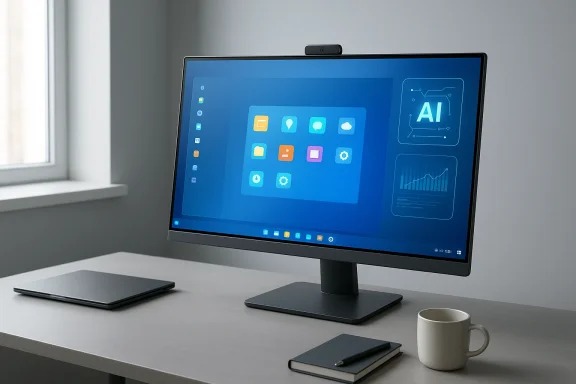 Background / Overview
All-in-one desktops remain popular for users who want a tidy desk footprint without sacrificing screen size. Manufacturers continue to ship AIOs in sizes ranging from compact 22–24-inch models up to ultra-wide 34-inch curved panels that blur the line between desktop and living‑room display. Entry-level AIOs often aim at classrooms and shared family spaces; premium models chase creators and prosumers with high-resolution panels and faster silicon. In short, AIOs now cover a broad spectrum — from inexpensive, barely-upgradeable family PCs to near-workstation machines that can replace a tower for many content‑creation tasks. Evidence of this product breadth shows up repeatedly in vendor and community product listings and discussions around compact 23–24‑inch AIOs as budget winners and 27–34‑inch AIOs as multimedia or creative tools. your first and most consequential choiceAIO shoppers should start at the screen and work backward. Why? With an integrated device, the display is the permanent element — you can’t swap it out later like a stand‑alone monitor without replacing or abandoning the whole PC.
Size and resolution: aim for 23 inches or larger
- Minimum practical size: 23 inches diagonal. Below that, desktop comfort and multitasking space drop sharply; such machines are better suited to cramped spaces or classroom use.
- Sweet spot: 27 inches is the practical balance for multitaskers who want a single screen for multiple windows, spreadsheets, and video calls.
- Ultra-wide options: 34‑inch curved AIOs exist for users who want panoramic desktop real estate without multiple monitors.
Panel technology: why IPS still makes sense for most buyers
If your AIO will be used by more than one person at a time, or if you’ll sit slightly off‑axis (as families or creative teams often do), choose an IPS (In‑Plane Switching) panel. IPS provides:- Wide viewing angles with minimal color shift
- Reliable color accuracy for photo and video work
- Bright, consistent images in daylight or multi‑viewer scenarios
Touch, tilt, and portrait pivot: ergonomics matter
Touch screens are a personal preference. They work well when the screen can tilt nearly flat so you can interact comfortably without holding your arm out. If you plan to use the display as a tablet for more than brief interactions, look for AIOs with a hinge or stand that reclines close to horizontal.Portrait pivot — rare in AIOs but handy for web developers and layout artists — is something to check for if you deal with long-form documents or page layouts. Without auto-rotate, pivoting can be a hassle; ensure the system supports display rotation if that’s important to you.
CPUs and AI-era silicon: what’s in AIOs for 2026?
AIO vendors are slower to refresh models than laptop makers, so trim your expectations about always‑new silicon. Still, two notable trends shape the AIO market in 2026.Mobile-class silicon dominates, but the generation matters
Most modern AIOs use mobile-class processors — efficient chips designed for laptops — because AIO chassis offer limited thermal headroom. In 2026, the high-profile client CPU family is Intel’s Core Ultra Series 3 (Panther Lake), which Intel rolled out as its latest mobile Core family. Panther Lake (Core Ultra Series 3) emphasizes improved integrated graphics, on‑device AI acceleration, and better power efficiency; OEMs began shipping Panther Lake systems in early 2026. When shopping, distinguish between mobile chip suffixes: Intel parts with “U,” “H,” or “HX” are mobile chips; desktop chips usually have no suffix or “K/T.” For maximum sustained CPU performance in an AIO, prefer higher‑wattage “H” class mobile parts when available, but be aware the AIO’s cooling design will limit sustained clocks compared with a tower.Apple’s AIO story is different: Apple iMacs continue to run Apple silicon. The 24‑inch iMac moved to Apple’s M1 in 2021, Apple introduced M3-equipped iMacs in 2023, and Apple shipped iMacs with the M4 in 2024 — a steady, Apple‑driven path that keeps the iMac at the head of thick‑integration design and silicon/OS co‑optimization. If you buy an iMac, you’re buying into Apple’s chip + macOS ecosystem; those systems are fast and tightly integrated but use a different upgrade path than Windows AIOs.
Discrete graphics? Rare, and typically mobile‑class
True desktop‑class GPUs don’t fit in most AIO internals. Those models that advertise “discrete” graphics typically use mobile‑class laptop GPUs or lower‑power NVIDIA GeForce RTX mobile SKUs. If you are a serious gamer or require heavy GPU horsepower for 3D work, a tower remains the better choice. Some AIOs with RTX‑branded mobile GPUs are reasonable for light gaming or GPU-accelerated content creation, but don’t expect desktop‑class upgradability.Memory and storage in the AI era: verify needs and budget
RAM: 16GB is the baseline in 2026
Memory is now a buyer’s priority because the global memory market has shifted toward data‑center and AI demand. Industry suppliers have warned that the reallocation of fab capacity to HBM and server DRAM has tightened supply for conventional DDR and DDR5 parts, pushing prices higher. That market pressure means:- 8GB is too low for modern multitasking; it hampers web‑heavy workflows and background AI features.
- 16GB is the practical minimum for most users who want many browser tabs, background services, and occasional creative work.
- 32GB+ is recommended for pro video editing, large data sets, or futureproofing if you cannot upgrade later.
Storage: SSDs only for the boot drive
Avoid spinning hard drives as primary boot devices. Modern AIOs almost always ship with NVMe SSDs for the OS and apps. For storage sizing:- 500GB SSD — acceptable if you keep most media in the cloud or on a NAS.
- 1TB SSD — a reasonable everyday starting point for mixed media and applications.
- 2TB+ — for local video libraries and large creative projects.
Ports, inputs, and practical I/O choices
A major advantage of AIOs is their built‑in convenience — but you still need the ports that make the machine useful.- USB ports: Plenty of Type‑A and at least one Type‑C make life easier.
- Ethernet jack: Still valuable for stable video conferences and large file transfers.
- HDMI input: Very handy — some AIOs include an HDMI‑in so you can treat the AIO like a monitor for consoles or other PCs. Not universal, but present on some Lenovo and HP AIO models and a few Dell Inspiron configurations. If HDMI‑in matters to you, verify the exact SKU supports it.
- Thunderbolt / USB‑C with DisplayPort / power delivery: Useful for single‑cable docking scenarios.
- Camera and microphone quality: A 1080p webcam and array mics are now common; look for pop‑up privacy cameras if privacy is a priority.
Why buy an AIO? The strongest use cases
All‑in‑one PCs are compelling for several clear reasons:- Tidy, integrated setup: Monitor, speakers, and PC in one package reduces cable clutter and desk footprint.
- Large screen for a single, stationary device: Ideal for shared households, kitchens, or a central home‑office station.
- Plug‑and‑play convenience: Less fiddly than combining a tower with a separate monitor and speakers.
- Potentially better display at price point: Compared with comparably priced laptops, an AIO can deliver a larger, brighter, and higher‑quality panel.
Why avoid an AIO? The tradeoffs and risks
AIOs are not ideal for every buyer. Major limitations include:- Limited upgradeability: Many AIOs solder memory or integrate SSDs in ways that prevent or complicate upgrades. CPUs and GPUs are typically not upgradeable at all.
- Serviceability: A failed display or internal component often means more costly repairs or full replacement compared with swapping a monitor or a tower component.
- Thermal and power limits: AIOs generally use laptop-class cooling, so sustained heavy CPU/GPU loads will be throttled compared with towers.
- Gaming and workstation limits: For heavy 3D rendering, CAD/CAM, or competitive PC gaming, tower desktops provide much higher performance ceilings and upgrade paths.
Lifespan and support: what to expect
Expect several years of useful life from a modern AIO — three to five years of performance that feels current for most users. The big caveat is repairability: a cracked or failed display can shorten usable lifespan unless you have good warranty coverage or are comfortable with expensive repairs. Business‑oriented AIOs are more likely to be backed by extended warranties and on‑site support; consumer models typically ship with one‑year warranties. If longevity matters, buy a model with a solid service plan or easy warranty options.How to choose the best AIO for your needs — step‑by‑step
- Decide how you’ll use it:
- Office/productivity and video calls → 24–27" IPS, 16GB RAM, 512GB–1TB SSD.
- Creative work (photo/video) → 27" or larger, QHD/4K, 32GB RAM preferred, fast SSD.
- Family multimedia and casual gaming → 27–34" (ultrawide for movies), good speakers, optional discrete mobile GPU.
- Prioritize display quality: resolution, panel type (IPS/OLED), brightness, and color coverage (sRGB, AdobeRGB).
- Choose CPU class based on sustained workloads: higher‑power “H”‑class mobile chips if you need bursts of CPU performance; Core Ultra (Panther Lake) has strong integrated graphics and AI features in 2026.
- Lock in minimum 16GB RAM today and accept that buying more at purchase time may be wise given volatile memory pricing.
- Opt for NVMe SSD boot storage (1TB if in doubt).
- Confirm ports — especially HDMI‑in, Ethernet, and Thunderbolt / USB‑C — before buying.
- Check warranty and service options, especially for the display.
Notable strengths and risks: a critical analysis
Strengths- Space economy and design coherence: AIOs deliver a refined aesthetic that integrates a high‑quality display with speakers and webcam.
- Good performance for many users: Modern mobile CPUs, including Intel’s 2026 Core Ultra (Panther Lake) family, deliver excellent single‑threaded and competitive integrated graphics in thin systems. For mixed productivity and light creative workflows, they are often more than enough.
- Convenience for shared households: Big screens and simple setups make AIOs ideal family PCs and remote‑work hubs.
- Memory and storage supply pressure: DRAM and NAND markets are tight because memory producers are prioritizing AI datacenter needs. That impacts upgrade costs and availability — a real economic risk for buyers who planned to buy small now and upgrade later. Buy the RAM and storage you expect to need.
- Repairability and modularity: The integrated design is elegant but increases long‑term replacement costs if the screen or a major board fails.
- Thermal throttling on heavy sustained loads: Don’t expect tower‑class sustained performance from a slim AIO chassis; for extended rendering or simulation tasks, a tower is still the safer bet.
Final recommendations: best buys in 2026 by use case
- Best for general productivity and family use: a 24–27" AIO with an IPS panel, Intel Core Ultra “U” or “H” part (Panther Lake or recent Core Ultra), 16GB RAM, 512GB–1TB NVMe SSD. This configuration balances price and future usefulness.
- Best for creative work: 27" or larger, QHD/4K IPS (or OLED where available), 32GB RAM if you edit large files, a roomy SSD (1TB–2TB).
- Best for compact, budget setups: 23–24" units with N‑series or low‑power Intel chips save money, but accept the tradeoff on performance and upgradability.
- If HDMI input is important: confirm that specific SKU includes HDMI‑in — some IdeaCentre and HP ProStudio AIOs list this feature in product specs.
Closing thoughts
All‑in‑one PCs in 2026 are a mature, varied category. The right AIO today gives you a spacious, elegant desktop with a display that truly matters — but the device you pick must reflect choices you can’t easily change later: screen size and quality, and system memory. The memory market’s AI‑driven reorientation makes upgrades costlier and less predictable than a few years ago, so buy for your likely future needs at purchase time. If you prioritize a tidy desk, great built‑in audio, and a single‑device approach and can accept limited upgrade paths, an AIO remains one of the most sensible desktop buys. If upgradeability, raw sustained performance, or desktop‑class graphics are critical, you’ll still get more long‑term value from a tower.For the best results: pick the screen first, confirm the CPU generation and memory capacity, verify the ports you need (especially HDMI‑in and Ethernet), and choose a warranty that protects the integrated display. The market’s new silicon — exemplified by Intel’s Core Ultra Series 3 (Panther Lake) — and Apple’s ongoing M‑series evolution give buyers strong performance options in both Windows and macOS AIOs. But remember: with AIOs, the screen is forever; choose it wisely.
Source: PCMag UK The Best All-in-One Computers for 2026
