

Apple’s AirPods and Samsung’s Galaxy Buds will both pair with a Windows PC, but the simple “pair and play” headline hides a tangle of Bluetooth profiles, codec trade‑offs, driver dependencies, and — for Windows 10 users — hard limits imposed by an OS that reached official end‑of‑support in October 2025. The user-facing steps taught by the Born2Invest how‑tos are accurate at a surface level: you can pair AirPods or Galaxy Buds to a Windows laptop via Settings → Devices → Bluetooth & other devices, but real‑world audio quality, microphone reliability, and feature parity depend on more than the pairing gesture itself. wireless earbuds to a Windows PC is primarily a Bluetooth pairing task, but successful day‑to‑day use requires understanding two layers of Bluetooth behavior: audio profiles (A2DP for stereo media; HFP/HSP for two‑way voice) and codecs (SBC, AAC, aptX, LDAC, LE Audio/LC3). These technical layers explain why earbuds that sound excellent on a phone can sound noticeably worse on a PC and why the microphone may be unreliable in calls. Community testing, vendor guides, and OS documentation concur that pairing will work but that codec negotiation and profile switching determine the user experience. Two practical contextual points shape the rest of this piece:
The basic pairing flow is short and consistent across Apple’s documentation and Windows’ Add Device dialog. Follow these numbered steps for a reliable result.
Source: Born2Invest https://born2invest.com/?b=style-333402212/
Source: Born2Invest https://born2invest.com/?b=style-304231012/
- Windows 10 is no longer receiving mainstream updates. Microsoft ended support for Windows 10 on October 14, 2025, which affects ongoing driver and feature availability for Bluetooth stacks on many PCs. Users should plan accordingly because future Bluetooth improvements (LE Audio, LC3, better codec negotiation) are concentrated in Windows 11 and newer drivers.
- Vendor apps and device firmware matter. Samsung provides a Windows app (Galaxy Buds app) that can simplify pairing and expose extra features on PCs; Apple documents how to pair AirPods with non‑Apple devices but does not supply a Windows app that restores iOS/macOS features. That asymmetry matters in practice.
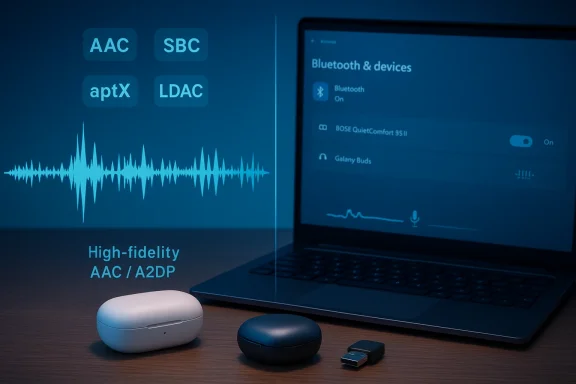 How to connect AirPods to a Windows 10 PC — the verified, step‑by‑step flow
The basic pairing flow is short and consistent across Apple’s documentation and Windows’ Add Device dialog. Follow these numbered steps for a reliable result.- Charge your AirPods and case, and make sure the earbuds are inside the case.
- Open Windows Settings → Devices → Bluetooth & other devices → Add Bluetooth or other device → Bluetooth.
- With the case lid open, press and hold the setup button on the back of the AirPods case until the status LED flashes white (for AirPods 1/2/3 and AirPods Pro 1/2). Newer gestures for AirPods 4 / AirPods Pro 3 may use the front double‑tap — follow Apple’s model‑specific guidance if present.
- Select “AirPods” (or the device name shown) when it appears in Windows. Windows will confirm “Your device is ready to go!” on success.
- Verify audio routing: right‑click the speaker icon → Open Sound settings → choose your AirPods under Output for music or under Input for the mic.
What happens after pairing: two Windows endpoints
Windows commonly exposes two endpoints for a single Bluetooth earbud set:- Stereo / A2DP output — high‑quality, stereo playback for music - Free / HFP (or HSP)** — a mono, low‑bandwidth profile that enables the earbuds’ microphone for calls.
Why AirPods often sound different on Windows (codecs & profiles explained)
If AirPods (or many other earbuds) sound worse on Windows than on an iPhone, two technical causes dominate:- Codec negotiation: A2DP codecs like AAC and SBC determine stereo audio quality. AirPods prefer AAC when paired with Apple hosts. Historically, Windows 10 lacked consistent AAC support across all Bluetooth radios and drivers, forcing a fallback to SBC — a perceptible drop in fidelity when an AAC‑encoded stream is played. Microsoft’s codec support table confirms that AAC support is centered in Windows 11 builds, while Windows 10 primarily offered SBC and aptX variants depending on drivers.
- Profile switching for mic use: Engaging the headset microphone often switches the host to HFP, which provides mono voice quality and much lower playback fidelity. That is why music can go from full, rich stereo to thin, telephony‑quality audio during a VoIP call unless you route the mic differently. Community troubleshooting consistently points to this profile swap as the primary cause of mixed outcomes.
Quick troubleshooting and fixes (ranked by speed and effectiveness)
When AirPods connect but behave poorly on Windows 10, apply this prioritized checklist.- Quick checksfirm Windows is using the AirPods as the Output device: right‑click speaker icon → Sound settings → Output.
- Toggle Bluetooth off/on and power‑cycle the AirPods (place them in the case, close the lid for 10 seconds, reopen).
- Reconnect from Settings → Bluetooth & other devices → select AirPods → Connect.
- Re‑pair and reset (5–10 minutes)
- Remove the AirPods from Windows (Settings → Bluetooth & other devices → Remove device), put AirPods in pairing mode, and re‑pair. If one earbud is silent, perform a full AirPods instructions before re‑pairing.
- Restore music fidelity at the cost of mic (5–15 minutes)
- If call quality isn’t required, disable the Hands‑Free Telephony service for the device so Windows keeps A2DP stereo active:
- Control Panel → Devices and Printers → right‑click the AirPods → Properties → Services → uncheck Hands‑Free Telephony.
- Or open Sound control panel (mmsys.cpl) → Recording tab → disable the AirPods hands‑free microphone.
- These are practical stopgaps when you have a separate mic (USB mic or laptop built‑in mic) for calls.
- Driver and radio fixes (10–30 minutes)
- Update Bluetooth drivers from your PC or chipset vendor (Intel, Qualcomm/Atheros, Broadcom, Realtek). Generic Microsoft drivers often omit codec exposure and LE Audio features.
- Disable Bluetooth adapter power management: Device Manager → Bluetooth adapter → Properties → Power Management → computer to turn off this device to save power.”
- If your internal radio is old, test with a modern USB Bluetooth dongle that advertises AAC or LE Audio support, disable the internal adapter, and re‑pair to the dongle. Community tests often find this reveals better codec sets on older PCs.
- System repair (30–90 minutes)
- Run DISM /Online /Cleanup‑Image /RestoreHealth and then sfc /scannow to repair system files if Bluetooth stacks behave strangely.
- Reboot after updates and driver changes.
When AirPods’ Apple‑only features won’t appear on Windows
Expect the following Apple features to be missing or limited when AirPods are used with Windows:- Automatic device switching
- Siri
- Full spatial audio and personalized spatialization
- Seamless battery level reporting in the OS
- Some ear detection behaviors and Auto‑Pause
How to pair Galaxy Buds to a Windows PC — what’s different
Samsung’s Galaxy Buds family is also Bluetooth‑standard equipment that pairs to Windows. The pairing steps look similar but Samsung has invested in a Windows app that can expose additional controls and firmware updates.- Manual pairing via Windows Settings (Windows 10 or 11) uses the same Add device → Bluetooth flow: put the Galaxy Buds in pairing mode (commonly: close the case for 5–6 seconds then open; or press and hold touchpads if previously paired), then add them in Windows Bluetooth settings.
- Alternatively, Samsung’s official Galaxy Buds app for Windows simplifies connection and exposes firmware updates and extra audio settings on some models. The app is available on the Microsoft Store and can improve the out‑of‑box experience compared with a pure manual Bluetooth pairing.
- If your Buds were previously paired to a phone, the touchpad/manual‑pair method (press and hold both earbuds) is often necessary to discover them on a PC.
- Samsung’s Windows app can reduce driver friction and provide feature parity closer to what Android users see, especially for Samsung phones.
- If the Buds repeatedly fail to connect or drop out, community guidance points to driver updates, installing/uninstalling the Buds app, and full re‑pairs as the most reliable fixes.
AirPods vs Galaxy Buds on a Windows PC — strengths, weaknesses, and a realistic recommendation
- AirPods (pros)
- Reliable basic pairing; good stereo playback when A2DP/AAC negotiates.
- Excellent battery and ergonomics; widely used, clear community documentation for PC fixes.
- AirPods (cons)
- No native Windows app and limited feature parity outside Apple ecosystem.
- AAC support on Windows 10 is conditional and often falls back to SBC; mic behavior can be inconsistent for conferencing apps.
- Galaxy Buds (pros)
- Samsung offers a Windows app that can improve firmware, feature access, and pairing behavior.
- Strong interoperability with non‑Apple devices; pairing instructions included across vendor and third‑party help sites.
- Galaxy Buds (cons)
- App stability and crashes have occurred in some app versions; keep the app updated from Samsung. Driver or app bugs are the most common source of Windows pairing problems.
Risks, limitations, and unverifiable claims
- Claims that “AirPods will always stream AAC on Windows 10” are false as a blanket statement. AAC availability depends on the PC’s Bluetooth chipset, the installed driver, and the Windows build. Treat any assurance of automatic AAC parity as conditional until you test your hardware. ([learn.microsoft.com](Bluetooth Classic Audio - Windows drivers- Statements promising that “upgrading to Windows 11 will fix every headset problem” are optimistic. Windows 11 introduces LE Audio and broader codec support, but benefits require compatible chipsets and updated headset firmware. Not all older PCs will get the hardware support needed to realize those gains.
- Third‑party tools that restore Apple‑like behavior (battery reports, gesture control) exist for Android and Linux, but they are not officially supported and may require rooting or system‑level hacks. Use them only with a csecurity and warranty trade‑offs.
- Windows 10 end of support (Oct 14, 2025) changes the risk profile: patches and driver updates for Windowranteed. Users remaining on Windows 10 must accept higher security and compatibility risk unless they enroll in Extended Security Updates or migrate to Windows 11. Verify your upgrade options before making heavy spending decisions on Bluetooth upgrades.
Practical recommendations — a decision checklist
- For casual streaming and occasional calls
- Pair as usual; if calls work acceptably, no further action needed. Use the quick checklist items above when problems arise.
- For high‑fidelity music from a Windows PC
- Check your Bluetooth adapter’s codec support and consider a modern USB dongle with AAC/LE Audio support. Prefer Windows 11 hosts when possible.
- For reliable teleconferencing and simultaneous stereo
- Use a dedicated external mic (USB microphone or wired headset with separate mic) or use earbuds/headsets that explicitly support wideband HFP and modern codecs on Windows. Consider a platform upgrade if you encounter persistent HFP/A2DP conflicts.
- If you own AirPods but need Windows parity
- Apply driver updates, test with a modern Bluetooth dongle, and use the Hands‑Free Telephony toggle as a temporary workaround. Document the mic settings in your conferencing apps to avoid forced HFP switches during calls.
Conclusion
Yes — AirPods can connect to a Windows 10 PC and Galaxy Buds will pair with Windows machines too — but pairing is only the beginning. Real‑world success depends on the interplay of Bluetooth profiles, codec support, chipset drivers, firmware, and the OS itself. For Windows 10 users especially, be aware that OS end‑of‑support (October 14, 2025) constrains future fixes and feature rollouts, making hardware and driver choices more important. If you rely on a Windows PC for both music fidelity and professional conferencing, the highest‑value investments are a modern Bluetooth radio (or a Windows‑friendly earbud with a vendor app), up‑to‑date drivers, and when feasible, migration to Windows 11 to access the newer codec and LE Audio features. The Born2Invest how‑tos are a useful starting point for pairing, but the deeper, practical troubleshooting and tradeoffs described above will determine whether your earbuds sound like they do on a phone — or fall short on a PC.Source: Born2Invest https://born2invest.com/?b=style-333402212/
Source: Born2Invest https://born2invest.com/?b=style-304231012/
