

Among Us is one of the quickest multiplayer pick‑up games to install and play on Windows, and you can be in a lobby within minutes whether you use Steam or the Microsoft Store — but a few small setup choices and connection tweaks will save time and frustration. This feature walks through verified system requirements, step‑by‑step install methods for Steam and the Microsoft Store, first‑match setup, performance tuning, and the most common connectivity problems with proven fixes. It also explains the community‑mod landscape and crossplay rules so Windows players make smart choices before they jump into their first session.
Among Us launched as a bite‑sized social‑deduction title and has since become a cross‑platform staple, playable on PC, consoles, and mobile. The game’s official developer guidance and storefront entries keep the technical floor intentionally low: 1 GB of RAM and basic integrated graphics are enough to run the game, while a modest modern GPU and 4 GB of RAM are recommended for smoother performance. Those numbers are confirmed both on the developer’s compatibility notes and on the Steam product page, which makes Among Us one of the most accessible multiplayer titles on Windows. At the same time, the game's online nature means short‑term connection problems, region mismatches, or firewall interference can cause disconnects. The advice below combines official documentation with practical troubleshooting steps used by experienced Windows players.
What to try (ordered):
Among Us remains one of the fastest and most reliable social‑deduction experiences you can run on Windows. The core install paths — Steam and the Microsoft Store — offer simple, supported ways to get into matches quickly. Keep your drivers and Windows updated, prefer Ethernet where possible, and use private rooms for modded or coordinated play. When problems arise, the troubleshooting steps above resolve the majority of disconnects and crashes; combine those steps with the official developer guidance for mods and crossplay and you’ll be set for dozens of chaotic, memorable rounds.
Source: Windows Report How to Install and Play Among Us on Windows PC
 Background
Among Us launched as a bite‑sized social‑deduction title and has since become a cross‑platform staple, playable on PC, consoles, and mobile. The game’s official developer guidance and storefront entries keep the technical floor intentionally low: 1 GB of RAM and basic integrated graphics are enough to run the game, while a modest modern GPU and 4 GB of RAM are recommended for smoother performance. Those numbers are confirmed both on the developer’s compatibility notes and on the Steam product page, which makes Among Us one of the most accessible multiplayer titles on Windows. At the same time, the game's online nature means short‑term connection problems, region mismatches, or firewall interference can cause disconnects. The advice below combines official documentation with practical troubleshooting steps used by experienced Windows players.Overview: What you need before you install
Minimum and recommended hardware (verified)
- Minimum (playable): Windows 10, Intel i3‑4330 (or equivalent), 1 GB RAM, Intel HD Graphics 4600. This is the technical minimum the developer lists to keep the game widely playable.
- Recommended (smoother experience): Windows 10/11 64‑bit, Intel i3‑4330 (or equivalent), 4 GB RAM, Nvidia GTX 650 or equivalent. Expect more consistent framerates and snappier UI with the recommended spec.
Which storefront should you pick?
- Steam is the most common route for Windows players; it offers automatic updates, the Steam overlay, and easy friend management. The Steam product page confirms the same compatibility guidance as the developer.
- Microsoft Store is also supported and can be a convenient option if you prefer a Store‑managed install and automatic app servicing. Because Store availability and linking behaviors can vary by region or account, treat the Microsoft Store option as equivalent but not identical to Steam. If you want the simplest path to updates and community features, Steam is the default choice.
Install Among Us on Windows using Steam (recommended for most players)
- Install and sign into Steam
- If you don’t have Steam, download and install the Steam client, then sign in with your Steam account.
- Purchase / find Among Us
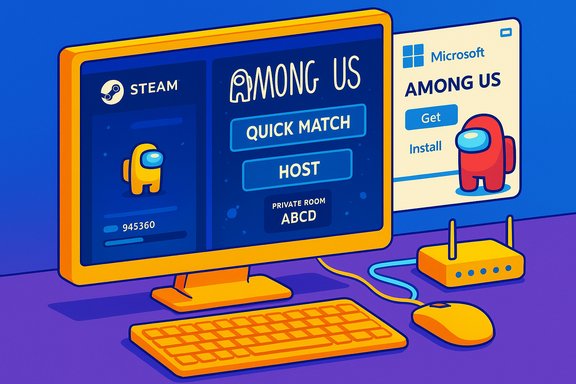
- Search the Steam Store for “Among Us” (app ID 945360). Click Buy or Install if it’s already in your library. The Steam listing confirms system requirements and the small download footprint.
- Choose install location and begin download
- Pick your preferred drive (SSD recommended), then let Steam download and install the game.
- Launch and link accounts (optional)
- Run Among Us from your Library. You can optionally link platforms via the in‑game account features when available; linking flows have changed in the past, so if linking is temporarily disabled, check the developer’s support pages for updates.
- If something goes wrong
- Use Steam’s “Verify integrity of game files” (right‑click the game → Properties → Local Files → Verify integrity) to repair corrupted or missing files.
Install Among Us on Windows using the Microsoft Store (launcher‑free)
- Open Microsoft Store on your PC
- Search for “Among Us.”
- Click Get / Install
- The Store will handle download and installation and register the app with your Microsoft account.
- Launch from Start or the Store page
- Play directly without a third‑party launcher. This is convenient for players who prefer closed, OS‑integrated apps.
First match: setting up an online game quickly
- Launch Among Us and select Online from the main menu.
- Pick Quick Match to join a public lobby, or choose Find Game → Public to browse lobbies.
- To host a private game:
- Select Host → Choose Map → Configure rules (player count, tasks, impostors) → Create. Share the private room code with friends.
- Customize your character in the in‑game laptop menu (color, hat, skin, pet).
- Voice chat and cross‑platform play:
- Text chat is built into the game. For voice chat, players commonly use Discord or other third‑party apps.
- Among Us supports crossplay between PC, consoles, and mobile — players on different platforms can join the same lobbies so long as everyone uses the same server region. This is confirmed in developer help documentation.
Performance tuning: make Among Us run smoother on older machines
Among Us is intentionally light, but these quick changes improve stability and responsiveness on older Windows PCs.- In‑game settings:
- Lower resolution if you experience stutter.
- Turn off VSync to reduce input lag on low‑frame rigs.
- Cap framerate if your GPU overheats.
- Windows-side:
- Close background applications (especially web browsers and streaming tools) before you launch.
- Use Windows Graphics settings to force the discrete GPU for Among Us if your machine mixes integrated and discrete graphics. (System → Display → Graphics settings).
- Network:
- Use Ethernet instead of Wi‑Fi for more stable multiplayer sessions.
- Restart your router before important sessions to clear stale routes and reduce packet loss.
Troubleshooting: common problems and verified fixes
Below are the most common issues Windows players encounter — and how to fix them, using step‑by‑step actions recommended by experienced troubleshooting guides.“You disconnected from the server” or random disconnects
Symptoms: unexpected removal from a lobby with a “disconnected” message or “Reliable packet not ack’d” style errors.What to try (ordered):
- Restart your router and PC — this resolves transient routing and NAT issues.
- Switch to a wired Ethernet connection if possible; Wi‑Fi dropouts are the leading cause of mid‑match disconnects.
- Change in‑game server region to one geographically closer or less congested.
- Change DNS to a reliable public resolver (Cloudflare 1.1.1.1 or Google 8.8.8.8) to improve routing.
- Verify game files via Steam or reinstall if files are corrupted.
- Allow Among Us through your firewall/antivirus; add the executable to exceptions.
Game fails to open or crashes on startup
- Make sure graphics drivers and Windows updates are current.
- Run the game as Administrator once to confirm permissions.
- Use Steam’s file verification and restart the PC if necessary.
- If using the Microsoft Store version, try the Store app’s Repair/Reset option.
Mods and private servers: what’s allowed and what to watch for
The Among Us community creates mods that add roles, UI features, and customizations. The developer explicitly encourages creativity but publishes a clear Mod Policy: mods are permitted so long as they do not monetize core gameplay in ways that frustrate players, do not claim to be official, and do not distribute unauthorized copies of the game. Importantly:- Using mods in public lobbies is unreliable — modded games aren’t visible in public search and require invites to private rooms.
- Mods that disrupt other players (cheats, griefing) may lead to moderation action. The developer notes that players may be banned if mods are used to disrupt other players.
- Use mods only in private games with friends who run the same mod pack.
- Prefer mods hosted on reputable platforms (GitHub, itch.io) and verify checksums where provided.
- Back up your game files before installing mods; updates can break mod compatibility.
Crossplay rules and account linking (clear, current guidance)
Among Us supports crossplay between PC, consoles, and mobile — developers confirmed cross‑platform multiplayer in their help center. Crossplay works when players use the same server region and compatible versions of the game. For certain cosmetics and cross‑platform features, you may need to link accounts or claim promotional content through a given platform’s store account; linking flows have been updated over time and may be temporarily disabled during some updates, so check the developer’s help pages if account linking behaves differently.Security and source integrity: always use official channels
- Download from Steam or the Microsoft Store (or other official publishers) and avoid third‑party aggregator installers that use wrapper downloaders.
- Create a restore point or system image if you’re installing on a production machine and you’re uncertain about an installer.
- Scan any downloaded executables with modern antivirus before executing, and prefer store installs for their sandboxing and automatic updates. Community guidance and WindowsForum best practices highlight platform clients as the safest method to obtain and update games.
Quick reference: Step‑by‑step checklists
Steam install (fast)
- Install Steam, sign in.
- Search “Among Us,” click Buy / Install.
- Pick install drive, click Next.
- Launch from Steam Library.
- If issues: Properties → Local Files → Verify integrity.
Microsoft Store install (launcher‑free)
- Open Microsoft Store, search "Among Us."
- Click Get / Install.
- Launch from Start menu or Store page.
- If the Store fails to install, use Apps & features → Repair/Reset.
First match in under 2 minutes
- Launch Among Us → Online.
- Quick Match (public) or Host → Create Private Room (invite friends).
- Set server region if matchmaking is slow.
- Use Discord or in‑game text chat to coordinate.
FAQs (concise, authoritative)
- How can I play Among Us for free on Windows?
- Occasionally the Microsoft Store or subscription services run promotions. Otherwise, Among Us is a paid title on Steam. Always verify current offers on the storefronts you use.
- Does Among Us support crossplay on Windows?
- Yes: PC players can join with players on consoles and mobile as long as everyone shares a server region and uses a compatible build.
- Why do I keep disconnecting?
- Typical causes are unstable Wi‑Fi, congested servers/region issues, or firewall/antivirus interference. Follow the network troubleshooting checklist above.
- Can I use mods for Among Us on Windows?
- Mods are permitted but recommended only in private games with players running the same mods; the developer’s mod policy explains allowed and prohibited behaviors. Avoid mods in public lobbies.
Risks, strengths, and final verdict
Strengths:- Low hardware requirements make Among Us accessible on most Windows machines; official documentation and Steam agree on the modest spec list.
- Crossplay between platforms keeps lobbies populated and makes it easy to play with friends regardless of device.
- Active mod community enables creativity for private games while the developer maintains sensible boundaries via a published mod policy.
- Public lobbies may expose you to version mismatches (modded vs unmodded) and connection instability; private lobbies are the safer option for modded sessions.
- Network issues (Wi‑Fi, NAT, ISP routing) are still the most common source of mid‑match disconnects. The fixes outlined above resolve most cases, but persistent problems may need deeper network diagnostics.
- Use only official storefronts to avoid repackaged installers or bundled third‑party software; WindowsForum‑style installation checklists recommend official platforms for signed builds and automatic updates.
Among Us remains one of the fastest and most reliable social‑deduction experiences you can run on Windows. The core install paths — Steam and the Microsoft Store — offer simple, supported ways to get into matches quickly. Keep your drivers and Windows updated, prefer Ethernet where possible, and use private rooms for modded or coordinated play. When problems arise, the troubleshooting steps above resolve the majority of disconnects and crashes; combine those steps with the official developer guidance for mods and crossplay and you’ll be set for dozens of chaotic, memorable rounds.
Source: Windows Report How to Install and Play Among Us on Windows PC
