

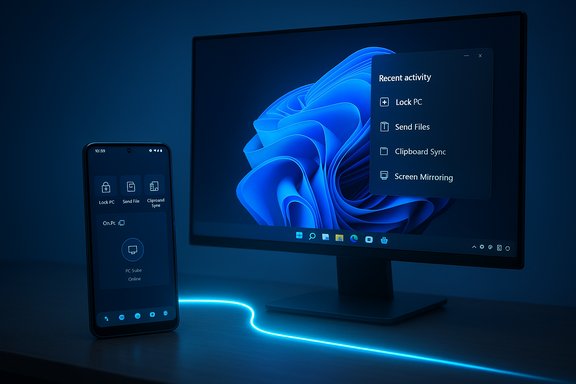
Microsoft’s Link to Windows has quietly crossed a milestone: an Android handset can now do more than mirror notifications or surface recent photos — it can remotely lock a Windows 11 PC, move files in both directions, sync clipboard content including images, and show live PC status on your phone. That bundle of capabilities, rolling out from beta to a wider release in December 2025, tightens Android–Windows continuity in ways that make direct comparisons to Apple’s Mac–iPhone ecosystem inevitable. Early previews came through the Windows Insider channel and Microsoft’s support pages, and consumer reporting from outlets that covered the December rollout confirms the features are now available to many users who update both Phone Link (on Windows) and Link to Windows (on Android).
For typical users and small business owners, the new Link to Windows features represent a meaningful step toward seamless cross‑device workflows between Android and Windows. For enterprises and security‑minded users, the features are promising but warrant careful policy control, strong account protections, and a cautious assumption about where data might be relayed. As Microsoft continues to iterate, the next milestones to watch are a secure remote unlock, clearer architecture publications from Microsoft, and broader parity across OEMs. In the meantime, users who rely on copy‑paste, quick file moves, and occasional remote locking will find Link to Windows—when configured carefully—to be a valuable addition to the Windows 11 productivity toolkit.
Source: 247news.com.pk https://247news.com.pk/?amp=1&p=24361
 Background / Overview
The evolution of Phone Link and Link to Windows
Microsoft’s cross‑device work began with Your Phone and Your Phone Companion, rebranded in recent years as Phone Link (PC) and Link to Windows (Android). The objective has been steady: bring phone content and controls into Windows while maintaining security and user control. Microsoft’s official documentation lays out system requirements and the pairing model — the same Microsoft account on both devices, Android 7.0+ on phones in most cases, and a modern Windows build on the PC. The company has explicitly framed Link to Windows as a “connected PC experience hub” where recent activity, clipboard items, and remote actions are surfaced for quick use.From beta to staged public rollout
These new capabilities were visible in Insider preview builds during mid‑2025 and were previewed on the Windows Insider blog in July. Microsoft used the Insider channel to gather feedback while iterating on onboarding and privacy controls; the more broadly observed rollout candidates and stable updates began appearing in December 2025. Independent reporting and hands‑on coverage show the features arriving in Link to Windows app versions that started landing in early December, with updates to Phone Link around the same time to enable the PC side of the experience.What’s new — an itemized look at the headline features
Below is a feature‑by‑feature breakdown of the most important additions and how they behave in practice.1) Remote Lock: lock your PC from your phone
- What it does: A “Lock PC” button in Link to Windows lets an Android user lock a paired Windows 11 PC remotely. The action locks the PC session and severs the Phone Link connection until the user signs back in locally. It is a manual, immediate way to secure a workstation when you step away unexpectedly.
- What it doesn’t do: The update introduces locking but not remote unlocking. Apple users can unlock certain Macs with an Apple Watch; Microsoft’s Link to Windows does not (yet) offer a phone‑based remote unlock equivalent. That asymmetry matters for workflows where unlocking without typing a password is important.
2) Bidirectional file transfer
- What it does: Previously, Phone Link primarily facilitated moving files from PC to phone; the refreshed Link to Windows adds phone → PC transfers as a first‑class action. A “Send files” control on Android lets you pick images, documents, or other items and push them to the paired PC.
- UX notes: The Recent Activity panel collects recent transfers for easy retrieval, and drag‑and‑drop remains supported on the PC side where Phone Link exposes phone photos and storage. Early testers report the transfer is fast on local Wi‑Fi and can fall back to relay services when devices aren’t on the same network.
3) Expanded clipboard syncing (text and images)
- What it does: Clipboard sync is no longer limited to tiny text snippets. The updated Link to Windows surface exposes clipboard history and shared clipboard items, including images and screenshots, so you can copy on a PC and paste on your phone — and vice versa in many scenarios. Microsoft has surfaced clipboard items in the Recent Activity hub for quick reuse.
- Implementation nuance: Insider testing and hands‑on reporting indicate the feature can act as a system‑level push (making PC clips appear in the Android system clipboard or keyboard suggestion area) or leverage cloud‑backed keyboard sync (the SwiftKey model). Microsoft has not published a full technical whitepaper on the exact plumbing for every OEM and keyboard combination, so behavior may vary across devices and keyboards. Treat some low‑level details as probable rather than exhaustively verified until Microsoft publishes full technical notes.
4) One‑tap phone screen mirroring
- What it does: A single button begins screen mirroring of the Android handset to the Windows desktop. The stream is presented as a pixel feed on the PC, enabling presentations, app demonstrations, or remote app usage without plugging in a cable. Microsoft previously offered this in various forms, but the updated UI makes it a one‑tap, discoverable control.
5) Recent Activity panel and PC‑at‑a‑glance
- What it does: A Recent Activity hub shows files, links, and clipboard items shared between devices, centralizing cross‑device context. A PC at a glance section surfaces live system information such as laptop battery percentage and Wi‑Fi signal strength on the phone, refreshed periodically to give you quick status without returning to the laptop.
How to get these features (practical setup steps)
- Update Phone Link on Windows to the latest version; ensure Windows itself is at the level recommended by Microsoft (Windows 10 May 2019 Update or newer, with Windows 11 preferred for full functionality).
- On Android, update or install the Link to Windows app from the Google Play Store (preinstalled on many Samsung, HONOR, and other OEM phones). Opt into the Link to Windows Beta if you’re a Windows Insider and want early access.
- Sign in to the same Microsoft account on both devices, grant the required permissions on Android (notifications, storage, clipboard/calendar/contacts as asked), and scan the pairing QR code from aka.ms/linkphone if starting from the phone.
- In Windows, go to Settings > Bluetooth & devices > Mobile devices (or Phone Link settings) to manage cross‑device toggles such as “Access PC’s clipboard” or “Remote PC controls.” Some features will only appear after the companion app versions match and the device is listed as connected.
How this stacks up against Apple’s Continuity
A common headline framing is that Microsoft is “narrowing the gap” with Apple’s Mac–iPhone continuity. That claim needs granular unpacking.Where Microsoft is catching up
- Universal clipboard parity: Microsoft’s expanded clipboard and cross‑device copy/paste bring parity in function to Apple’s Universal Clipboard, which has long supported text and images across Apple devices signed into the same iCloud account. Microsoft’s implementation now provides similar practical outcomes for Windows↔Android workflows.
- Quick mirroring and file sharing: One‑tap mirroring and improved bidirectional file transfers approach the convenience of Apple’s AirPlay (mirroring/streaming) and AirDrop (fast local file transfer) in day‑to‑day usage — especially when both devices are on the same local network.
Where Apple still leads
- Seamless unlock and authentication: Apple supports Auto Unlock for Macs using an Apple Watch, allowing automatic, proximity‑based unlock and password approval without explicitly typing a password. Microsoft’s Link to Windows adds remote lock but does not yet offer an equivalent phone‑based unlock flow. That remains a major difference in convenience and security posture.
- Tighter hardware‑software integration: Apple controls the full stack — silicon, OS, and apps — which enables continuity features that can rely on secure enclave behaviors, proximity handshakes, and device‑level trust without a cloud account in every step. Microsoft’s model instead stitches together Windows, OEM Android variants, and Microsoft account services, which can produce fragmentation and vendor‑dependent behavior.
Strengths: what Microsoft gets right with this update
- Practical, productivity‑first features: The Recent Activity panel, bidirectional file transfer, and clipboard history are targeted at everyday friction points (moving screenshots, copying code, sharing links) and deliver real time savings when they work reliably.
- Cross‑OEM strategy: By shipping Link to Windows through the Play Store and preinstalling on select OEM devices (Samsung, HONOR, OPPO, etc., Microsoft broadens reach beyond a single phone vendor. That increases the odds users can replicate an Apple‑like experience without switching handset brands.
- Incremental, test‑driven rollout: Using Insider previews to trial these features allowed Microsoft to shape onboarding and permission flows before wider release, which reduces user confusion and helps surface sensitive privacy scenarios during testing.
Risks, limitations, and privacy considerations
- Fragmentation and OEM exclusivity: Some advanced Phone Link functionality remains more capable on certain OEMs — Samsung historically receives deeper integrations — meaning users with different phones may see uneven behavior. That creates a multi‑tier experience rather than a single coherent standard.
- Security and privacy surface expansion: Adding clipboard transfer, remote lock, and file relay increases the attack surface. Clipboard items can contain sensitive credentials or PII. Microsoft’s current documentation explains what data is temporarily stored and clarifies that some features rely on account‑linked relays, but the exact transit and storage guarantees (for example, whether every transfer is end‑to‑end encrypted or relayed through Microsoft servers in some flows) are not exhaustively documented in a single public whitepaper yet. That means high‑sensitivity users should exercise additional caution until Microsoft provides detailed architecture notes.
- No remote unlock yet: The lack of a secure, phone‑to‑PC remote unlock keeps Microsoft behind Apple in convenience for some scenarios. Users who want true hands‑free unlocking still need alternatives (biometric login on the PC, PIN, or third‑party solutions).
- Dependence on Microsoft account and cloud services: Most of the convenience requires signing into a Microsoft account across devices. That creates a single point where account compromise could magnify risk; users should enable strong account protections (2FA, passkeys) and admins should consider enterprise policies for devices.
- Enterprise and compliance concerns: In managed environments, administrators may need to restrict Link to Windows features — particularly clipboard sync and file relay — to maintain compliance with data handling policies. Microsoft’s documentation calls out Office/Enterprise scenarios where admins must opt in to optional connected experiences for Office photo insertion, for example.
Recommendations for users and IT admins
- For personal users:
- Enable two‑factor authentication on your Microsoft account before pairing devices.
- Limit clipboard syncing when working with sensitive material; disable “Access PC’s clipboard” if you don’t need it.
- Keep the Link to Windows app updated and monitor the Recent Activity panel for unexpected transfers.
- For IT administrators:
- Review corporate MDM/Intune policies to determine whether Link to Windows should be allowed on managed endpoints.
- Consider blocking or restricting cross‑device clipboard and file relay features where regulated or sensitive data is involved.
- Require strong authentication (passkeys or multi‑factor authentication) for Microsoft accounts that access corporate devices.
Technical unknowns and unverifiable claims to watch
- Microsoft’s public materials and hands‑on reviews confirm feature behavior (lock, transfer, clipboard items), but low‑level architecture details — such as exact encryption modes, whether every transfer uses peer‑to‑peer LAN paths by default, or when cloud relays are used — are not fully documented in a single technical whitepaper. Until Microsoft publishes exhaustive technical guidance, some assertions about how data moves should be considered plausible inference rather than fully verifiable fact. Users with high security requirements should assume conservative defaults (that a relay could be involved) and plan accordingly.
The practical impact: what this means for everyday users
- Small wins add up: Being able to grab a screenshot on a phone and paste it into a desktop document, or lock a workstation from across the room or the office lobby, reduces friction in common workflows.
- Choice matters: Users who choose Android and Windows no longer sacrifice many convenience features compared with the Apple continuity model; in many day‑to‑day tasks, the experience is now comparable.
- Tradeoffs remain: That parity comes with tradeoffs — more configuration, account management, and an awareness that behavior may vary by phone model and keyboard app.
Outlook: where Microsoft could go next
- Remote unlock or trusted proximity unlocking (securely modeled after how Apple uses watch‑based proximity and secure enclaves) would be a natural next step to close the convenience gap. But implementing unlock carries substantial security risk and will require hardware and trust guarantees across a fractured Android landscape.
- A published technical whitepaper explaining end‑to‑end guarantees, relay fallbacks, and retention policies would reassure security‑conscious users and enterprises.
- Broader cross‑platform parity (support for more Android OEMs with consistent behavior) and tighter integration with passkeys and hardware‑backed authentication would push Link to Windows from “useful” to “indispensable” for power users.
Conclusion
Microsoft’s refreshed Link to Windows is more than a UX polish — it stitches together cross‑device clipboard, file transfer, remote control, and status telemetry into a single, discoverable hub on Android phones. These capabilities are rolling out from Insider preview to public availability in stages and are already delivering tangible productivity gains for many users. The update narrows several functional gaps with Apple’s Continuity suite, especially around clipboard and file movement. However, important differences remain — notably Apple’s long‑standing proximity unlock integration and the hardware‑level trust model — and Microsoft’s heterogeneous device landscape produces variable behavior across phones and keyboards.For typical users and small business owners, the new Link to Windows features represent a meaningful step toward seamless cross‑device workflows between Android and Windows. For enterprises and security‑minded users, the features are promising but warrant careful policy control, strong account protections, and a cautious assumption about where data might be relayed. As Microsoft continues to iterate, the next milestones to watch are a secure remote unlock, clearer architecture publications from Microsoft, and broader parity across OEMs. In the meantime, users who rely on copy‑paste, quick file moves, and occasional remote locking will find Link to Windows—when configured carefully—to be a valuable addition to the Windows 11 productivity toolkit.
Source: 247news.com.pk https://247news.com.pk/?amp=1&p=24361
