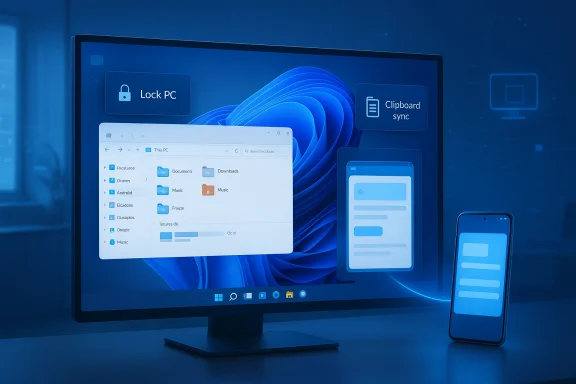
Microsoft’s latest Windows 11 updates tighten the bond between desktop and mobile: Android phones no longer behave like distant companions but increasingly act as remote controls, file lockers, and even streaming hosts for PC workflows. The rollout — anchored in a refreshed Link to Windows experience and complementary Phone Link improvements — brings one‑tap remote locking, bidirectional file transfers, cross‑device clipboard sync, improved screen mirroring and an “expanded” app view that makes Android apps feel less like phone windows and more like usable desktop tools. These changes, visible in staged Insider builds and broader December releases, mark a pragmatic shift in Microsoft’s continuity strategy that blends convenience with new security tradeoffs.
Windows 11 is moving toward a future where devices act as a single, coordinated workspace instead of isolated endpoints. The technical tradeoffs are real, but so are the productivity gains. For users and IT teams willing to thread the compatibility needle, the updated Link to Windows and Phone Link ecosystem already deliver practical benefits today and point toward a much more fluid, device‑agnostic future.
Source: WebProNews Windows 11 Boosts Android Integration for Seamless Productivity
 Background
From Your Phone to Link to Windows: a decade of continuity
Microsoft’s journey toward cross‑device continuity began with the Your Phone initiative and evolved into Phone Link and the Android companion Link to Windows. The original promise was modest: show notifications, view photos, and send messages from PC to phone. Over several iterations Microsoft layered deeper integrations — background app access, richer messaging support, and selective OEM partnerships that unlocked advanced features on Samsung and a few other vendors. The Windows Subsystem for Android (WSA), introduced in 2021, addressed a separate but related goal: run Android apps natively on Windows. Together these paths set the stage for a hybrid model in which phones and PCs share duties rather than one simply emulating the other.Why this matters now
Hybrid work, multi‑device workflows and an expanding remote workforce magnify the value of seamless device transitions. When the phone becomes a secure, immediate control surface for the PC, everyday friction — hunting for a USB cable, emailing yourself photos, or returning to the desk to lock an exposed workstation — is reduced. Microsoft’s strategy is clear: make Windows the central productivity node while leaning on Android’s ubiquity to deliver reach and scale that rival closed ecosystems. The result is a major usability win for power users and enterprise admins — provided the security and compatibility details are well understood.What’s new in practice: feature deep dive
Remote Lock: a practical security shortcut
The headline addition is a manual Lock PC action surfaced in the Link to Windows Android app. Tap the new control and the paired Windows 11 machine locks within seconds; the Phone Link session cuts until the user signs in locally, preventing a lost phone from being used to remotely unlock the device. This is a deliberate one‑way action — convenience for securing a workstation, not a shortcut to bypass authentication. Multiple independent outlets verified the feature rolling into production builds around early December 2025, with the app versions cited in reporting. Key operational notes verified in testing and support threads:- The lock command is sent over the established Link to Windows / Phone Link pairing and does not require Bluetooth proximity or Dynamic Lock to be active.
- Lock is intentionally not paired with any remote unlock capability; re‑establishing the connection requires local sign‑in (PIN, password, or Windows Hello).
- The feature reduces a common security gap (walking away from an unlocked PC) but creates new operational dependencies: a healthy Link to Windows connection and reliable in‑flight signaling. Enterprises should treat remote locking as a convenience, not a replacement for centralized endpoint management or automatic session timeouts. Early community testing also highlights cases where flaky connectivity can produce ambiguous UI states, so IT teams should document fallback procedures.
Bidirectional file sharing and File Explorer integration
Historically, Windows could send files to an Android device via Phone Link; reversing that flow was clumsy. The new round of updates makes phone→PC transfers native and integrates Android devices into File Explorer for Insiders and increasingly for mainstream users. AndroidPolice and other hands‑on reports documented that Windows 11 can now show an Android device in the File Explorer sidebar, enabling browsing, copy/move operations, renaming and deletion — in essence treating the phone like a networked storage object. Practical benefits- Rapid photo import and document handoffs without email, cloud delays or cables.
- A familiar File Explorer UX: drag‑and‑drop, context menus and the ability to work with files as if they were on a connected USB device.
- Large media transfers remain faster and more reliable over USB or LAN shares; wireless convenience is the principal gain. File permissions, OEM firmware and Android versions still affect behavior — Microsoft gates these features by phone model, OS level and Link to Windows companion builds. Early reports emphasize that availability varies by device and region.
Cross‑device clipboard: copy on phone, paste on PC
Clipboard synchronization moves out of the experimental fringes and into an OS‑level feature set for many users. Phones can push text and images to the Windows clipboard (and vice versa), which reduces context switching when moving content into editors, design tools or terminal windows. Microsoft’s own Q&A entries and troubleshooting threads confirm that clipboard sync historically relied on app‑level solutions (like SwiftKey), but Microsoft is shifting toward a native Phone Link implementation to improve reliability and keyboard‑agnostic compatibility. Real‑world caveats- Some users report intermittent sync failures; the behavior can depend on SwiftKey state, OEM clipboard services, and account/region settings. Microsoft’s guidance lists toggles under Phone Link/Link to Windows to enable cross‑device copy/paste and recommends re‑pairing devices when sync breaks. Enterprises should train users to verify the settings and avoid pasting sensitive data unless clipboard persistence and retention policies are understood.
Screen mirroring and the “Expanded” app view
Microsoft has been testing an Expanded mode for Android apps streamed via Phone Link’s Apps feature. Rather than a narrow, phone‑sized tile, Expanded mode stretches the app window to occupy more horizontal desktop space — a usability improvement for messaging, media and productivity apps that support responsive layouts. Windows Latest documented the new toggle and flagged practical limitations: streamed content is still rasterized at phone resolution and scaled up, producing occasional blurriness or letterboxing for portrait‑first apps. Availability is gated by OEM support and the Link to Windows companion. How it works (technical reality)- Phone Link streams framebuffer output from the phone to Windows, forwarding input events back. Expanded mode scales the stream rather than re‑rendering UI elements at native desktop DPI, which explains legibility issues on high‑DPI displays and constraints around maximizing windows. The approach prioritizes low friction and keeps app state on the phone, but it limits fidelity versus running apps locally through WSA.
- For best results: use responsive apps (WhatsApp, some productivity apps), a 5 GHz Wi‑Fi link, and disable aggressive battery‑saving modes on the phone while streaming. Expect uneven results with apps designed strictly for portrait phones.
Windows Subsystem for Android (WSA) vs. Phone Link streaming
The two models coexist and serve different use cases:- WSA (local runtime): runs Android apps on the PC itself, yielding crisp rendering, native windows and better background behavior but requiring app availability in WSA or explicit sideloading.
- Phone Link (streamed runtime): keeps the phone as the runtime host, preserving session state and credentials while making the phone an I/O surface; it’s lower friction but subject to streaming artifacts and OEM gating. Users should choose based on fidelity needs, app availability and privacy requirements.
AI integration and productivity ergonomics
Copilot and predictive workflow hints
Microsoft is folding Copilot‑style intelligence into Windows at multiple levels: Settings, Click to Do and content actions. Insider notes show Phone Link receiving smarter contextual suggestions — for example, recommending contacts or suggesting when to share recent files — and Windows builds have added AI prompts that can suggest actions in the OS’s “Open with…” dialogs or Copilot‑driven summaries of shared content. These moves position Link to Windows as not just a conduit but as a context engine that anticipates what the user wants to send or sync next. Microsoft’s Insider posts and mainstream reporting confirm early tests of those features. Practical examples- Automatic suggestions for file sharing recipients based on recent activity.
- AI‑driven summarization of documents or images shared across devices before sending to a colleague.
- Copilot prompts in Click to Do that help recompose snippets gathered from phone content into documents on the PC.
- AI suggestions require telemetry and behavioral signals; privacy‑sensitive environments must evaluate telemetry policy and on‑device processing options. Where explicit enterprise compliance rules exist, admins should audit the feature set before broad deployment. Some AI features are region‑gated or limited to Copilot+ PC configurations.
Deployment, compatibility and enterprise considerations
Rollout model and device gating
Microsoft uses staged Insider channels before broad releases. Many of the newer Link to Windows capabilities first matured in Dev/Beta rings and then widened to Release Preview and production updates in December 2025. Availability still depends on:- Link to Windows companion app versions on Android; particular capabilities require specific APK builds.
- OEM integrations — Samsung and a handful of vendors continue to enjoy deeper, preinstalled support.
- Windows build and the Phone Link app version on the PC.
Enterprise security posture
IT teams should assess the feature set against corporate policies:- Remote Lock is useful, but corporate endpoint management must remain the canonical enforcement method for remote wipe, full disk encryption and session control. Relying on a phone‑initiated lock as a primary defense is precarious.
- Clipboard sync and file transfers introduce new leakage vectors; DLP controls should be validated to ensure cross‑device copying and transfer comply with organizational restrictions. Microsoft documentation and community troubleshooting note region and account restrictions for clipboard features, so test in controlled environments before mass enablement.
Real‑world usability: early adopter takeaways
- Power users will love the convenience: quick photo imports, instant paste across devices and the ability to lock a forgotten desktop from the phone are tangible, repeatable wins. Community threads show broad enthusiasm for remote lock and file flows.
- Expect fragmentation: not every Android phone will deliver the same experience. Samsung devices often lead with the most polished behavior; other OEMs are catching up but can require beta Link to Windows builds or firmware updates.
- Performance matters: streaming apps in Expanded mode is useful for short interactions but remains suboptimal for long creative sessions due to scaling artifacts and battery drain on the phone. Where pixel fidelity is required, WSA or native desktop ports still win.
How to get started: practical checklist
- Update Windows 11 and Phone Link app on your PC to the latest public or Insider build appropriate for your tolerance of risk.
- Install or update Link to Windows on your Android device from Google Play and check the companion app version against published requirements.
- Pair devices using Phone Link’s setup flow: Settings > Bluetooth & devices > Mobile devices > Manage devices. Accept permissions on the phone when prompted.
- Enable features you want (Clipboard sync, Show phone in File Explorer, Remote PC Controls) from Phone Link or Link to Windows settings. Verify DLP and enterprise policies first if you use a corporate account.
- If you plan to stream apps, optimize your Wi‑Fi and disable aggressive battery saving on the phone for sustained sessions. Prefer a 5 GHz network and keep the phone proximate to the router.
Strengths, risks and what to watch next
Strengths
- Productivity uplift: Reduced friction for common tasks (file movement, copy/paste, quick checks) directly aligns with the needs of hybrid professionals.
- Market reach: By embracing Android broadly rather than focusing solely on OEM partners, Microsoft targets the world’s dominant mobile platform and differentiates Windows continuity from Apple’s locked ecosystem.
- Incremental, pragmatic design: Streaming app UIs keeps data and credentials on the phone while exposing just the control surface to Windows, which simplifies engineering and reduces attack surface compared with full remote execution.
Risks and unresolved issues
- Fragmentation and gating: OEM dependence means inconsistent user experience. Not every Android phone will see the same features at the same time.
- Reliability of cross‑device features: Clipboard sync and file transfer have known intermittent failure modes tied to SwiftKey, OEM clipboard services, and account/region settings; Microsoft‑sanctioned workarounds exist but require troubleshooting.
- Enterprise policy friction: Clipboard and wireless file transfers can conflict with DLP and regulatory rules if not explicitly managed. Admins should proactively test and document governance.
Watchlist — what to expect next
- Tighter AI integrations (smarter file suggestions, contextual Copilot actions) and broader Start menu/device pairing are already rolling through Insiders and are likely to expand. Microsoft is experimenting with Copilot links into Click to Do and Settings that will further blur the line between proactive assistant and OS control plane.
- Expanded mode refinements: expect better scaling, improved DPI handling and fewer letterboxing artifacts as Microsoft and OEMs optimize streamed app rendering. Community reporting and Insider logs indicate this is a work in progress rather than finished.
- Potential enterprise integrations: expect Microsoft Endpoint Manager guidance and policy controls to surface as adoption climbs and admins demand centralized controls for cross‑device features.
Verdict: pragmatic integration with guarded optimism
Windows 11’s Android overhaul is the most consequential continuity push Microsoft has shipped since Phone Link’s renaming and WSA’s arrival. The combination of remote lock, native file access in File Explorer, clipboard sync, screen casting and expanded app streaming materially reduces day‑to‑day friction for users who constantly cross the mobile/desktop divide. Multiple mainstream outlets and hands‑on community reporting confirm the features and their staged rollouts; insiders and Beta users are already seeing the benefits in the field. That said, the experience remains a mosaic: device compatibility, streaming artifacts and intermittent sync problems mean the integration is powerful for many but uneven for others. Organizations should evaluate the new features against security policies and user support models, while consumers should temper expectations around fidelity (particularly for the Expanded streaming mode) and regional/OS variation. Microsoft’s incremental, measurements‑first approach — testing in Insider rings, iterating with OEM partners, and surfacing Copilot hints — argues for steady improvement rather than a sudden, flawless transformation.Windows 11 is moving toward a future where devices act as a single, coordinated workspace instead of isolated endpoints. The technical tradeoffs are real, but so are the productivity gains. For users and IT teams willing to thread the compatibility needle, the updated Link to Windows and Phone Link ecosystem already deliver practical benefits today and point toward a much more fluid, device‑agnostic future.
Source: WebProNews Windows 11 Boosts Android Integration for Seamless Productivity