

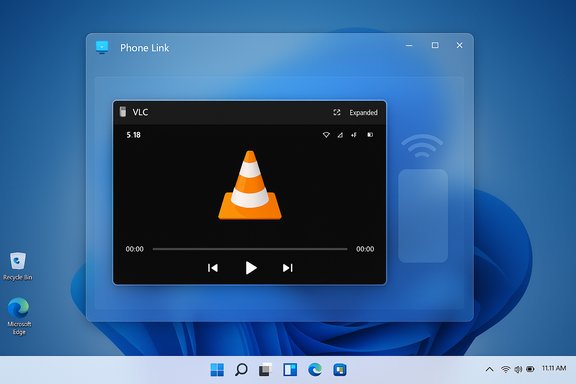
Microsoft’s Phone Link is testing a practical — if imperfect — way to make Android apps feel less like tiny islands on a Windows 11 desktop: an Expanded view option that stretches streamed apps beyond the cramped, phone-sized window they’ve been trapped in for years. The feature appears in the Phone Link dev preview (app version 1.25112.33.0) and introduces a small icon beside the window controls that widens the app container so it uses more of your monitor. Early hands-on reports show meaningful improvements for apps that already support larger layouts, while also exposing the hard limits of streaming a phone UI to a big-screen desktop.
Phone Link (and its mobile counterpart, Link to Windows) has evolved from a simple notifications-and-messaging bridge into Microsoft’s primary cross-device play for integrating Android phones with Windows PCs. The “Apps” streaming capability lets a linked Android device render its app UI inside a Phone Link window on the PC over Wi‑Fi, effectively mirroring the app but allowing desktop input and windowed access. Until now, that experience has been dominated by a narrow portrait rectangle that faithfully mimics a typical smartphone screen — useful for direct mirroring but awkward on wider monitors. Microsoft’s new Expanded view is an incremental fix: it doesn’t rewrite how an Android app is rendered, but it gives the Phone Link client more control over the app’s container size so the streamed content can occupy more desktop real estate. The goal is straightforward — make Android apps feel more natural on laptop and monitor screens without forcing users into rotation, third‑party emulators, or full phone-screen mirroring. Early testing suggests the idea is sound even if the implementation needs polish.
Conclusion: Phone Link’s Expanded view is less a revolutionary replatforming than a practical bandage — one that moves the needle on day‑to‑day usability for many users. It lowers the activation energy for using certain Android apps on a Windows workstation and signals Microsoft’s intent to keep iterating on cross‑device workflows. The most important next steps will be tighter integration between the Phone Link client and Android rendering surfaces, clearer developer guidance for large‑screen UI, and enterprise-minded controls for data movement. If Microsoft pursues those technical and ecosystem changes, the experience could graduate from “slightly better” to genuinely seamless.
Source: Digital Trends Running Android apps on your Windows 11 PC is about to feel slightly better
 Background / Overview
Phone Link (and its mobile counterpart, Link to Windows) has evolved from a simple notifications-and-messaging bridge into Microsoft’s primary cross-device play for integrating Android phones with Windows PCs. The “Apps” streaming capability lets a linked Android device render its app UI inside a Phone Link window on the PC over Wi‑Fi, effectively mirroring the app but allowing desktop input and windowed access. Until now, that experience has been dominated by a narrow portrait rectangle that faithfully mimics a typical smartphone screen — useful for direct mirroring but awkward on wider monitors. Microsoft’s new Expanded view is an incremental fix: it doesn’t rewrite how an Android app is rendered, but it gives the Phone Link client more control over the app’s container size so the streamed content can occupy more desktop real estate. The goal is straightforward — make Android apps feel more natural on laptop and monitor screens without forcing users into rotation, third‑party emulators, or full phone-screen mirroring. Early testing suggests the idea is sound even if the implementation needs polish. What “Expanded view” actually does
The visible change
- A small Expanded icon now lives next to the minimize and close buttons in the Phone Link app window.
- Clicking the icon enlarges the app container beyond the original narrow portrait ratio, allowing apps to take up a larger portion of the desktop.
- The feature first surfaced in Phone Link dev builds and has been observed in version 1.25112.33.0 on Windows Insider/dev-channel machines.
Practical effects
- Apps that already include tablet or landscape-friendly layouts (for example, VLC or Amazon’s shopping app) scale cleanly and can fill the expanded window much better than before.
- Apps designed strictly for portrait use (Uber is a common example cited in hands-on reports) may gain width but still show large black margins or snap into a centered, phone-style viewport inside the expanded frame.
- Expanded view does not change app DPI or increase the font rendering resolution; stretched text can appear slightly blurry, and the window cannot (in current testing) be maximized to full-screen. The expanded window may default to snapping to one side of the desktop.
Why this matters — and why it’s constrained
Android app layout model vs desktop windows
Android apps lay out their UI using device-reported metrics (screen size, orientation, density). When Phone Link streams an app, it presents a virtual phone screen to the app — which means many apps continue to behave as if they’re on a phone, not a desktop. Expanding the container can make a tablet-friendly app reflow into a more usable layout, but it cannot magically convert a strictly phone-centric app into a responsive desktop app. This fundamental mismatch explains black bars, fixed portrait canvases, and blurring when bitmap assets or rasterized text are stretched.Rendering and DPI limitations
Phone Link’s streaming currently appears to scale the rendered Android framebuffer to fill the enlarged container instead of negotiating a higher-resolution surface or switching to vector-friendly UI assets. That means:- Fonts and bitmap UI elements may scale up and become fuzzy rather than rendering crisply at a higher DPI.
- Apps that provide alternate layouts for “large screens” will take better advantage of the added surface. Apps without such layouts will look like an upscaled phone UI with empty space around it.
Device and vendor support remains selective
The Phone Link “Apps” feature is not universally available on all Android phones. Microsoft publishes a list of supported devices and brands; in practice, Samsung, HONOR, OPPO, ASUS, vivo, and Xiaomi devices frequently appear on the compatibility lists and in reports of successful use. That selective support is a gating factor for how broadly Expanded view will be useful.Real-world examples and behavior
Apps that improve noticeably
- VLC: A media app with a flexible UI that can make good use of extra width; in testing VLC scaled to fill the available space smoothly. Expanded view delivers a tangible usability gain for playback controls and file browsing.
- Amazon: Retail apps that include multi-column or tablet-friendly layouts scale well and improve browsing and search productivity on larger screens.
- WhatsApp: The Android client has seen tablet-style updates and responds better to expanded space, with message lists and conversation panes feeling more natural on a desktop.
Apps that still look wrong
- Uber: Frequently cited as a portrait-only app, Uber’s UI remains centered inside the expanded container with thick black bars left and right, because the app doesn’t offer a landscape or large-screen layout to repurpose the space. Text and assets may look blurred if scaled.
Compatibility and rollout status
- Expanded view is currently observed in preview/dev-channel builds of Phone Link, not yet as a broadly available Store release. Early reports indicate version 1.25112.33.0 as the build that shipped the toggle in testing environments. This means users on mainstream Windows 11 releases may not see the change until Microsoft moves it out of preview.
- Phone Link’s Apps feature itself requires a supported Android device and a recent version of the Link to Windows app on the phone; Microsoft’s official documentation lists supported brands and many recent flagship models as compatible. Administrators and end users should consult the Phone Link support pages and ensure both phone and PC meet the connectivity and software prerequisites.
How it compares to alternatives
Phone Link isn’t the only way to run Android apps on or from a PC. Knowing the landscape helps frame what Expanded view delivers and what it can’t.- Windows Subsystem for Android (WSA) + Amazon Appstore: Until its deprecation, WSA ran Android apps natively on Windows as a subsystem rather than via streaming, allowing better integration and native windowing. Microsoft announced WSA’s end-of-support timeline; the Amazon Appstore and WSA availability on Windows 11 were removed from the Store and support ended as part of Microsoft’s roadmap changes. For users who relied on WSA, Phone Link has become the primary Microsoft-supported cross-device option.
- Samsung DeX and vendor desktop modes: Samsung’s DeX provided a desktop-like experience from certain Galaxy phones. Recent vendor moves have emphasized shifting to Link to Windows / Phone Link integration for cross-device scenarios, making Phone Link a more universal single-client option for those ecosystems. DeX-style experiences remain the most desktop-native when supported by the phone.
- Emulators (BlueStacks, Nox, LDPlayer): These third-party tools run Android in a VM or emulation layer on the PC and can deliver app performance and DPI handling optimized for desktop monitors. The trade-offs are resource overhead, complexity, and licensing/compatibility for some app store content. Emulators remain the best option when you need a native large-screen Android environment on a PC without depending on your phone.
- Screen mirroring (Open Phone Screen): Rotating your phone and using full-screen mirroring in Phone Link is a workaround to get landscape layouts when the app supports it — but it requires changing phone orientation, and portrait‑only apps remain problematic. Expanded view removes the awkward phone rotation step for many scenarios.
Security and privacy considerations
The expansion of Android apps onto a PC surface raises predictable questions about data boundaries and clipboard behavior. Microsoft and enterprise admins already treat clipboard and cross-device redirection with caution; recent Microsoft and platform updates have focused on limiting unintended clipboard exposure and governed paste behavior in managed scenarios.- Enterprise controls: Microsoft offers policies and protections (for example, Protected Clipboard in managed profiles and Cloud PC redirection defaults) that can restrict clipboard crossing and block data exfiltration between managed and unmanaged contexts. Administrators should evaluate how Phone Link and any cross-device clipboard sharing interacts with their data-loss prevention (DLP) controls.
- User privacy: Phone Link’s expanded container does not imply a change to what data the app can access on the phone. Android apps continue to operate under the phone’s permission model; streaming only changes where the UI is displayed. Users should remain cautious when handling sensitive content across devices, and consider toggling clipboard sharing settings or using per-app controls where available.
What to expect next — known limitations and possible fixes
Expanded view solves a UX irritation but leaves several engineering problems for Microsoft and app developers to tackle.- Resolution negotiation: Ideally, Phone Link would negotiate a higher logical display size or request a large-screen layout from the Android app, letting the app render at native resolution rather than stretching the phone framebuffer. That requires collaboration between the Phone Link client and Link to Windows service to expose alternate surface sizes and densities to the Android runtime. Current testing shows the scaling approach, hence blurry text and raster artifacts.
- Full-window support: Users expect window maximize and drag-to-resize behavior native to the desktop. Right now the expanded container cannot be maximized and may snap to a side by default. Future updates should add full-window maximization, responsive resizing, and keyboard/shortcut parity with other Windows windows.
- App-level responsiveness: Many Android apps will need explicit tablet/large-screen updates to benefit fully. When developers ship multi-pane layouts and vectorized assets, Phone Link’s expanded container will deliver a truly desktop-friendly result. Microsoft should consider developer guidelines or an API flag to encourage large-screen readiness for apps in Link to Windows ecosystems.
Practical guidance — how to get the most out of Phone Link Expanded view
- Ensure you have a supported device and the latest Link to Windows app on your phone; check Phone Link’s Apps compatibility list on Microsoft’s support pages.
- Install the latest Phone Link preview if you’re running Windows Insider builds and want early access; the expanded toggle has appeared in dev-channel builds (example: 1.25112.33.0). Be aware preview builds are experimental.
- For apps that still look awkward, try the temporary workaround of rotating your phone and using Open Phone Screen; that can help when an app supports landscape UIs.
- Consider emulators for mission‑critical large-screen Android use cases (productivity, testing, or gaming) where native desktop-like behavior and crisp rendering are essential.
- Review clipboard and redirection settings if you handle sensitive data — particularly in enterprise or shared environments — to avoid unintended cross-device exposure.
Strategic view: what Microsoft and app developers should prioritize
- For Microsoft: move beyond container scaling to a surface-negotiation model that allows Phone Link to tell Android apps “you’re on a larger canvas now” and let apps render accordingly. Add maximize/resize parity, sharper DPI handling, and a clear user setting for defaulting to expanded view. These changes will convert a convenience feature into a daily-driver workflow for many users.
- For developers: ship responsive layouts and test Link to Windows scenarios. Apps that are tablet-aware will benefit immediately, while phone-only apps will continue to frustrate users when streamed. Documentation and a Developer UX checklist from Microsoft would accelerate this work.
- For enterprises: standardize policies for clipboard and device redirection, and educate users on when Phone Link is an acceptable channel for sensitive operations versus when to use dedicated desktop apps or secured remote sessions.
Bottom line
Expanded view in Phone Link is a reasonable, incremental improvement that addresses one of the most visible UX irritations of streaming Android apps onto Windows 11: wasted monitor space. For apps that already support larger-screen layouts, the improvement can be immediate and meaningful. But the feature is a stopgap: it stretches a phone-rendered framebuffer rather than enabling native large-screen rendering, which explains blurry fonts, black margins for portrait-only apps, and an inability to maximize in current builds. The change is currently in preview (dev-channel builds such as 1.25112.33.0), so expect further refinement, better DPI handling, and more predictable resizing behavior if Microsoft invests in surface negotiation and developer guidance. Until then, Expanded view is a welcome usability boost for selective use-cases but not a universal fix for running Android apps on a PC.Conclusion: Phone Link’s Expanded view is less a revolutionary replatforming than a practical bandage — one that moves the needle on day‑to‑day usability for many users. It lowers the activation energy for using certain Android apps on a Windows workstation and signals Microsoft’s intent to keep iterating on cross‑device workflows. The most important next steps will be tighter integration between the Phone Link client and Android rendering surfaces, clearer developer guidance for large‑screen UI, and enterprise-minded controls for data movement. If Microsoft pursues those technical and ecosystem changes, the experience could graduate from “slightly better” to genuinely seamless.
Source: Digital Trends Running Android apps on your Windows 11 PC is about to feel slightly better
