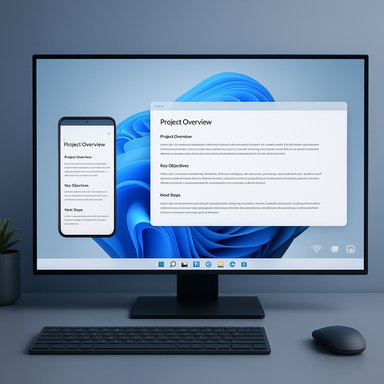
Microsoft’s Phone Link is quietly getting a usability upgrade that finally makes streamed Android apps behave more like native Windows windows — but the feature is early, uneven, and still hamstrung by phone-first app design and device gating.
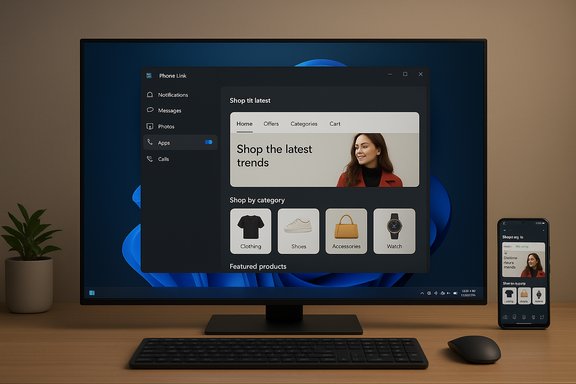
Phone Link (formerly Your Phone) has been Microsoft’s primary bridge between Android phones and Windows PCs for several years. The app offers notifications, messages, photo access, calling, and—on a limited set of devices—Apps: a screen‑streaming mode that lets you open and interact with individual Android apps in standalone windows on Windows 11. That feature depends on the Link to Windows companion app and is intentionally limited to devices that ship Link to Windows or include OEM integrations. Microsoft’s support documentation lists Samsung, HONOR, OPPO, ASUS, vivo, Xiaomi, and select other devices as supported for Apps and Link to Windows scenarios. Phone Link’s “Apps” flow is not identical to running Android apps through the Windows Subsystem for Android; it’s a cross‑device streaming/companion experience that treats the phone as the authoritative runtime while presenting the app UI inside a Windows window. That architecture explains both its strengths (low friction on phone‑owned apps) and some of its limits (layout tied to the phone’s UI, variable scaling and sizing).
Key verified facts
OEMs have been essential partners in this path. Samsung and several OEMs preinstall Link to Windows, and Android OEM updates (for example, Samsung One UI updates) have improved streaming behavior and permission flows — smoothing the Phone Link experience over time. Those OEM changes were instrumental in making app streaming less fiddly and are why Microsoft can now test UI refinements like Expanded mode.
Microsoft’s Phone Link has steadily moved from useful novelty to a practical part of cross‑device workflows. Expanded mode is not a revolution — yet — but it is the kind of iterative, user‑facing improvement that shows Microsoft is listening to real usage pain points. If future builds can address text scaling, aspect‑aware reflow, and standard windowing behaviors, Phone Link could move from “helpful companion” to “first‑class desktop experience” for a subset of Android apps and users. Until then, Expanded mode is an encouraging step with clear room for refinement.
Source: Windows Latest Microsoft is making Android apps streaming on Windows 11 more native with expanded mode
 Background
Phone Link (formerly Your Phone) has been Microsoft’s primary bridge between Android phones and Windows PCs for several years. The app offers notifications, messages, photo access, calling, and—on a limited set of devices—Apps: a screen‑streaming mode that lets you open and interact with individual Android apps in standalone windows on Windows 11. That feature depends on the Link to Windows companion app and is intentionally limited to devices that ship Link to Windows or include OEM integrations. Microsoft’s support documentation lists Samsung, HONOR, OPPO, ASUS, vivo, Xiaomi, and select other devices as supported for Apps and Link to Windows scenarios. Phone Link’s “Apps” flow is not identical to running Android apps through the Windows Subsystem for Android; it’s a cross‑device streaming/companion experience that treats the phone as the authoritative runtime while presenting the app UI inside a Windows window. That architecture explains both its strengths (low friction on phone‑owned apps) and some of its limits (layout tied to the phone’s UI, variable scaling and sizing).What changed: the new “Expanded” mode
Microsoft is currently testing a new Expanded view toggle in Phone Link’s Apps window that stretches the streamed app to occupy more horizontal space on a PC display. The change appears in recent Dev/Beta flights and is visible to some Insiders and early testers as a small button next to the window controls that switches between compact (phone‑like) and expanded (wider) layouts. The WindowsLatest hands‑on reporting captured the behavior, including the exact toggle placement and a reported app version where the icon appeared (Phone Link v1.25112.33.0 on the author’s Dev Insider machine). Why this matters: until now, streamed Android apps opened inside Phone Link often resembled literal phone screens — tall and narrow — which is clumsy on 16:9, 16:10, or ultrawide PC monitors. Expanded mode is an admission that many users want to use phone apps on larger displays without fighting phone‑native dimensions.Key verified facts
- The Apps experience in Phone Link is available only on select OEM devices running Link to Windows. Microsoft’s support pages list sample devices and confirm the vendor gating.
- Users can switch between a compact and expanded layout in Phone Link; community tutorials and forum guides document the toggle and a settings option to default to the expanded view.
- Independent reporting shows testers observing an expanded icon next to the titlebar minimize control and experiencing wider app windows when the mode is activated.
Hands‑on observations and immediate limitations
Early testers report a mix of wins and shortcomings after switching to Expanded mode. The practical pattern is consistent across multiple reports:- The switch makes the app wider, but it often places large black gutters (letterboxing) on the sides rather than rendering a true, full‑window native layout for many phone apps. This is especially pronounced for apps that are strictly portrait‑first (for example, Uber). Testers saw an app expand to occupy roughly two‑thirds of a large monitor, with black bands filling the remainder.
- Fonts and UI elements may appear hazy or blurred in Expanded mode because the app content is still being streamed at a phone resolution then scaled up, and Phone Link does not always scale text or reflow layout for wider aspect ratios. This creates legibility problems on high‑DPI displays.
- Expanded windows may auto‑align to the left side of a display and cannot be maximized to full screen in some tests, making the mode useful but not complete for true desktop workflows.
- Some apps that already support landscape or tablet layouts (VLC player, some shopping apps) adapt well and can fill the expanded window cleanly; others that are rigidly portrait‑oriented simply get scaled, producing suboptimal results.
Why Microsoft is taking this path (technical and product reasoning)
There are three architectural reasons Phone Link has behaved this way and why Microsoft is incrementally adding Expanded mode rather than rewriting the experience:- Phone‑centric runtime: the phone is the authoritative runtime, which simplifies compatibility and keeps sensitive state on the device. Phone Link must therefore translate a phone UI into a window; it doesn’t (yet) host apps natively on the PC. This reduces app breakage and avoids re‑implementing Android frameworks on the PC.
- OEM partnerships and gating: Phone Link’s Apps feature is tied closely to Link to Windows and OEM integrations. That partnership model explains why support is selective (Samsung, HONOR, OPPO, ASUS, vivo, Xiaomi and others) and why behavior varies across devices and phone OS versions. Microsoft’s official guidance lists supported hardware and minimum app versions for multi‑app and expanded experiences.
- Tradeoffs between fidelity and latency: re‑rendering or rebuilding an app UI on the PC side would deliver crisper, resizable windows but require either shipping a compatibility layer (like WSA) or rewriting app rendering. Streaming preserves fidelity to the phone’s state and can be lower cost in engineering and privacy terms, but it leaves the scaling question unresolved. That’s the gap Expanded mode is trying to narrow.
Strengths: what Expanded mode gets right today
- Faster path to larger windows: Expanded mode gives immediate, low‑friction gains for apps that can take advantage of extra width (media players, shopping and retail apps, document viewers). For those apps it can feel genuinely useful with almost no user setup.
- Low integration overhead: because the rendering continues to happen on the phone, compatibility across many versions and apps is higher than a solution that required app rewrites or strict API adherence.
- A pragmatic product step: Microsoft is shipping incremental UX affordances (compact vs expanded) and a user‑facing toggle rather than attempting a risky big‑bang change. This approach lets Microsoft collect real user data before committing engineering effort to a different rendering strategy.
Risks and user pain points
- Readability and scaling: blurry or small fonts on high‑resolution monitors are the most immediate usability risk. If expanded mode scales the entire phone bitmap without adjusting text, the result will be underwhelming for productivity use and inaccessible for users with visual impairments. Multiple early testers report fonts don’t increase proportionally in expanded mode, hurting readability.
- False expectations around “maximize”: users expect a windowed app to be resizable and maximizable. Early behavior — left alignment, inability to fill the screen — creates cognitive friction and breaks normal desktop workflows. That friction will limit adoption among power users who need consistent windowing behavior.
- Device and OEM gating: the Apps and expanded experiences are available only on supported devices and often require specific Link to Windows versions. This fragments the experience across the market and exposes Microsoft to customer dissatisfaction when a perfectly capable Android phone is excluded. Microsoft support pages clearly list eligible devices, underlining that this is not yet a universal feature.
- Resource and battery impacts: streaming a phone’s screen at larger sizes increases network throughput and can accelerate phone battery drain. For prolonged desktop use, this is a practical consideration that Microsoft and OEMs must mitigate (power profiles, keep‑alive strategies, and on‑device performance tuning). Early public discussion has raised these concerns in broader Phone Link scenarios.
- Accessibility and privacy: because the experience mirrors phone content, sensitive data on the phone may surface on the PC when apps are streamed. Microsoft’s continuity strategy must ensure that privacy prompts, consent flows, and enterprise controls are robust before wide enterprise deployment.
What Microsoft should prioritize next
The current expanded mode is a pragmatic step, but if Phone Link is to become a genuinely desktop‑friendly way to run phone apps, the roadmap should include:- Adaptive reflow or text scaling: when an app switches to Expanded view, Phone Link should attempt to reflow or re-render text at appropriate sizes (or negotiate a higher display resolution from the phone) so fonts remain sharp and legible on big screens.
- Aspect‑aware tiling and maximization: Expanded mode should integrate with Windows window management (Snap layouts, maximize, multi‑monitor stretching) so expanded apps feel like any other Windows app.
- Per‑app heuristics: maintain a whitelist/blacklist or per‑app profile that says “this app can be stretched to full width” vs “this app is portrait only.” For portrait‑only apps, Phone Link could offer a higher‑quality centered render or a smart zoom with crisp text.
- Clear settings and defaults: expose a straightforward preference (always open in Expanded view) plus per‑app toggles and an obvious way to revert to compact view. Community documentation already documents such settings; Microsoft should make them accessible and consistent.
- Broader device support and enterprise controls: expand Link to Windows availability and give IT admins the ability to enable/disable app streaming and set security/consent policies.
Practical tips for testers and early adopters
If you have a supported device and want to try expanded mode now, here’s a short checklist based on current guidance and community documentation:- Confirm device support: ensure your phone model appears on Microsoft’s supported devices list for Link to Windows / Apps. Microsoft’s support pages list sample compatible devices and OS/version requirements.
- Update Phone Link and Link to Windows: get the latest version of Phone Link on your PC and the Link to Windows companion on your phone. Some Apps features require specific min‑versions.
- Open an app through the Phone Link Apps pane, and look for the small Expanded/Compact toggle in the app title bar. Follow the confirmation prompts when switching. Community tutorials show where the setting lives and how to default to Expanded view.
- If a streamed app looks blurry, try apps that support landscape or tablet layouts (VLC, Amazon apps) — those adapt better today. For portrait‑only apps, accept that Expanded mode may only provide limited gains until Microsoft improves scaling.
Broader continuity strategy: Phone Link, Cross‑Device Resume, and Microsoft’s approach
Expanded view should be understood inside Microsoft’s larger continuity playbook. Phone Link has evolved from basic notifications and file transfer into an ecosystem of cross‑device features — from multi‑app streaming to Cross‑Device Resume (handoff) and even using phones as webcams. Microsoft’s approach frequently favors a metadata‑handshake model (transfer a context descriptor to Windows) or a streamed companion model (Phone Link’s Apps) rather than rehosting apps natively on the PC. That design reduces developer friction and preserves phone state at the cost of some desktop native fidelity.OEMs have been essential partners in this path. Samsung and several OEMs preinstall Link to Windows, and Android OEM updates (for example, Samsung One UI updates) have improved streaming behavior and permission flows — smoothing the Phone Link experience over time. Those OEM changes were instrumental in making app streaming less fiddly and are why Microsoft can now test UI refinements like Expanded mode.
Verdict: promising, but not yet a desktop replacement
Expanded mode is a welcome, practical evolution of Phone Link’s Apps feature. It addresses a longstanding annoyance — narrow, phone‑sized windows on a spacious monitor — and signals Microsoft’s willingness to iterate on the UX. For users who rely on a handful of apps that already support wider layouts, Expanded mode will feel like an immediate quality‑of‑life improvement. However, the current implementation is clearly experimental. The visual blurring, left‑aligned windows, inability to maximize, and persistent black gutters reveal the hard reality: streaming phone output to a large desktop surface is a stopgap, not a finished desktop hosting solution. Unless Microsoft invests in text/UX reflow, higher fidelity streaming, or selective rehosting strategies, Phone Link will remain a useful companion rather than a replacement for native Windows apps.What this means for the Windows ecosystem and enterprise IT
- For casual users: Phone Link with Expanded mode will be a nice to have for occasional mobile apps on a PC, especially for multimedia or shopping experiences that scale well.
- For power users and creators: the current limitations (readability, lack of full‑screen) make Phone Link unsuitable as a heavy‑duty workflow tool for production tasks.
- For IT managers: Phone Link’s device gating and streaming behavior require governance. Enterprises should pilot Phone Link features carefully and document data flows and consent mechanisms before enabling app streaming widely. Microsoft’s gradual rollouts and support pages emphasize staged availability and the need for device management controls.
Final recommendations (for Microsoft and users)
For Microsoft (priorities to ship in the next updates)- Implement per‑app display heuristics and adaptive text scaling for Expanded mode.
- Integrate expanded windows with Windows windowing primitives (maximize, Snap) and fix the odd left‑alignment behavior.
- Publish clear developer guidance and a companion SDK extension so apps can opt into a desktop‑aware layout when streaming.
- Expand device coverage and make enterprise policy controls available in Intune/MDM.
- Test Expanded mode using apps that already support landscape or tablet layouts (media players, reader apps).
- Use the “Always open apps in expanded screen” setting if you prefer the new mode by default, but be prepared to switch back for portrait‑only apps.
- Monitor Phone Link and Link to Windows updates and install device OEM updates that improve streaming behavior.
Microsoft’s Phone Link has steadily moved from useful novelty to a practical part of cross‑device workflows. Expanded mode is not a revolution — yet — but it is the kind of iterative, user‑facing improvement that shows Microsoft is listening to real usage pain points. If future builds can address text scaling, aspect‑aware reflow, and standard windowing behaviors, Phone Link could move from “helpful companion” to “first‑class desktop experience” for a subset of Android apps and users. Until then, Expanded mode is an encouraging step with clear room for refinement.
Source: Windows Latest Microsoft is making Android apps streaming on Windows 11 more native with expanded mode