Expanded Screen Brings Android Apps Close to Desktop on Windows 11

  • Thread Author
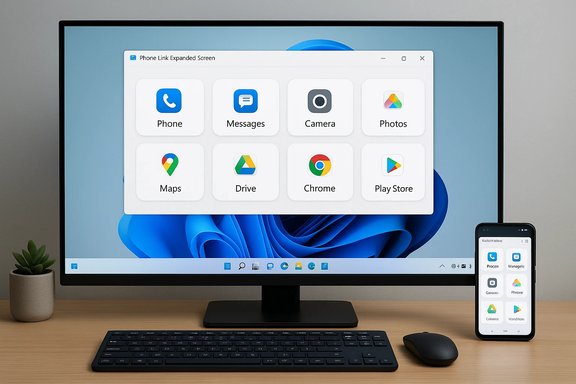
Microsoft’s Phone Link has quietly moved closer to making Android apps feel like first-class citizens on a Windows 11 desktop: the new Expanded screen option is now rolling out broadly, letting compatible Android apps expand beyond the cramped portrait window and use nearly the whole monitor — in practice up to roughly 90 percent of the desktop — though limitations remain around scaling, app compatibility, and visual fidelity.

Desktop monitor and smartphone show a unified UI with Photos, Documents, Phone, and Messages.Background​

Phone Link is the continuation of Microsoft’s long-running cross-device initiative (formerly “Your Phone”) designed to bridge Windows and Android phones for notifications, messaging, calls, photos, and — on select devices — app streaming. The streaming experience uses the phone as the authoritative runtime while sending a live, interactive visual surface to Windows, which is different from running Android natively on the PC. Microsoft’s published compatibility list and support documentation make it clear that the richer “Apps” experience is gated to phones that ship with or support Link to Windows. The new Expanded screen feature first appeared in Insider/dev preview builds late in 2025 and has now been surfaced more widely through Phone Link updates distributed via the Microsoft Store. Practical reporting and app version trackers indicate builds in the 1.25112.x series (for example v1.25112.33.0 and v1.25112.36.0) contain the change.

What Expanded screen actually does​

The user-facing change​

At a glance, Expanded screen adds a small toggle in the title bar of an Android app window launched through Phone Link. Clicking it instructs the phone to relaunch or reconfigure the running Android app into a wider layout and then streams that larger rendering back to Windows. The net effect for users is that apps previously trapped in a narrow portrait column can occupy a much larger portion of the desktop — in many cases up to about 90 percent of available screen space — producing an almost full‑screen experience without forcing a full phone-screen mirror or a native emulator.

How it works under the hood (short)​

  • Phone Link remains a streaming/display surface: the app still executes on the phone.
  • When prompted, Phone Link asks the phone to switch to a larger logical canvas; if the Android app advertises a larger layout (tablet or landscape mode), Android renders that layout and streams the result.
  • If the app lacks responsive or large-screen layouts, Phone Link will scale the existing phone-rendered pixels into a larger window, which can produce letterboxing, black gutters, or blurry text.

Supported phones and system requirements​

Phone Link’s Apps and Expanded screen are not universal — they require a compatible handset and the Link to Windows companion (or OEM preinstalled integration). Microsoft’s official device list includes a broad set of Samsung models (including recent S and Fold/Flip lines), various HONOR, OnePlus, OPPO, ASUS ROG and vivo devices, and select Xiaomi/Realme phones and foldables. If your phone is absent from Microsoft’s supported list, the Apps section (and therefore Expanded screen) will not appear in Phone Link. Examples called out in reporting and support documents include:
  • Samsung Galaxy S22 / S23 / S24 series and multiple Galaxy Fold/Flip models
  • HONOR Magic4 Pro and Magic6 series
  • OnePlus family phones and OPPO Reno/Find series
  • Selected Xiaomi and Realme devices and various ASUS ROG phones
If you rely on Phone Link’s Apps, confirm your exact handset model on Microsoft’s supported-device page before expecting the feature.

Rollout and how to get it​

  • Update Phone Link from the Microsoft Store — app versions in the 1.25112.x series include the expanded-screen work. Several download trackers and software catalogs already show Phone Link builds at v1.25112.36.0, indicating the update has been published to the Store channel.
  • Make sure Link to Windows on your phone is up to date, and that your phone is paired to the PC with the same Microsoft account.
  • If the “Apps” area isn’t visible in Phone Link, check whether your handset is on Microsoft’s compatible list; devices that don’t ship with Link to Windows typically don’t get the Apps streaming experience.
Note: Microsoft stages rollouts and may gate features server-side, so an update appearing in the Store doesn’t guarantee immediate availability for every account or region. Community reports show the feature first appearing for Insiders and later for general users as a gradual rollout.

Real-world behavior, limitations, and known issues​

Visual fidelity and scaling problems​

A majority of the trade-offs stem from the streaming design. When an Android app supports a responsive layout for larger screens (tablet or landscape UI), Expanded screen can produce a clean, usable large-window view. When an app is strictly phone-first, Phone Link either:
  • triggers Android to render a tablet-style layout if available, or
  • scales a phone-rendered framebuffer into a wider window.
The latter produces artifacts: blurry fonts, soft icons, or conspicuous black bars on the sides. Testers have repeatedly observed apps like WhatsApp or other portrait-focused UIs appearing fuzzy or awkwardly centered inside the expanded canvas. These behaviors were reported during Insider testing and persist for some applications in the broader rollout.

App restart / relaunch behavior​

Switching between compact and expanded layouts sometimes requires the Android app to restart so it can negotiate the new display configuration. That relaunch is an Android-side behavior — apps often need to recreate their UI for the new surface size — and the Phone Link client surfaces a prompt to confirm the switch. Some apps don’t support a larger layout at all, and those will remain constrained to their original phone-oriented views.

Windowing limitations​

Despite the larger canvas, Expanded screen is not yet the same as a true native Windows app. Users have reported:
  • inability to maximize to a true full-screen in some cases,
  • default snapping to one side with residual unused desktop space,
  • inconsistent keyboard and shortcut parity versus native apps.
These are pragmatic limitations of the current streaming approach and the early stage of the rollout.

Practical tips to improve the experience​

  • Prefer apps that are tablet-aware. Media players, some productivity apps, and apps that already ship tablet/landscape layouts will scale much better under Expanded screen.
  • Use a strong, private Wi‑Fi network. Phone Link streams live frames and input; a stable 5 GHz or wired-to-router setup reduces latency and dropped frames.
  • Update both Phone Link and Link to Windows. App versions in the 1.25112.x stream contain the features and refinements.
  • Enable “Always open apps in expanded screen” if you prefer the larger layout by default (this toggle exists in Phone Link settings on builds that include the feature).
  • When an app looks blurry, try the full Phone Screen mirroring workaround. Rotating the phone to landscape and using full mirroring has been a pre‑Expanded workaround to achieve a wider canvas — clumsy but sometimes clearer than a scaled framebuffer.

Security and privacy implications​

Phone Link’s architecture keeps app execution on the phone: credentials, tokens, and the app’s data remain on the handset. That is a meaningful security advantage versus sideloaded emulators that introduce desktop-resident app state. However, moving a live UI and input data across a local network introduces other considerations:
  • Network exposure: The stream transits the local network; avoid public hotspots for sensitive operations or use trusted, encrypted networks.
  • Clipboard and redirection: Cross-device clipboard and drag/drop can leak sensitive content if misconfigured; administrators should review DLP and endpoint policies in managed environments.
  • Local endpoint risk: Any malware or screen-capture tools on the PC could capture the streamed UI or keystrokes; standard Windows security hygiene remains essential.
For enterprises, Phone Link is a convenience tool, not a replacement for controlled remote access or managed mobile application strategies. Document acceptable uses and create clear guidance for staff who use Phone Link for work activities.

Developer and ecosystem implications​

The Expanded screen feature exposes a gap between smartphone-first application design and the rising demand for multi-device continuity. If developers want a crisp, fully usable desktop-streamed experience via Link to Windows / Phone Link, they should:
  • Ship responsive layouts and multi-pane UI for larger widths.
  • Provide vector assets and scalable typography to avoid raster artifacts when Android renders larger canvases.
  • Consider testing Link to Windows scenarios where applicable and use platform guidance to detect and adapt to remote streaming surfaces.
Microsoft’s approach suggests a near-term path focused on the UI container rather than deep re-hosting; a longer-term strategy to unlock fully native-like experiences would require an API or handshake that lets Phone Link request higher logical resolutions and densities, or hybrid rendering where UI elements are reflowed for the PC surface. That would require coordination between Microsoft and app developers/OEMs.

Alternatives and the broader Android-on-Windows landscape​

Widening Android app support on Windows has taken multiple technical forms over the years, each with trade-offs:
  • Phone Link streaming (current): Low friction, keeps data on phone, but constrained by streaming artifacts and OEM gating.
  • Windows Subsystem for Android (WSA) / native runtime: Historically provided native-like Android app windows on Windows. Microsoft’s stance and distribution of WSA have shifted; recent years saw deprecation moves and policy changes that left WSA less central. Users who need full, local, high‑fidelity Android on PC often resort to third-party emulators or VMs.
  • Emulators and VMs (Android Studio, BlueStacks, LDPlayer): Provide a local Android runtime with higher fidelity and full keyboard/mouse/gamepad support, but require installation, more resources, and often sideloading.
  • Vendor desktop modes (Samsung DeX): Offer more desktop-native experiences for supported phones, but availability is hardware-specific and vendor-driven.
For users who need crisp UI and native window behavior for a mission-critical Android app, emulators or vendor desktop modes remain the most reliable route. For everyday productivity and secure continuity, Phone Link Expanded screen is a practical, lower-friction option — when your phone and the app cooperate.

Rollout verification and version evidence​

Multiple app trackers and software catalogs show Phone Link builds in the 1.25112.33–1.25112.36 range during the December 2025 to January 2026 timeframe, matching hands-on reports that first surfaced on Insider channels and then broadened to general rollouts via the Microsoft Store. Those listings reinforce the practical observation that Expanded screen arrived as a staged Store update rather than a single forced OS patch. If you don’t see the feature immediately, check your Store updates and confirm the Phone Link version is in the 1.25112.x family; Microsoft’s staged distribution means account- or region-based gating is possible.

Strengths — What Microsoft got right​

  • Low-friction convenience: Expanded screen improves usability dramatically for many apps without forcing users into complex setups.
  • Data residency preserved: Because apps still run on the phone, credentials and sensitive state remain on the handset rather than being pushed to the PC.
  • OEM reach: Partnering with OEMs that ship Link to Windows gains Microsoft access to a broad base of devices where advanced features can be enabled reliably.

Risks and missing pieces​

  • Visual quality and DPI problems: Scaling a phone-rendered framebuffer to a desktop canvas is an imperfect solution on high-DPI monitors; text and icon blur will be problematic for many users.
  • Fragmented experience: Device gating and per-app behavior create inconsistent expectations — the same app may look great on one phone and poor on another.
  • Security surface changes: While data remains on the phone, the addition of cross-device clipboard and streaming raises new operational risks that enterprises must address through policy.

Recommendations for Windows users and IT admins​

  • For personal use: update both Phone Link and Link to Windows, test apps you rely on, and use private Wi‑Fi when streaming sensitive content.
  • For IT admins: pilot the feature with a small device pool, document supported models, and update DLP and endpoint policies regarding clipboard crossing and remote input. Prepare fallback guidance for users when apps don’t render well.
  • For app developers: prioritize responsive and large-screen layouts if your users expect seamless cross-device continuity.

Conclusion​

Expanded screen is a pragmatic, user-focused step that tightens the gap between mobile-first app design and desktop productivity needs. It improves everyday workflows for many users who want to interact with phone apps on a PC, while preserving the security advantage of keeping app execution on the handset. The trade-offs are significant and visible: streaming-based scaling leads to blur, black gutters, and inconsistent maximize/resize behavior unless the Android app itself supports larger layouts.
That pattern defines the feature’s value proposition: it increases usability quickly and with low friction, but it isn’t a universal cure. Users who demand crisp, full‑feature desktop operation from Android apps will still have to rely on emulators, vendor desktop modes, or future Microsoft/OEM developer tooling that allows true large-screen rendering rather than scaled streaming. For everyone else, Expanded screen is a welcome, sensible improvement — a concrete example of Microsoft’s continuity strategy moving from concept toward everyday utility.
Source: PCWorld Windows 11's Phone Link now lets Android apps run 'almost' full-screen
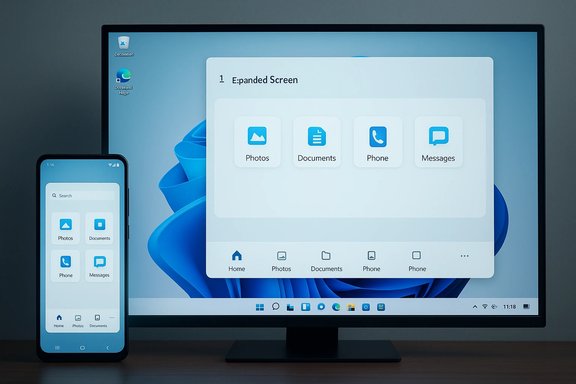
 

Microsoft’s Phone Link on Windows 11 can now push Android apps into an almost full‑screen windowed experience — a pragmatic change that makes streamed phone apps far more usable on large monitors while still keeping the phone as the authoritative runtime.

Desktop monitor and phone display Phone Link's expanded screen with app icons.Background​

Phone Link (the modern descendant of “Your Phone”) and its mobile companion, Link to Windows, have long aimed to blur the line between PC and phone by surfacing notifications, messages, calls, photos, and — on supported hardware — live app streaming. Historically, streamed apps appeared in a narrow, phone‑sized column on the desktop. That made many mobile apps awkward to use with a keyboard and mouse, especially on wide laptop screens and external monitors. Microsoft’s latest change introduces an Expanded screen mode that lets supported Android apps occupy far more of the desktop, addressing a persistent usability complaint. This development follows a broader shift in Microsoft’s Android strategy. The Windows Subsystem for Android (WSA) and the Amazon Appstore on Windows were formally deprecated by Microsoft, leaving Phone Link and third‑party emulators as the primary supported routes for using Android apps with Windows going forward. The deprecation of WSA makes Phone Link’s evolution from a convenience feature into a practical continuity layer more consequential for users who need Android apps on their PCs.

What “Expanded screen” actually does​

The user-facing change​

The new Expanded screen adds a toggle that widens the streamed app window so it can use roughly most of your desktop — not truly full‑screen in the native Windows sense, but large enough to approximate a tablet or landscape layout for many apps. Early reporting and hands‑on checks indicate the expanded container can fill up to about 90% of the desktop area in practice, though that figure comes from third‑party reporting and Microsoft has not published a percentage number in its support notes. Treat the “90%” figure as a useful shorthand from testing rather than an official specification. When you click the expanded icon, Phone Link requests the phone to relaunch or reconfigure the selected Android app into a wider layout. If the app advertises a responsive layout for larger screens (tablet/landscape modes), Android will render that larger layout on the handset and stream it back to the PC. If the app lacks a wider layout, Phone Link will scale the phone‑rendered pixels to the larger container, which can produce black gutters, letterboxing, or softer text. In short, Expanded screen is a window‑sizing and layout toggle on the Phone Link client; it does not move execution from the phone to the PC.

How it works under the hood (concise)​

  • Phone Link remains a streaming surface: the Android app runs on the phone; the PC receives a live visual surface and sends input events back.
  • Expanded screen instructs the phone to present the app on a larger logical canvas (if supported) or to allow the Phone Link client to scale the existing phone output.
  • Because the rendering originates on the phone, scaling artifacts and text softness are possible on high‑DPI monitors.

Verified technical details and availability​

App and version checks​

Independent reports identify the rollout in Phone Link app versions within the 1.25112.x series. Multiple outlets and package trackers show Phone Link version 1.25112.36.0 as the stable update that delivered Expanded screen broadly via the Microsoft Store; earlier Insider/dev builds used versions such as 1.25112.33.0 during testing. These version numbers are corroborated by third‑party package histories and contemporary news coverage.

Supported devices and OS baseline​

Expanded screen and Phone Link’s richer “Apps” experience are gated to devices that support Microsoft’s Link to Windows integration. Microsoft’s official documentation lists a broad set of OEM partners — notably Samsung, HONOR, OPPO, ASUS, vivo, OnePlus, Realme, and Xiaomi among others — and indicates that eligibility and capabilities (for example, multiple apps streaming) depend on Android version and OEM support. Devices running Android 11 or newer may be eligible for expanded or multi‑app streaming experiences where OEM firmware supports link features. If a handset doesn’t include Link to Windows or the OEM integration, the Apps streaming flows (and therefore Expanded screen) will not be available. Check the Phone Link / Link to Windows device list in system settings or Microsoft’s support pages for the exact supported models.

Rollout status​

The feature moved through Windows Insider preview channels during late 2025 and was later distributed to a broader user base through the Microsoft Store. Reports suggest a staged rollout: some users saw Expanded screen in December builds and others see it as a public Store update in mid–late December and beyond. Because Microsoft stages deployments, availability may vary by region, OEM, or the preinstalled Link to Windows package on the phone.

Real‑world user experience: benefits and limits​

Immediate wins​

  • Much more usable windows: Apps that already offer landscape or tablet layouts (for example, media players, e‑commerce apps, productivity utilities) scale cleanly in Expanded screen and feel far more natural with a keyboard and mouse. This reduces constant device switching for cross‑platform workflows.
  • Multitasking improvements: The larger app containers integrate better with Snap layouts, virtual desktops, and side‑by‑side workflows than the previous narrow portrait column.
  • Familiar setup: No virtualization or sideloading is required. Pairing remains the same Phone Link / Link to Windows flow most users already use.

Current shortcomings and caveats​

  • Not true native rendering: Because the app runs on the phone, layout behavior depends on the app’s own responsiveness. If an app is strictly portrait‑first, Expanded screen may simply scale the phone UI, producing blurry text or large black margins.
  • Not totally edge‑to‑edge yet: Tests show Expanded screen often leaves a small portion of the desktop unused and cannot always be maximized to a pixel‑perfect full‑screen desktop app. Expect slight gaps and window title bars to remain visible.
  • App restarts required in some cases: Some apps must be relaunched on the phone when switching to Expanded screen to trigger their wider layout; others simply won’t adapt. This behavior varies by app and by how the OEM’s Android build signals display modes to the app.
  • Quality depends on network and phone hardware: Phone Link is a live stream. Latency, frame drops, or image softness correlate to Wi‑Fi conditions and the phone’s GPU/encoder throughput. Use a robust local network for the best experience.

How to get the Expanded screen experience (practical steps)​

  • Update Phone Link on Windows 11 via the Microsoft Store — look for Phone Link version in the 1.25112.x series (for example, 1.25112.36.0).
  • On your Android phone, ensure Link to Windows is installed or updated (check Settings > About Link to Windows > Check for updates). OEMs sometimes bundle Link to Windows under Advanced features (Samsung) or as a preinstalled companion app.
  • Pair the phone and PC following the existing QR / Microsoft account flow in Phone Link. Confirm required permissions on the phone (screen capture, accessibility for remote control, and file access for transfers).
  • Launch an eligible Android app from the Phone Link Apps tab. If the app appears in a narrow portrait column, click the Expanded icon in the app window’s title bar or enable the preference in Phone Link settings to default to expanded view. Some apps may need a relaunch on the phone.
Troubleshooting tips:
  • Prefer a 5 GHz Wi‑Fi connection or place both devices on the same wired + wireless network segment to reduce latency.
  • If app streaming stutters, verify the phone is not throttled by battery saver and that any OEM battery‑optimization settings are disabled for Link to Windows.
  • If the expanded toggle doesn’t appear, confirm your phone is in the official supported list or that Link to Windows is fully updated.

Security, privacy, and enterprise considerations​

Phone Link’s architecture has a key security implication: the Android app continues to run on the phone, so credentials, biometric tokens, and app data remain on the mobile device rather than being relocated to the PC. This reduces some classes of desktop risk compared with running an Android runtime locally on Windows. However, cross‑device features introduce new considerations:
  • Remote Lock: Link to Windows now includes a manual Lock PC control that can lock a paired Windows PC from the phone. That’s a convenience for securing an unattended workstation, but it also introduces a control surface that enterprises should inventory and monitor. The action is one‑way (no remote unlock), and the session is typically severed after locking. Test behavior in your environment before relying on it for security workflows.
  • Cross‑device clipboard and file transfers: Clipboard syncing and bidirectional file transfer are powerful but expand the transient data surface between phone and PC. Treat sensitive information (passwords, PHI, financial data) carefully; consider disabling cross‑device clipboard or using device management policies in enterprise deployments.
  • Network trust boundaries: Because streaming travels over the local network (and Microsoft’s services for relay in some scenarios), ensure corporate Wi‑Fi segmentation, transport encryption, and network policies align with organizational security requirements. Latency and connection reliability can also expose data‑loss or session interruption risks during critical tasks.
For enterprise IT teams, the updated Phone Link surface is a tradeoff: it reduces the need for insecure third‑party remote access tools by providing an official, Microsoft‑supported path, but it also requires governance for device eligibility, permission consent, and acceptable use policy.

How Expanded screen fits into Microsoft’s broader Android strategy​

The deprecation of WSA (Windows Subsystem for Android) removed Microsoft’s native Android runtime from the Windows platform, shifting the company’s strategy toward OEM‑enabled continuity and streaming integrations like Phone Link and Link to Windows. In that sense, Expanded screen is a logical investment in making the phone‑hosted model more usable for everyday productivity. If you relied on WSA’s local Android runtime, you’ll now find Phone Link’s streaming model the officially supported alternative for running mobile apps on Windows. Samsung’s own PC‑side DeX app has been consolidated in many regions around Microsoft’s Phone Link approach, and OEM partnerships appear central to Microsoft’s continuity roadmap. That OEM collaboration is why the Apps experience remains device‑gated and why the list of supported phones is decisive for whether Expanded screen works on your hardware.

Alternatives and when to choose them​

  • Use Phone Link Expanded screen when you want a quick, low‑friction way to use phone apps on a PC without installing emulators or sideloading APKs. It’s the best choice when the app must run on your phone (for security or licensing reasons) and you want keyboard/mouse access.
  • Use native emulators, VMs, or third‑party Android runtimes if you need apps to run locally on the PC (for automation, developer testing, offline execution, or performance reasons). These approaches incur a larger trust surface and configuration overhead.
  • Samsung DeX or OEM desktop modes (where available) remain a strong option if you want a truly desktop-optimized Android environment; DeX‑style flows can provide richer windowing and native-like desktop presentation but are tied to OEM implementations. Note that OEMs are increasingly pushing users toward the Phone Link/Link to Windows partnership for Windows integration.

Practical advice and recommendations​

  • Update both sides first: Always update Phone Link on Windows and Link to Windows on your phone before expecting Expanded screen to appear. Microsoft and OEM updates can be staggered, so patience may be required for full propagation.
  • Prefer modern devices: Phones with newer SoCs and Android versions (Android 11+) show better encoding performance and are more likely to support multiple‑app streaming and responsive layouts. Check Microsoft’s supported devices list before assuming compatibility.
  • Network is key: Use a stable 5 GHz Wi‑Fi network, keep the phone plugged in during long sessions, and disable aggressive battery optimizations for Link to Windows.
  • Manage sensitive content: Disable cross‑device clipboard and file sharing for accounts or devices that handle regulated data; use centralized MDM policies where possible.

Risks and open questions​

  • Compatibility remains app‑dependent. There is no universal guarantee that an app will reflow into a tablet or landscape layout simply because the Phone Link container grows wider. Some apps will continue to display as phone‑sized islands or will appear blurry when scaled.
  • Not an emulator replacement. Expanded screen is not a substitute for running apps locally — developers and power users who need desktop‑grade performance should keep using emulators or other virtualization tools.
  • Rollout inconsistency. Staged deployments and OEM variations can mean users in different regions or on different carriers see the feature at different times. If you don’t see it immediately, verify updates and consult your phone’s OEM Link to Windows integration path.
  • Unverified numeric claims. The frequently quoted “up to 90% of the desktop” figure is a useful characterization from independent reporting but is not an official Microsoft metric. Treat it as empirical testing rather than a guaranteed specification.

Conclusion​

Expanded screen is a pragmatic, user‑focused enhancement to Phone Link that meaningfully reduces friction when running Android apps beside Windows workflows. It does not change the fundamental architecture — the phone remains the runtime — but it makes the streamed experience substantially more functional for a broad set of apps that already support larger layouts. Given the deprecation of the Windows Subsystem for Android, Microsoft’s investments here are timely: they turn the phone into a better “second screen” productivity partner instead of an isolated device.
The experience is not flawless: compatibility is app‑by‑app, image quality depends on the phone and network, and the rollout is staged. Nevertheless, for users who rely on mobile‑first apps during their daily work, Expanded screen delivers meaningful productivity gains without the complexity of emulators or the security concerns of unpacking third‑party runtimes. Update both Phone Link and Link to Windows, verify your phone’s eligibility, and test the feature with the apps you care about to see whether Expanded screen fits into your workflow today.
Source: YugaTech Windows 11 now lets you mirror Android apps in almost full screen via Phone Link
 

Back
Top