

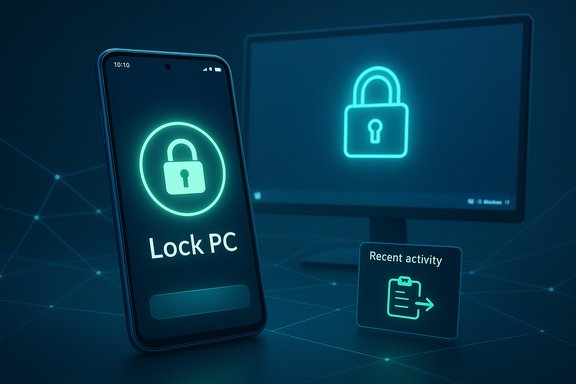
Microsoft’s latest Link to Windows refresh has quietly added a practical — and potentially game-changing — security tool: Android phones can now remotely lock paired Windows 10 and Windows 11 PCs with a single tap from the Link to Windows app. The feature, visible in stable-channel app builds that began rolling out in early December 2025, positions the phone as an immediate “panic button” to secure an unattended workstation while preserving a conservative security posture by not offering remote unlocking.
Microsoft’s Phone Link ecosystem (Phone Link on Windows, Link to Windows on Android) has steadily evolved from a notification-and-photo bridge into a deeper cross-device continuity layer. Over the past few years the platform has added calls, messages, file transfers, screen mirroring and other conveniences; the December 2025 refresh consolidates many of those functions into a cleaner interface and introduces actionable device controls — most notably the Lock PC action. This refreshed experience was previewed to Insiders during 2025 before propagating to wider audiences in staged updates. The rollout is staged and nuanced: Microsoft and OEMs have pushed early builds through Insider channels, then broader production updates (and OEM preinstalled images) followed in December 2025. That explains why some users saw the change earlier than others and why the feature may not be visible on every handset or PC immediately.
The feature is rolling out in stages; its exact behavior can vary by app build, Windows build, OEM, and region. Users should verify the experience on their specific hardware, keep both apps updated, and follow the security hardening guidance above. For WindowsForum readers who prize both convenience and control, remote locking is a welcome addition — provided it’s deployed with clear policies, careful testing, and strong account hygiene.
Source: Zoom Bangla News Samsung Phone Users Can Now Remotely Lock Windows PCs with New Microsoft Update
 Background / Overview
Microsoft’s Phone Link ecosystem (Phone Link on Windows, Link to Windows on Android) has steadily evolved from a notification-and-photo bridge into a deeper cross-device continuity layer. Over the past few years the platform has added calls, messages, file transfers, screen mirroring and other conveniences; the December 2025 refresh consolidates many of those functions into a cleaner interface and introduces actionable device controls — most notably the Lock PC action. This refreshed experience was previewed to Insiders during 2025 before propagating to wider audiences in staged updates. The rollout is staged and nuanced: Microsoft and OEMs have pushed early builds through Insider channels, then broader production updates (and OEM preinstalled images) followed in December 2025. That explains why some users saw the change earlier than others and why the feature may not be visible on every handset or PC immediately. What exactly shipped — feature snapshot
- Remote Lock (Lock PC) — A one‑tap Lock PC button appears in Link to Windows on Android when the phone is paired with a Windows PC and the PC’s Remote PC controls option is enabled. Pressing it sends an immediate lock command to the PC; the connection severs and the user must unlock the PC locally to resume the session. The ability to unlock remotely is intentionally absent.
- Recent Activity hub — A redesigned home view that shows recent file transfers, shared photos, clipboard items and quick PC status like battery and Wi‑Fi signal. This centralizes cross‑device activity for easier discovery.
- Bidirectional file transfer — Link to Windows can now more easily send files from phone to PC as well as from PC to phone, eliminating many of the email/cloud workarounds users previously relied on.
- Clipboard sync (expanded) — The phone can surface a history of clipboard items from the PC (text and images), allowing cross‑device copy‑paste flows. Reliability varies by OEM and device, so behavior can be inconsistent in early rollouts.
- Phone screen mirroring from the phone — Users can start wireless mirroring of the phone to a PC from the phone itself (previously mirrored primarily from the PC). This is now a more discoverable action in the mobile interface.
How the remote lock works — setup and technical prerequisites
Key requirements (practical checklist)
- An Android phone running the updated Link to Windows app (preinstalled on recent Samsung Galaxy devices or updated via the Galaxy Store/Play Store).
- A Windows PC (Windows 10 or Windows 11) with Phone Link installed and the same Microsoft account signed in on both devices.
- Pairing completed between phone and PC using Phone Link / Link to Windows.
- Remote PC controls enabled on the PC: open Settings → Bluetooth & devices → Mobile devices → Manage devices, then enable Remote PC controls for the paired handset.
Connectivity and authentication
- The pairing is account‑backed and uses a combination of local connectivity and Microsoft account coordination. Several practical reports indicate that the phone and PC need to show as “connected” in Phone Link for the lock control to appear and work; that typically implies local network connectivity (Wi‑Fi) and BLE/Bluetooth discovery were used during pairing. That said, precise transport details (e.g., whether Bluetooth is strictly required at the lock moment) have mixed reporting across hands‑on articles and vendor write‑ups. Treat any claim that “Bluetooth is always required” as partially supported and verify your device behavior.
- After issuing a remote lock, Phone Link severs the live session until a local sign‑in occurs. This design reduces the security risk of a stolen phone being used to both lock and unlock a device remotely.
Step‑by‑step enablement (concise)
- Update Link to Windows on your Android phone to the latest version (check About → Check for updates), or confirm the app is up to date via Galaxy Store / Play Store.
- On the PC, open Settings → Bluetooth & devices → Mobile devices and choose Manage devices. Ensure the paired phone is shown and toggle Remote PC controls on.
- Open Link to Windows on the phone, select the paired PC entry and tap Lock PC when you need to secure the machine. The app shows a confirmation dialog before locking.
Strengths — why this matters for everyday users
- Immediate, low‑friction security: For commuters, students in shared study spaces, or anyone who occasionally leaves a laptop unattended, a single‑tap lock removes the friction of returning to the machine to hit Windows+L. That small convenience can measurably reduce unintentional exposure in public environments.
- Conservative security design: By restricting the phone to locking only and forcing local unlock, Microsoft avoids a dangerous remote‑unlock path that would require significantly stronger remote authentication semantics (biometric confirmation, multi‑factor tokens, or time‑bounded tokens) to be safe. That tradeoff prioritizes minimizing attack surface.
- Consolidated workflow hub: The Recent Activity feed, clipboard history, and easier file transfers reduce context switching for hybrid workflows (phone → PC and back again). That is particularly useful for productivity scenarios like editing phone photos on a PC or pasting code snippets captured on the desktop into a mobile note.
- Deeper Samsung synergy: Samsung handsets continue to receive first‑class integration — Link to Windows often ships preinstalled on modern Galaxy devices and those OEM partnerships enable faster feature parity for those users. That makes the Phone Link experience especially polished for Galaxy owners.
Risks, known issues and areas to watch
- Inconsistent signaling about transport: Reporting varies on whether Bluetooth must be actively connected at the time of lock. Some outlets emphasize BLE + Wi‑Fi pairing while others say a purely cloud‑signaled lock can work once devices are paired. This inconsistency matters operationally: if your deployment expects the phone to lock a device while the phone is on cellular and the PC is on a different Wi‑Fi network, empirical testing is essential. Flag this as a behavioral caveat—verification on your hardware is recommended.
- Staged rollout fragmentation: Microsoft is enabling these capabilities by app build, Windows build, account and OEM channel; not every user will see the new Lock PC button simultaneously. Administrators should not assume universal availability until the staged rollout completes.
- Clipboard and file transfer reliability: Early testers report occasional flakiness with clipboard history, especially on non‑Samsung Android handsets. Sensitive data exposure remains a risk if clipboard sync is left enabled broadly; treat clipboard synchronization as a convenience that should be scoped carefully.
- No remote unlock: While a deliberate safety choice, the lack of remote unlock can be inconvenient in legitimate situations where a trusted colleague needs to access the machine in your absence. Organizations should plan for helpdesk workflows that permit secure delegation without circumventing local authentication controls.
- Enterprise governance gap: The command path for Lock PC is practical, but administrators require visibility and control to govern which users and devices can pair, and whether remote actions are auditable. Microsoft’s current documentation covers enabling/disabling the feature but lacks a deep technical white paper describing the lock command’s authentication/telemetry model for enterprises. Until stronger admin controls arrive, paired device usage on corporate machines should be managed via endpoint policies.
Security analysis — recommended hardening steps
- Treat the phone–PC pairing as part of account security: Ensure the Microsoft account used for pairing has multi‑factor authentication (MFA) enabled and that recovery options are up to date. Account takeover remains the largest single risk to cross‑device features.
- Use Windows Hello or a strong local PIN: Local unlocking should rely on Windows Hello biometrics or a short device‑bound PIN instead of a weaker password that could be phished remotely. This keeps local authentication robust when the session is resumed.
- Audit and revoke paired devices on loss: If a phone is lost or stolen, immediately remove it from the Microsoft account device list and from Phone Link’s Mobile devices pane to stop further remote actions. Admins should document a clear revocation workflow for corporate devices.
- Scope clipboard and file sharing: Disable cross‑device clipboard and phone→PC file transfer for machines that handle sensitive data unless explicitly required. Use policy or user training to prevent accidental sharing of secrets.
- Test before broadly enabling: For enterprise fleets, stage enablement on pilot devices, monitor behavior, and capture logs of pairing and remote actions to verify auditable trails meet compliance requirements. Microsoft Endpoint Manager and EDR tools can complement this by monitoring unusual remote link activity.
Practical workflows and user examples
- Quick public‑space hardening: A user at a coworking space realizes they forgot to lock their laptop before heading to a coffee break; a tap on Link to Windows locks the PC remotely and severs the Phone Link session, requiring local unlock later. This avoids a panicked return to the desk and reduces exposure.
- Rapid photo handoff: A photographer snaps photos on a phone, taps “Send to PC” in Link to Windows (new phone→PC flow), and continues editing in Lightroom on the desktop — the Recent Activity view shows the transfer and the clipboard history stores captions or notes.
- Classroom or lab safety: In shared computer labs, instructors can remind students to pair a personal device or use the manual Lock PC button when stepping away, but institutional policies should govern whether pairing is allowed on lab machines.
What Microsoft still needs to clarify
- The exact transport and fallback semantics for the lock command (Bluetooth, BLE, Wi‑Fi, or cloud coordinate) remain partially opaque in public docs. Microsoft’s support pages explain how to update Link to Windows and Phone Link, but the architecture and telemetry model for the “Lock PC” action has not been fully documented for IT audiences. This is an important transparency gap for enterprises that must audit and control device actions.
- Administrative APIs and policy controls for limiting pairing and remote actions at scale are an obvious next step — enterprises will reasonably demand the ability to whitelist, log, and centrally revoke pairings. Microsoft’s staged approach suggests such capabilities may follow as the feature matures.
Cross‑reference and verification notes
Multiple independent publications corroborate the core claims in this update: Windows Central observed the Lock PC control and reported on the app builds and staged rollout, WindowsLatest provided hands‑on descriptions of availability and behavior, and several outlets (TechRadar, How‑To‑Geek, SamMobile) documented the UI changes and requirements. Microsoft’s own support pages provide update and troubleshooting guidance for Link to Windows and Phone Link updates, though they stop short of a deep technical whitepaper describing the remote lock command’s back‑end. Where external coverage conflicted (notably whether Bluetooth is strictly required at lock time), those discrepancies are flagged above and readers are advised to verify behavior on their own hardware. Additionally, community and forum excerpts captured during the preview and rollout provide practical troubleshooting notes and admin‑oriented commentary about the need to enable Remote PC controls on the PC and how staged builds propagated through Insider channels before hitting stable updates. These community threads document user experiences that echo the published coverage and highlight common troubleshooting steps.Recommendations for WindowsForum readers
- If you value the convenience: update Link to Windows on your phone and Phone Link on your PC, confirm pairing, then enable Remote PC controls in Windows Settings and test the Lock PC button under controlled conditions. Use this feature as an additional layer of protection, not a substitute for good endpoint security.
- If you manage devices for others: pilot the feature with a small group first. Document revocation workflows for lost phones and consider adding pairing restrictions to corporate device configuration policies. Evaluate whether enabling phone→PC file transfer or clipboard sync is acceptable given data sensitivity.
- For skeptics and security‑first users: keep cross‑device sync features off by default, retain strict account protection (MFA) and Windows Hello, and enforce asset protection procedures for lost devices. Log pairing operations if possible.
The bottom line
Microsoft’s Link to Windows update that adds a remote Lock PC action is a pragmatic, security‑minded improvement to cross‑device continuity. It closes a common usability gap — leaving a laptop unlocked in public — while preserving a conservative safety boundary by refusing to permit remote unlocking. The broader refresh (Recent Activity, improved file transfer, expanded clipboard) tightens the integration between Android and Windows in a way that will be noticeably useful for hybrid workers, students, and frequent commuters.The feature is rolling out in stages; its exact behavior can vary by app build, Windows build, OEM, and region. Users should verify the experience on their specific hardware, keep both apps updated, and follow the security hardening guidance above. For WindowsForum readers who prize both convenience and control, remote locking is a welcome addition — provided it’s deployed with clear policies, careful testing, and strong account hygiene.
Source: Zoom Bangla News Samsung Phone Users Can Now Remotely Lock Windows PCs with New Microsoft Update
