

PCMag UK’s hands-on look at AppControl, a free Windows 10 and Windows 11 utility from developer Jon Hundley, argues that the app gives power users a 72-hour view into process behavior, hardware usage, privacy-sensitive access, and system changes that Windows Task Manager still largely treats as a live snapshot. That makes AppControl less a security product than a visibility product. Its value is not that it magically fixes Windows, but that it exposes the quiet churn modern PCs generate every hour. The uncomfortable conclusion is that Windows has made background activity normal while still leaving many users without a native way to understand it.
Task Manager remains one of Windows’ most iconic utilities because it gives users a sense of control at the exact moment something feels wrong. A fan spins up, a browser tab freezes, a game stutters, and the ritual begins: right-click the taskbar, open Task Manager, sort by CPU or memory, and hope the culprit is still visible. For decades, that has been good enough for emergency triage.
But the modern Windows PC is not a simple machine waiting for users to launch programs. It is a constantly shifting mesh of update agents, sync clients, telemetry components, drivers, helper services, browser subprocesses, security scanners, RGB utilities, game launchers, cloud storage hooks, and vendor-specific “experience” layers. By the time a user opens Task Manager, the noisy process may have already completed its work, spawned another process, or disappeared entirely.
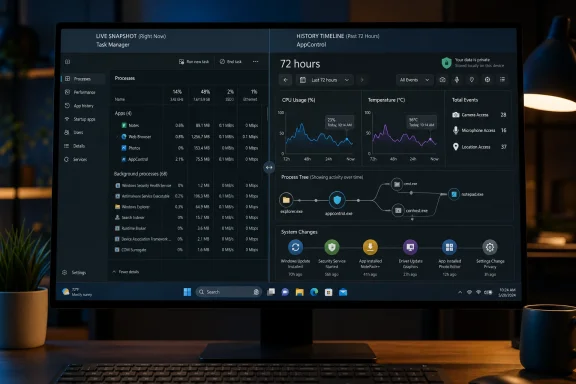
That is the gap AppControl is trying to fill. Instead of showing only what is happening now, it keeps a rolling record of what happened recently. PCMag UK’s testing describes the app as tracking activity and resource consumption over the previous 72 hours, which turns process monitoring from a momentary glance into a timeline.
That difference matters more than it sounds. A live snapshot is useful when the fire is still burning. A history is useful when the smoke is gone but the room still smells wrong.
According to PCMag UK, the app lets users click back through a graph and inspect which processes were consuming resources at specific points in time. That is the sort of feature that feels obvious only after someone ships it. If your laptop sounded like a hair dryer at 2:13 p.m., you should be able to ask what was happening at 2:13 p.m., not stare helplessly at a calm system at 2:20.
This is where AppControl’s “advanced Task Manager” pitch becomes more than marketing. Windows already contains multiple tools for performance diagnostics, event logs, reliability history, startup management, services, permissions, and security state. The problem is that they are scattered across interfaces designed for different eras and different audiences.
AppControl tries to collapse some of that fragmentation into a single user experience. It shows processes, changes, resource usage, temperature history, and privacy-related events in one place. That does not make it a replacement for enterprise monitoring or forensic tooling, but it does make it unusually approachable for the technically curious Windows user who wants answers without building a logging pipeline.
The result is a product aimed at the space between consumer anxiety and professional instrumentation. That is a real space. It is where many Windows enthusiasts live.
That busyness is not automatically malicious. A process checking for updates may be doing the responsible thing. A service touching location APIs may be supporting a legitimate feature. A browser helper process may be isolating tabs for security. A driver utility may be maintaining hardware functionality that would otherwise break in mysterious ways.
The trouble is that Windows culture still talks about background activity as though it were exceptional. The operating system itself has moved on. The PC is now a managed, synchronized, constantly serviced endpoint, even when it belongs to a home user who just wants to play a game or write a document.
This is why AppControl can feel revelatory without necessarily revealing wrongdoing. It turns routine system behavior into something visible. The shock is not that every process is suspicious; the shock is that the machine is so continuously alive beneath the desktop.
That visibility can be empowering, but it can also be destabilizing. Once users can see hundreds of events, launches, updates, and access requests, they may start treating normal activity as evidence of compromise. A good monitoring tool has to walk a delicate line: show enough to build trust, but not so much that ordinary users become full-time paranoiacs.
PCMag UK’s piece spends notable time on this trust problem, and rightly so. A system-monitoring utility that watches processes, app launches, resource use, webcam access, microphone access, location access, and system changes sits in a sensitive position. Even if it is built with good intentions, it has the kind of visibility that would make a bad actor salivate.
AppControl’s public privacy messaging leans into that concern. The app’s stated design goal is minimal data collection, and it includes a privacy mode that can be enabled at installation to prevent the software from communicating with AppControl’s servers. Its suspicious-app detection is described as optional and off by default, with limited executable metadata used only after user consent.
That does not eliminate the need for caution. Privacy policies are promises, not physics. Small software teams can be acquired, business models can shift, and benign telemetry can accrete over time. But the existence of a clearly stated privacy position, a no-registration free install, and a disclosed path toward optional paid features is still better than the murky economics of freeware that refuses to say how it intends to survive.
The developer’s history also matters here. Jon Hundley is associated with GlassWire, a well-known network monitoring app, and PCMag UK reports that he framed AppControl as a small indie effort with a future shareware-style model. That pedigree is not a cryptographic guarantee, but it is a meaningful signal in a category where users are often asked to install unsigned-looking utilities from anonymous websites and hope for the best.
PCMag UK’s Firefox test is a useful warning. Disabling Firefox closed browser windows immediately and caused Windows to throw an error when the taskbar icon was clicked. Re-enabling Firefox inside AppControl fixed the problem, but the episode illustrates the larger point: process control is blunt power masquerading as cleanliness.
Windows is full of dependencies that are not obvious from a process name. Blocking the wrong updater may leave software stale. Disabling the wrong helper may break a tray app, a VPN, a peripheral, or a remote access session. Killing a process during an install or update may cause corruption that only becomes apparent later.
AppControl reportedly includes safeguards for core Microsoft processes, and its own terms warn users to exercise judgment. That is wise, because the most responsible use of this kind of app is often observational rather than interventionist. Watch first. Understand second. Act last.
For most users, the right fix for an unwanted process is not to create a local blockade but to uninstall the associated application, disable its startup entry through supported means, change its settings, or replace it with software that behaves better. A kill switch is useful when something is actively misbehaving. It is a poor substitute for system hygiene.
That distinction matters. Smart App Control and enterprise application-control policies belong to the world of prevention. They help reduce risk by blocking untrusted or unwanted code before it executes. AppControl belongs more to the world of visibility and response. It can help users notice that something ran, consumed resources, accessed hardware, installed a service, or behaved in a way worth investigating.
Those two worlds overlap, but they are not interchangeable. A user should not install AppControl and conclude that antivirus, Microsoft Defender, Smart App Control, or basic patching discipline no longer matter. PCMag UK makes the same point: if the goal is avoiding malware, users are better served by established security practices than by manually interpreting hundreds of process events.
That is not a criticism of AppControl. It is a criticism of magical thinking. Observability is powerful, but it is not the same thing as protection. A dashboard can tell you that a door opened; it cannot retroactively make the lock stronger.
For power users and IT pros, though, visibility is often the missing step between suspicion and action. If a machine is sluggish every morning, if fans spike during idle periods, if a webcam indicator appears at strange times, or if a newly installed app litters the system with services, a historical activity view can reduce guesswork. It can turn “Windows is being weird” into “this signed updater ran at noon and pegged the CPU for eight minutes.”
This is one of the places where AI makes practical sense. The problem is not that users lack access to data. The problem is that the data quickly becomes tedious. A timeline of process launches, app updates, service installs, hardware access events, and resource spikes is useful only if someone can interpret it before losing patience.
A chatbot interface can summarize patterns, cluster related events, and answer questions in language that matches the user’s concern. “What used my webcam this week?” is a better human query than manually filtering a table by event type, process name, and timestamp. “What caused my fan to spike yesterday afternoon?” is the question users actually have.
The privacy caveat is unavoidable. AppControl says its MCP server is optional and off by default, and that local data remains local unless the user chooses to share it with an AI service. That design is the right starting point. But users should understand that once they connect local telemetry to an external assistant, the relevant privacy policy is no longer just AppControl’s.
The deeper point is that AI is most useful here as an interpreter, not an oracle. It can help make sense of patterns. It should not be treated as an infallible security analyst. If it says an event looks normal, that is a prompt for judgment, not a verdict from Mount Sinai.
The answer is not that Microsoft lacks the underlying data. Windows has event logs, performance counters, resource monitors, Defender history, privacy permission indicators, reliability data, service control infrastructure, startup management, and enterprise-grade instrumentation. The issue is packaging. Microsoft has historically exposed deep diagnostics either as professional tools or as fragmented control panels, not as a coherent consumer-facing story.
Task Manager has improved over the years, and Windows 11’s version is cleaner than its predecessors. But it remains anchored to the live state of the system. The App History tab, which dates back to the Windows 8 era, has never become the kind of comprehensive historical activity interface that ordinary users reach for when something happened earlier.
That gap is increasingly strange. Microsoft is asking users to accept a PC experience defined by constant background work: updates, Store apps, cloud sync, widgets, search indexing, Defender scans, Edge components, OneDrive integration, driver servicing, and AI features. If background automation is the operating model, historical transparency should be part of the bargain.
Instead, users often experience Windows as a machine that asks for trust while offering only partial explanations. Something ran. Something changed. Something installed. Something woke the laptop. Something used CPU while the screen was locked. Microsoft may have logs for many of these things, but logs are not the same as an intelligible account.
AppControl’s critique is therefore implicit but sharp: Windows has normalized invisible complexity without giving users a good enough native window into it.
For enthusiasts, AppControl scratches a familiar itch. It gives shape to the background. It lets users verify hunches, investigate spikes, learn which apps are noisy, and spot behavior that feels out of character. It also provides the satisfaction of catching misbehaving software in the act, or at least close enough to the act that the evidence has not evaporated.
For average users, however, the tool may create more questions than it answers. A list of hundreds of processes is not inherently helpful if the user lacks the context to distinguish normal from concerning. The app’s polished design can soften that problem, but it cannot remove it. Visibility without literacy can become alarm.
That does not mean ordinary users should avoid AppControl categorically. A user frustrated by unexplained slowdowns, fan noise, heat, battery drain, or privacy-access notifications may benefit from a guided look. But the tool is best approached with humility. Not every unsigned-looking executable is a crisis. Not every background update is hostile. Not every CPU spike is evidence that Windows has been taken over by gremlins.
This is where AppControl’s default behavior matters. PCMag UK notes that its events do not all explode into desktop pop-ups, which is essential. The app would be nearly unusable if it treated every routine change as breaking news. A monitoring utility must be informative without becoming a panic generator.
That suspicion is healthy. Free software on Windows has a long history of bundled installers, toolbars, background services, aggressive upsells, data collection, and abandoned utilities that become security liabilities. The idea of a free app with deep system visibility should trigger scrutiny.
But the alternative cannot be that only trillion-dollar platform vendors are allowed to make system utilities. Windows has always benefited from a third-party ecosystem willing to build the tools Microsoft did not prioritize. Some of the best Windows experiences have come from developers obsessed with one missing feature, one workflow irritation, or one piece of user control that the platform left unfinished.
AppControl belongs in that tradition. Its polish makes the point sharper. This is not a crude wrapper around existing tools. It is a product with an opinion: users should be able to go back in time and understand what their PC was doing.
If optional paid features arrive, they will be a test of that opinion. The best version of AppControl keeps core visibility generous, charges for advanced conveniences, and avoids the surveillance economics it claims to oppose. The worst version would slowly move the useful parts behind a paywall or nudge users toward cloud-dependent analysis. The company’s current messaging points toward the former, but the market has a way of testing everyone’s principles.
That audience includes software reviewers, sysadmins troubleshooting personal machines, gamers chasing unexplained performance dips, laptop users investigating heat and fan behavior, privacy-conscious users who want hardware-access visibility, and enthusiasts who enjoy understanding how Windows actually behaves. It also includes the family IT person who gets the inevitable message: “My computer was slow yesterday, but it seems fine now.”
The app is less compelling for users who want a one-click optimizer, a malware shield, or a magic performance boost. AppControl will not make a bloated PC lean by itself. It may show which software is contributing to the bloat, but the user still has to make decisions.
That is a more honest proposition than many system utilities offer. The Windows ecosystem has never lacked apps promising to clean, boost, repair, optimize, and protect. Some are useful. Many are placebo machines with progress bars. AppControl’s pitch is more modest and more credible: here is what happened; now decide what to do.
This temporal framing is what Windows itself still struggles to provide in a friendly way. Reliability Monitor gets part of the way there for crashes and installs. Event Viewer contains oceans of detail. Task Manager gives live state. Settings exposes privacy permissions and startup apps. Defender reports threats. But none of these feel like one coherent diary of the PC.
AppControl is trying to be that diary. Not a perfect forensic record, not an enterprise SIEM, not a security guarantee, but a readable account of a machine’s recent life. That is a valuable idea precisely because PCs have become too complex for memory and intuition alone.
There is also a cultural shift here. For years, consumer operating systems have pushed users away from understanding internals in the name of simplicity. That made sense when the alternative was registry spelunking and IRQ nightmares. But simplicity should not require opacity. A modern system can be friendly and still accountable.
AppControl’s bet is that a meaningful slice of Windows users wants accountability back.
Source: PCMag UK This Free Windows App Shows You Everything Your Computer Is Secretly Doing
 Windows Still Treats the Present Moment as the Whole Story
Task Manager remains one of Windows’ most iconic utilities because it gives users a sense of control at the exact moment something feels wrong. A fan spins up, a browser tab freezes, a game stutters, and the ritual begins: right-click the taskbar, open Task Manager, sort by CPU or memory, and hope the culprit is still visible. For decades, that has been good enough for emergency triage.But the modern Windows PC is not a simple machine waiting for users to launch programs. It is a constantly shifting mesh of update agents, sync clients, telemetry components, drivers, helper services, browser subprocesses, security scanners, RGB utilities, game launchers, cloud storage hooks, and vendor-specific “experience” layers. By the time a user opens Task Manager, the noisy process may have already completed its work, spawned another process, or disappeared entirely.
That is the gap AppControl is trying to fill. Instead of showing only what is happening now, it keeps a rolling record of what happened recently. PCMag UK’s testing describes the app as tracking activity and resource consumption over the previous 72 hours, which turns process monitoring from a momentary glance into a timeline.
That difference matters more than it sounds. A live snapshot is useful when the fire is still burning. A history is useful when the smoke is gone but the room still smells wrong.
AppControl Makes the Background Feel Like a Place You Can Visit
The most compelling idea in AppControl is not that it shows more data than Task Manager. Plenty of utilities show more data than Task Manager, often with enough tabs, handles, threads, and counters to make even veteran admins briefly question their career choices. AppControl’s more interesting move is that it tries to make past activity navigable.According to PCMag UK, the app lets users click back through a graph and inspect which processes were consuming resources at specific points in time. That is the sort of feature that feels obvious only after someone ships it. If your laptop sounded like a hair dryer at 2:13 p.m., you should be able to ask what was happening at 2:13 p.m., not stare helplessly at a calm system at 2:20.
This is where AppControl’s “advanced Task Manager” pitch becomes more than marketing. Windows already contains multiple tools for performance diagnostics, event logs, reliability history, startup management, services, permissions, and security state. The problem is that they are scattered across interfaces designed for different eras and different audiences.
AppControl tries to collapse some of that fragmentation into a single user experience. It shows processes, changes, resource usage, temperature history, and privacy-related events in one place. That does not make it a replacement for enterprise monitoring or forensic tooling, but it does make it unusually approachable for the technically curious Windows user who wants answers without building a logging pipeline.
The result is a product aimed at the space between consumer anxiety and professional instrumentation. That is a real space. It is where many Windows enthusiasts live.
Four Hundred Processes Is Not a Bug, It Is the Operating Model
PCMag UK’s reviewer noted roughly 400 processes running in the background on a Windows 11 PC. That number will vary by machine, installed software, drivers, browser state, OEM utilities, and user habits, but the broader point is difficult to dispute: a normal Windows system is busy even when it looks idle.That busyness is not automatically malicious. A process checking for updates may be doing the responsible thing. A service touching location APIs may be supporting a legitimate feature. A browser helper process may be isolating tabs for security. A driver utility may be maintaining hardware functionality that would otherwise break in mysterious ways.
The trouble is that Windows culture still talks about background activity as though it were exceptional. The operating system itself has moved on. The PC is now a managed, synchronized, constantly serviced endpoint, even when it belongs to a home user who just wants to play a game or write a document.
This is why AppControl can feel revelatory without necessarily revealing wrongdoing. It turns routine system behavior into something visible. The shock is not that every process is suspicious; the shock is that the machine is so continuously alive beneath the desktop.
That visibility can be empowering, but it can also be destabilizing. Once users can see hundreds of events, launches, updates, and access requests, they may start treating normal activity as evidence of compromise. A good monitoring tool has to walk a delicate line: show enough to build trust, but not so much that ordinary users become full-time paranoiacs.
The Privacy Pitch Works Because It Starts With Distrust
The first question with a tool like AppControl is not whether it can see your system. It obviously can; that is the point. The first question is whether the tool itself deserves the access it requests.PCMag UK’s piece spends notable time on this trust problem, and rightly so. A system-monitoring utility that watches processes, app launches, resource use, webcam access, microphone access, location access, and system changes sits in a sensitive position. Even if it is built with good intentions, it has the kind of visibility that would make a bad actor salivate.
AppControl’s public privacy messaging leans into that concern. The app’s stated design goal is minimal data collection, and it includes a privacy mode that can be enabled at installation to prevent the software from communicating with AppControl’s servers. Its suspicious-app detection is described as optional and off by default, with limited executable metadata used only after user consent.
That does not eliminate the need for caution. Privacy policies are promises, not physics. Small software teams can be acquired, business models can shift, and benign telemetry can accrete over time. But the existence of a clearly stated privacy position, a no-registration free install, and a disclosed path toward optional paid features is still better than the murky economics of freeware that refuses to say how it intends to survive.
The developer’s history also matters here. Jon Hundley is associated with GlassWire, a well-known network monitoring app, and PCMag UK reports that he framed AppControl as a small indie effort with a future shareware-style model. That pedigree is not a cryptographic guarantee, but it is a meaningful signal in a category where users are often asked to install unsigned-looking utilities from anonymous websites and hope for the best.
The Name Promises Control, but the Product’s Best Feature Is Restraint
“AppControl” is an assertive name, and the app does include features that let users kill processes or disable them from launching. That is the part most likely to attract the tinkerers. It is also the part most likely to get them in trouble.PCMag UK’s Firefox test is a useful warning. Disabling Firefox closed browser windows immediately and caused Windows to throw an error when the taskbar icon was clicked. Re-enabling Firefox inside AppControl fixed the problem, but the episode illustrates the larger point: process control is blunt power masquerading as cleanliness.
Windows is full of dependencies that are not obvious from a process name. Blocking the wrong updater may leave software stale. Disabling the wrong helper may break a tray app, a VPN, a peripheral, or a remote access session. Killing a process during an install or update may cause corruption that only becomes apparent later.
AppControl reportedly includes safeguards for core Microsoft processes, and its own terms warn users to exercise judgment. That is wise, because the most responsible use of this kind of app is often observational rather than interventionist. Watch first. Understand second. Act last.
For most users, the right fix for an unwanted process is not to create a local blockade but to uninstall the associated application, disable its startup entry through supported means, change its settings, or replace it with software that behaves better. A kill switch is useful when something is actively misbehaving. It is a poor substitute for system hygiene.
Windows Has Security Controls, but AppControl Is Playing a Different Game
It would be easy to confuse AppControl with Microsoft’s own application-control technologies, especially because Microsoft uses similar language around App Control for Business and Smart App Control. That confusion is worth avoiding. Microsoft’s application-control stack is fundamentally about deciding what code is allowed to run. AppControl, the third-party utility, is primarily about showing users what code did run and what it did afterward.That distinction matters. Smart App Control and enterprise application-control policies belong to the world of prevention. They help reduce risk by blocking untrusted or unwanted code before it executes. AppControl belongs more to the world of visibility and response. It can help users notice that something ran, consumed resources, accessed hardware, installed a service, or behaved in a way worth investigating.
Those two worlds overlap, but they are not interchangeable. A user should not install AppControl and conclude that antivirus, Microsoft Defender, Smart App Control, or basic patching discipline no longer matter. PCMag UK makes the same point: if the goal is avoiding malware, users are better served by established security practices than by manually interpreting hundreds of process events.
That is not a criticism of AppControl. It is a criticism of magical thinking. Observability is powerful, but it is not the same thing as protection. A dashboard can tell you that a door opened; it cannot retroactively make the lock stronger.
For power users and IT pros, though, visibility is often the missing step between suspicion and action. If a machine is sluggish every morning, if fans spike during idle periods, if a webcam indicator appears at strange times, or if a newly installed app litters the system with services, a historical activity view can reduce guesswork. It can turn “Windows is being weird” into “this signed updater ran at noon and pegged the CPU for eight minutes.”
The AI Layer Is Sensible Because the Data Is Too Much for Humans
The most 2026 part of AppControl is its optional Model Context Protocol integration, which lets AI assistants query local AppControl data. PCMag UK tested the feature with Claude Desktop and used it to ask plain-English questions about system performance and events. That sounds gimmicky until you remember the reviewer had more than 400 unread events after a week.This is one of the places where AI makes practical sense. The problem is not that users lack access to data. The problem is that the data quickly becomes tedious. A timeline of process launches, app updates, service installs, hardware access events, and resource spikes is useful only if someone can interpret it before losing patience.
A chatbot interface can summarize patterns, cluster related events, and answer questions in language that matches the user’s concern. “What used my webcam this week?” is a better human query than manually filtering a table by event type, process name, and timestamp. “What caused my fan to spike yesterday afternoon?” is the question users actually have.
The privacy caveat is unavoidable. AppControl says its MCP server is optional and off by default, and that local data remains local unless the user chooses to share it with an AI service. That design is the right starting point. But users should understand that once they connect local telemetry to an external assistant, the relevant privacy policy is no longer just AppControl’s.
The deeper point is that AI is most useful here as an interpreter, not an oracle. It can help make sense of patterns. It should not be treated as an infallible security analyst. If it says an event looks normal, that is a prompt for judgment, not a verdict from Mount Sinai.
The Real Indictment Is Aimed at Windows, Not Task Manager
AppControl’s existence raises an awkward question for Microsoft: why is this not already a first-class Windows experience?The answer is not that Microsoft lacks the underlying data. Windows has event logs, performance counters, resource monitors, Defender history, privacy permission indicators, reliability data, service control infrastructure, startup management, and enterprise-grade instrumentation. The issue is packaging. Microsoft has historically exposed deep diagnostics either as professional tools or as fragmented control panels, not as a coherent consumer-facing story.
Task Manager has improved over the years, and Windows 11’s version is cleaner than its predecessors. But it remains anchored to the live state of the system. The App History tab, which dates back to the Windows 8 era, has never become the kind of comprehensive historical activity interface that ordinary users reach for when something happened earlier.
That gap is increasingly strange. Microsoft is asking users to accept a PC experience defined by constant background work: updates, Store apps, cloud sync, widgets, search indexing, Defender scans, Edge components, OneDrive integration, driver servicing, and AI features. If background automation is the operating model, historical transparency should be part of the bargain.
Instead, users often experience Windows as a machine that asks for trust while offering only partial explanations. Something ran. Something changed. Something installed. Something woke the laptop. Something used CPU while the screen was locked. Microsoft may have logs for many of these things, but logs are not the same as an intelligible account.
AppControl’s critique is therefore implicit but sharp: Windows has normalized invisible complexity without giving users a good enough native window into it.
Enthusiasts Will Love the Instrument Panel; Everyone Else May Just See Warning Lights
PCMag UK’s verdict is balanced: the reviewer plans to keep AppControl installed but does not think most people need it. That is exactly the right tension.For enthusiasts, AppControl scratches a familiar itch. It gives shape to the background. It lets users verify hunches, investigate spikes, learn which apps are noisy, and spot behavior that feels out of character. It also provides the satisfaction of catching misbehaving software in the act, or at least close enough to the act that the evidence has not evaporated.
For average users, however, the tool may create more questions than it answers. A list of hundreds of processes is not inherently helpful if the user lacks the context to distinguish normal from concerning. The app’s polished design can soften that problem, but it cannot remove it. Visibility without literacy can become alarm.
That does not mean ordinary users should avoid AppControl categorically. A user frustrated by unexplained slowdowns, fan noise, heat, battery drain, or privacy-access notifications may benefit from a guided look. But the tool is best approached with humility. Not every unsigned-looking executable is a crisis. Not every background update is hostile. Not every CPU spike is evidence that Windows has been taken over by gremlins.
This is where AppControl’s default behavior matters. PCMag UK notes that its events do not all explode into desktop pop-ups, which is essential. The app would be nearly unusable if it treated every routine change as breaking news. A monitoring utility must be informative without becoming a panic generator.
The Shareware Spirit Returns in a More Suspicious Age
There is something almost old-fashioned about AppControl’s business posture. A small team builds a useful Windows utility, gives it away, earns trust, and plans optional paid features later. Twenty years ago, that might have been called shareware without irony. Today, users have been trained to ask where the catch is.That suspicion is healthy. Free software on Windows has a long history of bundled installers, toolbars, background services, aggressive upsells, data collection, and abandoned utilities that become security liabilities. The idea of a free app with deep system visibility should trigger scrutiny.
But the alternative cannot be that only trillion-dollar platform vendors are allowed to make system utilities. Windows has always benefited from a third-party ecosystem willing to build the tools Microsoft did not prioritize. Some of the best Windows experiences have come from developers obsessed with one missing feature, one workflow irritation, or one piece of user control that the platform left unfinished.
AppControl belongs in that tradition. Its polish makes the point sharper. This is not a crude wrapper around existing tools. It is a product with an opinion: users should be able to go back in time and understand what their PC was doing.
If optional paid features arrive, they will be a test of that opinion. The best version of AppControl keeps core visibility generous, charges for advanced conveniences, and avoids the surveillance economics it claims to oppose. The worst version would slowly move the useful parts behind a paywall or nudge users toward cloud-dependent analysis. The company’s current messaging points toward the former, but the market has a way of testing everyone’s principles.
The Evidence Points to a Narrow but Valuable Audience
The practical lesson from PCMag UK’s test is that AppControl is not a utility everyone should install reflexively. It is a utility for people who already suspect Task Manager is answering the wrong question. If your question is “what is happening right now,” Windows has built-in tools. If your question is “what happened when I wasn’t looking,” AppControl becomes much more interesting.That audience includes software reviewers, sysadmins troubleshooting personal machines, gamers chasing unexplained performance dips, laptop users investigating heat and fan behavior, privacy-conscious users who want hardware-access visibility, and enthusiasts who enjoy understanding how Windows actually behaves. It also includes the family IT person who gets the inevitable message: “My computer was slow yesterday, but it seems fine now.”
The app is less compelling for users who want a one-click optimizer, a malware shield, or a magic performance boost. AppControl will not make a bloated PC lean by itself. It may show which software is contributing to the bloat, but the user still has to make decisions.
That is a more honest proposition than many system utilities offer. The Windows ecosystem has never lacked apps promising to clean, boost, repair, optimize, and protect. Some are useful. Many are placebo machines with progress bars. AppControl’s pitch is more modest and more credible: here is what happened; now decide what to do.
The Best Windows Tools Explain the Machine Without Pretending to Be the Machine
The most concrete reason AppControl stands out is that it treats Windows behavior as a story over time rather than a table of current facts. That makes it unusually well aligned with how users experience problems. Nobody says, “At this exact millisecond, my CPU usage is confusing.” They say, “My laptop got hot during lunch,” or “Something opened my camera earlier,” or “The system slowed down after I installed that app.”This temporal framing is what Windows itself still struggles to provide in a friendly way. Reliability Monitor gets part of the way there for crashes and installs. Event Viewer contains oceans of detail. Task Manager gives live state. Settings exposes privacy permissions and startup apps. Defender reports threats. But none of these feel like one coherent diary of the PC.
AppControl is trying to be that diary. Not a perfect forensic record, not an enterprise SIEM, not a security guarantee, but a readable account of a machine’s recent life. That is a valuable idea precisely because PCs have become too complex for memory and intuition alone.
There is also a cultural shift here. For years, consumer operating systems have pushed users away from understanding internals in the name of simplicity. That made sense when the alternative was registry spelunking and IRQ nightmares. But simplicity should not require opacity. A modern system can be friendly and still accountable.
AppControl’s bet is that a meaningful slice of Windows users wants accountability back.
AppControl’s Real Lesson for Power Users
PCMag UK’s review lands in a sensible place: AppControl is worth keeping for people who care about system behavior, but unnecessary for most users. That distinction is the difference between a useful recommendation and freeware evangelism. The app’s promise is strongest when users understand what it can and cannot do.- AppControl is best understood as a historical visibility tool, not as a replacement for antivirus or disciplined security habits.
- Its 72-hour timeline is most useful for investigating problems that disappear before Task Manager can catch them.
- Its process-killing and app-disabling controls should be used sparingly, because blocking the wrong component can break legitimate software or workflows.
- Its privacy posture appears unusually thoughtful for a free Windows utility, but users should still treat deep system-monitoring tools with appropriate caution.
- Its optional AI integration is useful for summarizing noisy event data, but any external assistant connection should be evaluated as a separate privacy decision.
- Its existence highlights a real weakness in Windows itself: Microsoft still has not turned the operating system’s own diagnostic data into a coherent, friendly history for users.
Source: PCMag UK This Free Windows App Shows You Everything Your Computer Is Secretly Doing
