

Logging in to Apple Music on a Windows PC is straightforward in principle — sign in with your Apple ID on the Apple Music app from the Microsoft Store or on the Apple Music web player — but real-world friction (two‑factor authentication, app vs. web feature differences, and occasional Store-related bugs) makes a clear, step‑by‑step guide and a solid troubleshooting checklist essential for anyone who uses Apple Music on a PC. Apple’s official guidance lays out the basic sign‑in steps for the Windows app and the web player, and community reports underline where people commonly run into problems; this article explains both, verifies the key technical claims, and gives practical fixes that work for most Windows 10 and Windows 11 users.
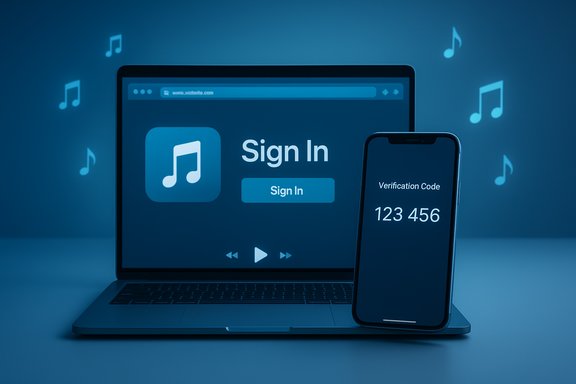
Apple split the old iTunes monolith on Windows into separate apps — Apple Music, Apple TV, and Apple Devices — and now distributes the dedicated Apple Music app through the Microsoft Store while also offering a full web player at music.apple.com. That makes two primary entry points for PC users: the native Microsoft Store app (recommended for the best integration and offline downloads) and the browser-based web player (fastest for one-off access). The split from iTunes was completed as a staged rollout in 2023–2024, and Apple’s documentation and third‑party coverage confirm the Windows apps are the official route for Apple Music on modern PCs. Apple’s official support pages define the sign‑in experience: click the Sign In control in the Apple Music app or on the web player and authenticate with your Apple ID. If your Apple ID has two‑factor authentication (2FA) enabled — which Apple strongly encourages and sometimes requires — you’ll need a trusted device or phone number to receive the one‑time verification code during the sign‑in flow. Those are the canonical steps, and they align with the behavior users encounter in the Microsoft Store app and in browsers.
How to sign in on the web:
This practical guide combines Apple’s official instructions with real‑world troubleshooting reported by Windows users so you can sign in, sync your library, and get back to listening with confidence.
Source: The Mac Observer How to Login to Apple Music on a PC
 Background / Overview
Apple split the old iTunes monolith on Windows into separate apps — Apple Music, Apple TV, and Apple Devices — and now distributes the dedicated Apple Music app through the Microsoft Store while also offering a full web player at music.apple.com. That makes two primary entry points for PC users: the native Microsoft Store app (recommended for the best integration and offline downloads) and the browser-based web player (fastest for one-off access). The split from iTunes was completed as a staged rollout in 2023–2024, and Apple’s documentation and third‑party coverage confirm the Windows apps are the official route for Apple Music on modern PCs. Apple’s official support pages define the sign‑in experience: click the Sign In control in the Apple Music app or on the web player and authenticate with your Apple ID. If your Apple ID has two‑factor authentication (2FA) enabled — which Apple strongly encourages and sometimes requires — you’ll need a trusted device or phone number to receive the one‑time verification code during the sign‑in flow. Those are the canonical steps, and they align with the behavior users encounter in the Microsoft Store app and in browsers. What you’ll need before you begin
Make sure the following items are ready. These are the most common prerequisites that determine whether sign‑in succeeds or stalls.- An active Apple ID — your Apple ID email and password; this is the account tied to Apple Music subscriptions and iCloud.
- Two‑Factor Authentication (2FA) — if your Apple ID has 2FA enabled you’ll need a trusted device or a verified phone number to receive the six‑digit verification code. Apple documents the 2FA flow and options to use another Apple device or receive a code via SMS/phone. If you don’t have a trusted Apple device, Apple’s recovery and support channels are the fallback.
- The right client for your use case:
- Apple Music app from Microsoft Store — preferred for offline downloads, integration with Windows audio settings, support for spatial audio and lossless options in the app’s Playback settings.
- Apple Music web player (music.apple.com) — fast and flexible for use on locked down or managed machines but lacks some app‑level features such as app‑controlled offline downloads and some system integrations.
Method 1: Sign in using the Apple Music app for Windows (recommended for daily use)
The Windows app provides the tightest feature parity with Apple’s desktop experience on macOS: downloads for offline listening, playback settings including lossless and Dolby Atmos, and local library integration. Follow these steps.- Install the Apple Music app from the Microsoft Store — search for “Apple Music” or use the official Apple download guidance to get the app for Windows. If you previously used iTunes you’ll be able to access purchases and local libraries after installing the new apps.
- Launch the Apple Music app and locate Sign In at the bottom of the left sidebar (or select your profile avatar). Click Sign In.
- Enter your Apple ID email and password. If prompted for two‑factor authentication, approve the request on a trusted Apple device or enter the six‑digit code sent to a trusted phone number. Apple’s Windows guidance specifically instructs users to complete the 2FA prompt to finish sign‑in.
- After the app verifies your identity, your Apple Music library, playlists, and recommendations will begin to sync and populate the interface. Allow several minutes for a full library sync the first time, especially if you have a large iCloud Music Library or many playlists.
- Offline downloads and library management controlled by the app.
- Playback quality options: the app exposes Lossless and Hi‑Res Lossless toggles and Dolby Atmos playback options in Settings > Playback for subscribers, so you can stream or download higher‑resolution audio where supported. Apple’s documentation shows lossless settings and download options are available in the Windows app.
Method 2: Sign in using the Apple Music web player (music.apple.com)
The web player is ideal when you can’t install apps (work PCs, temporary use, or troubleshooting). It mirrors much of the browsing and streaming experience but historically had differences in advanced audio features compared with the native app.How to sign in on the web:
- Open a modern browser — Chrome, Edge, or Firefox.
- Navigate to music.apple.com and click Sign In in the upper‑right corner. Enter your Apple ID and password. Complete the 2FA challenge if requested.
- Once authenticated, your playlists, library items, and suggestions will appear; streaming begins immediately.
- The web client is fast and cross‑platform but historically had limitations for offline downloads and control over high‑resolution playback compared to the Windows app. Apple’s web documentation does allow streaming and some controls, but the fully featured playback settings (like choosing download quality or toggling Dolby Atmos downloads) live in the Windows app. Use the web player when installation isn’t possible.
Common problems and practical fixes (troubleshooting)
Signing in usually works, but these are the recurring issues users report — and the reliable fixes.1) Two‑Factor Authentication (2FA) hangs or “no verification code”
- Symptom: you enter credentials but the app never shows a 2FA prompt or you don’t receive a code.
- Why it happens: 2FA codes are delivered to trusted Apple devices or phone numbers. If your account was never fully verified or you don’t have a trusted Apple device, the UI can appear to stall. Apple’s official 2FA guidance explains the trusted device/code flow and recovery options. Community reports also show cases where Apple required verification from an Apple device to finish account setup. If you lack a trusted Apple device, contact Apple Support for help; in some cases Apple may require an in‑person or assisted verification step.
- Use an iPhone, iPad, or Mac that is already signed in to your Apple ID to approve the login.
- If no trusted device exists, use “Didn’t get a verification code?” and choose a trusted phone number to receive SMS.
- If you still can’t complete verification, open appleid.apple.com in a browser on a machine that can complete the account verification workflow or reach out to Apple Support.
2) App signs in but loads a blank or empty library
- Symptom: after successful sign‑in the Apple Music app displays empty panes or errors out while the web player works fine.
- Why it happens: temporary server or token issues, cached data conflicts, or a corrupted app state. Community troubleshoot threads and Apple’s own app‑repair guidance recommend app reset or reinstall actions.
- Close app, restart PC, and reopen.
- Check your internet connection and visit Apple’s System Status pages (if available) to rule out outages.
- In the Microsoft Store app list, use Advanced options for Apple Music to Repair or Reset the app. Many users report Repair/Reset often fixes sign‑in glitches.
- If Repair/Reset fails, uninstall and reinstall the Apple Music app from the Microsoft Store. If you installed via standalone iTunes historically, try the modern Store app route.
3) “Sign in did nothing” or web player sign‑in loops
- Symptom: you click Sign In in the web player, enter credentials, and the site returns to the same page without an authenticated session.
- Why: browser cookie/profile conflicts or extension interference can block the redirect. Apple’s support pages and community threads show that an in‑private window or a fresh browser profile commonly resolves it.
- Try an incognito/private window or a different browser.
- Clear cookies or create a new browser profile.
- Disable ad blockers or cookie blockers for music.apple.com temporarily and retry.
4) Enterprise / managed device constraints
- Symptom: corporate or school machines block Apple Music sign‑in or the Microsoft Store app won’t install.
- Why: managed devices often have restrictions, blocked Store access, or conditional access policies that interfere with OAuth flows. Microsoft and Apple guidance both note that managed environments may need policy updates or exceptions.
- Use the web player if the Store app is blocked (if permitted by IT).
- If the machine is domain‑joined or MDM‑managed, coordinate with your IT admin to allow the Microsoft Store app or to whitelist appleid.apple.com and related endpoints.
Advanced topics: audio quality, downloads, and device support
Apple Music on Windows now exposes the same high‑quality playback options you expect on other platforms: Lossless (ALAC up to 24‑bit/48kHz) and Hi‑Res Lossless (up to 24‑bit/192kHz), and Dolby Atmos spatial audio in supported configurations. Apple’s Windows documentation explains where to toggle these options in the app’s Playback settings, and it explicitly lists Lossless and Hi‑Res Lossless availability and the sampling/bit depth ranges. Third‑party coverage and recent update notes confirm Dolby Atmos and lossless have been added to the Windows client in recent versions. What to keep in mind:- Hardware matters: Hi‑Res Lossless typically requires an external USB DAC; Bluetooth headphones use AAC or SBC codecs and cannot receive true lossless over standard Bluetooth. Apple documents the requirement for external hardware for Hi‑Res playback.
- Storage and bandwidth: lossless files are much larger than AAC streams; choose download quality with care for device storage and network speed. The Windows app provides separate Download and Streaming quality controls.
- Web player limitations: the web player is excellent for streaming but historically exposed fewer direct controls for download quality and hardware integration. Use the app if you need downloaded files or fine‑grained playback settings.
Security and privacy considerations
- Two‑factor authentication is a net positive: 2FA prevents account takeover even if your password is leaked. Apple encourages 2FA and sometimes requires it for specific account operations; plan for it by adding a trusted phone number or an extra Apple device if possible.
- Beware of phishing: authentic Apple ID flows occur on appleid.apple.com and music.apple.com. If a sign‑in page or prompt looks unusual or asks for information beyond standard credentials or code, close the window and navigate directly to the site. OAuth consent screens show requested permissions before approval; read them carefully.
- Managed device telemetry and policies: if using Apple Music on an employer‑managed machine, check with IT on allowed app installs and network filters; corporate policies sometimes block audio flows or necessary endpoints.
When things still don’t work: escalation ladder
- Reproduce on music.apple.com — if the web player signs in successfully, the issue is likely app‑specific.
- Repair or reset the Microsoft Store app (Settings → Apps → Apple Music → Advanced options). Many sign‑in oddities are solved by this step.
- Reinstall the app from the Microsoft Store; ensure Windows updates are applied first. Apple’s download guidance shows the official Store route.
- Check 2FA: confirm trusted devices and phone numbers at appleid.apple.com. If you can’t receive codes, contact Apple Support for account recovery options.
- If using a managed machine, test sign‑in on a personal PC or home network to isolate corporate policy effects. If the problem disappears, coordinate with IT for a policy exception.
Strengths, limitations, and risk assessment
Strengths- Official, first‑party app and web player: Apple’s Microsoft Store app plus music.apple.com are the supported ways to use Apple Music on Windows. The app now exposes lossless and Dolby Atmos options that bring Windows parity closer to macOS and iOS.
- Flexible access: web player for quick access, app for offline and hardware‑tuned playback.
- 2FA and account verification friction: some users — especially those without any Apple hardware — encounter extra verification steps that can require Apple Support involvement. Community reports show cases where account verification required a signed‑in Apple device. Treat these as known friction points to prepare for.
- Occasional Store or WebAuth issues: the Microsoft Store and Windows WebAuth flows are generally stable but occasionally break for specific builds or configurations, and app cache/state corruption may require repair. Community threads and troubleshooting guides show this pattern repeatedly.
- Claims that “lossless never works on Windows” are stale now that Apple documents lossless and Hi‑Res options for the Windows app; verify your app version and settings before assuming feature absence. If a community post asserts a behavior without corroborating Apple’s support documentation or current app changelog, treat it cautiously.
Quick reference — step‑by‑step cheat sheet
- Best route for full features: Install Apple Music from the Microsoft Store, Sign In, enable Lossless/Dolby options in Settings if you want them.
- Fastest route for temporary access: Open your browser to music.apple.com, click Sign In, authenticate, and stream.
- If sign‑in fails in the app but works on the web: Repair/reset the app (Settings → Apps → Apple Music → Advanced → Repair/Reset) and reinstall if necessary.
- If you don’t receive 2FA codes: use a trusted phone number, a trusted Apple device if available, or contact Apple Support for account assistance.
Conclusion
Signing in to Apple Music on a PC boils down to two supported paths — the Microsoft Store app for a full desktop experience and the web player for quick, installation‑free access. Apple’s documentation confirms the sign‑in steps and modern playback features (including lossless and Dolby Atmos) for the Windows app, while community threads highlight the most common friction points: two‑factor authentication prompts, app state corruption, and managed environment restrictions. Knowing which client to use and following a simple escalation ladder — web player test, app repair/reset, reinstall, and Apple ID verification — resolves the majority of problems. When more stubborn issues remain, Apple Support and detailed logs/screenshots are the next step to a fix.This practical guide combines Apple’s official instructions with real‑world troubleshooting reported by Windows users so you can sign in, sync your library, and get back to listening with confidence.
Source: The Mac Observer How to Login to Apple Music on a PC
