

Microsoft’s latest Windows 11 preview builds are quietly reshaping how conversational AI sits inside the operating system, replacing isolated assistants with a set of contextual, task-focused entry points — most notably a new “Ask Copilot” experience that can live directly in the taskbar and inside File Explorer.
Microsoft has been iterating Copilot across Windows for more than a year, moving from a standalone Copilot app toward deeper surface-level integrations. Those experiments have included right-click context menu entries, Copilot-powered file summaries in OneDrive sharing flows, and an expanding set of AI actions in File Explorer. The new wave of changes in recent preview builds consolidates those experiments into a consistent pattern: treat Copilot as infrastructure rather than a separate application, surface it where users already work, and let AI agents run background tasks that report progress back to the Windows shell.
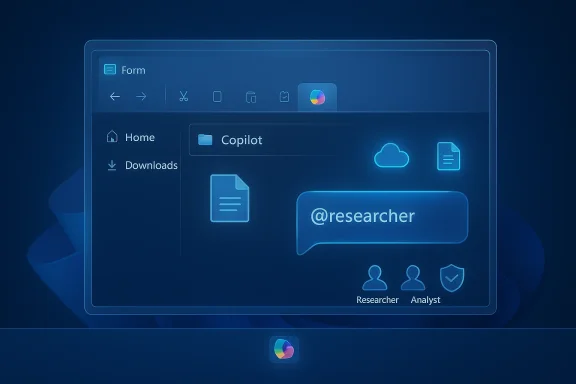
Multiple reporting outlets and early Insider notes show the new Ask Copilot replaces or augments the classic taskbar search box with a chat-style entry point that accepts special commands — including an “@” syntax to invoke purpose-built agents like a researcher agent. At the same time, File Explorer gains a one-click Copilot button that produces document summaries and contextual annotations without opening Office apps. Microsoft positions these features as tied to Microsoft 365 Copilot services and is rolling them out in stages through preview channels and controlled flights.
This article walks through how Ask Copilot works in the taskbar and File Explorer, the underlying agent model Microsoft appears to be standardizing, deployment implications, security and privacy considerations, and what this means for enterprise and consumer users of Windows 11.
The experience intentionally blurs the line between search and assistant: rather than making users launch a standalone Copilot window, Microsoft surfaces AI interactions inline from the taskbar, so asking questions, launching agents, and seeing results can take place without switching to a separate application. This is consistent with Microsoft’s recent pattern of embedding AI features directly into application shells and system UI.
Key user-facing behaviors include:
Microsoft’s rollout strategy appears deliberately conservative: initial exposure to commercial customers and select Insiders, followed by broader distribution as telemetry validates stability and user experience. That staged approach matters because it affects who sees automation, which enterprise controls apply, and how quickly feedback can change the feature shape.
This integration is aimed at everyday tasks that regularly induce friction: find the core points of a long report, extract project status from a collection of meeting notes, or produce an executive summary before sharing a document with stakeholders. In each case, Copilot contextualizes content directly where the file lives.
The net effect is intended to be faster turnarounds for common tasks: instead of opening multiple apps, searching for the latest version of a file, and copying excerpts into an email, Copilot-driven summaries can be inserted or copied directly from the Explorer UI.
Agents can be:
This architecture aligns with Microsoft’s strategy of delivering AI-driven productivity features as cloud-augmented services tied to enterprise offerings — a strategy that improves capability parity across devices while keeping sensitive compute and training data in managed services.
However, there are tradeoffs:
That said, reliance on cloud services and agent-driven workflows raises concerns for users who must preserve local-only, privacy-focused access. Offline users and environments with strict data governance may find these features less useful or entirely unavailable.
Because agents can be launched from the taskbar, context menus, or inside Explorer, developers can provide highly discoverable automations that reduce friction and create new usage models.
For organizations, the immediate imperative is to engage early, test controls, and establish governance around Copilot’s use. For everyday users, the promise is real: faster triage, inline context, and a smoother workflow if you’re comfortable relying on cloud-backed AI. Microsoft is rolling these capabilities out in preview and staged flights, meaning the feature set will continue to change — and the company will likely refine the balance between convenience and control as real-world feedback accumulates.
Source: gHacks Microsoft Tests Ask Copilot in Windows Taskbar and File Explorer - gHacks Tech News
 Background
Microsoft has been iterating Copilot across Windows for more than a year, moving from a standalone Copilot app toward deeper surface-level integrations. Those experiments have included right-click context menu entries, Copilot-powered file summaries in OneDrive sharing flows, and an expanding set of AI actions in File Explorer. The new wave of changes in recent preview builds consolidates those experiments into a consistent pattern: treat Copilot as infrastructure rather than a separate application, surface it where users already work, and let AI agents run background tasks that report progress back to the Windows shell.Multiple reporting outlets and early Insider notes show the new Ask Copilot replaces or augments the classic taskbar search box with a chat-style entry point that accepts special commands — including an “@” syntax to invoke purpose-built agents like a researcher agent. At the same time, File Explorer gains a one-click Copilot button that produces document summaries and contextual annotations without opening Office apps. Microsoft positions these features as tied to Microsoft 365 Copilot services and is rolling them out in stages through preview channels and controlled flights.
This article walks through how Ask Copilot works in the taskbar and File Explorer, the underlying agent model Microsoft appears to be standardizing, deployment implications, security and privacy considerations, and what this means for enterprise and consumer users of Windows 11.
What Ask Copilot in the taskbar actually does
A new entry point to Copilot, not just a new app
The most visible change is that Windows can now present Copilot directly in the taskbar, replacing the legacy search field in participating preview builds. The new interface behaves like a unified entry point for Microsoft 365 Copilot services, Windows Search, and registered AI agents. Users can invoke Copilot via the taskbar icon and interact using either text or voice.The experience intentionally blurs the line between search and assistant: rather than making users launch a standalone Copilot window, Microsoft surfaces AI interactions inline from the taskbar, so asking questions, launching agents, and seeing results can take place without switching to a separate application. This is consistent with Microsoft’s recent pattern of embedding AI features directly into application shells and system UI.
The “@” command and agent launchers
A notable UI mechanic in the preview is the use of an “@” command syntax — for example, typing @researcher — to invoke specialized agents. These agents are designed to handle extended workflows, such as summarizing technical documents, compiling research notes, or extracting actionable insights from collections of files. The agents can hold context, ask clarifying questions, and run multi-minute tasks.Key user-facing behaviors include:
- Real-time progress indicators shown on the taskbar icon and within the taskbar flyout, similar to how Windows indicates download progress.
- Background execution of longer-running tasks with notifications on completion.
- Seamless handoff between search results, files, and agent-generated outputs without opening separate windows.
Opt-in controls and deployment nuance
Although Ask Copilot is prominent in developer and beta preview builds, it’s not a forced, system-wide switch for all devices. Early builds make the feature opt-in and subject to staged rollout flags. Preview users report that the feature may require a Microsoft account, specific Insider settings, or Microsoft 365 Copilot licensing for full functionality. Administrators and power users have also found that enterprise policies or missing feature flags can influence visibility.Microsoft’s rollout strategy appears deliberately conservative: initial exposure to commercial customers and select Insiders, followed by broader distribution as telemetry validates stability and user experience. That staged approach matters because it affects who sees automation, which enterprise controls apply, and how quickly feedback can change the feature shape.
Copilot inside File Explorer: summaries, annotations, and fewer app switches
A single button, a lot of context
The File Explorer integration is designed to reduce app switching. A Copilot button in File Explorer can generate summaries, extract insights, and display metadata-driven annotations for documents without launching Word, Excel, or other editors. When files are stored or shared via OneDrive or SharePoint and a user has an appropriate Microsoft 365 Copilot license, Copilot can pull context across the linked cloud services to produce richer, shareable summaries.This integration is aimed at everyday tasks that regularly induce friction: find the core points of a long report, extract project status from a collection of meeting notes, or produce an executive summary before sharing a document with stakeholders. In each case, Copilot contextualizes content directly where the file lives.
Inline context, synced content, and collaboration
Because these summaries can be generated from cloud-aware services, the Copilot experience inside File Explorer benefits most from files that are shared or synced to cloud storage. That enables Copilot to surface collaborative context such as recent edits, shared comments, or linked conversations from a corporate OneDrive or SharePoint environment. Early previews emphasize integration with Microsoft 365 for commercial customers, though consumer audiences are expected to gain functionality over time.The net effect is intended to be faster turnarounds for common tasks: instead of opening multiple apps, searching for the latest version of a file, and copying excerpts into an email, Copilot-driven summaries can be inserted or copied directly from the Explorer UI.
Under the hood: Agents, Microsoft 365 services, and OS-level AI
From assistant to infrastructure
The most significant architectural shift is treating Copilot as infrastructure that apps and the OS can tap into, rather than a single app that users must open. The agent model — where discrete agents are registered with Windows and launched on demand — makes Copilot extensible and composable.Agents can be:
- Microsoft-provided (for example, specialized Researcher or Analyst roles)
- Bundled with Microsoft 365 commercial subscriptions
- Third-party agents provided by apps that register with the Agent Launcher framework during installation or at runtime
Microsoft 365 Copilot as the compute backend
Crucially, the Ask Copilot experience appears to rely on Microsoft 365 Copilot services for compute and contextual knowledge. This linkage brings advantages — enterprise tenant context, organizational data connectors, and licensed capabilities — but it also imposes license and connectivity constraints. Devices that do not have access to Microsoft 365 Copilot or are offline will see degraded or limited functionality compared with connected, licensed devices.This architecture aligns with Microsoft’s strategy of delivering AI-driven productivity features as cloud-augmented services tied to enterprise offerings — a strategy that improves capability parity across devices while keeping sensitive compute and training data in managed services.
Deployment, licensing, and who gets what — the practical rollout picture
Staged rollouts, preview channels, and licensing gates
The current Ask Copilot and File Explorer enhancements are shipping into preview builds and are being rolled out in stages. In practice, that means:- Initial exposures to Windows Insiders in Dev/Beta channels and commercial preview customers.
- Controlled flights that target commercial and Copilot-licensed tenants before large-scale consumer exposure.
- Settings-level opt-ins (for example, Settings > Personalization > Taskbar > Ask Copilot) that allow deployment flexibility.
Consumer vs. commercial feature parity
Microsoft’s previews indicate some features may be limited to Microsoft 365 Copilot license holders initially — especially those that leverage tenant-scoped context like shared OneDrive or SharePoint content. Consumer users without a Copilot license can still see basic Copilot features, but the richer, context-aware summaries and team-aware agents are likely to remain gated until Microsoft broadens licensing or introduces consumer equivalents.Account and privacy considerations that impact availability
Reports from preview participants indicate the feature may require a Microsoft account rather than a local account to enable full functionality. That means organizations and privacy-conscious users will need to weigh the convenience of AI-driven productivity gains against account and telemetry policies.Usability, accessibility, and user experience tradeoffs
Designed to reduce app switching — but raises discoverability and clutter questions
Embedding Copilot in the taskbar and File Explorer aims to reduce app switching and make AI available where users are already working. That design can shorten workflows and make productivity features more accessible.However, there are tradeoffs:
- Adding taskbar and context-menu entries can clutter UI for users who don’t want or need AI helpers.
- Users unfamiliar with the “@” syntax or agent model may not discover or correctly use specialized agents.
- Early previews show Microsoft actively experimenting with when and how to surface Copilot features to avoid unnecessary noise; expect additional polish and options to hide AI actions when not applicable.
Accessibility gains and potential pitfalls
Windows continues to improve accessibility in parallel to AI integration. The same preview cycle that introduced Ask Copilot also expanded Narrator’s customization and natural-language accessibility controls on Copilot+ PCs. These additions show potential for AI to make Windows more usable for people with disabilities by offering alternative, natural-language controls over how UI elements are announced and navigated.That said, reliance on cloud services and agent-driven workflows raises concerns for users who must preserve local-only, privacy-focused access. Offline users and environments with strict data governance may find these features less useful or entirely unavailable.
Security, privacy, and governance: the hardest questions
Data surface and contextual access
Because Ask Copilot and File Explorer summaries can pull from Microsoft 365 data, administrators and users should consider:- What data is being sent to Microsoft 365 Copilot services when an agent summarizes a document?
- How are tenant-level access controls and DLP policies enforced when a Copilot agent runs?
- Can agent output be audited, and do the outputs adhere to corporate sensitivity labeling?
Local vs. cloud processing and offline resilience
Ask Copilot’s richer capabilities appear to be cloud-dependent, meaning offline use cases will be limited. For organizations or users requiring strictly local processing of documents, this is a critical constraint. Expect Microsoft to clarify what processing happens on-device versus in the cloud as the product moves toward general availability.Attack surface and supply-chain considerations
Introducing a system-level agent framework increases Windows’ attack surface in three ways:- Agents registered by third-party apps could request elevated capabilities or expose new interaction points with user data.
- Background tasks that fetch or write data to cloud services become additional integration points for attackers.
- The real-time progress and notification model may be abused for social-engineering vectors if not carefully controlled.
Developer and partner implications
An extensible agent model creates opportunity
For ISVs and independent developers, the agent registration framework presents an opportunity to package capabilities that are discoverable system-wide. Imagine vertical productivity tools that register domain-specific agents — for law firms, researchers, or designers — and surface right where users store or open files.Because agents can be launched from the taskbar, context menus, or inside Explorer, developers can provide highly discoverable automations that reduce friction and create new usage models.
Platform requirements and best practices
Developers who build agents should assume:- Agents must authenticate against tenant or user contexts securely.
- Long-running tasks should implement graceful cancellation and progress reporting.
- Outputs should honor sensitivity labels, user consent, and export controls.
- UX should include clear provenance markers so users know when AI produced or modified content.
Practical guidance for IT and end users
For IT administrators
- Treat Ask Copilot like any cloud service: test in controlled groups before wide deployment.
- Evaluate DLP and sensitivity labeling coverage for Copilot-driven summaries and outputs.
- Prepare policy controls (Group Policy / Intune) to disable or limit agent discovery where necessary.
- Educate helpdesk teams about visibility issues (why some users see Copilot and others don’t) and account dependencies.
For power users and everyday users
- Try Ask Copilot in preview builds with a test Microsoft account to learn its capabilities without impacting work tenants.
- Use the inline summaries in File Explorer to speed document triage before opening large files.
- If you dislike Copilot entries in context menus or the taskbar, look for opt-out settings or temporarily remove the Copilot app (preview builds vary; registry workarounds have been published but should be used cautiously).
Strengths and opportunities
- Reduced friction: Surfacing AI where users already work decreases app switching and can shave minutes off routine tasks.
- Extensible agent model: A system-level framework that third-party developers can register with enables creative, domain-specific agents.
- Enterprise contextualization: Tying Copilot to Microsoft 365 services brings tenant-aware context, which is valuable for team workflows.
- Accessibility potential: Natural-language control and narrated context can improve accessibility across Windows.
Risks and open questions
- Privacy and governance: How data is sent, stored, logged, and audited remains a key question that requires clearer controls and documentation.
- License gating and fragmentation: Feature fragmentation between consumers and Copilot-licensed commercial users could create inconsistent experiences.
- UI clutter and discoverability: While Microsoft is iterating, the risk of over-saturating the taskbar and context menus remains real.
- Security surface expansion: The agent model is powerful but multiplies integration points that must be secured and monitored.
What to watch next
- How Microsoft documents agent registration and the security model for third-party agents.
- Detailed enterprise controls for auditing Copilot usage, data flow, and retention.
- Consumer feature parity timelines, especially when and how non-commercial users will see the same File Explorer summaries and agent capabilities.
- UI refinements that reduce clutter while keeping AI discoverable for users who want it.
- Offline and on-device processing options that give privacy-sensitive users a path to use AI without cloud dependency.
Conclusion
Ask Copilot’s arrival in the Windows 11 taskbar and File Explorer marks a significant step in Microsoft’s strategy to integrate conversational AI as infrastructure — a set of registered agents and cloud-backed services that appear where users already work. The approach promises concrete productivity gains by collapsing app-switching and delivering contextual summaries directly in Explorer, but it also raises difficult questions about privacy, licensing fragmentation, and the attack surface that come with system-level AI integrations.For organizations, the immediate imperative is to engage early, test controls, and establish governance around Copilot’s use. For everyday users, the promise is real: faster triage, inline context, and a smoother workflow if you’re comfortable relying on cloud-backed AI. Microsoft is rolling these capabilities out in preview and staged flights, meaning the feature set will continue to change — and the company will likely refine the balance between convenience and control as real-world feedback accumulates.
Source: gHacks Microsoft Tests Ask Copilot in Windows Taskbar and File Explorer - gHacks Tech News
