

Microsoft is replacing the Windows 11 taskbar search box with an “Ask Copilot” experience that floats above the taskbar, combining the existing Windows Search platform with Copilot’s multimodal AI features — vision, voice, and conversational assistance — and offering an opt‑in, permissioned pathway to search apps, files, and settings from the desktop.
Windows Search has been part of the Windows desktop for nearly two decades, evolving from file‑indexing and Start‑menu lookups into a hybrid local + web experience. Over the last few years Microsoft has layered AI and semantic capabilities into Windows — from latent semantic indexing to Copilot integrations — but user complaints about search speed, indexing gaps, and a persistent bias toward web results have continued to shape expectations. Many power users already bypass built‑in search with utilities such as PowerToys’ Command Palette (formerly PowerToys Run) or ultra‑fast filename search tools like Everything. Microsoft’s latest push folds Copilot more tightly into the OS. The company frames this as making “every Windows 11 PC an AI PC,” and the October announcements center around a handful of headline features — Ask Copilot on the taskbar, Copilot Vision, Hey, Copilot wake‑word support, and experimental agentic features called Copilot Actions. Those new experiences are being introduced progressively through the Windows Insider program before broader rollout.
Source: Windows Latest Microsoft can’t fix Windows 11 search, so it’s handing it to Ask Copilot on the taskbar
 Background
Windows Search has been part of the Windows desktop for nearly two decades, evolving from file‑indexing and Start‑menu lookups into a hybrid local + web experience. Over the last few years Microsoft has layered AI and semantic capabilities into Windows — from latent semantic indexing to Copilot integrations — but user complaints about search speed, indexing gaps, and a persistent bias toward web results have continued to shape expectations. Many power users already bypass built‑in search with utilities such as PowerToys’ Command Palette (formerly PowerToys Run) or ultra‑fast filename search tools like Everything. Microsoft’s latest push folds Copilot more tightly into the OS. The company frames this as making “every Windows 11 PC an AI PC,” and the October announcements center around a handful of headline features — Ask Copilot on the taskbar, Copilot Vision, Hey, Copilot wake‑word support, and experimental agentic features called Copilot Actions. Those new experiences are being introduced progressively through the Windows Insider program before broader rollout. What Ask Copilot on the taskbar actually is
A chat‑forward search pill that floats above the taskbar
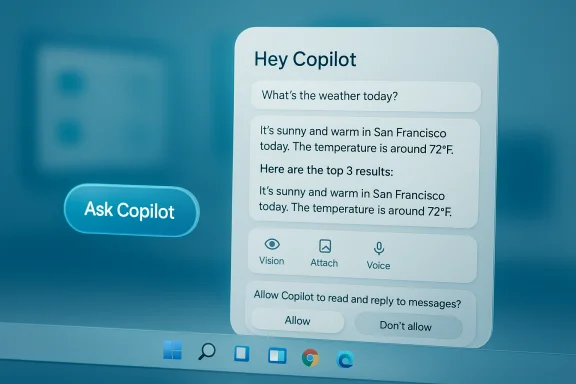
When enabled, the taskbar’s static search field is replaced by an Ask Copilot pill. Typing or invoking the Copilot button opens a small, rounded results panel that appears above the taskbar. That panel mixes local search hits (apps, settings, files surfaced via the Windows Search API) with Copilot suggestions and an input bar to continue the session with text, voice, or an attached image. Microsoft describes the model as permissioned — Copilot won’t read local content unless you grant access — and the experience is opt‑in.Multimodal features: Vision, Attach, Voice
- Copilot Vision: with explicit permission you can let Copilot “see” selected app windows or screen regions to extract text, identify UI elements, or summarize content. Microsoft says Vision is session‑based and permissioned.
- Attach (image): you can drop or attach an image to a taskbar search and ask Copilot to locate or relate matching files on the device — something the classic Windows Search UI did not offer.
- Voice / “Hey, Copilot”: Microsoft is adding an opt‑in wake‑word detector (“Hey, Copilot”) so users can summon Copilot hands‑free. The wake word detector is a small local model that listens for the phrase and begins a session only after user consent.
How it mixes windowed search and AI
Under the hood, Ask Copilot is built to use the Windows Search APIs for local index hits while augmenting results with Copilot’s language model responses and contextual suggestions directly in the same panel. That lets you flow from a filename result to an AI‑assisted summary or follow‑up question without jumping to a separate app. Microsoft positions this as an evolution of search rather than a wholesale replacement of the indexing engine.Verified technical details and rollout plan
I verified the major technical claims against Microsoft’s official messaging and independent reporting:- Microsoft’s Windows Experience Blog and Windows press material describe Copilot Vision, the opt‑in wake word, and the plan to expand Copilot’s presence on the taskbar and across OS surfaces. Those official posts show videos and demos under the “Ask Copilot on taskbar” banner.
- Independent outlets (Windows Central, Reuters, Lifewire) corroborate that the taskbar search will become an AI chat interface and note Microsoft’s description that Copilot’s access to files and apps is permissioned and off by default. They also report the feature will enter Windows Insider preview ahead of a general rollout window. Windows Central specifically cites an initial preview phase via the Insider channels and expectations of broader availability after testing.
- Microsoft’s support documentation and guidance list concrete behaviors for Copilot Vision and file search, including supported file types and the requirement that file indexing locations be explicitly set if users want local file discovery. The docs also spell out the wake‑word behavior and the local‑spotting model that triggers cloud processing only after permission.
Why Microsoft is doing this — product and platform logic
Search as a platform, AI as the interface
Microsoft has long treated Windows Search as a platform: indexers, IFilters, and plugin interfaces let developers surface app‑level content. But Microsoft’s product thesis now centers on AI as the new interface — conversational, multimodal, and action‑oriented. Folding Copilot into the taskbar is consistent with the strategy of making AI first‑class across the OS and reducing context switches for users who have to juggle apps, web results, and local files.Fixing perceived UX gaps
Microsoft’s own research and third‑party user feedback show persistent frustrations: slow or incomplete indexing, a mismatch between local vs. web intents, and lack of inline help when dealing with complex app UIs. Copilot’s promise is to surface explainers (what is this setting?, actions (open and edit that file), and search improvements (semantic ranking) in one place. If executed well, that could reduce friction for non‑power users.The real-world experience: speed, accuracy, and power‑user contrast
Why many users still use third‑party tools
Power‑users have long opted for alternatives to built‑in search because of speed and predictability:- Everything builds an index from the NTFS master file table and returns filename matches almost instantly. It is distinct from Windows Search because it focuses on metadata and filename lookups rather than full‑content semantic indexing.
- PowerToys’ Command Palette (PowerToys Run) provides a quick keyboard launcher with fuzzy matching and plugin extensibility; many users prefer its responsiveness and configurable scope.
Semantic indexing and offline capabilities
Microsoft has been testing semantic indexing and local AI search on Copilot+ devices that include NPUs; some Insider builds allowed AI search to run locally without an internet connection for supported file types and settings. That’s an important capability because it reduces the need for cloud round‑trips and helps preserve privacy for certain workflows. However, semantic search availability still depends on hardware and indexed locations, and broader support across the device fleet is phased.Privacy, security, and governance: the tradeoffs
Permissioned but powerful — what Microsoft says
Microsoft emphasizes that Copilot’s access to files and the screen is explicitly permissioned. Copilot Vision and wake‑word features are opt‑in; the wake‑word detector runs locally and only transfers audio after a session starts with user consent. Microsoft positions Copilot Actions as constrained, off by default, and gated behind additional permissions and testing.Practical concerns and unanswered questions
The design intentions are clear, but the practical risks are real:- Screen capture and Vision: giving an AI access to screen content — even with prompts for permission — increases the attack surface for data leakage. Malicious sites or accidental sharing could expose PII if users accept permissions without understanding implications. Early hands‑on reports show Vision is powerful but requires careful UI design and clear consent flows.
- Cloud vs. local processing: Microsoft says some inference will happen locally and heavier processing in the cloud. Exact boundaries and telemetry policies — what logs are stored, what metadata is sent to Microsoft, and how long ephemeral session data is kept — are crucial for compliance teams but are not fully enumerated in consumer blog posts. Enterprises and privacy‑sensitive users should seek explicit data‑handling documentation and contractual assurances before enabling agentic features.
- Default behaviors and entitlements: Microsoft states many features are opt‑in, but OS defaults and distribution channels can still nudge users toward enabling Copilot. Historically, Microsoft has used prominent placement and defaults to favor first‑party services (notably in the Edge/Bing era), raising questions about discoverability, coercion, and antitrust scrutiny in some markets. Regulatory changes (for example, the EU Digital Markets Act) have already altered how Microsoft must present defaults in certain regions.
Enterprise impact and admin controls
For IT admins, the relevant facts are straightforward and verifiable:- Microsoft provides policy controls to hide or disable Copilot. Group Policy and MDM (Intune) options exist for enterprise environments; the policy path and CSP name vary, but Microsoft documents a Turn off Windows Copilot Group Policy setting and an Intune OMA‑URI for the same purpose. This lets admins remove the taskbar button and stop Copilot from launching across devices in managed estates.
- Hiding the Copilot taskbar button is distinct from fully preventing access: some integrations (keyboard shortcuts, search URIs) may still be reachable unless the group policy or registry entries are applied centrally. Admins who require a strict ban should apply the documented policy and test it in staging. Implementation guidance and ADMX templates are referenced in Microsoft’s admin documentation.
Practical advice: how to evaluate, enable, or opt out
For consumers and power users
- If you want to try Ask Copilot, enable it through Settings or join the Windows Insider channel for early builds; follow Microsoft’s on‑screen consent flows for Vision and voice.
- If you prefer classical search behavior, hide the Copilot button from Taskbar settings and use keyboard shortcuts or trusted third‑party launchers (PowerToys Command Palette, Everything) for fast local lookups.
- Before granting Vision or file permissions, read the prompts and audit what windows or folders you’ve allowed Copilot to access; revoke access in Settings if you change your mind.
For IT admins
- Use Group Policy or Intune to apply the Turn off Windows Copilot policy if your organization requires it; test the registry or CSP changes with a pilot group before wide deployment.
- Update compliance documentation and data‑flow diagrams to account for Copilot features that may access screen content or cloud services; require legal/contractual clarity on telemetry retention and processing.
- Educate end users about explicit consent flows for vision and wake‑word features, and incorporate Copilot risks into phishing/awareness training where relevant.
Strengths, risks, and final assessment
Notable strengths
- Integrated workflow: blending Windows Search API hits with Copilot’s conversational layer reduces context switching and can speed complex tasks (finding a file, summarizing a slide, or extracting a table).
- Multimodal assistance: Vision and attach image support fill real gaps in traditional desktop search and can accelerate tasks like extracting text from images or navigating unfamiliar app UIs.
- Opt‑in controls and admin governance: Microsoft has published opt‑in flows and admin policies, giving users and organizations levers to enable or block the experience.
Significant risks
- Privacy surface area: giving an AI assistant permission to see screen content or read files — even for short sessions — expands potential exposure. Auditing and strict consent UI are essential; the public documentation does not yet enumerate every telemetry vector.
- Performance expectations: unless Ask Copilot matches the raw speed and predictability of specialized tools like Everything or PowerToys Run, power users will stick to those utilities for quick file retrievals. Microsoft must optimize latency and relevance to win broader adoption.
- User confusion and default nudges: history shows defaults and prominent placement can effectively force user adoption. Even when features are technically opt‑in, UI placement and update behavior matter; regulators and enterprises alike will scrutinize Microsoft’s rollout.
Verdict
Ask Copilot is a logical next step in Microsoft’s vision of making AI the primary interface for productivity on Windows. The move acknowledges that traditional search is not enough for modern, context‑rich desktop work. If Microsoft preserves clear consent controls, documents telemetry practices, and ensures performance parity with existing search alternatives, Ask Copilot could improve many workflows. If it fails on latency, privacy, or transparency, users and enterprises will treat it as yet another feature to disable. The change is transformative in intent; execution will determine its reception.Closing recommendations
- Users who value privacy or who operate in regulated environments should pause before enabling Copilot Vision or agentic features and consult IT policies where applicable. Microsoft’s documented admin controls are adequate to block Copilot at scale, but testing and verification are essential.
- Power users should evaluate Ask Copilot in parallel with existing launchers (PowerToys Command Palette) and file tools (Everything, UltraSearch). If responsiveness is the priority, keep a reliable fallback available while Microsoft iterates.
- Organizations should insist on clear contractual language from Microsoft covering telemetry retention, access controls, and data residency for any workloads that will rely on Copilot’s screen or file analysis. Early pilots should include security, compliance, and legal stakeholders to map risk tolerances.
Source: Windows Latest Microsoft can’t fix Windows 11 search, so it’s handing it to Ask Copilot on the taskbar
