

Long after ATI’s Mobility Radeon X1600 left store shelves, the small but stubborn community of Windows 7 users still running older laptops faces a familiar problem: locating, installing, and trusting the right ATI Mobility Radeon X1600 Windows 7 driver. This in-depth feature walks through what’s available today, how to install legacy drivers safely, the realistic performance and security expectations, and the best paths forward for anyone still relying on this decade-plus-old GPU.
The ATI Mobility Radeon X1600 is a mobile GPU introduced in the mid‑2000s as part of ATI’s X1x series. It was designed for mainstream notebooks of the era and supports DirectX 9.0c feature set with WDDM-era driver variants issued later. Over time the X1600 became a legacy product: official development and feature updates ceased years ago, but several final driver packages were released that can run on Windows 7 — albeit with important caveats.
Windows 7 itself reached end of extended security support on January 14, 2020. Many legacy driver packages released prior to or around 2009–2010 are what users must rely on today. Those drivers can restore hardware acceleration and proper multi‑display support for X1600 systems, but they were not designed to meet modern security or feature expectations.
Source: Born2Invest https://born2invest.com/?b=style-236943912/
 Background
The ATI Mobility Radeon X1600 is a mobile GPU introduced in the mid‑2000s as part of ATI’s X1x series. It was designed for mainstream notebooks of the era and supports DirectX 9.0c feature set with WDDM-era driver variants issued later. Over time the X1600 became a legacy product: official development and feature updates ceased years ago, but several final driver packages were released that can run on Windows 7 — albeit with important caveats.Windows 7 itself reached end of extended security support on January 14, 2020. Many legacy driver packages released prior to or around 2009–2010 are what users must rely on today. Those drivers can restore hardware acceleration and proper multi‑display support for X1600 systems, but they were not designed to meet modern security or feature expectations.
Overview: What “Windows 7 driver for X1600” actually means
- Legacy status: The Mobility Radeon X1600 is classified as a legacy GPU. That means AMD/ATI stopped active feature development years ago and later driver releases focused on newer architectures.
- Final driver families: The last widely distributed driver sets for this class use the late 2000s Catalyst/Amd driver family (8.xx / 9.xx / 8.5xx/8.59x / 8.59x–8.60x builds). Those packages contain display drivers, an optional control panel, and legacy WDDM support.
- Windows 7 compatibility: Many of these final releases include Windows 7 support in the installer metadata, but some are targeted primarily at Windows Vista era codebases and are adapted to Win7 through compatibility measures. Installers may warn or refuse checks; manual installation via Device Manager is often required.
- Feature limitations: Expect DirectX 9-era functionality only, limited OpenGL support, no modern GPU acceleration for newer APIs, and no updates for driver vulnerabilities.
Why users still seek these drivers
- Restoring resolution and multi‑monitor support: The generic Microsoft Basic Display Adapter provides basic output but no hardware acceleration and limited resolutions on many laptop panels.
- Legacy software and workflows: Some older applications or legacy medical/industrial software depend on the fixed behavior of older GPUs.
- Hardware reuse: Budget constraints or devices used for specific tasks (POS, kiosks, retro gaming) make refurbishing old hardware attractive.
- Curiosity and hobbyist projects: Enthusiasts running classic games or experimenters maintaining older notebooks.
Available driver options today
There are three practical sources for Windows 7–capable X1600 drivers:- Official AMD/ATI legacy packages released near the end of the product’s active maintenance window. These packages are the safest starting point and typically carry the original vendor INF and driver binaries.
- Third‑party driver archives and driver‑aggregation sites that host legacy Catalyst packages and repackaged installers. These can be convenient but warrant caution: file integrity and the possibility of bundled software or malware are real risks.
- Modified or community‑patched driver INF files that add missing hardware IDs or enable forced installations on unsupported OS builds. These can be useful when the official installer refuses to proceed, but they increase risk and complexity.
Installation: a step‑by‑step guide for Windows 7
This guide assumes a Windows 7 PC (32‑bit or 64‑bit) with an ATI Mobility Radeon X1600. The exact package version varies; the steps are the same for most legacy Catalyst-style installers.Preparatory steps
- Create a full backup or system restore point. Legacy driver installs can break display output; a restore point or system image is a safety net.
- Note your GPU hardware ID. Open Device Manager, find the display adapter (likely “Standard VGA Graphics Adapter” or similar), right‑click > Properties > Details > Hardware Ids. Record values like PCI\VEN_1002&DEV_xxxx.
- Download the driver package to a known folder. If the vendor installer refuses to run, you’ll extract the package files as described below.
- Temporarily disable automatic driver updates in Control Panel to avoid Windows Update overwriting the driver during or immediately after install.
Typical manual installation (recommended if installer fails)
- Run the downloaded installer. When it extracts files to a folder (often C:\ATI or C:\AMD) and then errors or exits, do not panic — note the folder path and close the installer.
- Open Device Manager. Right‑click the display adapter > Update Driver Software.
- Choose “Browse my computer for driver software.”
- Choose “Let me pick from a list of device drivers on my computer.”
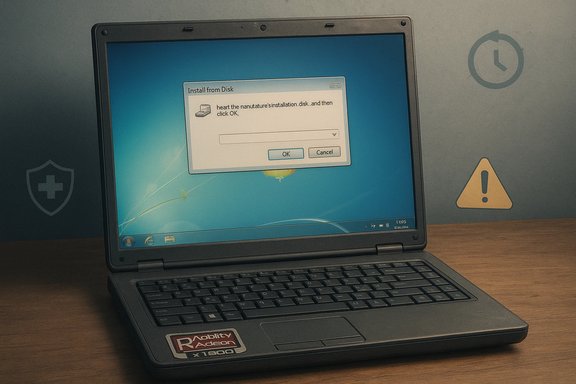
- Click “Have Disk,” then Browse to the driver folder path extracted by the installer and locate the INF file (usually in a subfolder like Packages\Drivers\Display\W86 or W64 depending on architecture).
- Select the appropriate INF and allow Windows to install the driver.
- Reboot.
If Windows 7 64‑bit blocks installation (driver signature enforcement)
- Boot to Advanced Boot Options (restart and press F8) and choose “Disable driver signature enforcement” for a temporary bypass. This allows installation of unsigned or legacy drivers.
- Alternatively, enable Test Mode via bcdedit (bcdedit /set testsigning on) which permits unsigned drivers but should be used only temporarily and with caution. Revert with bcdedit /set testsigning off after successful installation.
Restore if something goes wrong
- If you experience a black screen or constant crashes, boot to Safe Mode (F8) and use Device Manager to uninstall the ATI driver; Windows will revert to the Microsoft Basic Display Adapter.
- If the display is unusable, use a restore point or the system image you created before beginning.
Troubleshooting tips and common pitfalls
- Installer refuses to run or reports “unsupported OS”: Extract the package and install via Device Manager as described.
- Resolution limited, Catalyst Control Center missing: The CCC installers sometimes fail for legacy cards. The core display driver can still provide correct resolution; CCC is optional.
- Blue screens after install: Reboot to Safe Mode and uninstall driver; check for BIOS updates and chipset driver conflicts.
- Switchable graphics laptops: Many older laptops used vendor-modified drivers. If your notebook has switchable graphics or an Intel integrated GPU plus ATI discrete GPU, prefer the OEM driver package from the laptop manufacturer. Generic packages can break switchable functionality.
- Windows Update repeatedly replaces the driver: Disable automatic driver updates or set a group policy to prevent Windows Update from auto‑updating device drivers.
Performance and capability expectations
- Feature set: Expect DirectX 9.0c-level functionality, limited shader model support, and no modern API features (DirectX 11/12, advanced Vulkan/OpenCL acceleration).
- Gaming: Modern titles will be unplayable. Older games from the Windows XP/Vista era will run at low settings and modest resolutions.
- Multimedia: Hardware video decode support is limited compared to modern GPUs; high‑bitrate HD video may be CPU-bound.
- Aero and desktop effects: Aero can work, but performance is modest. On systems with small video memory, visual effects may be sluggish.
Security and reliability risks
- No security updates: Legacy drivers no longer receive security patches. Any vulnerabilities discovered in the driver stack after vendor support ended remain unpatched.
- Unsigned or repackaged drivers: Installing from third‑party archives increases the risk of tampered binaries or bundled toolbars and malware. Always verify file integrity and scan with a reliable antivirus before running.
- System instability: Older driver code was not designed for modern applications or workloads; incompatibilities can cause instability or data corruption in edge cases.
- Compatibility with modern software: Many modern browsers and apps assume GPU features absent on X1600, and may fall back to software rendering or disable hardware acceleration entirely.
Alternatives and long‑term options
- Use the Microsoft Basic Display Adapter for the most stable but limited experience — good for rescue or minimal GUI tasks.
- Obtain OEM vendor drivers: If you have the laptop manufacturer’s support page, their driver packages are often better matched to BIOS and power management.
- Use community patches with caution: Some enthusiasts publish patched INFs or repackaged drivers that extend compatibility. These can be useful, but they increase security and stability risk.
- Consider OS upgrade or replacement: Moving away from Windows 7 to a newer OS (or a lightweight Linux distribution for unsupported hardware) solves many security and driver concerns. Note: newer Windows versions have dropped support for many legacy drivers or require significant workarounds.
- Hardware replacement: For daily productivity or web browsing, upgrading the laptop or GPU (if replaceable) is the most futureproof path.
Safety checklist before downloading any legacy driver
- Verify the file’s origin — prefer the original vendor or a well‑known, reputable archive with a track record for clean files.
- Scan downloads with up‑to‑date antivirus and malware detection tools before running.
- Use a sandbox or virtual machine to test repackaged installers if you’re unsure.
- Keep a current system image or backup; in worst-case scenarios, you can restore the original state.
Stepwise quick reference: Install X1600 driver on Windows 7 (condensed)
- Create a system restore point and backup critical files.
- Download the final legacy driver package (extract to C:\ATI or similar).
- In Device Manager, Update Driver > Browse my computer > Have Disk > point to the extracted INF in the display driver folder.
- If blocked on 64‑bit Win7, temporarily disable driver signature enforcement via F8 or enable Test Mode.
- Reboot and verify display resolution and Catalyst Control Center presence.
- If problems occur, revert to Safe Mode and uninstall the driver, then restore.
Real‑world case studies and solutions
- Many community reports show success installing late‑2008/2009 Catalyst packages (8.56–8.59x/8.593/8.600 family) on Windows 7 machines to recover native LCD resolutions and multi‑display capability.
- Problems typically arise on vendor‑specific notebooks with BIOS‑level dependencies. In those situations, manufacturer drivers trump generic Catalyst packages.
- When an installer refuses to proceed, manual Device Manager installation (Have Disk) is the common workaround that yields functional display drivers without the full installer running.
Final assessment: Is it worth installing an X1600 driver on Windows 7 today?
For some users, yes — particularly for:- Restoring full panel resolution on a functioning legacy laptop.
- Running older software that depends on the X1600’s behavior.
- Reusing hardware for non‑Internet‑facing tasks (retro gaming, embedded kiosk functions).
- Windows 7 is unsupported and installing legacy drivers compounds security concerns.
- Hardware acceleration and feature shortfalls mean the experience will not match modern systems.
- Long‑term, migrating to supported hardware or moving the machine into an offline/isolated role is the safer option.
Practical recommendations (short list)
- Prefer OEM vendor drivers for laptops; they are the least risky.
- Use the final official legacy Catalyst driver when OEM packages aren’t available.
- Avoid unknown driver aggregators unless you verify checksums and scan files.
- Keep legacy systems off critical networks or update them to supported OS/hardware where possible.
- Document hardware IDs and driver versions used so you can replicate or revert changes.
Conclusion
The ATI Mobility Radeon X1600 Windows 7 driver story is one of pragmatic compromise. Official legacy drivers exist and can restore useful functionality to aging notebooks, but they arrive with limitations: dated feature sets, no security updates, and occasional installation friction on modern Windows builds. For those determined to keep an X1600 laptop running, careful preparation, cautious sourcing of legacy packages, and an awareness of security tradeoffs will produce the best outcome. For everyone else, migrating to supported hardware or placing the device in an offline role will deliver a safer, more reliable computing experience.Source: Born2Invest https://born2invest.com/?b=style-236943912/
