

Microsoft has begun shipping an automatic, on‑device alt text experience for images in Word and PowerPoint — but only on machines that meet Microsoft’s Copilot+ PC hardware standard — bringing a major accessibility workflow change that promises faster descriptions, stronger privacy guarantees, and new decisions for IT admins and content creators.
Microsoft’s accessibility teams have quietly moved AI‑generated alt text from an on‑demand, cloud‑backed helper to an automatic, local capability for a subset of Windows machines branded as Copilot+ PCs. The rollout targets Microsoft 365 subscribers running specific Office builds on Copilot+ hardware and is intended to generate descriptive, context‑aware alternative text the moment an image is inserted into a Word document or PowerPoint slide.
This change is part of a broader trend: vendors are shifting compute for sensitive AI features from the cloud back onto client devices. For Microsoft, that means leaning on laptop‑class Neural Processing Units (NPUs) to deliver instant, private AI experiences — from image descriptions to real‑time translation — while positioning Copilot+ PCs as the platform for premium, on‑device AI.
At the same time, making accessibility automatic introduces human‑factor and governance questions. Automation can raise the floor for accessibility coverage, but it must be paired with editorial review, transparent controls, and clear admin policy to ensure automated outputs are accurate and appropriate.
However, the rollout is gated by specific hardware and Office builds, and the feature is not a substitute for human oversight. Organizations must weigh the tradeoffs — convenience and privacy against the risks of unreviewed, possibly inaccurate descriptions — and implement governance, user training, and audit practices accordingly.
For now, the change delivers a meaningful improvement for users who need descriptive text quickly and privately. IT teams should verify device eligibility, Office build levels, and tenant policies, then adapt training and governance to ensure that auto‑generated alt text becomes a net win for accessibility rather than a source of new risk.
Source: Neowin https://www.neowin.net/amp/word-and-powerpoint-get-automatic-on-device-alt-text-on-copilot-pcs/
 Background
Microsoft’s accessibility teams have quietly moved AI‑generated alt text from an on‑demand, cloud‑backed helper to an automatic, local capability for a subset of Windows machines branded as Copilot+ PCs. The rollout targets Microsoft 365 subscribers running specific Office builds on Copilot+ hardware and is intended to generate descriptive, context‑aware alternative text the moment an image is inserted into a Word document or PowerPoint slide.This change is part of a broader trend: vendors are shifting compute for sensitive AI features from the cloud back onto client devices. For Microsoft, that means leaning on laptop‑class Neural Processing Units (NPUs) to deliver instant, private AI experiences — from image descriptions to real‑time translation — while positioning Copilot+ PCs as the platform for premium, on‑device AI.
Overview: what’s new in Word and PowerPoint
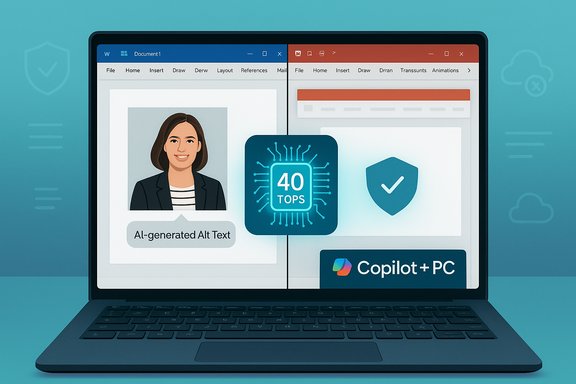
- Automatic alt text on insert: When you insert an image into a document or slide on a qualifying Copilot+ PC, Word and PowerPoint now present a generated alt text suggestion immediately beneath the image. Users can Approve or Edit the suggestion via the Alt Text pane.
- On‑demand generation for existing images: You can still generate alt text for existing images by selecting Picture Format > Alt Text (or via Review > Check Accessibility > Missing Alt Text) and choosing Generate alt text for me.
- Local processing and privacy: On Copilot+ PCs the generation runs on the local NPU; Microsoft states the image data does not leave the device during generation.
- Control for users and admins: The feature is opt‑out. It can be disabled via File > Options > Accessibility by unchecking the AI alt text option. Organizations have device and policy controls to manage Copilot and connected experiences.
- Availability: Microsoft reports the feature is available to Microsoft 365 subscribers running a minimum Office version and build on Copilot+ hardware.
Technical context: Copilot+ PCs and on‑device AI
What is a Copilot+ PC?
A Copilot+ PC is Microsoft’s designation for a class of Windows 11 laptops built around a high‑performance NPU alongside CPU and GPU. Key hardware expectations for the Copilot+ classification include:- An NPU capable of at least 40 TOPS (trillions of operations per second).
- Minimum system RAM and storage (commonly 16 GB RAM and 256 GB SSD as baseline guidance).
- Specific certified silicon lines (initial rollout heavily featured Snapdragon X Elite, later extended to Intel Core Ultra and AMD Ryzen AI families).
Why on‑device matters for alt text
On‑device generation changes two important axes for accessibility and enterprise use:- Latency and responsiveness: Generating descriptions locally removes round trips to cloud APIs, so descriptions appear immediately after image insertion rather than after a network call.
- Privacy and data residency: Local processing reduces the risk of image data being transmitted to cloud services. For organizations handling sensitive imagery, this can be a decisive advantage.
How the feature behaves in everyday use
Insertion flow
- Insert an image into Word or PowerPoint on a Copilot+ PC.
- The application runs a local image understanding model on the NPU.
- A suggested alt text appears under the image with two immediate options: Approve or Edit.
- Approve writes the alt text into the image’s Accessibility Alt Text field; Edit opens the full Alt Text pane for refinement.
Existing images
- Select an existing image.
- Choose Picture Format > Alt Text or Review > Check Accessibility.
- Click Generate alt text for me to run the on‑device generator and populate the pane with a suggestion for review.
User controls
- You can turn automatic generation off (File > Options > Accessibility > uncheck the AI option).
- Admins can manage Copilot and connected experiences through policy, and some organizational controls will control whether Copilot features are active at all on managed devices.
Verified technical checks and version details
A careful verification across official product notes and technical documentation shows the following concrete items:- Microsoft’s accessibility blog and support documentation state the automatic on‑insert alt text capability is limited to Copilot+ PCs where the model runs locally on the device NPU. The vendor emphasizes no image data leaves the device during local generation.
- Microsoft indicates specific Office version/build gating for this update in its release notes; one insider communication references Version 2512 (Build 19530.20006) or later on Copilot+ PCs as the minimum for immediate automatic behavior, while earlier communications about related alt text improvements referenced a different build baseline for on‑demand features. This suggests staged rollouts and multiple build thresholds across release channels.
- The Copilot+ hardware requirement of at least 40 TOPS for the NPU is a consistent specification across Microsoft product pages and developer documentation.
Accessibility benefits: what users gain
- Faster authoring for accessible content: Content creators no longer need to pause to request alt text—the suggestion appears immediately when an image is added, which lowers the friction of producing accessible documents.
- Consistent baseline descriptions: Generative descriptions aim to be contextual (not just naming objects), which typically produces richer alt text suitable for screen readers.
- Better adoption of accessibility best practices: By surfacing alt text at the point of insertion, the product nudges authors toward approving or customizing descriptions rather than leaving images unlabeled.
- Improved privacy for sensitive images: Local processing avoids image upload to cloud-based alt‑text APIs, addressing a common concern for enterprise users handling confidential imagery.
Critical analysis: strengths and practical risks
Strengths
- Performance and user experience: Immediate suggestions reduce authoring friction and are likely to increase the number of images that receive alt text.
- Privacy posture: On‑device inference minimizes data movement and the associated compliance surface, a meaningful distinction for regulated sectors.
- Hardware acceleration standardization: The Copilot+ specification (40+ TOPS NPUs) creates a predictable baseline for Microsoft to scale on‑device AI features across partner devices.
Risks and limitations
- Default behaviour and user agency: Automatic generation at insert time is an opt‑out behavior. For authors who do not notice the suggestion or who accept it without review, potentially inaccurate descriptions may persist in documents. Accessibility is not only about presence of alt text but also its quality and accuracy.
- Model hallucination and misinterpretation: Generative models are prone to mistakes—mislabeling people, misreading charts, or asserting facts from images that aren’t present. For images containing sensitive or regulated information (medical images, legal documents), automated descriptions could be inaccurate or misleading.
- Coverage limited to Copilot+ hardware: Many Windows clients will not qualify as Copilot+ PCs. On non‑Copilot machines, the alt text experience remains manual and cloud‑backed, creating inconsistency across an organization’s device estate.
- Version and rollout complexity: The feature is gated by Office build and subscription status. Mixed environments present complexity for support and training.
- Auditability and governance: When alt text is generated locally and stored in files, tracking which descriptions were auto‑generated, who approved them, and when changes were made becomes an organizational policy concern. There is no universal, built‑in audit trail exposed to tenants for auto‑generated alt text in standard Office files.
Security and privacy — deeper look
Microsoft’s on‑device claim is a strong design decision for privacy: keeping pixels and derived descriptions local reduces the obvious surface for data exfiltration. That said, on‑device processing is not a panacea.- Local storage: Generated alt text is persisted in the document’s metadata. Documents shared externally may now contain auto‑generated descriptions that reveal visual details a user would not otherwise disclose.
- Endpoint compromise: If a device is compromised, local artifacts — including alt text and the images they describe — could be exposed. Endpoint protection remains critical.
- Telemetry and diagnostics: Vendors often collect telemetry to measure model quality. Verify organizational telemetry settings to understand what, if any, usage or error signals are sent to vendor services as part of diagnostics.
- Legal/regulatory concerns: Certain industries require strict data handling (healthcare, finance). Organizations should assess whether local alt text generation satisfies internal compliance, especially if copy of images never leaves the device but still gets shared in documents.
- Enforce device and data loss prevention policies to control sharing.
- Provide user training on reviewing and editing generated alt text before sharing documents externally.
- Where necessary, disable automatic generation on managed devices and require manual review workflows.
Enterprise deployment considerations
Admin control and configuration
- The feature can be disabled at the app level (File > Options), but enterprises should apply centralized controls via group policy or Microsoft 365 admin controls for consistency.
- Copilot itself can be managed through tenant settings; disabling Copilot generally disables some of the on‑device Copilot experiences.
Mixed device estates
Organizations with mixed Copilot+ and non‑Copilot hardware should plan for inconsistent behavior across devices. Guidance and training should reflect the two workflows (automatic on‑insert vs manual cloud request).Documentation and change management
- Update internal style guides and accessibility checklists to reflect the new automatic behavior.
- Make it explicit that generated descriptions are suggestions and require review before external distribution.
Content quality and editorial guidance
Automatic alt text can accelerate accessibility, but algorithmic suggestions are not a substitute for human judgment. Practical editorial tips:- Treat auto‑generated alt text as a first draft: edit to add context (why the image is present, what actionable info it contains).
- For charts, graphs, and data visuals, ensure the alt text mentions trends, critical values, or conclusions—not only object recognition.
- For images of people, avoid making speculative statements about identity, age, or health unless verified.
- Review the generated text immediately after insertion.
- Remove any extraneous model comments (e.g., “description generated with high confidence”).
- Add context explaining the image’s purpose in the document.
- Re‑approve before sharing externally.
Interoperability and licensing notes
- The on‑insert automatic behavior is reported as available to Microsoft 365 subscribers on qualifying builds and Copilot+ hardware.
- Perpetual (non‑subscription) releases may have different defaults or require manual enablement; Microsoft has indicated that perpetual products may not automatically generate alt text by default and that future perpetual releases will add similar gen‑AI experiences.
- Admins should confirm their licensing model and Office channel (Current Channel, Insider, etc. to anticipate when and how this feature will appear in their environments.
What remains uncertain or worth watching
- Broadening device availability: Microsoft has indicated Copilot+ features are expanding across Intel and AMD silicon families; whether automatic on‑insert alt text will be back‑ported to a wider range of devices or become available as a cloud‑assisted option with local caching remains to be seen.
- Model refresh cadence: On‑device models require periodic updates. It’s important to know how Microsoft will deliver model updates (Windows Update, Office updates, or via separate model packages) and how quickly quality improvements will propagate.
- Audit and governance tooling: Enterprise administrators will want tools to identify which files contain auto‑generated alt text and to monitor adoption. Microsoft’s roadmap here is not yet exhaustive.
- Quality across diverse imagery: Model performance on technical charts, screenshots, and domain‑specific images (medical imaging, engineering diagrams) will vary. Organizations should validate the generator’s accuracy for their typical content.
Practical recommendations for Windows and Microsoft 365 administrators
- Inventory endpoints to identify Copilot+ hardware.
- Audit Office build versions across users to determine which clients will receive automatic behavior.
- Decide policy: enable default auto‑generation to increase accessibility adoption, or disable it to require explicit human action.
- If privacy or compliance is a concern, consider disabling automatic generation and instruct users to use a manual, audited workflow.
- Update internal documentation and training to emphasize reviewing auto‑generated alt text.
- Monitor model output quality via sample audits of shared documents and provide feedback channels for improvement.
The bigger picture: on‑device AI and accessibility
This feature illustrates a larger shift in how mainstream productivity software integrates AI: moving from cloud‑first to hybrid or local‑first experiences where possible. For accessibility, that can mean faster, more private, and more widely available capabilities for users who depend on alternative representations of content.At the same time, making accessibility automatic introduces human‑factor and governance questions. Automation can raise the floor for accessibility coverage, but it must be paired with editorial review, transparent controls, and clear admin policy to ensure automated outputs are accurate and appropriate.
Conclusion
Automatic, on‑device alt text generation in Word and PowerPoint on Copilot+ PCs is a pragmatic step forward for accessibility: it reduces friction, improves privacy, and leverages new client silicon to deliver immediate value. The decision to make generation automatic on insertion shows Microsoft’s intent to bake accessibility into everyday authoring workflows.However, the rollout is gated by specific hardware and Office builds, and the feature is not a substitute for human oversight. Organizations must weigh the tradeoffs — convenience and privacy against the risks of unreviewed, possibly inaccurate descriptions — and implement governance, user training, and audit practices accordingly.
For now, the change delivers a meaningful improvement for users who need descriptive text quickly and privately. IT teams should verify device eligibility, Office build levels, and tenant policies, then adapt training and governance to ensure that auto‑generated alt text becomes a net win for accessibility rather than a source of new risk.
Source: Neowin https://www.neowin.net/amp/word-and-powerpoint-get-automatic-on-device-alt-text-on-copilot-pcs/


