

Azure Storage Explorer remains one of Microsoft’s most practical, underrated desktop tools for Azure administrators, developers, and support engineers who need hands-on control over storage data without living inside a browser. It is a free, cross-platform app for Windows, macOS, and Linux that can browse and manage Blob, File, Queue, and Table storage with a file-manager-like interface, and Microsoft still positions it as a supported client for day-to-day storage work. That makes it especially useful when you need to inspect objects, test permissions, generate SAS tokens, or move data quickly. For teams balancing speed, governance, and repeatability, the tool sits in a useful middle ground between the Azure portal and full automation.
Azure Storage Explorer has long filled a gap that the Azure portal and command-line tooling never fully solved. Storage is foundational in Azure, but many storage tasks are still operationally tactile: you want to see containers, inspect blobs, compare versions, verify queue messages, or test access in the same way you would use File Explorer on a local PC. Microsoft’s own client-tool guidance has consistently listed Storage Explorer as one of the free GUI options for working with Azure Storage data across major storage types.
That matters because Azure Storage is not a single service in practice. It spans blobs, files, queues, and tables, each with different access patterns and permission models. Microsoft’s storage documentation continues to recommend Microsoft Entra ID-based authorization for blob, file, queue, and table data where possible, while still supporting shared keys and SAS tokens for specific scenarios. Storage Explorer gives administrators a practical way to work within those models without constantly switching contexts.
The tool is also a product of Azure’s long-running tension between convenience and control. Developers want easy access; security teams want least privilege; operations teams want scripts and repeatability. Storage Explorer exists in the space where those priorities overlap. It is not a monitoring product, and Microsoft is explicit that it is for management rather than observability, which is why it should be paired with Azure Monitor or other telemetry tools when performance or usage analysis is needed.
Microsoft’s support policy also shows that this is not abandoned shelfware. The official lifecycle page lists current releases and end-of-support dates, with 1.40.2 released on November 3, 2025 and supported through November 3, 2026. That is a clear signal that Microsoft still treats Storage Explorer as an actively maintained desktop utility rather than a legacy side project.
Unlike the Azure portal, Storage Explorer is intentionally specialized. It gives you a focused workspace for storage objects rather than a sprawling browser tab full of unrelated Azure services. In practice, that means fewer clicks, fewer distractions, and faster navigation when your task is narrowly defined. It feels closer to a traditional file manager than to a cloud console, and that metaphor is useful because it reduces cognitive load.
Microsoft’s documentation also makes clear that Storage Explorer supports the core Azure storage surface area: block blobs, page blobs, append blobs, tables, queues, and files. That consistency matters for teams that work across multiple Azure workloads, because they can standardize on one utility for a broad set of operational tasks.
Blob Storage is the most visible part of Azure Storage for many users. It is built for unstructured content such as documents, media, backups, and application artifacts, and Storage Explorer makes it easy to inspect that content at the container and blob level. Microsoft’s quickstart guidance also highlights support for snapshots and SAS creation directly from the UI, which makes blob operations especially convenient.
File Storage is equally important in enterprise environments. Azure Files can back SMB-style file shares, which makes it a practical bridge between traditional Windows file-share thinking and cloud infrastructure. Storage Explorer’s support for file shares means admins can handle many common file-share operations without remoting into a VM or using a portal workflow.
Queue and Table Storage are smaller in public conversation but still significant in application design. Queues are used for asynchronous messaging and decoupling services, while tables provide schemaless structured storage for key-value style workloads. Storage Explorer gives developers a way to inspect both, which is especially useful when debugging event flow or data shape issues.
That preference is not just architectural taste. Account keys grant broad access and can be used to generate SAS tokens, so they should be treated like secrets with meaningful blast radius. Microsoft explicitly recommends protecting access keys, avoiding hard-coding them, and rotating them if compromise is suspected. In modern enterprise environments, that makes Entra ID the cleaner first choice and shared keys the exception rather than the default.
SAS tokens are still incredibly useful, especially for temporary or scoped access. The quickstart documentation shows that Storage Explorer can generate SAS tokens for accounts, containers, and blobs, but it also notes an important limitation: the app does not currently support creating a user delegation SAS signed with Microsoft Entra credentials. That means SAS remains useful, but not every SAS scenario is equally modern or equally secure.
The same applies to cleanup work. You can select resources, move them, copy them, or delete them without opening separate tools for each object type. That is valuable when you are reorganizing storage or responding to an incident and need to complete several small actions in one session. The tool’s value here is not raw power; it is low-friction visibility.
Queue and table operations are where Storage Explorer quietly becomes a debugging assistant. Being able to inspect queue messages or edit entities directly can help isolate whether an application bug lives in code, data, or integration logic. That makes the app useful to support teams, not just developers and cloud administrators.
But snapshots should not be confused with blob versioning. Microsoft explains that blob snapshots are manually created read-only copies, while blob versions are created automatically on write or delete when versioning is enabled. The distinction matters because versioning is often a better long-term protection model, especially if you want automatic preservation rather than manual checkpoints.
There is also an operational cost angle. Microsoft recommends that if blob versioning is enabled, applications should stop taking snapshots of block blobs because snapshots may add complexity and cost without extra protection. That is a subtle but important reminder that Storage Explorer can help you protect data, but it does not replace policy design.
For individual developers, the app is more about convenience. It lets you quickly confirm whether a blob exists, whether a queue message was written correctly, or whether an upload succeeded. That kind of hands-on verification is often faster than rerunning code or digging through a pipeline run log.
The consumer-like experience is part of the appeal. A file-tree interface lowers the barrier to entry, and that can be especially helpful for support analysts, QA engineers, and hybrid IT staff who do not spend all day in the Azure portal. The risk, of course, is that convenience can invite overuse by people who should really be working through scripted, auditable pathways.
It is also not a monitoring or analytics tool. You will not get the kind of performance telemetry, usage charts, or capacity insights that Azure Monitor or related services provide. That means Storage Explorer can tell you what is in a storage account, but not always how well that account is behaving under load.
The portal can still be the better choice for some workflows. It is broader, browser-based, and deeply integrated into Azure’s resource model. For administrators who need cross-service context rather than storage-specific depth, the portal is often the right control plane. Storage Explorer wins when the scope is narrow and the need is immediate.
Transfer issues are another recurring pain point. The app supports common upload and download flows, but network instability can interrupt larger transfers, and users often mistake a connection problem for a product bug. In a cloud environment, the line between app behavior and network behavior is always thin, which is why transfer troubleshooting should begin with the path between the workstation and Azure.
Concurrency is the quieter problem. When multiple people work on the same blobs or container contents, overwrites, version mismatches, and accidental edits become more likely. This is where leases, blob versioning, and policy discipline matter more than any desktop tool can compensate for.
The Azure portal occupies the middle ground. It is broader and more integrated, but also more cumbersome when all you want is one container, one blob, or one queue message. Storage Explorer strips away much of the portal’s overhead, which can make it feel surprisingly faster for narrow storage tasks.
There is also a governance difference. Scripts give you auditability and consistency; the portal gives you breadth; Storage Explorer gives you speed. Mature teams usually need all three, but each tool should have a clearly defined role so that convenience does not erode process control.
There is also a broader ecosystem question. Azure is steadily adding more specialized storage-adjacent tools and insights services, which means Storage Explorer has to remain the quick, dependable utility for direct data work. Its long-term relevance will depend on staying lightweight while still tracking modern authentication and storage features closely enough to remain the preferred desktop companion for storage administrators.
Source: Simplilearn.com Azure Storage Explorer Guide: Features and Uses
 Background
Azure Storage Explorer has long filled a gap that the Azure portal and command-line tooling never fully solved. Storage is foundational in Azure, but many storage tasks are still operationally tactile: you want to see containers, inspect blobs, compare versions, verify queue messages, or test access in the same way you would use File Explorer on a local PC. Microsoft’s own client-tool guidance has consistently listed Storage Explorer as one of the free GUI options for working with Azure Storage data across major storage types.That matters because Azure Storage is not a single service in practice. It spans blobs, files, queues, and tables, each with different access patterns and permission models. Microsoft’s storage documentation continues to recommend Microsoft Entra ID-based authorization for blob, file, queue, and table data where possible, while still supporting shared keys and SAS tokens for specific scenarios. Storage Explorer gives administrators a practical way to work within those models without constantly switching contexts.
The tool is also a product of Azure’s long-running tension between convenience and control. Developers want easy access; security teams want least privilege; operations teams want scripts and repeatability. Storage Explorer exists in the space where those priorities overlap. It is not a monitoring product, and Microsoft is explicit that it is for management rather than observability, which is why it should be paired with Azure Monitor or other telemetry tools when performance or usage analysis is needed.
Microsoft’s support policy also shows that this is not abandoned shelfware. The official lifecycle page lists current releases and end-of-support dates, with 1.40.2 released on November 3, 2025 and supported through November 3, 2026. That is a clear signal that Microsoft still treats Storage Explorer as an actively maintained desktop utility rather than a legacy side project.
Why this tool still matters
The cloud has not eliminated the need for direct inspection. In many organizations, storage accounts are shared across apps, pipelines, test environments, and ad hoc support work. A GUI that can surface everything quickly saves real time, especially during incident response or troubleshooting.- It shortens the path from question to answer.
- It reduces reliance on memorized CLI syntax for routine tasks.
- It helps non-specialists inspect storage data safely.
- It makes cross-account navigation much less painful.
- It can be easier to teach than a command-line workflow.
What Azure Storage Explorer Actually Is
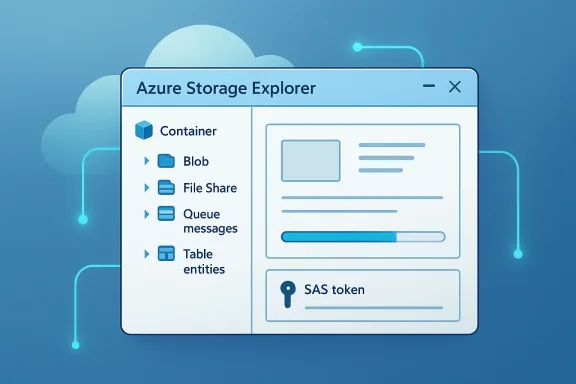
At its core, Storage Explorer is a desktop client that connects to Azure storage resources and presents them in a navigable tree. Microsoft describes it as a standalone app that works with Azure Storage data on Windows, macOS, and Linux, and the quickstart docs show that it can connect to subscriptions, storage accounts, blobs, queues, tables, file shares, and even local storage emulators. That breadth is a big reason the tool has remained relevant.Unlike the Azure portal, Storage Explorer is intentionally specialized. It gives you a focused workspace for storage objects rather than a sprawling browser tab full of unrelated Azure services. In practice, that means fewer clicks, fewer distractions, and faster navigation when your task is narrowly defined. It feels closer to a traditional file manager than to a cloud console, and that metaphor is useful because it reduces cognitive load.
Microsoft’s documentation also makes clear that Storage Explorer supports the core Azure storage surface area: block blobs, page blobs, append blobs, tables, queues, and files. That consistency matters for teams that work across multiple Azure workloads, because they can standardize on one utility for a broad set of operational tasks.
The practical mental model
The easiest way to think about Storage Explorer is as a storage workstation. It is not where you build production pipelines, but it is where you inspect, validate, and occasionally repair the data those pipelines depend on.- Browse accounts and containers visually.
- Upload and download objects by hand.
- Review queue messages and table entities.
- Generate access tokens for controlled sharing.
- Take snapshots before risky changes.
Supported Storage Types and Why They Matter
Azure Storage Explorer is valuable because it covers the most common storage services in one place. Microsoft’s own client-tool table shows support for Block Blob, Page Blob, Append Blob, Tables, Queues, and Files on the desktop app, and it is available on the three major operating systems. That matters for mixed-platform organizations, where not every administrator is on Windows anymore.Blob Storage is the most visible part of Azure Storage for many users. It is built for unstructured content such as documents, media, backups, and application artifacts, and Storage Explorer makes it easy to inspect that content at the container and blob level. Microsoft’s quickstart guidance also highlights support for snapshots and SAS creation directly from the UI, which makes blob operations especially convenient.
File Storage is equally important in enterprise environments. Azure Files can back SMB-style file shares, which makes it a practical bridge between traditional Windows file-share thinking and cloud infrastructure. Storage Explorer’s support for file shares means admins can handle many common file-share operations without remoting into a VM or using a portal workflow.
Queue and Table Storage are smaller in public conversation but still significant in application design. Queues are used for asynchronous messaging and decoupling services, while tables provide schemaless structured storage for key-value style workloads. Storage Explorer gives developers a way to inspect both, which is especially useful when debugging event flow or data shape issues.
Blob, file, queue, and table at a glance
The feature set is broad enough that one tool can cover several admin and dev roles.- Blob Storage: upload, download, browse, snapshot, and manage access.
- File Storage: interact with shares using a familiar hierarchy.
- Queue Storage: inspect and manipulate messages during debugging.
- Table Storage: create, read, update, and delete entities directly.
- Cross-platform support: Windows, macOS, and Linux.
Authentication and Access Control
Authentication is where Storage Explorer becomes more than a convenience tool. Microsoft supports connecting with Microsoft Entra ID, account name and key, SAS connection strings, and other resource-specific connection methods. The docs emphasize that Entra ID is the preferred option when possible, because it aligns better with Azure RBAC and least-privilege access.That preference is not just architectural taste. Account keys grant broad access and can be used to generate SAS tokens, so they should be treated like secrets with meaningful blast radius. Microsoft explicitly recommends protecting access keys, avoiding hard-coding them, and rotating them if compromise is suspected. In modern enterprise environments, that makes Entra ID the cleaner first choice and shared keys the exception rather than the default.
SAS tokens are still incredibly useful, especially for temporary or scoped access. The quickstart documentation shows that Storage Explorer can generate SAS tokens for accounts, containers, and blobs, but it also notes an important limitation: the app does not currently support creating a user delegation SAS signed with Microsoft Entra credentials. That means SAS remains useful, but not every SAS scenario is equally modern or equally secure.
Choosing the right auth method
The right access method depends on the job, and the mistake many teams make is treating all three as interchangeable. They are not.- Use Microsoft Entra ID for most operator and developer workflows.
- Use SAS tokens for narrow, time-bound, delegated access.
- Use account keys only when necessary, and rotate them aggressively.
- Avoid distributing secrets over insecure channels.
- Disable shared key authorization where policy allows it.
Everyday Tasks the Tool Handles Well
Storage Explorer is at its best when a human needs to do human work quickly. Browsing a container, checking blob metadata, downloading a test file, or uploading a patch artifact are all simple operations that become less tedious in a desktop interface. Microsoft’s docs show direct support for viewing blobs, uploading files or folders, downloading blobs, and working through the Activities pane as transfers proceed.The same applies to cleanup work. You can select resources, move them, copy them, or delete them without opening separate tools for each object type. That is valuable when you are reorganizing storage or responding to an incident and need to complete several small actions in one session. The tool’s value here is not raw power; it is low-friction visibility.
Queue and table operations are where Storage Explorer quietly becomes a debugging assistant. Being able to inspect queue messages or edit entities directly can help isolate whether an application bug lives in code, data, or integration logic. That makes the app useful to support teams, not just developers and cloud administrators.
Common tasks that benefit most
These are the jobs where a GUI is often faster than writing commands.- Uploading a small set of test files.
- Pulling down a blob for inspection.
- Generating a scoped SAS for a partner or contractor.
- Reviewing queue message content during troubleshooting.
- Editing Table Storage entities manually in a pinch.
- Comparing multiple storage accounts from a single pane.
Snapshots, Versions, and Recovery Mindset
One of the most valuable features in Storage Explorer is snapshot support. Microsoft’s quickstart instructions show that you can create and manage blob snapshots directly from the UI, making point-in-time recovery much easier for ad hoc workflows. For teams that regularly handle shared data or manual content updates, that can be a real safety net.But snapshots should not be confused with blob versioning. Microsoft explains that blob snapshots are manually created read-only copies, while blob versions are created automatically on write or delete when versioning is enabled. The distinction matters because versioning is often a better long-term protection model, especially if you want automatic preservation rather than manual checkpoints.
There is also an operational cost angle. Microsoft recommends that if blob versioning is enabled, applications should stop taking snapshots of block blobs because snapshots may add complexity and cost without extra protection. That is a subtle but important reminder that Storage Explorer can help you protect data, but it does not replace policy design.
Recovery features in context
Storage Explorer gives you tools for recovery, but policy determines whether those tools are enough. In a mature environment, snapshots are a tactical safeguard and versioning is a strategic one.- Snapshots are manual and immediate.
- Versions are automatic and ongoing.
- Both support recovery, but differently.
- Versioning can reduce the need for snapshot-heavy workflows.
- Recovery should be part of a broader data protection plan.
Enterprise Use Cases Versus Consumer-Like Convenience
For enterprise teams, Storage Explorer’s biggest strength is speed with guardrails. It supports Microsoft Entra ID, RBAC-aware access, SAS generation, and direct interaction with multiple accounts and subscriptions, which makes it a natural fit for admins who need to move between environments frequently. Microsoft’s connection guidance also shows that you can connect at the account, container, queue, table, or file-share level, which aligns well with least-privilege access patterns.For individual developers, the app is more about convenience. It lets you quickly confirm whether a blob exists, whether a queue message was written correctly, or whether an upload succeeded. That kind of hands-on verification is often faster than rerunning code or digging through a pipeline run log.
The consumer-like experience is part of the appeal. A file-tree interface lowers the barrier to entry, and that can be especially helpful for support analysts, QA engineers, and hybrid IT staff who do not spend all day in the Azure portal. The risk, of course, is that convenience can invite overuse by people who should really be working through scripted, auditable pathways.
Where the fit is strongest
Storage Explorer is strongest when the work is visual, temporary, or investigative.- One-off support tasks.
- Manual validation after deployments.
- Content inspection and small file transfers.
- Temporary access delegation.
- Troubleshooting storage data and messages.
When Azure Storage Explorer Is the Wrong Tool
Storage Explorer is not the answer for automation. Microsoft’s guidance makes it clear that the app is for management tasks, while the Azure CLI, PowerShell, and SDKs are better suited for repeatable jobs, CI/CD, and scripted operations. If a task needs to happen every week, every hour, or every time a pipeline runs, clicking through a GUI is the wrong design.It is also not a monitoring or analytics tool. You will not get the kind of performance telemetry, usage charts, or capacity insights that Azure Monitor or related services provide. That means Storage Explorer can tell you what is in a storage account, but not always how well that account is behaving under load.
The portal can still be the better choice for some workflows. It is broader, browser-based, and deeply integrated into Azure’s resource model. For administrators who need cross-service context rather than storage-specific depth, the portal is often the right control plane. Storage Explorer wins when the scope is narrow and the need is immediate.
Decision rule of thumb
A simple way to choose is to ask whether the task should be repeatable or interactive.- Repeatable tasks belong in scripts.
- Interactive inspection belongs in Storage Explorer.
- Broad Azure management belongs in the portal.
- Storage telemetry belongs in monitoring tools.
- Production automation should never depend on manual clicks.
Troubleshooting and Real-World Friction
Most Storage Explorer problems are not mysterious. Authentication failures are common and usually trace back to expired SAS tokens, rotated keys, or missing RBAC permissions. Microsoft’s troubleshooting guidance and key-management documentation both reinforce the same point: access in Azure Storage is only as reliable as the credentials behind it.Transfer issues are another recurring pain point. The app supports common upload and download flows, but network instability can interrupt larger transfers, and users often mistake a connection problem for a product bug. In a cloud environment, the line between app behavior and network behavior is always thin, which is why transfer troubleshooting should begin with the path between the workstation and Azure.
Concurrency is the quieter problem. When multiple people work on the same blobs or container contents, overwrites, version mismatches, and accidental edits become more likely. This is where leases, blob versioning, and policy discipline matter more than any desktop tool can compensate for.
Troubleshooting checklist
If Storage Explorer is acting up, start with the basics before assuming deeper platform issues.- Verify the SAS token has not expired.
- Confirm the storage account key was not rotated.
- Check whether the user still has the right RBAC role.
- Test the network path for large transfers.
- Look for versioning or lease conflicts.
- Reconnect the account if the session has gone stale.
Storage Explorer, Azure CLI, and the Azure Portal
The strongest way to understand Storage Explorer is by comparison. Azure CLI and PowerShell are the tools of choice for automation and repeatability, while Storage Explorer is the best choice for quick, visual, manual work. Microsoft’s documentation across storage and SAS guidance consistently points in that direction, especially for teams that need reproducible infrastructure behavior.The Azure portal occupies the middle ground. It is broader and more integrated, but also more cumbersome when all you want is one container, one blob, or one queue message. Storage Explorer strips away much of the portal’s overhead, which can make it feel surprisingly faster for narrow storage tasks.
There is also a governance difference. Scripts give you auditability and consistency; the portal gives you breadth; Storage Explorer gives you speed. Mature teams usually need all three, but each tool should have a clearly defined role so that convenience does not erode process control.
How to choose in practice
The best choice depends on the job, not the preference of the person holding the keyboard.- Use Storage Explorer for ad hoc inspection and one-off edits.
- Use Azure CLI or PowerShell for scripts and pipelines.
- Use the Azure portal for cross-service administration.
- Use monitoring tools for performance and capacity analysis.
- Standardize on the tool that best matches the task’s risk level.
Strengths and Opportunities
Storage Explorer’s strengths are straightforward: it is free, cross-platform, broad in what it supports, and fast to use for the kinds of storage jobs humans still do manually. The opportunity for organizations is to treat it as a companion tool in a disciplined storage workflow rather than a replacement for automation or governance.- Free desktop client from Microsoft.
- Cross-platform support for Windows, macOS, and Linux.
- Strong fit for blobs, files, queues, and tables.
- Easier than the portal for focused storage work.
- Useful for temporary access and SAS generation.
- Helpful for troubleshooting and manual validation.
- Good bridge tool for support, QA, and dev teams.
Risks and Concerns
The biggest risk is assuming that convenience equals safety. Storage Explorer can make it easy to create, copy, delete, or expose data, so organizations need strong identity controls, key rotation habits, and clear operational boundaries. The more useful the tool becomes, the more dangerous it is when used casually.- Account keys can expose broad access if mishandled.
- SAS tokens can be overused or forgotten.
- Manual changes increase the risk of human error.
- It is not a monitoring solution.
- It is not an automation platform.
- Concurrency can create overwrite and version conflicts.
- Overreliance on GUI workflows can weaken repeatability.
Looking Ahead
The future of Storage Explorer will likely be shaped less by flashy new UI tricks and more by how it fits into Microsoft’s broader direction on identity, governance, and storage lifecycle management. As Microsoft continues emphasizing Entra ID and least privilege across Azure Storage, the most valuable improvements will be those that reduce secret sprawl and make secure access easier by default. That is especially true now that shared key access is increasingly treated as a legacy convenience rather than a best practice.There is also a broader ecosystem question. Azure is steadily adding more specialized storage-adjacent tools and insights services, which means Storage Explorer has to remain the quick, dependable utility for direct data work. Its long-term relevance will depend on staying lightweight while still tracking modern authentication and storage features closely enough to remain the preferred desktop companion for storage administrators.
- Expect continued support for modern identity-first access.
- Watch for tighter alignment with storage security best practices.
- Monitor lifecycle updates and version support deadlines.
- Use the tool alongside scripting, not instead of it.
- Treat GUI access as operational convenience, not policy.
Source: Simplilearn.com Azure Storage Explorer Guide: Features and Uses
Last edited:
