

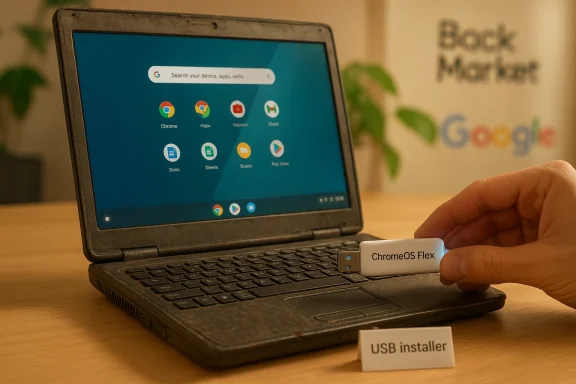
Google and Back Market say they’ve teamed up to make it trivial — and cheap — to turn many aging Windows laptops and a handful of older Intel Macs into ChromeOS machines by shipping ready-made USB sticks that contain the ChromeOS Flex installer.
The announcement, unveiled publicly during Back Market’s Slow Tech Uprising event running alongside Mobile World Congress, positions the pilot as a straightforward sustainability and access play: give otherwise-serviceable hardware a supported, modern operating system so it can be kept in use rather than retired to landfill. The idea is simple and appealing. ChromeOS Flex is Google’s lightweight, cloud-forward image that brings a ChromeOS-like environment to x86 machines that would otherwise be stuck on unsupported or slowly patching operating systems. Back Market’s pilot will package that installer on physical USB keys for consumers, refurbishers, schools, and small businesses that want a low-friction path to re‑use.
At the same time, there are important technical, security, and business trade-offs to understand before you plug a $3 stick into your ten‑year‑old laptop. This feature breaks the pilot down, verifies the technical claims where possible, and evaluates the risk/reward calculus for consumers and IT managers who may be considering ChromeOS Flex as a device‑extension strategy.
Put plainly: recycling is good, but it should not be the only solution to a broken upgrade-and-discard economy. Extended‑life pilots are valuable, provided they come with clear roadmaps for support, repair parts, and responsible refurbishment.
That said, the pilot is not a panacea. Flex’s differences from retail ChromeOS (limited Android support, fewer hardware-rooted protections, and variable driver support) must be weighed against the environmental and economic benefits. Consumers should test devices in trial mode, back up data, and confirm that their necessary apps and peripherals function before committing to a full installation.
Finally, verify the concrete sales details directly with the vendor before acting on price or availability: media reports mentioned a $3 SKU and an initial 3,000‑unit lot, but those specifics did not appear uniformly across primary corporate communications at the time this article was compiled. The concept — making ChromeOS Flex broadly accessible via preloaded USB sticks — is real and promising. The commercial particulars and the operational terms surrounding management, warranty, and long-term updates are the parts you should confirm before you buy or deploy at scale.
Conclusion
ChromeOS Flex has been one of the most practical tools available for extending the life of x86 laptops, and Back Market’s decision to distribute pre‑built installer sticks lowers the knowledge barrier for nontechnical users. For people and organizations that need secure, web‑centric devices quickly and affordably, the pilot is a welcome development. For critical, security‑sensitive, or app‑heavy deployments, treat Flex as one of several options — and insist on concrete compatibility and support assurances before proceeding. The devil, as always, is in the details; the pilot’s promise is real, but buyers and IT managers should verify the numbers and validate the device experience before making a final decision.
Source: WIRED These Official ChromeOS Flex USB Sticks Can Give Your Old Mac or Windows PC a Second Life
 Background / Overview
The announcement, unveiled publicly during Back Market’s Slow Tech Uprising event running alongside Mobile World Congress, positions the pilot as a straightforward sustainability and access play: give otherwise-serviceable hardware a supported, modern operating system so it can be kept in use rather than retired to landfill. The idea is simple and appealing. ChromeOS Flex is Google’s lightweight, cloud-forward image that brings a ChromeOS-like environment to x86 machines that would otherwise be stuck on unsupported or slowly patching operating systems. Back Market’s pilot will package that installer on physical USB keys for consumers, refurbishers, schools, and small businesses that want a low-friction path to re‑use.At the same time, there are important technical, security, and business trade-offs to understand before you plug a $3 stick into your ten‑year‑old laptop. This feature breaks the pilot down, verifies the technical claims where possible, and evaluates the risk/reward calculus for consumers and IT managers who may be considering ChromeOS Flex as a device‑extension strategy.
What the pilot actually is (and what’s verified)
- The pilot is a limited offering in which Back Market will distribute USB sticks preloaded with the ChromeOS Flex installer image. The concept is to eliminate the small but nontrivial friction of creating a bootable USB yourself and to broaden access to people who aren’t comfortable building recovery media.
- Several reputable outlets reported the pilot and quoted Back Market and Google spokespeople at the March event. The general partnership and pilot were confirmed by Back Market’s announcement and syndications of its press release.
- One detail reported in coverage is that the USB stick will retail for a nominal fee (WIRED reported $3) and that an initial run would be limited (WIRED mentioned 3,000 units on sale March 30). Those specific numbers appear in some media coverage, but they are not present in the primary Back Market press copy that accompanied the announcement; treat the exact price and unit count as reported by outlets but not yet independently confirmed by Google or Back Market’s main release at the time of writing. I flag those figures accordingly.
ChromeOS Flex: a quick technical primer
What ChromeOS Flex is — and what it isn’t
- ChromeOS Flex is Google’s version of ChromeOS intended for repurposing x86 PCs and Macs (Intel/AMD architecture). It derives from Google’s CloudReady acquisition and is optimized for browser-first, cloud-centric workflows.
- Flex is not identical to the ChromeOS you get on certified Chromebooks. Key differences include:
- Limited or no Android (Play Store) support on most Flex installs.
- No built‑in access to the hardware-backed security features (Titan/Titan M chips and associated verified-boot guarantees) that ship on certified Chromebooks.
- Driver and peripheral support depends on the underlying hardware; certified models get a more predictable experience.
- ChromeOS Flex is distributed as a recovery image that you can write to a USB stick and either try in live/trial mode or install permanently (installing will typically wipe the internal drive).
Minimum practical requirements and installer basics
- The standard workflow to create a ChromeOS Flex installer uses Google’s Chromebook Recovery Utility in Chrome: choose “Google ChromeOS Flex” from the list, select a USB drive, and create a bootable image. In practice, most guides and Google’s own tooling expect an 8 GB or larger USB stick to create the installer; the recovery process will erase the USB media.
- Typical device requirements that community testing and documentation recommend are a 64‑bit x86 CPU (Intel or AMD) and at least 4 GB of RAM for a usable experience; older/lower‑spec machines may boot, but performance will vary. ChromeOS Flex was built for x86‑64 and therefore does not support Apple Silicon (M-series) machines in a practical, supported way.
- Because Flex relies on a modern browser-like runtime and cloud services, network connectivity is important for setup and for many use cases. Some functionality (local Linux containers, offline documents) can work without continuous connectivity, but the optimal Flex experience is connected.
Why this matters: benefits and strengths
A low-cost lifeline for aging hardware
- ChromeOS Flex offers a lightweight, security-focused environment that is materially less resource intensive than modern Windows. For many families, schools, and small businesses, Flex can resurrect devices that would otherwise become insecure as Windows 10 reached end-of-support.
- The pilot reduces a practical barrier: not everyone is comfortable creating a bootable USB. Shipping a ready-made stick lowers technical risk and increases the pool of users who will try the OS.
Environmental and economic upside
- Extending a device’s useful life reduces immediate e‑waste and the carbon/embodied-resource cost of manufacturing and shipping a replacement. Refurb and reuse marketplaces (Back Market’s business model) scale precisely on that lifecycle advantage.
- The pilot aligns with broader circular-economy messaging: if a laptop’s hardware remains serviceable but its original OS reaches end of life, software reimaging is the fastest, lowest-cost way to restore security and productivity.
Fleet and education use cases
- Schools and small organizations that manage mixed hardware fleets can use Flex as a low-cost refresh option without purchasing new machines that meet Windows 11’s strict hardware gating.
- For refurbishers, preloaded installers can simplify workflow and lower time-to-sale for resold devices.
Technical and security trade‑offs (what to watch out for)
Missing hardware-rooted protections
- Flex‑installed machines lack the Titan/Titan‑M hardware attestation and the same verified-boot assurances found on certified Chromebooks. That changes the security guarantees: software-level protections remain (sandboxing, automatic updates), but the hardware root of trust is weaker.
- For higher-risk deployments (sensitive government or regulated data), that difference matters. Enterprises should evaluate whether Flex meets compliance and endpoint-hardening requirements.
Driver, peripheral, and feature gaps
- Non‑certified hardware may exhibit issues: Wi‑Fi or Bluetooth drivers may be unavailable or flaky, fingerprint readers and advanced power-management features can fail, and some GPU-accelerated workloads may not run optimally.
- Android app compatibility is limited on Flex. If you depend on Android or Play Store apps, you should not assume they will work after a Flex install — many community threads and documentation note inconsistent Android support across devices.
Update and support guarantees
- Flex updates are managed by Google, but long-term update guarantees for Flex‑on‑non‑certified hardware are inherently different from the multi-year “AUE” and hardware-dependent lifecycle contracts Chromebook manufacturers offer.
- If you require a long-term, SLA-backed update plan for a fleet, investigate Chrome Enterprise or a managed-license arrangement: management and advanced features can require paid enterprise products.
Privacy and vendor lock-in
- A move to ChromeOS-style workflows increases reliance on Google services for identity, sync, and ecosystem features. For some users — particularly those prioritizing local-only computing and minimal cloud integration — that’s a pragmatic trade-off; for others, it’s a privacy or lock-in risk.
- Organizations should map data flows and consider whether a Chrome-centric device management approach aligns with their governance.
The politics of memory, AI and reuse
The pilot comes during a market squeeze in PC component pricing and availability — memory and GPUs are in high demand from hyperscalers and AI infrastructure builders. Back Market executives framed the initiative as a reaction to rising device prices: keep functioning hardware in rotation and make digital access more affordable. A less flattering but valid critique is that companies that benefit commercially from expanded cloud services (and that invest heavily in data-center buildouts) are simultaneously evangelizing reuse — which can feel like corporate greenwashing unless the work includes durable commitments to repairability, parts availability, and long-term update guarantees.Put plainly: recycling is good, but it should not be the only solution to a broken upgrade-and-discard economy. Extended‑life pilots are valuable, provided they come with clear roadmaps for support, repair parts, and responsible refurbishment.
Practical how‑to: testing ChromeOS Flex safely (step-by-step)
If you’re thinking of trying ChromeOS Flex — whether via Back Market’s USB or by creating your own recovery USB — follow these steps:- Check compatibility first. Use the vendor’s recommended compatibility list (or test with a trial boot). If you need hardware features like fingerprint readers, research whether your model is certified or has a known-good community record.
- Back up your data. Installation can wipe local storage. Save documents, photos, and application data to an external drive or cloud backup before you begin.
- Create or obtain a recovery USB. Officially, the Chromebook Recovery Utility is used to write the image to an 8 GB+ USB drive. If you purchase a preloaded stick, verify that it is a genuine distribution of the ChromeOS Flex installer.
- Try before you install. Boot from the USB and use the “Try” or “Live” mode to validate Wi‑Fi, sound, display scaling, and peripheral functions. This non-destructive test will reveal most compatibility issues.
- Decide to install or keep USB-only. If the trial run works, you can install ChromeOS Flex permanently, which generally erases the internal disk. If critical peripherals fail, you may prefer to keep the machine as-is or consider other repurposing options (Linux distributions, thin‑client usage).
- Consider management and updates. For business or school fleets, plan whether you will enroll devices in Google Admin/management and whether you require paid upgrades (Chrome Enterprise or similar) to achieve needed policies.
Who should — and shouldn’t — use a Flex stick
- Best fits:
- Households with older laptops used for browsing, streaming, and cloud documents.
- Schools and charities that need affordable, centrally manageable devices and don’t depend on Android-only apps.
- Refurbishers and marketplaces that want a repeatable, low-cost way to deliver secure, current software on used units.
- Not a good fit:
- Users whose workflows require specialized Windows or macOS desktop applications (native Adobe Suite, Windows‑only engineering tools, etc.) unless those apps have functional web equivalents.
- Deployments that need hardware‑rooted attestation or strict regulatory security that a certified Chromebook would supply.
- Owners of Apple Silicon (M-series) Macs: ChromeOS Flex is not practically supported on Apple’s ARM platforms.
The limitations to watch: support, transparency, and numbers
Two specific claims that need careful treatment:- Price and inventory: some outlets reported the USB key would cost $3 and that 3,000 units would be available in an initial run starting March 30. Those numbers appear in media stories but are not consistently present in the primary press release from the vendor. Until Back Market’s sales page or a firm statement repeats those exact figures, treat them as reported but not independently verified from the company’s release.
- Long-term update guarantees: vendors are clear that Flex is a good extension tool, but the update lifecycle for non‑certified devices is inherently less stable than certified Chromebook hardware. If you need a multi‑year, guaranteed path to security updates on an enterprise fleet, investigate paid management and license options; don’t rely on Flex as a drop‑in guarantee.
How governments, schools, and charities can think about this
- For public-sector deployments and non‑profits, converting existing inventory to ChromeOS Flex can be a low-cost stopgap that preserves functionality and reduces procurement budgets.
- But procurement teams should insist on a support plan: who will supply parts, how will critical security patches be validated, and what is the fallback if a hardware defect interrupts service?
- Donation and redistribution programs should include data‑sanitization workflows and a compatibility checklist so recipients receive devices that meet their needs.
Bottom line: a sensible, limited tool — not a miracle cure
Back Market’s USB pilot with Google is a clear nudge toward making re‑use easier and lowering friction for a class of users who are not comfortable creating installer media themselves. ChromeOS Flex is a practical, well‑engineered option for keeping many older laptops useful and secure, particularly in web-first use cases and in the wake of Windows 10’s end-of-support.That said, the pilot is not a panacea. Flex’s differences from retail ChromeOS (limited Android support, fewer hardware-rooted protections, and variable driver support) must be weighed against the environmental and economic benefits. Consumers should test devices in trial mode, back up data, and confirm that their necessary apps and peripherals function before committing to a full installation.
Finally, verify the concrete sales details directly with the vendor before acting on price or availability: media reports mentioned a $3 SKU and an initial 3,000‑unit lot, but those specifics did not appear uniformly across primary corporate communications at the time this article was compiled. The concept — making ChromeOS Flex broadly accessible via preloaded USB sticks — is real and promising. The commercial particulars and the operational terms surrounding management, warranty, and long-term updates are the parts you should confirm before you buy or deploy at scale.
Conclusion
ChromeOS Flex has been one of the most practical tools available for extending the life of x86 laptops, and Back Market’s decision to distribute pre‑built installer sticks lowers the knowledge barrier for nontechnical users. For people and organizations that need secure, web‑centric devices quickly and affordably, the pilot is a welcome development. For critical, security‑sensitive, or app‑heavy deployments, treat Flex as one of several options — and insist on concrete compatibility and support assurances before proceeding. The devil, as always, is in the details; the pilot’s promise is real, but buyers and IT managers should verify the numbers and validate the device experience before making a final decision.
Source: WIRED These Official ChromeOS Flex USB Sticks Can Give Your Old Mac or Windows PC a Second Life
