

Microsoft’s Baseline Security Mode introduces a single, opt‑in “secure‑by‑default” posture for Microsoft 365 that packages identity hardening, file‑safety controls, and meeting‑room device protections into a single, admin‑facing experience — and it arrives with simulation tools and telemetry to help IT teams roll the changes out without breaking productivity.
Baseline Security Mode (BSM) is Microsoft’s latest push to shrink the attack surface in Microsoft 365 by turning a set of recommended hardening actions into a coherent, auditable configuration you can enable from the Microsoft 365 admin center. The feature—announced as generally available in the November 2025 release—applies a predefined collection of settings across five core Microsoft 365 services: Office (Microsoft 365 apps), Exchange Online, Microsoft Teams, SharePoint/OneDrive, and Entra (Azure AD). Microsoft positions BSM as a continuously updated baseline: the initial release contains 18 configuration settings across the five services, and Microsoft intends to expand the baseline over time. The problem BSM addresses is familiar: decades of legacy protocols, permissive defaults, and disparate admin workflows leave many tenants exposed. Blocking basic and legacy authentication, restricting risky file behaviors, and limiting unmanaged meeting devices are high‑leverage mitigations that reduce common attack paths without requiring all organizations to manually author dozens of Conditional Access policies and PowerShell scripts. BSM bundles those actions and gives administrators the ability to simulate impacts, run telemetry reports, and adopt changes in phases.
BSM’s meeting‑room protections include:
However, operational success will hinge on three factors:
Microsoft’s new Baseline Security Mode converts long‑promoted hardening guidance into an actionable product with built‑in safeguards for administrators. The baseline is a strong start — its power will grow with future integrations and responsible adoption across tenant fleets.
Source: Petri IT Knowledgebase Microsoft Baseline Security Mode Brings Secure-by-Default Protection to Microsoft 365
 Background
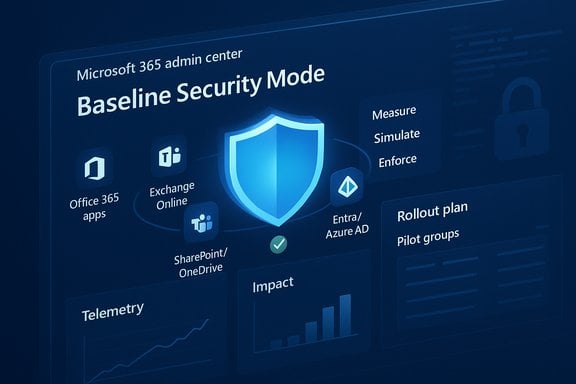
Baseline Security Mode (BSM) is Microsoft’s latest push to shrink the attack surface in Microsoft 365 by turning a set of recommended hardening actions into a coherent, auditable configuration you can enable from the Microsoft 365 admin center. The feature—announced as generally available in the November 2025 release—applies a predefined collection of settings across five core Microsoft 365 services: Office (Microsoft 365 apps), Exchange Online, Microsoft Teams, SharePoint/OneDrive, and Entra (Azure AD). Microsoft positions BSM as a continuously updated baseline: the initial release contains 18 configuration settings across the five services, and Microsoft intends to expand the baseline over time. The problem BSM addresses is familiar: decades of legacy protocols, permissive defaults, and disparate admin workflows leave many tenants exposed. Blocking basic and legacy authentication, restricting risky file behaviors, and limiting unmanaged meeting devices are high‑leverage mitigations that reduce common attack paths without requiring all organizations to manually author dozens of Conditional Access policies and PowerShell scripts. BSM bundles those actions and gives administrators the ability to simulate impacts, run telemetry reports, and adopt changes in phases. What Baseline Security Mode does (the mechanics)
One dashboard, many settings
BSM is surfaced in the Microsoft 365 admin center under Settings > Org settings > Security & privacy > Baseline Security Mode. From the dashboard administrators can:- Select automated, low‑impact baseline controls to apply immediately.
- Run impact reports and simulations for higher‑risk controls before enforcement.
- View telemetry and audit logs that show how often legacy formats or risky flows are in use.
- Toggle individual settings and export impact data for downstream analysis.
How deployment works (practical flow)
Administrators with the appropriate RBAC roles — Global Admin, Security Admin, Office Apps Admin, SharePoint Admin, Exchange Admin, or Teams Admin — can enable BSM. Microsoft gives two primary deployment models in the portal:- Automatically apply default policies: enables a subset of low‑impact settings immediately so tenants get instant risk reduction.
- Generate impact reports and run remaining policies in simulation mode: produces tenant‑specific telemetry and a risk/impact summary so admins can validate and sequence enforcement.
Deep dive: Authentication hardening
Authentication is the highest‑leverage area in BSM. Microsoft’s guidance and the BSM controls are tightly aligned with the company’s longer‑running Secure Future Initiative and conditional access recommendations: block legacy auth, require modern methods, and protect privileged accounts with phishing‑resistant MFA.Key protections
- Block legacy protocols and basic authentication prompts: BSM enforces disabling of legacy flows such as POP, IMAP, SMTP (legacy), and legacy Exchange Web Services (EWS) usage that depend on basic auth. Turning off basic authentication prompts prevents credentials from being captured through classic phishing prompts.
- Phishing‑resistant MFA for administrators: BSM enforces stronger authentication methods — for example, FIDO2/passkeys or hardware-backed credentials — for high‑risk and administrative accounts. This reduces the chance that a credential‑based or OTP‑bypass phishing attack can escalate to full tenant compromise.
- Granular identity controls: The baseline exposes multiple identity‑oriented toggles that restrict legacy browser authentication flows, limit the ability to add app password credentials, and tighten user consent for third‑party apps. Those granular settings help close common OAuth/consent and token abuse paths.
Why this matters
Identity is the most frequent pivot point for attackers targeting Microsoft 365. Blocking legacy auth removes a large class of credential‑replay and SMTP/POP-based attack vectors. Enforcing phishing‑resistant MFA on administrative personnel significantly reduces the likelihood of account takeover leading to tenant‑wide compromise. These are non‑disruptive protections when rolled out carefully, and BSM’s simulation features help surface any compatibility gaps proactively.Deep dive: File security and legacy formats
Office document parsing remains a common exploitation surface. BSM’s file security controls aim to reduce that exposure by forcing older formats into safer behaviors and disabling known risky elements.The file controls BSM applies
- Open legacy/ancient file formats in Protected View and optionally disallow editing for the oldest, most dangerous formats.
- Block ActiveX controls and Disable OLE Graph/OLE object behaviors commonly used in file‑based attacks.
- Block Dynamic Data Exchange (DDE) server launches in Excel, which can previously be abused to execute code without macros.
- Prevent Microsoft Publisher content from launching, aligning with Microsoft’s plan to remove Publisher from Microsoft 365 in future releases.
Benefits and trade‑offs
- Benefits: significantly reduces exploitability of document parsing, protects users who still need to view legacy files, and targets proven exploitation chains (ActiveX, OLE, DDE).
- Trade‑offs: users who rely on legacy file workflows may see friction; tech teams should expect help‑desk tickets and must use targeted exclusions or migration programs for line‑of‑business dependencies. BSM’s impact reports are essential to limit productivity loss during enforcement.
Deep dive: Meeting rooms and unmanaged devices
Modern collaboration spaces are increasingly a vector for data leakage and lateral access when unmanaged devices are allowed to join and access tenant resources.BSM’s meeting‑room protections include:
- Preventing unmanaged devices and resource accounts from signing into Microsoft 365 apps in conference rooms, which reduces the likelihood of an attacker using a misconfigured room device as a foothold.
- Blocking file access from unmanaged meeting devices, stopping shadow devices from copying or exfiltrating shared content during a meeting.
Operational guidance — how to roll this out
BSM is deliberately procedural: the portal offers both automated enforcement for safe settings and simulation for the rest. Recommended rollout steps:- Inventory: run tenant scans and impact reports for each BSM setting to find dependencies.
- Apply low‑impact defaults immediately: take the “Automatically apply default policies” option for the safe subset to gain immediate protection.
- Simulate and communicate: put higher‑risk changes into simulation mode, analyze impact reports (they may include end‑user identifiable information and audit logs for Office apps), and notify affected teams in advance.
- Pilot and iterate: move selected pilot groups into enforcement, validate application compatibility and productivity impact, then broaden scope.
- Track telemetry: use the exportable reports and logs to verify the baseline’s effectiveness and to justify further hardening.
How BSM compares with third‑party tooling
BSM centralizes many settings that previously required PowerShell or scattered admin console changes. That simplification reduces manual effort and standardizes secure defaults across tenants. However:- Third‑party tools (MSP dashboards, specialized reporting platforms) still add value for multi‑tenant management, advanced historical analytics, and specialized compliance dashboards.
- MSPs and security vendors may maintain richer alerting, SLA features, and tenant‑level customizations not present in the baseline dashboard.
Strengths: what BSM gets right
- Coherent, vendor‑maintained baseline: packaging Microsoft’s own operational hardening recommendations into a maintained product removes guesswork and scripting overhead.
- Simulation and telemetry: impact reports and simulation modes mitigate the biggest operational risk — unexpected productivity breakage — by surfacing real tenant impacts before enforcement.
- Modern identity focus: blocking legacy auth and enforcing phishing‑resistant admin MFA address two of the highest‑probability attack vectors for Microsoft 365 breaches.
- Cross‑product application: by spanning Office apps, Exchange, Teams, SharePoint/OneDrive, and Entra, BSM captures cross‑service attack paths that single‑service policies might miss.
Risks, limitations, and things to watch
- Not a silver bullet: BSM is a baseline, not a full security program. Detection, response, device posture, and third‑party app governance still require additional controls and operational investment.
- Telemetry blind spots and EUII consent: some detailed impact reports require consenting to collect end‑user identifiable Office audit logs. Organizations with strict privacy rules may need to weigh operational benefits against privacy and compliance constraints.
- Third‑party and hybrid caveats: legacy or vendor applications that rely on basic auth, app passwords, or older file formats may break unless remediated. BSM’s success depends on accurate inventory and a migration plan for business‑critical legacy dependencies.
- Future roadmap vs. present capabilities: Microsoft has signaled that BSM will expand and may eventually incorporate AI‑driven, adaptive measures and deeper integrations with Purview and Intune. These capabilities are roadmap items and, until released, should be treated as future enhancements rather than guarantees. Flag planned features as preview to avoid over‑reliance on capabilities not yet present.
Practical checklist for administrators
- Confirm you have the required role: Global Admin, Security Admin, Office Apps Admin, SharePoint Admin, Exchange Admin, or Teams Admin.
- In the Microsoft 365 admin center, go to Settings > Org settings > Security & privacy > Baseline Security Mode.
- Run impact reports and review the generated telemetry for each setting. If a setting has zero impacts, consider enabling it immediately.
- Apply the low‑impact default policies first and document exceptions.
- For policies that would affect legacy apps or specialized workflows, enable simulation and create a remediation plan (app modernization, certificates, hybrid app models).
- Use the exported CSVs and reports to brief application owners and business stakeholders, and track remediation progress.
Critical analysis — what to expect in real environments
BSM represents a pragmatic, vendor‑backed consolidation of Microsoft’s hardening playbook. For many organizations it will deliver immediate security value with less administrative friction than constructing equivalent policies by hand. The simulation-first model and telemetry‑backed enforcement are strong usability choices that recognize operational realities in large enterprises.However, operational success will hinge on three factors:
- Inventory accuracy: without a reliable map of legacy protocol consumers and file format dependencies, even simulated enforcement can miss critical edge cases.
- Change governance: IT teams must integrate BSM changes into existing change control, pilot, and help‑desk workflows to manage user impact and remediation windows.
- Multi‑vendor posture: BSM reduces in‑tenant risk but doesn’t replace endpoint posture, network controls, or external mail gateway hardening. Full mitigation against modern attack campaigns requires layered controls and incident readiness.
Where BSM fits into a broader security program
Treat Baseline Security Mode as a foundational control — equivalent to enabling well‑curated security defaults. It belongs near the start of a zero‑trust journey: harden identity, reduce legacy protocol exposure, and close obvious file parsing attack vectors. After BSM:- Advance to conditional access policies tailored to business needs.
- Deploy device management (Intune) and align device posture with access rules.
- Integrate data governance (Purview) and DLP policies to protect sensitive content that BSM prevents from being inadvertently exposed during meetings or by unmanaged devices.
- Maintain strong detection and response: EDR, Defender signals, and security operations playbooks remain mandatory.
Final assessment and recommendations
Microsoft Baseline Security Mode is a welcome, practical step toward secure‑by‑default configuration for Microsoft 365. Its principal advantages are centralization, Microsoft‑backed recommendations, and pragmatic deployment tooling (simulation and telemetry) that reduce the usual frictions of enterprise hardening. For most organizations, the recommended initial actions are:- Enable the low‑impact default policies immediately to gain an early security uplift.
- Run simulation and impact reports for higher‑risk settings and follow a staged rollout plan with clear exception handling.
- Use BSM telemetry as a source of truth to prioritize app modernization and retire legacy file formats and authentication flows.
- Combine BSM with device management (Intune) and Purview/DLP to move from baseline hardening to comprehensive, data‑aware defense.
Microsoft’s new Baseline Security Mode converts long‑promoted hardening guidance into an actionable product with built‑in safeguards for administrators. The baseline is a strong start — its power will grow with future integrations and responsible adoption across tenant fleets.
Source: Petri IT Knowledgebase Microsoft Baseline Security Mode Brings Secure-by-Default Protection to Microsoft 365
