

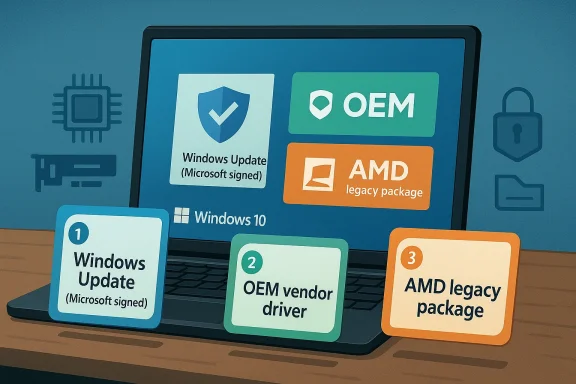
When you’re trying to keep an AMD Radeon HD 8750M alive and usable on Windows 10, the smartest driver strategy is not “find the newest package” but “choose the last package that still matches the hardware, then freeze the system around it.” AMD’s own legacy-support documentation says the Radeon HD 8500–HD 8900M family has been moved to a legacy model with no additional driver releases planned, and AMD’s final available driver listings for comparable HD 8000M-era notebooks show the end of the road is the Catalyst 15.7.1 WHQL branch, with Crimson 16.2.1 Beta as the last beta-era fallback on some legacy products. (amd.com)
That matters because the HD 8750M sits in a transitional era: new enough to run in Windows 10, old enough that modern Adrenalin releases and automatic driver tools can misidentify it, reject it, or destabilize a switchable-graphics laptop. Community reports on AMD’s own forum describe exactly that pattern on Windows 10: the HD 8750M may appear to install, then fail to function correctly under newer packages, while the older Catalyst 15.7.1 package remains the one that “just works” in many cases. (community.amd.com)
The practical takeaway is simple: for a laptop with an AMD APU + Radeon HD 8750M configuration, the best driver strategy is usually to install one known-good legacy package from the laptop OEM or AMD legacy branch, avoid chasing newer generic drivers, and prevent Windows Update from replacing it without testing. That is consistent with AMD’s own note that mobility drivers are notebook reference packages with limited support for vendor-specific features, which is why OEM-tuned drivers are often the safer path on older switchable-graphics systems. (amd.com)
Background — full context
The Radeon HD 8750M is a mobile discrete GPU from AMD’s older notebook lineup, and on Windows 10 it lives in a difficult compatibility zone. AMD has formally moved the HD 8500M–HD 8900M family to legacy support, which means stability matters more than novelty: AMD is no longer planning new feature drivers for the product line, so the goal shifts from “upgrading” to “preserving functionality.” (amd.com)That legacy status is not merely a marketing label. AMD’s support pages make clear that the final driver options for these older families are bounded, and that later releases are not intended to continue the product line in the way modern Radeon cards are serviced. For users, that means the newest available package is often not the best package. In practice, older notebook GPUs are more sensitive to hardware IDs, switchable graphics plumbing, and OEM customizations than desktop cards. (amd.com)
The HD 8750M commonly appears in laptops that pair an AMD A-series APU with switchable graphics. AMD’s mobility release notes explicitly warn that notebook reference drivers have limited support for system-vendor-specific features, which is one reason Acer, HP, ASUS, and Samsung owners often discover that a generic AMD installer does not behave exactly the same way as a machine-specific OEM package. (amd.com)
Windows 10 adds another layer of complexity. Microsoft’s driver model, security posture, and update cadence are not the same as the Windows 7 era in which many of these machines were originally sold. AMD’s Windows 10 support notes for legacy families show that only some older products are officially covered, and community reports reflect the reality that a driver can install yet still crash, mis-detect the GPU, or trigger atikmdag.sys-related blue screens. (amd.com)
For that reason, the question is not whether an HD 8750M can run on Windows 10. It can. The real question is whether it will run reliably, and the answer depends almost entirely on driver selection, installation method, and how aggressively Windows is allowed to “help.” (community.amd.com)
What AMD’s official support pages actually imply
AMD’s legacy graphics support page is the most important starting point. It lists the HD 8500–HD 8900 series and HD 8500M–HD 8900M series under legacy support and says no additional driver releases are planned. That is the strongest possible signal that driver hunting should stop at the final valid branch. (amd.com)AMD’s support listing for a closely related HD 8350 legacy product shows the final branch pairing clearly: Catalyst Software Suite 15.7.1 WHQL and Radeon Software Crimson Edition 16.2.1 Beta are the last notable packages shown in the legacy driver stack. While the HD 8750M is not the HD 8350, the family-level support model is the same, and the release pattern is highly relevant. (amd.com)
AMD’s Catalyst 15.7.1 release notes are also important because they confirm Windows 10 support for GCN-era graphics products, including HD 7000 and newer. That means the HD 8750M sits within the class of devices that can use the 15.7.1 branch on Windows 10. (amd.com)
But this does not mean “install the newest AMD driver you can find on the internet.” It means use the last officially relevant branch and treat everything newer with caution. AMD’s own forums contain examples of HD 8750M owners who found that newer driver packages failed to recognize the GPU, while 15.7.1 worked correctly. (community.amd.com)
The broader lesson is that official support window, not driver age alone, should guide the decision. A slightly older package that is purpose-built for the hardware often beats a newer package that was optimized for a different product generation. For this class of laptop, that rule is especially true. (amd.com)
The best strategy in one sentence
The best driver strategy for an AMD Radeon HD 8750M on Windows 10 is to install the newest stable legacy driver that your specific laptop OEM or AMD’s legacy branch supports, prefer the OEM package when switchable graphics is involved, and stop updating once the system is stable. (amd.com)Which driver branch should you choose?
1) Start with the OEM driver
If the laptop manufacturer offers a Windows 10 driver package for your exact model, that should be your first choice. OEM packages are often tuned for the machine’s integrated APU, discrete 8750M, thermal limits, HDMI behavior, hotkeys, and switchable graphics logic. AMD’s own mobility notes acknowledge these vendor-specific differences. (amd.com)In practical terms, the OEM path is best when:
- the laptop uses switchable graphics
- the machine has a documented Windows 10 support page
- the OEM bundles Intel/AMD coordination correctly
- you need battery, brightness, or hotkey integration
- you want the least risky install on a fragile older notebook
2) If OEM support is absent, use AMD Catalyst 15.7.1
AMD’s release notes show Catalyst 15.7.1 as the last broadly relevant Windows 10 driver branch for older GCN products, including HD 7000 and newer graphics. For many HD 8750M owners, this is the safest AMD-hosted fallback. (amd.com)This is the package most often associated with:
- functional display output
- basic 3D acceleration
- stable device recognition
- acceptable legacy compatibility
- fewer surprises than later generic packages
3) Treat Crimson 16.2.1 Beta as a last resort, not a preference
AMD’s legacy listings also show Crimson 16.2.1 Beta for certain older products. It is useful as a historical final option, but because it is beta-era software, it is generally less attractive than a WHQL-stamped legacy branch unless you have a specific compatibility reason to try it. (amd.com)4) Avoid modern Adrenalin packages for this GPU
Modern Adrenalin-era installers are built for newer Radeon architectures and can mis-handle older mobile switchable-graphics systems. Community examples show the HD 8750M being rejected or misidentified by newer packages, even when older Catalyst builds function properly. (community.amd.com)The installation sequence that minimizes pain
1) Clean out the old stack first
Legacy AMD laptops are notoriously sensitive to leftover driver components. Before installing a new package, remove prior AMD display software cleanly, ideally with a tool like Display Driver Uninstaller in Safe Mode, then reboot. Community troubleshooting across AMD and Windows forums repeatedly converges on the same advice: a dirty AMD stack is a recipe for blue screens, misdetection, or endless installer loops. (community.amd.com)2) Install the driver package only
On older mobility systems, less is often more. If the installer allows it, use a driver-only or minimal installation approach instead of layering optional extras, overlays, and legacy utilities that the laptop does not need. AMD community guidance for mobile systems emphasizes that the APU driver serves both integrated and discrete graphics in many configurations, and that you generally should not chase separate discrete-card packages blindly. (community.amd.com)3) Reboot before testing
After installation, reboot before opening games or stress tests. A number of legacy AMD issues surface only after the driver initializes in a normal Windows session, and that matters more on older systems with switchable graphics. (community.amd.com)4) Confirm the GPU is recognized correctly
Then verify Device Manager, Radeon settings, and display behavior. If the GPU shows as an unknown device, a generic adapter, or only a few megabytes of usable memory, the package is likely mismatched. AMD community posts about similar hardware show exactly this symptom when the wrong package is used. (community.amd.com)Why “the latest driver” is usually the wrong instinct
The HD 8750M is a legacy mobile part
It is old enough that driver priority shifts from feature gains to compatibility survival. AMD’s own legacy support statement makes clear that there are no more planned releases for the family. (amd.com)Switchable graphics complicates everything
Many HD 8750M laptops depend on an APU + discrete GPU arrangement. That means the display driver is not a simple single-card question. A package that works on one notebook may fail on another because of OEM wiring, BIOS, and platform design. AMD explicitly notes limited support for notebook vendor-specific features in its mobility drivers. (amd.com)Windows Update is not always your friend
Windows Update can supply a working basic driver, but on older AMD mobile systems it can also overwrite a stable legacy package with something that looks newer but behaves worse. For a part at end-of-road status, stability should beat novelty every time. (amd.com)“Newer” can mean “less compatible”
Community experience repeatedly shows cases where newer AMD packages do not properly detect the HD 8750M, while the older legacy branch does. That is the opposite of what many users expect, but it is a common reality on discontinued mobile parts. (community.amd.com)The practical decision tree
If your notebook came with an OEM Windows 10 driver
- Install the OEM package first
- Do a clean removal before changing branches
- Refrain from automatic upgrades until tested
- Keep a restore point before driver changes
If your notebook has no OEM Windows 10 package
- Try AMD Catalyst 15.7.1 WHQL first
- Use only the mobility-relevant package
- Confirm switchable graphics behavior
- Avoid modern Adrenalin packages unless you have a clear reason
If 15.7.1 fails
- Test the OEM recovery partition or support site again
- Consider Crimson 16.2.1 Beta only if necessary
- Validate BIOS and chipset drivers
- Check for physical thermal issues
- Test Windows Update’s basic display driver as a fallback
If you get a black screen or BSOD
- Boot Safe Mode
- Remove AMD software completely
- Reinstall the known-good legacy package
- Check overheating, not just drivers
- Verify the Intel side of switchable graphics is healthy
Common symptoms and what they usually mean
“No AMD GPU driver installed”
This often means the package did not bind correctly to the device ID or the install was interrupted. AMD community reports on the HD 8750M describe exactly this outcome with newer drivers. (community.amd.com)Black screen on boot
On switchable-graphics systems, black-screen behavior can reflect a driver/display chain mismatch rather than outright hardware failure. AMD’s own release notes for legacy graphics mention black-screen scenarios on Windows 10 with some switchable-graphics systems. (amd.com)atikmdag.sys blue screens
That file is a classic sign of graphics-driver instability, but it does not automatically mean the GPU is dead. It can indicate a bad driver branch, thermal stress, or a conflict with another vendor component. AMD forum threads for similar systems show this repeatedly. (community.amd.com)4 MB VRAM or wrong device name
That usually indicates the driver matched the wrong subfamily or failed to fully initialize the device. Again, community examples of older AMD mobile parts show this as a frequent symptom of wrong-package installs. (community.amd.com)Why the original Born2Invest-style framing matters
The original source topic is useful because it reflects the kind of everyday question many users still ask: not “what is the newest AMD driver?” but “what is the best strategy for keeping my aging laptop useful?” That is the right framing for the HD 8750M in 2026. The answer is not a benchmark chase. It is a maintenance plan.For this kind of article, the core advice should be operational, not aspirational:
- stability first
- OEM before generic
- legacy branch before modern branch
- clean uninstall before reinstall
- no blind trust in Windows Update
- thermal health matters as much as software
Strengths and Opportunities
Strengths
- Catalyst 15.7.1 remains a credible Windows 10 option for HD 7000-class GCN-era hardware. (amd.com)
- OEM drivers can preserve laptop-specific behavior better than generic packages. (amd.com)
- Legacy support is clearly defined, so there is less ambiguity about where to stop. (amd.com)
- Community knowledge is deep for this family, which helps when troubleshooting. (community.amd.com)
Opportunities
- A careful clean install can often restore a stable everyday Windows 10 experience.
- Users can extend notebook life for office work, media, and light gaming.
- Proper driver choice can reduce sleep, wake, and switchable-graphics glitches.
- Keeping the system on a known-good branch can make an old laptop feel much more predictable.
Realistic upside
- Better stability
- Fewer BSODs
- Correct GPU recognition
- Working external display output
- Less time spent reinstalling drivers
Risks and Concerns
Risks
- Windows Update may replace a working driver without warning.
- Modern AMD packages may not recognize the HD 8750M correctly. (community.amd.com)
- Switchable graphics laptops can black-screen if the wrong branch is installed. (amd.com)
- Thermal aging can mimic driver failure.
- OEM support may be partial or absent on older notebooks.
Concerns
- Legacy drivers are not receiving new feature development. (amd.com)
- Performance on modern games will be limited by hardware age, not only by software.
- Some users will be tempted to rely on random download sites, which is a bad idea for old graphics stacks.
- A driver that installs successfully may still be unstable under load.
Bottom line risk assessment
The biggest risk is not “using old software.” The biggest risk is using the wrong old software.What to Watch Next
1) Whether your laptop OEM still hosts a Windows 10 package
This is the most valuable option if it exists, because it is most likely to preserve the intended switchable-graphics behavior.2) Whether Catalyst 15.7.1 installs cleanly
If it does, that is often the sweet spot for HD 8750M stability on Windows 10. (amd.com)3) Whether Windows Update tries to override it
If the machine is stable, watch the update history and driver replacement behavior closely.4) Whether heat is the real culprit
If you see crashes under load, re-check dust, fans, thermal paste, and airflow before blaming the driver alone. Legacy AMD forum troubleshooting frequently points to temperature and TDR-like behavior. (community.amd.com)5) Whether the APU side is healthy
On hybrid notebooks, the integrated graphics driver may be as important as the discrete 8750M component. If the APU side is wrong, the whole stack may look broken.6) Whether a clean Windows installation changes the outcome
If every driver branch fails, the issue may be deeper than the driver itself.The most sensible conclusion is that the AMD Radeon HD 8750M on Windows 10 should be treated as a legacy mobile GPU with a narrow safe zone, not as a card to be constantly updated. AMD’s own legacy model, the final Catalyst 15.7.1/Crimson-era driver branches, and user reports from affected notebooks all point to the same answer: use the last known-good OEM or AMD legacy driver, install it cleanly, and leave it alone once it is stable. In 2026, that is not a compromise; it is the best way to keep an old laptop useful without turning driver maintenance into a full-time job.
Source: born2invest.com https://born2invest.com/?b=style-231904712/
Last edited:
