

Free auto‑clicker tools for Windows 11 promise to remove repetitive mouse work with a single toggle, but they also bring a mix of convenience, security nuance, and policy risk that every Windows user should understand before downloading and running one. This feature unpacks what modern auto‑clickers do, which free Windows 11 options are worth trying, how to install them safely, and the practical trade‑offs between lightweight clickers and more robust automation frameworks.
Auto‑clicker software programmatically issues mouse click events at scheduled intervals or at recorded screen positions. These utilities range from tiny, single‑purpose executables that repeat a left click at the cursor, to recorder/playback tools that capture multi‑step sequences and even export scripts. Common legitimate uses include accessibility assistance, synthetic input for GUI testing, and automating repetitive local tasks that would otherwise waste time. The core capability — configurable click interval, choice of click button, location targeting, and hotkey control — appears consistently across projects.
At the same time, the ecosystem has caveats. Many well‑known clickers are maintained by small teams or distributed via mirrors, and community reports show that the same product name can appear in multiple packages — some of which include unwanted additional software or trigger antivirus heuristics. This means download provenance matters as much as features when installing on Windows 11.
However, for anything that requires reliability, audit trails, conditional logic, or enterprise deployment, a scripting platform like AutoHotkey or a supported enterprise automation product (Microsoft Power Automate) is a better, safer long‑term choice. Recorder tools and clickers are fragile on dynamic UIs and can lead to invisible failures if used for critical workflows.
Finally, treat absolute safety claims with skepticism. Community experience demonstrates that identical product names can appear in altered installers, and AV heuristics frequently flag input‑synthesizing utilities; the combination of careful sourcing, scanning, and conservative configuration is the practical path to safe use.
Source: PrioriData Free Auto Clicker Download for Windows 11 | Priori Data
 Background / Overview
Auto‑clicker software programmatically issues mouse click events at scheduled intervals or at recorded screen positions. These utilities range from tiny, single‑purpose executables that repeat a left click at the cursor, to recorder/playback tools that capture multi‑step sequences and even export scripts. Common legitimate uses include accessibility assistance, synthetic input for GUI testing, and automating repetitive local tasks that would otherwise waste time. The core capability — configurable click interval, choice of click button, location targeting, and hotkey control — appears consistently across projects.At the same time, the ecosystem has caveats. Many well‑known clickers are maintained by small teams or distributed via mirrors, and community reports show that the same product name can appear in multiple packages — some of which include unwanted additional software or trigger antivirus heuristics. This means download provenance matters as much as features when installing on Windows 11.
Key features to expect from modern auto clickers
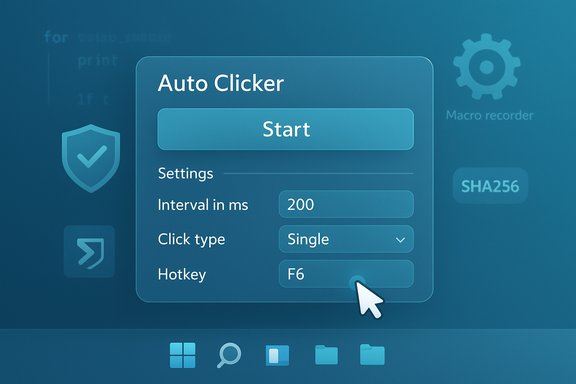
When evaluating or comparing free auto‑clickers for Windows 11, prioritize these features:- Customizable click interval — intervals measured in milliseconds up to minutes, with some apps offering randomized timing to mimic human behavior. Precise interval control is essential for matching target applications’ responsiveness.
- Multiple click types — left, right, middle, single, double, and click‑and‑hold actions. This supports a wider set of tasks beyond simple left‑click repetition.
- Click location options — choose current cursor position, fixed screen coordinates, or recorded sequences of multiple positions for complex workflows. Playback/record capabilities transform a clicker into a lightweight macro recorder.
- Hotkey support — global start/stop hotkeys are standard; configurable bindings prevent conflicts and allow quick emergency stops.
- Repeat and counting controls — finite click counts, repeat until stopped, and click counters for audits and testing.
- Portability and resource use — many clickers are tiny portable EXEs that use minimal CPU and memory, useful for running from USB drives or on older machines.
How to download and install an auto clicker safely on Windows 11
Follow these steps to reduce risk when adding any free binary to a Windows 11 PC:- Choose a reputable distribution channel. Prefer an official project site, a verified GitHub/GitLab release, or well‑known repositories. Mirrors and file‑sharing sites can carry repacked installers.
- Confirm file details. Check the file name, size, and (if published) SHA256 checksum against the vendor’s release notes. Discrepancies hint at repackaging.
- Scan before running. Use Windows Security (Defender) and consider a VirusTotal upload to get multi‑engine results. Heuristic flags are common for input‑synthesizing utilities, but scanning still catches real malware.
- Prefer portable builds for quick tests. Portable EXEs let you run without installation and remove easily if something is amiss. For installers, read each setup page carefully and decline optional offers. Community posts repeatedly warn of bundled offers in unofficial builds.
- Run non‑privileged first. Launch the program under a standard user account and only elevate to admin if required by the target application. Running as administrator can increase risk if the binary is compromised.
- Add exceptions only when necessary. If your antivirus flags a well‑sourced clicker, investigate and create an exception only after confirming the binary is legitimate.
Best free auto clicker alternatives for Windows 11 — hands‑on analysis
Below are practical evaluations of the most commonly recommended free clickers and related automation tools. Each subsection includes strengths, limitations, and recommended scenarios.IO Auto Clicker — lightweight and beginner‑friendly
- Strengths: Minimal UI, tiny footprint, easy hotkey setup, and straightforward interval controls. Good for quick local tasks and users who want “set it and forget it.”
- Limitations: Less advanced scripting; primarily single‑task oriented. Not the best for multi‑step recorded sequences.
- Best for: Casual users who need reliable, low‑memory click repetition on Windows 11.
Community guidance places tools like this in the “small, portable EXE” category and recommends the same provenance and scanning precautions.
GS Auto Clicker — more power for repeated patterns
- Strengths: Supports multiple click locations and click sequences via recording. Good combination of GUI simplicity and useful features for longer tasks.
- Limitations: Interface could be clearer; some advanced features require a learning curve.
- Best for: Users who need simple recorded sequences without moving to full scripting. GS Auto Clicker is frequently suggested as a step up from the most basic clickers.
Auto Clicker by Polar — simplicity and stability
- Strengths: Focus on reliability and minimalism, with robust basic features (left/right clicks, adjustable intervals). Very low system impact.
- Limitations: Not meant for complex automation or multi‑action sequences.
- Best for: Users who want a no‑nonsense clicker that stays out of the way. Community write‑ups highlight these types of clickers as “simple and reliable” while urging download verification.
Free Mouse Auto Clicker — balance of features and usability
- Strengths: Offers multiple click types and scheduled clicking, plus random interval options for more natural patterns. The interface tends to be intuitive.
- Limitations: Some builds and mirrors have prompted mixed VirusTotal signals in community reports; fetch from an official page.
- Best for: Users who want a mid‑range free solution with scheduling and good UI. Always validate the download before running.
Alternatives for power users — AutoHotkey, Power Automate, and recorders
- AutoHotkey (AHK): A scripting language that provides the most control and auditability. It avoids third‑party binaries if you write or review scripts yourself. Ideal for robust, repeatable automation with logging, conditional logic, and tight control over inputs.
- Microsoft Power Automate (Desktop): Enterprise‑grade, supported automation that integrates with Windows 11 and keeps an auditable workflow history — a safer option for business use.
- TinyTask / Pulover’s / Jitbit / Macro Toolworks: Recorder‑style tools that capture mouse and keyboard sequences; choose based on required editing, scheduling, or export features. Recorders are convenient but fragile on dynamic UIs; prefer them for stable, repeatable workflows.
Safety, policy, and legal considerations
Free auto‑clickers are legal software, but there are important limitations and platform rules to consider:- Account and ToS risk: Many online games and services explicitly prohibit automation. Using clickers in these contexts can lead to account suspension or bans. Always check service policies before automating interactions that touch online accounts.
- Antivirus heuristics and repackaging: Because clickers synthesize user input, some AV engines flag them as potentially unwanted or suspicious. Community experience shows that official releases are often clean, while repacked installers can carry PUPs — so download provenance matters.
- Enterprise and managed devices: Corporate security policies may forbid running unsigned or third‑party scripting tools. Consult IT and consider Power Automate or sanctioned automation platforms for business workflows.
- Unverifiable claims flagged: Any marketing claim that a tool is “completely safe” or “guaranteed virus‑free” is unverifiable in absolute terms — no software is risk‑free. Treat those statements cautiously and follow independent validation steps before trusting a binary.
Practical configuration tips and best practices
Follow these concrete practices when configuring a clicker on Windows 11:- Start slow: Use larger intervals for initial testing (e.g., 200–500 ms or more) and increase only as needed. Extremely low intervals (sub‑5 ms) are often unreliable and can be ignored by target apps.
- Pick safe hotkeys: Avoid conflicts with other global shortcuts and choose a combination you can press quickly to stop the program. Test hotkeys with the clicker window unfocused to ensure global behavior.
- Match privilege levels: If your target application runs elevated, run the clicker elevated too; otherwise synthesized events might be ignored. Prefer minimal elevation and revert to standard user when done.
- Log or count clicks for unattended runs: Use the click counter and finite repeat settings when possible so you can audit or limit the work performed.
- Use sandboxes for risky installs: If you must test a questionable build, use a disposable VM or a dedicated test account. This reduces the blast radius of accidental or malicious behavior.
Troubleshooting common problems
- Program won’t start: Try “Run as administrator” and ensure the file isn’t blocked by SmartScreen or Defender. If blocked, confirm origin and hash before allowing.
- Clicks not registering: Verify coordinates if you use a fixed location; test on Notepad to confirm the clicker works with a simple window. Some programs actively ignore synthesized input.
- Hotkeys not working: Change the hotkey to avoid collisions, and ensure the clicker window is permitted to receive global input. Some apps only accept hotkeys when focused.
- AV flags: Don’t immediately assume maliciousness — check the binary’s origin, perform a VirusTotal analysis, and prefer official releases or signed builds. If AV behavior persists, remove the binary until you can confirm it is safe.
FAQs (practical, short answers)
- Are auto‑clickers legal? Yes — as software they are legal, but using them may violate specific services’ terms of use.
- Will they work on every Windows 11 edition? Most modern clickers run fine on Home, Pro, and Enterprise; always review system requirements when provided.
- Can they damage my computer? Legitimate clickers do not damage hardware, but malicious repacks can install unwelcome software. Use careful sourcing and scanning.
- Do I need to pay? Many capable auto‑clickers are free; paid tools usually add scripting, scheduling, or commercial support. Evaluate needs before paying.
Final analysis — when an auto clicker makes sense and when to avoid it
Auto clickers can save minutes or hours on repetitive local tasks and are a valid accessibility aid and rapid automation tool for small jobs. For Windows 11 users who need simple, reliable clicking behavior — a small portable clicker from a reputable source will be the fastest route to productivity.However, for anything that requires reliability, audit trails, conditional logic, or enterprise deployment, a scripting platform like AutoHotkey or a supported enterprise automation product (Microsoft Power Automate) is a better, safer long‑term choice. Recorder tools and clickers are fragile on dynamic UIs and can lead to invisible failures if used for critical workflows.
Finally, treat absolute safety claims with skepticism. Community experience demonstrates that identical product names can appear in altered installers, and AV heuristics frequently flag input‑synthesizing utilities; the combination of careful sourcing, scanning, and conservative configuration is the practical path to safe use.
Conclusion
Free auto‑clickers remain a pragmatic productivity tool for Windows 11 when chosen and configured carefully. The right tool depends on the task: tiny portable clickers for trivial repetition, recorders for stepwise playback, and scripting or enterprise automation for auditable or resilient processes. Prioritize official downloads, scan and verify binaries, start with conservative intervals, and respect the terms of service for any online system you interact with. With those guardrails in place, free auto‑clickers can legitimately speed up workflows without becoming a security or policy liability.Source: PrioriData Free Auto Clicker Download for Windows 11 | Priori Data
