

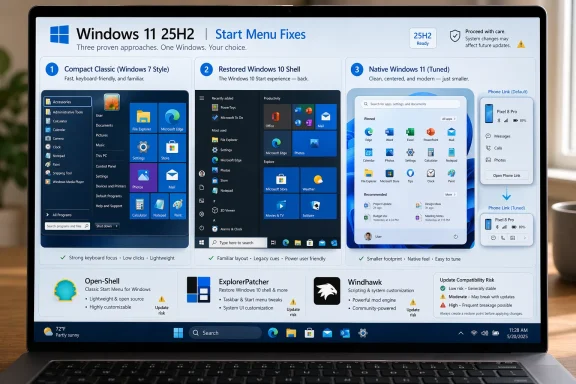
Windows 11’s 25H2 Start menu may be the clearest example yet of Microsoft solving a problem users did not ask to have, then shipping the fix in a way that still feels a little too opinionated. The result is familiar to anyone on a 1080p laptop: a bigger pinned area, a scrollable app list, and a Phone Link panel that can make the menu feel unnecessarily tall and crowded. For power users, that has turned the Start menu back into a daily friction point rather than a neutral launcher. The good news is that the open-source ecosystem has matured enough to offer three genuinely viable paths, each aimed at a different kind of Windows user.
The story of Start menu replacements in 2026 is not really about nostalgia. It is about control, density, and workflow continuity on a desktop OS that has repeatedly tried to become simpler while leaving behind the users who rely on speed and precision. Windows has always had a tension between the needs of casual users and the expectations of enthusiasts, IT staff, and long-time keyboard-and-mouse users. Windows 11 amplified that tension by narrowing the Start experience and making the shell feel more curated than configurable.
That is why tools like Open-Shell, ExplorerPatcher, and Windhawk keep showing up in conversations about fixing Windows 11. They do not all solve the same problem, and that distinction matters more than most people realize. One restores a classic menu model. One restores the Windows 10 shell almost wholesale. One leaves Microsoft’s modern design intact but makes it much less intrusive.
Microsoft’s 25H2 release widened the audience for this debate. On paper, it was a feature update like any other. In practice, the revised Start experience made the default menu feel larger, more segmented, and more willing to occupy prime screen real estate. Microsoft’s own support and Q&A materials show that the redesigned Start menu and related panels are still being rolled out gradually, which means not every device gets the same experience at the same time. That kind of variability is exactly what pushes enthusiasts toward third-party tools.
There is also a broader pattern here. Windows 11 users have increasingly turned to aftermarket utilities when they want the desktop to behave like a personal workstation again rather than a managed appliance. That is not an indictment of Microsoft’s design team so much as a sign that the default shell no longer fits every workflow. The best open-source tools in this space are popular because they restore practical agency, not because they merely look familiar.
The appeal of Open-Shell is that it is unapologetically traditional. If you want the old mental model back, it does that better than anything else on the list. The Windows 7 layout in particular is still the most polished classic-style option for people who prefer a compact launcher with strong keyboard navigation and heavy customization.
At the same time, Open-Shell is also the most visibly “old” option here. That is not automatically a flaw, but it is a design trade-off. If you want the Windows 11 aesthetic with less clutter, Open-Shell is probably too much. If you want a familiar menu that can be shaped to your habits, it remains excellent.
In other words, Open-Shell is the most classic choice, but also the one most likely to remind you that Windows updates are not always friendly to legacy shell behavior.
That completeness is its biggest advantage. The Start menu is only one piece of the Windows 11 shell, and ExplorerPatcher understands that. If your frustration extends to the taskbar, the labels, the old context menu behavior, or other shell conventions, it is the only one here that solves the whole package in one place.
The trade-off is predictably larger maintenance friction. ExplorerPatcher is the most invasive of the three options, and that means it must chase Windows updates continuously. When Microsoft changes Explorer internals or blocks a feature update, ExplorerPatcher usually needs to be uninstalled before the upgrade proceeds. That is not a theoretical concern; the project’s own release notes call out update compatibility and feature-update behavior very explicitly.
The project’s current release notes also show an unusually candid posture around compatibility, including warnings about supported builds and update behavior. That transparency is a strength, but it is also a reminder that the tool exists in a constant state of negotiation with Windows itself.
That matters because a huge share of the 25H2 complaint is not “I hate the Start menu” so much as “I hate how much space it takes now.” Windhawk is the least disruptive way to solve that. Instead of swapping in a different interface, it lets you keep the modern Windows 11 menu and tune it to be more compact and less visually aggressive.
The platform’s own Start Menu Styler mod shows how far this approach can go. It supports themes, CSS-like control styles, resource variables, and even custom WebView manipulation for the search content. That is much more than a simple size tweak. It is a framework for reshaping the stock menu in ways Microsoft never exposed natively.
There is also a subtle usability cost: because Windhawk works through a mod ecosystem, the experience depends on the quality of the mod you choose. That is still better than many alternatives, but it is not as tidy as a single-purpose installer.
Open-Shell, ExplorerPatcher, and Windhawk map almost perfectly to those three needs. That is why comparison charts that just label all of them as “Start menu replacements” tend to be misleading. The moment you understand the category, the recommendation becomes much easier.
This is also why some older advice about shell customization has aged poorly. Windows 11 has changed, the 25H2 menu has changed, and even the release cadence of these open-source tools has changed. What mattered on 23H2 is not always the right answer for 25H2.
Start11’s advantage is not ideological; it is operational. When a commercial vendor ships compatibility work before a Windows feature update lands, users get a quieter experience. That matters if your machine is a work system or if you simply do not want to spend your weekends troubleshooting Explorer behavior. In other words, Start11 wins on predictability, not freedom.
There is also a usability argument. Open-source shell tools often expose a huge number of switches and settings. That is great for enthusiasts, but it can intimidate casual users. Start11’s interface is generally more approachable, and that has value.
What will matter most in the next round of Windows updates is whether Microsoft keeps making the menu more configurable without making it more complicated. That is a hard balance. Too little control, and people keep reaching for third-party fixes. Too much surface area, and the desktop starts to feel inconsistent across devices and builds.
The open-source projects are likely to keep evolving in parallel. Windhawk will probably remain the most adaptable option for users who want targeted tweaks. ExplorerPatcher will continue to serve the people who want a full shell rollback. Open-Shell will remain the classic choice for users who want a traditional Start menu, even if it sometimes ages faster than the others.
In 2026, that is probably the real lesson: the best Windows customization tool is not the one that does the most. It is the one that solves your exact annoyance with the least collateral damage.
Source: H2S Media 3 Best Open-Source Windows 11 Start Menu Replacements (Tested on 25H2)
 Overview
The story of Start menu replacements in 2026 is not really about nostalgia. It is about control, density, and workflow continuity on a desktop OS that has repeatedly tried to become simpler while leaving behind the users who rely on speed and precision. Windows has always had a tension between the needs of casual users and the expectations of enthusiasts, IT staff, and long-time keyboard-and-mouse users. Windows 11 amplified that tension by narrowing the Start experience and making the shell feel more curated than configurable.That is why tools like Open-Shell, ExplorerPatcher, and Windhawk keep showing up in conversations about fixing Windows 11. They do not all solve the same problem, and that distinction matters more than most people realize. One restores a classic menu model. One restores the Windows 10 shell almost wholesale. One leaves Microsoft’s modern design intact but makes it much less intrusive.
Microsoft’s 25H2 release widened the audience for this debate. On paper, it was a feature update like any other. In practice, the revised Start experience made the default menu feel larger, more segmented, and more willing to occupy prime screen real estate. Microsoft’s own support and Q&A materials show that the redesigned Start menu and related panels are still being rolled out gradually, which means not every device gets the same experience at the same time. That kind of variability is exactly what pushes enthusiasts toward third-party tools.
There is also a broader pattern here. Windows 11 users have increasingly turned to aftermarket utilities when they want the desktop to behave like a personal workstation again rather than a managed appliance. That is not an indictment of Microsoft’s design team so much as a sign that the default shell no longer fits every workflow. The best open-source tools in this space are popular because they restore practical agency, not because they merely look familiar.
Why the Start menu still matters
The Start menu is not a decorative feature. It is the place where launching, searching, and switching all intersect. When it gets bigger, noisier, or more opinionated, every small workflow step becomes a little slower.- It affects app launching.
- It affects search behavior.
- It affects muscle memory.
- It affects screen space on smaller displays.
- It affects how “finished” Windows feels in daily use.
What changed in 25H2
The important shift in 25H2 is not just aesthetics. It is the feeling that the menu now assumes a wider display and a more touch-friendly, consumer-first workflow.- The pinned area is larger.
- The all-apps view is more scroll-oriented.
- The Phone Link panel consumes space by default on some systems.
- The overall Start panel feels less compact on smaller screens.
- The menu is more visually dominant than many users want.
Open-Shell: the classic menu for people who want Windows to feel like Windows used to
Open-Shell remains the most direct answer if you want a Windows 7-style or XP-style Start menu. It is open source, free, and well known, and its core value is simple: it replaces Microsoft’s launcher with something denser, more configurable, and more predictable. For users who never loved the modern Start menu in the first place, that is still a compelling pitch.The appeal of Open-Shell is that it is unapologetically traditional. If you want the old mental model back, it does that better than anything else on the list. The Windows 7 layout in particular is still the most polished classic-style option for people who prefer a compact launcher with strong keyboard navigation and heavy customization.
At the same time, Open-Shell is also the most visibly “old” option here. That is not automatically a flaw, but it is a design trade-off. If you want the Windows 11 aesthetic with less clutter, Open-Shell is probably too much. If you want a familiar menu that can be shaped to your habits, it remains excellent.
Where Open-Shell still shines
Open-Shell’s strongest quality is that it restores a launcher that behaves like a launcher. It gets out of the way, offers a lot of control, and avoids the feeling that the UI is trying to sell you on Microsoft’s preferred workflow.- Excellent classic Windows 7-style menu.
- Deep customization of layout and behavior.
- Tiny footprint compared with larger shell tools.
- Familiar for users coming from Windows XP, 7, or 10.
- Easy to remove if it does not suit you.
The 25H2 caveat
This is where honesty matters. Open-Shell is not immune to Windows feature-update friction, and community reports have highlighted compatibility issues on newer Windows 11 builds. Open-Shell’s long-standing issue history also shows that Windows 11 changes can break parts of the experience, including startup behavior and shell integration. That does not make it unusable, but it does mean it is not the carefree option some older guides still describe.In other words, Open-Shell is the most classic choice, but also the one most likely to remind you that Windows updates are not always friendly to legacy shell behavior.
Who should use it
Open-Shell is ideal if you want a menu replacement that feels like a deliberate throwback rather than a compromise.- People who miss Windows 7.
- Users who want the densest possible Start menu.
- Keyboard-driven users who value predictable structure.
- Enthusiasts who like fine-grained customization.
- Anyone who wants a clean rollback path if they change their mind.
ExplorerPatcher: the complete Windows 10 restoration
ExplorerPatcher is the blunt instrument of the group, and that is exactly why some users love it. It does not merely replace Start. It reworks the shell so Windows 11 behaves much more like Windows 10, including taskbar behavior, context menus, and the Start menu itself. For people whose complaint is not “I dislike the new menu” but “I want the old desktop back,” ExplorerPatcher is the closest thing to a full restoration.That completeness is its biggest advantage. The Start menu is only one piece of the Windows 11 shell, and ExplorerPatcher understands that. If your frustration extends to the taskbar, the labels, the old context menu behavior, or other shell conventions, it is the only one here that solves the whole package in one place.
The trade-off is predictably larger maintenance friction. ExplorerPatcher is the most invasive of the three options, and that means it must chase Windows updates continuously. When Microsoft changes Explorer internals or blocks a feature update, ExplorerPatcher usually needs to be uninstalled before the upgrade proceeds. That is not a theoretical concern; the project’s own release notes call out update compatibility and feature-update behavior very explicitly.
Why it feels so complete
ExplorerPatcher is less a Start menu replacement than a shell restoration. That distinction is important because it explains why many users prefer it to piecemeal utilities. It does a lot of the work once, rather than asking you to chain together multiple tweaks.- Restores the Windows 10 taskbar model.
- Brings back a more familiar Start menu.
- Helps preserve older workflow habits.
- Reduces the need for scattered registry hacks.
- Offers a more unified desktop experience.
Where the friction comes from
The same completeness that makes ExplorerPatcher compelling also makes it fragile. It lives very close to the parts of Windows that Microsoft changes most aggressively. That means it can be broken by updates, flagged by security tools, or blocked during feature upgrades.The project’s current release notes also show an unusually candid posture around compatibility, including warnings about supported builds and update behavior. That transparency is a strength, but it is also a reminder that the tool exists in a constant state of negotiation with Windows itself.
Who should use it
ExplorerPatcher is for users who know exactly what they want and are willing to accept the maintenance burden.- People who miss Windows 10.
- Power users who want the old taskbar and Start menu.
- Users who dislike Windows 11’s shell philosophy, not just its Start layout.
- Enthusiasts comfortable with update-cycle cleanup.
- Tinkerers who do not mind the occasional break/fix routine.
Windhawk: the quiet winner for most people
Windhawk is the surprise answer, because it is not a traditional Start menu replacement at all. It is a modding platform that lets you install shell tweaks built by the community, and that turns out to be exactly what many 25H2 users actually need. The most useful mod in this context is the one that changes the size and style of the Windows 11 Start menu rather than replacing it outright.That matters because a huge share of the 25H2 complaint is not “I hate the Start menu” so much as “I hate how much space it takes now.” Windhawk is the least disruptive way to solve that. Instead of swapping in a different interface, it lets you keep the modern Windows 11 menu and tune it to be more compact and less visually aggressive.
The platform’s own Start Menu Styler mod shows how far this approach can go. It supports themes, CSS-like control styles, resource variables, and even custom WebView manipulation for the search content. That is much more than a simple size tweak. It is a framework for reshaping the stock menu in ways Microsoft never exposed natively.
Why Windhawk fits the 25H2 problem so well
For most users, the issue is not the existence of the Windows 11 Start menu. It is that the menu feels oversized and less efficient on smaller displays.- Lets you resize the Start menu manually.
- Preserves the native Windows 11 design.
- Offers multiple visual themes.
- Solves the screen-space problem with minimal disruption.
- Keeps you closer to Microsoft’s own UI language.
The trade-offs
Windhawk’s main downside is that it depends on DLL injection and shell-level modification, which can make enterprise antivirus tools uneasy. The developer is well known in the Windows customization community, but managed environments are often hostile to anything that behaves like low-level patching. That makes it a poor fit for corporate laptops even if it is perfectly fine on a personal machine.There is also a subtle usability cost: because Windhawk works through a mod ecosystem, the experience depends on the quality of the mod you choose. That is still better than many alternatives, but it is not as tidy as a single-purpose installer.
Who should use it
Windhawk is the best choice for the largest group of Windows 11 users.- People who like Windows 11 but want it less bulky.
- Users who do not want to abandon the stock Start menu.
- Laptop users with limited vertical space.
- Enthusiasts who want flexibility without a full shell replacement.
- Anyone looking for a light-touch fix rather than a deep restore.
What “replacement” really means now
One reason this category is so confusing is that people use “Start menu replacement” to mean three different things. Some want a classic menu. Some want Windows 10 back. Some simply want the stock Windows 11 Start experience to be smaller, cleaner, and easier to live with. Those are not the same problem, and the wrong tool can easily make your desktop worse instead of better.Open-Shell, ExplorerPatcher, and Windhawk map almost perfectly to those three needs. That is why comparison charts that just label all of them as “Start menu replacements” tend to be misleading. The moment you understand the category, the recommendation becomes much easier.
This is also why some older advice about shell customization has aged poorly. Windows 11 has changed, the 25H2 menu has changed, and even the release cadence of these open-source tools has changed. What mattered on 23H2 is not always the right answer for 25H2.
The three use cases
If you separate the problem into distinct use cases, the decision becomes much clearer.- Classic menu: choose Open-Shell.
- Full Windows 10 restoration: choose ExplorerPatcher.
- Minimal disruption with a smaller stock menu: choose Windhawk.
Why smaller can be better
The common assumption is that a replacement must be more radical than Microsoft’s default. In reality, many users just want the menu to be less intrusive.- Smaller menu size.
- Less scrolling.
- Less wasted screen space.
- Fewer accidental distractions.
- Better fit for 1080p displays and ultrabooks.
Stardock Start11: the paid option that still has real advantages
It is worth mentioning Start11 because it remains the one paid product that competes seriously with all three open-source options. It is not open source, and for this audience that matters. But it also solves a different class of problem: it tends to be smoother, more polished, and less exposed to the update fragility that comes with patch-based shell tools.Start11’s advantage is not ideological; it is operational. When a commercial vendor ships compatibility work before a Windows feature update lands, users get a quieter experience. That matters if your machine is a work system or if you simply do not want to spend your weekends troubleshooting Explorer behavior. In other words, Start11 wins on predictability, not freedom.
There is also a usability argument. Open-source shell tools often expose a huge number of switches and settings. That is great for enthusiasts, but it can intimidate casual users. Start11’s interface is generally more approachable, and that has value.
Where Start11 still pulls ahead
The advantages are fairly straightforward.- Better update resilience.
- More polished configuration UI.
- Vendor support if something breaks.
- Less time spent on compatibility troubleshooting.
- Easier recommendation for less technical users.
Why it is not the default answer here
The limitations are equally clear.- It costs money.
- It is proprietary.
- It lacks the transparency of open-source tools.
- It does not satisfy users who want full control over what the shell is doing.
- It is a product, not a community project.
Strengths and Opportunities
The strongest thing about this open-source trio is that it covers three different kinds of user pain without pretending there is only one correct answer. That flexibility is exactly what Windows customization needs in 2026, especially as Microsoft continues to move the shell toward broader, more consumer-oriented defaults. The opportunity is not just to restore old behavior, but to make Windows feel like a platform again rather than a fixed appliance.- Open-Shell gives classic-menu users a deep and familiar replacement.
- ExplorerPatcher restores the Windows 10 workflow most completely.
- Windhawk fixes the 25H2 Start menu problem with the least disruption.
- The tools are free, which lowers the barrier to experimentation.
- Open-source transparency makes them easier to trust than random tweakers.
- Users can match the tool to their actual problem instead of overcorrecting.
- The ecosystem shows that Windows customization still has strong demand.
Why the ecosystem matters
The existence of these tools is itself a signal. It tells Microsoft that shell rigidity is still a real issue, and it tells users that they do not have to accept the default experience as final. That is healthy for the platform.Risks and Concerns
The biggest downside to this entire category is that it depends on a moving target. Microsoft controls the shell, the update cadence, and the compatibility boundaries, which means third-party tools are always one feature update away from some kind of friction. That does not make them bad, but it does make them inherently less stable than native features.- Windows updates can break shell integrations.
- Some tools rely on low-level modification that security software dislikes.
- ExplorerPatcher may require removal before major updates.
- Open-Shell can feel dated and occasionally fragile on newer builds.
- Windhawk is a poor fit for managed enterprise devices.
- The wrong tool can make the desktop more complex, not less.
- Users may underestimate the maintenance cost of shell replacement.
The supportability problem
There is also a practical concern that often gets overlooked: not every machine is a hobbyist machine. On work devices, the cost of “just try it” can be real if the tool collides with policy, antivirus, or update windows. That is especially true for ExplorerPatcher and Windhawk, where the mechanisms that make them powerful are also what make them harder to manage in a locked-down environment.The long-term uncertainty
Even the best of these tools exists in a kind of permanent provisional state. That is not a criticism of the developers. It is simply the reality of building around Windows internals that Microsoft can change at any time.Looking Ahead
The most interesting question is not which tool wins today, but whether Microsoft eventually closes enough of the gap that these tools become less necessary. The answer probably depends on whether the company decides that shell flexibility is a core Windows strength again or merely a niche preference for enthusiasts. The gradual, controlled rollout of the redesigned Start menu suggests Microsoft still sees the feature as something to refine carefully rather than overhaul all at once.What will matter most in the next round of Windows updates is whether Microsoft keeps making the menu more configurable without making it more complicated. That is a hard balance. Too little control, and people keep reaching for third-party fixes. Too much surface area, and the desktop starts to feel inconsistent across devices and builds.
The open-source projects are likely to keep evolving in parallel. Windhawk will probably remain the most adaptable option for users who want targeted tweaks. ExplorerPatcher will continue to serve the people who want a full shell rollback. Open-Shell will remain the classic choice for users who want a traditional Start menu, even if it sometimes ages faster than the others.
What to watch next
- Whether Microsoft keeps changing the 25H2 Start experience through gradual rollout.
- Whether the Phone Link panel remains prominent in more Start layouts.
- Whether Open-Shell compatibility improves on newer Windows 11 builds.
- Whether ExplorerPatcher becomes easier to live with during feature updates.
- Whether Windhawk mods keep pace with future Start menu changes.
- Whether Microsoft adds more native controls that reduce the need for third-party tools.
In 2026, that is probably the real lesson: the best Windows customization tool is not the one that does the most. It is the one that solves your exact annoyance with the least collateral damage.
Source: H2S Media 3 Best Open-Source Windows 11 Start Menu Replacements (Tested on 25H2)
