

The Windows 11 Start menu has frustrated a lot of people for a long time — its rigid, overly simplified layout and limited customization feel like a step backward from the flexible menus of Windows 7 and 10. Microsoft has nudged the design forward in stages — restoring app folders in the 22H2 update and trialing a more flexible Start redesign with Insiders in 2025 — but for many power users those changes don’t go far enough. If you want the control, familiarity, and two-column layout that made previous Start menus productive, the fastest and most reliable route is to replace the Start menu with a third‑party tool. This article walks through the best alternatives, shows how they differ, explains setup and safety considerations, and recommends the right option depending on your needs and tolerance for tinkering.
Windows 11’s Start menu debuted with a stripped-down layout that separated pinned apps from recommended content, removed groups and Live Tiles, and limited user control. That simplification solved some visual clutter but created new friction for users who relied on deeper organization and quick access workflows.
Microsoft has responded over time:
Key strengths:
Key strengths:
Key strengths:
That said, there are trade‑offs. Any shell replacement introduces an additional moving part between you and Windows, which can cause friction when Microsoft ships a feature update. Security-conscious users should verify installers and keep solutions updated. Organizations should evaluate compatibility and patch cadence before broad deployment.
Microsoft’s own improvements in 2022 (folders) and the 2024–2025 Start redesign have narrowed the gap, but they haven’t restored the full set of classic behaviors — and they may never, given the company’s evolving UI philosophy. That leaves room for third‑party tools, which continue to evolve alongside Windows.
If you want the fastest route back to a productive Start experience, pick one of these replacements, follow the conservative installation steps above, and test for a few days before rolling it into daily heavy workflows. For most users who crave the two‑column layout and real customization, the benefits outweigh the small risks — especially when you pick actively maintained software and keep good backups.
In short: Windows 11’s built‑in Start has improved, but if you want the Start menu you deserve — fast, customizable, and practical — a replacement tool is the best, proven path.
Source: ZDNET How to replace your Windows 11 Start menu with something better - try my favorite or this free option
 Background: why people still replace the Start menu
Windows 11’s Start menu debuted with a stripped-down layout that separated pinned apps from recommended content, removed groups and Live Tiles, and limited user control. That simplification solved some visual clutter but created new friction for users who relied on deeper organization and quick access workflows.Microsoft has responded over time:
- The Windows 11 22H2 update (released in 2022) restored app folders and added a few layout choices, addressing one of the most common complaints.
- In 2024–2025 Microsoft tested and then began rolling out a more flexible Start redesign to Insider channels and broader rings; that refresh adds scrolling app lists, category views, and options to hide recommendations, but rollout timing and exact capabilities vary by channel and region.
Overview of the top Start replacements
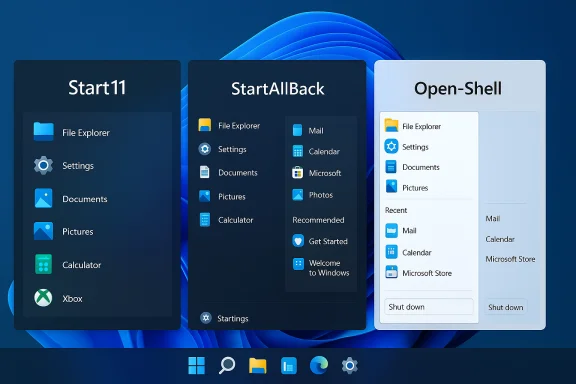
Three tools repeatedly rise to the top for Windows 11 users who want a better Start experience:- Start11 (Stardock) — polished, powerful, and feature-rich; aimed at users who want a modern but adjustable Start plus deeper taskbar control.
- StartAllBack — lower cost, focused, and lightweight; restores classic menu behavior and brings useful taskbar and File Explorer tweaks.
- Open‑Shell (Open‑Source) — free and flexible; replicates Windows 7/10 style menus with a no‑cost license but fewer modern conveniences.
Why replace the Start menu: key benefits
Replacing the Start menu offers practical gains beyond aesthetics:- Faster navigation — two-column menus let you pin frequently used apps while keeping system folders and power commands immediately available.
- Better discoverability — alphabetical or categorized app lists reduce hunting through tiles and nested menus.
- Restored functionality — features removed or limited in Windows 11 (e.g., left-aligned taskbar, classic File Explorer ribbon, and classic context menus) can be brought back.
- Customizability — change the Start button icon, color and transparency of the taskbar, menu size, and behavior.
- Productivity — fewer clicks to launch apps, pin files, or access system settings.
Start11: the premium power user choice
What it does best
Start11 is the most fully featured, commercial Start replacement in active development. It targets users who want a familiar two‑column Start menu plus deep control over the taskbar and multiple monitors.Key strengths:
- Multiple menu styles: classic two‑column "Modern" and Windows 7/10 inspired layouts.
- Granular appearance controls: full‑width or compact modes, icon sizes, color and transparency, and custom Start buttons.
- Taskbar enhancements: resize the taskbar, adjust transparency, control button combination, and choose alignment on primary and secondary monitors.
- Explorer conveniences: rename, move, and delete Start‑menu folders and shortcuts directly from the menu in many modes.
- Enterprise-friendly controls: policy and deployment options for managed environments.
Pricing and availability
Start11 is a paid product from Stardock. Pricing has varied by version and storefront (Stardock store, Steam, promotional sales), and vendors occasionally offer different bundles or introductory rates. Expect a modest one‑time or subscription price depending on which product version and promotion you pick.Who should pick Start11
Pick Start11 if you want the smoothest, most modern experience and are willing to pay for continued development and official support. It’s ideal for people who use multiple monitors, want extensive taskbar control, or administer small-to-medium deployments.StartAllBack: the affordable and compact choice
What it does best
StartAllBack focuses on restoring a classic UI with minimal fuss and a strong set of practical tweaks. It’s more lightweight than Start11 but still brings back many of the features power users miss.Key strengths:
- Affordable lifetime license model.
- Classic Start themes: Remastered 7, Kinda 10, Proper 11 — all provide a two‑column feel.
- Taskbar placement and behavior: move the taskbar to the top, left, or right; choose icon combining and labels; restore classic toolbars.
- File Explorer options: swap between the ribbon and command bar, restore classic search, and enable the legacy context menus.
- Small footprint and fast installation.
Pricing and availability
StartAllBack follows a very accessible lifetime price-per-device approach. That makes it easy to buy for home use without recurring fees.Who should pick StartAllBack
Choose StartAllBack if you want a reliable, low-cost restoration of Windows 7/10-like behavior with thoughtful taskbar and Explorer fixes and don’t need every advanced option Start11 offers.Open‑Shell: the free alternative (classic, open-source)
What it does best
Open‑Shell is the successor to Classic Shell and delivers classic Start menus at no cost. It’s open-source, widely used, and supports multiple styles and skins.Key strengths:
- Free and open-source — no license cost.
- Classic menu styles: Windows 7-like menus and simple one-column or two-column modes.
- Skinning and configuration options for fonts, icon sizes, and Start button replacement.
- Lightweight and dependable for users who prefer community-driven software.
Limitations
Open‑Shell is less polished for deep taskbar manipulation and lacks the commercial polish and testing of Start11 or StartAllBack. Some advanced features (like moving the taskbar or tightly integrating with Windows 11’s new UI paradigms) are limited or require additional tweaks. On certain systems additional registry mods are recommended for expected behaviors, which can complicate setup.Who should pick Open‑Shell
Open‑Shell is the best choice for users who want a classic Start menu without spending money and are comfortable with a more manual, hands‑on setup. It’s particularly attractive to users who prefer open-source software.Installation and setup: step-by-step for a reliable switch
The following steps are conservative and designed to minimize risk.- Back up your system restore point and important files.
- Create a System Restore snapshot or a full image backup before changing shell behavior.
- Choose the product and download from the vendor’s official site.
- For Start11 and StartAllBack, use the vendor storefront to ensure you get the latest signed installer.
- For Open‑Shell, download the latest release package from the official project repository.
- Close apps and save your work.
- Run the installer with Administrator privileges when prompted.
- Follow the program-specific setup wizard; choose a menu style to preview.
- Reboot if the installer prompts (some changes require restarting Explorer).
- Fine-tune appearance and behavior in the app’s settings panel:
- Set menu style, icon sizes, pin behavior, and taskbar placement.
- If moving the taskbar, test in different screens and resolutions.
- Test shutdown, sleep, and typical daily workflows to ensure no regressions.
- If problems occur, use the program’s restore or uninstall option; uninstalling the third-party app typically returns Windows to the default Start behavior.
Important customization tips
- Use the two‑column “Modern” or Windows 7 style if you want a balance of pins and links on the right side (File Explorer, Settings, Power).
- If you need a compact menu for vertical screens, choose compact width and smaller icon sizes.
- For multi-monitor setups, test taskbar alignment and monitor-specific options; Start11 provides per-monitor controls.
- If you like left-aligned icons (classic feel) but want the centered Windows 11 look on primary displays, pick a tool that offers per-monitor alignment.
- Replace the Start button with a custom PNG for a personal touch, but keep a backup of the original to revert quickly.
- Export your configuration if the tool provides profiles — handy for restoring settings after updates or system refreshes.
Security, compatibility, and stability: what to watch for
Replacing core shell behavior has advantages — and risks. Consider these points carefully:- Compatibility with Windows updates: major Windows feature updates can change Explorer APIs or taskbar behavior. Commercial vendors tend to update quickly; community projects can lag. Always check for an updated version of your Start replacement after a Windows feature release.
- System stability: third‑party shell extensions occasionally cause Explorer crashes or slowdowns. If Explorer becomes unstable after installing a menu replacement, uninstall it and test in safe mode.
- Search and integration: some Start replacements route search queries differently; if you rely on integrated Windows search or Copilot features, verify how the replacement interacts with them.
- Security posture: only use installers from the official vendor or the official open‑source repository. Verify signatures when available and avoid third‑party repackaged installers.
- Enterprise policies: in managed environments, IT policy or Microsoft security controls might block shell replacements. Coordinate with administrators before deploying broadly.
- Keep backups and create a restore point before installing.
- Use trial periods or evaluate on a non-critical machine.
- Check vendor forums and release notes for known issues with specific Windows builds.
- Prefer signed and actively maintained products if you care about long-term compatibility.
Performance and resource use
All three top choices are lightweight compared with major applications, but they do add a small overhead because they run as shell extensions or services.- Start11 and StartAllBack are optimized for modern hardware and include features to reduce Explorer restarts and minimize CPU usage.
- Open‑Shell is extremely lean; since it focuses on the Start menu it has minimal RAM and CPU footprint but may require more manual tuning for advanced integration.
Price and licensing — what to expect
- Start11 (Stardock) — commercial product with a paid license; prices vary by release, storefront, promotional pricing and subscription vs. one‑time models. Vendors may sell both annual and lifetime licenses and sometimes bundle Start11 as part of broader utility suites.
- StartAllBack — typically offered at a low one‑time fee per device (an affordable lifetime license model is common).
- Open‑Shell — free under an open‑source license; no cost, though community donations may support development.
Reverting to the default Start menu
If you decide you want the stock Windows 11 Start menu back:- Exit or quit the replacement app from its system tray icon.
- Use the app’s “Restore default behavior” option if available; most commercial apps provide this button.
- Uninstall the program from Settings → Apps → Installed apps.
- Reboot if necessary. Uninstalling should restore the stock Start and taskbar behavior.
Decision guide: which Start replacement should you pick?
- If you want the most polished, multi‑monitor, and actively maintained feature set: choose Start11.
- If you want a low-cost, lightweight restoration of classic behavior and File Explorer tweaks: choose StartAllBack.
- If you want a fully free and open‑source classic Start menu and don’t mind manual configuration: choose Open‑Shell.
Final analysis: strengths, trade-offs, and what to watch next
Third‑party Start menu replacements restore what many users say Microsoft removed: productivity, control, and customization. The commercial offerings (Start11 and StartAllBack) combine straightforward installers with tight testing against Windows updates, which reduces the maintenance burden for end users. Open‑Shell remains a valuable free alternative that keeps the classic Start alive without corporate licensing.That said, there are trade‑offs. Any shell replacement introduces an additional moving part between you and Windows, which can cause friction when Microsoft ships a feature update. Security-conscious users should verify installers and keep solutions updated. Organizations should evaluate compatibility and patch cadence before broad deployment.
Microsoft’s own improvements in 2022 (folders) and the 2024–2025 Start redesign have narrowed the gap, but they haven’t restored the full set of classic behaviors — and they may never, given the company’s evolving UI philosophy. That leaves room for third‑party tools, which continue to evolve alongside Windows.
If you want the fastest route back to a productive Start experience, pick one of these replacements, follow the conservative installation steps above, and test for a few days before rolling it into daily heavy workflows. For most users who crave the two‑column layout and real customization, the benefits outweigh the small risks — especially when you pick actively maintained software and keep good backups.
In short: Windows 11’s built‑in Start has improved, but if you want the Start menu you deserve — fast, customizable, and practical — a replacement tool is the best, proven path.
Source: ZDNET How to replace your Windows 11 Start menu with something better - try my favorite or this free option
