

Xbox Cloud Gaming on Windows 11 is getting a boost from Better xCloud, an unofficial browser-based userscript that adds controls Microsoft does not expose in the default experience. The appeal is straightforward: more visibility into stream performance, more flexibility over quality settings, and better input options for PC play. But because it is a third-party tool, it also sits in the familiar gray area of enthusiast tweaks—useful, powerful, and not officially supported.
Cloud gaming has always lived in a tension between convenience and control. Xbox Cloud Gaming gives you instant access to games without a local install, but the service still makes most of the important decisions for you, including how the stream is delivered and how the browser handles the session. For many players, that tradeoff is acceptable. For enthusiasts, it is exactly the kind of limitation that invites experimentation.
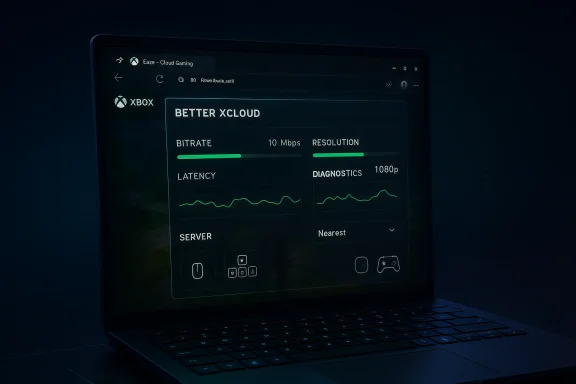
Better xCloud exists to push back against those defaults. It is an open-source userscript that runs in the browser through a manager such as Tampermonkey, modifying the Xbox Cloud Gaming web experience in real time. The project’s own documentation says it is designed to improve Xbox Cloud Gaming and Remote Play on web browsers, with a focus on local-only operations and community transparency. In practice, that means users can access controls for bitrate, resolution, diagnostics, language, server selection, and interface behavior that are not part of the standard UI.
The timing matters because Microsoft’s own cloud-gaming story is evolving quickly. Xbox Cloud Gaming now spans browser and app delivery, and Microsoft’s recent guidance still frames browser play as a first-class option on supported devices. At the same time, Microsoft has been rolling out user-selected resolution support up to 1440p for eligible Game Pass Ultimate subscribers, which signals that stream quality is becoming a more visible competitive lever even inside Microsoft’s ecosystem.
That creates an interesting split. On one side, Microsoft is improving the official service. On the other, tools like Better xCloud fill in the gaps that power users care about most: observability, manual tuning, and tighter PC-style control. That is why this guide has become so popular in Windows circles. It is not merely about “hacking” cloud gaming; it is about making a fixed, managed stream feel a little more like a configurable PC game.
The most valuable changes are the ones that give users feedback. If the browser and the service are behaving badly, you usually only know that the picture looks soft or the controls feel laggy. Better xCloud tries to translate that uncertainty into measurable data. That makes troubleshooting less guessy and more actionable.
Historically, however, browser-based cloud gaming has always been constrained by platform decisions that ordinary players cannot tune. Video quality, stream resolution, session latency, controller handling, and browser compatibility all interact in ways that are easy to notice but hard to diagnose. That is one reason third-party enhancement scripts have persisted around cloud gaming for years. They address the classic enthusiast problem: the service works, but not quite the way the power user wants.
Better xCloud emerged from that same impulse. The project’s public pages describe it as a userscript for improving Xbox Cloud Gaming in web browsers, while the repository emphasizes open-source availability and official repos. The installation model is equally classic for browser power users: Tampermonkey handles the script, and then the script alters the page at runtime.
Microsoft, meanwhile, has been making the official cloud experience more capable. The company’s Xbox Wire guidance now places browser play alongside app-based access, and recent announcements point to more explicit streaming-quality choices, including up to 1440p on supported accounts. That is important because it narrows the gap between the official service and the kind of flexibility enthusiasts have been chasing through scripts.
Still, there is a practical reason Better xCloud keeps getting attention: the official UI remains intentionally conservative. Microsoft is improving the baseline, but it is not exposing the whole tuning stack. For users who care about image stability, motion clarity, or measuring whether a performance issue is local or remote, the extra controls are often more valuable than a prettier front end.
It also means the service is being evaluated in the same environment where users already expect customizability. A Windows player is less likely to accept a fixed black box if they can see evidence that a stream is underperforming or that the browser is the bottleneck. Better xCloud caters to that mindset.
Microsoft’s own Xbox Cloud Gaming guidance confirms that browser access is a legitimate path into the service, so the general approach is not exotic. What is unofficial is the script layer. That means the browser, the Xbox web app, and the extension manager all have to cooperate. If one of them blocks user scripts or if the service interface changes, the script may not load as expected.
The significance is not just “higher numbers are better.” Cloud game streams are highly sensitive to how the encoder allocates bits across motion, contrast, and texture. A stream can technically be running at an acceptable resolution and still look mushy in fast-moving scenes if bitrate is too conservative. The script lets you intervene earlier in that chain.
That is why a tool like Better xCloud can be more effective than a simple “set everything to max” mindset. If your connection is stable, forcing a more aggressive quality profile may produce a visibly cleaner image. If your connection is marginal, however, it can create buffering, added latency, or artifacts that are worse than the default behavior. The best settings are therefore situational, not universal.
That is where Better xCloud becomes most interesting for Windows 11 users. It offers a way to experiment with the relationship between resolution and perceived sharpness instead of accepting a fixed preset. For enthusiasts, that flexibility is often worth more than raw resolution alone.
That matters because latency is not just a technical metric; it is the difference between a cloud session feeling playable and feeling vaguely detached. In action games, fighting games, rhythm games, and shooters, the feel of input response is often more important than the picture itself. A sharp image with sluggish controls still feels bad.
This can be especially useful for people who travel or use VPNs, or for users whose account region and physical location do not line up cleanly. Even when the cloud experience is functional, the wrong server can make it feel subtly off. That difference is often the reason a player says the stream is “fine” but not good.
That kind of visibility is important because cloud gaming often gets blamed on the wrong component. Users think the service is broken when the router is the issue, or they blame the Wi-Fi when the browser is the bottleneck. Diagnostics are how you stop guessing.
This is significant because Xbox Cloud Gaming is increasingly being used on devices that are not sitting under a TV. On a desktop, keyboard shortcuts, cursor handling, and UI scaling matter. If the service is going to compete for real PC usage, it has to feel less like a console stream in a browser and more like a native desktop workload.
It also helps reduce friction in multitasking scenarios. If you are on a big monitor or using the service across multiple windows, interface customization can make the session feel more polished and less cramped. That matters more than people realize, because cloud gaming often competes with regular desktop habits for attention.
That can improve readability and reduce the sense that cloud gaming is always a compromise. When the service fits the workstation better, users are more likely to treat it like a real gaming platform rather than a fallback.
That is a meaningful signal. It suggests Microsoft recognizes that cloud gaming quality is no longer just about access; it is about presentation. As cloud streams become more central to the Xbox value proposition, the company needs to narrow the gap between “good enough” and “noticeably excellent.”
That creates a familiar pattern in PC gaming. Enthusiasts prototype the controls they want, the platform adopts some of them later, and the cycle repeats. It is not unusual for unofficial tools to act as pressure valves for product development. Sometimes they even become the template for the next official feature set.
Microsoft’s response may therefore be twofold: improve the baseline officially, and tolerate the enthusiast layer so long as it does not undermine security or terms of service. That is a pragmatic posture. It allows the company to keep mainstream users on a simple path while power users self-select into deeper customization.
At the same time, the persistence of tools like Better xCloud is a strong signal that cloud gaming still needs more transparency. Users want to know why a stream looks soft, why latency changes from one session to the next, and how to make the browser behave more like a tuned PC client. As long as those questions remain unresolved in the official UI, there will be room for community-built enhancements.
Source: Windows Central How to get the best bitrate and picture quality in Xbox Cloud Gaming on Windows 11
 Overview
Cloud gaming has always lived in a tension between convenience and control. Xbox Cloud Gaming gives you instant access to games without a local install, but the service still makes most of the important decisions for you, including how the stream is delivered and how the browser handles the session. For many players, that tradeoff is acceptable. For enthusiasts, it is exactly the kind of limitation that invites experimentation.Better xCloud exists to push back against those defaults. It is an open-source userscript that runs in the browser through a manager such as Tampermonkey, modifying the Xbox Cloud Gaming web experience in real time. The project’s own documentation says it is designed to improve Xbox Cloud Gaming and Remote Play on web browsers, with a focus on local-only operations and community transparency. In practice, that means users can access controls for bitrate, resolution, diagnostics, language, server selection, and interface behavior that are not part of the standard UI.
The timing matters because Microsoft’s own cloud-gaming story is evolving quickly. Xbox Cloud Gaming now spans browser and app delivery, and Microsoft’s recent guidance still frames browser play as a first-class option on supported devices. At the same time, Microsoft has been rolling out user-selected resolution support up to 1440p for eligible Game Pass Ultimate subscribers, which signals that stream quality is becoming a more visible competitive lever even inside Microsoft’s ecosystem.
That creates an interesting split. On one side, Microsoft is improving the official service. On the other, tools like Better xCloud fill in the gaps that power users care about most: observability, manual tuning, and tighter PC-style control. That is why this guide has become so popular in Windows circles. It is not merely about “hacking” cloud gaming; it is about making a fixed, managed stream feel a little more like a configurable PC game.
What Better xCloud actually changes
Better xCloud does not replace Xbox Cloud Gaming. It sits on top of it, intercepting the browser-based interface and exposing extra toggles and overlays. That distinction matters, because the game is still running on Microsoft’s servers and still depends on your network quality. The script cannot create bandwidth that does not exist. What it can do is help you make smarter choices about how the stream is delivered.The most valuable changes are the ones that give users feedback. If the browser and the service are behaving badly, you usually only know that the picture looks soft or the controls feel laggy. Better xCloud tries to translate that uncertainty into measurable data. That makes troubleshooting less guessy and more actionable.
Background
Xbox Cloud Gaming has steadily become a core part of the broader Xbox strategy. It is not just a convenience feature for travel or spare devices anymore; it is one of the main ways Microsoft extends Game Pass value beyond consoles. Microsoft’s own support and launch materials emphasize browser-based access on devices such as Android, macOS, iOS, iPadOS, ChromeOS, and Steam Deck, with Xbox.com/play acting as the portal into the service.Historically, however, browser-based cloud gaming has always been constrained by platform decisions that ordinary players cannot tune. Video quality, stream resolution, session latency, controller handling, and browser compatibility all interact in ways that are easy to notice but hard to diagnose. That is one reason third-party enhancement scripts have persisted around cloud gaming for years. They address the classic enthusiast problem: the service works, but not quite the way the power user wants.
Better xCloud emerged from that same impulse. The project’s public pages describe it as a userscript for improving Xbox Cloud Gaming in web browsers, while the repository emphasizes open-source availability and official repos. The installation model is equally classic for browser power users: Tampermonkey handles the script, and then the script alters the page at runtime.
Microsoft, meanwhile, has been making the official cloud experience more capable. The company’s Xbox Wire guidance now places browser play alongside app-based access, and recent announcements point to more explicit streaming-quality choices, including up to 1440p on supported accounts. That is important because it narrows the gap between the official service and the kind of flexibility enthusiasts have been chasing through scripts.
Still, there is a practical reason Better xCloud keeps getting attention: the official UI remains intentionally conservative. Microsoft is improving the baseline, but it is not exposing the whole tuning stack. For users who care about image stability, motion clarity, or measuring whether a performance issue is local or remote, the extra controls are often more valuable than a prettier front end.
Why Windows 11 users care
Windows 11 is the obvious place for this conversation because it is still the main desktop OS where browser-based cloud gaming feels like a hybrid between native PC gaming and web delivery. On a Windows laptop or desktop, the browser is not a novelty; it is the entry point. That makes userscript-based enhancements especially appealing, because they slot directly into a workflow that already feels PC-native.It also means the service is being evaluated in the same environment where users already expect customizability. A Windows player is less likely to accept a fixed black box if they can see evidence that a stream is underperforming or that the browser is the bottleneck. Better xCloud caters to that mindset.
Installing the tool
The setup process is relatively simple, but it does require a few browser-side permissions. The first step is installing Tampermonkey in a Chromium-based browser such as Microsoft Edge, then enabling user scripts for the extension. After that, the Better xCloud script is installed from its official repository or project page. The workflow is intentionally familiar to anyone who has ever used a browser extension to add functionality to a web app.Microsoft’s own Xbox Cloud Gaming guidance confirms that browser access is a legitimate path into the service, so the general approach is not exotic. What is unofficial is the script layer. That means the browser, the Xbox web app, and the extension manager all have to cooperate. If one of them blocks user scripts or if the service interface changes, the script may not load as expected.
Practical installation flow
A typical installation path looks like this:- Install Tampermonkey in your browser.
- Enable the browser’s user-script permission for the extension.
- Install the Better xCloud userscript from its official project source.
- Open Xbox Cloud Gaming in the browser and confirm the script is active.
- If the interface is in the newer preview experience, switch to the legacy view when required.
What can go wrong
The most common issues are mundane rather than mysterious. The script may not appear because Tampermonkey is disabled, user scripts are blocked, the browser has changed behavior, or Xbox Cloud Gaming is serving the newer interface instead of the legacy one. In many cases, the fix is to verify the extension settings, reload the page, or toggle back to the supported interface mode.- Tampermonkey installed but script permissions disabled
- New Xbox Cloud Gaming UI instead of the legacy view
- Extension conflicts with browser privacy settings
- Page reload needed after toggling settings
- Browser updates changing userscript behavior
- Region or endpoint differences affecting options
Picture quality and bitrate controls
This is the section most people actually care about. Better xCloud is attractive because it gives users a way to push the stream toward sharper output and more predictable encoding behavior, instead of leaving those decisions entirely to the service. The script’s public positioning explicitly references manual bitrate and resolution controls, which is the core reason many enthusiasts seek it out.The significance is not just “higher numbers are better.” Cloud game streams are highly sensitive to how the encoder allocates bits across motion, contrast, and texture. A stream can technically be running at an acceptable resolution and still look mushy in fast-moving scenes if bitrate is too conservative. The script lets you intervene earlier in that chain.
Why bitrate matters more than people think
Bitrate is often the hidden variable in cloud gaming quality. Two sessions with the same nominal resolution can look very different if one is starved for bits and the other is not. Texture edges, UI text, foliage, smoke, and camera pans are the first places where compression weakness becomes obvious.That is why a tool like Better xCloud can be more effective than a simple “set everything to max” mindset. If your connection is stable, forcing a more aggressive quality profile may produce a visibly cleaner image. If your connection is marginal, however, it can create buffering, added latency, or artifacts that are worse than the default behavior. The best settings are therefore situational, not universal.
Resolution versus perceived clarity
Resolution choices matter, but they are only part of the picture. Microsoft’s own broader cloud push now includes higher stream quality options, and that shows the company understands that users perceive quality through a combination of resolution, compression, and latency. In practice, a well-tuned 1080p stream with stronger bitrate can look more pleasing than a poorly encoded higher-resolution feed.That is where Better xCloud becomes most interesting for Windows 11 users. It offers a way to experiment with the relationship between resolution and perceived sharpness instead of accepting a fixed preset. For enthusiasts, that flexibility is often worth more than raw resolution alone.
- Higher bitrate can reduce blockiness and banding
- Stable connections benefit most from more aggressive quality settings
- Fast-motion scenes reveal compression weaknesses first
- UI text clarity is a useful test of stream quality
- Over-tuning can make unstable networks feel worse
Latency, servers, and responsiveness
Picture quality is only half the cloud-gaming story. The other half is whether the game feels responsive enough to play well. Better xCloud’s value proposition extends beyond visual tuning because it also exposes server selection and network-oriented options that help users reduce perceived delay.That matters because latency is not just a technical metric; it is the difference between a cloud session feeling playable and feeling vaguely detached. In action games, fighting games, rhythm games, and shooters, the feel of input response is often more important than the picture itself. A sharp image with sluggish controls still feels bad.
The nearest-server principle
The most basic latency principle is also the most useful: connect to the nearest good server, not just any server that works. Better xCloud’s region and server controls are valuable because they give the user some agency over that decision. The tool cannot eliminate distance, but it can help avoid suboptimal routing or poor endpoint selection when the service’s automatic choice is not ideal.This can be especially useful for people who travel or use VPNs, or for users whose account region and physical location do not line up cleanly. Even when the cloud experience is functional, the wrong server can make it feel subtly off. That difference is often the reason a player says the stream is “fine” but not good.
Diagnosing network problems
Better xCloud’s real-time diagnostics are arguably as useful as its tuning controls. Once you can see ping, FPS, and stream behavior in the browser, you can start separating local problems from remote ones. If the image degrades while ping spikes, that points to network instability. If the image stays soft while the connection remains stable, the issue may be encoding or service-side quality decisions.That kind of visibility is important because cloud gaming often gets blamed on the wrong component. Users think the service is broken when the router is the issue, or they blame the Wi-Fi when the browser is the bottleneck. Diagnostics are how you stop guessing.
When better latency is not the same as better quality
A useful nuance is that lower latency and higher quality do not always move together. In some cases, forcing a more aggressive quality profile can increase load on the stream and worsen responsiveness. In others, a closer server and cleaner route can improve both at once. The script gives you the tools to find the balance instead of inheriting Microsoft’s default judgment.- Choose the closest stable region when possible
- Use diagnostics to confirm whether lag is network-related
- Test with and without background downloads
- Compare quality changes in fast-motion scenes
- Treat latency and bitrate as linked, but not identical, goals
Mouse, keyboard, and interface tuning
For many Windows players, this is where Better xCloud stops being a neat tweak and starts becoming genuinely useful. The tool expands mouse and keyboard support, which can make certain games feel far more natural on a PC than the default controller-first cloud experience.This is significant because Xbox Cloud Gaming is increasingly being used on devices that are not sitting under a TV. On a desktop, keyboard shortcuts, cursor handling, and UI scaling matter. If the service is going to compete for real PC usage, it has to feel less like a console stream in a browser and more like a native desktop workload.
Why input flexibility matters on Windows 11
The standard controller path is fine for many games, but it does not serve every genre equally. Strategy titles, management games, inventory-heavy RPGs, and web-style interactions often feel better with a mouse and keyboard. Better xCloud helps bridge that gap, making cloud play more viable on the kinds of games that benefit from PC-style control schemes.It also helps reduce friction in multitasking scenarios. If you are on a big monitor or using the service across multiple windows, interface customization can make the session feel more polished and less cramped. That matters more than people realize, because cloud gaming often competes with regular desktop habits for attention.
Browser UI and large-screen ergonomics
The browser UI is not a trivial detail. On a large Windows 11 display, spacing, scaling, and control visibility become much more important than they are on a phone. Better xCloud’s interface tweaks let users adapt the experience to the screen instead of forcing the screen to adapt to the experience.That can improve readability and reduce the sense that cloud gaming is always a compromise. When the service fits the workstation better, users are more likely to treat it like a real gaming platform rather than a fallback.
- Better cursor behavior for desktop-style gameplay
- More usable interface on large monitors
- Greater flexibility for strategy and management games
- More natural interaction in hybrid mouse-controller sessions
- Less friction when multitasking on Windows
How Microsoft is responding
Better xCloud exists in part because Microsoft has historically kept the official cloud-gaming experience relatively restrained. But the company is not standing still. Recent Xbox Wire guidance and cloud-gaming updates show that Microsoft is actively expanding browser support and raising the ceiling on stream quality, including the rollout of user-selected resolution options up to 1440p for Game Pass Ultimate users.That is a meaningful signal. It suggests Microsoft recognizes that cloud gaming quality is no longer just about access; it is about presentation. As cloud streams become more central to the Xbox value proposition, the company needs to narrow the gap between “good enough” and “noticeably excellent.”
The official roadmap versus enthusiast demand
The official roadmap is likely to remain conservative. Microsoft has to support a broad device base, multiple browsers, multiple network conditions, and a large mainstream audience that does not want to fiddle with scripts. Better xCloud, by contrast, is designed for the opposite audience: users who do want to fiddle.That creates a familiar pattern in PC gaming. Enthusiasts prototype the controls they want, the platform adopts some of them later, and the cycle repeats. It is not unusual for unofficial tools to act as pressure valves for product development. Sometimes they even become the template for the next official feature set.
Competitive implications
The competition here is not just with other cloud-gaming services; it is with user expectation. Services like GeForce Now have often been perceived as more flexible or more transparent about performance characteristics, and that matters in a market where perceived quality is a major differentiator. Better xCloud is an acknowledgment that users want visibility and control, not just access.Microsoft’s response may therefore be twofold: improve the baseline officially, and tolerate the enthusiast layer so long as it does not undermine security or terms of service. That is a pragmatic posture. It allows the company to keep mainstream users on a simple path while power users self-select into deeper customization.
Strengths and Opportunities
Better xCloud’s biggest strength is that it gives power users real levers in a service that otherwise feels fixed. It does not pretend to replace Xbox Cloud Gaming; it makes the existing browser experience more transparent, more tunable, and more desktop-friendly. For a Windows audience, that is a compelling value proposition.- Manual bitrate control can sharpen image quality in stable networks
- Resolution tuning helps users find the best balance of clarity and latency
- Real-time diagnostics make troubleshooting far easier
- Server and region selection can reduce avoidable lag
- Mouse and keyboard support improves PC-style gameplay
- Interface customization makes large monitors easier to use
- Open-source visibility increases trust for technically literate users
Risks and Concerns
The obvious downside is that Better xCloud is unofficial and unsupported, so its reliability depends on the browser, the service UI, and Microsoft’s changing web implementation. That means a feature that works today may break after a browser update or a cloud interface refresh. Enthusiast tools are always more brittle than first-party products, and this one is no exception.- Unofficial support means no Microsoft-backed troubleshooting
- Browser updates can break script compatibility
- UI changes may disable or hide features
- Security comfort varies because users must trust a third-party script
- Performance gains are not universal and depend on network quality
- Over-configuration can make a bad connection worse
- Policy or account changes could affect browser-side behavior
Looking Ahead
The next phase of Xbox Cloud Gaming on Windows 11 will likely be defined by a narrowing gap between official features and enthusiast workarounds. Microsoft is already raising the baseline with higher stream quality options and a more explicit browser-first pathway, which suggests that quality controls are becoming part of the core product story rather than an afterthought. That does not eliminate the need for Better xCloud, but it may reduce the number of users who need it.At the same time, the persistence of tools like Better xCloud is a strong signal that cloud gaming still needs more transparency. Users want to know why a stream looks soft, why latency changes from one session to the next, and how to make the browser behave more like a tuned PC client. As long as those questions remain unresolved in the official UI, there will be room for community-built enhancements.
- Microsoft may continue expanding official resolution and quality tiers
- Browser-based cloud gaming could become less constrained over time
- Userscript tools may stay relevant for diagnostics and niche control
- Improvements in Windows 11 gaming UX could make browser sessions feel more native
- Enthusiast communities will keep pressuring the platform for finer tuning
Source: Windows Central How to get the best bitrate and picture quality in Xbox Cloud Gaming on Windows 11
