

Windows updates have become a confidence problem as much as a technical one. The latest wave of BitLocker recovery complaints has reminded a lot of Windows users that the operating system can lock them out of their own data after an update, firmware change, or hardware tweak. The scary part is not just the recovery screen itself, but how quietly encryption can be enabled in the first place and how completely access depends on one key being available when you need it. Microsoft’s own support pages make clear that it cannot recreate a lost BitLocker recovery key, which is why preparation matters far more than luck.
For years, Windows security has been moving toward a model that assumes every device should protect itself by default. That means device encryption and BitLocker are no longer niche features reserved for IT departments; on many modern Windows 11 systems, they are part of the baseline experience. Microsoft’s documentation says device encryption can turn on automatically on qualifying hardware and back up the recovery key to a Microsoft account, Microsoft Entra ID, or Active Directory depending on the device type. On consumer systems, that can feel seamless until something goes wrong.
The recovery-key issue is what turns a security feature into a user panic event. If the key is available, a BitLocker recovery prompt is an inconvenience. If it is not, the disk is effectively unreadable. Microsoft explicitly states that support cannot retrieve, provide, or recreate a lost BitLocker recovery key, which is a blunt but important limitation. In other words, if the backup path failed, there is no secret back door waiting in Redmond.
The other part of the story is account dependence. Windows 11 setup increasingly nudges, and in many cases requires, a Microsoft account during out-of-box setup. Microsoft has also been tightening the well-known workarounds that once let users bypass that requirement. That matters because the Microsoft account often becomes the anchor for not only sign-in, but also PIN recovery and, in some cases, recovery-key storage. If the account is lost, compromised, locked, or simply inaccessible, the user’s recovery options narrow fast.
The recent anxiety is not purely theoretical. Microsoft has acknowledged, through support and community responses, that some updates can trigger BitLocker recovery screens unexpectedly. That is not the same as data loss, but it is enough to expose weak recovery planning. The problem is especially painful on devices where BitLocker or device encryption was enabled by default and the user never consciously engaged with the setup.
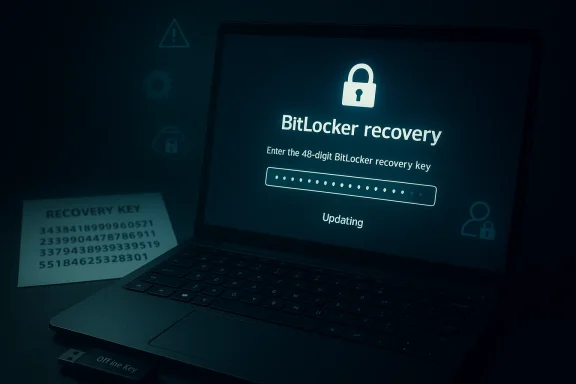
The recovery screen tends to appear at the worst possible moment. A user updates Windows, changes firmware settings, swaps hardware, or simply boots after an ordinary patch cycle, and suddenly the machine demands a 48-digit key. Microsoft and OEM guidance both note that updates, BIOS changes, and hardware changes can trigger recovery. That means the event often looks random to the user even when it is technically explainable.
That is why “I’ll deal with it later” is such a bad habit here. Recovery planning is not a cosmetic step. It is the difference between a brief interruption and a total loss of access. On a business laptop, this is usually handled through centralized identity and helpdesk processes. On a personal PC, it is on the user, and that makes discipline essential.
This is where Microsoft’s own design philosophy creates friction. A cloud-backed identity can be convenient, especially for consumers who want their settings, OneDrive files, and app licenses to follow them. But convenience and resilience are not the same thing. A cloud-first model can make a device easier to set up while making it harder to survive an account problem, a credential loss, or an administrative lockout.
Microsoft has made creating local accounts less obvious in newer Windows 11 builds, but not impossible in all cases. The Settings app still offers a path on some editions, and the terminal can create one directly. The point is not to reject Microsoft accounts entirely. The point is to avoid single-point-of-failure design on a machine that stores your files, credentials, and backups.
There are two practical ways to do it. The first uses the Settings app under Accounts and Other Users, then adds a user without a Microsoft account and promotes that account to Administrator. The second uses the terminal and creates the account directly with
That flexibility matters because emergency recovery often requires more than a password reset. You may need to decrypt a drive, copy files off the system, roll back a bad update, or restore a checkpoint. A spare admin account is the cheapest insurance policy in the entire workflow.
The Microsoft account route is convenient, and for many users it will be the first place to check during recovery. Microsoft points users to its recovery-key portal and says you can retrieve the key there if it was backed up properly. That is useful, but it is still an online dependency. If your account is inaccessible, the portal does not help much.
It is also worth checking the current encryption state with
The anti-BitLocker argument is simple: if the machine is always under your control, the benefit of full-disk encryption may not outweigh the risk of being locked out by a recovery event. That is especially true when a user does not understand how the recovery key is stored. In that case, the best protection may be to disable device encryption entirely rather than leave it half-managed.
It is also worth noting that Windows updates or hardware changes can sometimes make users think encryption is the cause when the real problem is a missing recovery key or an account issue. The fix is not always to remove BitLocker. Sometimes it is simply to manage it properly. That distinction matters.
Microsoft has acknowledged that some update-related issues can produce BitLocker recovery screens, and third-party coverage has documented recent cases where specific security updates triggered those prompts on affected systems. The most important takeaway is not that every update is dangerous. It is that update-induced recovery events are real enough that users should prepare for them the same way they prepare for power loss or drive failure.
That also explains why backup strategy should extend beyond file copies. If the boot path, recovery environment, or disk protector is compromised, your data backups matter only if you can still get to them. A spare admin account and a separate recovery-key copy dramatically improve those odds.
Consumers do not get that safety net unless they build it themselves. That is why the same feature can feel elegant in a corporation and hostile in a home office. An enterprise can standardize how keys are stored and recovered. A household often cannot, which means the burden falls on the individual user to create a process that resembles IT discipline.
The broader market implication is that Microsoft is increasingly pushing Windows into a more managed, identity-centric world, while many users still expect a personal-computer model where they are fully in charge. That tension is not going away. If anything, it will intensify as Microsoft continues to harden setup flows and default encryption behavior.
The healthiest way to respond is not to reject modern Windows security features, but to build redundancy around them. A spare local admin account, an offline recovery-key copy, and a quick check of BitLocker status after major updates will prevent most of the disasters that turn into forum horror stories. The point is to keep the safety net while making sure it does not become the trapdoor.
Source: How-To Geek Windows updates have destroyed countless PCs—here's how I protect mine
 Background
For years, Windows security has been moving toward a model that assumes every device should protect itself by default. That means device encryption and BitLocker are no longer niche features reserved for IT departments; on many modern Windows 11 systems, they are part of the baseline experience. Microsoft’s documentation says device encryption can turn on automatically on qualifying hardware and back up the recovery key to a Microsoft account, Microsoft Entra ID, or Active Directory depending on the device type. On consumer systems, that can feel seamless until something goes wrong.The recovery-key issue is what turns a security feature into a user panic event. If the key is available, a BitLocker recovery prompt is an inconvenience. If it is not, the disk is effectively unreadable. Microsoft explicitly states that support cannot retrieve, provide, or recreate a lost BitLocker recovery key, which is a blunt but important limitation. In other words, if the backup path failed, there is no secret back door waiting in Redmond.
The other part of the story is account dependence. Windows 11 setup increasingly nudges, and in many cases requires, a Microsoft account during out-of-box setup. Microsoft has also been tightening the well-known workarounds that once let users bypass that requirement. That matters because the Microsoft account often becomes the anchor for not only sign-in, but also PIN recovery and, in some cases, recovery-key storage. If the account is lost, compromised, locked, or simply inaccessible, the user’s recovery options narrow fast.
The recent anxiety is not purely theoretical. Microsoft has acknowledged, through support and community responses, that some updates can trigger BitLocker recovery screens unexpectedly. That is not the same as data loss, but it is enough to expose weak recovery planning. The problem is especially painful on devices where BitLocker or device encryption was enabled by default and the user never consciously engaged with the setup.
Why BitLocker Recovery Feels Like a Trap
BitLocker is designed to protect the drive, not to make life difficult. Its purpose is straightforward: if someone steals the SSD or removes the drive, the raw data should be unreadable. That is a sensible defense for laptops and other portable devices, and Microsoft’s documentation still treats recovery as an expected part of the encryption lifecycle rather than a sign that the feature failed. The friction comes from the fact that recovery is only easy if the user prepared in advance.The recovery screen tends to appear at the worst possible moment. A user updates Windows, changes firmware settings, swaps hardware, or simply boots after an ordinary patch cycle, and suddenly the machine demands a 48-digit key. Microsoft and OEM guidance both note that updates, BIOS changes, and hardware changes can trigger recovery. That means the event often looks random to the user even when it is technically explainable.
Why the key matters more than the feature
The critical misunderstanding is thinking of BitLocker as the problem. BitLocker is not the problem; unmanaged key escrow is. If the recovery password is backed up properly, the locked drive is recoverable. If it is not, the encryption is doing exactly what it was built to do: protect data from anyone who lacks the key, including the owner in an emergency.That is why “I’ll deal with it later” is such a bad habit here. Recovery planning is not a cosmetic step. It is the difference between a brief interruption and a total loss of access. On a business laptop, this is usually handled through centralized identity and helpdesk processes. On a personal PC, it is on the user, and that makes discipline essential.
- BitLocker protects data at rest, not convenience.
- A recovery key is not optional once encryption is enabled.
- Hardware or firmware changes can legitimately trigger recovery.
- A missing backup can turn a fixable event into a dead end.
Why Microsoft Accounts Raise the Stakes
Windows’ move toward Microsoft account sign-in has changed the failure mode for ordinary users. The account is now tied to setup, PIN management, sync, and often recovery information. If the account is accessible, recovery is often manageable. If it is not, the user may lose the very path that was supposed to help them get back in.This is where Microsoft’s own design philosophy creates friction. A cloud-backed identity can be convenient, especially for consumers who want their settings, OneDrive files, and app licenses to follow them. But convenience and resilience are not the same thing. A cloud-first model can make a device easier to set up while making it harder to survive an account problem, a credential loss, or an administrative lockout.
The local-account workaround still matters
That is why local admin accounts remain a smart insurance policy. A local administrator account does not depend on Microsoft’s login infrastructure for day-to-day access. It gives you a second way into the machine if the primary Microsoft account becomes unavailable, and that can be the difference between fixing a problem and staring at the lock screen.Microsoft has made creating local accounts less obvious in newer Windows 11 builds, but not impossible in all cases. The Settings app still offers a path on some editions, and the terminal can create one directly. The point is not to reject Microsoft accounts entirely. The point is to avoid single-point-of-failure design on a machine that stores your files, credentials, and backups.
- A Microsoft account can be useful, but it should not be your only recovery path.
- A local admin account gives you offline control when cloud sign-in fails.
- A second account can help with system rollback, repair, and PIN recovery.
- Redundancy is a security feature, not a sign of paranoia.
How to Create a Spare Local Administrator
The simplest protection is to set up a second account before you ever need it. A local administrator account takes only a few minutes to create and can serve as your emergency entry point if your Microsoft account or PIN becomes unavailable. Microsoft’s own account-management guidance still supports local users on Windows, even if the path is not front and center.There are two practical ways to do it. The first uses the Settings app under Accounts and Other Users, then adds a user without a Microsoft account and promotes that account to Administrator. The second uses the terminal and creates the account directly with
net user, then adds it to the Administrators group. The terminal method is especially useful when the graphical route is hidden or inconsistent across builds.The exact value of the backup account
A spare local admin account is not about daily use. It is about rescue. If you lose the Windows Hello PIN, you can still log in with a password. If the Microsoft account is inaccessible, you still have a path to the desktop. If BitLocker recovery appears, you can use the spare account to pull up recovery information, handle system repair, and preserve data before taking bigger steps.That flexibility matters because emergency recovery often requires more than a password reset. You may need to decrypt a drive, copy files off the system, roll back a bad update, or restore a checkpoint. A spare admin account is the cheapest insurance policy in the entire workflow.
- Open Settings and go to Accounts > Other users.
- Choose Add someone else.
- Select I don’t have this person’s sign-in information.
- Pick Add a user without a Microsoft account.
- Set the account type to Administrator.
- Test it immediately, then store the password safely.
- Create the backup account now, not after trouble starts.
- Make sure you know the password and can actually sign in.
- Verify that the account has admin rights before you need it.
- Treat it like a fire extinguisher: present, tested, and forgotten until necessary.
BitLocker Recovery Key Handling Done Right
If you want to keep BitLocker enabled, the recovery key needs the same treatment you would give a house key or backup drive. Microsoft’s guidance says recovery keys can be backed up to a Microsoft account, printed, or saved to a file. That gives you three obvious storage options, but the best answer is to use more than one.The Microsoft account route is convenient, and for many users it will be the first place to check during recovery. Microsoft points users to its recovery-key portal and says you can retrieve the key there if it was backed up properly. That is useful, but it is still an online dependency. If your account is inaccessible, the portal does not help much.
Why offline copies still matter
Offline copies are the real safety net. A printed copy, a text file on a USB drive, and a secure archive in a password manager or locked physical drawer give you options if one backup path fails. That matters because recovery is often the very moment when you discover that the cloud copy is missing, out of date, or tied to an account you can no longer access.It is also worth checking the current encryption state with
manage-bde -status from time to time. Microsoft documents manage-bde as a valid way to inspect and manage BitLocker status, which makes it a practical health check after major system changes. If the drive is encrypted and you do not know where the recovery key is, that is a problem worth fixing immediately rather than eventually.- Save the key in at least two places.
- Keep one copy offline.
- Use the Microsoft account copy only as one layer, not the only layer.
- Check BitLocker status after major Windows or BIOS changes.
- Treat missing recovery information as an urgent risk, not a future inconvenience.
Should You Disable BitLocker on a Home PC?
This is the part of the debate where opinion splits. On a laptop that leaves the house, BitLocker is a very good idea. On a desktop that never moves and only has one user, the tradeoff is less obvious. Microsoft’s device-encryption guidance still frames encryption as an automatic protection for qualifying hardware, but the practical risk profile is different for a stationary home PC than for a travel machine.The anti-BitLocker argument is simple: if the machine is always under your control, the benefit of full-disk encryption may not outweigh the risk of being locked out by a recovery event. That is especially true when a user does not understand how the recovery key is stored. In that case, the best protection may be to disable device encryption entirely rather than leave it half-managed.
When turning it off makes sense
Disabling BitLocker can be reasonable if you have a desktop with no physical mobility, no sensitive data, and no need for theft resistance. Microsoft’s own tools let you turn off device encryption from Settings on supported systems, and the drive will decrypt over time. That said, this should be a deliberate decision, not a panic reaction, because encryption still has real value against theft and unauthorized physical access.It is also worth noting that Windows updates or hardware changes can sometimes make users think encryption is the cause when the real problem is a missing recovery key or an account issue. The fix is not always to remove BitLocker. Sometimes it is simply to manage it properly. That distinction matters.
- Keep BitLocker on laptops and mobile devices.
- Consider disabling it on desktops only if you fully understand the tradeoff.
- Never assume “I turned it off once” means it is gone forever.
- Verify the setting after major updates or resets.
- Make the decision based on your threat model, not on frustration.
Why Windows Updates Keep Triggering Panic
Windows Update has a long history of touching sensitive system components at the worst possible time. That is unavoidable to some degree, because security fixes often sit close to firmware, boot logic, storage, and credential handling. The downside is that a routine patch can expose latent problems and force recovery behavior that feels completely unrelated to the user’s last action.Microsoft has acknowledged that some update-related issues can produce BitLocker recovery screens, and third-party coverage has documented recent cases where specific security updates triggered those prompts on affected systems. The most important takeaway is not that every update is dangerous. It is that update-induced recovery events are real enough that users should prepare for them the same way they prepare for power loss or drive failure.
Updates, firmware, and false confidence
A lot of users assume that if Windows boots once after an update, the hard part is over. In reality, firmware changes, TPM behavior, and secure-boot state can still create delayed failures later. That is why a machine can appear fine right after patching and then suddenly demand a recovery key on the next reboot.That also explains why backup strategy should extend beyond file copies. If the boot path, recovery environment, or disk protector is compromised, your data backups matter only if you can still get to them. A spare admin account and a separate recovery-key copy dramatically improve those odds.
- Not every BitLocker prompt means damage; some are simply recovery events.
- Updates can surface problems that were already sitting quietly in the system.
- Firmware and TPM behavior can matter as much as the patch itself.
- The best time to prepare for an update failure is before patch day.
The Enterprise vs. Consumer Divide
In a managed business environment, BitLocker is usually not controversial because IT owns the recovery process. Keys are escrowed, device policies are enforced, and the helpdesk can locate the right recovery information when a user is locked out. Microsoft’s documentation for Entra ID and AD DS recovery reflects that reality: enterprise devices are supposed to have a managed backstop.Consumers do not get that safety net unless they build it themselves. That is why the same feature can feel elegant in a corporation and hostile in a home office. An enterprise can standardize how keys are stored and recovered. A household often cannot, which means the burden falls on the individual user to create a process that resembles IT discipline.
Why this matters for small businesses
Small businesses sit awkwardly in the middle. They often have the security expectations of an enterprise but none of the infrastructure. That makes local admin accounts, offline key copies, and documented recovery steps especially important. One locked laptop can mean lost revenue, missed client work, and a support headache that lasts days.The broader market implication is that Microsoft is increasingly pushing Windows into a more managed, identity-centric world, while many users still expect a personal-computer model where they are fully in charge. That tension is not going away. If anything, it will intensify as Microsoft continues to harden setup flows and default encryption behavior.
- Enterprises have recovery infrastructure; consumers usually do not.
- Small businesses are often the most exposed because they inherit enterprise risk without enterprise tooling.
- Default encryption is easiest to justify where management is mature.
- The more cloud-dependent Windows becomes, the more important backup discipline becomes.
Strengths and Opportunities
Microsoft’s security direction has real benefits, and it would be unfair to treat BitLocker and account-based recovery only as annoyances. Encryption protects lost and stolen devices, Windows Hello reduces password exposure, and managed recovery can make endpoint fleets safer when IT is in control. The opportunity for users is to keep those benefits while removing the single points of failure that turn protection into panic.- Stolen hardware is much less useful when the drive is encrypted.
- A well-managed Microsoft account can simplify recovery and device syncing.
- Windows Hello and PIN-based sign-in are more phishing-resistant than passwords.
- A local admin backup account can save hours of recovery work.
- Offline recovery-key storage reduces dependence on any one service.
manage-bde -statusgives users a way to verify the current protection state.- Businesses can centralize key escrow and avoid consumer-style lockout risk.
Risks and Concerns
The biggest risk is not encryption itself. It is assuming that encryption is “on” without checking where the key lives, who controls the account, or whether an offline escape route exists. The second-biggest risk is forgetting that Windows updates, TPM events, and BIOS changes can legitimately trigger recovery behavior, so a machine can be perfectly healthy and still require the right key at the wrong time.- Lost or inaccessible recovery keys can make data unrecoverable.
- A Microsoft account lockout can cascade into Windows sign-in problems.
- Users may not notice device encryption is enabled until recovery is needed.
- Mandatory account workflows reduce flexibility for privacy-minded users.
- Update-triggered recovery screens can create false confidence before the next reboot.
- Local-account workarounds may disappear as Microsoft tightens setup flows.
- Disabling BitLocker without understanding the tradeoff can create theft risk later.
Looking Ahead
Microsoft is unlikely to reverse course on default encryption, account-centered setup, or more tightly integrated recovery flows. The direction of travel is clear: Windows is becoming more secure by default, but also more opinionated about how users identify themselves and how devices are managed. That means users will need to be more deliberate about backup planning, account hygiene, and local recovery options than they were five years ago.The healthiest way to respond is not to reject modern Windows security features, but to build redundancy around them. A spare local admin account, an offline recovery-key copy, and a quick check of BitLocker status after major updates will prevent most of the disasters that turn into forum horror stories. The point is to keep the safety net while making sure it does not become the trapdoor.
- Expect more default security, not less.
- Expect Microsoft account sign-in to stay central.
- Expect local-account workarounds to keep shrinking.
- Expect recovery planning to become a routine part of PC ownership.
- Expect more users to discover BitLocker only when a problem forces the issue.
Source: How-To Geek Windows updates have destroyed countless PCs—here's how I protect mine
