

If your Windows PC shows a Bluetooth device as “Connected” but you hear no audio, the problem usually isn’t mysterious hardware failure — it’s a mix of routing, profiles, drivers, and sometimes new limits in Bluetooth audio profiles. This deep-dive guide explains why the “Bluetooth connected but no sound” problem happens, verifies the technical causes with authoritative documentation, and walks through tested fixes that run from the quick and safe to the advanced. Practical checklists, what to verify first, and guidance on codecs and LE Audio compatibility are included so you can restore reliable wireless sound and avoid repeated break-fix cycles.
Bluetooth audio on Windows is complicated by multiple audio endpoints, legacy profiles, and evolving standards. Windows reports a device as “connected” when the radio link exists, but audio routing and quality depend on the audio profile (A2DP, HFP/HSP, or LE Audio) and the presence of the proper drivers and codecs. Microsoft’s troubleshooting guidance lists stepwise checks — run the Bluetooth troubleshooter, confirm output device selection, adjust sample rate, re-pair devices, and update drivers — as first-line fixes. Community troubleshooting and forum threads frequently reinforce the same flow (check volume and output selection, disable power-saving for the Bluetooth adapter, and reinstall drivers), while also offering advanced measures such as using a USB Bluetooth dongle or disabling Hands‑Free telephony as a workaround when a headset’s mic causes stereo audio to collapse.
Source: Microsoft Support Fix Bluetooth connected but no sound issue on Windows - Microsoft Support
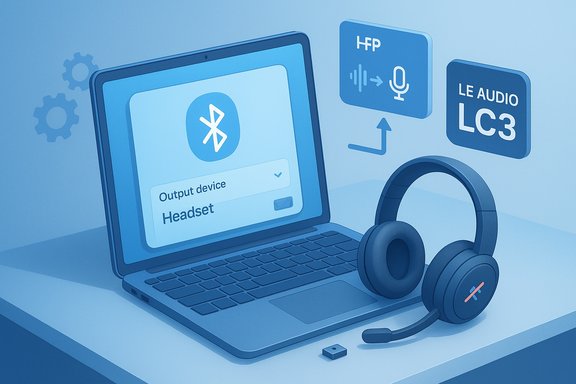 Background / Overview
Bluetooth audio on Windows is complicated by multiple audio endpoints, legacy profiles, and evolving standards. Windows reports a device as “connected” when the radio link exists, but audio routing and quality depend on the audio profile (A2DP, HFP/HSP, or LE Audio) and the presence of the proper drivers and codecs. Microsoft’s troubleshooting guidance lists stepwise checks — run the Bluetooth troubleshooter, confirm output device selection, adjust sample rate, re-pair devices, and update drivers — as first-line fixes. Community troubleshooting and forum threads frequently reinforce the same flow (check volume and output selection, disable power-saving for the Bluetooth adapter, and reinstall drivers), while also offering advanced measures such as using a USB Bluetooth dongle or disabling Hands‑Free telephony as a workaround when a headset’s mic causes stereo audio to collapse.Why “Connected” Can Mean “No Sound” — Technical Root Causes
Bluetooth profiles and audio routing (A2DP vs HFP/HSP)
Bluetooth audio uses distinct profiles:- A2DP (Advanced Audio Distribution Profile) handles high-fidelity stereo media (music and general playback).
- HFP/HSP (Hands‑Free Profile / Headset Profile) handles call and microphone audio but historically uses narrowband or low-sample-rate codecs, which produce low-quality mono sound.
Codec and Windows version limitations: LE Audio and LC3
Bluetooth Low Energy (LE) Audio and the LC3 codec modernize this trade-off by enabling super wideband stereo (stereo playback with a working mic) — but only when the entire stack supports it: headset firmware, PC Bluetooth radio and drivers, and the Windows build. Microsoft documents that LE Audio requires Windows 11 (22H2 or newer) plus LE-capable drivers; not every Bluetooth 5.x radio supports LE Audio until a vendor-provided driver exposes the capability. Independent coverage confirms Microsoft’s rollout of LE Audio / “super wideband stereo” in recent Windows 11 updates, noting the feature eliminates the old A2DP/HFP compromise — but warns that compatibility depends on firmware and driver availability.Driver, service, and energy-management issues
Even when profiles align, Windows may not route audio properly because:- Device drivers are outdated, mismatched, or corrupted.
- Windows audio services (Windows Audio, Endpoint Builder, Bluetooth Support Service) are stopped or unstable.
- Power management allows Windows to suspend the Bluetooth radio to save battery, causing dropouts or incomplete connections.
Quick First-Aid Checklist (Do these in order — 2–10 minutes)
- Confirm volume & mute controls: taskbar speaker icon and in-app mixers.
- Select the Bluetooth headset as the explicit Output: Settings > System > Sound > Output and choose the device. Windows sometimes doesn’t switch automatically.
- Toggle Bluetooth off and on (Settings > Bluetooth & devices), or turn the headset off and on and reattempt pairing.
- Run the Playing Audio troubleshooter and the Bluetooth troubleshooter: Settings > System > Troubleshoot > Other troubleshooters > run both. These built-in tools often fix simple routing or service issues.
- Try the headset on another phone or PC to rule out hardware failure.
Step-by-step fixes (from safe → advanced)
1) Re-select output and disable per‑app routing errors
- Open Settings > System > Sound and pick your Bluetooth device explicitly under Output.
- Check per-app routing (Advanced > App volume and device preferences) to ensure the app is not routed to a different endpoint.
- Use the classic Sound Control Panel (mmsys.cpl) to Show Disabled/Disconnected Devices and set the headset as Default Device if needed. Community threads show per-app routing often causes apparent silence even when Windows lists the headset as connected.
2) Adjust audio format to a stable sample rate
- With the headset connected, go to Settings > Bluetooth & devices > Devices > [your device] > Advanced sound properties > Output settings.
- Set Format to 2 channels, 16 bit, 48000 Hz (DVD Quality) or try 16 bit, 44100 Hz if issues persist. Microsoft recommends this as a troubleshooting step to remove sample-rate mismatches.
3) Unpair and re-pair the device (clean pairing)
- Settings > Bluetooth & devices > locate device > More options (…) > Remove device. Put the headset into pairing mode, Add device > Bluetooth.
- Re-pairing resets audio profiles and often restores the correct A2DP/HFP negotiation. This is the single most frequently effective fix in community reports.
4) Update or reinstall Bluetooth and audio drivers
- Open Device Manager (Win+X > Device Manager). Under Bluetooth, right-click adapter > Update driver > Search automatically. Repeat for Sound, video and game controllers.
- If the issue started after an update, use Roll Back Driver if available, or uninstall the device and reboot to force Windows to reinstall the driver.
- Vendor drivers (Intel, Qualcomm, Realtek, OEM laptop support pages) may expose LE Audio or other features, so prefer manufacturer downloads over generic updaters.
5) Power management, services, and USB hubs
- In Device Manager: Bluetooth adapter > Properties > Power Management > uncheck “Allow the computer to turn off this device to save power.”
- Open services.msc and confirm Bluetooth Support Service, Windows Audio, and Windows Audio Endpoint Builder are running; restart them if necessary.
- If you’re using a USB Bluetooth dongle, plug it directly into a motherboard port (avoid hubs). Community testing shows USB hubs can introduce latency and intermittent disconnects.
6) Hands‑Free Telephony workaround (when mic breaks stereo)
If your headset’s microphone triggers mono/low-quality audio and LE Audio isn’t available, you can temporarily disable Hands‑Free Telephony to force A2DP stereo for media (note: this disables headset mic systemwide).- Control Panel > Devices and Printers > right-click headset > Properties > Services > uncheck Hands‑Free Telephony.
- Use an alternate mic (USB or built-in laptop mic) for calls until LE Audio support arrives. This tradeoff is a pragmatic stopgap widely used in forums.
7) Firmware updates for headset and Bluetooth adapter
- Check the headset manufacturer app or support site for firmware updates.
- Also check PC OEM or chipset vendor for Bluetooth firmware/driver updates that expose LE Audio/iSO support. LE Audio functionality requires driver/firmware coordination — a simple Windows update isn’t always enough.
8) Consider a modern USB Bluetooth dongle (when internal radio is limited)
A quality dongle that explicitly supports LE Audio, aptX, or AAC can sidestep an internal adapter that lacks modern features. After inserting a dongle, disable the internal adapter in Device Manager and re-pair. Community reports show this can fix codec availability and range issues.Verifying LE Audio and “super wideband stereo” support (important for modern headsets)
- Microsoft’s LE Audio support page explains prerequisites: Windows 11 version 22H2 or newer, compatible Bluetooth LE hardware and vendor drivers, and headset support for LE Audio. If the “Use LE Audio when available” toggle is missing in Settings > Bluetooth & devices > Devices, your PC does not currently support LE Audio.
- Press coverage (The Verge, Windows Central, Tom’s Hardware) confirms Microsoft introduced “super wideband stereo” in Windows 11 updates, enabling stereo playback and mic use simultaneously for LE Audio-capable hardware. These reports stress that the feature requires end-to-end compatibility and driver updates from OEMs.
Advanced troubleshooting (for stubborn or enterprise cases)
Clean boot and software conflicts
Perform a clean boot (msconfig → Hide all Microsoft services → Disable all → disable startup items in Task Manager) to rule out third-party apps that may capture audio or cause conflicts. Re-enable items incrementally to isolate the offender. Community guidance rates this as highly effective for mysterious audio capture or driver conflicts.System file integrity and driver reinstall
Run elevated:- DISM /Online /Cleanup-Image /RestoreHealth
- sfc /scannow
Then reinstall Bluetooth and audio drivers. Corrupt system files can break the audio stack after failed updates.
Reinstall or roll back Windows updates (when relevant)
If Bluetooth broke immediately after a Windows update and driver rollbacks don’t help, consider uninstalling the offending quality update or using a System Restore point. On managed corporate machines, coordinate with IT before undoing updates.Practical tips to prevent recurrence
- Keep OEM drivers and headset firmware current, and prefer manufacturer installers over random third‑party updaters.
- Maintain a wired backup headset or USB mic for critical meetings; Bluetooth remains subject to interference and driver complexity.
- Create a System Restore point before major driver or firmware upgrades so you can roll back quickly if regressions appear.
- If audio is critical for work, consider a USB dongle that advertises LE Audio or the low-latency codecs you need, and keep it on hand.
Strengths and limitations of Microsoft’s recommended flow
Strengths
- Microsoft’s stepwise approach (troubleshooter → confirm output → adjust format → re-pair → update drivers → ensure A2DP support) is efficient and resolves a large fraction of cases during initial triage. The official docs and built-in troubleshooters often fix simple configuration errors without deep technical intervention.
- The new LE Audio work in Windows 11, when available, removes a major long-standing limitation by allowing stereo and mic simultaneously — improving both game chat and conferencing audio for compatible devices. Coverage from independent outlets confirms the practical impact.
Risks and caveats
- Driver rollbacks, clean installs, and firmware flashes carry some risk: mismatched drivers can temporarily remove advanced features or create new instability. Always obtain drivers from OEM/vendor pages and document current versions before changes. Community guides warn against blind trust of third-party driver updaters.
- LE Audio promises depend on vendor support; a marketed Bluetooth 5.x radio does not guarantee LE Audio. Users who expect instant benefits may be disappointed until chipset vendors release drivers and headset vendors push firmware updates. Microsoft’s documentation explicitly cautions on this interoperability requirement.
Concise recovery checklist (fast reference)
- Check volume and app mixer; set headset as Output.
- Toggle Bluetooth and power-cycle headset.
- Run Playing Audio and Bluetooth troubleshooters.
- Re-pair device.
- Update or reinstall Bluetooth/audio drivers using Device Manager or OEM downloads.
- Disable Bluetooth power-saving and restart Bluetooth Support Service.
- If mic use collapses stereo, disable Hands‑Free Telephony temporarily or use LE Audio-capable hardware.
When to seek professional help
If you’ve exhausted:- built-in troubleshooters,
- per-app routing and service checks,
- driver updates and clean reinstalls,
and the headset still shows “Connected” with no audio across different apps and after trying the headset on other devices, the problem may be hardware-related (failing Bluetooth radio or headset), a corrupted Windows audio stack beyond easy repair, or an OEM-specific driver regression requiring vendor-level fixes. At that point, escalate to the device/PC maker’s support or a qualified technician. Community threads note that persistent multi-device failures often point back to hardware faults.
Conclusion
“Bluetooth connected but no sound” is an annoyingly common Windows problem — but it’s usually resolvable by following a structured approach: confirm output routing, run the troubleshooters, re-pair devices, adjust sample rates, and update drivers and firmware. For modern headsets, understanding profile and codec constraints (A2DP vs HFP vs LE Audio/LC3) is essential. Microsoft’s official troubleshooting steps provide a clear starting point; independent reporting shows LE Audio and Windows 11 enhancements are solving long-standing compromises — when the full hardware and driver ecosystem supports them. Verify compatibility before investing in new headsets or dongles, keep drivers and firmware up to date, and retain a wired fallback for mission-critical audio.Source: Microsoft Support Fix Bluetooth connected but no sound issue on Windows - Microsoft Support
