

Windows 11’s latest Insider wave doesn’t just tweak menu layouts — it quietly advances how the OS handles one of the most personal parts of computing: sound.
Microsoft’s recent Insider releases (Dev build 26300.7939 and Beta build 26220.7934) bring two tightly related audio refinements into preview: a more polished Shared audio experience built on Bluetooth LE Audio, and an improved, more integrated volume and device control experience inside Quick Settings and the Settings app. These are incremental changes on the surface, but collectively they push Windows toward modern audio routing scenarios previously restricted to smartphones and specialized hardware — multi-listener streaming, per-listener volume control, and faster per-app device routing. The features are currently gated behind Insider channels and staged rollouts, but they reveal both Microsoft’s priorities for day-to-day ergonomics and the underlying technical dependencies that will determine how broadly useful the changes become.
This article lays out what changed, why it matters for everyday users and IT pros, how the improvements work under the hood, and the limitations and risks administrators and consumers should be aware of before expecting flawless behavior.
However, the value of these improvements hinges on broader ecosystem factors: Bluetooth chipset support, accessory firmware updates, and driver maturity. For users and admins who expect these features to “just work,” the current reality is mixed. In many environments these previews will be promising but imperfect; in others — especially where hardware vendors have embraced LE Audio — the experience will feel baked-in and transformative.
If you manage devices or advise users, treat the shared audio features as a welcome capability worth piloting, not as a drop-in replacement for established audio workflows. Test, educate, and be prepared to roll updates as accessory vendors and PC makers continue to ship LE Audio–compatible firmware and drivers. The technical foundations are in place, and Microsoft’s UI polish makes the features approachable — but it’s the wider hardware and firmware ecosystem that will determine how quickly shared audio becomes a daily convenience rather than a novelty.
In short: the audio improvements are useful, meaningful, and timely — but they’re only as good as the hardware and firmware behind them. Expect steady improvements and continued work in preview channels, and plan your deployments and expectations accordingly.
Source: Neowin Windows 11 is getting some very useful audio improvements
 Background / Overview
Microsoft’s recent Insider releases (Dev build 26300.7939 and Beta build 26220.7934) bring two tightly related audio refinements into preview: a more polished Shared audio experience built on Bluetooth LE Audio, and an improved, more integrated volume and device control experience inside Quick Settings and the Settings app. These are incremental changes on the surface, but collectively they push Windows toward modern audio routing scenarios previously restricted to smartphones and specialized hardware — multi-listener streaming, per-listener volume control, and faster per-app device routing. The features are currently gated behind Insider channels and staged rollouts, but they reveal both Microsoft’s priorities for day-to-day ergonomics and the underlying technical dependencies that will determine how broadly useful the changes become.This article lays out what changed, why it matters for everyday users and IT pros, how the improvements work under the hood, and the limitations and risks administrators and consumers should be aware of before expecting flawless behavior.
What Microsoft shipped (short summary)
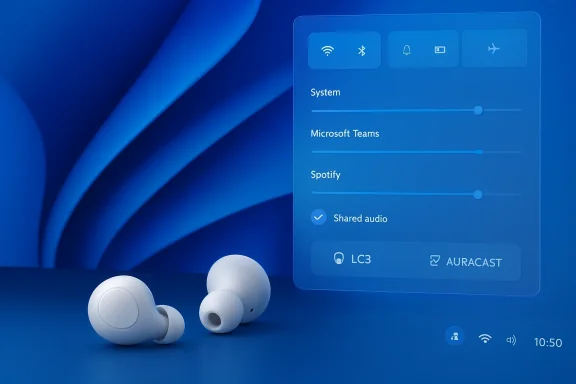
- Shared audio (preview): When a PC is streaming to two Bluetooth LE Audio receivers, Windows now exposes independent volume sliders for each listener, so each person can control loudness without changing the other listener’s level. A persistent taskbar indicator shows when audio is being shared, and clicking it opens quick access to sharing controls. Support for additional accessories (for example, several recently released earbuds and the Xbox Wireless Headset) was also announced in this rollout.
- Volume mixer and per-app audio routing: Quick Settings and Settings are exposing a modernized volume mixer and the familiar app volume and device preferences experience. Users can set per-app output and input devices and adjust app-level volumes more reliably from Quick Settings and the Sound settings interface.
- These changes are appearing in Insider builds 26300.7939 (Dev) and 26220.7934 (Beta) and are being flighted gradually to Insiders; not every machine on those builds will see every feature immediately.
Why these audio changes matter
Everyday usability: less friction, fewer clicks
For people who frequently switch between speakers, headphones, HDMI outputs, and USB headsets, routing audio used to require multiple steps: switch default devices in Settings, open the old mixer, or dig into an app’s own settings. The new approach collapses device selection and volume control closer to the surface — right where you change the system volume — and that small UX shift saves time and reduces confusion.- Per-app device selection prevents the common annoyance of system sounds blasting through speakers while a meeting app continues to use a muted headset.
- Independent shared-audio sliders resolve one of the main user complaints in shared-listening scenarios: “I can’t make this louder without making the other person deaf.” Now each listener can set their own comfortable level.
Modern audio topologies unlocked by LE Audio
The Shared audio work leverages Bluetooth LE Audio, a generational upgrade to Bluetooth audio that brings the LC3 codec, multi-stream support, and a broadcast-like capability (Auracast). Those technical building blocks are what let one PC stream to multiple modern receivers and do so in ways that are more efficient and flexible than Classic Bluetooth A2DP.- Lower-power, better quality at lower bitrates (LC3) improves battery life for earbuds.
- Multi-stream and broadcast modes enable synchronized experiences with minimal extra latency.
- Auracast-style broadcast scenarios open future possibilities for multi-language tracks or assistive listening in public venues.
Accessibility and shared scenarios
These features matter for accessibility: simultaneous streaming to hearing aids or earbuds can make watching media together or attending events far more inclusive. The taskbar indicator also helps users avoid unintentionally sharing audio — important in environments where privacy is essential (offices, hospitals, classrooms).Technical anatomy: how the new audio flows work
Shared audio (the building blocks)
Shared audio isn’t a pure Windows invention — it’s an integration of a modern Bluetooth stack with Windows audio routing and device-management layers:- The PC’s Bluetooth controller and its drivers must support LE Isochronous Channels (introduced in Bluetooth 5.2) and the OS must surface LE Audio features through Windows’ Bluetooth and audio stacks.
- The accessory (earbuds/headset/hearing aid) must implement LE Audio multi-stream functionality and the LC3 codec in its firmware.
- Windows coordinates two or more connected sinks and provides UI elements (Quick Settings sliders, taskbar indicator) and underlying per-sink volume mixing so each listener’s volume can be independent while audio remains synchronized.
Per-app routing and the new volume mixer
Windows 11’s modern volume mixer hooks into the audio session manager and the Settings app’s advanced sound controls:- The Volume mixer now appears directly in Quick Settings, providing faster access and more consistent behavior than older Control Panel-era components.
- The App volume and device preferences interface persists — it’s the canonical place to set per-app Output and Input devices. These preferences persist across sessions (until reset) and override the system default for that app.
- Some older Win32 apps or programs that use exclusive audio modes may ignore Windows routing and must be configured within the app itself.
What’s new for IT admins and power users
Key details to verify before widespread deployment
- Hardware compatibility: Confirm Bluetooth radio/chipset support for LE Audio (Bluetooth 5.2+ and ISOC support). Many older adapters do not have the necessary hardware/firmware.
- Driver and firmware updates: Expect accessory vendors to roll out firmware updates that enable LE Audio features. Likewise, PC OEMs or Bluetooth chipset vendors may publish driver updates enabling Windows LE Audio integration.
- Controlled rollouts: Shared audio is being staged. Insiders with the correct build and “get the latest updates as they’re available” toggles are likeliest to see the feature first. Don’t assume broad availability on production devices just because the build number appears in release notes.
- Testing in managed environments: The Shared audio flow interacts with system audio policies and may have different behavior on managed images. Test script-driven audio setups, remote desktop scenarios, and group policy–managed Bluetooth stacks.
Actionable checklist for IT teams
- Identify machines with Bluetooth hardware that supports LE Isochronous Channels.
- Inventory headsets/earbuds and confirm vendor commitments to LE Audio firmware updates.
- Pilot the Insider build (or wait for public release) on a small set of devices to validate behavior.
- Prepare user guidance for per-app routing and how to reset audio preferences when users encounter misrouting.
- Monitor feedback and file issues through Feedback Hub where necessary.
Strengths: practical wins and future promise
- User-friendly controls: Centralizing volume and device controls reduces support tickets around audio misrouting and lowers cognitive friction for non-technical users.
- Meaningful UX polish: Independent sliders for shared audio turn a novel capability into a usable feature for real-life scenarios — roommates sharing media, parents watching videos with children, classroom setups.
- Accessibility improvements: Support for modern hearing solutions and per-listener volumes make shared audio more effective for people with differing hearing needs.
- Platform alignment with Bluetooth SIG: By building on LE Audio and Auracast capabilities, Microsoft is aligning Windows with the broader audio ecosystem, enabling cross-device scenarios that extend past the PC.
Limitations, caveats, and risks
1. Hardware and firmware dependencies
The Shared audio preview is highly dependent on both PC-side Bluetooth support and accessory firmware. If either side lacks LE Audio support or proper drivers, the feature won’t work — or it will be unreliable.- Expect fragmentation: not all earbuds or headsets will behave identically; some vendors may enable LE Audio for certain SKUs only.
2. Rollout and gating
This is a preview experience staged through Insider channels. Microsoft often uses controlled rollouts to test telemetry and quality; a build number in release notes does not equal immediate availability for all users.3. Privacy and accidental sharing
Broadcasting or sharing audio — even to a pair of earbuds — carries privacy implications. The taskbar indicator helps, but users accustomed to single-listener thinking might forget audio is being relayed. In shared or public spaces, this raises a risk of unintended disclosure.- Administrators should remind users to confirm the taskbar sharing indicator and provide a clear path to stop sharing quickly.
4. Performance, latency, and quality variability
LE Audio and LC3 promise lower latency and better efficiency, but real-world performance varies with hardware, radio congestion, and driver maturity. Early adopters may see glitches such as dropouts, desync, or codec negotiation hiccups.5. App compatibility edge cases
Some applications use exclusive audio modes or manage audio devices internally (e.g., professional DAWs, certain games, or telephony apps). These apps may not respect Windows’ per-app routing and could require in-app configuration.Troubleshooting tips for end users
- If Shared audio sliders don’t appear:
- Ensure both receivers are connected and show up as separate audio devices.
- Check for accessory firmware updates (headset manufacturer’s app or firmware tool).
- Confirm Windows build and Insider rollout settings; the feature is preview/gated.
- If per-app routing is not honored:
- Start audio playback in the app so it appears in the Volume mixer.
- Use Settings > System > Sound > Volume mixer (App volume and device preferences) to assign devices.
- If that fails, check the app’s own audio settings or restart it.
- If you experience dropouts or stuttering:
- Update Bluetooth drivers and accessory firmware.
- Move devices closer to PC and reduce radio interference.
- File feedback through Feedback Hub under Bluetooth – Audio quality.
Where this fits in the broader audio roadmap
Microsoft’s work here is not an isolated, cosmetic tweak. It’s part of a larger pattern:- Modernize legacy Control Panel flows by bringing controls into Quick Settings and Settings.
- Integrate platform-level support for contemporary Bluetooth capabilities (LE Audio, Auracast).
- Improve accessibility and the multi-device, multi-user scenarios that are increasingly common in mixed-use spaces.
Practical recommendations (for consumers and small IT shops)
- If you regularly use shared listening (watching with a friend, classroom demos, silent events), plan to test on modern hardware that vendors certify for LE Audio.
- Keep a device or set of headsets with confirmed LE Audio support in your test lab to validate firmware behaviors before recommending them to users.
- Educate users about the taskbar sharing indicator and create simple support documentation that shows how to stop sharing and how to choose per-app devices.
- For enterprise environments, treat Bluetooth audio updates as a hardware/firmware lifecycle issue: track vendor firmware schedules and vendor statements about LE Audio.
Final analysis: a pragmatic, incremental win with realistic constraints
Microsoft’s latest Insider changes to Windows 11 audio are a solid, pragmatic step toward making modern audio topologies easy and usable on the PC. The independent shared-audio sliders solve an obvious UX problem and show Microsoft paying attention to everyday scenarios, while the volume and per-app routing refinements reduce the number of places users need to look when audio behaves unexpectedly.However, the value of these improvements hinges on broader ecosystem factors: Bluetooth chipset support, accessory firmware updates, and driver maturity. For users and admins who expect these features to “just work,” the current reality is mixed. In many environments these previews will be promising but imperfect; in others — especially where hardware vendors have embraced LE Audio — the experience will feel baked-in and transformative.
If you manage devices or advise users, treat the shared audio features as a welcome capability worth piloting, not as a drop-in replacement for established audio workflows. Test, educate, and be prepared to roll updates as accessory vendors and PC makers continue to ship LE Audio–compatible firmware and drivers. The technical foundations are in place, and Microsoft’s UI polish makes the features approachable — but it’s the wider hardware and firmware ecosystem that will determine how quickly shared audio becomes a daily convenience rather than a novelty.
In short: the audio improvements are useful, meaningful, and timely — but they’re only as good as the hardware and firmware behind them. Expect steady improvements and continued work in preview channels, and plan your deployments and expectations accordingly.
Source: Neowin Windows 11 is getting some very useful audio improvements
