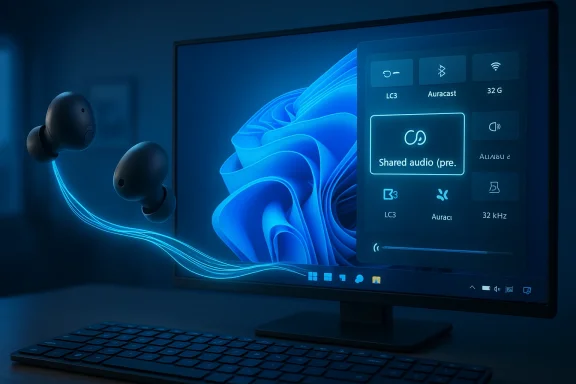
Microsoft has begun shipping Bluetooth LE Audio with a shared audio preview to select Windows 11 PCs, allowing a single PC to stream the same audio to two LE Audio–capable devices at once while also unlocking super‑wideband voice quality that keeps stereo music and spatial audio intact during calls and game chat.
Bluetooth LE Audio is the most consequential refresh to Bluetooth audio in years: a new transport, a new mandatory codec (LC3), and a suite of profiles that enable multi‑stream audio, broadcast (Auracast), and improved power efficiency. After months of testing inside the Windows Insider program, Microsoft started a gradual rollout of a Shared Audio (preview) experience to Copilot+ Windows 11 PCs that are running Insider builds on the Dev and Beta channels. The company is exposing the capability through a Quick Settings tile labeled Shared audio (preview) and pairing it with an operating‑system audio stack that supports super‑wideband voice at 32 kHz when the end‑to‑end chain advertises the new LE Audio profiles.
This is the first time Windows has shipped a native OS feature that both (a) lets a single PC broadcast synchronous audio streams to multiple Bluetooth receivers simultaneously and (b) routes voice and media over LE Audio primitives so that voice capture no longer forces playback into low‑quality mono. The implications span convenience (watching a movie on a plane with a friend), accessibility (direct audio to hearing devices), and gaming/productivity (no more sudden quality drop when someone opens push‑to‑talk).
LE Audio rewrites the rulebook with three key technical shifts:
On Windows, that lets the system present separate synchronized streams for left/right media, and for an independent voice stream, avoiding the old A2DP/HFP toggle and its fidelity collapse.
HAP (Hearing Access Profile) is tailored for hearing devices. It enables Windows to stream at sample rates typically in the 16–24 kHz range (per current device capabilities) to hearing aids that may have distinct power and channel constraints.
However, real accessibility gains depend on broad deployment at venues and consistent manufacture of HAP‑capable hearing devices. While the technology is available now, adoption by venues, integrators, and device makers will determine how quickly people see real‑world benefits.
That said, the Windows world is more fragmented than mobile platforms. On PCs, OEMs and radio vendors control drivers and firmware, so Microsoft must coordinate with hardware partners. The early Copilot+ Snapdragon X focus reflects that partnership model: where vendors already supply compatible stacks, Microsoft can turn on OS UI and routing logic. Widespread adoption across Intel and AMD devices will require additional driver rollouts and OEM cooperation.
When the pieces fall into place—broad LC3 adoption, widespread Auracast deployments in venues, and vendor driver updates across Intel/AMD platforms—Windows users will benefit from higher‑quality voice, better battery life, true wireless multi‑stream synchronization, and novel accessibility features that were previously impractical.
The caveat is significant: the experience today is limited to a narrow set of Copilot+ Snapdragon X PCs in Insider channels, and broad adoption depends on firmware, driver, and device maker cooperation. For early adopters with compatible hardware, the feature is a glimpse of the future: clear voice, preserved stereo, and simple audio sharing. For the majority of Windows users, however, the widespread benefit will arrive only when OEMs and accessory vendors finish stitching LE Audio support through their drivers and firmware.
The future of Bluetooth on Windows is brighter and technically sound; the next challenge is execution across the sprawling PC ecosystem.
Source: WinBuzzer Microsoft Rolls Out Bluetooth LE Audio for Windows 11 PCs
 Background
Bluetooth LE Audio is the most consequential refresh to Bluetooth audio in years: a new transport, a new mandatory codec (LC3), and a suite of profiles that enable multi‑stream audio, broadcast (Auracast), and improved power efficiency. After months of testing inside the Windows Insider program, Microsoft started a gradual rollout of a Shared Audio (preview) experience to Copilot+ Windows 11 PCs that are running Insider builds on the Dev and Beta channels. The company is exposing the capability through a Quick Settings tile labeled Shared audio (preview) and pairing it with an operating‑system audio stack that supports super‑wideband voice at 32 kHz when the end‑to‑end chain advertises the new LE Audio profiles.This is the first time Windows has shipped a native OS feature that both (a) lets a single PC broadcast synchronous audio streams to multiple Bluetooth receivers simultaneously and (b) routes voice and media over LE Audio primitives so that voice capture no longer forces playback into low‑quality mono. The implications span convenience (watching a movie on a plane with a friend), accessibility (direct audio to hearing devices), and gaming/productivity (no more sudden quality drop when someone opens push‑to‑talk).
What Microsoft shipped — the essentials
- New feature: Shared audio (preview) — a Quick Settings tile that lets a Windows 11 PC send one audio stream to two connected LE Audio accessories at the same time.
- Audio quality: Super‑wideband (SWB) support — the stack supports 32 kHz sampling for TMAP‑capable devices, preserving much higher-frequency content in voice than legacy HFP.
- Codec: LC3 — LE Audio’s Low Complexity Communications codec allows higher perceived quality at lower bitrates, lower power use, and more reliable streams in congested RF environments.
- Broadcast: Auracast capability — LE Audio broadcast makes multi‑listener streaming and venue‑scale assistive listening practical without pairing.
- Availability: Initially rolled out to select Copilot+ Windows 11 PCs with Qualcomm Snapdragon X platforms in the Windows Insider Dev and Beta channels; requires Windows Update driver packages and LE Audio–capable accessories.
Overview: why this matters now
Bluetooth Classic forced an age‑old compromise: rich stereo playback via A2DP, but a fallback to narrowband mono (HFP/HSP) whenever the headset microphone was activated. That change was jarring for users: music or game audio dropped in fidelity the instant someone spoke, and spatial audio features were unavailable while using a Bluetooth mic.LE Audio rewrites the rulebook with three key technical shifts:
- Transport: Audio moves to Bluetooth Low Energy’s isochronous channels (ISO), which are built for synchronized streaming.
- Codec: LC3 is designed to deliver better perceptual quality at lower bitrates than the legacy SBC codec used by Classic Audio.
- Profiles: TMAP (Telephony and Media Audio Profile) and HAP (Hearing Access Profile) allow Windows to carry telephony and media flows concurrently and to support hearing devices directly.
The rollout: who gets it and how
Supported PCs (today)
The initial Shared Audio (preview) rollout targets a short list of Copilot+ Windows 11 PCs equipped with Qualcomm Snapdragon X platforms. Microsoft’s Insider announcement and subsequent OEM updates listed specific Surface Laptop and Surface Pro configurations that meet the requirements. The rollout is gated behind:- Windows Insider Program participation (Dev or Beta channel),
- a Copilot+ hardware designation,
- the Qualcomm Snapdragon X Bluetooth and audio firmware/driver stack,
- the latest feature and driver updates delivered via Windows Update.
Required accessories
To use Shared Audio you need two Bluetooth accessories that advertise LE Audio support. That includes a growing catalog of earbuds and headphones from major vendors and an increasing number of hearing devices that support the Hearing Access Profile (HAP). Not all devices that support Bluetooth 5.2 or later are LE Audio–capable; hardware and firmware matter.Channel and driver dependency
Microsoft is shipping Shared Audio as a preview feature via the Windows Insider Dev/Beta channels first. That means stable‑channel users and many PCs with Intel or AMD platforms will not see the feature right away. Microsoft and OEMs must supply updated Bluetooth radio and codec drivers that implement the LE Audio stack, which is why the early list skews toward Snapdragon X Copilot+ devices whose vendor stack already implements the necessary capabilities.Deep technical dive: LC3, TMAP, HAP, ISO channels and SWB
LC3: better quality at less cost
LC3 (Low Complexity Communications codec) is the mandatory codec for LE Audio and is central to the improvements Microsoft is exposing. LC3 offers:- Multiple sample rates (8, 16, 24, 32, 44.1, 48 kHz),
- Configurable bitrates that allow significant power savings,
- Improved audio quality compared with SBC at equivalent or lower bitrates,
- Support for both speech and music with efficient packet‑loss concealment.
Isochronous channels (ISO) and synchronized streams
LE Audio uses ISO channels to guarantee timing and synchronization across streams. ISO enables multiple, parallel streams to be carried simultaneously and precisely synchronized—critical for stereo playback, multi‑earbud synchronization, and ensuring lip‑sync for video.On Windows, that lets the system present separate synchronized streams for left/right media, and for an independent voice stream, avoiding the old A2DP/HFP toggle and its fidelity collapse.
TMAP and HAP: profiles that replace brittle hacks
TMAP (Telephony and Media Audio Profile) was designed to handle both telephony and media scenarios on LE Audio devices. When both PC and accessory support TMAP, Windows can exchange 32 kHz super‑wideband streams for voice and preserve stereo media concurrently.HAP (Hearing Access Profile) is tailored for hearing devices. It enables Windows to stream at sample rates typically in the 16–24 kHz range (per current device capabilities) to hearing aids that may have distinct power and channel constraints.
Super‑wideband (32 kHz): a big step for speech
In the context of communications, super‑wideband refers to a 32 kHz sampling rate that conveys voice frequencies out to roughly 14–16 kHz—significantly higher than legacy narrowband telephone audio (~8 kHz). This captures more of the sibilance and harmonics that give human speech its naturalness and clarity. The practical result: voices sound clearer and easier to understand, particularly in noisy or complex audio mixes.Auracast and public venues: accessibility and new use cases
Auracast is the LE Audio broadcast capability that allows transmitters to stream audio to an indefinite number of receivers without pairing. The combination of Windows supporting LE Audio and Auracast opens real possibilities for public spaces:- Airports, transit centers and stadiums can broadcast announcements or alternate language streams directly to compatible hearing aids and earbuds.
- Theaters and conference centers can offer assistive listening streams without specialized hardware rentals.
- Museums and tours can deliver synchronized audio experiences to visitors’ own devices.
User experience: what to expect and how to use it
- Pair two LE Audio–capable accessories to your supported Windows 11 PC.
- Open Quick Settings (system tray sound/Wi‑Fi icon) and look for the tile labeled Shared audio (preview).
- Click the tile to begin streaming a single system audio output to both connected devices. Use the same tile to stop sharing.
- If a device doesn’t appear, check that both the accessory firmware and the PC’s Bluetooth/audio drivers are up to date; removing and re‑pairing after firmware updates often resolves visibility issues.
Compatibility and ecosystem fragmentation: the hard realities
The technology is ready, but the ecosystem is not uniformly aboard. Important compatibility realities:- Hardware chain: Every link in the chain must support LE Audio—headset firmware, Bluetooth radio firmware, Bluetooth/codec drivers on the PC, and the OS. Missing any element breaks the experience.
- Vendor adoption: Many successful legacy headsets do not yet support LE Audio. Even Bluetooth 5.2 radios are not guaranteed to implement LE Audio.
- OEM drivers: Windows alone cannot conjure LE Audio if OEM drivers are not supplied. Microsoft’s approach requires vendors to update radio and codec drivers that expose the LE Audio stack to the OS.
- Processor/platform lock: The initial rollout targets specific Copilot+ Snapdragon X systems. That restriction means large swaths of the Windows installed base—Intel and AMD laptops and desktops—won’t benefit until OEMs provide compatible stacks or Microsoft expands support.
- Channel gating: Because the initial release goes through the Windows Insider Dev and Beta channels, mainstream users on the Stable channel will have to wait longer.
Accessibility: hearing aids and assistive listening
LE Audio’s HAP and Auracast are potentially transformative for hearing‑impaired users. Instead of renting or borrowing specialized neckloops or terminal receivers, hearing aid users with Auracast‑capable devices can receive venue audio directly and privately. That lowers barriers to access in public spaces, and it scales more cheaply than installing dedicated assistive listening infrastructure.However, real accessibility gains depend on broad deployment at venues and consistent manufacture of HAP‑capable hearing devices. While the technology is available now, adoption by venues, integrators, and device makers will determine how quickly people see real‑world benefits.
Performance, latency and the gaming question
LE Audio is designed to be lower power and more robust, but it isn’t a silver bullet for all audio use cases. Two practical points for power users:- Latency: LC3 and LE Audio can reduce codec latency, but total end‑to‑end latency depends on device implementation, frame intervals, and application buffering. Competitive gaming still favors wired or purpose‑built low‑latency wireless systems in some scenarios.
- Battery tradeoffs: While LC3 can save battery at lower bitrates, running SWB stereo + active microphones and dual‑stream sharing can still increase power draw on headsets. Watch for real‑world battery tests from the accessory vendors.
Industry context: where Microsoft fits in the LE Audio timeline
The LE Audio standard (and LC3) is defined by the Bluetooth SIG; vendors like Samsung, Google, and Apple have started shipping LE Audio‑capable devices in phones and earbuds. Microsoft’s move to integrate LE Audio and Shared Audio at the OS level is an important step: it treats LE Audio as a first‑class audio transport in Windows and exposes user flows that previously required OEM utilities or awkward third‑party software.That said, the Windows world is more fragmented than mobile platforms. On PCs, OEMs and radio vendors control drivers and firmware, so Microsoft must coordinate with hardware partners. The early Copilot+ Snapdragon X focus reflects that partnership model: where vendors already supply compatible stacks, Microsoft can turn on OS UI and routing logic. Widespread adoption across Intel and AMD devices will require additional driver rollouts and OEM cooperation.
Strengths: what Microsoft got right
- End‑to‑end approach: Microsoft did not merely add a UI toggle; it integrated LE Audio concepts into the Windows audio stack so app flows (games, Teams, system audio) can be routed correctly.
- User‑facing simplicity: The Shared Audio tile provides a simple workflow for consumers: pair devices and tap to share, which lowers the barrier for casual use.
- Accessibility alignment: By supporting TMAP and HAP, Windows positions itself to interact meaningfully with hearing devices and venue Auracast deployments.
- Quality improvement: Super‑wideband at 32 kHz and LC3 mean real perceptual benefits for speech, gaming voice, and hybrid media/voice scenarios.
Risks and limitations: what to watch for
- Fragmentation: Early availability on a narrow set of Copilot+ Snapdragon X PCs means many users will be left behind; inconsistent driver and firmware support will complicate adoption.
- Ecosystem speed: HEARING aids, earbuds, and venue deployments must adopt HAP/Auracast to unlock the full promise; vendor hesitation or slow rollouts will delay benefits.
- False expectations: Users who assume any Bluetooth 5.2 device will work with LE Audio will be disappointed—advertised LE Audio/LC3 support is a hard requirement.
- Latency and application behavior: Developers and pro users must still test for end‑to‑end latency and buffering behavior—LE Audio is better, but not a universal replacement for wired low‑latency audio in competitive contexts.
- Preview stability: As a preview feature delivered via Windows Insider channels, Shared Audio may exhibit glitches, disconnections, or incompatibilities that will be resolved over time but could sour early impressions.
Practical guidance for Windows users today
- Check platform eligibility: If you own a Copilot+ PC with a Snapdragon X designation and you’re comfortable running Insider builds (Dev/Beta), consider enrolling to try Shared Audio.
- Update firmware: Keep both PC Bluetooth drivers and accessory firmware current—many LE Audio features require the latest accessory firmware to advertise LC3 and Auracast capabilities.
- Verify accessory support: Look for vendor documentation that explicitly states LE Audio, LC3, or Auracast support; Bluetooth 5.x alone is insufficient to guarantee compatibility.
- Test before critical use: If you plan to rely on shared audio for travel or accessibility, test the setup at home to confirm stability, latency, and battery behavior.
- Expect staged availability: If your PC isn’t on the initial supported list, plan for a phased expansion that depends on driver updates from OEMs and Microsoft’s broader rollout schedule.
The broader picture: why the wait is worth it
The shift to LE Audio is not an incremental improvement; it is a platform change that touches codecs, radio stacks, profiles, and the ways applications interact with audio devices. That kind of systemic change requires vendor cooperation and careful shipping; the early Microsoft rollout is intentionally conservative to ensure a coherent experience on supported hardware.When the pieces fall into place—broad LC3 adoption, widespread Auracast deployments in venues, and vendor driver updates across Intel/AMD platforms—Windows users will benefit from higher‑quality voice, better battery life, true wireless multi‑stream synchronization, and novel accessibility features that were previously impractical.
What Microsoft and OEMs should do next
- Prioritize driver distribution: OEMs and radio vendors must accelerate Windows Update distribution of LE Audio stacks so more machines can expose the capability.
- Expand test coverage: Microsoft should broaden hardware testing across Intel and AMD ecosystems to provide clear guidance on when mainstream PCs will get the feature.
- Provide tooling for developers: Expose diagnostics and programmatic cues so app developers can detect LE Audio paths, sample rates, and switch behaviors.
- Educate consumers: Clear vendor labeling and simple compatibility checkers will limit confusion about which headsets and PCs support LE Audio and Auracast.
- Encourage venues: Public venue integrators should trial Auracast deployments paired with accessibility groups to validate workflows and demonstrate benefits.
Conclusion
Microsoft’s initial rollout of Bluetooth LE Audio with Shared Audio and super‑wideband voice represents a meaningful inflection point for wireless audio on Windows. The technology addresses a longstanding frustration—quality collapse when opening microphones—and adds flexible broadcast and accessibility capabilities that could reshape how people consume shared audio in public spaces.The caveat is significant: the experience today is limited to a narrow set of Copilot+ Snapdragon X PCs in Insider channels, and broad adoption depends on firmware, driver, and device maker cooperation. For early adopters with compatible hardware, the feature is a glimpse of the future: clear voice, preserved stereo, and simple audio sharing. For the majority of Windows users, however, the widespread benefit will arrive only when OEMs and accessory vendors finish stitching LE Audio support through their drivers and firmware.
The future of Bluetooth on Windows is brighter and technically sound; the next challenge is execution across the sprawling PC ecosystem.
Source: WinBuzzer Microsoft Rolls Out Bluetooth LE Audio for Windows 11 PCs