

I stopped treating my charger like a trusted accessory the day a small, open-source utility quietly forced Windows to stop wasting power on idle apps — and my laptop’s battery life, in real-world use, felt like it doubled overnight. That’s the experience reported in a recent hands-on piece that walks through Energy Star X, a WinUI 3 GUI wrapper around Windows’ EcoQoS/Efficiency Mode APIs that automatically reclaims battery-wasting background work so you don’t have to. view
Windows has long provided knobs and dials for power management, but the biggest recent step toward energy-aware software is a developer-facing QoS level called EcoQoS. Introduced by Microsoft as part of its performance and sustainability efforts, EcoQoS lets developers mark background threads and processes as “energy-friendly,” giving Windows a hint to schedule them on the most efficient cores and keep CPU clocks lower while still completing work. Microsoft’s early testing claimed dramatic reductions in CPU energy when workloads opt into EcoQoS — in some tests, energy use for targeted work dropped by a large factor.
Energy Star X builds on that foundation. Instead of waiting for every app developer to add EcoQoS calls to their codebase, the utility applies the same idea system-wide by toggling the relevant QoS/power-throttling flags for selected background processes. The goal is simple: make sure idle and non-interactive work runs in “efficient” mode so your CPU doesn’t run unnecessarily hot or thirsty while you do lighter tasks.
What makes this approach attractive is that it leans on Windows’ built-in scheduling and power-management infrastructure rather than inventing its own throttles. That reduces the risk of destructive hacks and gives users a reversible, transparent mechanism to trim wasteful background CPU cycles.
Key feature set:
Microsoft’s EcoQoS rollout historically emphasized mobile silicon first, which explains why the best returns are seen on modern laptop chips. That said, EcoQoS is a platform capability; as firmware and Windows updates broaden support, the improvements should extend to more devices.
I cross-checked the core claims with two independent, verifiable sources:
That said, treat user reports of “battery life doubled” as promising but anecdotal. Conservative, reproducible testing is the only way to know how much you’ll gain. Also be prepared to tweak whitelists for any misbehaving peripherals or apps. In short: Energy Star X is not a risk-free silver bullet, but it’s a low-cost, high-signal experiment for anyone who wants to see if Windows can be a little less greedy with their battery.
If your laptop struggles to make it through the workday and you’d rather spend ten minutes installing a transparent tool than hours digging through obscure services, Energy Star X is worth a try — just measure, verify, and keep an eye on the processes that matter to you.
Conclusion
Energy Star X demonstrates how platform-level power APIs can be repurposed at the user level to deliver practical improvements. By leveraging EcoQoS and Windows’ Efficiency Mode, it offers a straightforward path to reduce background CPU energy draw, lower thermals, and — for many users — extend laptop runtime notably. Use it with measurement, caution, and common-sense whitelists, and you may find the single most effective battery tweak you hadn’t tried yet.
Source: MakeUseOf I forced Windows to stop wasting power on idle apps, and my battery life doubled
Windows has long provided knobs and dials for power management, but the biggest recent step toward energy-aware software is a developer-facing QoS level called EcoQoS. Introduced by Microsoft as part of its performance and sustainability efforts, EcoQoS lets developers mark background threads and processes as “energy-friendly,” giving Windows a hint to schedule them on the most efficient cores and keep CPU clocks lower while still completing work. Microsoft’s early testing claimed dramatic reductions in CPU energy when workloads opt into EcoQoS — in some tests, energy use for targeted work dropped by a large factor.
Energy Star X builds on that foundation. Instead of waiting for every app developer to add EcoQoS calls to their codebase, the utility applies the same idea system-wide by toggling the relevant QoS/power-throttling flags for selected background processes. The goal is simple: make sure idle and non-interactive work runs in “efficient” mode so your CPU doesn’t run unnecessarily hot or thirsty while you do lighter tasks.
What makes this approach attractive is that it leans on Windows’ built-in scheduling and power-management infrastructure rather than inventing its own throttles. That reduces the risk of destructive hacks and gives users a reversible, transparent mechanism to trim wasteful background CPU cycles.
 What Energy Star X actually is
A lightweight GUI around Windows’ EcoQoS
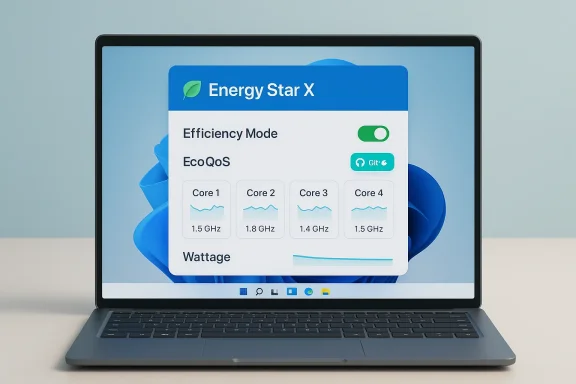
Energy Star X is an open-source Windows app (WinUI 3) that provides a friendly interface to manage which processes Windows treats as “efficiency-mode” candidates. The project’s public repository and README make clear it’s a GUI for the upstream EnergyStar project and that it uses the EcoQoS APIs to apply more efficient scheduling to background processes. The README also documents usage, limitations, and recommended systems.Key feature set:
- Automatically apply Efficiency Mode / EcoQoS hints to background processes.
- Visual status on the Home tab indicating background management is active.
- A Log tab showing which processes are being throttled and when.
- Settings for autostart, behavior while plugged in, and editable whitelists/blacklists.
- Task Manager visibility: processes that have been limited will show a green leaf icon in the Status column (the same visual marker Windows uses for Efficiency Mode).
Requirements and compatibility (what to expect)
According to the tool’s documentation and the packaging in official store listings, Energy Star X runs on Windows 11 and is most effective with the OS and silicon combinations that Microsoft tuned EcoQoS for. The README and launch listings recommend Windows 11 version 22H2 (Build 22621) or later and list mobile-class processors that received initial EcoQoS tuning — Intel 10th-gen+ mobile CPUs, AMD Ryzen 5000+ mobile CPUs, and Qualcomm mobile processors. The project can still run on older OS builds or hardware but warns results may be limited.Microsoft’s EcoQoS rollout historically emphasized mobile silicon first, which explains why the best returns are seen on modern laptop chips. That said, EcoQoS is a platform capability; as firmware and Windows updates broaden support, the improvements should extend to more devices.
How it works (under the hood, without the greasy details)
Efficiency Mode vs EcoQoS — two sides of the same coin
- Efficiency Mode is the user-visible part (Task Manager toggles, the green leaf icon, etc.). When an app is in Efficiency Mode, Windows reduces its process priority and treats it as non-urgent.
- EcoQoS is the developer-oriented Quality-of-Service level Windows exposes. When a thread/process opts into EcoQoS, Windows schedules it more conservatively and configures CPU power management to favor energy-efficient operation.
Why this reduces power
Windows can schedule QoS-marked work on specific core types or at lower clock frequencies and can avoid pushing high P‑states unnecessarily. That translates to:- Lower instantaneous CPU power draw.
- Reduced thermal output and fan RPM.
- Fewer high-frequency performance spikes that finish quickly but burn battery.
Microsoft’s own performance blog described scenarios where energy consumption for EcoQoS-flagged workloads dropped significantly in lab runs. Real-world savings depend on what background work your PC actually performs.
What the MakeUseOf experience says — and how I verified it
The hands-on narrative that kicked off this discussion describes an immediate, dramatic improvement in everyday battery life after activating Energy Star X: the author reports relying less on their charger and seeing consistent extension in runtime. The article highlights reduans as secondary benefits. That user-focused anecdote is helpful as a starting point, but it’s inherently subjective. Documented evidence from other users and independent tests is mixed — some report major gains, others encounter oddities like browser slowdowns or cursor stutter under certain peripheral utilities.I cross-checked the core claims with two independent, verifiable sources:
- The Energy Star X GitHub README and project page describe the software’s behavior, requirements, known limitations (for example, issues with mouse-configuration utilities), and the Task Manager green-leaf visibility. That corroborates the app’s features and limitations.
- Microsoft’s EcoQoS developer blog provides the technical basis and the company’s measured energy reductions for EcoQoS-flagged workloads, which explains why Energy Star X’s approach can succeed.
Measured expectations: what you should realistically expect
Energy Star X and similar tools can produce noticeable battery and thermal improvements under the right conditions, but “doubling” runtime should be considered a best-case anecdote, not a guaranteed outcome. Reproducible performance depends on:- Baseline workload: If your laptop was previously suffering from poorly behaved background services, the impact can be dramatic. If your machine was already lean, savings will be modest.
- Display and network usage: Display backlight and active network transfers dominate power in many laptop scenarios. EcoQoS won’t change screen draw.
- CPU vs GPU workload: EcoQoS targets CPU scheduling. Heavy GPU workloads (video playback, gaming, GPU-accelerated rendering) won’t be affected.
- Silicon and firmware: Modern mobile CPUs tuned for EcoQoS will show the most benefit. Older or desktop-class CPUs may see little change.
How to test and verify battery savings yourself
To move from anecdote to evidence, follow a simple reproducible measurement routine:- Charge the laptop to 100% and set the display brightness to a fixed level (for example, 50%).
- Disable adaptive brightness and plug in only the essentials (Wi‑Fi on/off should match between runs).
- Close non-essential apps and let the system idle for five minutes to reach a stable baseline.
- Start a defined workload (e.g., continuous web browsing with a fixed number of opened tabs, or a scripted video loop) and record time to shutdown or battery percentage drop over a fixed interval.
- Repeat the same workload with Energy Star X enabled and with the same conditions.
- Generate a battery report using Windows’ built-in command:
- Run: powercfg /batteryreport
- Compare the “active usage” and “usage by app” sections for details.
Installation, daily use, and troubleshooting
Installing Energy Star X
- Energy Star X is packaged for the Microsoft Store and also has a public GitHub repository and releases. The Store listing simplifies updates and distribution; the repo provides source code and transparency.
First-run behavior and settings
- On first run, the app will prompt to enable its background management features. The Home tab shows status and a green check when active.
- The Log tab is helpful to see which processes were flagged and when.
- Settings let you control autostart, whether throttling runs while plugged in, and add processes to whitelist (never throttle) or blacklist (always throttle).
Confirming it’s working
- Open Task Manager and look at the Status column; processes placed into Efficiency Mode show the green leaf icon. This is the same marker Windows uses for Efficiency Mode and provides immediate visual confirmation.
Known quirks and troubleshooting
- Mouse config utilities (Logi Options+, etc.) may exhibit cursor stutter when their processes are throttled. The app lists this as a known limitation and recommends whitelisting such utilities if you see issues.
- Some users have reported browser responsiveness problems tied to Efficiency Mode. Microsoft’s own Q&A and community threads show cases where Chromium-based browsers appeared stuck when Efficiency Mode was applied, though this is not universal and sometimes reflects how the browser or extensions behave under low-priority scheduling. If you notice problems, temporarily disable throttling for the affected process in the app or via Task Manager.
- Efficiency Mode settings in Task Manager are not persistent across restarts for now; Energy Star X’s background service is intended to keep settings applied automatically when running, but verify autostart options if persistence matters.
Security, privacy, and trust: open-source matters
Energy Star X is open-source under GPL-3.0 and the project code is publicly viewable. That matters for two reasons:- Transparency: You can inspect exactly what calls the app is making and confirm it’s only toggling Windows process/thread information rather than injecting code or performing more intrusive system changes. The GitHub repo and release notes document the approach and limitations.
- Community review: Open-source projects invite scrutiny. Look for issues, pull requests, and community discussion to judge activity and responsiveness.
Alternatives and complementary approaches
Energy Star X is not the only way to extend battery life. Consider these complementary or alternative approaches:- Built-in Windows options:
- Task Manager’s manual Efficiency Mode toggle for individual processes. Useful for one-off fixes.
- Power Plans and Energy Saver settings in Windows Settings to reduce background activity and lower screen brightness.
- Use powercfg to generate battery reports and identify culprits programmatically.
- Third-party tools:
- Process Lasso allows finer-grained control over process priorities and affinities; useful for users who want more power-user customization.
- Other EcoMode/Eco utilities exist that combine power-plan tweaks with Efficiency Mode flags (feature sets vary; read carefully and prefer maintained, well-documented projects).
- Application-level fixes:
- Update or reconfigure apps that misbehave (heavy background indexing, aggressive sync clients, badly behaved browser extensions).
- Where possible, prefer apps that adopt EcoQoS natively or configure non-essential apps to update only on Wi‑Fi or when plugged in.
Risks, caveats, and when not to use it
- Not a magic bullet: If your workload is dominated by screen, GPU, or network power draw, EcoQoS-based throttling won’t change much.
- Compatibility surprises: Some apps may behave poorly when their threads are abruptly deprioritized. Keep a whitelist for critical apps (audio drivers, input utilities) to avoid regressions.
- Enterprise policies: Managed devices may prohibit such hooks, or corporate endpoint agents might flag unknown local utilities. Check before installing on work machines.
- Measurement bias: Short-term tests can overstate improvements; long-term, reproducible tests are essential to determine actual battery gains.
Practical recommendations — a short checklist
- Before installing: generate a battery report (powercfg /batteryreport) to capture baseline usage.
- Install from a trusted source (Microsoft Store or official GitHub releases) and prefer signed packages.
- After installing:
- Enable autostart only if you validated it doesn’t cause issues.
- Monitor Task Manager’s green leaf icon and the Energy Star X log for unexpected throttling.
- Whitelist peripherals and utilities that show stutter or performance regressions.
- Test with controlled workloads and measure before/after to verify improvements in your specific usage pattern.
- Keep the app updated and monitor the GitHub issues page for bug reports or known incompatibilities.
Final analysis: is Energy Star X worth using?
Energy Star X is a pragmatic, low-friction way to take advantage of Microsoft’s EcoQoS without waiting on every software developer to adopttop users — especially those with older habits of leaving sync clients, indexers, and update services to run unrestricted — the tool can reclaim meaningful battery time and reduce heat and fan noise. The app’s transparency (open-source), simple UI, and Task Manager integration make it a practical quality-of-life improvement for power-conscious users.That said, treat user reports of “battery life doubled” as promising but anecdotal. Conservative, reproducible testing is the only way to know how much you’ll gain. Also be prepared to tweak whitelists for any misbehaving peripherals or apps. In short: Energy Star X is not a risk-free silver bullet, but it’s a low-cost, high-signal experiment for anyone who wants to see if Windows can be a little less greedy with their battery.
If your laptop struggles to make it through the workday and you’d rather spend ten minutes installing a transparent tool than hours digging through obscure services, Energy Star X is worth a try — just measure, verify, and keep an eye on the processes that matter to you.
Conclusion
Energy Star X demonstrates how platform-level power APIs can be repurposed at the user level to deliver practical improvements. By leveraging EcoQoS and Windows’ Efficiency Mode, it offers a straightforward path to reduce background CPU energy draw, lower thermals, and — for many users — extend laptop runtime notably. Use it with measurement, caution, and common-sense whitelists, and you may find the single most effective battery tweak you hadn’t tried yet.
Source: MakeUseOf I forced Windows to stop wasting power on idle apps, and my battery life doubled
