

I stopped carrying my charger when a handful of Windows power tweaks turned my laptop from a battery anxiety machine into a reliable all-day workhorse.
Modern laptops promise portability, but the reality for many users is a squeeze between performance and battery life: flashy visuals, background syncs, and fast-refresh panels all add up to a shorter runtime. The core idea behind the changes described here is simple: align Windows’ power policy with how you actually use the machine. That means letting the OS step back on raw performance when you’re doing email, documents, or browsing, while reserving higher clocks for plugged-in sessions. Numerous community tests and Microsoft’s own guidance show that the biggest, lowest-risk gains come from three areas: the operating system’s power mode, display settings (brightness and refresh rate), and background app / GPU assignment policies.
This feature explains what to change, why it works, how much you should realistically expect to gain, and the risks to watch for — with a practical checklist you can apply in minutes.
Practical display steps:
Practical guidance:
Quantitatively, you’ll likely see modest improvements for mixed productivity workloads. For machines with high‑Hz panels or aggressive background services, combined changes can be larger. The one immutable truth is that results are device‑dependent and worth measuring with a repeatable test on your hardware.
These tweaks reclaim the most valuable resource when you’re away from a socket: predictability. With measured adjustments and a few minutes of configuration, your laptop can stop being a liability and start being the portable, dependable device it was meant to be.
Source: MakeUseOf I stopped carrying my charger after I optimized these Windows power settings
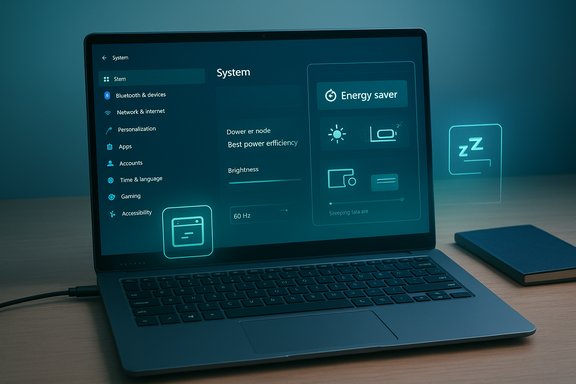 Background / Overview
Modern laptops promise portability, but the reality for many users is a squeeze between performance and battery life: flashy visuals, background syncs, and fast-refresh panels all add up to a shorter runtime. The core idea behind the changes described here is simple: align Windows’ power policy with how you actually use the machine. That means letting the OS step back on raw performance when you’re doing email, documents, or browsing, while reserving higher clocks for plugged-in sessions. Numerous community tests and Microsoft’s own guidance show that the biggest, lowest-risk gains come from three areas: the operating system’s power mode, display settings (brightness and refresh rate), and background app / GPU assignment policies.This feature explains what to change, why it works, how much you should realistically expect to gain, and the risks to watch for — with a practical checklist you can apply in minutes.
Why the slider matters: Power Mode and Energy Saver explained
What the Power Mode slider does
Windows exposes a simple dropdown in Settings → System → Power & battery called Power Mode (Best Performance / Balanced / Best Power Efficiency). That slider isn’t just cosmetic: it changes the OS and platform power overlays that control CPU/GPU boost behavior, idle timers, and background workload permissiveness. Put bluntly, Best Power Efficiency reins in turbo clocks and background work; Best Performance lets the system be aggressive. That combination is why switching to the efficiency profile often produces measurable runtime gains for everyday tasks.Energy Saver vs Battery Saver
Windows’ newer Energy Saver model (introduced in recent Windows 11 updates) expands the old Battery Saver functionality. Unlike legacy Battery Saver, Energy Saver can run while plugged in (useful for desktops and charged laptops that still want to save electricity) and enforces additional limits such as disabling certain visual effects and throttling background syncs. Energy Saver may also restrict changes to the Power Mode slider while active (it enforces its own rules), so be aware it can grey out some controls. These differences make Energy Saver a more holistic, sometimes more restrictive, way to preserve power.Realistic expectations
Power Mode is low effort and high impact for light-to-moderate usage (web, email, office apps). Expect modest-to-useful gains — typically tens of minutes to a couple of hours, depending heavily on your device, display, and workload. For sustained heavy workloads (gaming, rendering), the efficiency mode will throttle peak performance and may not buy much time because the workload itself demands continuous power. Treat any single “x hours gained” claim as anecdotal unless you replicate the test on your hardware.Display: the single biggest lever for battery life
Brightness and refresh rate matter more than most CPU tweaks
Across device reviews and power analyses, the display is often the single largest consumer of battery power on laptops. That means brightness and refresh rate are the easiest places to win back runtime. If you have a high-refresh panel (120Hz, 144Hz, or higher), those extra frames feel great for gaming and motion-sensitive work but are wasted on reading or writing. Dropping to 60Hz on battery, or enabling Dynamic/Variable Refresh Rate so the OS scales the rate, can yield noticeable battery improvements. Likewise, even a small reduction in brightness produces measurable savings on most panels.Practical display steps:
- Set brightness to the lowest comfortable level; indoors, 30–60% is usually fine.
- If your laptop supports Dynamic Refresh Rate (DRR) or a variable panel, allow Windows to reduce the refresh rate on battery; otherwise lock to 60Hz for battery sessions.
- Turn off Auto‑Play videos in the browser and background video playback where possible (these prevent screen-off timers from kicking in).
A note on “Windows recommends 3 minutes”
You may see advice to set screen-off and sleep timers to very short intervals (e.g., 2–3 minutes). That’s a sensible user tip for maximizing runtime during frequent short breaks, but it’s not an official universal “Windows recommendation” for every use case. Short timers help, but balance convenience (re-locking, resume time) against the battery benefit. If the MakeUseOf piece you read suggested 3 minutes, treat that as an opinionated tip rather than a universal rule. (No single timeout fits all workflows.Graphics and apps: give the integrated GPU a job and restrict background drain
Per‑app GPU settings: use the integrated GPU for light apps
Windows lets you control GPU selection on a per-app basis (Settings → System → Display → Graphics). Assign non‑GPU‑intensive apps — your browser, note-taking app, PDF reader — to the integrated GPU (Power saving) and leave the dedicated GPU for heavy tools (video editors, modern games). This reduces discrete GPU wakeups and idle power draw on systems with switchable graphics like NVIDIA Optimus or AMD hybrid configurations. Let the OS or vendor drivers handle switching when possible; manual per‑app assignments are a safe way to reduce dGPU usage for casual workloads.Limit background usage deliberately
Many apps quietly run and sync in the background. Windows provides controls in Settings → Apps → Installed apps → Advanced options for each app’s Background app permissions; set apps that don’t need background access to Never or Power optimized. If you’d rather triage quickly, use Settings → System → Power & battery → Battery usage to identify the biggest culprits and then restrict them. Disabling unnecessary background apps is low risk and high reward for battery life.Practical guidance:
- Give the integrated GPU to browsers, office apps, and readers.
- Disable background permissions for apps that don’t need to sync (many free utilities and forgotten apps are the biggest offenders).
- Use Task Manager’s “Power usage” and “Battery usage” columns to spot real-time drains.
Tame the browser: the browsing experience is the new battleground
Most people spend a majority of laptop time in a browser, which makes it an obvious optimization target. Modern browsers provide energy-saving features — sleeping tabs, hardware acceleration controls, and “energy saver” or “efficiency” modes — that reduce CPU use and visual effects while on battery.- Chrome has an Energy Saver mode that reduces background activity and some visual flourishes when your laptop is unplugged.
- Microsoft Edge provides an Efficiency Mode and supports sleeping tabs and site-ignoring lists to prevent battery-taxing background work.
Use Windows’ Energy recommendations and built‑in diagnostics
Energy recommendations: one-click sane defaults
Windows now surfaces Energy recommendations (Settings → System → Power & battery → Energy recommendations). This pane aggregates easy wins — turning off screen savers, lowering visual effects, suggesting dark mode on OLED panels, and more — and offers an Apply all shortcut to implement them quickly. It’s a fast path to sensible settings for most users.When to run the powercfg reports
If you want to move beyond guesswork, use the built‑in powercfg commands to generate evidence:- powercfg /batteryreport — creates a detailed battery health and capacity history HTML report.
- powercfg /energy — performs an energy diagnostics analysis and warns of drivers or devices preventing proper sleep.
- powercfg /sleepstudy — useful on Modern Standby systems for sleep analysis.
How to measure the effect: a simple repeatable test
If you want to quantify gains on your machine, follow a repeatable test:- Fully charge to a consistent starting percentage (for example, 100% or 90%).
- Set a fixed workload (open the same browser tabs, play one local video on loop, or run a scripted benchmark).
- With Power Mode set to Best Performance, measure time to a target battery threshold (say 20%) or run until a defined elapsed time and note percentage delta.
- Repeat with Best Power Efficiency and compare results.
- Use powercfg /batteryreport before and after to capture capacity and usage history.
A practical, safe checklist you can apply in 10 minutes
- Open Settings → System → Power & battery → Power Mode and set “On battery” to Best Power Efficiency.
- In the same pane, open Screen, sleep & hibernate timeouts and shorten screen-off and sleep timers to match your workflow (a common starting point: screen off 1–3 minutes, sleep 5–10 minutes). Remember this is a personal tradeoff between convenience and battery savings.
- Settings → System → Display → Advanced display: set refresh rate to 60Hz on battery or enable Dynamic Refresh Rate if supported.
- Settings → System → Display → Graphics: assign non‑GPU apps to Power saving (iGPU).
- Settings → Apps → Installed apps: set background permissions to Never for apps that don’t need to run in the background.
- Enable your browser’s Energy Saver / Efficiency Mode and enable tab sleeping.
- Run powercfg /batteryreport and save a copy for baseline comparison.
- Visit Settings → System → Power & battery → Energy recommendations and hit Apply all if you want a quick baseline optimization.
Risks, trade‑offs, and vendor quirks
Performance trade‑offs
Switching to Best Power Efficiency is not free — it reduces available peak performance. For CPU/GPU-bound tasks, expect slower renders, reduced frame rates, or longer compile times. Keep a plugged-in profile or switch modes when you need maximum performance.OEM driver and firmware interactions
Manufacturers sometimes ship their own power utilities and overlays that can override or conflict with Windows settings. That means your mileage may vary; some laptops will automatically switch power modes based on thermal policy, vendor utilities, or even charger detection quirks. If you see odd behavior (e.g., Windows keeps switching profiles during gaming), check vendor utilities and consider pinning desired states in OEM software or using command-line powercfg to enforce plans.Overly aggressive “fixes” can backfire
Avoid blunt approaches like disabling a dGPU in Device Manager or forcibly uninstalling drivers without understanding consequences. On some systems, improper handling of hybrid graphics can prevent the discrete GPU from power gating fully, which can increase idle power. Prefer OS-level controls and per-app settings or vendor-recommended procedures.Battery health remains the limiting factor
Software can reclaim time but cannot restore capacity lost to wear. If the battery report shows severe capacity decline (full-charge capacity far below design capacity) or the cycle count is high, a physical replacement or OEM battery-health mode (limit to ~80% charge) is the correct long-term fix. In other words: settings help, but they aren’t a cure for a worn battery.Advanced options for enthusiasts (with caution)
- Use powercfg to create and script custom plans or to restore defaults: powercfg /l lists schemes; powercfg /setactive <GUID> activates a plan.
- Generate power/energy diagnostics: powercfg /energy (creates an HTML diagnostics file).
- For deeper per-component tuning (advanced users only): tweak processor minimum/maximum states, EPP, or cooling policies — but understand thermal/performance implications and keep a restore point.
What I saw in real use (summary and practical results)
After applying the above adjustments — setting Power Mode to Best Power Efficiency on battery, lowering brightness, capping refresh rate to 60Hz, forcing browsers and most office tools to use the integrated GPU, and restricting nonessential background apps — the day-to-day change is less dramatic as a single headline number and more visible in the experience: fewer mid‑afternoon battery panics, consistent runtime across similar days, and the confidence to leave the charger at home for shorter meetings and travel.Quantitatively, you’ll likely see modest improvements for mixed productivity workloads. For machines with high‑Hz panels or aggressive background services, combined changes can be larger. The one immutable truth is that results are device‑dependent and worth measuring with a repeatable test on your hardware.
Conclusion: the balance between convenience and runtime
Optimizing Windows power settings won’t transform an old, degraded battery into a new one, but it will meaningfully improve the day‑to‑day battery experience for most users. The high-impact, low-risk moves are simple: choose Best Power Efficiency on battery, lower brightness and refresh rate, use integrated graphics for light apps, and clamp down on unnecessary background activity. Use Windows’ Energy recommendations and powercfg reports to verify and measure changes.These tweaks reclaim the most valuable resource when you’re away from a socket: predictability. With measured adjustments and a few minutes of configuration, your laptop can stop being a liability and start being the portable, dependable device it was meant to be.
Quick reference: checklist (one‑page)
- Power Mode → Best Power Efficiency (on battery).
- Screen → Set brightness low and cap refresh to 60Hz or enable DRR.
- Display → Set short screen-off and sleep timers to match your workflow.
- Graphics → Assign non‑GPU apps to integrated GPU.
- Apps → Disable background permissions for apps that don’t need them.
- Browser → Enable Energy Saver / Efficiency Mode and sleeping tabs.
- Diagnostics → Run powercfg /batteryreport and keep a baseline.
- Energy recommendations → Review and Apply all for easy wins.
Source: MakeUseOf I stopped carrying my charger after I optimized these Windows power settings
