

Your laptop’s default settings are quietly eating battery life — and most of them are trivial to fix. A short audit of five common areas — power profile, display, background apps, visual effects, and wireless radios — can deliver measurable runtime gains without sacrificing day-to-day usability. The checklist below takes the Mint piece’s quick tips as a starting point, verifies the mechanics across platform documentation and independent tests, and explains practical trade-offs so you can decide which changes make sense for work, travel, or long meetings.
Manufacturers and operating systems ship laptops with defaults that favor responsiveness and visual polish over maximum battery runtime. Windows 11 exposes multiple power profiles and a new Energy Saver workflow; macOS Sequoia added a more granular Low Power Mode and other “energy” toggles. Both platforms offer display and refresh-rate controls, ways to stop apps from syncing in the background, and accessibility toggles that reduce visual effects. Turning a few of these off or dialing them back can add meaningful extra hours, especially on ultrabooks and thin-and-light devices where the display and GPU are among the biggest energy consumers.
Conclusion
Battery life is a set of engineering trade-offs; manufacturers ship defaults that prioritize a polished experience. The good news is you don’t need to sacrifice usability to get better runtime. Toggle Best Power Efficiency or Low Power Mode, cap your brightness, drop the refresh rate while unplugged, stop unnecessary background syncs, and reduce visual effects — and you’ll reclaim a lot of battery time with a few minutes of settings work.
Source: Mint These 5 settings are draining your laptop battery; change them today | Mint
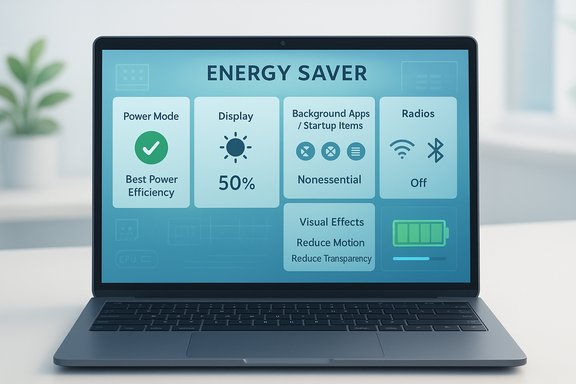 Background / Overview
Manufacturers and operating systems ship laptops with defaults that favor responsiveness and visual polish over maximum battery runtime. Windows 11 exposes multiple power profiles and a new Energy Saver workflow; macOS Sequoia added a more granular Low Power Mode and other “energy” toggles. Both platforms offer display and refresh-rate controls, ways to stop apps from syncing in the background, and accessibility toggles that reduce visual effects. Turning a few of these off or dialing them back can add meaningful extra hours, especially on ultrabooks and thin-and-light devices where the display and GPU are among the biggest energy consumers. 1. Power profile and OS “Energy” modes — the biggest simple lever
Many users leave their machine in a performance-oriented profile by default. On modern Windows 11 builds you’ll find a Power Mode selector (Best Performance / Balanced / Best Power Efficiency) in Settings → System → Power & battery; Microsoft also surfaced an “Energy recommendations” flow to nudge users toward more efficient choices. Switching to Best Power Efficiency limits CPU/GPU boost behavior and trims background activity. This is the single most impactful global change you can make when you want longer battery life without manually adjusting dozens of apps. macOS Sequoia exposes Low Power Mode in System Settings → Battery with options like Always, Only on Battery, and Never. Low Power Mode reduces CPU clocking, tones down background syncs, adjusts display brightness, and restrains fans on some MacBook models — a simple toggle that often extends runtime with negligible user-visible cost for office tasks. Apple’s battery settings documentation explains the behavior and the related Energy Mode choices available on MacBooks. Why it matters- Power profiles change how aggressively the CPU and GPU boost under load and whether background services are allowed to run freely.
- On mixed-use days (web browsing, documents, emails), the efficiency profile often yields the most runtime savings with the least friction.
- Open Settings → System → Power & battery → Power Mode; choose Best power efficiency.
- Browse Energy recommendations in the same pane and apply suggestions that match your workflow.
- Apple menu → System Settings → Battery → Low Power Mode → set to Only on Battery (or Always, if you prefer).
- Optionally enable “Show Energy Mode” in Control Center to toggle quickly.
- For heavy, sustained workloads (video export, large compilations or gaming) expect reduced peak performance in low/efficient modes; switch back when plugged in.
2. Display brightness and refresh rate — why the screen matters
The display is often the single largest power consumer in a laptop. Multiple vendor and engineering sources show the display frequently accounts for a large slice of system power (commonly cited ranges run from roughly 25% up to ~50% depending on panel type, brightness, and device). The exact percentage varies widely by model, panel type (LCD vs OLED), and workload, but the conclusion holds: dialing brightness down and avoiding unnecessarily high refresh rates pays off. High-refresh panels (120Hz, 144Hz and higher) improve smoothness but draw more power than 60Hz in many scenarios. Windows 11 includes Dynamic Refresh Rate (DRR): when supported, DRR lets the OS step the refresh rate down on battery and raise it again when smoothness matters. Microsoft documents how to change refresh rate and enable DRR under Settings → System → Display → Advanced display. Practical tests and product reviews repeatedly show reducing refresh rate saves battery in laptops with high-Hz panels. Practical recommendations- Keep brightness below ~50–60% indoors; consider Auto Brightness where ambient sensors are available.
- Enable Dynamic Refresh Rate (Windows: Settings → Display → Advanced display → Dynamic refresh rate) or set a fixed 60Hz while unplugged.
- On MacBooks with ProMotion/variable refresh hardware, choose Variable or lock to 60Hz for battery-sensitive use.
- Expect modest-to-significant savings. Dropping from 120Hz to 60Hz on a high-Hz panel is commonly reported to improve battery life; exact numbers depend on panel and GPU. If most of your usage is reading, email, or documents, the trade is usually worth it.
3. Background sync, startup apps and "always-on" helpers — stop silent drains
Cloud syncers, chat apps, and helper services often run continuously and wake the network stack, spin small tasks, or keep the system from entering the deepest low-power states. On Windows, Task Manager → Startup Apps will show what launches at login; the Settings → System → Power & battery → Battery usage view surfaces which apps are top drains. On macOS, System Settings → General → Login Items (and the “Allow in the background” list) controls what launches and which helpers are permitted to run. Disabling nonessential startup and background permissions is one of the best return-on-effort battery actions. Power Nap / Background App Refresh- Apple’s Power Nap and Windows background sync features allow a sleeping machine to fetch email, iCloud updates, or other data. These are convenient but keep parts of the system active. If overnight battery drain or unexpected wake events are a problem, disable Power Nap or restrict background refresh for chosen apps. Apple documents Power Nap options in Battery settings; Windows’ Energy Saver also curtails background syncs in aggressive modes.
- Review and disable nonessential startup items.
- On macOS: System Settings → General → Login Items → remove or toggle apps under Allow in the Background.
- On Windows: Task Manager → Startup → disable items; Settings → Power & battery → Battery usage to spot culprits.
4. Visual effects, animations and transparency — polished UI, measurable cost
Modern UI polish (blurred/translucent “Glass” effects, animations, and motion) consumes GPU cycles — and GPU cycles consume power. Both platforms expose accessibility toggles to cut those effects: on Windows use Settings → Accessibility → Visual Effects to turn off Transparency effects and Animations; on macOS use System Settings → Accessibility → Display and enable Reduce Motion and Reduce Transparency. Microsoft’s Energy Saver mode even disables transparency as part of its energy-preservation strategy. Quantifying savings- Claims such as “up to 15% savings” can be true on specific thin-and-light models with integrated graphics under certain workloads, but the effect is highly model-dependent. Visual-effect savings are larger on machines where the GPU is a major contributor to idle power; on others, the impact will be smaller. Treat any single percentage figure as an estimate.
- If you’re doing design work, motion-sensitive tasks, or prefer aesthetics, the user comfort may outweigh a marginal battery gain. For travel or all-day battery needs, a conservative choice is to reduce motion and transparency only while on battery.
5. Connectivity overload: Wi‑Fi, Bluetooth, Location and discrete GPUs
Radios are small but persistent drains. Wi‑Fi and Bluetooth both listen, probe, and periodically wake stacks to maintain connections. Location services, background scanning for devices, and features like “Find My Device” cause additional wake cycles. Turning off radios you don’t need — or using Airplane Mode temporarily — is a quick win. Windows Quick Settings and macOS System Settings → Network make these toggles fast to access. Dedicated/discrete GPU — proceed with caution- Using the integrated GPU instead of a discrete GPU (dGPU) usually saves battery because the dGPU draws more power under load. Technologies like NVIDIA Optimus or AMD’s switchable graphics are explicitly designed to move workloads to the integrated GPU when possible, improving battery life. Documentation and system guidance show that letting the OS/hardware manage switching is generally best; forcibly disabling a dGPU in Device Manager can sometimes increase idle power on certain systems because it interferes with proper hardware power gating. In short: prefer per-app GPU selection or the manufacturer’s hybrid graphics modes rather than bluntly disabling hardware.
- Windows: Settings → System → Display → Graphics → assign apps to “Power saving” GPU when you want them to use integrated graphics.
- NVIDIA/AMD control panels: use application profile settings to prefer the iGPU for non‑GPU‑intensive apps.
- macOS: rely on Automatic graphics switching in Battery settings (available on supported MacBook Pros) to let the system choose.
Tactical “Change these five things now” checklist (step-by-step)
- Power profile
- Windows: Settings → System → Power & battery → Power Mode → Best power efficiency. Apply Energy recommendations.
- Mac: System Settings → Battery → Low Power Mode → Only on Battery (or Always when you need max runtime).
- Display
- Reduce brightness to ~50% or enable Auto Brightness.
- Windows: Settings → System → Display → Advanced display → enable Dynamic refresh rate or set refresh rate to 60Hz on battery.
- Mac: System Settings → Displays → choose Variable or lock to 60Hz for battery use.
- Background apps/startup
- Windows: Task Manager → Startup → disable nonessentials; Settings → Power & battery → Battery usage to identify drains.
- Mac: System Settings → General → Login Items → remove or turn off “Allow in the background” for apps you don’t need. Disable Power Nap if you don’t want background activity while sleeping.
- Visual effects
- Windows: Settings → Accessibility → Visual Effects → Turn off Transparency and Animations.
- Mac: System Settings → Accessibility → Display → enable Reduce Motion and Reduce Transparency.
- Radios and GPU policy
- Turn off Wi‑Fi / Bluetooth when not needed (Quick Settings on Windows, Network prefs on macOS).
- Prefer power‑saving GPU for non‑gaming apps (Windows Graphics settings or vendor control panel). On Mac, leave Automatic graphics switching enabled.
Real-world results and expectations
- Conservative savings: On a typical day of web browsing, email, and Office work you’re likely to see 15–30% more battery life from combined tweaks (lower brightness, efficiency power mode, fewer background syncs, 60Hz). Results vary heavily with machine, panel tech, and what you run.
- Best-case scenarios: On ultrabooks with high‑Hz panels and aggressive background services, switching off high refresh rates and trimming background apps can produce larger relative gains, particularly when the display is the dominant draw. Independent tests and manufacturer notes show the display and its backlight often dominate power use in many form factors.
- Diminishing returns: After the “big five” are optimized, additional battery wins come from software-specific tuning (turn off hardware acceleration in an app that keeps the dGPU alive, update drivers, or use browser extensions that suspend tabs).
Risks, trade-offs and what to watch for
- Performance vs. runtime: Lower power profiles and Low Power Mode constrain peak CPU/GPU performance. For computationally heavy tasks, expect longer runtimes but slower completion times; if you need raw speed, plug in.
- Unexpected side effects: Overly aggressive background restrictions or disabling a discrete GPU incorrectly can break certain apps or — in rare cases — cause worse battery behavior if hardware power gating is disrupted. Avoid blunt tools that “disable” hardware without guidance; prefer OS-level or vendor controls.
- Vendor-specific quirks: OEM drivers and firmware expose additional toggles (Panel Self Refresh, Intel/AMD power utilities, or manufacturer “performance” utilities) that can help or hurt; review release notes and use manufacturer-recommended settings where possible.
- Estimations vs. guarantees: Any headline percentage (e.g., “save up to 15%”) depends on hardware and workload. Treat these as directional estimates rather than guaranteed figures. Where possible, measure before and after with your typical tasks to quantify gains.
Advanced diagnostics: measure before you change
If you want data:- Windows: use the built-in Battery usage page (Settings → System → Power & battery → Battery usage) and third‑party tools like HWInfo or Intel/AMD utilities to monitor power draw per component.
- macOS: the Energy tab in Activity Monitor and Apple’s Battery settings offer diagnostics; for deeper traces, system logs and command-line tools (pmset, powermetrics) provide more detail. Measuring while running your usual tasks is the only way to get apples‑to‑apples comparisons.
Final verdict: where to start and what to prioritize
Start with these priorities in order:- Power Mode / Low Power Mode — biggest single lever, minimal fuss.
- Brightness and Refresh Rate — quick, visible wins on high‑Hz laptops.
- Background apps / startup — stop the silent drains, check battery usage to find culprits.
- Visual effects — easy to toggle, worthwhile on integrated‑GPU systems.
- Radios and GPU policy — small adjustments that complement the others; be careful with dGPU changes.
Conclusion
Battery life is a set of engineering trade-offs; manufacturers ship defaults that prioritize a polished experience. The good news is you don’t need to sacrifice usability to get better runtime. Toggle Best Power Efficiency or Low Power Mode, cap your brightness, drop the refresh rate while unplugged, stop unnecessary background syncs, and reduce visual effects — and you’ll reclaim a lot of battery time with a few minutes of settings work.
Source: Mint These 5 settings are draining your laptop battery; change them today | Mint
