

Windows 11 developers who use Docker and VS Code are quietly getting a major productivity win: switching heavy inner‑loop work from bind mounts on the Windows filesystem to Docker volumes (or cloning repositories directly into container volumes via VS Code) can collapse build times and eliminate the filesystem bottlenecks that plague containerized development on Windows. Practical tests from Windows users and the vendor documentation converge on the same recommendation: keep active source and build I/O inside the Linux side (or in Docker-managed volumes) and avoid remoting your project files across the Windows ↔ WSL boundary whenever possible.
Windows 11’s developer story has improved dramatically: WSL2 gives a real Linux kernel and filesystem, Docker Desktop integrates tightly with WSL2, and VS Code’s Dev Container flow has features designed specifically for Windows and macOS to reduce I/O friction. Yet the critical detail that trips many teams is where files actually live at runtime. When containers access files that live on the Windows host (for example under C:\ or /mnt/c in WSL), the runtime must bridge two very different filesystem semantics and security stacks — and that bridge can be slow. Docker, Microsoft, and community testing consistently recommend using the Linux filesystem or Docker volumes for active development files to avoid these penalties. At the same time, Windows 11 includes a developer‑oriented storage option — Dev Drive on ReFS — which pairs filesystem-level optimizations with a Defender “performance mode” that defers synchronous scanning for trusted volumes. Dev Drive can help I/O‑heavy workloads like builds, package caches, and certain game libraries, but it’s a different lever aimed at host filesystem behavior rather than container storage semantics. Use Dev Drive when you need a fast, trusted Windows-side workspace — but pair it with the right container strategy for best results.
These changes are low friction, reversible, and in many real‑world cases they convert a slow, frustrating inner loop into a snappy, iterative flow. Verify with your repository and measure the differences, but expect real and repeatable speedups when you stop forcing Linux containers to repeatedly cross the Windows filesystem boundary. If any specific command, Docker Desktop version, or Windows update significantly changes behavior in your environment, document the exact versions and reproduce the test; the ecosystem evolves rapidly and small toolchain or OS updates can shift the optimal strategy. When in doubt, measure and prefer the pattern that keeps the I/O path native to the runtime.
Source: Adafruit Boost Windows 11 dev performance with Docker Volumes
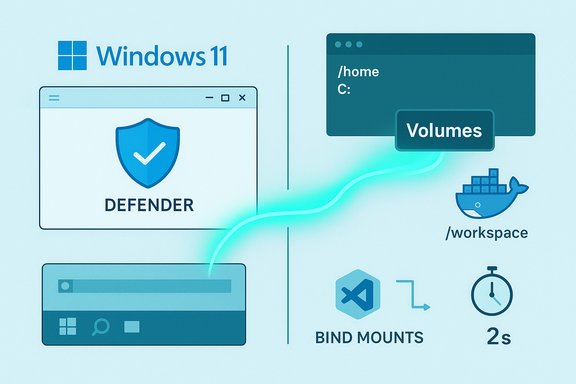 Background / Overview
Windows 11’s developer story has improved dramatically: WSL2 gives a real Linux kernel and filesystem, Docker Desktop integrates tightly with WSL2, and VS Code’s Dev Container flow has features designed specifically for Windows and macOS to reduce I/O friction. Yet the critical detail that trips many teams is where files actually live at runtime. When containers access files that live on the Windows host (for example under C:\ or /mnt/c in WSL), the runtime must bridge two very different filesystem semantics and security stacks — and that bridge can be slow. Docker, Microsoft, and community testing consistently recommend using the Linux filesystem or Docker volumes for active development files to avoid these penalties. At the same time, Windows 11 includes a developer‑oriented storage option — Dev Drive on ReFS — which pairs filesystem-level optimizations with a Defender “performance mode” that defers synchronous scanning for trusted volumes. Dev Drive can help I/O‑heavy workloads like builds, package caches, and certain game libraries, but it’s a different lever aimed at host filesystem behavior rather than container storage semantics. Use Dev Drive when you need a fast, trusted Windows-side workspace — but pair it with the right container strategy for best results. Why file I/O is the common bottleneck for Docker on Windows
Modern build systems and package managers create and touch thousands of small files, spawn metadata operations, and rely on fast file‑open times and inotify events. On a native Linux host this is fast: ext4 (or other Linux filesystems) and the kernel’s VFS are tuned for this workload. On Windows, two things commonly create friction:- Cross‑OS bind mounts. When a Linux container binds a Windows directory (/mnt/c/... into the container, every file operation crosses the WSL ↔ Windows boundary. That translation layer (including SMB/9p or other remoting layers depending on configuration and Docker version) adds latency and can starve build steps that rely on many tiny ops. Docker’s own documentation explicitly warns that performance is higher if the files are stored inside the Linux filesystem rather than bound from the Windows side.
- Host antivirus, file indexing and filesystem semantics. Windows security and file system drivers (real‑time scanners, cloud sync clients, file indexing) can intercept and serialize file opens. For workloads that open thousands of files per second, the cumulative effect is dramatic. That’s why Windows 11’s Dev Drive aims to reduce synchronous scanning and use ReFS metadata optimizations for specific developer workloads — but it’s still a host-side optimization, not a container-level fix.
Bind mounts vs Docker volumes: the practical difference
- Bind mounts (docker run -v C:\path:/app or docker run -v /mnt/c/path:/app): the container sees the host folder directly. On Windows, this often means crossing WSL remoting layers and invoking Windows filesystem semantics. Easy and quick to set up, but often slow for heavy I/O. Docker’s docs explicitly recommend storing bind‑mounted source files in the Linux filesystem rather than on the Windows filesystem for best performance.
- Docker volumes (docker volume create myvol; docker run -v myvol:/app): a volume is managed by Docker and typically stored inside the Docker/WSL-managed storage area (or the daemon’s storage location). Volumes do not depend on the Windows host filesystem, avoid cross‑OS penalties, and are often substantially faster for builds and tests on Windows hosts. VS Code and Codespaces use volumes intentionally for better disk I/O on Windows and macOS.
Verified evidence and cross‑checks
- Docker’s official guidance: Docker Desktop’s WSL2 best‑practices document recommends placing source code inside the Linux filesystem (and avoiding /mnt/c) when performance and inotify events matter. That guidance is current in Docker’s docs.
- Vendor engineering and issue reports: Docker’s own GitHub and community channels document scenarios where bind mounts become unresponsive or painfully slow, especially on Windows/Hyper‑V backends — a concrete symptom many developers have hit. That corroborates the performance guidance and explains why a volume-based approach avoids these failure modes.
- Community benchmarks and walkthroughs: independent blog posts and developer writeups demonstrate large real‑world gains by cloning code directly into container volumes or using named volumes for build artifacts. Those posts include measured builds and step‑by‑step workflows (for example, VS Code’s “Clone Repository in Container Volume” flow). These practical repeats validate that the approach is reproducible across setups.
How to implement this in your Windows 11 dev workflow
Below is a pragmatic, step‑by‑step recipe that covers the common approaches used by teams seeing the biggest wins.1) Use VS Code’s Dev Container “Clone Repository in Container Volume”
VS Code supports a command to clone a repository directly into a Docker volume and open it in a devcontainer. This creates a container-managed volume for the project — no Windows ↔ Linux remoting for active files. The Dev Containers extension automates clone, volume creation and container start. This is the simplest path to the fastest developer loop on Windows or macOS. Steps (summary):- Install Docker Desktop with WSL2 backend enabled and the VS Code Dev Containers extension.
- Press Ctrl+Shift+P in VS Code → select “Dev Containers: Clone Repository in Container Volume…”.
- Enter the repo URL and wait for VS Code to clone into a new volume and spin up the container.
- Use postCreateCommand in .devcontainer/devcontainer.json for submodule initialization or tooling setup if needed.
2) Create and use named Docker volumes for build caches and outputs
If you need to keep a local clone on Windows but want to isolate heavy outputs, create named volumes and mount them at build output or cache locations.- docker volume create build-cache
- In docker run or docker‑compose use: -v build-cache:/home/dev/.cache or similar
3) Put long‑lived repositories in WSL Linux filesystem (if you use WSL)
If you prefer native editing in the Windows host, consider keeping active repos inside the WSL distro’s filesystem (e.g., /home/user/projects) and access them from Windows via \wsl$\distro\home\user. That keeps files on the Linux side so bind mounts from WSL to containers are local and fast. Docker Desktop’s docs recommend this pattern explicitly.4) Consider Windows Dev Drive for trusted, I/O‑heavy host workspaces
If you need a Windows-side volume with better metadata handling and deferred Defender scanning, create a Dev Drive (ReFS) and move specific high-churn folders there (package caches, build intermediates). Dev Drive is a host‑side optimization: it reduces synchronous antivirus overhead and leverages ReFS features like block cloning. It is particularly useful for Windows-native tools and IDEs that must access the host filesystem. Use Dev Drive selectively (source repos, caches, and build outputs are the typical choices). Microsoft’s docs and Defender performance mode guidance explain the trade‑offs and the requirement to mark the drive as trusted for performance mode.5) Tune Docker / WSL resource limits and BuildKit
- Enable BuildKit to speed Docker builds (export DOCKER_BUILDKIT=1).
- Configure .wslconfig to reserve memory and CPU for the WSL utility VM, then run wsl --shutdown to apply.
- In Docker Desktop, ensure the WSL2 backend is used; monitor vmmem and reclaim caches after heavy runs if needed. Docker docs and community guides provide these tips.
Best practices and safety checklist
- Move only trusted artifacts to Dev Drive. Asynchronous Defender scanning widens the window before files are scanned — good for speed, with a security trade‑off. Use Dev Drive for trusted, private code and caches only.
- For inner‑loop development keep your active project files inside the Linux filesystem (WSL) or in Docker volumes. Avoid /mnt/c for builds and tests.
- Use named volumes for persistent caches, database data, and build outputs you want persisted but not exposed to Windows tooling.
- If you must edit files on Windows, prefer tools that are WSL‑aware (VS Code Remote - WSL), or use \wsl$\ paths rather than editing files directly in /mnt.
- Backup volumes or export data when needed. Docker volumes are Docker‑managed; don’t rely on ad hoc host backups. Use docker run --rm -v vol:/data -v $(pwd):/backup alpine tar czf /backup/vol-backup.tgz /data for quick backups.
- Periodically run full Defender scans for artifacts moved into Dev Drive if you rely on its performance mode to ensure you catch any issues missed by asynchronous scanning.
Common gotchas and troubleshooting
- “Why isn’t my file change detected?” — inotify events propagate only when files are on the Linux side. Storing a project under /mnt/c can break file‑watchers expected by webpack, nodemon, etc. Move the project into WSL or a volume.
- “My VS Code Dev Container clone didn’t pull submodules” — the Clone Repository in Container Volume flow clones the primary repo; submodules may need a postCreateCommand to run git submodule update --init --recursive.
- “Bind mounts became unresponsive or slow” — this is a known pattern reported in Docker Desktop issue threads for Hyper‑V/Windows backends. If you hit it, switch the workload into a volume and test.
- “Volumes disappeared after upgrade” — Docker Desktop release notes and forums show edge cases after version upgrades; if containers/volumes appear missing after an upgrade, check the release notes and known issues for your Docker Desktop version. Keep a backup of critical data.
Security and operational trade‑offs
- Security vs speed on Dev Drive: marking a Dev Drive as trusted enables Defender performance mode (asynchronous scanning), which improves performance but creates a time‑window where files are scanned after open. Organizations managing fleets should evaluate policy and escalate scanning cadence or periodic full scans to reduce risk. Microsoft documents Group Policy, Intune and PowerShell controls to manage performance mode.
- Volume lifecycle risks: Docker volumes can be removed by docker system prune or by removing Docker’s storage. Use named volumes carefully and include volume backups or export steps in CI/CD if those volumes hold unique state. Community posts warn about accidental deletion scenarios.
- Anti‑cheat and vendor compatibility: moving game libraries or tools to ReFS/Dev Drive or running code from Docker volumes may break anti‑cheat or vendor-specific tooling that expects NTFS semantics; test multiplayer and protected titles carefully.
Realistic expectations and how to measure success
- Measure with your project. The community numbers (seconds → minutes improvements) are compelling, but they depend on workload shape. Run multiple iterations, remove outliers, and use geometric mean for repeated measurements. Use simple scripts to automate: run build 10 times, measure median, compare native vs container+volume vs container+bind mount.
- Expect variability. On NVMe + lots of CPU, absolute gains may be smaller; on spinning drives or SATA SSDs, the difference is larger. For pure CPU-bound tasks, transfer penalties matter less — focus optimization effort where I/O is the bottleneck.
Quick recipes (copy‑paste)
- Create a named volume and run a container with it:
- docker volume create dev_myproject
- docker run -it --rm -v dev_myproject:/workspace -w /workspace my-dev-image bash
- Clone repo into a volume with VS Code:
- Ctrl+Shift+P → Dev Containers: Clone Repository in Container Volume…
- Paste repository URL and let VS Code create the volume and open the folder inside a devcontainer.
- Make a Dev Drive (Windows UI):
- Settings → System → Storage → Advanced storage settings → Disks & volumes → Create Dev Drive.
- Designate trusted: fsutil devdrv trust D:
- Verify Defender performance mode in Windows Security → Virus & threat protection → Manage settings → See volumes.
Conclusion
For Windows 11 developers using Docker, the simplest and most impactful change you can make is to rethink where your active files live. Avoid binding your hot, build‑intensive projects directly from the Windows host into Linux containers. Instead, prefer Docker volumes or keep projects inside the WSL Linux filesystem — or use VS Code’s “Clone Repository in Container Volume” flow so the project lives where container I/O is native. For host‑side improvements, use Dev Drive selectively for trusted, high‑churn artifacts to reduce Defender scanning overhead and leverage ReFS optimizations.These changes are low friction, reversible, and in many real‑world cases they convert a slow, frustrating inner loop into a snappy, iterative flow. Verify with your repository and measure the differences, but expect real and repeatable speedups when you stop forcing Linux containers to repeatedly cross the Windows filesystem boundary. If any specific command, Docker Desktop version, or Windows update significantly changes behavior in your environment, document the exact versions and reproduce the test; the ecosystem evolves rapidly and small toolchain or OS updates can shift the optimal strategy. When in doubt, measure and prefer the pattern that keeps the I/O path native to the runtime.
Source: Adafruit Boost Windows 11 dev performance with Docker Volumes
