

If you want Apache Superset on a Windows 11 machine for quick testing, learning, or demo work, Docker Desktop with the WSL2 backend is the pragmatic, repeatable route that will save you hours of troubleshooting. Superset’s developers and release pipeline are Linux-first, and the official guidance and community experience converge on Docker (or WSL2) as the best way to run Superset on Windows. This article summarizes a reliable Windows 11 local setup, verifies the important technical details, explains common failure modes (and fixes), and gives tuned recommendations so you can get a local BI sandbox that behaves predictably.
Apache Superset is a modern, open‑source business intelligence and data visualization platform used to build dashboards, run SQL queries, and explore data visually. The project maintains official Docker images and a Docker-based quickstart that is the most reliable path to a working instance on Windows. The Superset documentation explicitly recommends Docker Compose (or WSL) for Windows users, and the project’s Docker builds are published to Docker Hub.
Important high‑level points to accept before you start:
Key benefits:
Default Docker Compose login (created by the contained init script) is:
Cause: Superset’s compose templates may reference a Scarf‑proxied image domain for telemetry/analytics. The Scarf Gateway is a redirect/proxy layer that some networks may struggle with.
Fixes:
Fix: Use netstat -ano | findstr :8088 to find the process ID; stop the service or change the compose ports mapping (e.g., 8089:8088) and reach Superset at http://localhost:8089.
Fix sequence:
Workarounds:
Fix: Stop compose (Ctrl+C), then docker compose up again; on subsequent starts PostgreSQL is usually ready earlier because volumes persist DB state. If problems persist, check the superset_init logs, confirm the DB container’s health, and inspect the docker/.env file for correct DB host settings.
Why it’s hard:
Note on verification and risk: The instructions and file names in Superset's repo have changed incrementally (compose file names have been renamed in recent commits), so check the repo you clone to confirm the exact compose filenames (docker-compose-image-tag.yml vs compose-image-tag.yml). If an exact filename mismatch appears, adapt the commands shown above to the filenames in your local clone. This is a small but important caveat when following a Git-tracked project that evolves.
(End of article)
Source: H2S Media How to Install Apache Superset Locally on Windows 11 for Testing
 Background / Overview
Apache Superset is a modern, open‑source business intelligence and data visualization platform used to build dashboards, run SQL queries, and explore data visually. The project maintains official Docker images and a Docker-based quickstart that is the most reliable path to a working instance on Windows. The Superset documentation explicitly recommends Docker Compose (or WSL) for Windows users, and the project’s Docker builds are published to Docker Hub. Important high‑level points to accept before you start:
- Windows native (pip) installs are not officially supported and commonly fail because certain Python and compiled dependencies assume a Linux environment. Community issues and GitHub discussions show numerous reports of pip installations on Windows being brittle. If you want a native Linux-like environment on Windows, use WSL2 or run Docker Desktop with WSL2 integration.
- The easiest, fastest, and most repeatable method is Docker Desktop (WSL2 backend) + the Superset Docker compose files. This isolates Superset in Linux containers while keeping your Windows host clean. The official quickstart and Docker Hub images back this approach.
- Superset’s Docker published images are sometimes proxied through Scarf Gateway by default in the repo’s compose templates; Superset docs show how to bypass Scarf if you encounter TLS/timeout issues.
Why Docker + WSL2 is the right Windows workflow
Windows 11 combined with WSL2 gives you a real Linux kernel and fast filesystem semantics for Linux processes. Docker Desktop (WSL2 backend) runs Linux containers with near-native speed and integrates well with the Superset Docker setup.Key benefits:
- Compatibility: The Superset images were built and tested in Linux; Docker gives you exactly the same environment on Windows.
- Speed and convenience: WSL2 avoids heavyweight VMs and significantly improves file and I/O performance for container workloads compared to older Hyper‑V backends.
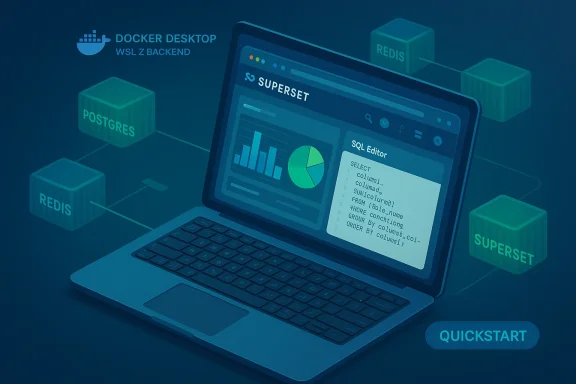
- Reproducibility: The official Docker Compose files orchestrate Superset with PostgreSQL, Redis, and Celery workers; you don’t have to wire services manually.
What you’ll get from the Docker Compose quickstart
When you run the recommended Docker Compose stack for Superset, you don’t just get the web UI. The typical compose stack includes:- Superset web app (Flask + Gunicorn): the main UI, SQL editor, and API.
- PostgreSQL: the metadata database (stores dashboards, charts, users, roles).
- Redis: caching and Celery broker.
- Celery workers + Celery beat: background task execution for scheduled reports, asynchronous queries, and exports.
- Optional supporting services or volumes for persistence and local development.
Verified prerequisites (what to install first)
Before you begin, confirm the following on your Windows 11 machine:- Operating system: Windows 10 (2004+) or Windows 11 — WSL2 support is required. If you are on older Windows builds, WSL2 will not work properly.
- Hardware: minimum 8 GB RAM (16 GB recommended), 20 GB free disk space (SSD strongly preferred).
- WSL2: Install or enable WSL2 using PowerShell (Admin):
wsl --install
Reboot when prompted. This boots an Ubuntu distro by default — that is sufficient for Docker Desktop’s WSL2 integration. (This is the current Microsoft-provided flow, but check your OS build if you see errors.) - Docker Desktop: Install Docker Desktop and choose WSL2 as the backend. Resource allocation (memory / CPU) matters — see performance tips below. The Docker Hub apache/superset image page and Superset docs expect Docker to be present.
- Git: to clone the Superset repository.
- Optional (for native pip attempts only): Visual C++ Build Tools and a supported Python version. I do not recommend this path for most Windows users — expect to spend hours troubleshooting unless you are comfortable rebuilding native cryptographic and C extensions. Community reports confirm many Windows pip installs fail or require extensive work.
- docker --version
- wsl --status
- git --version
Step-by-step: a validated Windows 11 local Superset setup (Docker + WSL2)
Below is a condensed, verified workflow that aligns with Superset’s quickstart. All commands are safe for local testing and repeatable.1) Clone the Superset repo (or use a released image)
- Open Windows Terminal or PowerShell (non-elevated is fine for git). Choose a fast drive and a path inside your WSL2 filesystem if you intend to do active development (see performance tips below). Example for Windows path:
- mkdir C:\dev
- cd C:\dev
- git clone GitHub - apache/superset: Apache Superset is a Data Visualization and Data Exploration Platform
- cd superset
2) Pick a stable release or run latest
- For most testers, run a released tag rather than main. You can list releases on the repo and set the TAG environment variable when using the image-tag compose file. Example:
- git fetch --tags
- git checkout tags/6.0.0 (substitute the stable release you want)
3) Start the Docker stack
There are three common compose modes:- Development (mounts local code, hot reload):
docker compose up --build - Non‑dev (build local immutable images):
docker compose -f docker-compose-non-dev.yml up - Pull a released image tag from Docker Hub (fastest for testers):
export TAG=6.0.0
docker compose -f docker-compose-image-tag.yml up
4) Wait for initialization
The first startup will:- Pull images (hundreds of MB — 1–2 GB total depending on services and tags).
- Initialize PostgreSQL, run Alembic migrations, create an admin user, and load example datasets if enabled.
5) Access the UI and default login
Open your browser to:Default Docker Compose login (created by the contained init script) is:
- username: admin
- password: admin
Common Windows-specific problems — causes and fixes
TLS handshake timeout / Scarf Gateway pulls
Symptom: During docker compose up you see TLS handshake timeout errors pulling images from apachesuperset.docker.scarf.sh.Cause: Superset’s compose templates may reference a Scarf‑proxied image domain for telemetry/analytics. The Scarf Gateway is a redirect/proxy layer that some networks may struggle with.
Fixes:
- Edit the compose file and replace the Scarf proxied image reference with the direct Docker Hub image. For example, replace:
- apachesuperset.docker.scarf.sh/apache/superset:${TAG:-latest}
with: - apache/superset:${TAG:-latest}
- Alternatively, retry the pull later or ensure your network and corporate proxies allow access to scarf.sh endpoints. The Superset official docs explain both the Scarf behavior and how to bypass it.
Port 8088 already in use
Symptom: Docker fails to bind to 8088.Fix: Use netstat -ano | findstr :8088 to find the process ID; stop the service or change the compose ports mapping (e.g., 8089:8088) and reach Superset at http://localhost:8089.
Docker Desktop won’t start / WSL2 issues
Symptom: Docker Desktop refuses to start or containers exit immediately.Fix sequence:
- In PowerShell (Admin): wsl --shutdown
- Restart Docker Desktop.
- If still stuck, reboot Windows.
- Ensure WSL integration is enabled in Docker Desktop Settings → Resources → WSL Integration for your chosen distro and allocate adequate memory and CPUs. The Windows dev guidance recommends these steps for stubborn WSL/Docker issues.
Slow performance with mounted code
Cause: Mounting code from Windows (NTFS under /mnt/c/) into Linux containers can be slow.Workarounds:
- Move your working clone into the WSL2 filesystem (e.g., inside /home/ubuntu) and run docker compose from there.
- Avoid heavy synchronous file watchers across mount boundaries when developing the frontend.
Database connection timeouts during startup
Symptom: Superset starts but can’t connect to PostgreSQL during init.Fix: Stop compose (Ctrl+C), then docker compose up again; on subsequent starts PostgreSQL is usually ready earlier because volumes persist DB state. If problems persist, check the superset_init logs, confirm the DB container’s health, and inspect the docker/.env file for correct DB host settings.
Can you install Superset on Windows without Docker?
Short answer: Yes — but not recommended.Why it’s hard:
- Superset’s Python dependencies include packages that expect Unix-like build environments or specific C libraries. Windows users often run into cryptography, database connector, or native extension compile failures.
- The Superset team and contributor tests assume Linux; many community bug reports document broken pip installs on Windows. If you insist on a non-container path, run Superset inside a WSL2 distro — it’s the best “native” compromise on Windows.
Performance tuning & practical tips for comfortable local testing
- Allocate more resources to Docker Desktop:
- Memory: 8 GB minimum; 16 GB preferred on machines with 16+ GB system RAM.
- CPUs: half your cores is a good start.
- Swap: 2 GB minimum.
Changes require a Docker restart to take effect. - For development work: clone the repo inside WSL2 (ext4) instead of on the Windows filesystem to avoid I/O issues.
- If you don’t need scheduled reports or Celery, comment out celery worker and celery-beat services in the compose file to save memory.
- Close heavy apps (browsers with many tabs, Slack, IDEs) when running Superset on machines with limited RAM.
Security and production warnings — why this is for testing only
This Windows Docker setup is for local testing, prototyping, and learning — not production. Important limitations:- Performance: Docker on Windows adds translation layers (WSL2, Docker networking), and filesystem semantics differ from native Linux. This negatively affects throughput and latency for large-scale analytics.
- Supportability: The Superset community, docs, and common operational recipes assume Linux. When you hit a problem in production, most operational guidance and troubleshooting assume Linux servers.
- Operational controls: A local Docker setup on a laptop lacks HA, backups, monitoring, and security hardening required for production. Use a dedicated Linux VM or managed Kubernetes with proper Helm charts for production-grade deployments.
Troubleshooting checklist — quick playbook
- If image pulls fail with TLS handshake/timeouts → replace Scarf image references in compose file with direct Docker Hub image names and retry.
- If default admin/admin doesn’t work → exec into the superset container and run superset fab create-admin (flask fab create-admin) to manually create credentials. Confirm the init logs for errors.
- If containers exit immediately → check Docker Desktop Resources / WSL integration and increase memory/CPUs.
- If frontend UI is missing elements → check the superset_node (frontend) container logs to ensure webpack built assets successfully; frontend build failures can hide menu entries.
Final verdict: who should follow this Windows setup (and who should not)
Good candidates:- Analysts and product folks who want to explore Superset dashboards locally before advocating it to IT.
- Students and BI learners wanting a reproducible demo environment on their Windows laptops.
- Developers who need a quick testbed to validate a feature or to prototype charts and dashboards.
- Anyone planning production deployment — use Linux servers, VMs, or managed Kubernetes (Helm charts).
- Teams needing high-performance, multi-user analytics at scale — native Linux infra is the correct choice.
- Long-term contributors who need to run many builds and tests locally — a Linux workstation or CI environment will be less frustrating.
Quick recap and next steps
- Use Docker Desktop with the WSL2 backend for the most reliable Windows Superset local testing experience; avoid pip native installs on Windows unless you’re prepared to spend hours troubleshooting native builds.
- If an image pull fails because of Scarf Gateway timeouts, edit the compose file to pull from Docker Hub directly (replace apachesuperset.docker.scarf.sh/apache/superset with apache/superset).
- Default compose login for testing is admin / admin; if missing, create the admin user manually inside the container.
- Keep expectations realistic: this is a local test environment. For production, invest in Linux-based infrastructure or managed offerings.
Note on verification and risk: The instructions and file names in Superset's repo have changed incrementally (compose file names have been renamed in recent commits), so check the repo you clone to confirm the exact compose filenames (docker-compose-image-tag.yml vs compose-image-tag.yml). If an exact filename mismatch appears, adapt the commands shown above to the filenames in your local clone. This is a small but important caveat when following a Git-tracked project that evolves.
(End of article)
Source: H2S Media How to Install Apache Superset Locally on Windows 11 for Testing
